
Reactions
Feature Overview
TUIKit supports emoji reactions, allowing users to respond to messages with emojis. This feature is built on top of the message editing capability.
Note:
Emoji reactions are available only in the Pro edition plus and Enterprise edition packages. To use this feature, purchase the Pro-plus edition or Enterprise edition.
Feature Demo
Send Emoji Reactions
Long-press a message to open the message menu, where you can select an emoji to react. Tap the button on the right to expand and view more emoji options. To add a reaction, click an emoji. If you have already reacted with that emoji, clicking it again will remove your reaction.
Long-press message menu | More emojis |
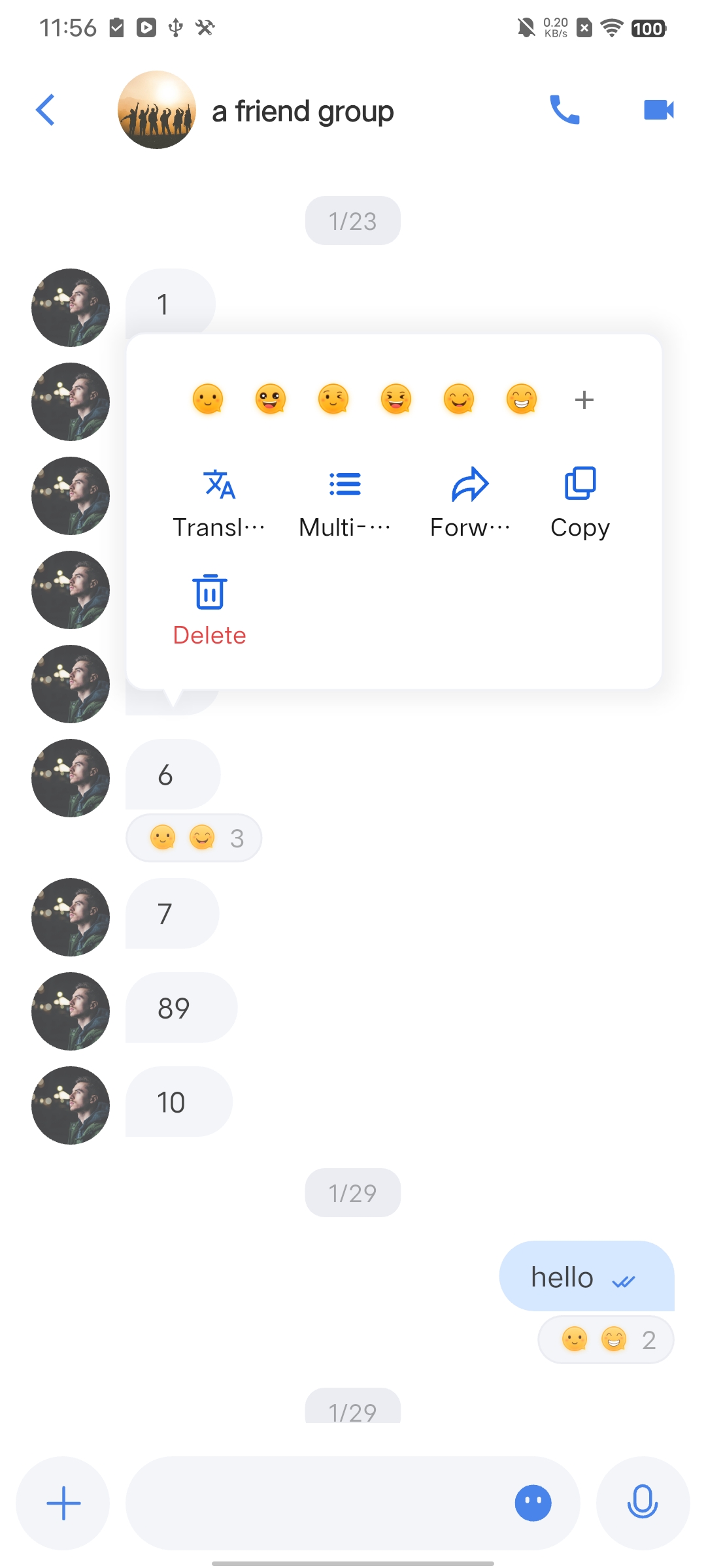 | 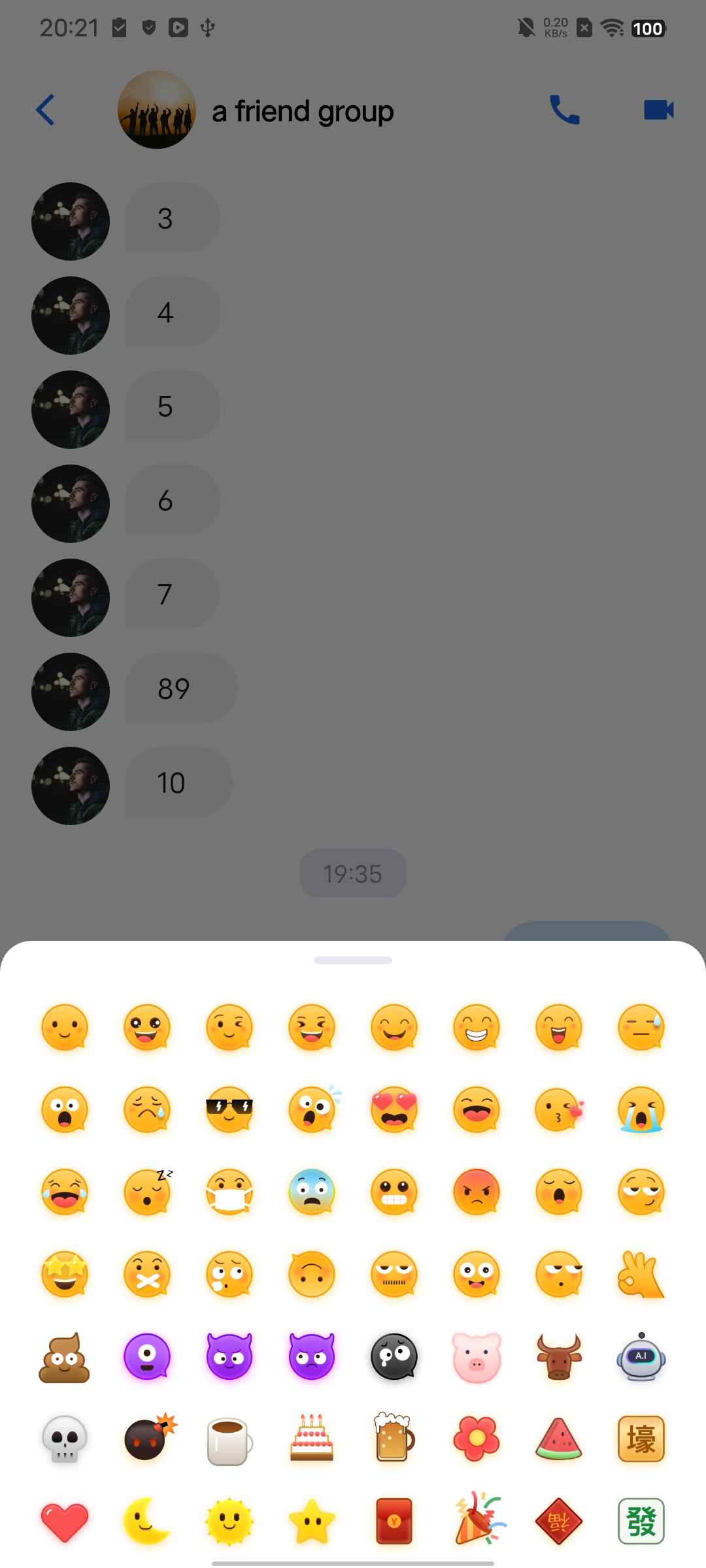 |
Displaying Emoji Reactions
All emoji reactions for a message are shown below that message, and everyone in the conversation can see them.
The number next to each emoji indicates how many users have reacted with that emoji. Clicking an emoji opens a details dialog.
In the details dialog, you can view the list of users who reacted with each emoji. If you have reacted, you can click to remove your own reaction.
Emoji reaction display | Full list of users who reacted |
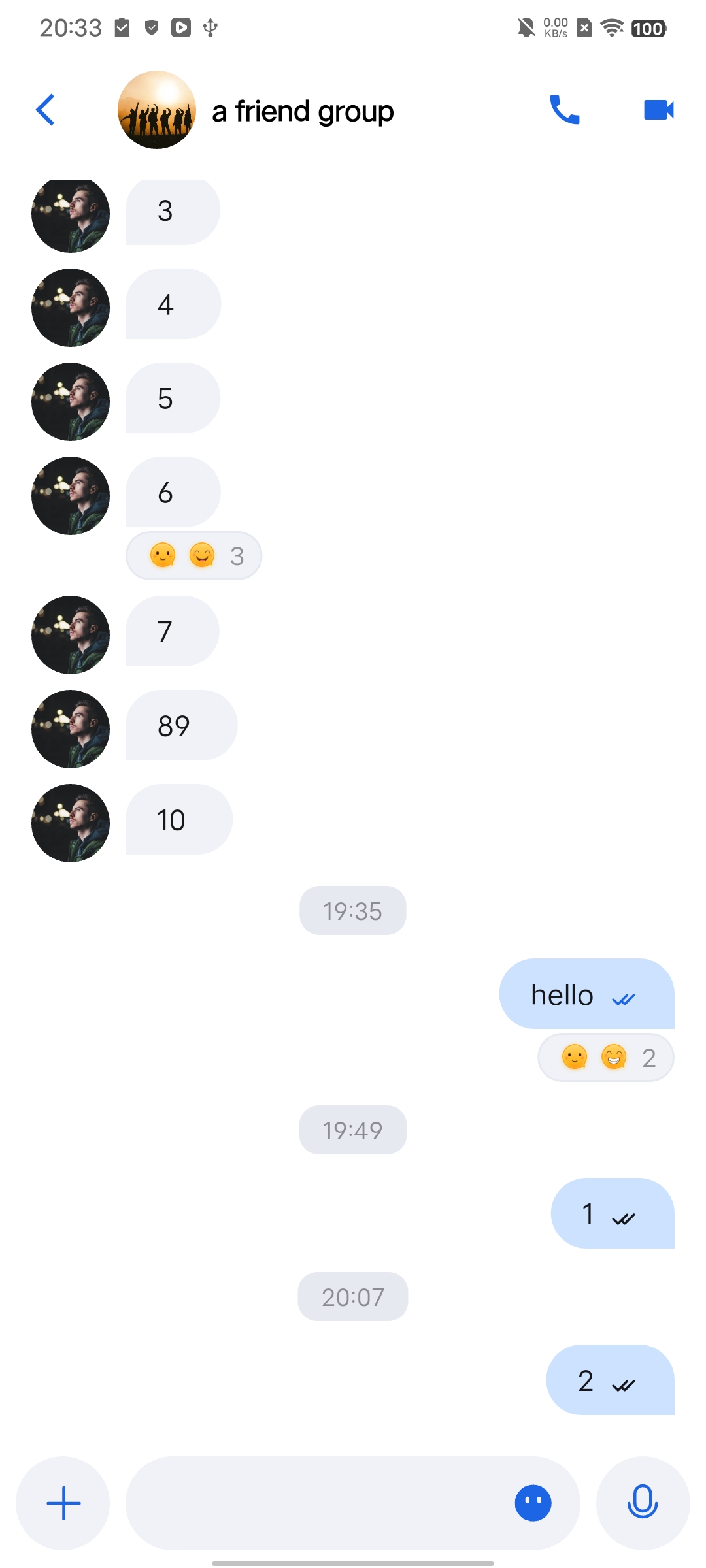 | 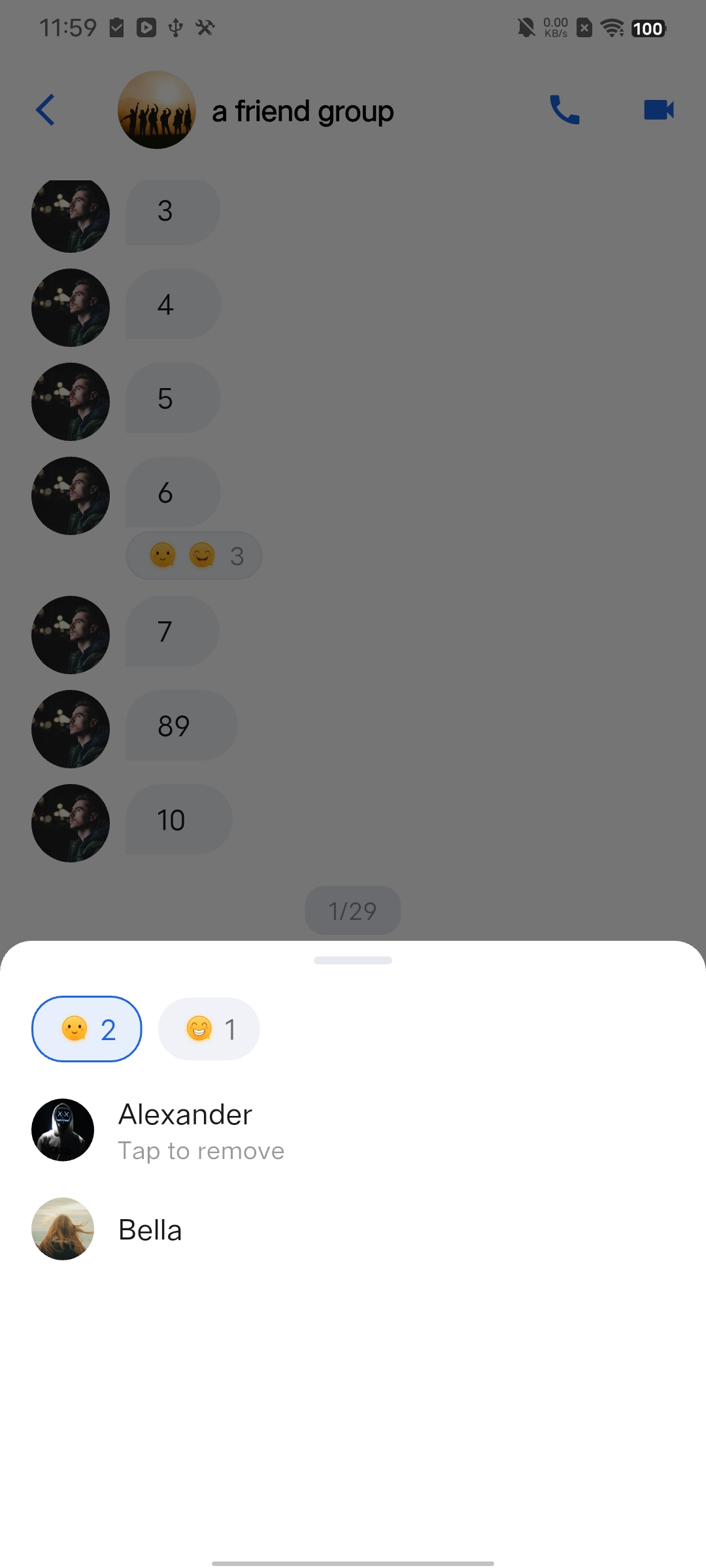 |
Enable or Disable Emoji Reactions
The
config parameter in MessageList lets you enable or disable emoji reactions for messages. By default, this feature is enabled (true). To turn it off, set the value to false. For details on using the MessageList component, see the demo.MessageList(config: ChatMessageListConfig(isSupportReaction: false),),

