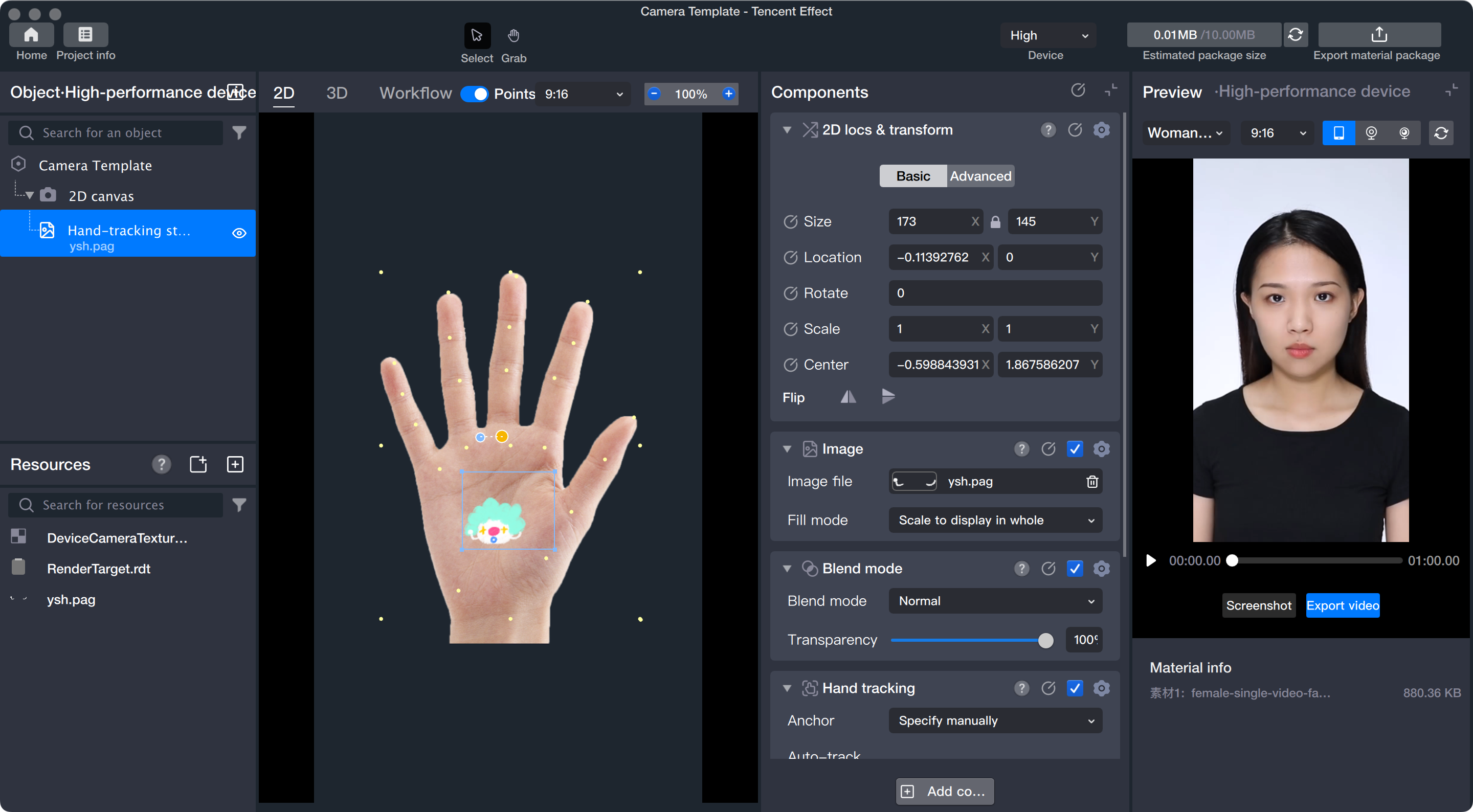
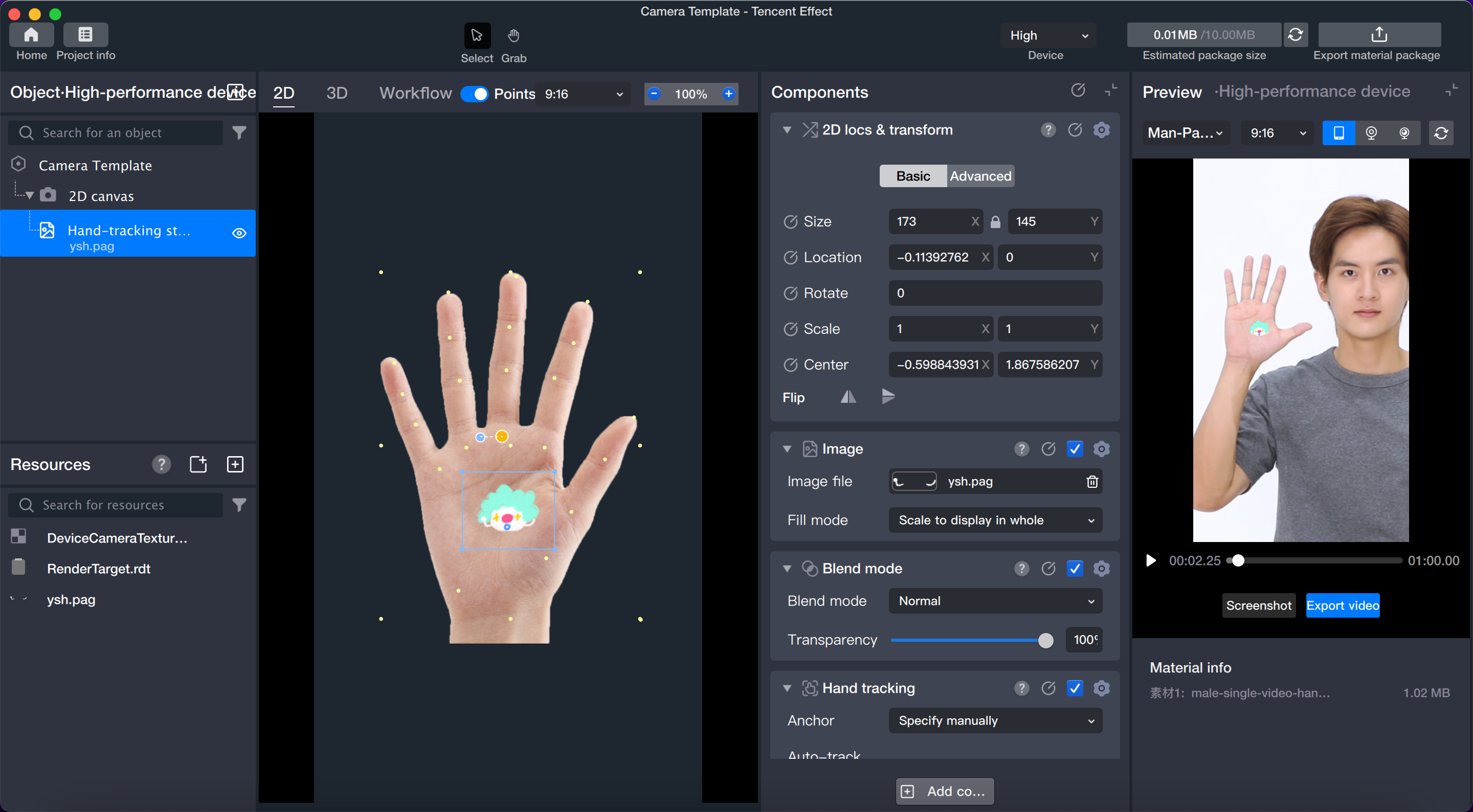
Gesture-following stickers are dynamic stickers that track the user's hand in real time during capture. Tencent Effect supports adding both 2D sticker files and PAG files to the hand.
Basic Usage
Step 1: Import Sticker Files
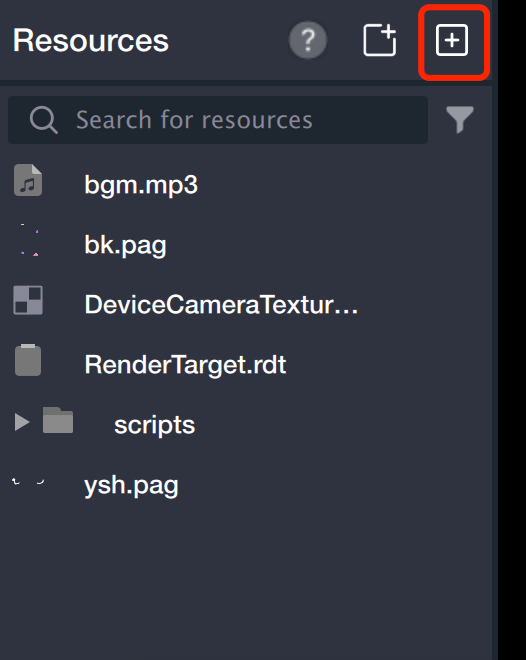
Drag sticker files directly into the asset panel, or click the + icon in the top right corner of the asset panel to open your local file browser. Select the files you want to import.
Step 2: Create Gesture-Following Sticker
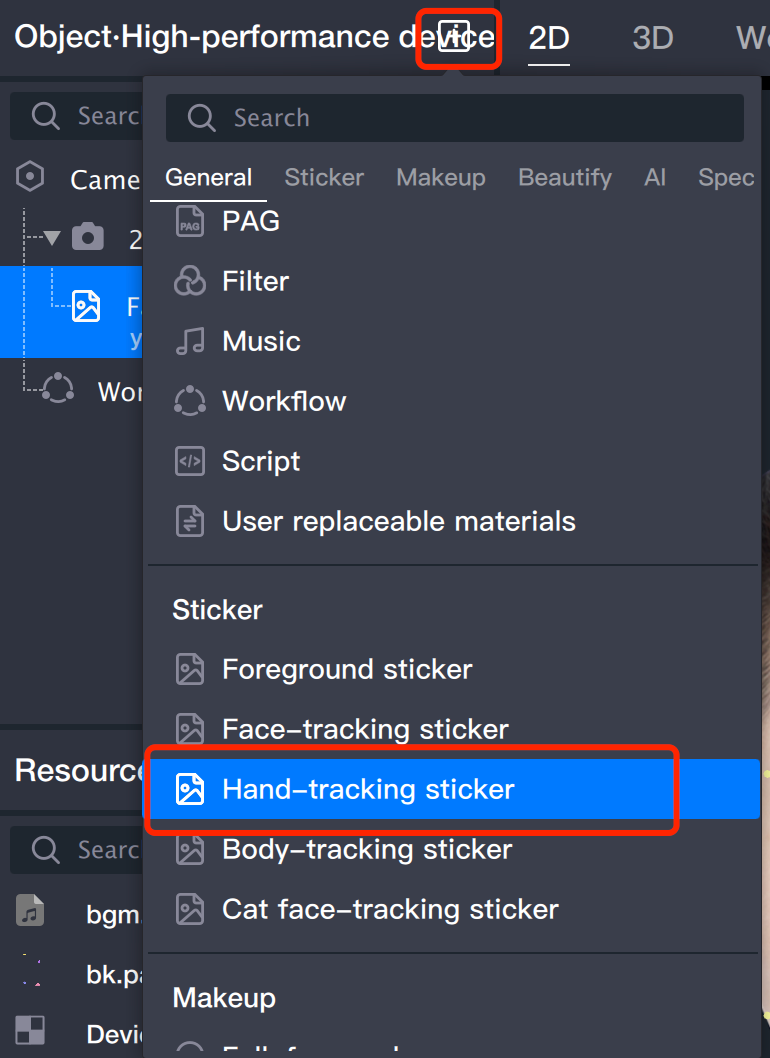
In the object panel, click + to add a gesture-following sticker.
Step 3: Assign Sticker File
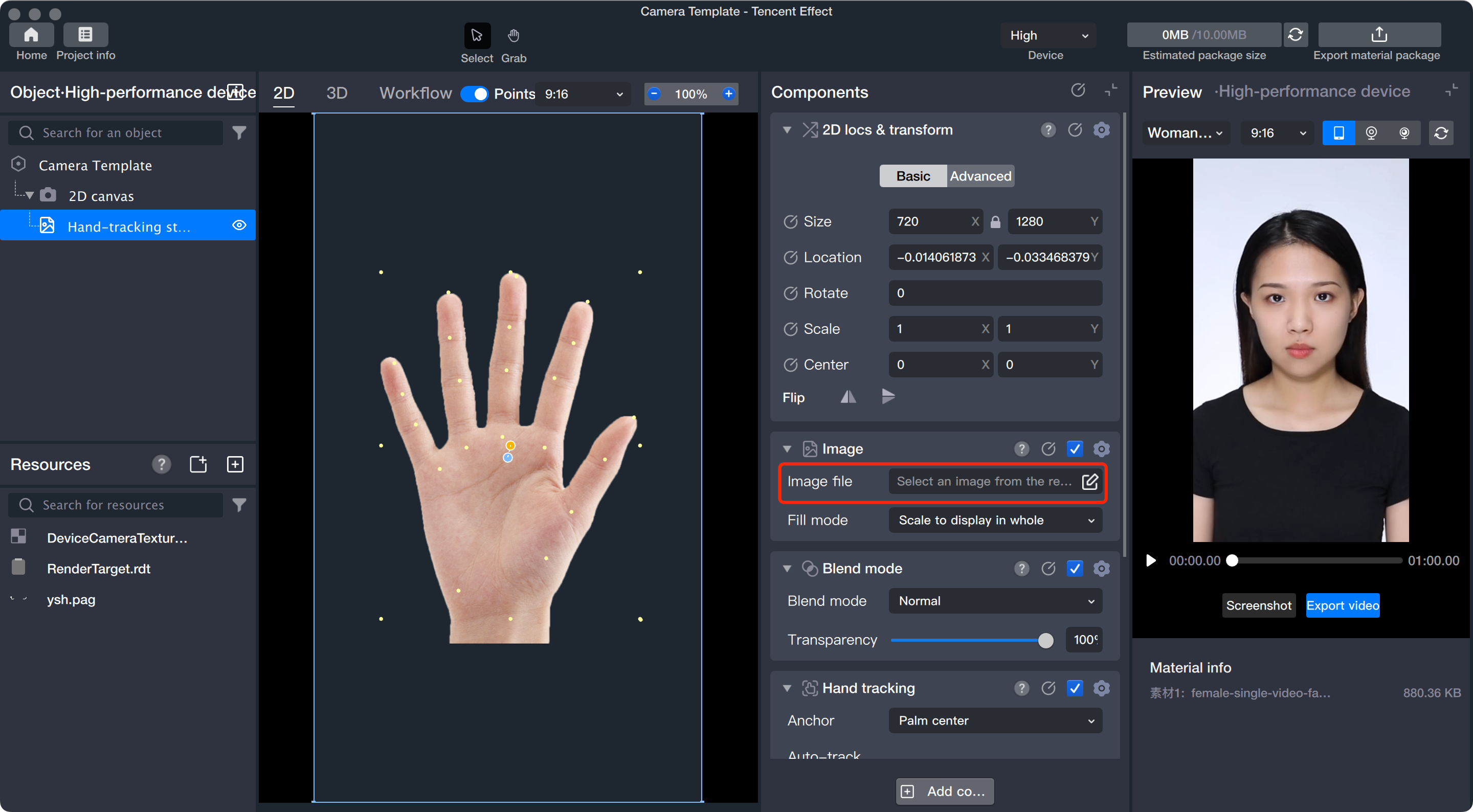
1. In the object panel, select the gesture-following sticker object. In the component panel, find Sticker File and click the file input box.
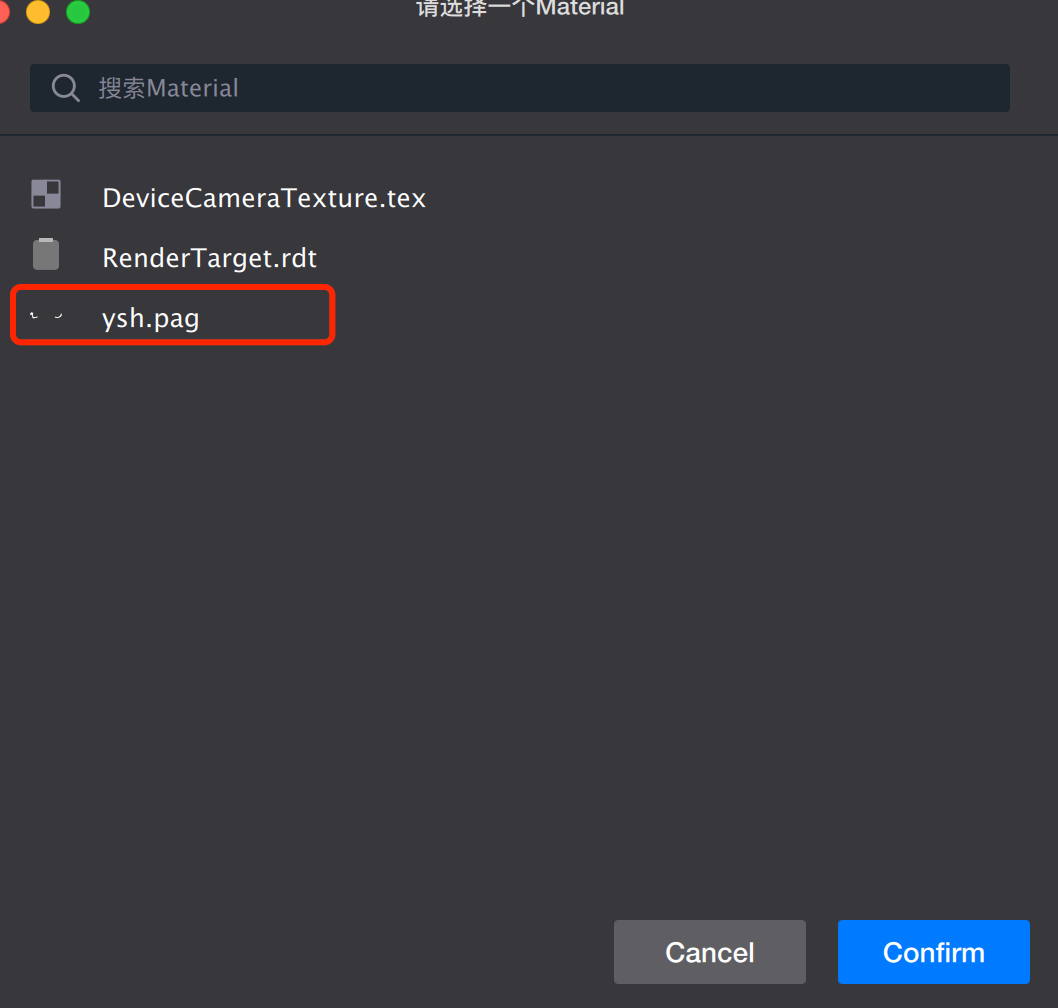
2. The asset panel will appear. Select your sticker file and confirm. The sticker will be applied to the hand.
Step 4: Adjust Binding Points
Gesture-following stickers support two binding points by default. You can merge them into one or split them into two by dragging the binding points. These points determine how the sticker tracks the hand as it moves.
Adjust the binding points by dragging the yellow highlighted points in the panel or by making changes in the component panel.
To reposition the sticker, use Position and Transform in the component panel, or drag the sticker directly in the scene panel to change its position, rotation, or size. Make sure to select the sticker object or its parent in the object panel before making adjustments.
Step 5: Preview
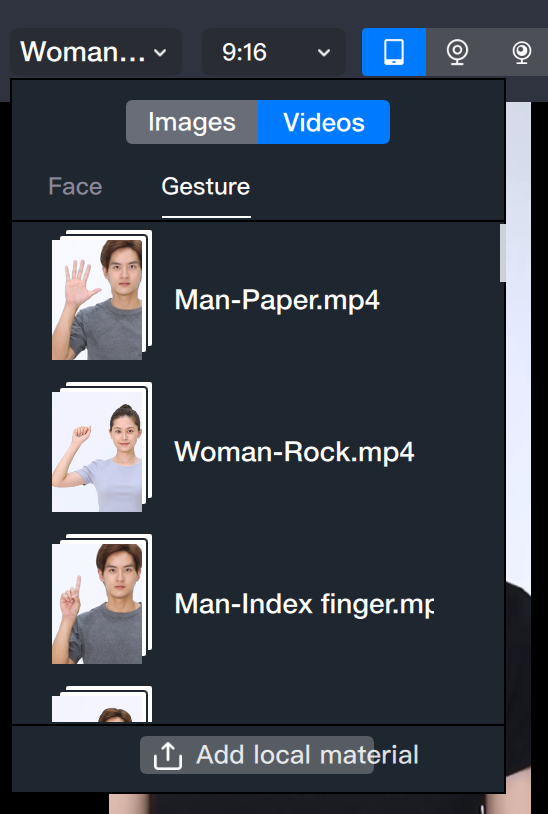
To preview the effect, replace the preview image with a model that shows hand gestures.
1. In the upper right of the preview panel, open the dropdown menu, select "Gesture," and choose a hand gesture model.
2. After setup, start the preview to see the gesture-following sticker in action.