
FAQ
Playback Failure with Error Code -10009
The error code -10009 indicates a license verification failure. The console will simultaneously display the error message: License checked failed! tceffect player license required!
You can generally troubleshoot and resolve this issue by following these steps:
If the issue is consistently reproducible:
1. Verify whether the TCMediaXBase#setLicense interface has been invoked in the project with the correct licenseUrl and licenseKey information, and ensure the current project's packageName/bundleId matches the configuration.
2. Check if the license has expired by reviewing the status in the Tencent Cloud console.
3. Confirm that the network connection is stable, as the initial license authentication requires an internet connection. Particularly for iOS, ensure the app has network access permissions before setting the license.
4. Monitor the ILicenseCallback#onResult callback of TCMediaXBase#setLicense to identify the specific error code and its underlying cause.
Android:
Error Code | Description |
0 | Success. |
-1 | The input parameter is invalid. For example, the URL or KEY is empty. |
-3 | The download process failed. Check the network settings. |
-4 | The TE authorization information read from local is empty, which might be caused by I/O failure. |
-5 | The file content of the VCUBE TEMP License is empty, which might be caused by an I/O failure. |
-6 | The JSON field of the v_cube.license file is incorrect. Contact the Tencent Cloud team to handle it. |
-7 | Signature verification failed. Contact the Tencent Cloud team to handle it. |
-8 | Decryption failed. Contact the Tencent Cloud team to handle it. |
-9 | The JSON field in the TELicense field is incorrect. Contact the Tencent Cloud team to handle it. |
-10 | The TE authorization information from network resolution is empty. Contact the Tencent Cloud team to handle it. |
-11 | Failed to write TE authorization information to a local file, which might be caused by an I/O failure. |
-12 | Download failed. Parsing the local asset also failed. |
-13 | Authentication failure. Please check if the so file is in the package, or if the so path has been correctly set. |
3004/3005 | Invalid authorization. Contact the Tencent Cloud team to handle it. |
3015 | The Bundle Id / Package Name does not match. Check whether the Bundle Id / Package Name used by your App is consistent with the applied one, and check whether the correct license file is used. |
3018 | The license file has expired. You need to apply for renewal from Tencent Cloud. |
Other | Contact the Tencent Cloud team to handle it. |
iOS:
Error Code | Description |
0 | Successful. |
-1 | The input parameter is invalid. For example, the URL or KEY is empty. |
-3 | The download process failed. Check the network settings. |
-4 | The TE authorization information read locally is empty, which might be caused by an I/O failure. |
-5 | The file content of the VCUBE TEMP License file is empty, which might be caused by an I/O failure. |
-6 | The JSON field of the v_cube.license file is incorrect. Contact the Tencent Cloud team to handle it. |
-7 | Signature verification failed. Contact the Tencent Cloud team to handle it. |
-8 | Decryption failed. Contact the Tencent Cloud team to handle it. |
-9 | The JSON field in the TELicense field is incorrect. Contact the Tencent Cloud team to handle it. |
-10 | The TE Authorization information from network resolution is empty. Contact the Tencent Cloud team to handle it. |
-11 | Failed to write the TE authorization information to the local file. It might be caused by an I/O failure. |
-12 | Download failed, and parsing the local asset also failed. |
-13 | Authentication Failure |
Other | Contact the Tencent Cloud team to handle it. |
For Intermittent Issues:
1. Summarize the regional distribution of affected users, error scenarios, and device types to identify potential patterns, such as concentration in specific regions or recurring among particular user groups.
If issues are region-specific, please report them to us for regional network diagnostics.
If problems consistently affect certain users, prioritize network troubleshooting to check for potential DNS hijacking.
2. If contact with affected users is possible, attempt to capture comprehensive console logs during issue reproduction using the command:
adb logcat -v time > log.txt.From a business perspective, consider increasing the invocation frequency of TCMediaXBase#setLicense when network connectivity is available. Avoid scenarios where the call is made only during app startup, as network unavailability at that moment may cause online authentication failures.
Handling Error Codes -10002/-10011 on Android Playback
Error codes -10002 and -10011 typically indicate playback failure due to unsupported hardware decoding capabilities for MP4 animations on the current device, commonly observed on low-end devices (where system players like MediaPlayer would also fail). Recommended solutions:
1. Control the output dimensions of MP4 animation files. Ensure the overall resolution does not exceed 1080p (1920px × 1080px) to maintain hardware decoding compatibility on low-end devices. For animations generated using our TEPTools conversion tool, the output dimensions are automatically optimized for compatibility. Refer to the Gift AR Conversion Tool documentation regarding the "Compatibility mode" switch.
2. Implement software decoding as a fallback. With this capability integrated, the effects player will automatically switch to software decoding upon hardware decoding failure, ensuring smooth animation playback. See the Integration Guide for software decoding implementation details.
How to Extract Runtime Logs?
By default, the Special Effects Player SDK preserves runtime logs. If issues arise during testing, you may extract these logs and provide them to Tencent Cloud support for analysis.
Android Platform
The logs for the special effects player are stored in the directory: /sdcard/Android/data/${your_packagename}/files/TCMediaLog. The log files are named by date. Simply export the TCMediaLog folder.

iOS Platform
The logs for the special effects player are stored in the sandbox directory: Documents/TCMediaLog.
1. To export the sandbox files, follow these steps: Open Xcode > Window > Devices and Simulators.
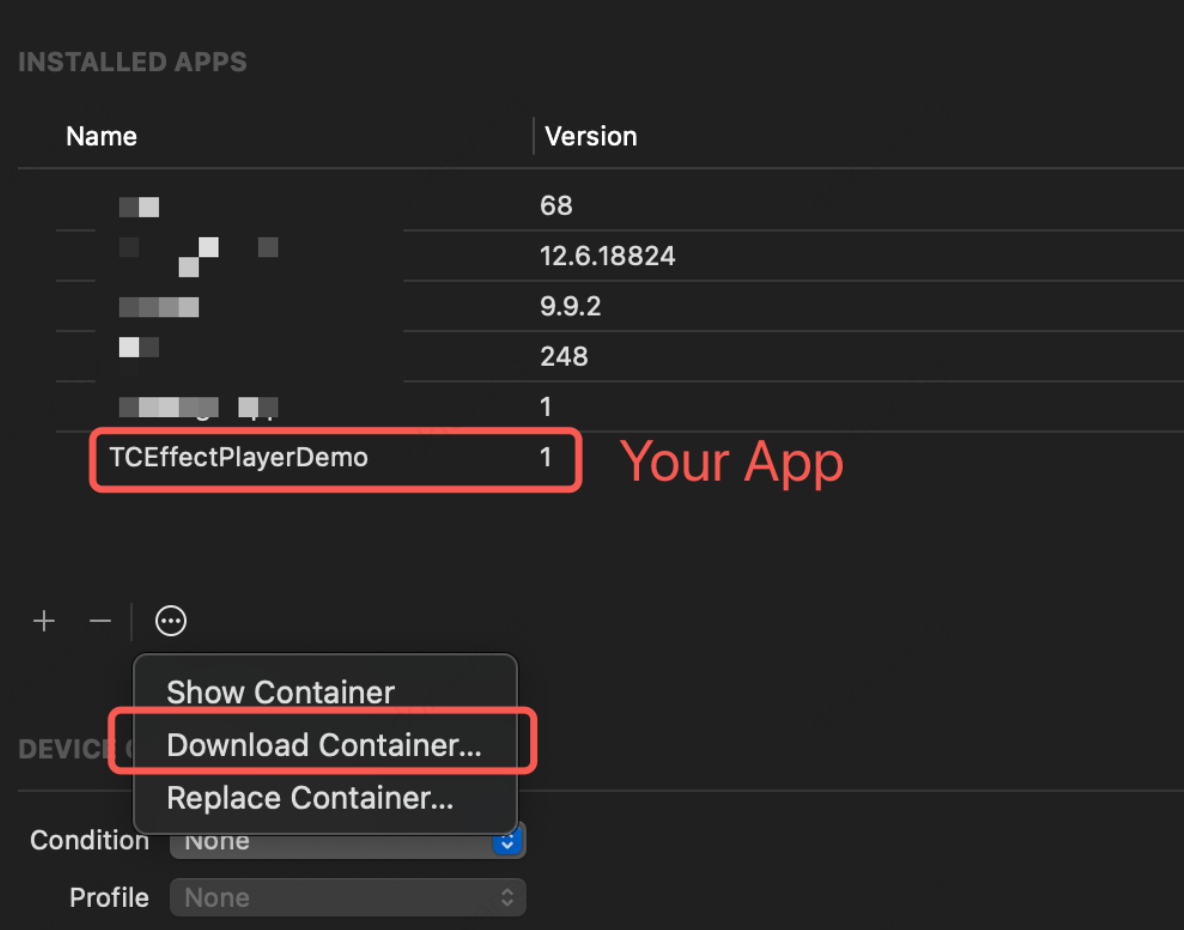
2. Extract the AppData/Documents/TCMediaLog folder.
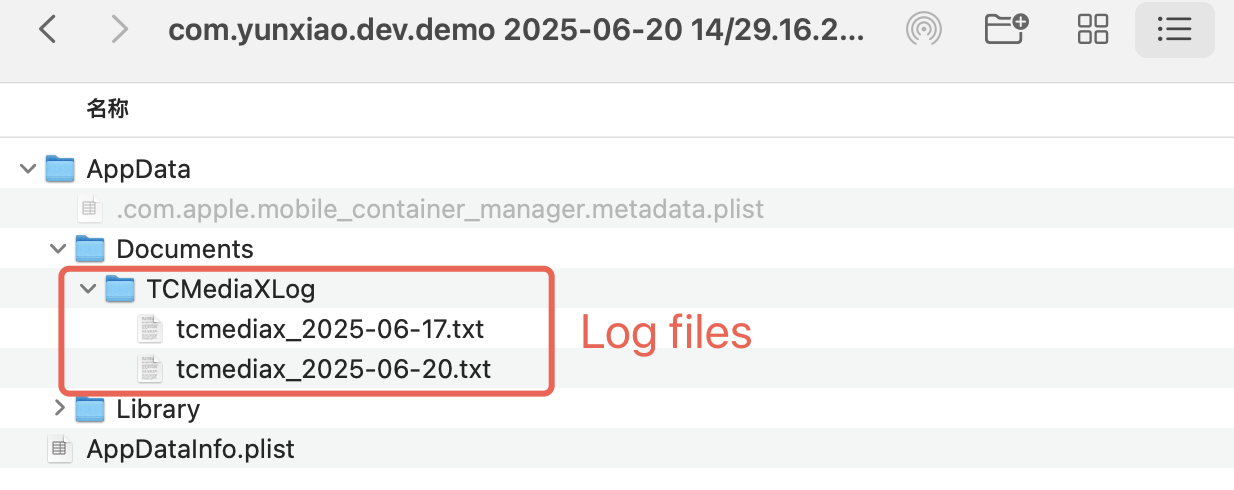
What to Do If No Log Files Are Found?
Please verify whether logging has been enabled by passing true to TCMediaXBase#setLogEnable. By default, log output and file saving are disabled.
Is Support Available for Legacy Transparent MP4 Files?
We maintain compatibility for playback of older transparent VAP videos. Additionally, we provide a Gift AR Conversion Tool that seamlessly converts various formats—including MP4, image frame sequences, VAP, SVGA, PAG, WebP, and Lottie/PNG—into formats supported by the special effects player, ensuring a smooth playback experience.
How Does the Special Effects Player Achieve Higher Compression Rates Compared to SVGA or Other Formats When Handling Gift Animations?
The TCMP4 format excels in reducing animation file size. Evaluations indicate that TCMP4 animations reduce file size by 81.5% compared to SVGA. This is achieved through pure binary data structures, highly efficient dynamic bit storage, and techniques like similar block compression.
What Is the Relationship with Tencent Cloud VOD, and Are There Plans to Integrate the Special Effects Player to Resolve Multiple Player Coexistence Issues?
For versions 2.0 and earlier, the special effects player core relies on Tencent Cloud VOD. Starting with version 3.0, all essential SDK functionalities are integrated into the special effects player. Purchasing the special effects player alone grants full service access without additional dependencies.
What Decoding Method Is Used?
The special effects player employs hardware decoding for two primary reasons:
1. Applications often need to process multiple video streams simultaneously and deliver them to audiences in real time. Hardware decoding efficiently handles high-resolution, high-bitrate streams.
2. It reduces CPU resource consumption, enhancing playback stability and efficiency.
What Is the Optimal Resolution Supported by the Player?
Currently, the player imposes no resolution limitations. However, balancing image clarity and device performance, we generally recommend MP4 animation resolutions not exceeding 1080p.
TCMP4 Animations Fail to Display on Android
If the following stack trace repeatedly appears in the console logs when the issue occurs:

Check whether hardware acceleration has been disabled (it is enabled by default) in the Activity or ViewGroup containing the TCEffectAnimView instance. Prioritize the following checks:
1. The AndroidManifest explicitly sets android:hardwareAccelerated="false" for the current Activity.
2. The view.setLayerType method has been called to disable hardware acceleration in the view tree where TCEffectAnimView resides.
For TCMP4 animations, hardware acceleration features are utilized internally. Ensure hardware acceleration remains enabled for optimal playback performance.
Does the Android SDK Support x86 Architecture?
Yes, support for the widely used x86 64-bit architecture has been available since version 3.3.0.251.
Optimal Use Cases for MP4 and TCMP4
MP4 format animations are ideal for large-scale scenarios, such as full-screen gifts in live streams. Typically, a single TCEffectAnimView instance is created per page, and a playback queue reuses this instance for sequential playback. Avoid simultaneously playing multiple MP4 animations, such as in list scenarios, as each MP4 animation requires a dedicated decoder. Some low-end devices impose limits on the number of concurrent decoders, potentially causing system decoding failures.
TCMP4 format animations are better suited for smaller scenarios, such as profile frames or like animations. Multiple instances can be played simultaneously, such as displaying 64 profile frames on the same screen.

