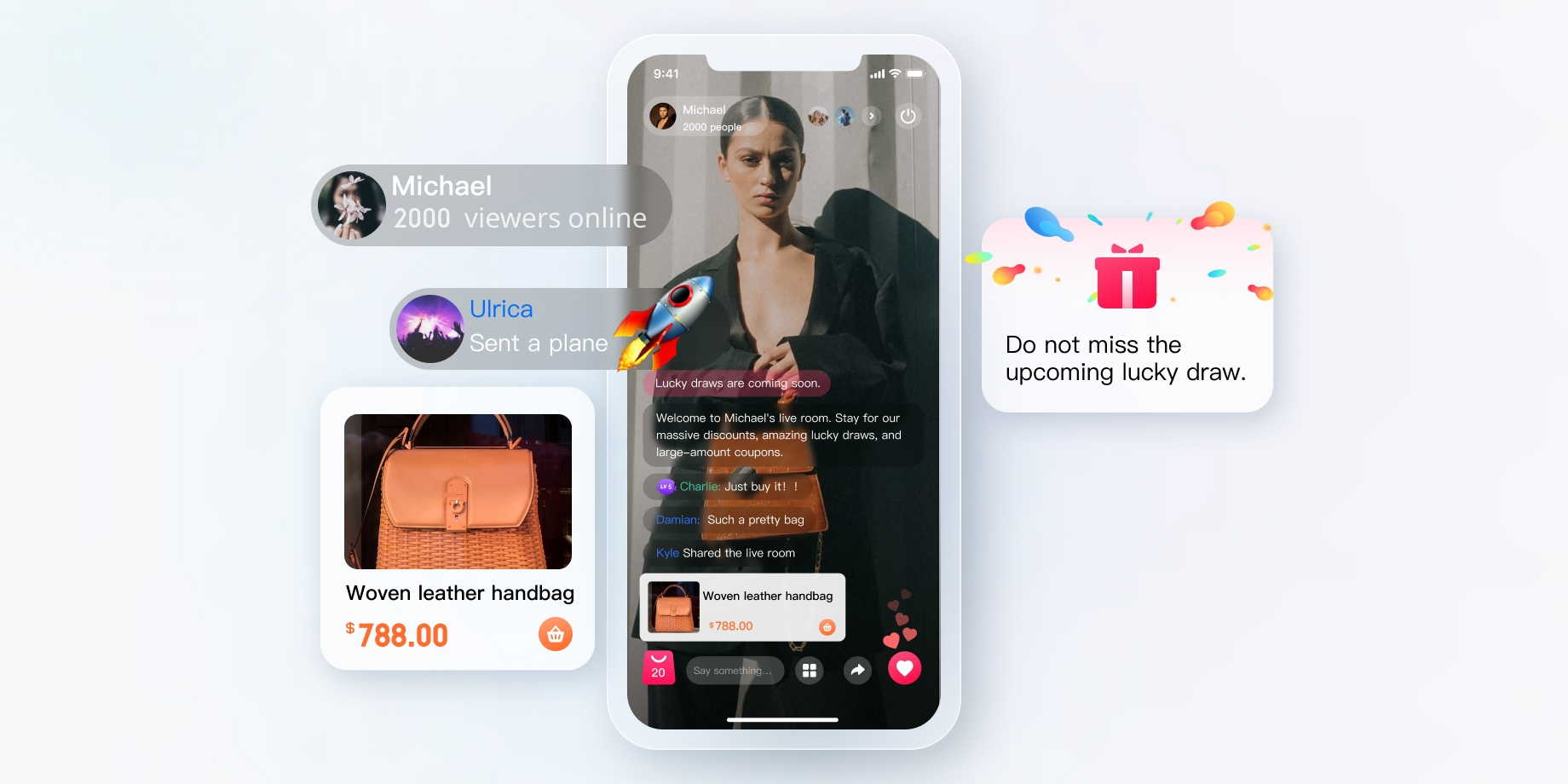
Live streaming merchandising is an emerging e-commerce model that allows anchors to interact in real time with the audiences via live streaming platforms, showcase and promote products, thereby achieving sales. In this case, anchors normally present various products in the live streaming rooms, including clothing, cosmetics, and household items, and explain product features, discount information, and how to use them to the audiences. Audiences can ask, comment, and purchase goods in the live streaming rooms, achieving instant communication and transactions. Using RTC Engine with Chat and other products, you can easily set up an e-commerce live streaming room.
Implementation Scheme
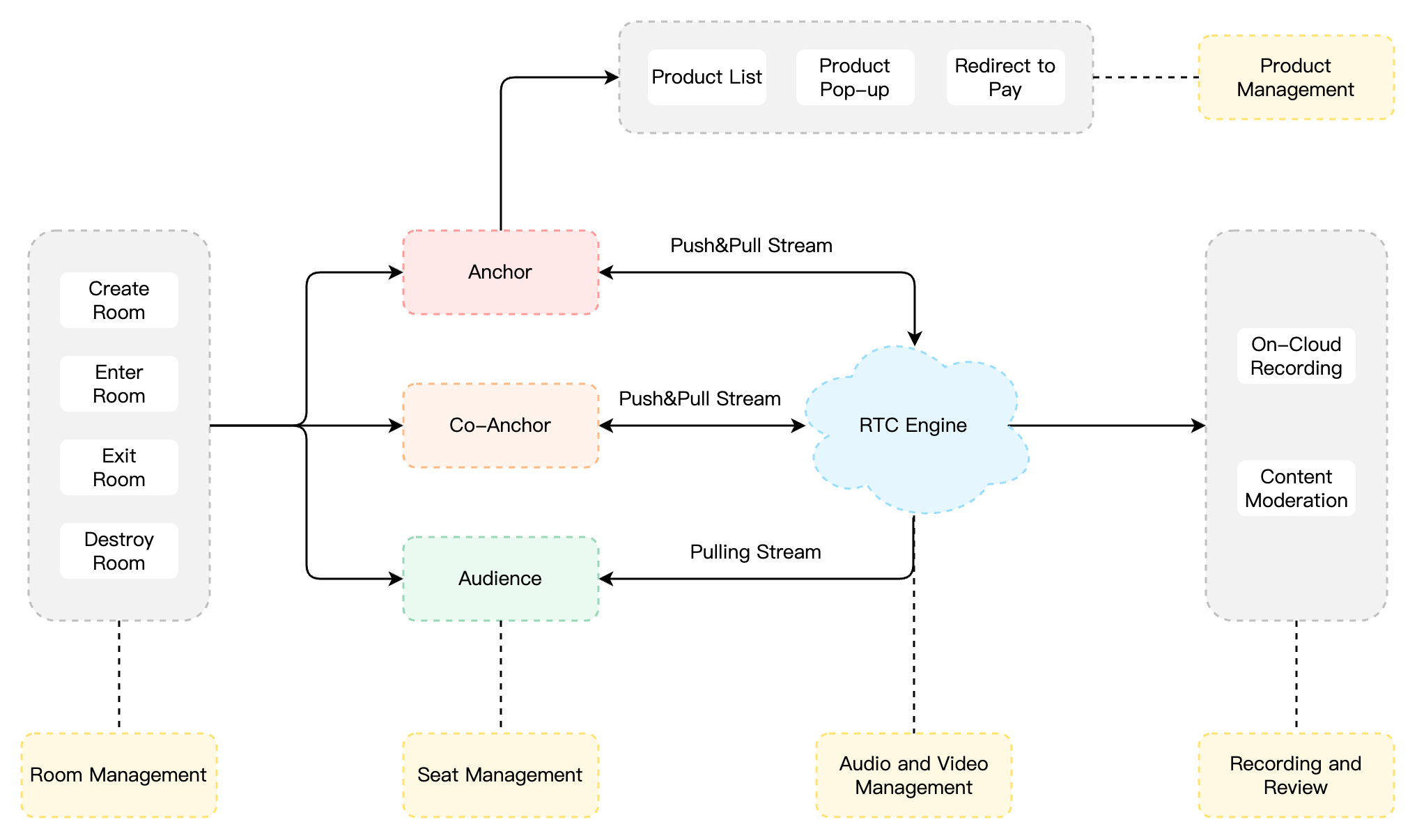
Typically, implementing a complete live streaming merchandising scenario involves several functional modules: Room Management, Seat Management, Product Management, Audio and Video Management, On-Cloud Recording, etc. The key actions and feature points under each functional module are shown in the table below. Each functional module will be introduced individually to provide a comprehensive understanding of the functionalities required for building a live shopping scenario.
Feature Module
Key Actions and Feature Points
Room management
Create a room, enter a room, exit a room, and destroy a room.
Seat Management
Request to speak, become a listener, invite a listener to speak, remove a speaker, and mute a speaker.
Product Management
Product list management, product pop-up management, and jump and payment.
Audio and Video Management
Local streaming, remote pull-streaming, and audience Mic connection.
On-cloud recording
RTC Engine On-Cloud Recording
The overall business architecture of the live streaming merchandising scenario is shown in the figure below. The anchor creates a room, and other users can join the rooms they are interested in. Upon entering the room, users off the microphone can join the microphone to interact with the speaker via audio and video. The speaker is also responsible for maintaining the product list, and explaining and publishing products. Typically, for compliance requirements, the audio and video content in the live streaming room needs to be recorded and reviewed.
Room Management
The Room Management Module is primarily responsible for maintaining the room list and includes the following features:
Create Room: After users log in to the business system, they can create a room. The room list needs to be updated after a room is created.
Enter a Room: Users can choose to enter an existing room. Upon entering, the current list of room members should be updated.
Exit a Room: Users can choose to exit the current room. Upon exiting, the current list of room members needs to be updated with a delete operation.
Destroy a Room: After all users exit the room, it needs to be destroyed. Upon destruction, the room list needs to be updated with a delete operation.
Note:
Room management is an essential module for implementing e-commerce livestreaming, but not the main feature module. It can be implemented in conjunction with business systems and the Chat & RTC Engine SDK. For details, see Chat Room - Room Management.
Seat Management
Seats in a live streaming room are generally ordered and limited. Seat Management is primarily responsible for defining the number of seats in a room based on the business scenarios, as well as managing the status of all seats in the current room. Seat Management mainly includes: request to speak, become a listener, invite a listener to speak, remove a speaker, and mute a speaker.
After users enter a room, only idle seats can be applied for.
After the anchor approves a user to become a speaker, the seat status needs to be changed to non-idle.
After becoming a listener, the co-anchoring user needs to stop local streaming and reset the seat status.
The anchor has the authority to lock the seat, invite a listener to speak, remove a speaker, mute a speaker, etc.
Note:
Seat Management is a necessary module for implementing e-commerce livestreaming, but not the main feature module. It can be implemented in conjunction with business systems and the Chat & RTC Engine SDK. For details, see Chat Room - Seat Management.
Product Management
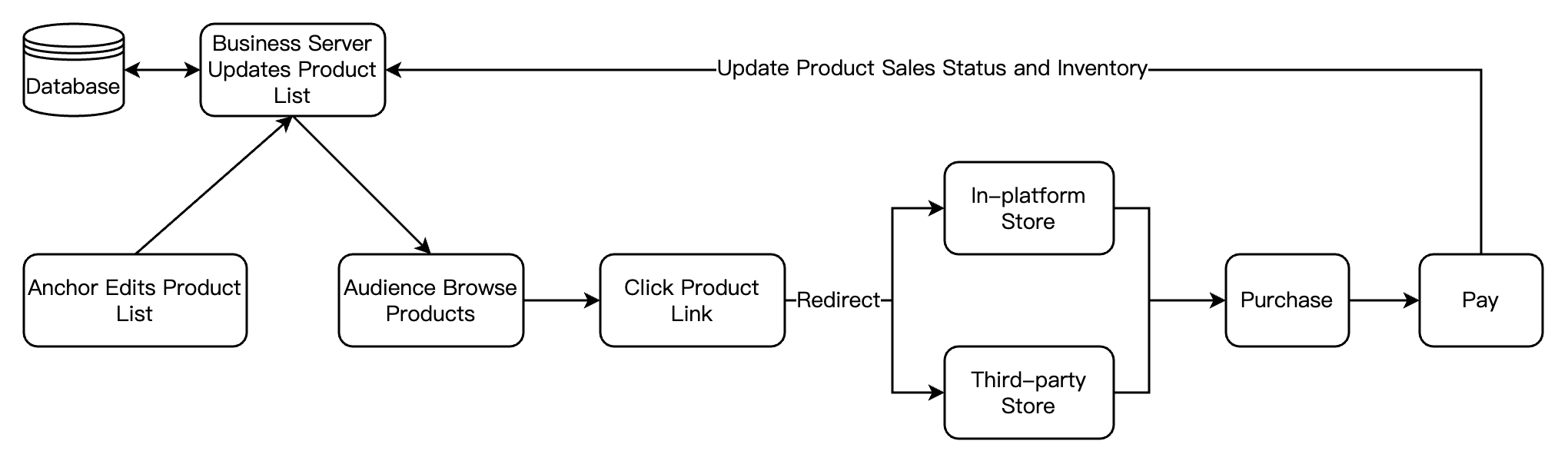
The Product Management Module is unique to live shopping scenarios and generally includes product list management, product pop-up management, product link jump, and payment. The following image displays the basic process of product management:
Product List Management
Product list management is the basic feature of product management, mainly including the addition, deletion, modification, and query of products. Usually, we store various information about products in the backend database, such as product name, description, price, inventory, and images. On the frontend, we can obtain this information through APIs and display it to users in the form of a list.
Product Pop-up Management
During the process of live streaming merchandising, as the anchor talks about and lists products, it's often necessary to pop up corresponding product information on the audience's end to prompt them to browse and purchase. The product information pop-up feature can be achieved in the following two ways. You can choose one based on your business needs:
Custom Message
Generally, the product information pop-up window can be realized by sending custom messages to the live streaming room. The custom messages are parsed and displayed after the audiences in the live streaming room receive them. The sending and receiving of custom messages can be implemented by the business side or alternatively through Chat Group Message. For specific implementation, see Product Information Pop-Up Window - Custom Message.
SEI Information
Supplemental Enhancement Information (SEI) provides a method to add additional information to a video stream. You can use RTC Engine Send SEI Information to insert specified product information into the anchor's video stream. The audience in the live streaming room watching the stream can receive SEI messages, then parse and display them. Based on the characteristics of SEI, this method enables precise synchronization between product information pop-up-windows and the anchor's live streaming screen. For specific implementation, see Product Information Pop-Up Window - SEI Information.
Product Link Jump and Payment
After selecting products in the live streaming room, the audience needs to click on the product link, and jump to the specific E-commerce shop for order confirmation and payment. The E-commerce shop here can be an in-platform store or an integrated third-party platform store. After the user completes the payment, we also need to obtain the payment result to update the sales status and inventory information of the product.
Note:
The above product management module is for reference only. In actual applications, you need to design and deploy according to your business needs.
Audio and Video Management
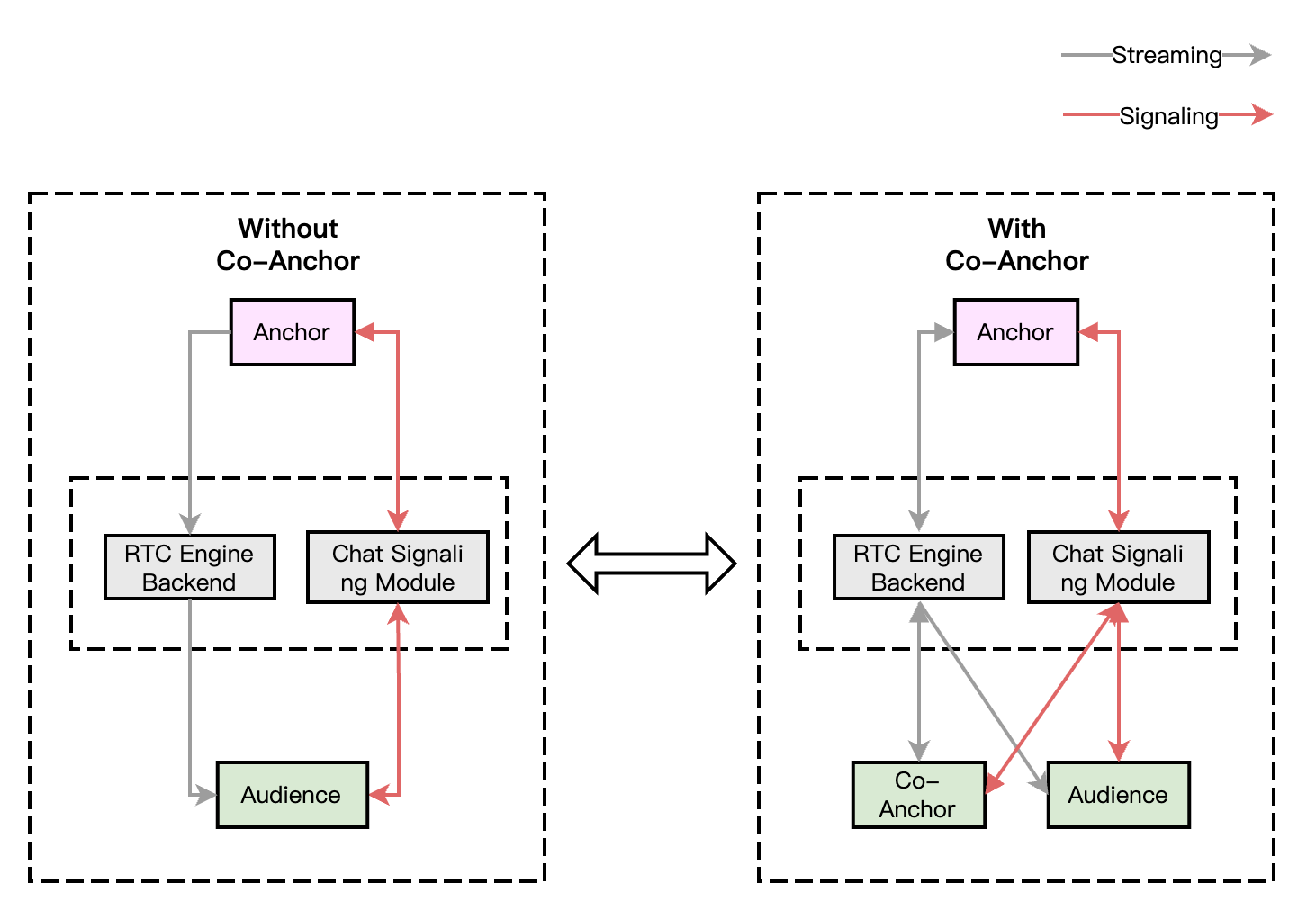
For standard live shopping scenarios (number of audience not exceeding 100,000), we recommend the RTC Real-time Interaction Solution: both the anchor and the audience use the RTC protocol for publishing/playback, minimizing end-to-end delay and ensuring a smoother experience for the audience when joining and leaving the mic, without abrupt changes such as image fast-forwarding or rewinding. Taking the example of multi-person co-anchoring interactive live streaming, the main architecture of pure RTC publishing/playback in a live shopping scenario is as shown in the figure below:
The overall process of this solution architecture is as follows:
1. Both the anchor and audience connect through the signaling module, which is mainly responsible for controlling the live streaming process and synchronizing the live streaming status.
2. Regardless of whether any audience joins a voice chat, anchors and audiences perform streaming/playback via the RTC Engine audio and video cloud service.
3. After the audience requests to mic connect with the anchor, the signaling module will notify the anchor and synchronize the personal information of the co-speakers.
4. Once the anchor accepts the mic connection request, the mic-connecting audience starts streaming, and all members in the room receive stream update notifications and pull the audio-video stream of the mic-connecting audience.
5. When a mic-connecting audience member requests to disconnect, they stop streaming. All members in the room will receive stream update notifications and stop pulling that audience's audio and video stream.
Note:
The signaling module can be a self-developed signaling channel. At the same time, Chat is recommended for signaling interaction.
On-Cloud Recording
RTC Engine's latest upgraded On-Cloud Recording uses RTC Engine's internal real-time recording cluster for audio and video recording, offering a more complete and unified recording experience.
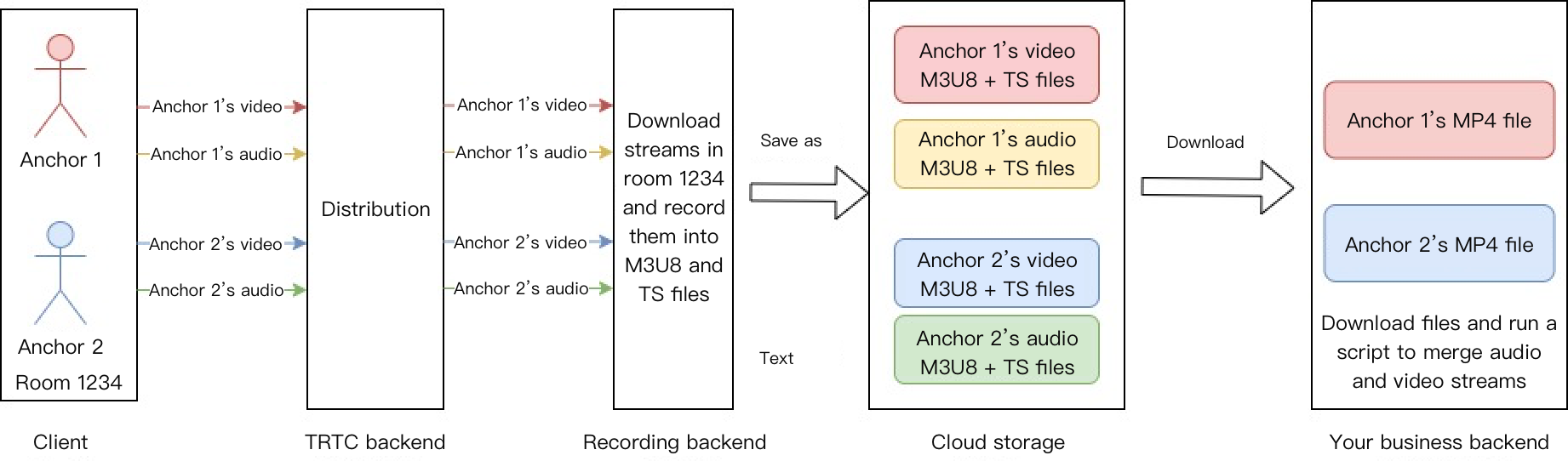
Single-stream recording: Via RTC Engine's on-cloud recording feature, you can record the audio and video stream of each user in the room into a separate file.
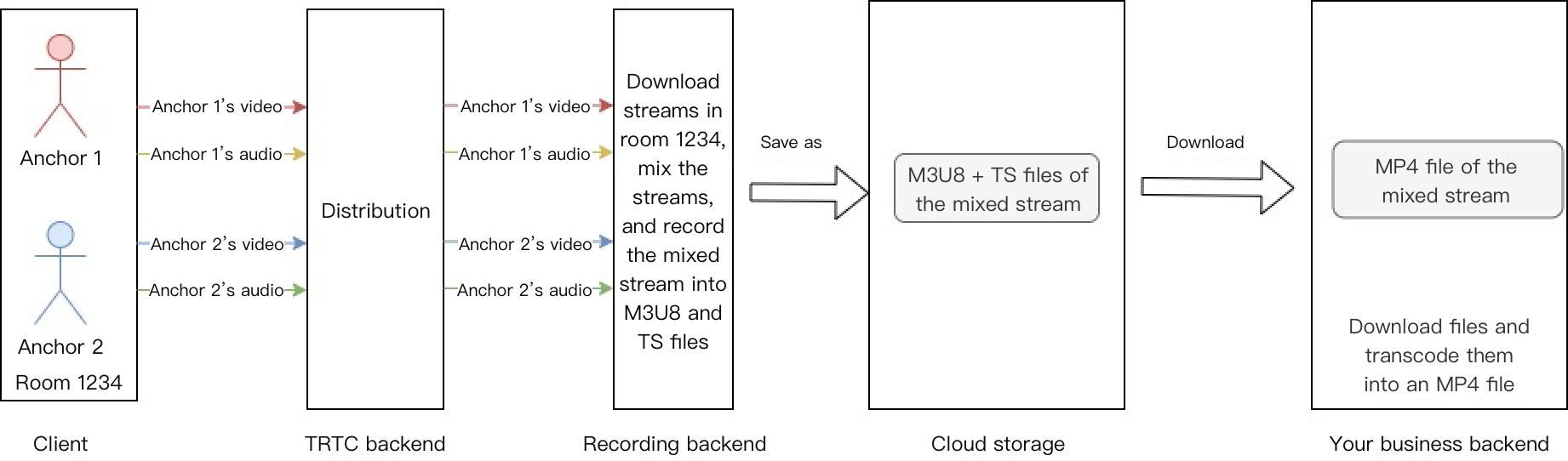
Mix Stream Recording: Record the audio-video media streams of the same room as a single file.
Product Explanation Replay is an essential feature for live shopping scenarios, which is generally divided into In-live Replay and Post-live Replay. Product Explanation Replay helps latecomers and users who missed the live streaming to independently review the product explanation given during the live streaming by the anchor, thus increasing sales volume and improving the conversion rate. The Product Explanation Replay feature can be implemented in the following two ways.
Recorded Replay
Recorded Replay is a common way to implement the Product Explanation Replay feature, which is simple to implement and does not limit the timing of the replay. Below is the basic process for implementing Product Explanation Replay using Recorded Replay.
Single Stream Recording: Record each anchor's audio and video stream in the room into separate audio and video files and upload them to the cloud storage platform.
Mixed Stream Recording: Mix all the audio and video streams of all anchors you subscribe to in the room into one audio and video file and upload it to the cloud storage platform.
Specify Storage Location and Recording Format (StorageParams)
Recording Format: When the file is stored in COS, the default recording format is HLS; you can modify the recorded file format through the OutputFormat parameter under RecordParams. When the file is stored in VOD, the default recording format is MP4; you can modify the recorded file format through the MediaType parameter under TencentVod.
To start on-cloud recording, call the REST API (CreateCloudRecording) through your backend service. Pay special attention to the parameter Task ID (TaskId); this parameter is the unique identifier for this recording task. You need to save this Task ID as it will be required for subsequent operations related to this recording task.
Note:
In the CreateCloudRecording API to initiate on-cloud recording tasks, you need to specify the parameters UserId and UserSig needed for assigning a recording Chatbot to enter the room (How to Obtain UserSig). Please ensure that the UserId is not duplicated with those of the regular anchors or audience in your room and does not match the UserId of a recording Chatbot already assigned to a room in the midst of recording; otherwise, it will lead to the failure of the recording task.
You can timely stop on-cloud recording tasks by calling the REST API (DeleteCloudRecording) through your backend service, requiring the Task ID (TaskId) parameter returned when starting the recording task.
2. Obtain Playback Address
Method 1: Manual Search
After the recording task ends, the files recorded by the RTC Engine recording system will be uploaded to your specified cloud storage platform (VOD, COS, or AWS storage). You can directly go to the VOD Console or COS Console to locate the target recorded media files and manually obtain the playback address.
Method 2: Callback Reception
You can also configure the recording callback address in the console, allowing Tencent Cloud to proactively push messages about new recording files to your server. After the recording file transfer is complete, RTC Engine will send a notification to your server through the callback address (HTTP/HTTPS) set in the Console. RTC Engine will push recording and related events to your server through the callback address you set. You can obtain the playback address VideoUrl of the recording files by receiving the upload success callback with an event type of 311. The callback example information is as follows:
{
"EventGroupId":3,
"EventType":311,
"CallbackTs":1622191965320,
"EventInfo":{
"RoomId":"20015",
"EventTs":1622191965,
"UserId":"xx",
"TaskId":"xx",
"Payload":{
"Status":0,
"TencentVod":{
"UserId":"xx",
"TrackType":"audio_video",
"MediaId":"main",
"FileId":"xxxx",
"VideoUrl":"http://xxxx",
"CacheFile":"xxxx.mp4",
"StartTimeStamp": xxxx,
"EndTimeStamp": xxxx
}
}
}
}
3. Play Recorded Video
After completing the preliminary preparations, you can call startVodPlay of TXVodPlayer to play the recorded product explanation video. TXVodPlayer will automatically recognize the playback protocol, and you only need to pass the playback URL to the startVodPlay function. For more code examples, please see Quick Integration Guide - Product Explanation Replay.
For on-demand playback, the Player SDK is needed, but there's no need for separate integration, and you just need to integrate the full feature version of LiteAVSDK, as detailed in Quick Integration Guide - Import SDK.
Integrating Beauty Effect
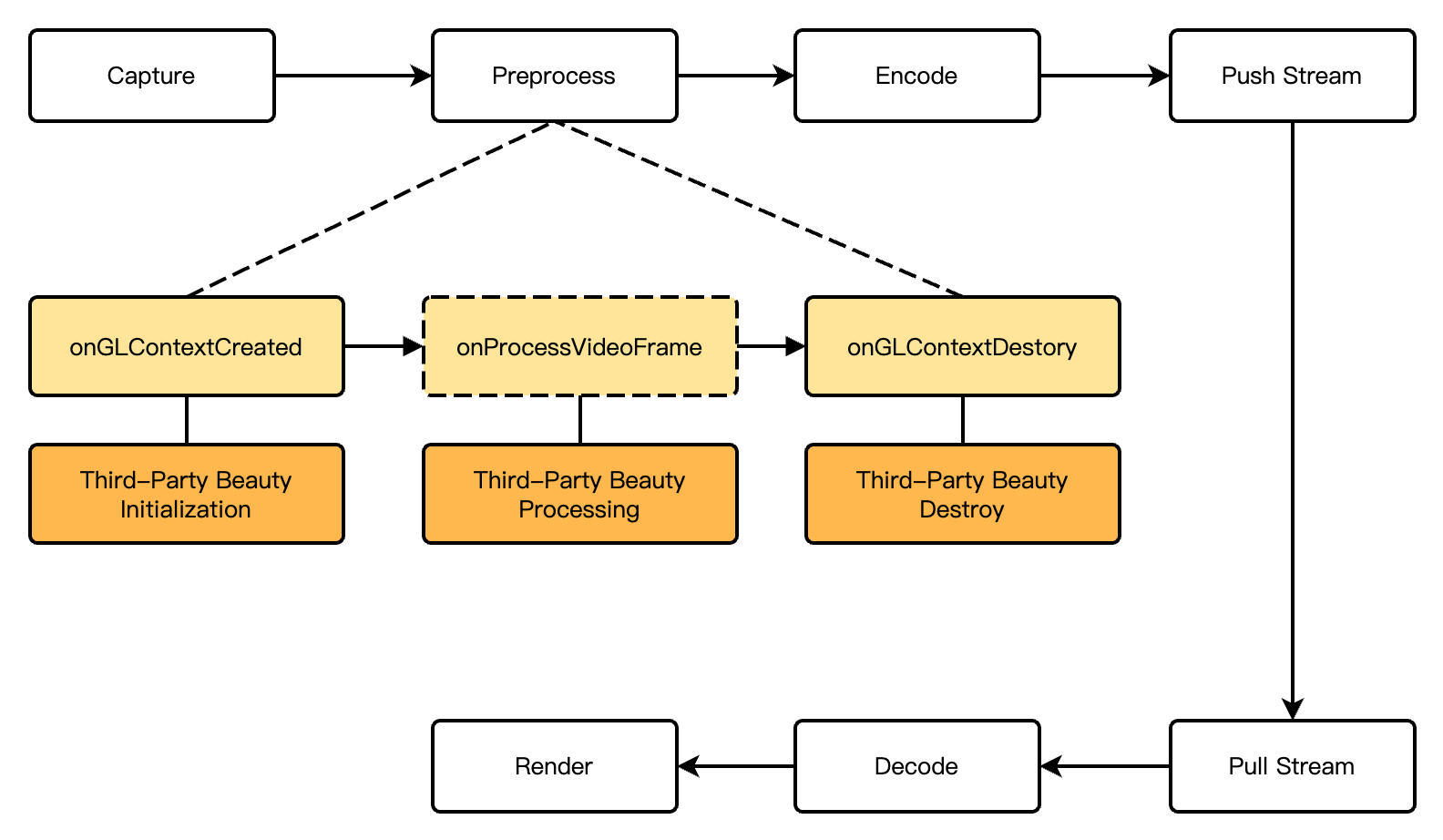
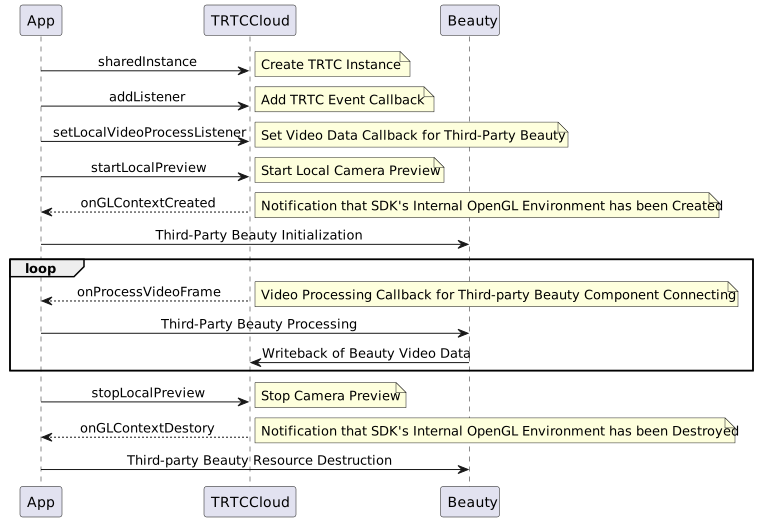
In the e-commerce live streaming scenario, the beauty effect is also a frequently used feature. It not only enhances the anchor's appearance but also adds fun to live interaction through sticker effects. RTC Engine supports the integration of the Beauty AR SDK as well as access to primary stream third-party beauty effect products on the market, such as Volcano Beauty and FaceUnity.
The basic effect is good, advanced effects like big eyes/slim faces are relatively good.
Moderately high
Relatively High
Supported
Android/iOS/PC/Linux
Cross-Room Mic-Connection PK
A cross-room mic-connection PK between anchors is a novel approach in the e-commerce livestreaming scenario. Interactive PK enhances entertainment value of livestreaming and stimulates the audience's desire to shop to a certain extent. RTC Engine supports cross-room cross-room mic-connection PK among anchors in multiple rooms. The following introduces specific implementation methods.
1. How It Works
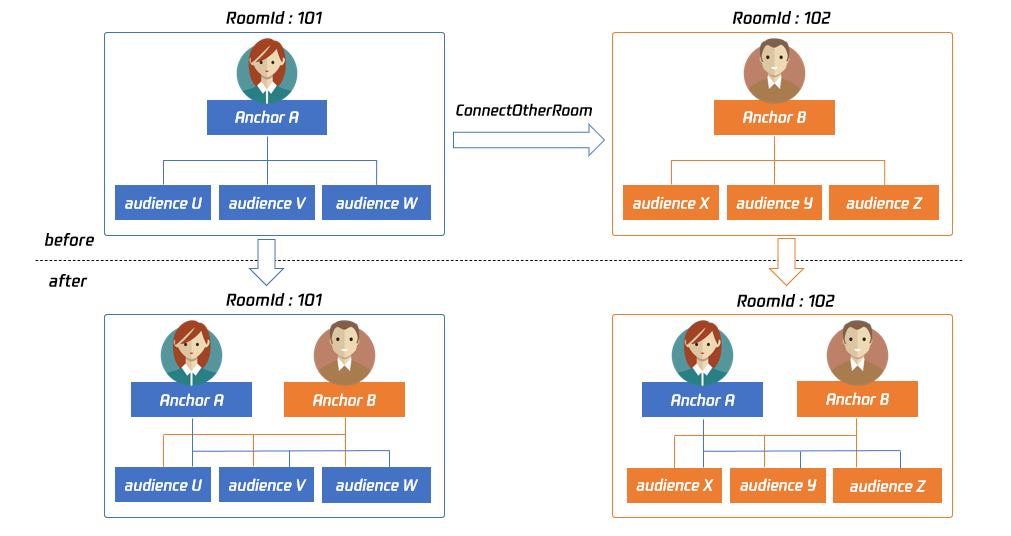
By default, only users in the same room can have audio and video calls, and the audio and video streams between different rooms are isolated. Through the cross-room mic-connection, the audio and video streams of an anchor in another room can be published in the current room, while the audio and video streams of the current anchor will also be published in the target anchor's room. This allows anchors in different rooms to share audio and video streams across rooms, enabling audiences in each room to watch the audio and video of both anchors.
The figure above shows the main process of cross-room mic-connection PK. For example: After anchor A in room 101 establishes a cross-room call with anchor B in room 102 using ConnectOtherRoom():
Users in room 101 will receive two event callbacks from anchor B: onRemoteUserEnterRoom(B) and onUserVideoAvailable(B,true). Therefore, users in room 101 can subscribe to the audio and video of anchor B.
Users in room 102 will receive two event callbacks from anchor A: onRemoteUserEnterRoom(A) and onUserVideoAvailable(A,true). Therefore, users in room 102 can subscribe to the audio and video of anchor A.
Note:
Both local and peer users participating in cross-room mic-connection PK must be in the anchor role and must have audio/video uplink capabilities.
Cross-room mic-connection PK with multiple room anchors can be achieved by calling ConnectOtherRoom() multiple times. Currently, a room can connect with up to three other room anchors at most, and up to 10 anchors in a room can conduct cross-room mic-connection PK with anchors in other rooms.
RTC Engine cross-room mic-connection PK can also be implemented via createSubCloud() to create sub-instance(s) and join streaming/playback in another room. Currently, the number of the sub-instance(s) is not limited, facilitating the future expansion of business scenarios involving PK between multiple rooms or hosts between multiple anchors.
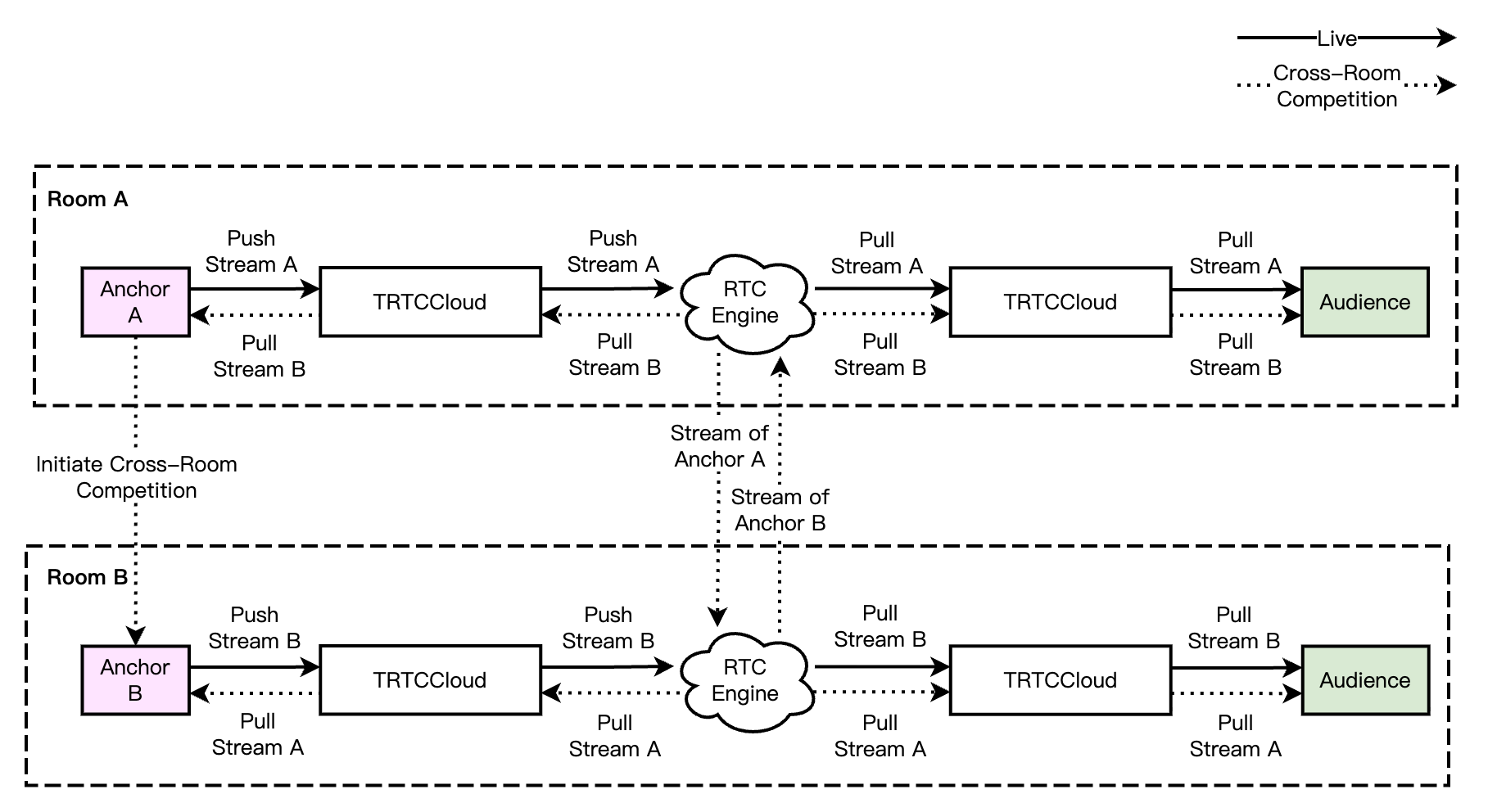
2. Real-Time Interactive Cross-Room Mic-Connection Process
RTC real-time interaction solution The cross-room mic-connection PK process is straightforward. Anchors and cross-room mic-connecting anchors mutually pull RTC single streams, and the audience simultaneously pulls the RTC single streams of both anchors and cross-room mic-connecting anchors. The audience can independently control the subscription logic of the media streams of anchors and cross-room connecting anchors. The RTC real-time interactive cross-room mic-connection process is shown in the figure below:
Single-anchor live streaming merchandising is the most common and basic approach in live shopping scenarios. In such a scenario, there is only one anchor in the live streaming room, and roles such as co-anchor do not exist. Audiences can enter the live streaming room to watch the live streaming, interact, and shop.
Multi-Person Co-Anchoring Interactive Live Streaming Merchandising
Multi-anchor interactive live streaming merchandising builds on the single-anchor live streaming merchandising scenario by adding features like audience participation and interaction with the anchor. The anchor can invite audience members to join the stream and manage speaker slots, while viewers can also request to speak and interact with the anchor. This format enhances audience engagement and boosts participation.
Cross-Room Mic-Connection PK and Live Streaming Merchandising
Besides the traditional single-room anchor live streaming merchandising, anchors can also perform cross-room mic-connection PK and connect with anchors in another live room, showcase their products, ignite the audience's purchasing enthusiasm, and add fun to the live streaming.
Provides a low-delay, high-quality multi-person audio and video real-time interaction live streaming solution, which is a foundational capability for live shopping scenarios.
Provides room management and seat management capabilities based on group features, enables the sending and receiving of rich media messages such as live streaming room-wide messaging, public screen messages, as well as custom signaling and other communication needs.
Catering to media such as audio, video, and images, it offers an integrated high-quality media service that includes creation, upload, storage, transcoding, media processing service, media AI, accelerated distribution and playback, and copyright protection.