The push service currently supports Vendor Channels such as Xiaomi, Huawei, Honor, OPPO, vivo, Meizu, OnePlus, realme, iQOO, FCM, and Apple.
iOS
Android
Before integrating the message push plug-in, you must apply for an APNs Push Certificate from Apple and upload the push certificate to the Chat console. Then follow the quick integration procedure to complete the setup.
Operation Steps
Step 1: Apply for an APNs Certificate
Enable Remote App Push
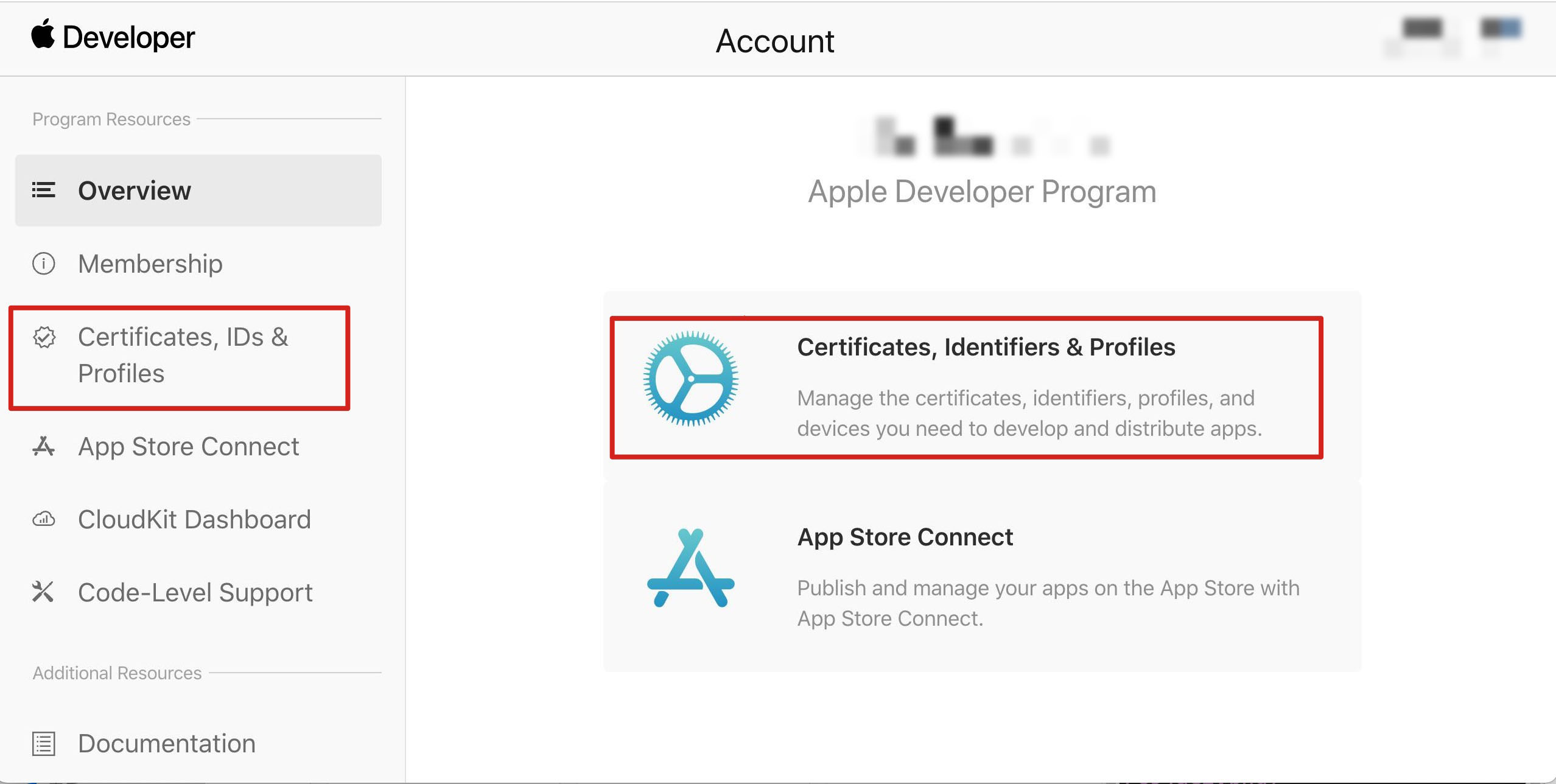
1. Log in to the Apple Developer Center website, click Certificates, Identifiers & Profiles or Certificates, IDs & Profiles in the sidebar, and enter the Certificates, IDs & Profiles page.
2. Click + on the right of Identifiers.
3. You can refer to the following steps to create a new AppID or add the Push NotificationService to your original AppID.
Note
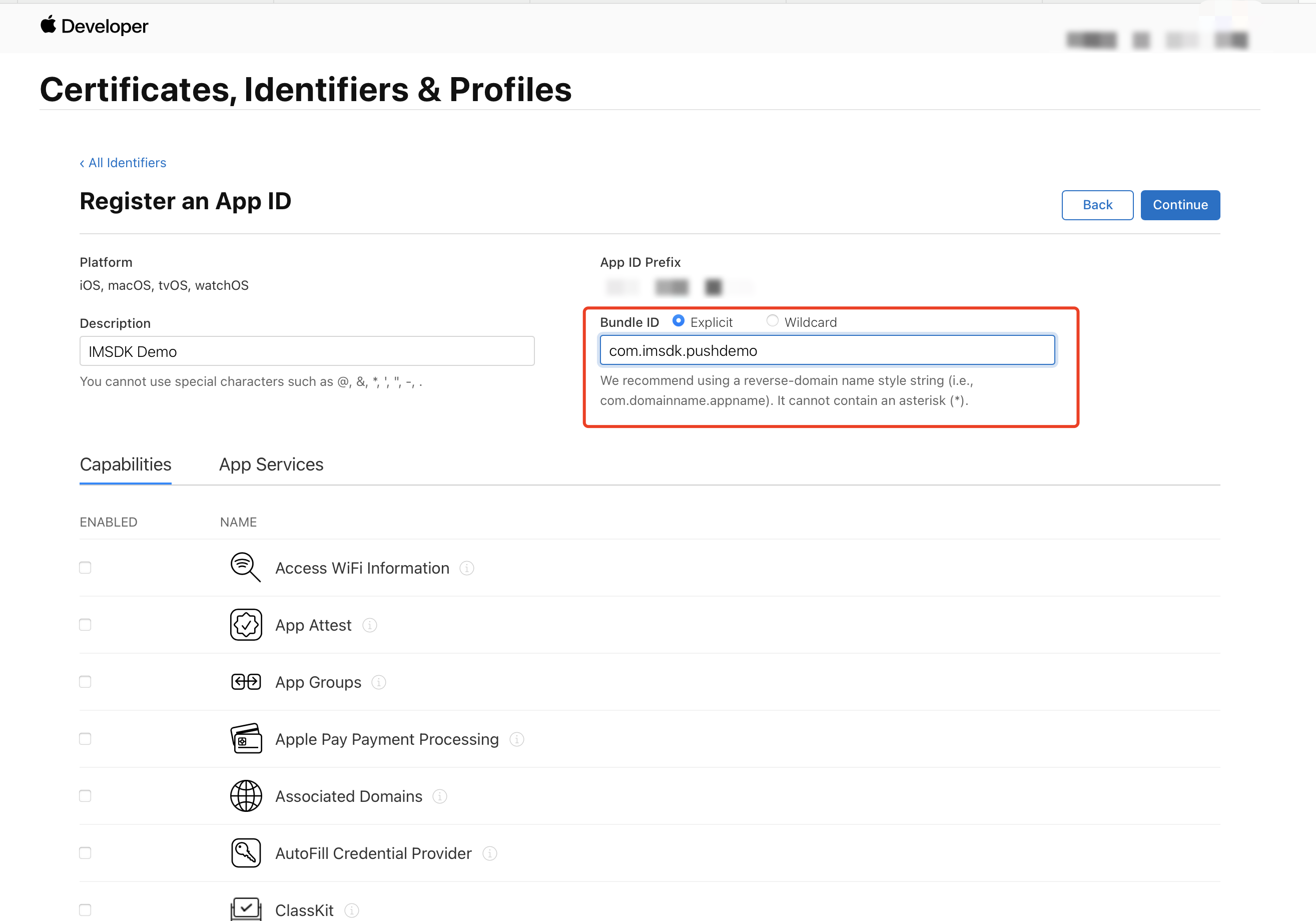
Note: Your App's Bundle ID cannot use wildcard *, otherwise Remote Push Service will be unavailable.
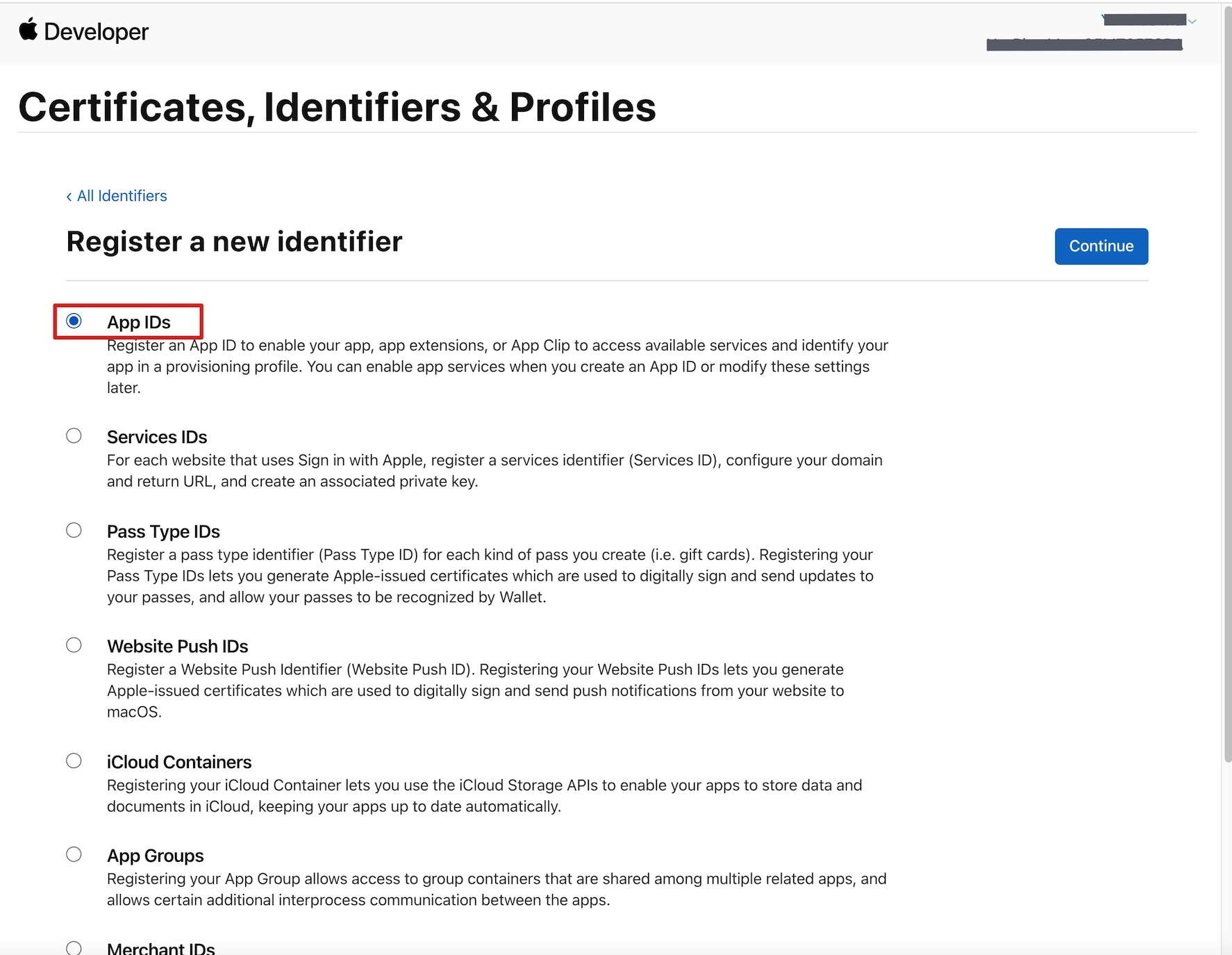
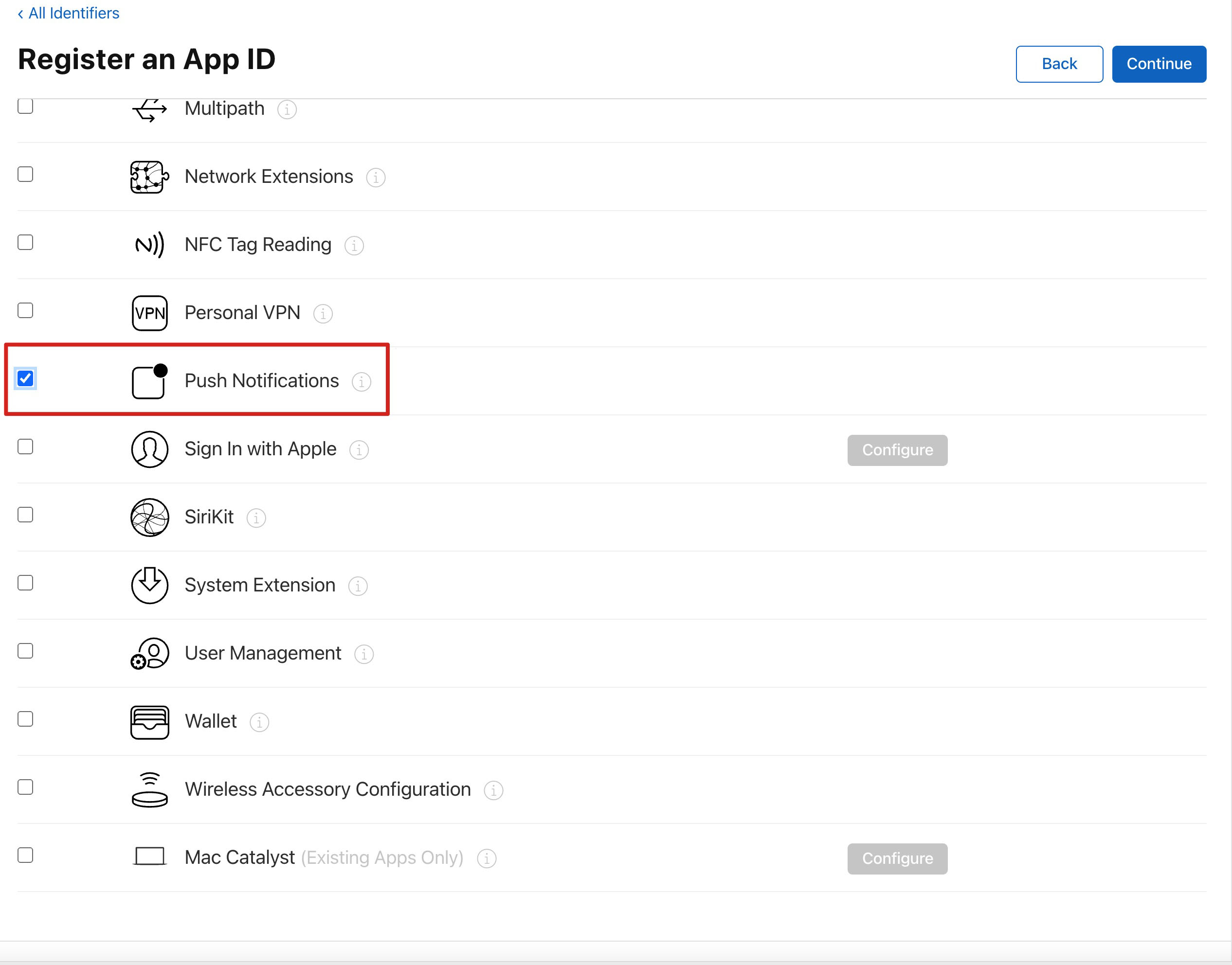
4. Check App IDs, then click Continue to proceed to the next step.
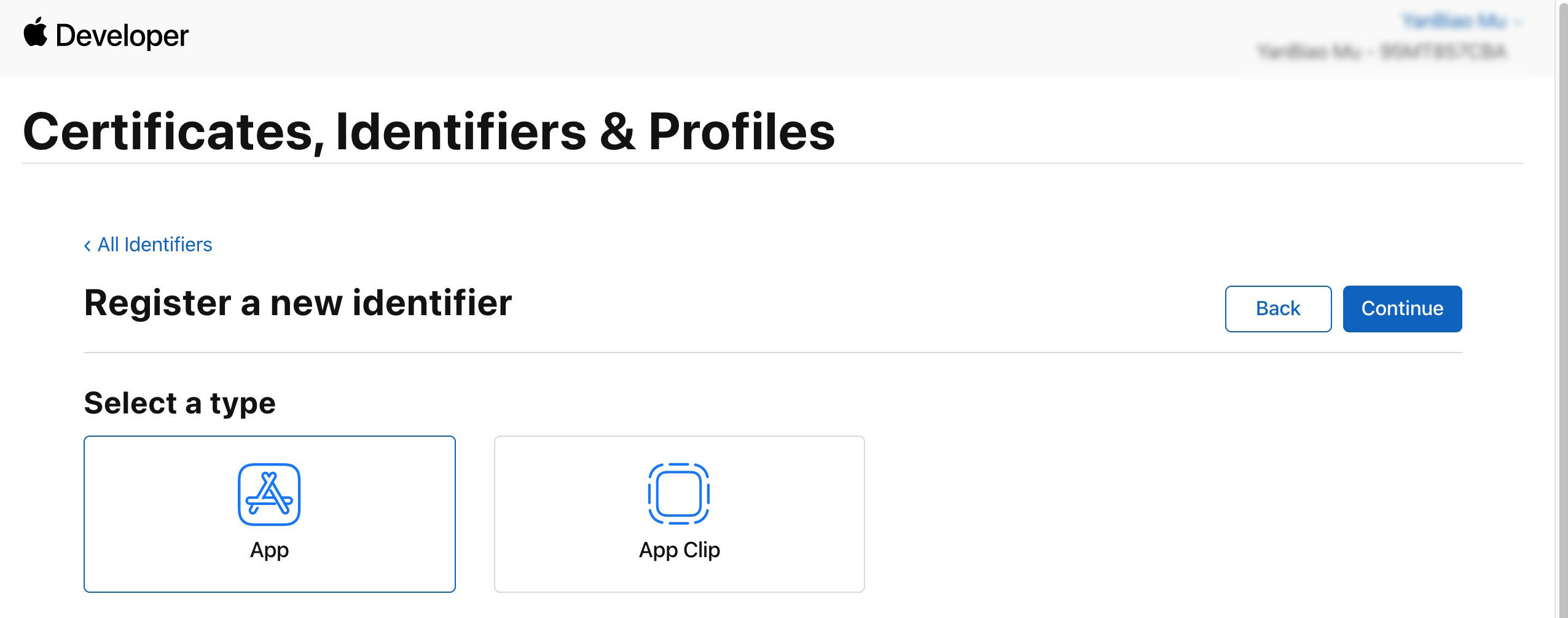
5. Select App, then click Continue to proceed to the next step.
6. Configure Bundle ID and other info, then click Continue to proceed to the next step.
7. Check Push Notifications and enable Remote Push Service.
Generating a Certificate
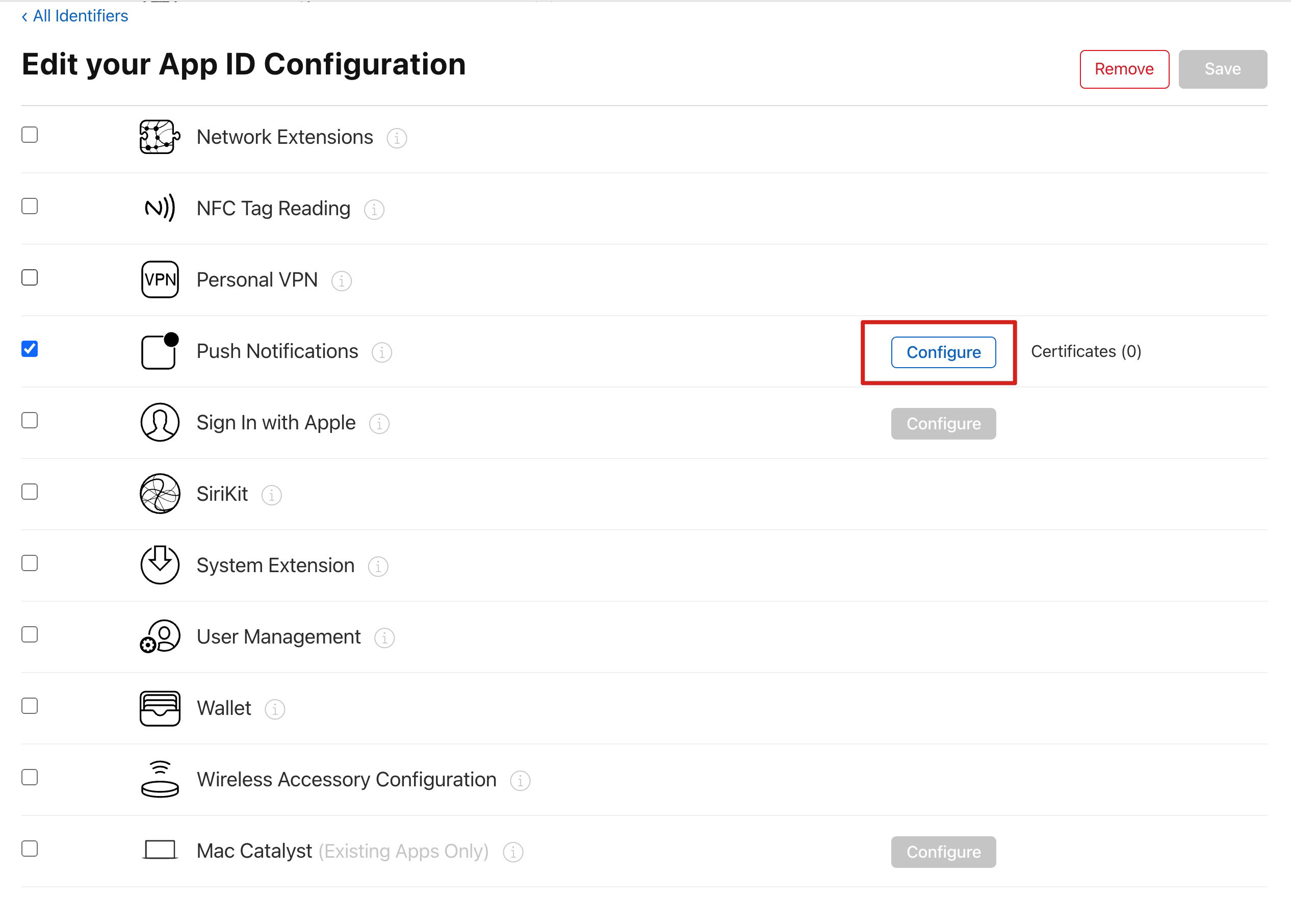
1. Select your AppID, then click Configure.
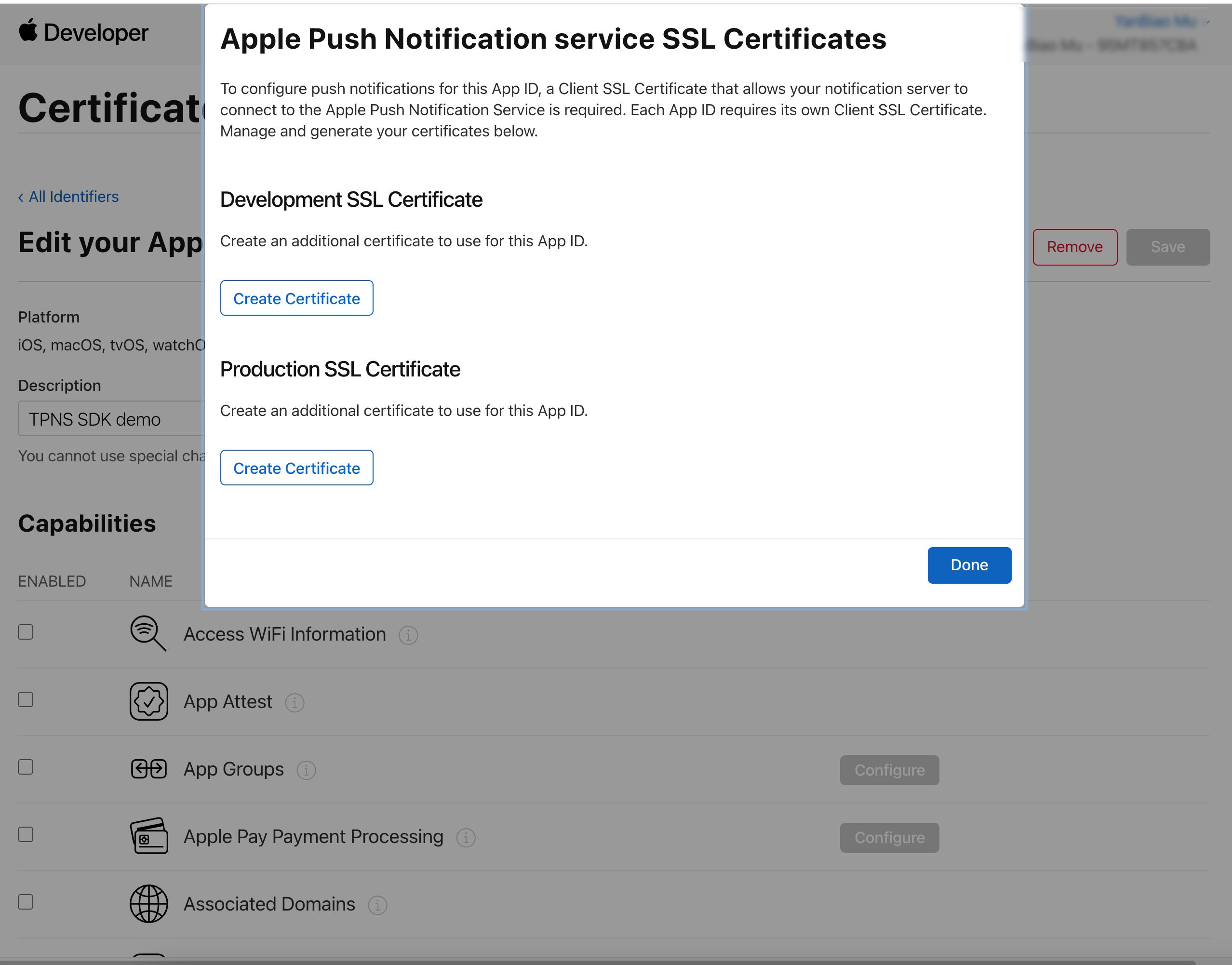
2. You can see two SSL Certificates in the Apple Push Notification service SSL Certificates window, used for development environment (Development) and production environment (Production) remote push certificates, as shown below:
3.
First
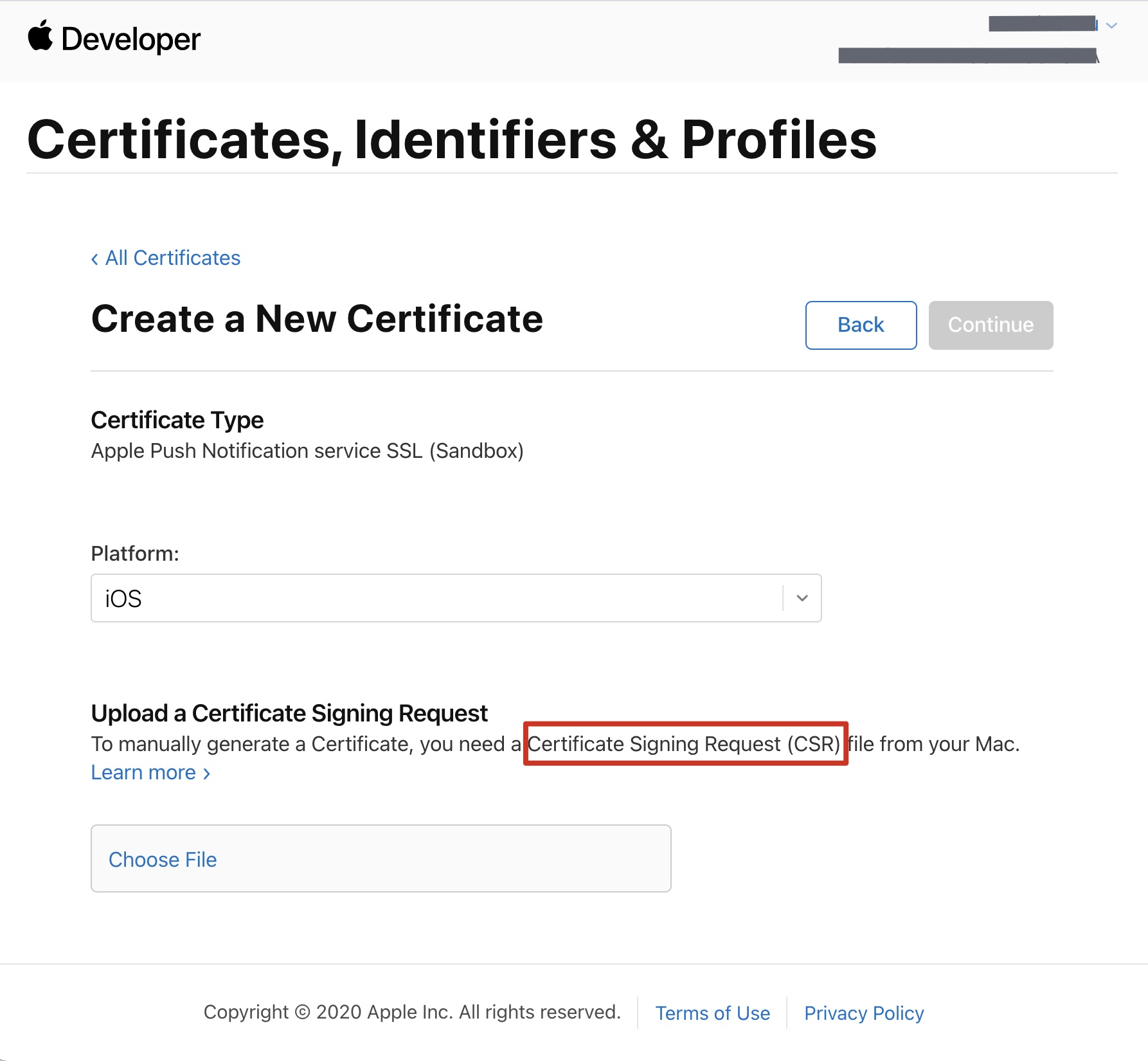
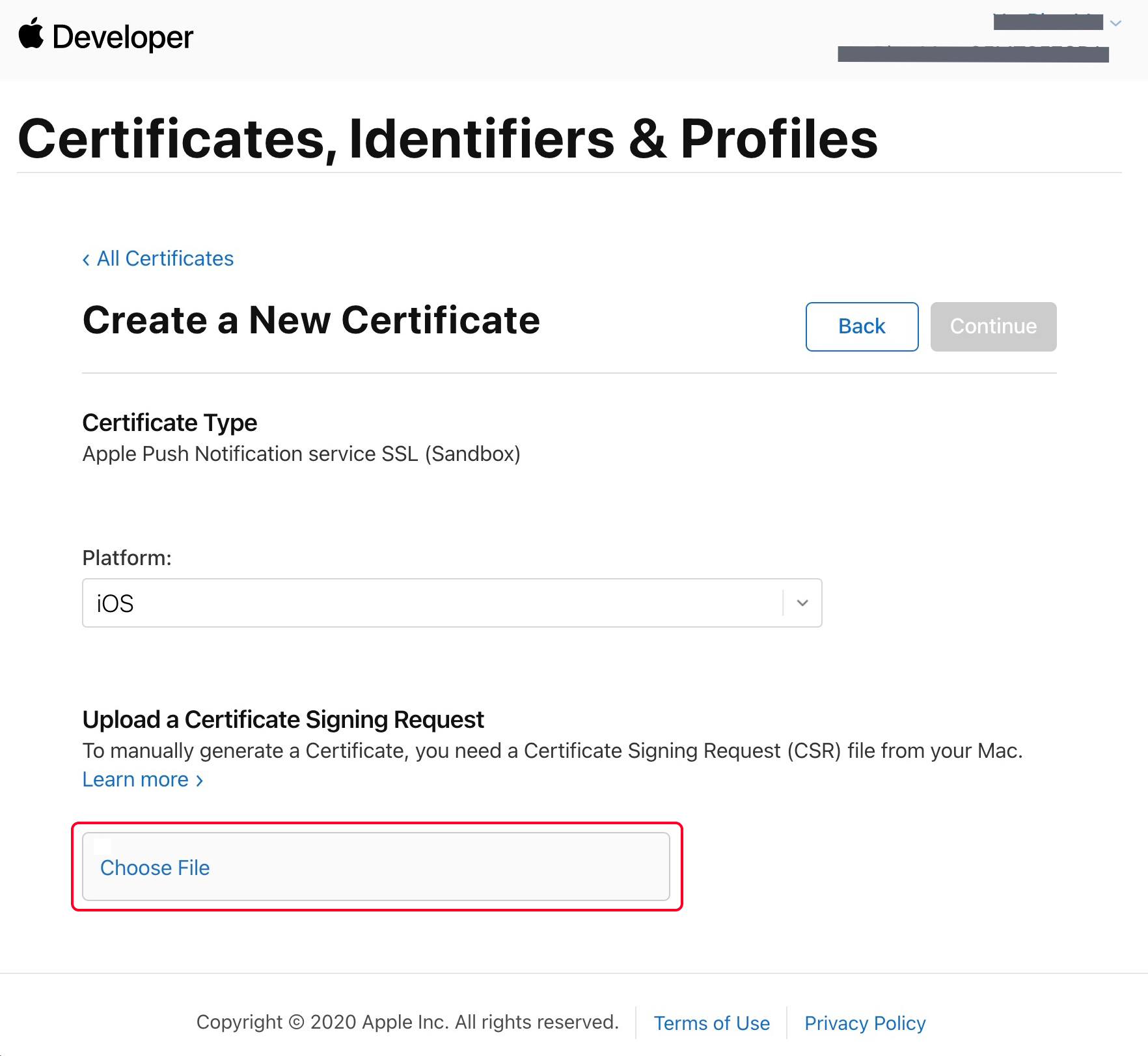
select the development environment (Development) Create Certificate, the system will prompt us to provide a Certificate Signing Request (CSR).
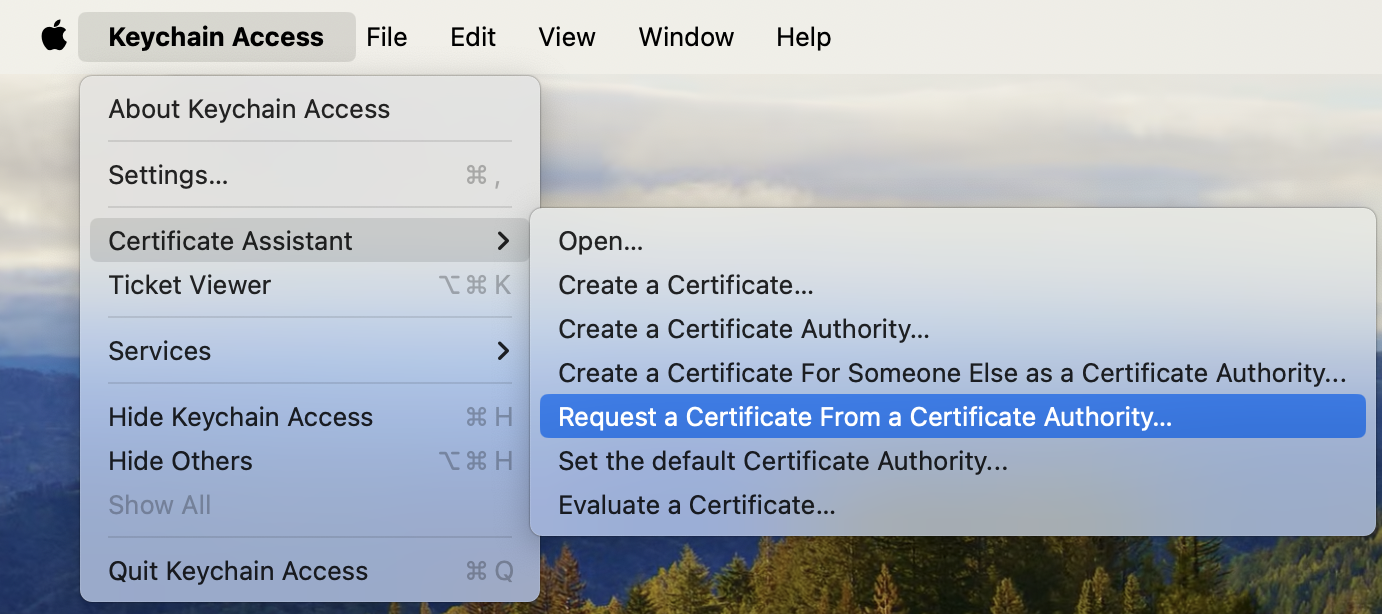
4. On your Mac, open Keychain Access, then select Keychain Access > Certificate Assistant > Request a Certificate From a Certificate Authority (Keychain Access - Certificate Assistant - Request a Certificate From a Certificate Authority).
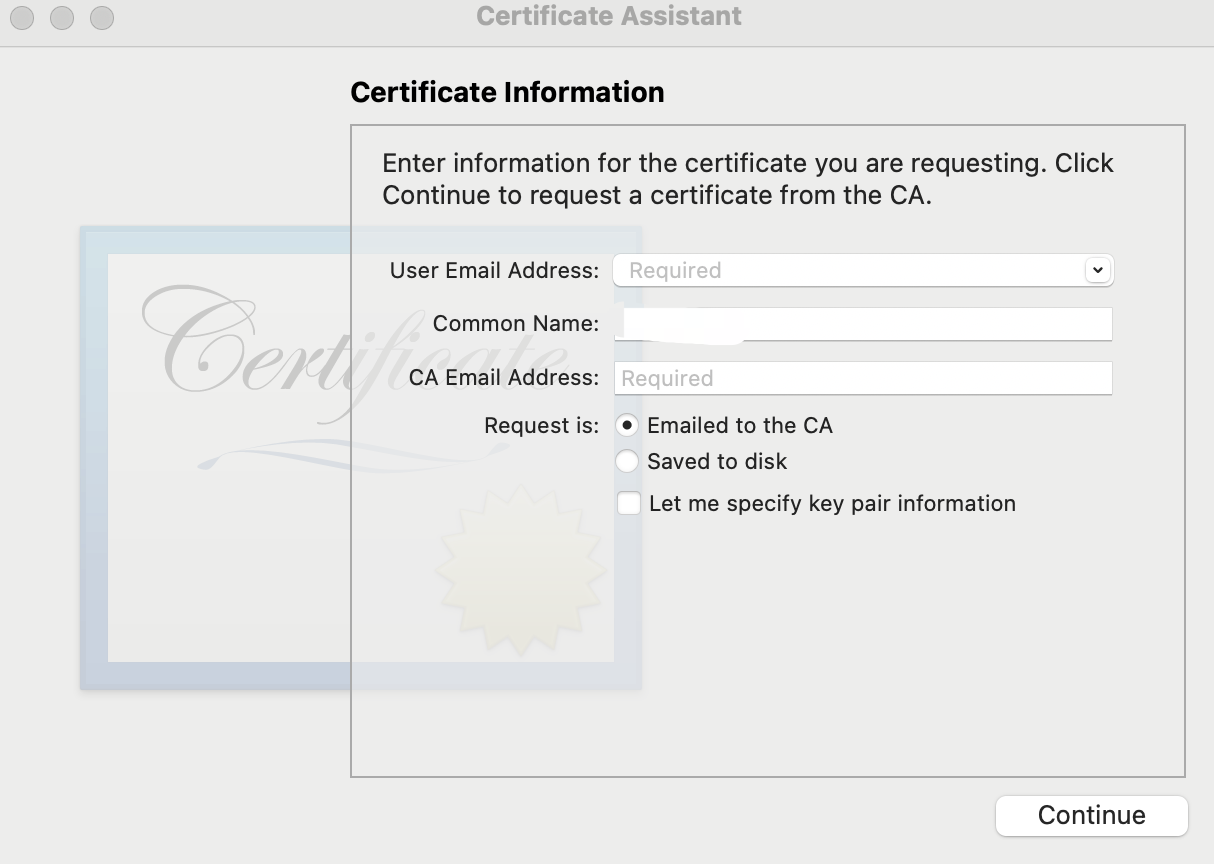
5. Enter the user email address (your mailbox), common name (Your Name or company name), select Save to Disk, click Continue, and the system will generate a *.certSigningRequest file.
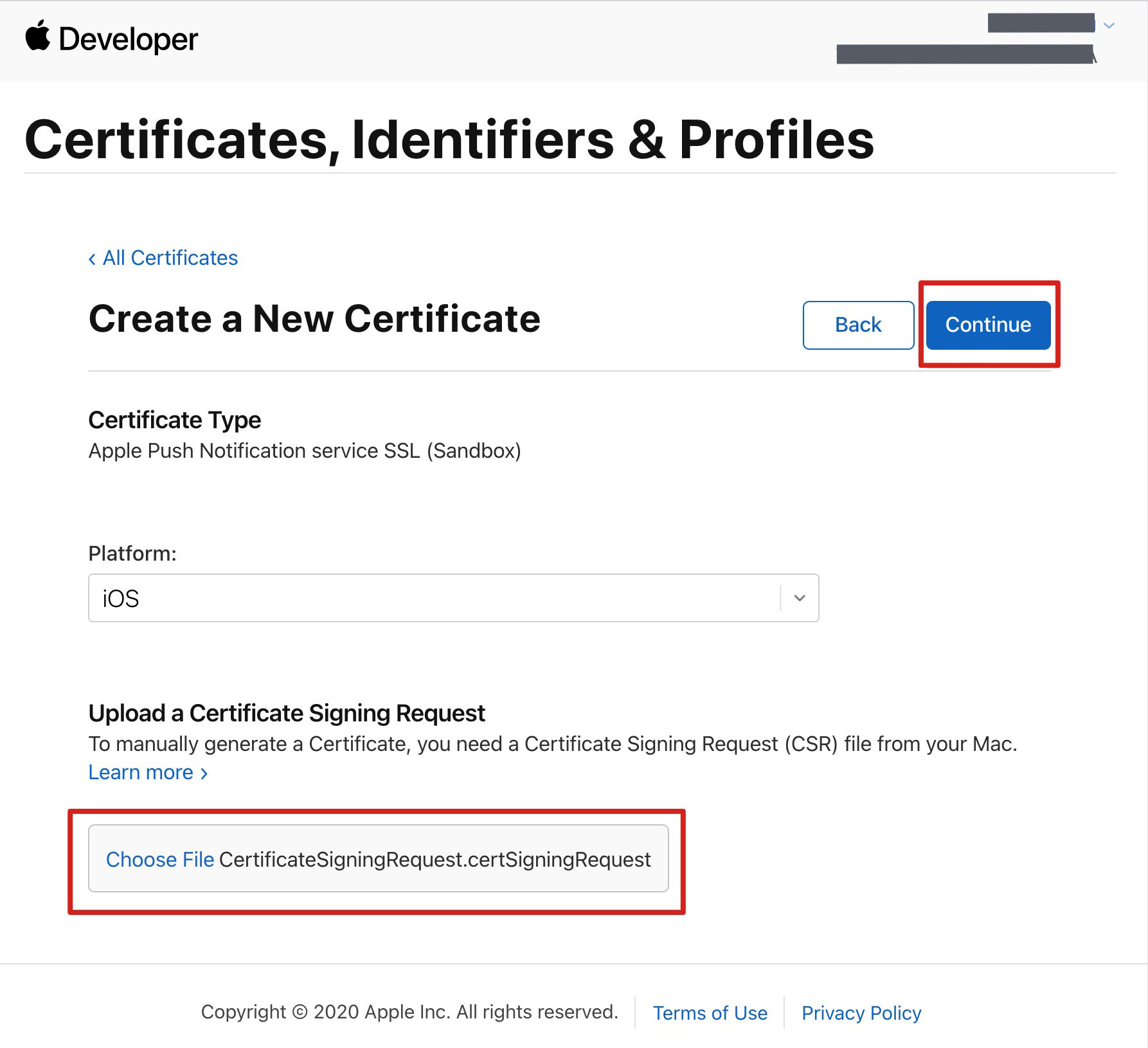
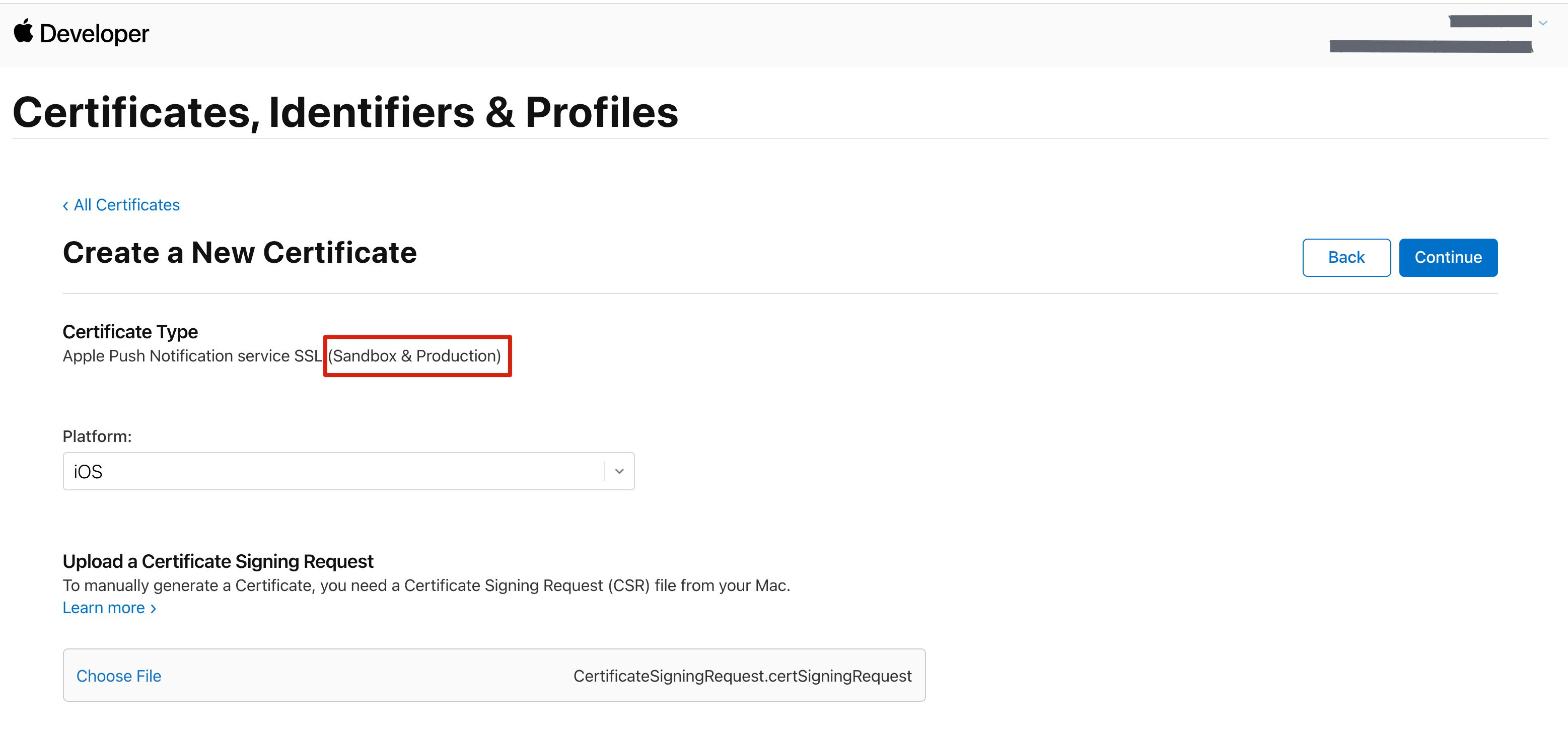
6. Go back to the webpage on the Apple Developer website in Step 3, click Choose File to upload the generated *.certSigningRequest file.
7. Click Continue to generate the Push Certificate.
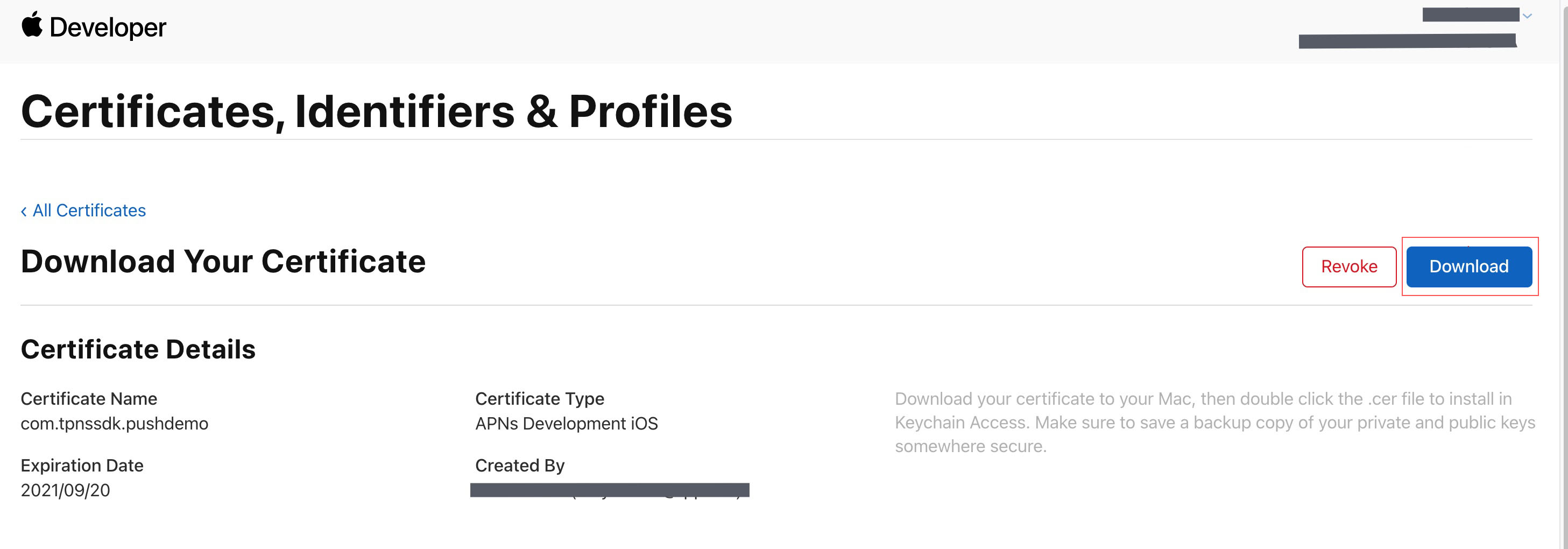
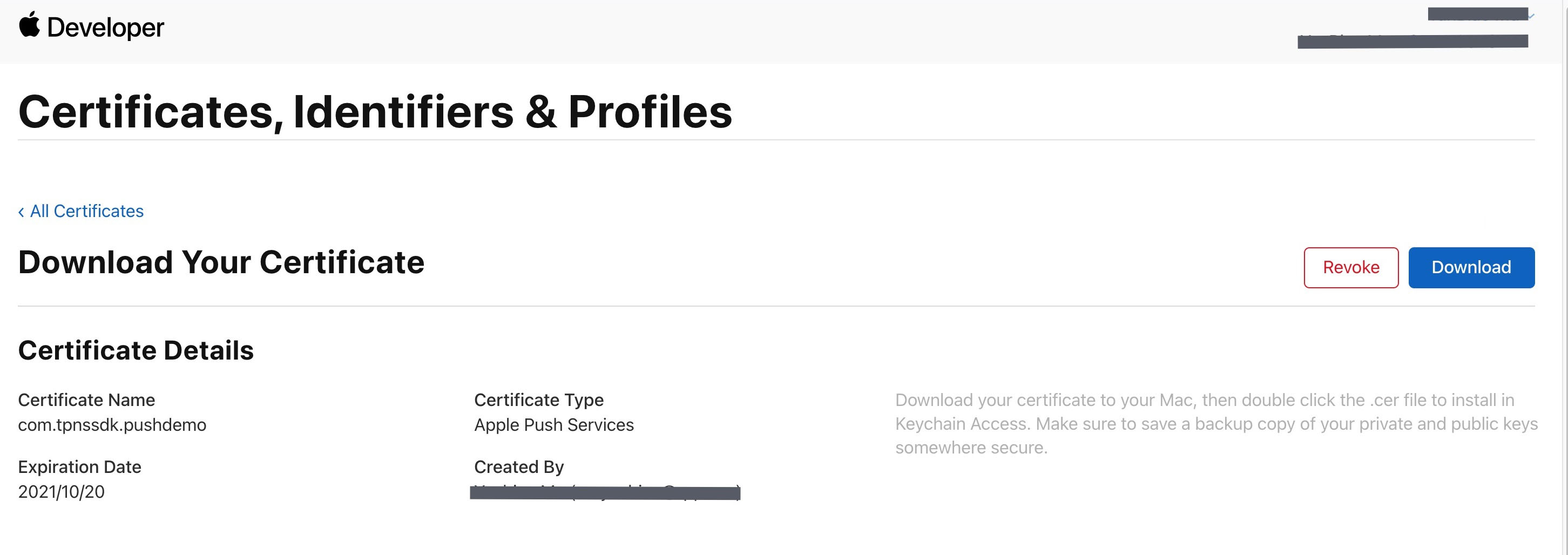
8. Click Download to download the Development SSL Certificate for the development environment locally.
9. Repeat steps 1-8 to download the Production SSL Certificate for the production environment locally.
Note
Note: The cert in the production environment is actually a merged certificate of Sandbox and Production, which can be used as the cert for both development and production environments.
10. Double-click to open the downloaded SSL Certificate for development and production environments, and the system will import it into the Keychain.
11. Open the keychain access app, go to Login > My Certificates, right-click and export the newly created Apple Development IOS Push Service and Apple Push ServicesP12 files for development and production environments respectively.
Note
When saving a P12 file, ensure to set password for it.
Use English for the certificate name (do not use parentheses or other special characters).
Upload certificate needs to be set with password. Passwordless will not receive push notifications.
To publish an App Store certificate, set it to production environment, otherwise unable to receive push.
Uploaded p12 certificate must be a real and valid certificate applied by yourself.
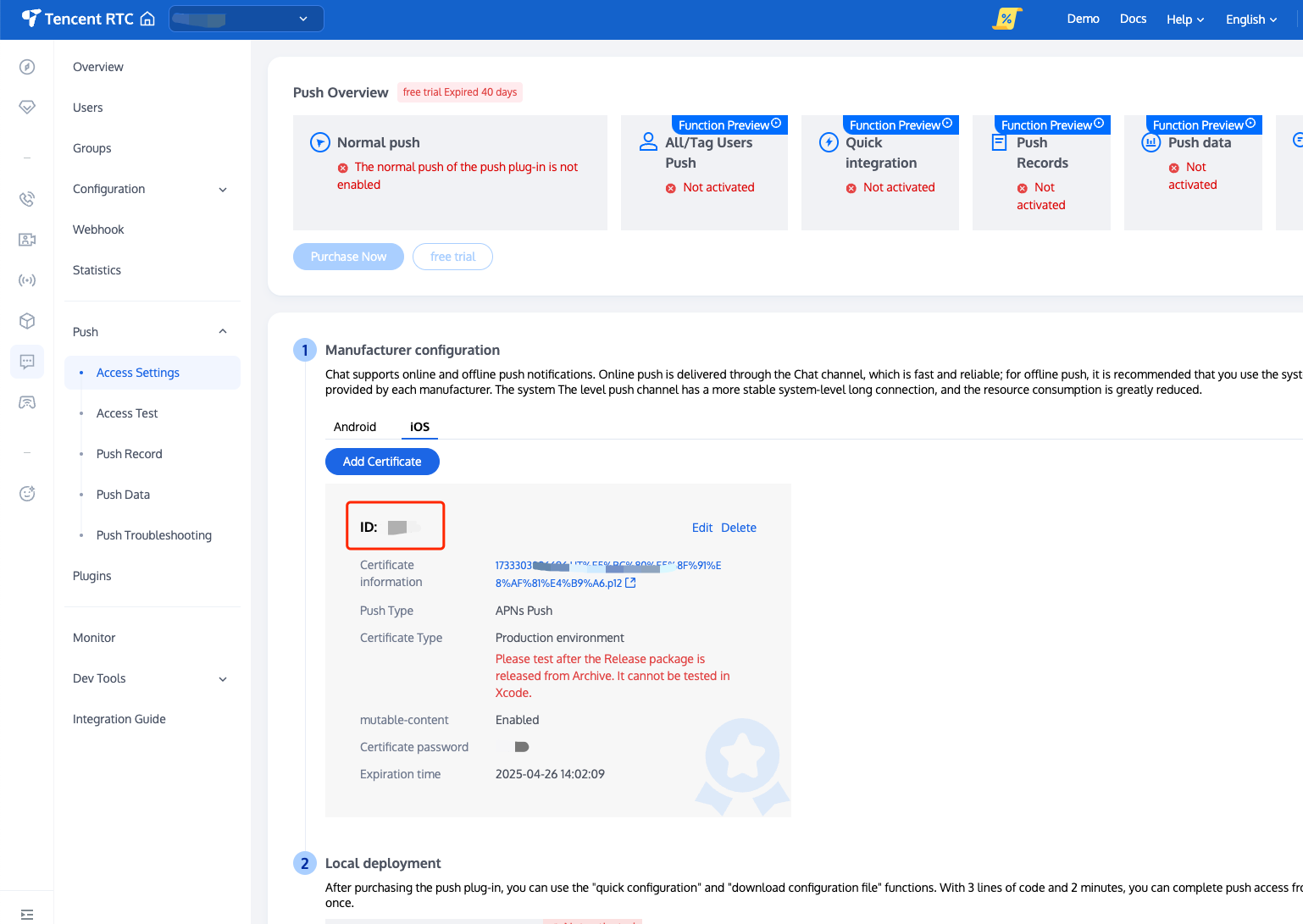
5. After generation of pending certificate information, record the cert ID.
Operation Steps
Step 1: Register Application to Manufacturer Push Platform
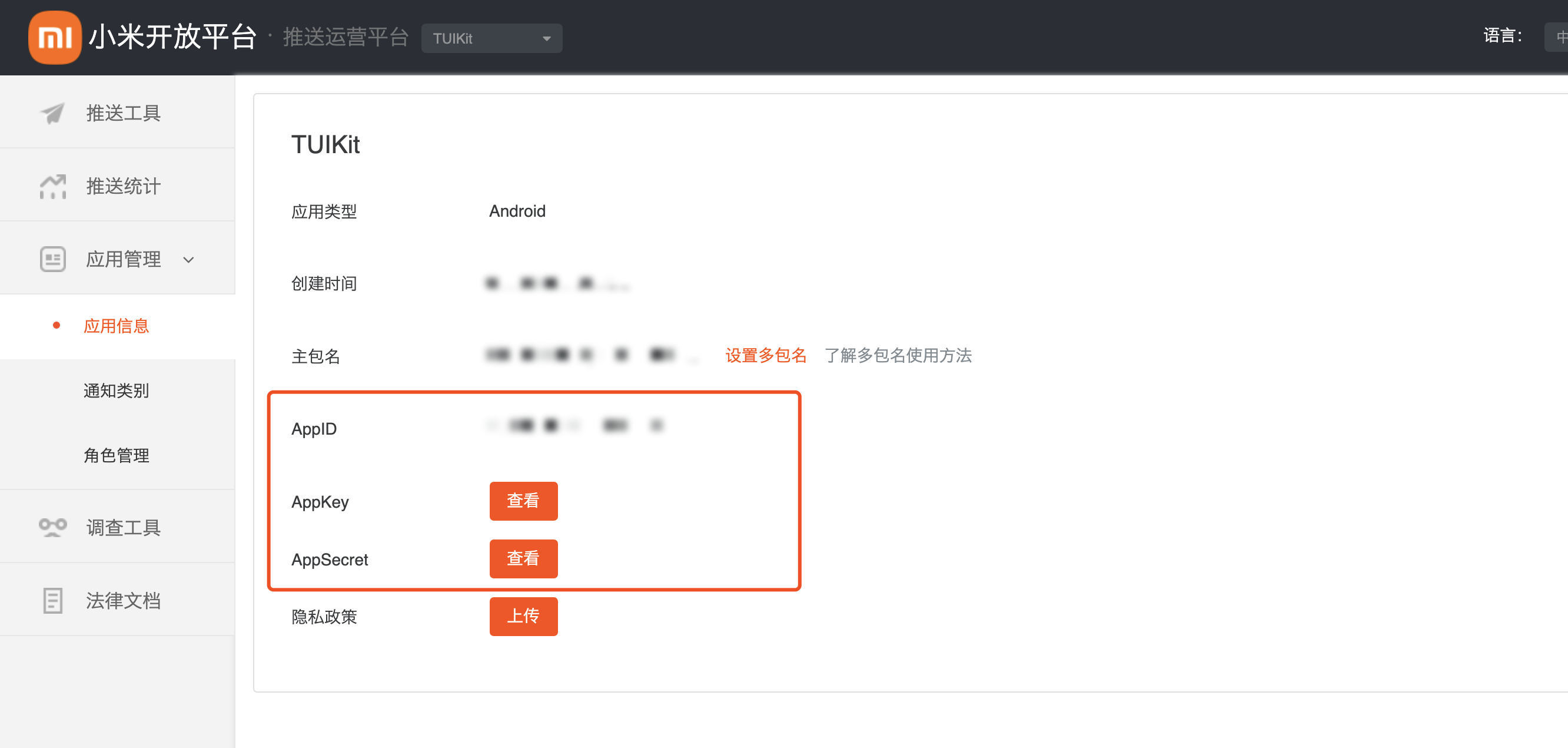
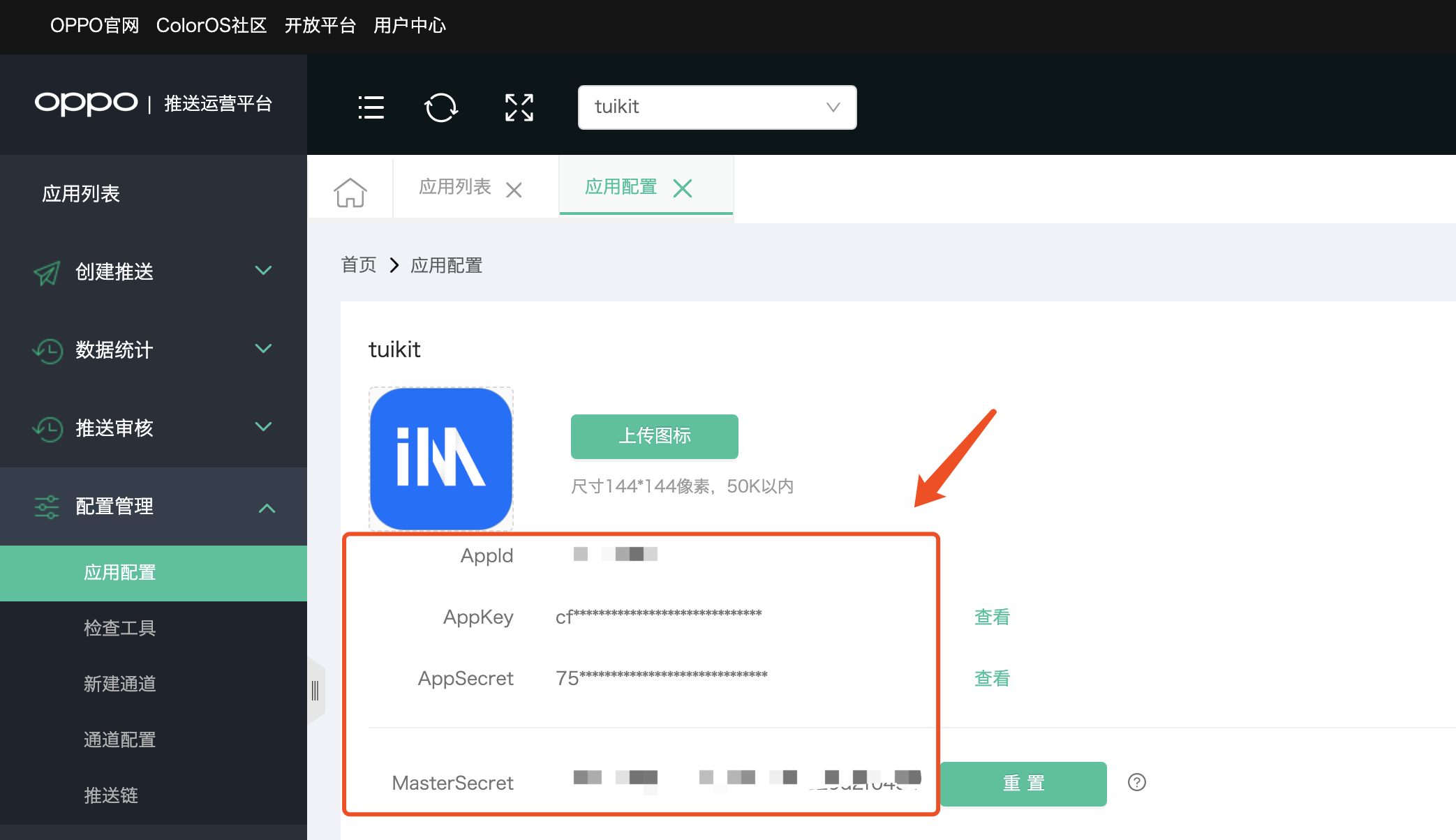
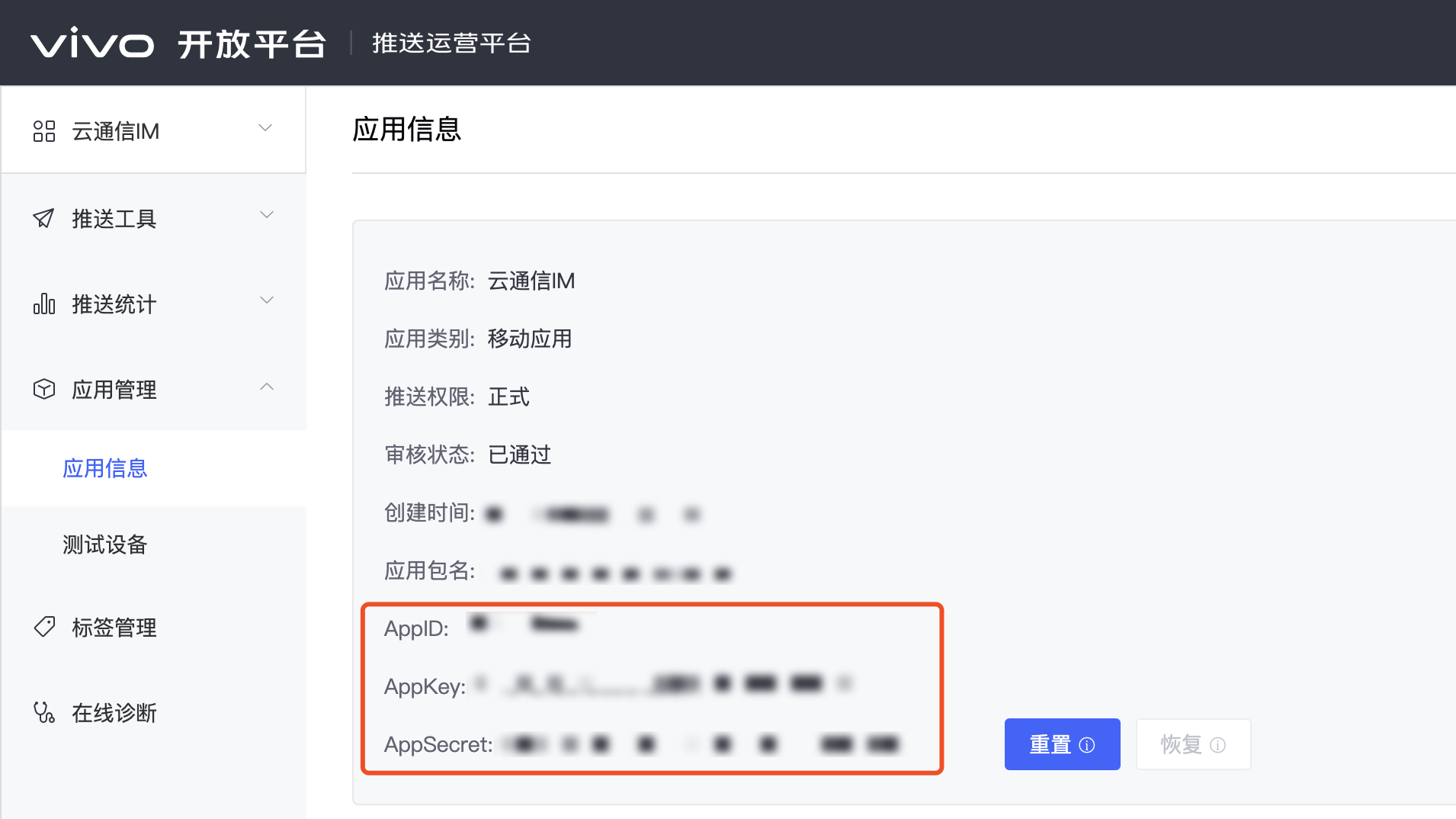
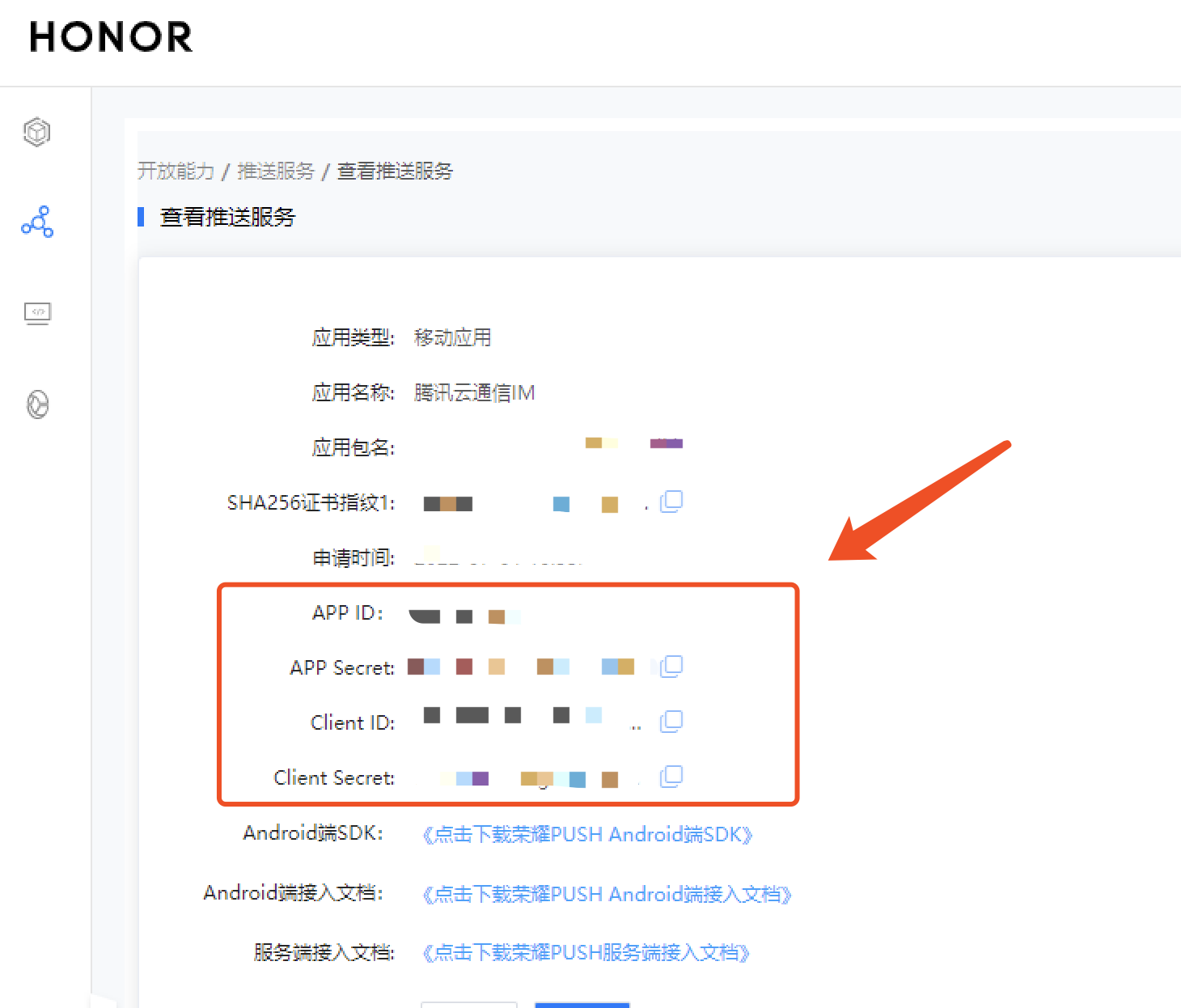
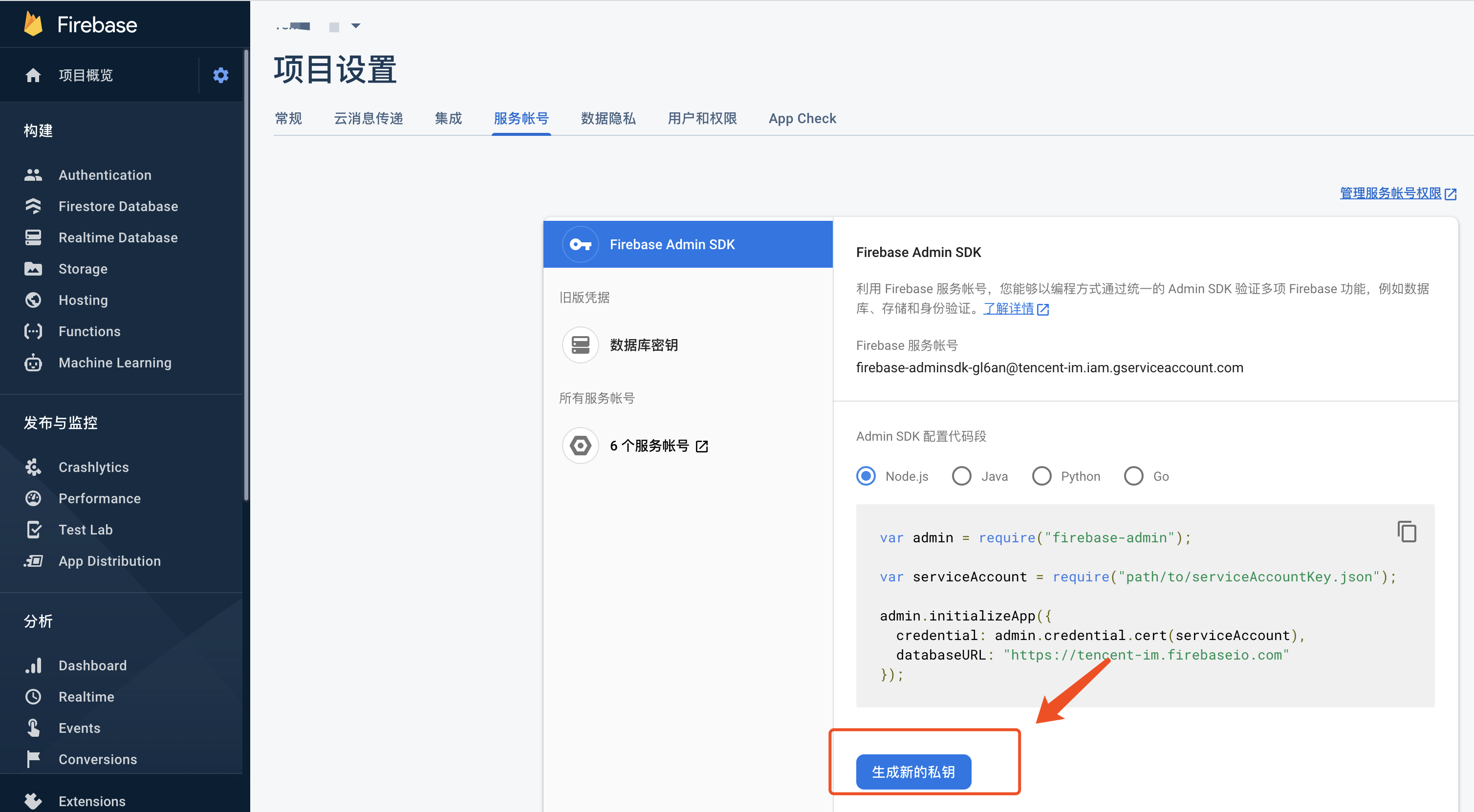
Offline push requires registering your own application to various manufacturers' push platforms to get parameters such as AppID and AppKey, enabling offline push functionality. Currently supported domestic mobile manufacturers include: Xiaomi, Huawei, Honor, OPPO, VIVO, Meizu, with overseas support for Google FCM.
Step 2: Chat Console Configuration
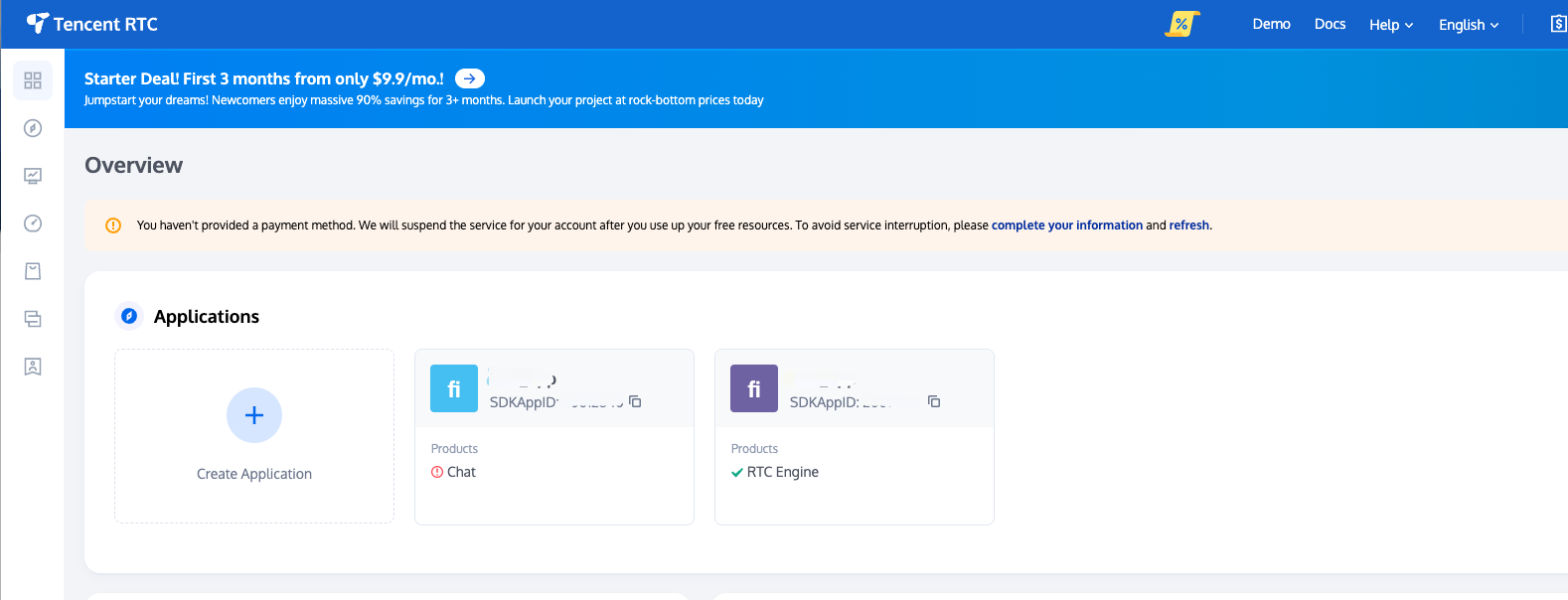
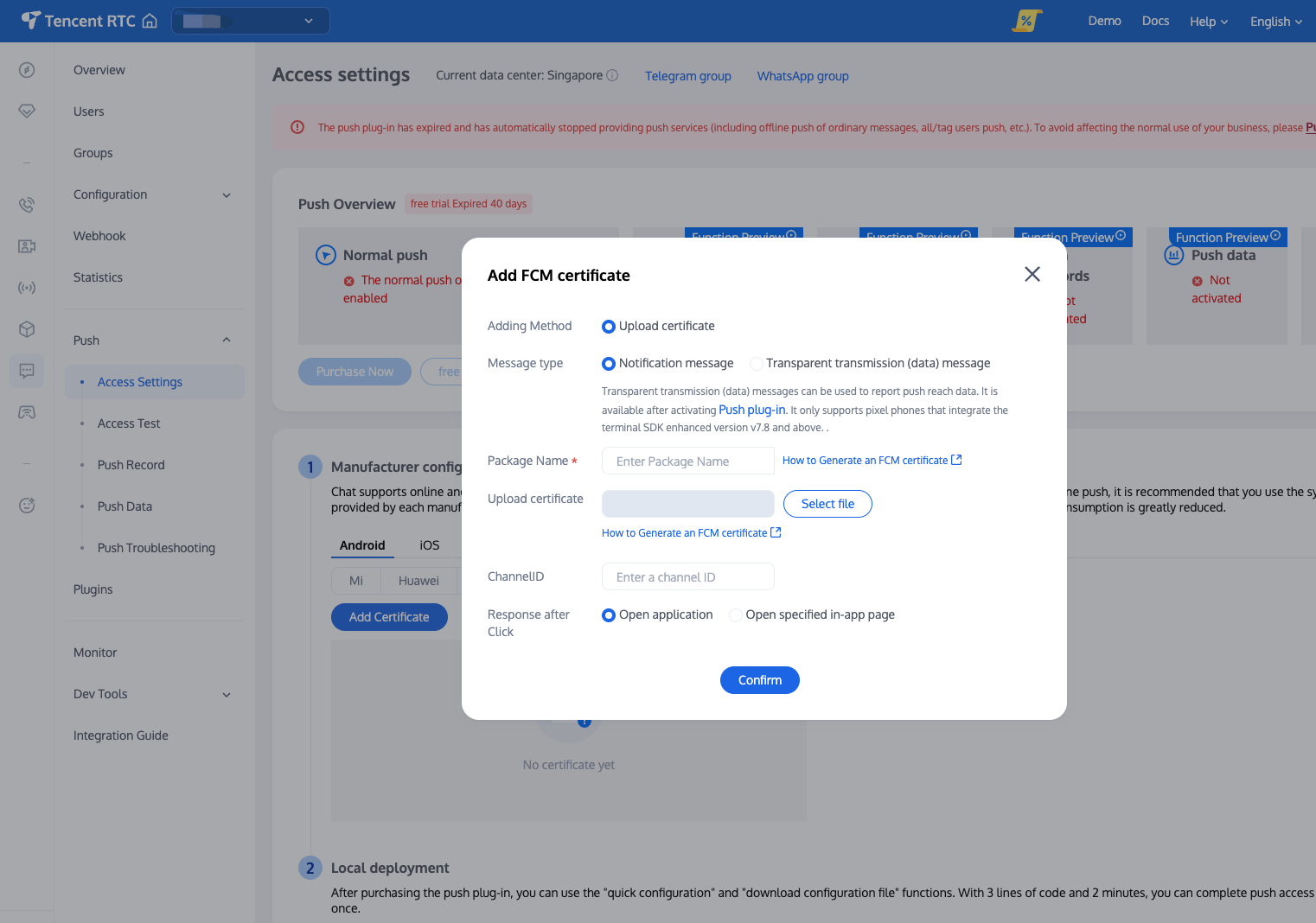
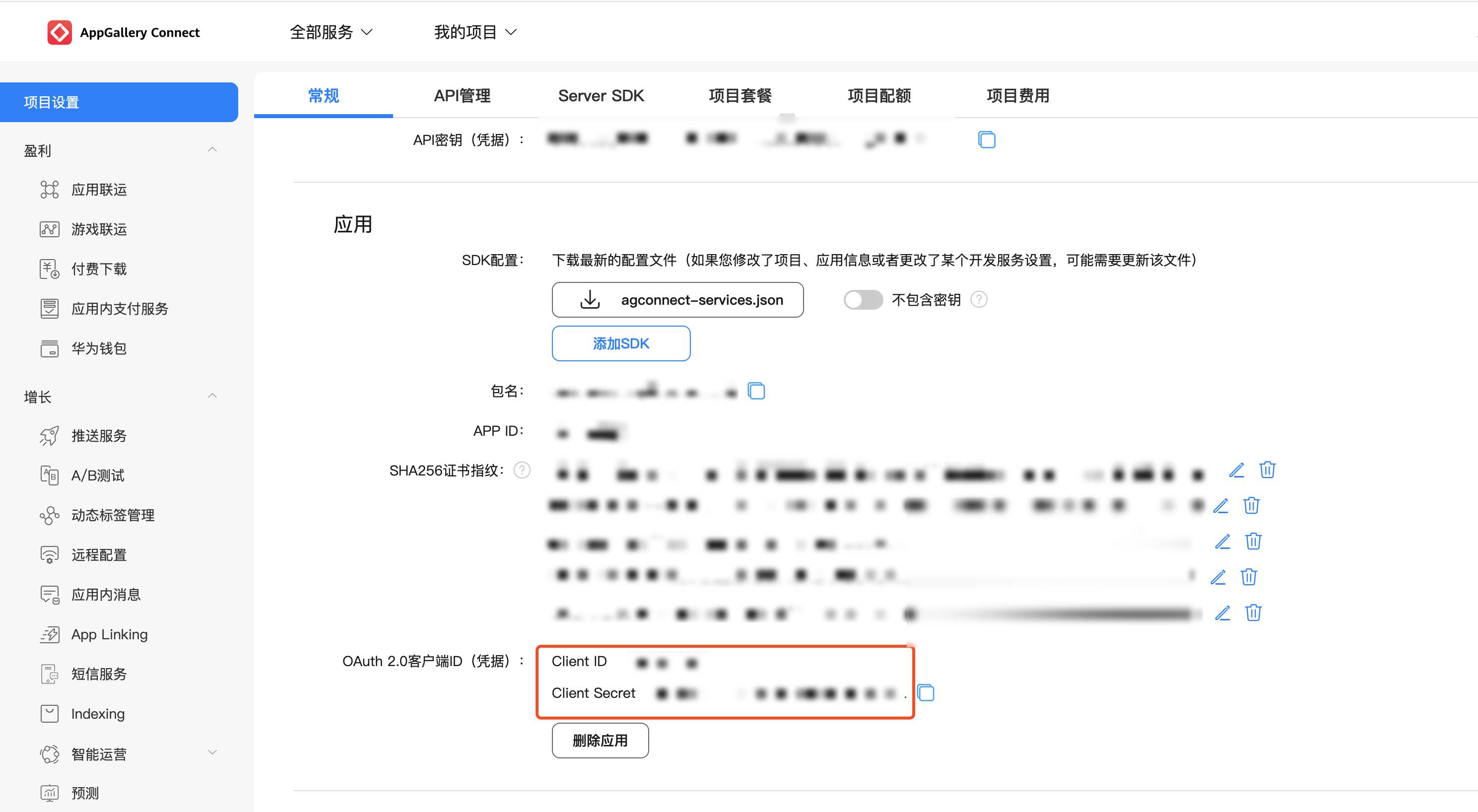
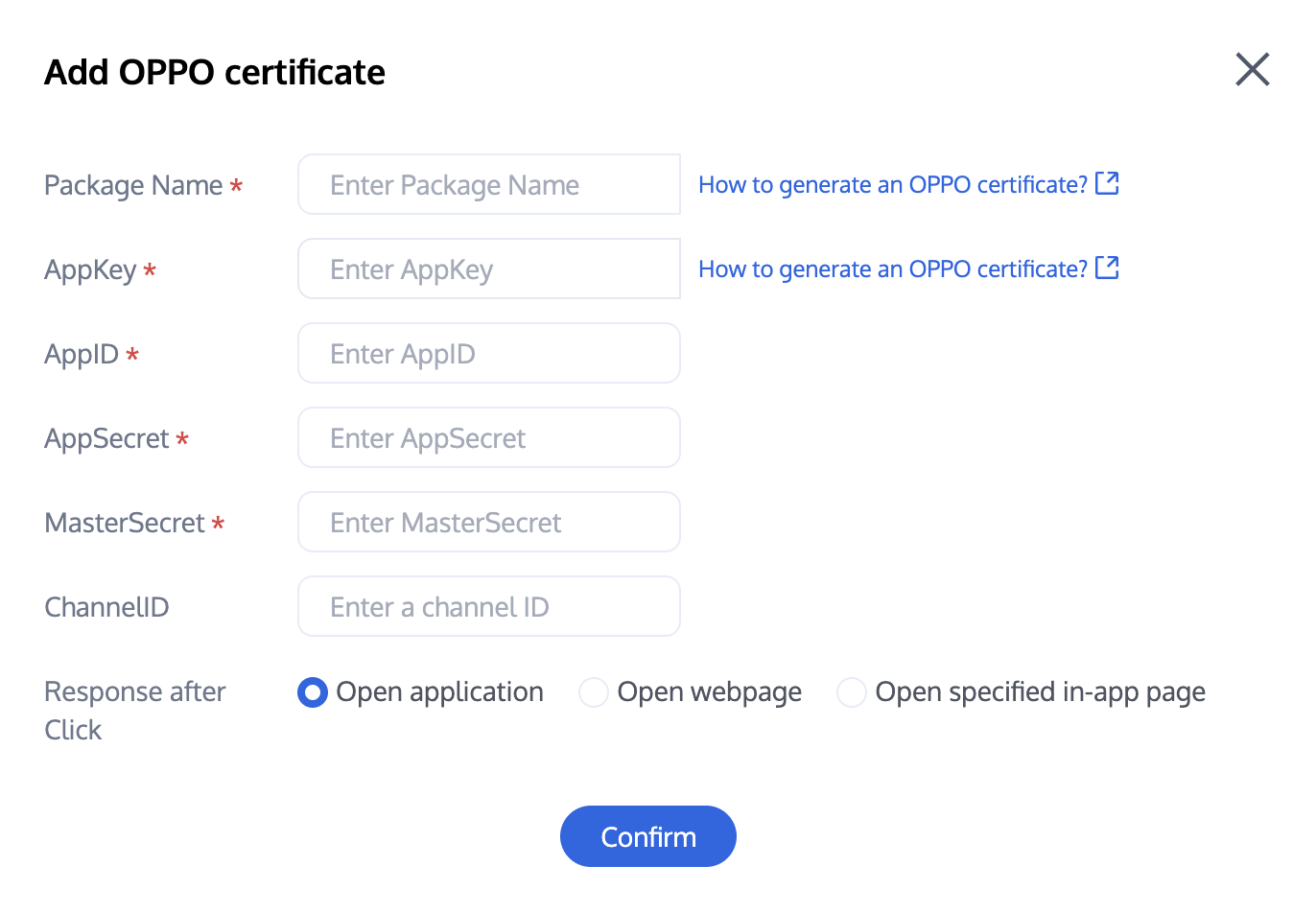
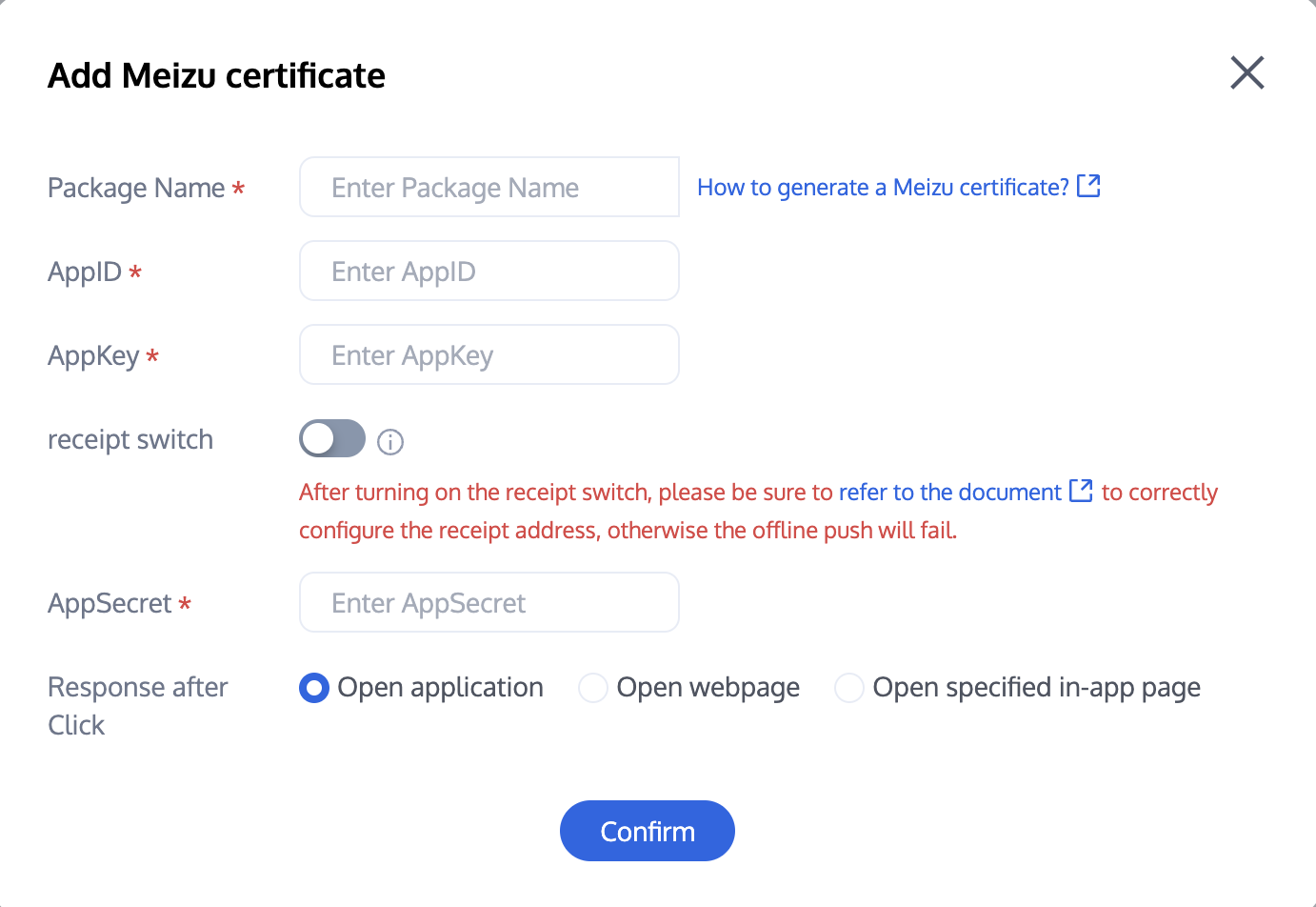
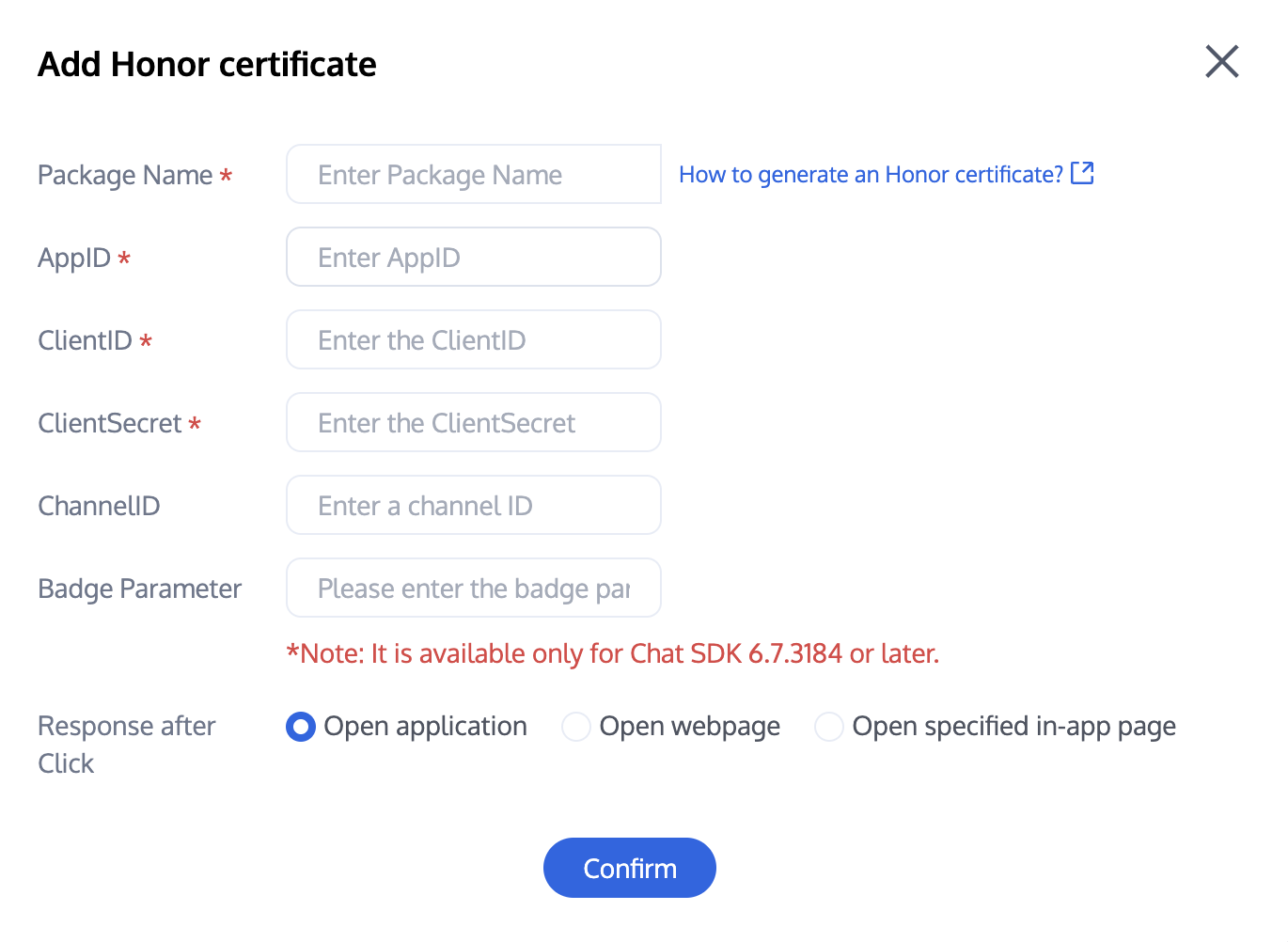
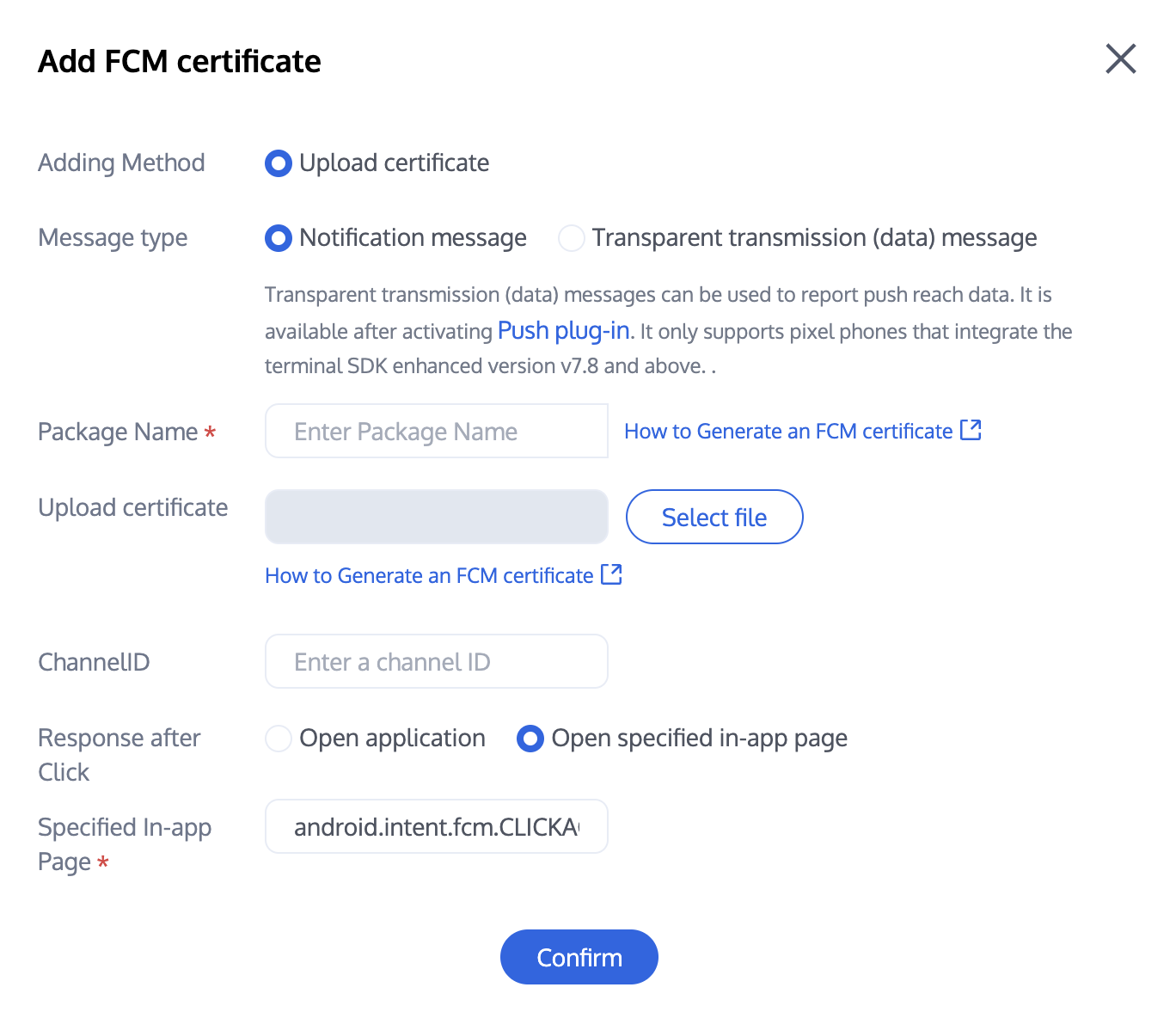
Sign in to the Chat console, go to the push management > access setting feature section, add push certificates for various manufacturers, and configure the AppId, AppKey, AppSecret and other parameters obtained from step 1 for the added push certificates.
Note:
Note: For the click subsequent actions option, if you need to use the click redirect power provided by this Plugin, keep default values unchanged, usually `open a specified page within the app` with default configuration.
If you need to use the report statistics feature, keep this item unchanged.
Xiaomi
Huawei
OPPO
vivo
Meizu
Honor
Google FCM
Vendor Push Platform
Chat Console Configuration
Vendor Push Platform
Chat Console Configuration
Note:
Client ID corresponds to AppID, and Client Secret corresponds to AppSecret.