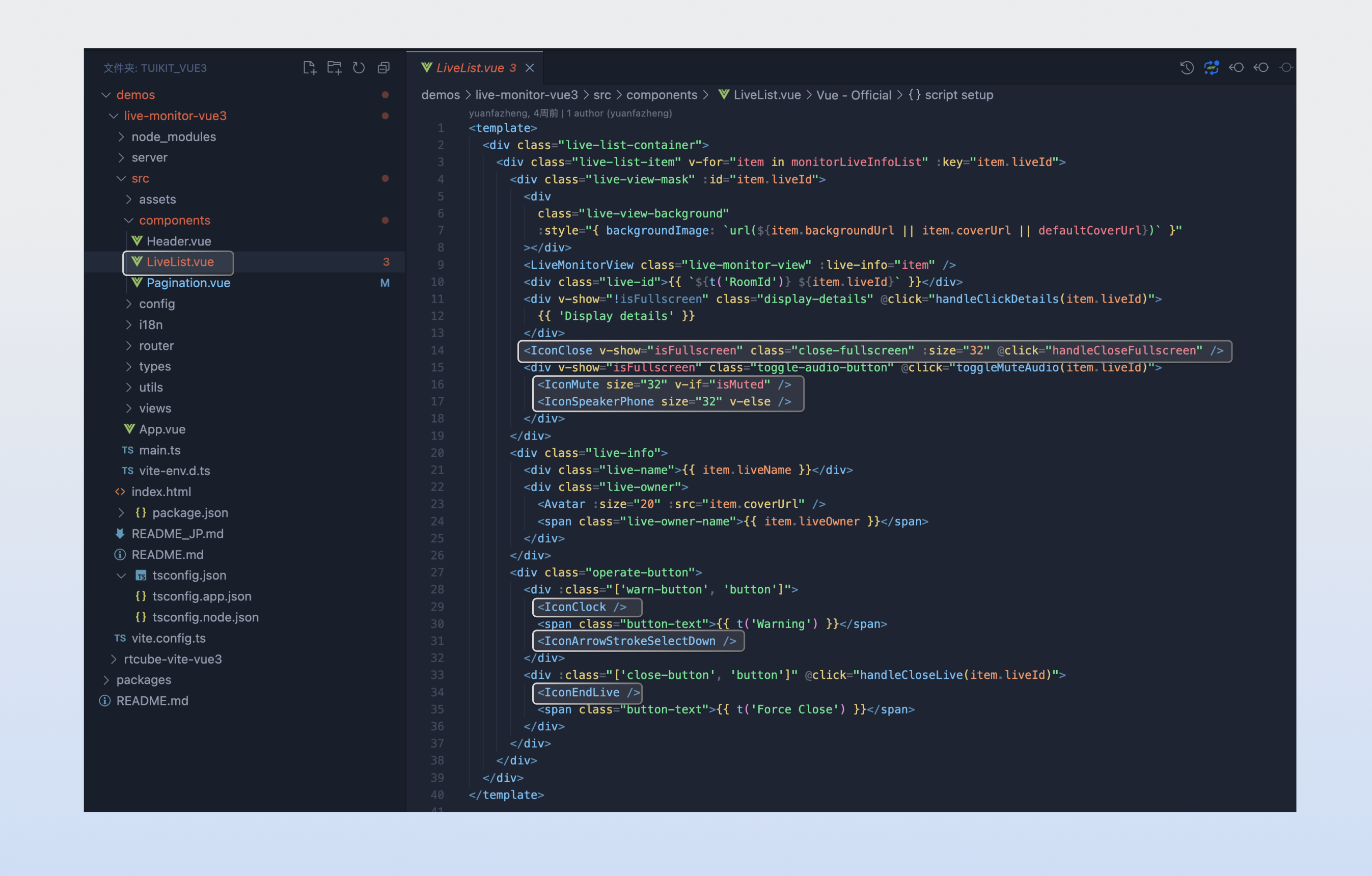
Live Stream Management Interface (Vue)
Overview
This document provides a detailed introduction to the Monitoring Webpage in the TUILiveKit Demo. You can directly integrate our developed viewing page into your existing project as specified in this document, or customize the webpage style, layout, and feature items according to your needs.
Feature Overview
Feature Category | Specific Abilities |
Multi-stream live room monitoring | Supports showing 8+ live streams simultaneously (actual quantity customizable). |
Low-latency playback | Pull live stream in real time with ≤3s delay. |
Standalone audio control | Enable/disable sound for any live streaming room individually to avoid interference. |
View details via a click | Click any live streaming room window to quickly enter the details page and view anchor information and key details. |
Dismiss rule-violating live streaming room with one click | Operate directly on the details page or monitoring panel to quickly shut down live streaming rooms with rule violations and enhance handling efficiency. |
Feature Demonstration
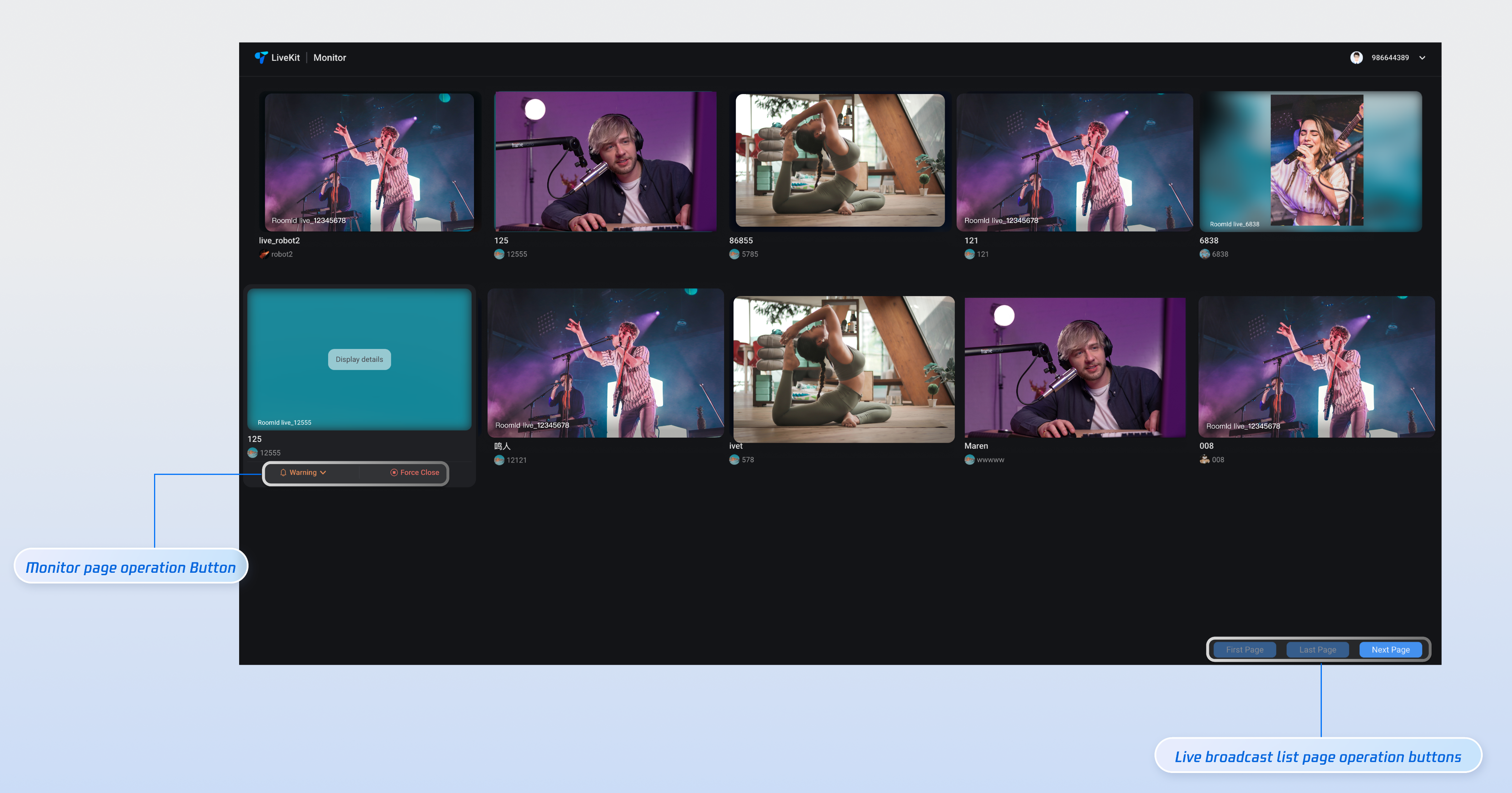
The monitoring page provides default behavior and style. However, if the default behavior and style cannot fully meet your requirements, you can also customize the UI. It mainly includes multi-stream live room monitoring on the same screen, low-delay playback, standalone audio control, one-click view detail, and one-click dismiss rule-violating live streaming rooms.
Quick Run-Through
Step 1: Configuring the Environment and Activating the Service
Before performing quick integration, you need to refer to preparations to meet the environment configuration and activate the corresponding service.
Step 2: Downloading Demo
git clone https://github.com/Tencent-RTC/TUIKit_Vue3.git
Step 3: Dependency Installation
cd TUIKit_Vue3/demos/live-monitor-vue3 && npm install && cd server && npm install
Step 4: Starting the Server Project
// cd TUIKit_Vue3/demos/live-monitor-vue3/server/config/index.jsconst Config = {SdkAppId: 0, // Enter theSDKAppIDof your TUILiveKit serviceSecretKey: '', // Enter theSDKSecretKeyfor your TUILiveKit serviceIdentifier: 'administrator',Protocol: 'https://',Domain: 'console.tim.qq.com',Port: 9000,};module.exports = { Config };
// Run the following command to start service. The default access address is:http://localhost:9000/apinpm run start
Step 5: Starting the Front-End Project
// cd TUIKit_Vue3/demos/live-monitor-vue3/src/config/index.tsimport { getBasicInfo } from './basic-info-config';const sdkAppId = 0; // Enter theSDKAppIDfor your TUILiveKit serviceconst secretKey = ''; // Enter theSDKSecretKeyfor your TUILiveKit serviceconst defaultCoverUrl = ''; // Configure the default image address for your live coverconst createBasicAccount = (userId?: string) => {return getBasicInfo(userId || `live_${Math.ceil(Math.random() * 10000000)}`, sdkAppId, secretKey);};export { sdkAppId, secretKey, createBasicAccount, defaultCoverUrl };
// cd TUIKit_Vue3/demos/live-monitor-vue3/src/views/live-monitor.vue<template><UIKitProvider language="zh-CN" theme="dark"><div class="live-monitor"><Header /><LiveList /><Pagination class="live-pagination" /></div></UIKitProvider></template><script setup lang="ts">import { useLiveMonitorState } from 'tuikit-atomicx-vue3';import { UIKitProvider } from '@tencentcloud/uikit-base-component-vue3';import { createBasicAccount } from '../config';import Header from '../components/Header.vue';import LiveList from '../components/LiveList.vue';import Pagination from '../components/Pagination.vue';const account = createBasicAccount();const { init } = useLiveMonitorState();if (account) {init({baseUrl: 'http://localhost:9000/api', // Default access address in procedure 4account: {sdkAppId: 0, // TheSDKAppIDof your TUILiveKit serviceuserId: '',// The user's userId in procedure 1password: '',// The user's userSig in procedure 1},});}</script>
npm run dev
Tailor-Made
You have successfully run the Demo of the monitoring page. If you need UI customization, you can refer to the following methods. Custom content includes but is not limited to
color theme, font, rounded corners, buttons, icons, input boxes, pop-ups in the source code, which can be added, deleted, or modified. Below are examples of color theme, button, and icon customization. You can refer to the implementation approach and apply it to other components to meet your UI customization needs.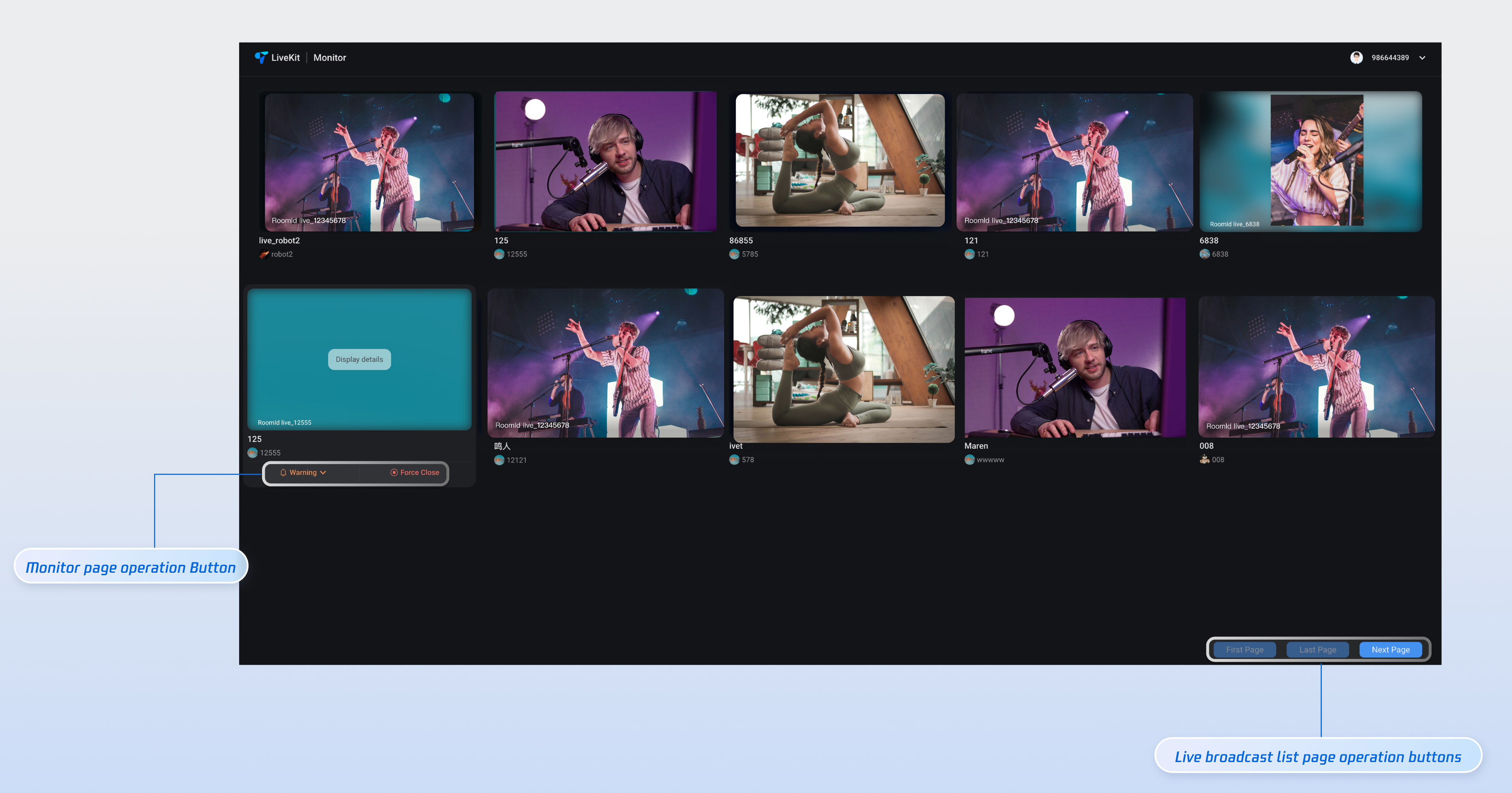
Color Theme
For example, in Step 5, you can use the example code to manipulate the theme value to switch color themes.
<UIKitProvider theme="dark"> // When the theme input is dark, the overall interface color theme is blackxxx // When the theme input is light, the overall interface color theme is white-theme</UIKitProvider>
Button
If you need to add or replace buttons for UI customization, it can be obtained as follows, using the three buttons for page operation in the live list as an example.

Refer to the image above to find the source code for the corresponding Button in the specified position, and perform UI customization operations such as adding, deleting, or replacing the current Button.
Icons
If you need to perform UI customization such as adding or replacing icons, you can implement it as follows, using the Icon in the live list as an example. Follow the guide below to find the corresponding Icon position and perform UI customization operations such as adding, deleting, or replacing.