In live streaming scenarios where a large number of anchors offer a wide variety of video content, allowing users to quickly browse and select their favorite content by scrolling up or down can deliver an enhanced user experience. This document introduces the implementation solutions for Android and iOS, respectively.
Vertical Scrolling Solution for Live Streams on iOS
In such scenarios, switching between live streaming rooms can cause discontinuity between the video streams of the current and next rooms, as entering a new room and pulling streams take time. To address this issue, 3 solutions are generally available. This document explains the 3 solutions in detail.
Slightly better. When you switch between live streaming rooms, a fixed placeholder image of the corresponding anchor is displayed before the new video appears.
Slightly higher. A placeholder image needs to be additionally stored for each anchor and loaded on the client.
Slightly complex. Asynchronous loading of placeholder images is additionally required before switching.
Best. When you switch between live streaming rooms, the videos of the current and next anchors are smoothly displayed.
Higher. Two streams need to be pulled concurrently in the list. After you enter a live streaming room, only 1 stream needs to be pulled.
More complex. Multiple instances are required, and the audio and video pulling of each instance needs to be controlled.
Black Screen
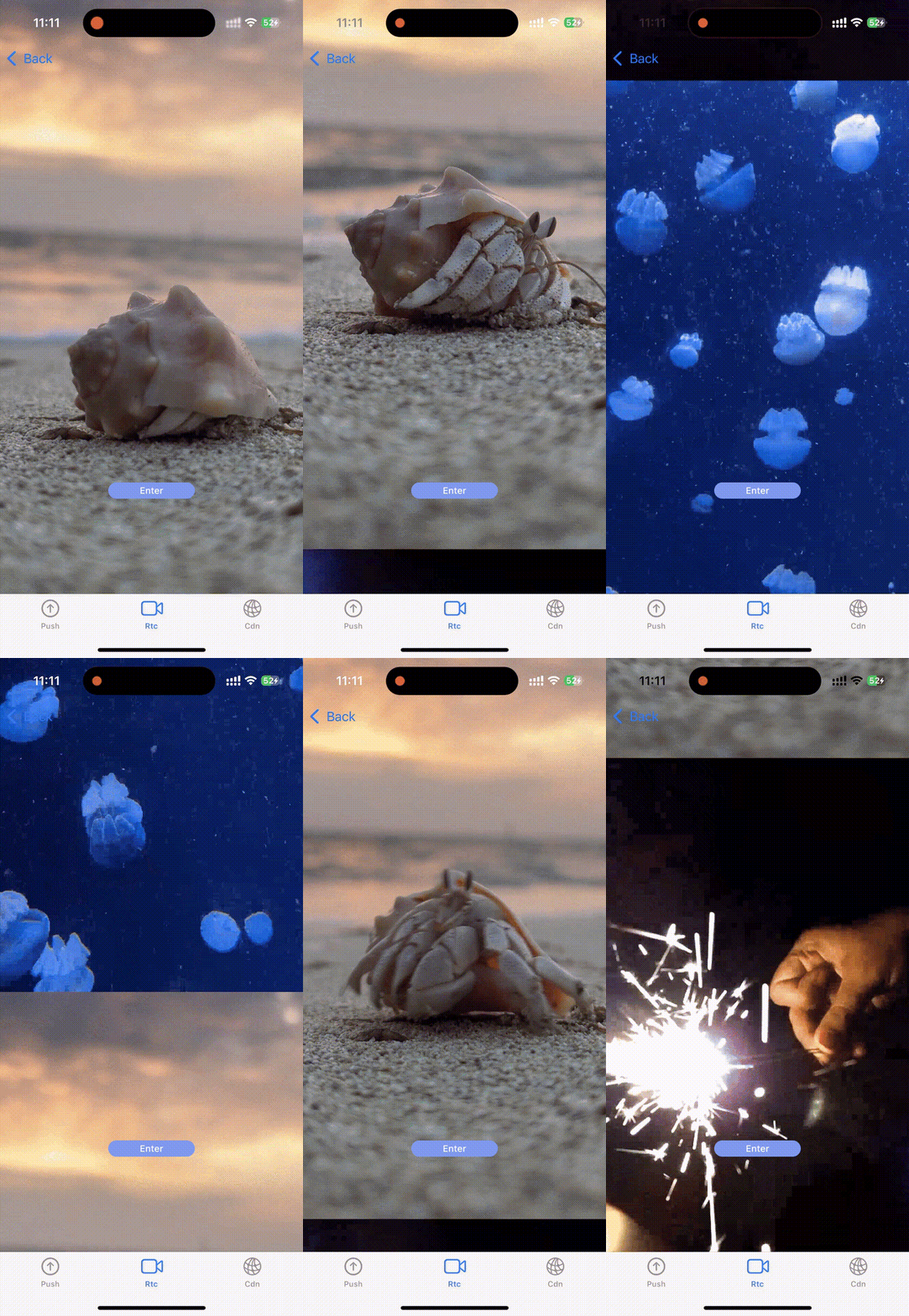
By listening for system scrolling events, the code implementation of business personnel calls the room-switching API to switch between live streaming rooms. Before the new live streaming room is fully loaded, no content is displayed, resulting in a brief black screen. For convenience, the black screen duration here is about 1 second. The specific black screen duration is affected by network conditions and video bitrate. The rendering is as follows.
The code snippet for room switching is as follows:
let src =TRTCSwitchRoomConfig()
// Generate the corresponding room ID and room entry credential according to business needs. In this example, generate the room entry credential on the client. For online businesses, obtain the information from the backend.
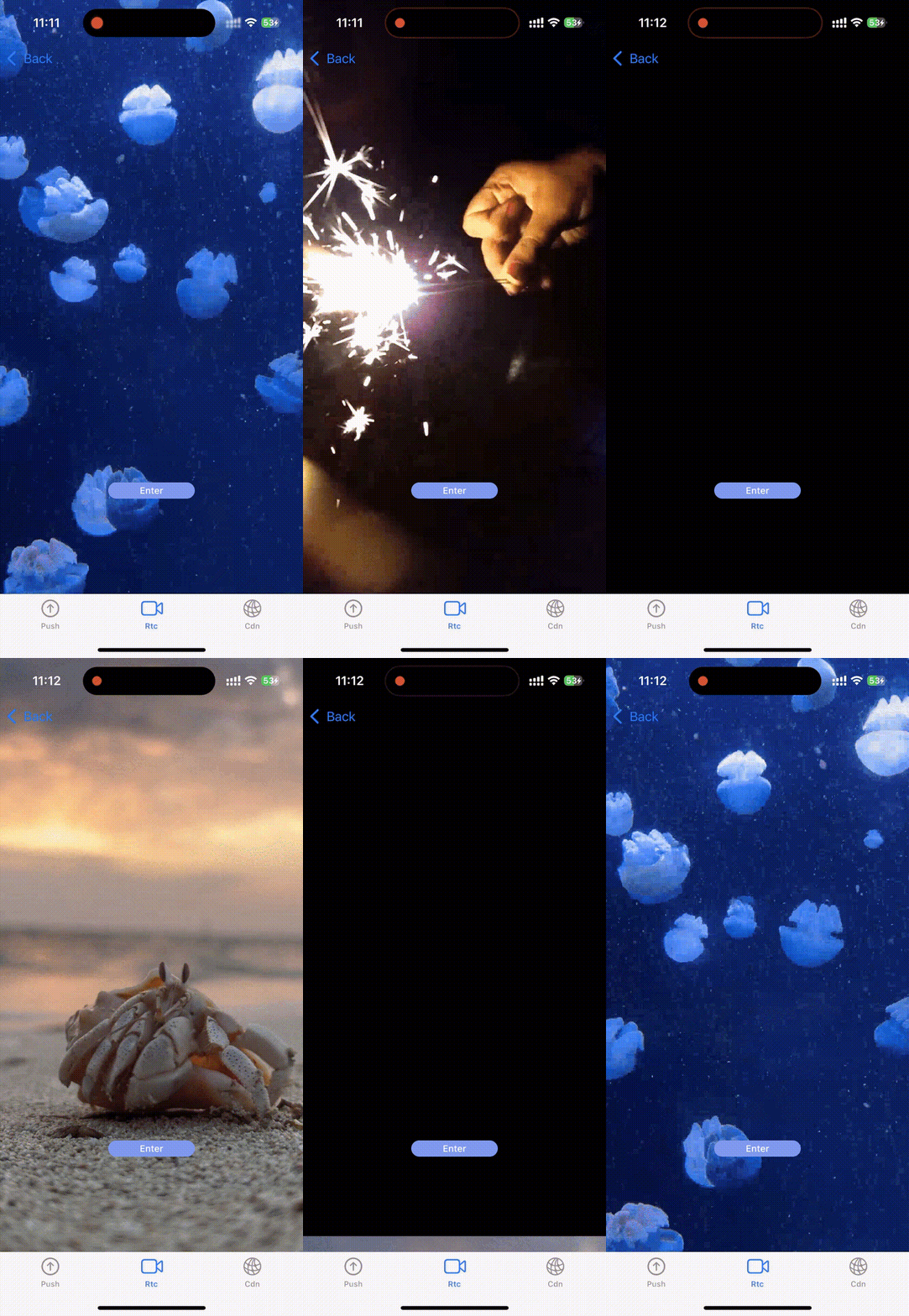
By listening for system scrolling events, the code implementation of business personnel calls the room-switching API to switch between live streaming rooms. Unlike the black screen solution, this solution requires loading a placeholder image for each live streaming room in advance. Before the video stream of a live streaming room appears, the placeholder image of the room is displayed. For convenience, the placeholder image duration here is about 1 second. The specific duration is affected by network conditions and video bitrate.
Rendering
Implementation Steps
1. Set the background image for the first anchor.
bgView =UIImageView(frame:self.view.bounds)
// The image should be the placeholder image for the corresponding live streaming room. Business personnel should obtain the image in advance.
2. Switch the background image before switching between live streaming rooms.
DispatchQueue.main.async{
UIView.transition(
with:self.bgView,
duration:0,
options:.transitionCrossDissolve,
animations:{
// Business personnel switches the corresponding placeholder image.
self.bgView.image =UIImage(named: strRoomId)
}, completion:nil)
}
let src =TRTCSwitchRoomConfig()
// Generate the corresponding room ID and room entry credential according to business needs. In this example, generate the room entry credential on the client. For online businesses, obtain the information from the backend.
// Adjust the sequence of the background image and the video rendering control as needed.
self.view.exchangeSubview(at:1, withSubviewAt:0)
}
Dual Instances
Note:
Although this solution offers the best display effect and user experience, it requires pulling 2 streams simultaneously from the current and next live streaming rooms when a user is scrolling through the list. While the stream of the next live streaming room can stop preloading once the user enters the room, this solution results in higher overall traffic and fees.
Rendering
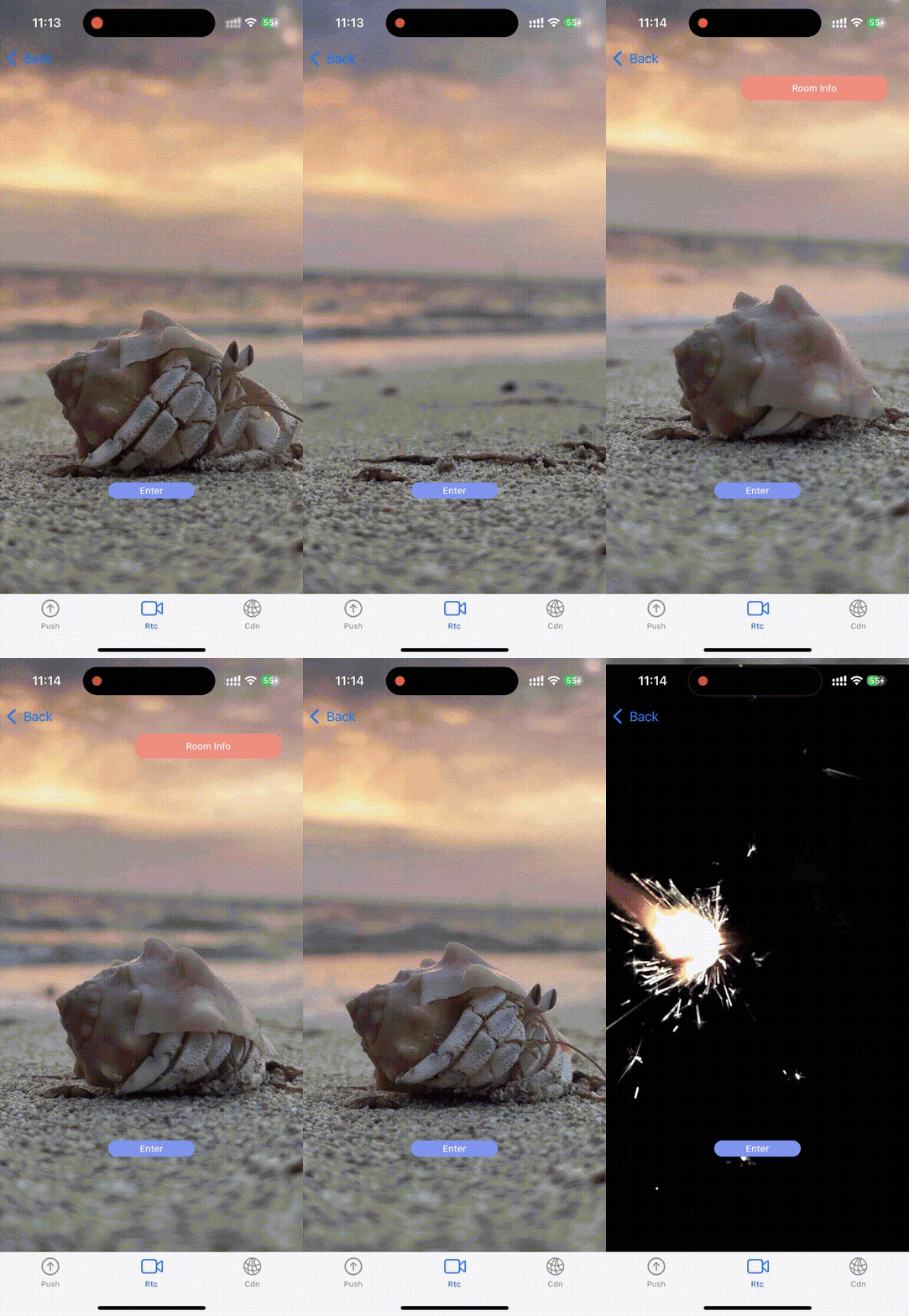
To achieve the smoothest vertical scrolling effect, 2 instances should be used at the same time. While you are viewing the current live streaming room, the video stream of the next live streaming room is preloaded. By leveraging UIPageViewController or manually adjusting the display positions of the current and next videos based on the scrolling position, a natural and smooth transition is achieved. The effect of scrolling to the next live streaming room is shown in the example on the left below.
The overall logic of this solution is as follows. Once you enter the current live streaming room, a sub-instance is immediately used to enter the next live streaming room, pull the video stream of the next room, and display the stream on the next page of UIPageViewController. Once you enter the new live streaming room, the audio stream of the new room is enabled. This loop repeats, ensuring the smoothest vertical scrolling effect. Meanwhile, to avoid excessive resource consumption, only the next live streaming room is preloaded, while the less frequently accessed previous live streaming room is not preloaded. As a result, when you switch back to the previous live streaming room, a brief black screen is still displayed. The effect of viewing the previous live streaming room is shown in the example on the right above.
In addition, business personnel can distinguish between "scrolling through the list" and "in a live streaming room" statuses. When you scroll up or down, information, including room details and chats, is generally not needed. This information only needs to be displayed after you enter a live streaming room. This distinction can reduce the pressure on business personnel to record the live streaming room status during frequent vertical scrolling, while decreasing the resource consumption from preloading.
The specific approach is as follows. Only users who are scrolling through the list can switch between live streaming rooms by scrolling up or down. In this case, only the live streaming room visuals and a small amount of information are displayed. Once users enter a live streaming room, the full live streaming room, chats, and other information are displayed. At this point, the users are not allowed to switching between live streaming rooms by scrolling up or down. Meanwhile, the video stream preloading for the next live streaming room stops once users enter a live streaming room and resumes when the users return to the "scrolling through the list” status. The effect is as follows:
The specific implementation is as follows:
// Handle the logic for entering a live streaming room.
@objcfuncenterBtnClick(){
// Hide the UI component in the vertical scrolling list.
self.enterBtn.isHidden =true
// Display the UI component after the user enters a live streaming room.
self.exitBtn.isHidden =false
// ...
self.atRoom =true
// Forbid vertical scrolling once the user enters a live streaming room.
pageViewController.dataSource =nil
// Stop preloading.
if curIsSub{
trtcCloud.muteAllRemoteVideoStreams(true)
}else{
subCloudHelper.trtcCloud.muteAllRemoteAudio(true)
}
}
// Handle the logic for exiting a live streaming room.
@objcfuncexitBtnClick(){
// Hide the UI component in a live streaming room.
self.enterBtn.isHidden =false
// Display the UI component in the vertical scrolling list.
self.exitBtn.isHidden =true
self.atRoom =false
// Restore vertical scrolling once the user enters the vertical scrolling list.
Vertical Scrolling Solution for Live Streams on Android
In the dual-instance and single-instance chapters below, the rendering and example code contain 3 pages. The order of the 3 pages is as follows: A > B > C. A corresponds to Room 1231, B to Room 1232, and C to Room 1233.
Typically, while scrolling through the list, you cannot view 2 live streaming rooms simultaneously. The corresponding live streaming room is displayed only after the page is fully switched. In this case, placeholder images can be used to enhance user experience.
Only 1 stream in the list consumes traffic, and 1 video playback object is being used.
Better. You can enter 2 live streaming rooms simultaneously, and the next live streaming room is loaded in advance. While scrolling through the list, you can view both the current and next live streaming rooms simultaneously.
Two streams in the list consumes traffic, incurring 2 streams of fees, and 2 video playback objects are being used.
Complex. Multiple instances are required, and the audio and video pulling of each instance needs to be controlled.
Single Instance
While scrolling up or down the live stream list, you can view only 1 live stream (single instance), resulting in lower costs.
Rendering
When scrolling from Page A, you cannot view the live stream on Page B at the same time. After switching to Page B, you can view the live stream on Page B, but you will no longer be able to view the live stream on Page A.
Solution Principle
While scrolling between pages, you can only view 1 live stream at any given time. After page switching, the previous live stream stops, and the next live stream is pulled.
When you scroll from Page A to Page B, the operations and status at each stage are as follows:
1. When Page A is displayed on the screen, TRTCCloud instance 1 is used to enter Room 1231, pull the stream, and play the audio and video on Page A.
2. During the process of scrolling from Page A to Page B, if the callback for switching to Page B has not yet been received, Page A continues playing the audio and video stream from Room 1231, while Page B shows a placeholder image or a black screen.
3. During the process of scrolling from Page A to Page B, if the callback for switching to Page B is received, TRTCCloud instance 1 is used to stop pulling the audio and video stream from Room 1231, exit the room, and then enter Room 1232 to pull and play the new audio and video stream on Page B, while Page A shows a placeholder image or a black screen.
Implementation Code
Use ViewPager2 and RecyclerView.Adapter to achieve a full-screen scrolling effect. In the onPageSelected callback of registerOnPageChangeCallback in ViewPager2, stop pulling the current stream, leave the current room, enter a new room, and start pulling the new stream. Below are the complete code of ScrollSwitchRoomActivity. The layout file is the same as the previous section.
The code of ScrollSwitchRoomActivity is as follows:
When you scroll up or down the live stream list, 2 TRTCCloud instances enter 2 rooms (the current room and the next room) simultaneously. While scrolling, you can view live streams from both rooms. If you scroll down from the current room, you cannot view the live stream of the previous room until the page is fully switched. If necessary, you can use 3 TRTCCloud instances for implementation.
Note:
Using dual instances will pull streams from 2 rooms at the same time, resulting in the traffic consumption of 2 streams and incurring more fees. If 3 TRTCCloud instances are used, the traffic of 3 streams will be consumed.
Rendering
When scrolling from Page B, you can directly view the live stream on Page C.
Solution Principle
While scrolling between pages, you can view up to 2 pages at the same time. Two TRTCCloud instances are used to enter 2 rooms and pull streams from both rooms simultaneously.
When you scroll from Page A to Page B, the operations and status at each stage are as follows:
1. When Page A is displayed on the screen, TRTCCloud instance 1 is used to enter Room 1231, pull the stream, and play the audio and video on Page A. Meanwhile, TRTCCloud instance 2 is used to enter Room 1232, pull the stream, play the video on Page B, and mute the audio.
2. During the process of scrolling from Page A to Page B, you can view both Page A and Page B playing videos simultaneously and hear the audio from Room 1231.
3. After Page B is fully displayed, TRTCCloud instance 2 is used to enable audio for Room 1232 while the video of this room continues playing. TRTCCloud instance 1 is used to leave Room 1231, enter Room 1233, pull the stream, play the video on page C, and mute the audio.
4. During the process of scrolling from Page B to Page A, you can only view the video of Room 1232, as TRTCCloud instance 2 is used on Page B and TRTCCloud instance 1 is used on Page C at this point. After Page A is fully displayed, TRTCCloud instance 1 is used on Page A to enter Room 1231, pull the stream, and play the audio and video, while Page B continues to use TRTCCloud instance 2 to pull the video stream and mute the audio.
Implementation Code
Use ViewPager2 and RecyclerView.Adapter to achieve a full-screen scrolling effect. The code for ScrollSwitchRoomActivity is as follows: