
Live Comments (iOS)
This document provides a comprehensive guide for iOS developers to quickly integrate a feature-rich, high-performance live chat overlay (barrage/danmaku) system into your live streaming application using the
BarrageStore module from the AtomicXCore framework.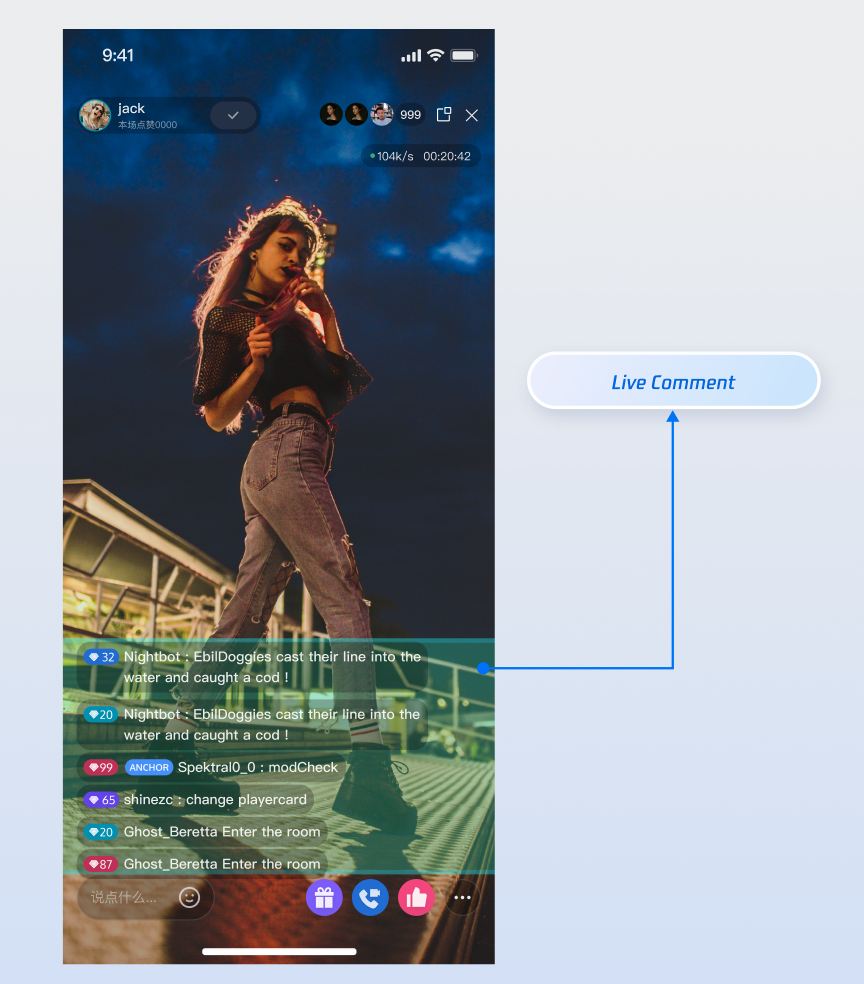
Core Features
BarrageStore delivers a complete barrage solution for your live streaming app. Core features include:Receiving and displaying barrage messages in the live room.
Sending text barrage messages to interact with viewers.
Sending custom business barrage messages to support complex scenarios such as gifts and likes.
Inserting system tips into the local message list (for example, "Welcome XX to the live room").
Core Concepts
Core Concept | Type | Core Responsibility & Description |
struct | Represents the data model for a single barrage message. Contains all essential information such as sender (sender), message content (textContent or data), message type (messageType), and more. | |
struct | Represents the current state of the barrage module. The main property, messageList, is an array of [Barrage] storing all barrage messages in chronological order for the current live room. This serves as the data source for UI rendering. | |
class | The core management class for barrage functionality. Use it to send messages (sendTextMessage, sendCustomMessage), and subscribe to its state property to receive all barrage message updates. |
Implementation
Step 1: Component Integration
Video Live Streaming: Please refer to Quick Start to integrate AtomicXCore. Quick Start to
Voice Chat Room: Please refer to Quick Start to integrate AtomicXCore.
Step 2: Initialize and Listen to Barrage
Obtain a
BarrageStore instance bound to the current live room's liveId, and set up a subscriber to receive the latest complete barrage message list in real time.import Foundationimport AtomicXCore // Import the core libraryimport Combine // For reactive programmingclass BarrageManager {private let liveId: Stringprivate let barrageStore: BarrageStoreprivate var cancellables = Set<AnyCancellable>()// Publisher for the complete message list, for UI layer subscriptionlet messagesPublisher = PassthroughSubject<[Barrage], Never>()init(liveId: String) {self.liveId = liveId// 1. Obtain the BarrageStore singleton for the given liveIdself.barrageStore = BarrageStore.create(liveID: liveId)// 2. Start listening for barrage messages immediately after initializationsubscribeToBarrageUpdates()}private func subscribeToBarrageUpdates() {barrageStore.state.subscribe() // Subscribe to all BarrageState changes.receive(on: DispatchQueue.main) // Ensure main thread for UI safety.sink { [weak self] barrageState in// 3. Forward the updated message list to the UI layer// Note: This provides the complete list, including all historical messagesself?.messagesPublisher.send(barrageState.messageList)}.store(in: &cancellables) // Manage subscription lifecycle}
Step 3: Send Text Barrage
Use the
sendTextMessage method to broadcast a plain text message to all users in the live room.extension BarrageManager {/// Send a text barrage messagefunc sendTextMessage(text: String) {// Prevent sending empty messagesguard !text.isEmpty else {print("Barrage content cannot be empty")return}// Send the message using the core APIbarrageStore.sendTextMessage(text: text, extensionInfo: nil) { result in// Handle the result in the callback, e.g., show a prompt to the userswitch result {case .success:print("Text barrage '\(text)' sent successfully")case .failure(let error):print("Failed to send text barrage: \(error.localizedDescription)")}}}}
API Parameters
Parameter | Type | Description |
text | String | The text content to send. |
extensionInfo | [String: String]? | Additional extension information for business customization. |
completion | CompletionClosure? | Callback after sending is complete, containing the success or failure result. |
Step 4: Send Custom Barrage
Send a message containing custom business logic, such as gifts, likes, or gamification commands. The content format of this message is defined by the business layer. The receiver must parse and handle it based on the
businessId and data.extension BarrageManager {/// Send a custom barrage, e.g., for sending giftsfunc sendGiftMessage(giftId: String, giftCount: Int) {// 1. Define a business-recognizable IDlet businessId = "live_gift"// 2. Encode business data as a JSON stringlet giftData: [String: Any] = ["gift_id": giftId, "gift_count": giftCount]guard let jsonData = try? JSONSerialization.data(withJSONObject: giftData),let jsonString = String(data: jsonData, encoding: .utf8) else {print("Failed to encode gift data as JSON")return}// 3. Send the custom message using the core APIbarrageStore.sendCustomMessage(businessID: businessId, data: jsonString) { result inswitch result {case .success:print("Gift message (custom barrage) sent successfully")case .failure(let error):print("Failed to send gift message: \(error.localizedDescription)")}}}}
API Parameters
Parameter | Type | Description |
businessId | String | Unique business identifier, e.g., "live_gift", used by the receiver to distinguish different custom messages. |
data | String | Business data, usually a JSON-formatted string. |
completion | CompletionClosure? | Callback after sending is complete. |
Step 5: Insert Local Tip Message
Insert a local message into the current user's message list. This message is not sent to other users in the live room. Use this for system welcomes, warnings, or action tips.
extension BarrageManager {/// Insert a welcome tip into the local message listfunc showWelcomeMessage(for user: LiveUserInfo) {// 1. Create a Barrage messagevar welcomeTip = Barrage()welcomeTip.messageType = .text // Reuse the text type for displaywelcomeTip.textContent = "Welcome \(user.userName) to the live room!"// sender can be left empty or set to a system user identifier// 2. Insert the message into the local listbarrageStore.appendLocalTip(message: welcomeTip)}}
API Parameters
Parameter | Type | Description |
message | Barrage | The message object to insert locally. The SDK appends this message to the messageList in BarrageState. |
Step 6: Manage User Speaking Permissions (Mute and Unmute)
As a host or administrator, you can manage users' chat permissions in the live room to maintain a healthy community environment.
Mute/Unmute a Single User
Use the
disableSendMessage method in LiveAudienceStore to mute or unmute a user. This state persists even if the user rejoins the live room.import AtomicXCore// 1. Get the LiveAudienceStore instance for the current live roomlet audienceStore = LiveAudienceStore.create(liveID: "your_live_id")// 2. Specify the user ID and mute statuslet userIdToMute = "user_id_to_be_muted"let shouldDisable = true // true to mute, false to unmute// 3. Call the API to perform the operationaudienceStore.disableSendMessage(userID: userIdToMute, isDisable: shouldDisable) { [weak self] result inguard let self = self else { return }switch result {case .success:print("\(shouldDisable ? "Muted" : "Unmuted") user \(userIdToMute) successfully")case .failure(let error):print("Operation failed: \(error.localizedDescription)")}}
Enable/Disable Global Mute
To mute all users in the live room (usually excluding the host), update the live room information via
LiveListStore.import AtomicXCore// 1. Get the LiveListStore singletonlet liveListStore = LiveListStore.shared// 2. Get the current live room info and modify the global mute statusvar currentLiveInfo = liveListStore.state.value.currentLivecurrentLiveInfo.isMessageDisable = true // true to enable global mute, false to disable// 3. Call the update API and specify the modify flagliveListStore.updateLiveInfo(currentLiveInfo, modifyFlag: .isMessageDisable) { result inswitch result {case .success:print("Global mute status updated successfully")case .failure(let error):print("Operation failed: \(error.localizedDescription)")}}
Advanced Features: Performance Optimization in High-Concurrency Scenarios
After implementing barrage features with
BarrageStore, use the following strategies to ensure smooth and stable user experiences in high-concurrency live streaming scenarios. This section provides optimization strategies and code samples for three core business scenarios.Scenario 1: Handling "Barrage Storms" in Popular Live Rooms
Scenario Description
During popular events, a large number of viewers may flood into the live room, with barrages updating at dozens of messages per second.
Technical Challenge
The SDK returns the complete barrage list at a high frequency. If you call
tableView.reloadData() on every update, the main thread will be blocked by intensive UI layout and rendering, causing UI lag.Optimization: Batch Processing & Debouncing
Do not respond to every data update. Instead, set a time threshold (e.g., 300 milliseconds). Only refresh the UI if this threshold has passed since the last refresh. This reduces dozens of
reloadData() calls per second to just 3-4, greatly improving smoothness.Code Example
Create a
BarrageUIManager class with an internal buffer and timer to batch update data to the UITableView.class BarrageUIManager {private var latestMessageList: [BarrageViewModel]?private var refreshTimer: Timer?private weak var tableView: UITableView?private var dataSource: [BarrageViewModel] = []init(tableView: UITableView) {self.tableView = tableView// Check every 0.3 seconds if a refresh is neededself.refreshTimer = Timer.scheduledTimer(withTimeInterval: 0.3, repeats: true) { [weak self] _ inself?.refreshUIIfNeeded()}}/// Frequently called from outside, passing in the latest full listfunc update(with fullList: [BarrageViewModel]) {self.latestMessageList = fullList}private func refreshUIIfNeeded() {// Check if there is new data to refreshguard let newList = self.latestMessageList, let tableView = self.tableView else { return }self.latestMessageList = nil // Clear the flag to avoid repeated refreshes// Update the data source and refresh the UIself.dataSource = newListtableView.reloadData()}deinit {refreshTimer?.invalidate()}}
Scenario 2: Ensuring Memory Stability for Long-Duration Live Streams
Scenario Description
Your app may need to support hours-long or even all-day continuous live streaming, such as game streaming or slow live streams. The app must remain stable and avoid crashes due to long-term operation.
Technical Challenge
The SDK returns a full
messageList that grows indefinitely during long live streams. Even if the UI layer throttles updates, the data layer's large array will continue to consume memory, eventually causing the app to crash.Optimization: Circular Buffer with Fixed Capacity
Ensure your data source holds only a limited number of messages. Regardless of the size of the full list returned by the SDK, only retain the latest portion for display.
Code Example
After receiving the full list from the SDK, take only the latest 500 messages (or another number you define) to update the UI.
class BarrageUIManager {private let capacity: Int = 500 // Retain only the latest 500 messages// ... (other code as above) ...private func refreshUIIfNeeded() {guard let fullList = self.latestMessageList, let tableView = self.tableView else { return }self.latestMessageList = nil// Only keep the latest N messageslet cappedList = Array(fullList.suffix(self.capacity))self.dataSource = cappedListtableView.reloadData()}}
Scenario 3: Rendering Complex Barrage Styles with User Levels and Badges
Scenario Description
To enhance the live streaming atmosphere and highlight paying users, barrage messages may include rich visual elements such as usernames, user level icons, fan badges, and message content.
Technical Challenge
Rendering views with multiple images and texts, custom fonts, or complex layouts is more time-consuming than rendering plain text. High-frequency rendering of these complex views in a list increases the main thread's workload, causing lag during list scrolling.
Optimization: Asynchronous Drawing
Move the view rendering process off the main thread and onto a background thread. The main thread should only handle the final display of the already rendered bitmap, significantly reducing its computational load.
Code Example
In your custom
UITableViewCell, enable the layer's drawsAsynchronously property to allow the system to perform drawing tasks on a background thread.import UIKit// In your custom barrage cellclass BarrageCell: UITableViewCell {// ... (UILabel, UIImageView, and other subview declarations)override init(style: UITableViewCell.CellStyle, reuseIdentifier: String?) {super.init(style: style, reuseIdentifier: reuseIdentifier)// Enable asynchronous drawingself.layer.drawsAsynchronously = true}required init?(coder: NSCoder) {fatalError("init(coder:) has not been implemented")}func configure(with viewModel: BarrageViewModel) {// Set label text, images, etc.// With asynchronous drawing enabled, rendering occurs on a background thread when possible}// Advanced: fully manual drawingoverride func draw(_ rect: CGRect) {// For finer control, manually draw text and images here using Core Graphics// Combine generating UIImage on a background thread, then draw it in the main thread's draw method for fully asynchronous rendering}}
API Documentation
For detailed information on all public interfaces, properties, and methods of BarrageStore and related classes, refer to the official API documentation included with the AtomicXCore framework.
FAQs
In addition to basic text barrages, we also want to implement richer styles such as "colored barrages" and "gift barrages." How can we achieve this?
You can implement these features using custom messages with
sendCustomMessage. Implementation Steps
1. Define the Data Structure: Collaborate with your client and server teams to define the JSON structure for custom messages. For example, a colored barrage can be defined as:
{ "type": "colored_text", "text": "This is a colored bullet comment!", "color": "#FF5733" }
2. Sender: When sending, serialize this JSON structure to a string and send it via the
data parameter of sendCustomMessage. The businessID can be set to a unique identifier for your use case, such as barrage_style_v1.3. Receiver: Upon receiving a barrage message, check whether its messageType is
BarrageType.CUSTOM and whether the businessID matches. If so, parse the data string (usually as JSON), and render your custom UI style based on the parsed data (such as color, text).If I call BarrageStore.create(liveID = "some_id") in different classes or files, will this create multiple instances and cause confusion?
No. The internal mechanism of AtomicXCore ensures that as long as you pass in the same liveID, you always get the same
BarrageStore instance for that live room. You do not need to manage singletons manually.Why can't I see the message I sent after calling sendTextMessage in the message list?
Troubleshooting steps:
1. Check the completion callback: The
sendTextMessage method provides a completion callback. Check whether the callback indicates success or failure. If it fails, the error message will indicate the problem (such as "You have been muted," "Network error," etc.).2. Confirm subscription timing: Make sure you subscribe to
barrageStore.barrageState.messageList after the live session for the corresponding liveID has started. If you start listening before joining the live room, you may miss some messages.3. Check liveID: Ensure that the liveID used when creating the BarrageStore instance, joining the live room, and sending messages is exactly the same, including case sensitivity.
4. Network issues: Ensure the device's network connection is normal. Message sending depends on network connectivity.

