
Room List
Feature Overview
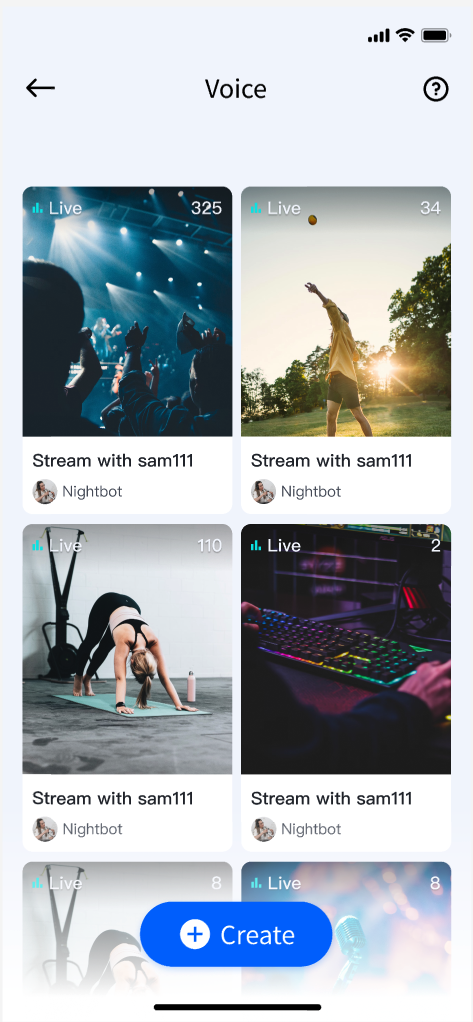
This document provides a detailed introduction to the Voice Chat Room List Page feature within TUILiveKit. Use this guide to seamlessly integrate a fully functional Live Stream List page into your project. The page includes pull-to-refresh, infinite scrolling (load more), and tap-to-join live stream room capabilities.
Quick Integration
Step 1: Integrate the Component
Step 2: Add the Live Stream List Page
Determine where in your app you want users to access the Live Stream List page. Based on your app’s navigation and UI structure, choose one of the following integration methods to either launch the Live Stream List page directly or embed it within your Widget tree:
import 'package:tencent_live_uikit/tencent_live_uikit.dart';// Navigate to the live stream list pageNavigator.push(context, MaterialPageRoute(builder: (BuildContext context) {return LiveListWidget();}));
// --- Select one way to integrate based on your Widget tree structure ---// [Option 1] As the only child Widget (single subtree)// Suitable for containers such as Container, Padding that normally only contain one child WidgetContainer(child: LiveListWidget() // Integrate the live list here)// [Option 2] As one of multiple child Widgets (multi-subtree)// Suitable for layouts such as Column, Row, Stack that can contain multiple child WidgetsStack(children: [YourOtherWidget(), // Your other child WidgetLiveListWidget(), // Integrate the live list hereYourOtherWidget(), // Your other child Widget])
After integration, the page displays a vertically scrollable list of live stream rooms.
Next Steps
You’ve now integrated the Live Stream List feature. To further enhance your live streaming experience, consider adding host streaming and audience viewing features. See the table below for details:
Feature | Description | Integration Guide |
Host Streaming | Implements the complete process for a host to start a voice chat room live, including pre-live setup and in-session interactions. | |
Audience Viewing | Enables audience participation after joining the host’s voice chat room, including joining the mic, sending and receiving bullet comments, and more. |
FAQs
Why is the Live Stream List empty after integration?
If the Live Stream List page appears blank, make sure you have completed the login step. For testing, use two devices: start a stream on one device as the host, and use the Live Stream List page on another device to fetch and display currently active live rooms.

