
Live Streaming Widget Customization
This guide provides a detailed introduction to the Live Video Component (LiveView). You can directly integrate our pre-built component into your existing project by referring to the examples in this article, or deeply customize the styles and layouts according to your needs following the component customization section in the documentation.
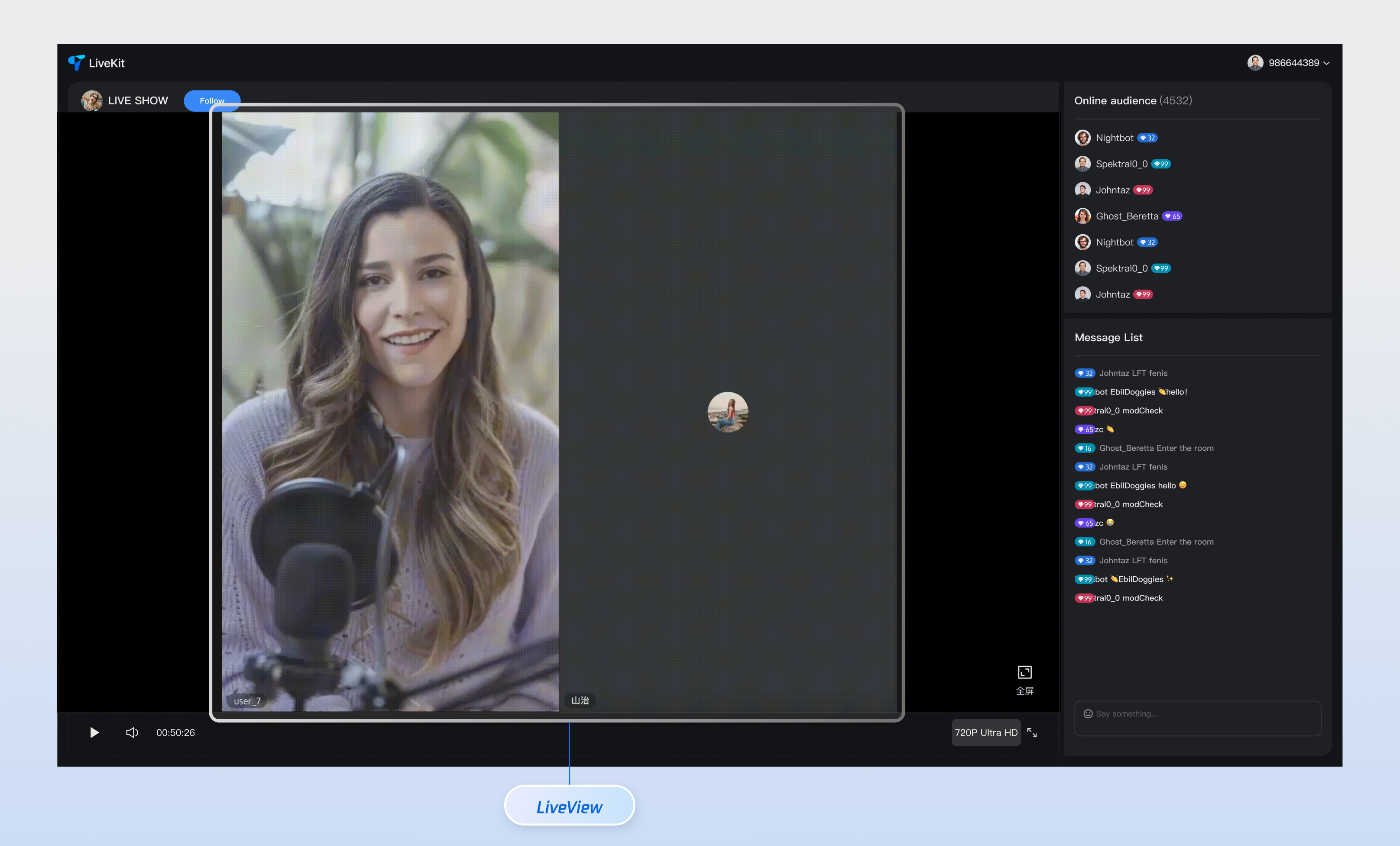
Core Features
Feature Category | Specific Capabilities |
Intelligent Stream Switching | LiveView can automatically switch stream types based on the current user's identity (audience or co-host). Audience Mode: The component will play ultra-low latency video streams, ensuring smooth viewing for millions of audiences while significantly reducing bandwidth costs. Co-hosting Mode: The component automatically switches to real-time audio/video streams, providing millisecond-level ultra-low latency to ensure real-time, clear interactive experience between co-hosting users. |
Customizable UI | To meet diverse business scenarios, LiveView provides component UI custom slots, allowing you to fully control the video stream area of co-hosting users, rewrite its UI display, and flexibly define avatar, nickname, status, and other information of co-hosting users, easily creating a unique visual experience that matches your brand style. |
Component Integration
Step 1: Prerequisites
Before integration, you need to refer to Preparation (Web React) to activate the service and integrate the SDK.
Step 2: Install Dependencies
npm install tuikit-atomicx-react @tencentcloud/uikit-base-component-react --savenpm install sass --save-dev
pnpm add tuikit-atomicx-react @tencentcloud/uikit-base-component-reactpnpm add sass --dev
yarn add tuikit-atomicx-react @tencentcloud/uikit-base-component-reactyarn add sass --dev
Step 3: Join Live Room
Import and use the LiveView component in your project. You can directly copy the following code example into your project to watch the live video of the corresponding live room.
import React, { useCallback, useEffect } from "react";import { MessageBox, Dialog, UIKitProvider } from "@tencentcloud/uikit-base-component-react";import TUIRoomEngine, { TUIRoomEvents } from "@tencentcloud/tuiroom-engine-js";import { LiveView, LiveListEvent, useLiveListState, useRoomEngine } from "tuikit-atomicx-react";import styles from "./LivePlayer.module.scss";interface LivePlayerProps {className?: string;liveId?: string;}const LivePlayer: React.FC<LivePlayerProps> = ({ className }) => {const roomEngine = useRoomEngine();const { currentLive, joinLive, subscribeEvent, unsubscribeEvent } = useLiveListState();useEffect(() => {if (!currentLive?.liveId) {joinLive({ liveId: ''}); // Enter the live room ID you want to join, which can also be an external component parameter or URL parameter, etc.}}, [currentLive?.liveId, joinLive]);const handleAutoPlayFailed = useCallback(() => {MessageBox.alert({content: 'Content is ready, click the [Play] button to start playback',confirmText: 'Play',showClose: false,modal: false,});}, []);const handleKickedOutOfLive = useCallback(() => {Dialog.open({content: 'You have been kicked out of the live room',confirmText: 'Confirm',className: styles.livePlayer__liveDialog,showCancel: false,showClose: false,modal: true,center: true,onConfirm: () => {Dialog.close();// You can add your own business logic here, such as redirecting to the home page or live list page},onClose: () => {// You can add your own business logic here, such as redirecting to the home page or live list page},});}, []);const handleLiveEnded = useCallback(() => {Dialog.open({content: 'The live has ended',confirmText: 'Confirm',className: styles.livePlayer__liveDialog,showCancel: false,showClose: false,modal: true,center: true,onConfirm: () => {Dialog.close();// You can add your own business logic here, such as redirecting to the home page or live list page},onClose: () => {// You can add your own business logic here, such as redirecting to the home page or live list page},});}, []);// Setup event listenersuseEffect(() => {if (roomEngine.instance) {roomEngine.instance.on(TUIRoomEvents.onAutoPlayFailed, handleAutoPlayFailed);} else {TUIRoomEngine.once("ready", () => {roomEngine.instance?.on(TUIRoomEvents.onAutoPlayFailed, handleAutoPlayFailed);});}subscribeEvent(LiveListEvent.ON_LIVE_ENDED, handleLiveEnded);subscribeEvent(LiveListEvent.ON_KICKED_OUT_OF_LIVE, handleKickedOutOfLive);return () => {roomEngine.instance?.off(TUIRoomEvents.onAutoPlayFailed, handleAutoPlayFailed);unsubscribeEvent(LiveListEvent.ON_LIVE_ENDED, handleLiveEnded);unsubscribeEvent(LiveListEvent.ON_KICKED_OUT_OF_LIVE, handleKickedOutOfLive);};}, [handleAutoPlayFailed, handleLiveEnded, handleKickedOutOfLive, roomEngine.instance, subscribeEvent, unsubscribeEvent]);return (<UIKitProvider theme="dark"><div className={`${styles.livePlayer} ${className || ''}`}><LiveView /></div></UIKitProvider>);};export default LivePlayer;
@mixin scrollbar {&::-webkit-scrollbar {width: 6px;background: transparent;}&::-webkit-scrollbar-track {background: transparent;}&::-webkit-scrollbar-thumb {background: var(--uikit-color-gray-3);border-radius: 3px;border: 2px solid transparent;background-clip: padding-box;&:hover {background: var(--uikit-color-gray-3);}}}.livePlayer {display: flex;width: 100%;height: 100%;border-radius: 8px;overflow: hidden;@include scrollbar;}.livePlayer__liveDialog {text-align: center;}
Next Steps
After integrating the live video component, you may want to continue integrating features such as live gifts, audience list, chat barrage, etc. You can refer to the guide documents in the table below to continue integrating these features.
Feature | Description | Integration Guide |
Live Gift Component | Display configured gift list, support sending gifts and gift playback. | |
Audience List Component | Display current live room audience information. | |
Chat Barrage Component | Support sending, receiving, and displaying text and emoji messages. |

