
Audience Watching
This guide walks you through the viewer page in the TUILiveKit React Demo, showing you how to integrate it into your project and customize its styles, features, and layout.
Feature Display
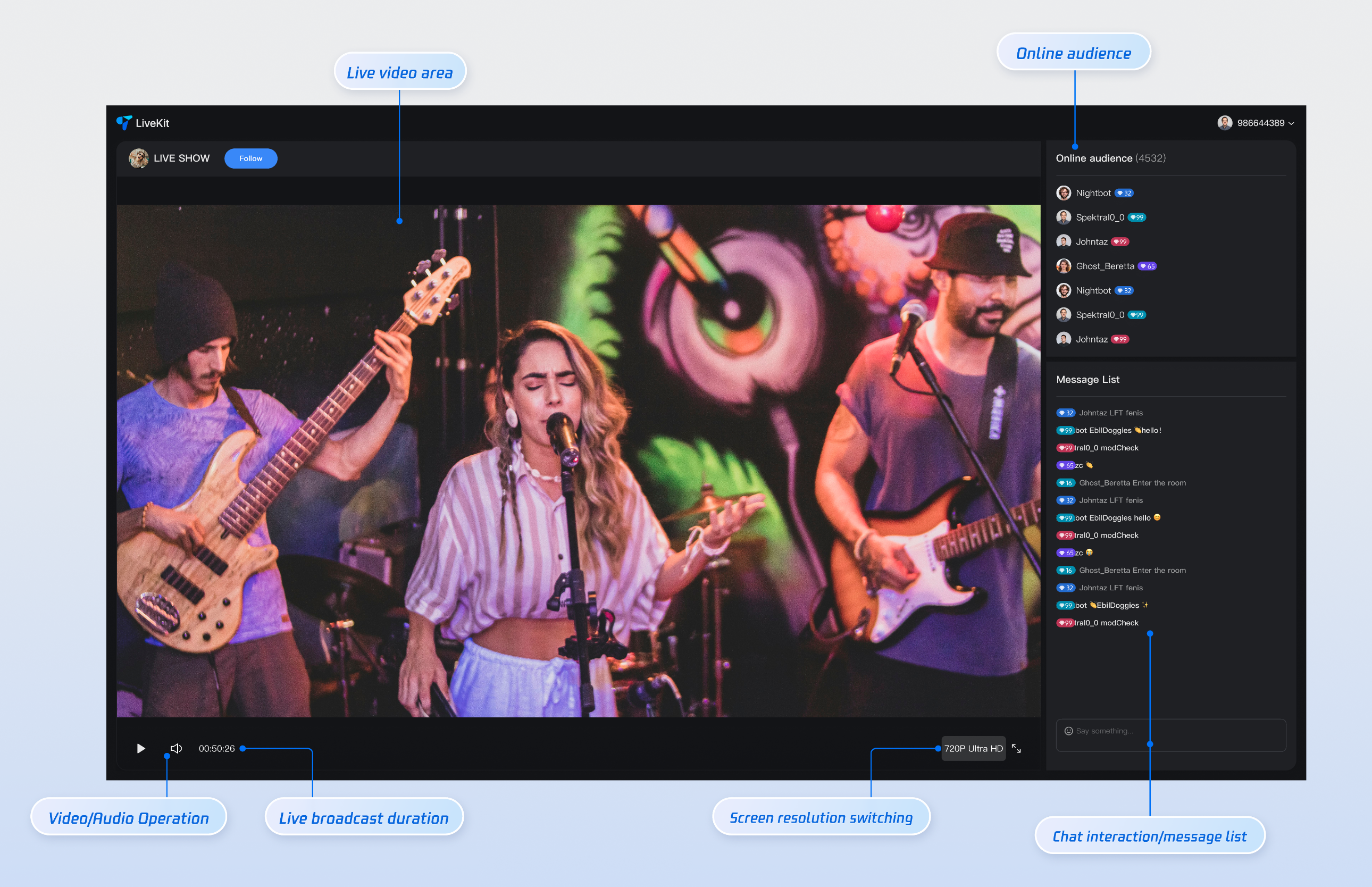
The default viewer page includes the following features: live stream info display, video player, gift panel, online audience list, interactive chat, and playback controls.
Video Playback: High-quality live streaming with adaptive resolution switching.
Interactive Chat: Real-time messaging with support for text and emoji.
Gift Panel: Send virtual gifts to the host.
Playback Controls: Pause/resume, resolution switching, volume adjustment, picture-in-picture, and full-screen mode.
Quick Integration
Step 1: Prerequisites
Step 2: Install Dependencies
Install the required dependencies using your preferred package manager:
npm install tuikit-atomicx-react @tencentcloud/uikit-base-component-react --savenpm install sass --save-dev
pnpm add tuikit-atomicx-react @tencentcloud/uikit-base-component-reactpnpm add sass --dev
yarn add tuikit-atomicx-react @tencentcloud/uikit-base-component-reactyarn add sass --dev
Step 3: Integrate the Viewer Page
Create LivePlayerView.tsx and LivePlayerView.module.scss files in your project. Copy the code below to integrate the viewer page.
Note:
You can copy the following code directly, or visit the Audience Viewing source code on GitHub for the complete implementation.
import React, { useEffect, useCallback } from 'react';import { useSearchParams, useNavigate } from 'react-router-dom';import TUIRoomEngine, { TUIRoomEvents } from "@tencentcloud/tuiroom-engine-js";import { Avatar, LiveView, LiveGift, LiveListEvent, BarrageList, BarrageInput, LiveAudienceList, useLiveListState, useLiveAudienceState, useLoginState, useRoomEngine } from 'tuikit-atomicx-react';import { UIKitProvider, IconChevronLeft, MessageBox, Dialog, useUIKit } from '@tencentcloud/uikit-base-component-react';import styles from './LivePlayerView.module.scss';interface LivePlayerProps {className?: string;}const LivePlayer: React.FC<LivePlayerProps> = ({ className }) => {const { t } = useUIKit();const navigate = useNavigate();const roomEngine = useRoomEngine();const { currentLive, leaveLive, subscribeEvent, unsubscribeEvent } = useLiveListState();const { audienceCount } = useLiveAudienceState();const handleAutoPlayFailed = useCallback(() => {MessageBox.alert({content: 'Content is ready, click the [Play] button to start playback',confirmText: 'Play',showClose: false,modal: false,});}, []);const handleKickedOutOfLive = useCallback(() => {Dialog.open({content: 'You have been kicked out of the live room',confirmText: 'Confirm',className: styles.livePlayer__liveDialog,showCancel: false,showClose: false,modal: true,center: true,onConfirm: () => {Dialog.close();// You can add your own business logic here, such as redirecting to the home page or live list page},onClose: () => {// You can add your own business logic here, such as redirecting to the home page or live list page},});}, [navigate]);const handleLiveEnded = useCallback(() => {Dialog.open({content: 'The live stream has ended',confirmText: 'Confirm',className: styles.livePlayer__liveDialog,showCancel: false,showClose: false,modal: true,center: true,onConfirm: () => {Dialog.close();// You can add your own business logic here, such as redirecting to the home page or live list page},onClose: () => {// You can add your own business logic here, such as redirecting to the home page or live list page},});}, [navigate]);const handleLeaveLive = useCallback(async () => {try {await leaveLive();navigate('/live-list');} catch (error) {console.error('Failed to leave live:', error);MessageBox.alert({content: 'Failed to leave live room, please try again',confirmText: 'Confirm',showClose: false,modal: true,});}}, [leaveLive, navigate]);// Setup event listenersuseEffect(() => {// Listen for autoplay failure event. Browsers disable audio playback by default. When autoplay fails, add a UI interaction to trigger audio playbackif (roomEngine.instance) {roomEngine.instance.on(TUIRoomEvents.onAutoPlayFailed, handleAutoPlayFailed);} else {TUIRoomEngine.once("ready", () => {roomEngine.instance?.on(TUIRoomEvents.onAutoPlayFailed, handleAutoPlayFailed);});}// Listen for live end eventsubscribeEvent(LiveListEvent.ON_LIVE_ENDED, handleLiveEnded);// Listen for kicked out of live room event by hostsubscribeEvent(LiveListEvent.ON_KICKED_OUT_OF_LIVE, handleKickedOutOfLive);return () => {roomEngine.instance?.off(TUIRoomEvents.onAutoPlayFailed, handleAutoPlayFailed);unsubscribeEvent(LiveListEvent.ON_LIVE_ENDED, handleLiveEnded);unsubscribeEvent(LiveListEvent.ON_KICKED_OUT_OF_LIVE, handleKickedOutOfLive);};}, [handleAutoPlayFailed, handleLiveEnded, handleKickedOutOfLive, roomEngine.instance, subscribeEvent, unsubscribeEvent]);return (<div className={`${styles.livePlayer} ${className || ''}`}><div className={styles.livePlayer__left}><div className={styles.livePlayer__header}><div className={styles.livePlayer__headerContent}><IconChevronLeftclassName={styles.livePlayer__headerChevronLeft}size="32"onClick={handleLeaveLive}/><AvatarclassName={styles.livePlayer__headerAvatar}src={currentLive?.liveOwner?.avatarUrl}size={32}/><span>{currentLive?.liveOwner?.userName || currentLive?.liveOwner?.userId}</span></div></div><div className={styles.livePlayer__player}><LiveView /></div><div className={styles.livePlayer__giftContainer}><LiveGift /></div></div><div className={styles.livePlayer__right}><div className={styles.livePlayer__audienceList}><div className={styles.livePlayer__audienceListTitle}><span>{t('Audience List')} </span><span className={styles.livePlayer__audienceCount}>({audienceCount})</span></div><div className={styles.livePlayer__audienceListContent}><LiveAudienceList height="100%" /></div></div><div className={styles.livePlayer__messageList}><div className={styles.livePlayer__messageListTitle}><span>{t('Message List')}</span></div><div className={styles.livePlayer__messageListContent}><BarrageList /><BarrageInput /></div></div></div></div>);};const LivePlayerView: React.FC = () => {const [searchParams] = useSearchParams();const { loginUserInfo, login, setSelfInfo } = useLoginState();const { joinLive } = useLiveListState();useEffect(() => {// Method 1: Get from URL parameters (recommended for page navigation scenarios)const liveId = searchParams.get('liveId') || '';// Method 2: Get from component Props (if using LivePlayerView as a child component)// const liveId = props.liveId || '';// Method 3: Hardcode for testing (please replace with actual live room ID)// const liveId = 'your_live_room_id';if (liveId) {joinLive({ liveId });}}, [searchParams, joinLive]);const initLogin = useCallback(async () => {try {await login({SDKAppID: 0, // Please replace with your SDKAppID (obtained when activating service)userID: '', // Please replace with your user IDuserSig: '', // Please replace with your user signature (see [Step 1: Environment Configuration and Service Activation] document for detailed instructions)});await setSelfInfo({userName: '', // User nickname, displayed in member list and chat messages. If not set, user ID will be displayedavatarUrl: '', // User avatar, must be a complete URL image address, e.g.: https://your.domain.com/avatar-default.png});} catch (error) {console.error('Login failed:', error);}}, [login, setSelfInfo]);useEffect(() => {async function init() {await initLogin();}if (!loginUserInfo?.userId) {init();} else {console.log('[LiveList]User already logged in:', loginUserInfo.userId);}}, [initLogin, loginUserInfo?.userId]);return (<UIKitProvider theme="dark" language='zh-CN'><div className={styles.livePlayerView}><div className={styles.livePlayerView__body}><LivePlayer /></div></div></UIKitProvider>);};export default LivePlayerView
@mixin text-size-16 {font-size: 16px;font-weight: 600;}@mixin text-size-12 {font-size: 12px;font-weight: 400;}@mixin text-size-14 {font-size: 14px;font-weight: 400;}@mixin text-size-24 {font-size: 24px;font-weight: 500;}@mixin scrollbar {&::-webkit-scrollbar {width: 6px;background: transparent;}&::-webkit-scrollbar-track {background: transparent;}&::-webkit-scrollbar-thumb {background: var(--uikit-color-gray-3);border-radius: 3px;border: 2px solid transparent;background-clip: padding-box;&:hover {background: var(--uikit-color-gray-3);}}}.livePlayerView {display: flex;flex-direction: column;width: 100%;height: 100%;padding: 16px;background-color: var(--uikit-bg-color-topbar);color: var(--uikit-text-color-primary);.livePlayerView__header {width: 100%;padding-bottom: 16px;}.livePlayerView__body {flex: 1;display: flex;flex-direction: column;width: 100%;overflow: auto;align-items: center;}}.livePlayer {display: flex;width: 100%;height: 100%;border-radius: 8px;overflow: hidden;@include scrollbar;.livePlayer__left {display: flex;flex-direction: column;flex: 1;min-width: 0;margin-right: 8px;overflow: hidden;.livePlayer__header {width: 100%;height: 56px;flex-shrink: 0;padding: 0 16px;background: var(--uikit-bg-color-operate);.livePlayer__headerContent {display: flex;align-items: center;width: 100%;height: 100%;border-bottom: 1px solid var(--uikit-stroke-color-primary);span {@include text-size-16;}}.livePlayer__headerChevronLeft {cursor: pointer;}.livePlayer__headerAvatar {margin: 0 8px;border: 1px solid var(--uikit-color-white-7);}}.livePlayer__player {width: 100%;flex: 1;min-height: 0;background: var(--uikit-bg-color-topbar);}.livePlayer__giftContainer {width: 100%;height: 130px;flex-shrink: 0;border-top: 1px solid var(--uikit-stroke-color-primary);background: var(--uikit-bg-color-operate);}}.livePlayer__right {display: flex;flex-direction: column;height: 100%;width: 20%;min-width: 160px;max-width: 360px;.livePlayer__audienceList {display: flex;flex-direction: column;flex-shrink: 0;height: 30%;padding: 8px;background: var(--uikit-bg-color-operate);.livePlayer__audienceListTitle {padding: 12px 0;border-bottom: 1px solid var(--uikit-stroke-color-primary);@include text-size-16;}.livePlayer__audienceCount {font-weight: 400;color: var(--uikit-text-color-secondary);}.livePlayer__audienceListContent {flex: 1;overflow: hidden;}}.livePlayer__messageList {display: flex;flex-direction: column;flex: 1 0 auto;margin-top: 8px;padding: 8px;background: var(--uikit-bg-color-operate);.livePlayer__messageListTitle {padding: 12px 0;border-bottom: 1px solid var(--uikit-stroke-color-primary);@include text-size-16;}.livePlayer__messageListContent {display: flex;flex: 1;flex-direction: column;}}}}.livePlayer__liveDialog {text-align: center;}
Step 4: Configure Routes
To navigate from your home page or live list to the viewer page, configure React Router. Create or update
src/router/index.tsx in your project, then import and use it in your main file (e.g., main.tsx or App.tsx). See the GitHub Code Example for reference. For live list integration, see Live List (Web React).// src/router/index.tsximport { createHashRouter } from 'react-router-dom';import { LiveListView } from '../views/LiveList';import { LivePlayerView } from '../views/LivePlayer';// Route protection componentconst ProtectedRoute = ({ children }: { children: React.ReactNode; }) => {return (<>{children}</>);};const routes = [{path: '/live-player',element: <LivePlayerView />,},// // If you need the live list feature, add the following route to integrate the live list page// // For integration documentation, please refer to [Live List -> Live List (Web React)]// {// path: '/live-list',// element: <LiveListView />,//}];export const router = createHashRouter(routes.map(route => ({...route,element: <ProtectedRoute>{route.element}</ProtectedRoute>,})));// Use the router component src/router/index.tsx in src/App.tsximport { RouterProvider } from 'react-router-dom'import { router } from './router'import './App.css'function App() {return (<RouterProvider router={router} />)}export default App
Step 5: Start the Project
Open the terminal, navigate to the project directory, and execute the following command to start the project.
npm run dev
Play Live Stream
Step 1: Start a Live Stream
Option 1 (Recommended):
Use our provided Online Streaming Website to start a live stream to watch, and get the live room ID after starting
Option 2:
Run a demo project on another platform to start a live stream, for example: Run Web Vue3 Streaming and Viewing.
Note:
Use different user IDs for streaming and viewing. Otherwise, logging in on a second device will force the first device offline (kicked offline).
Step 2: Watch a Live Stream
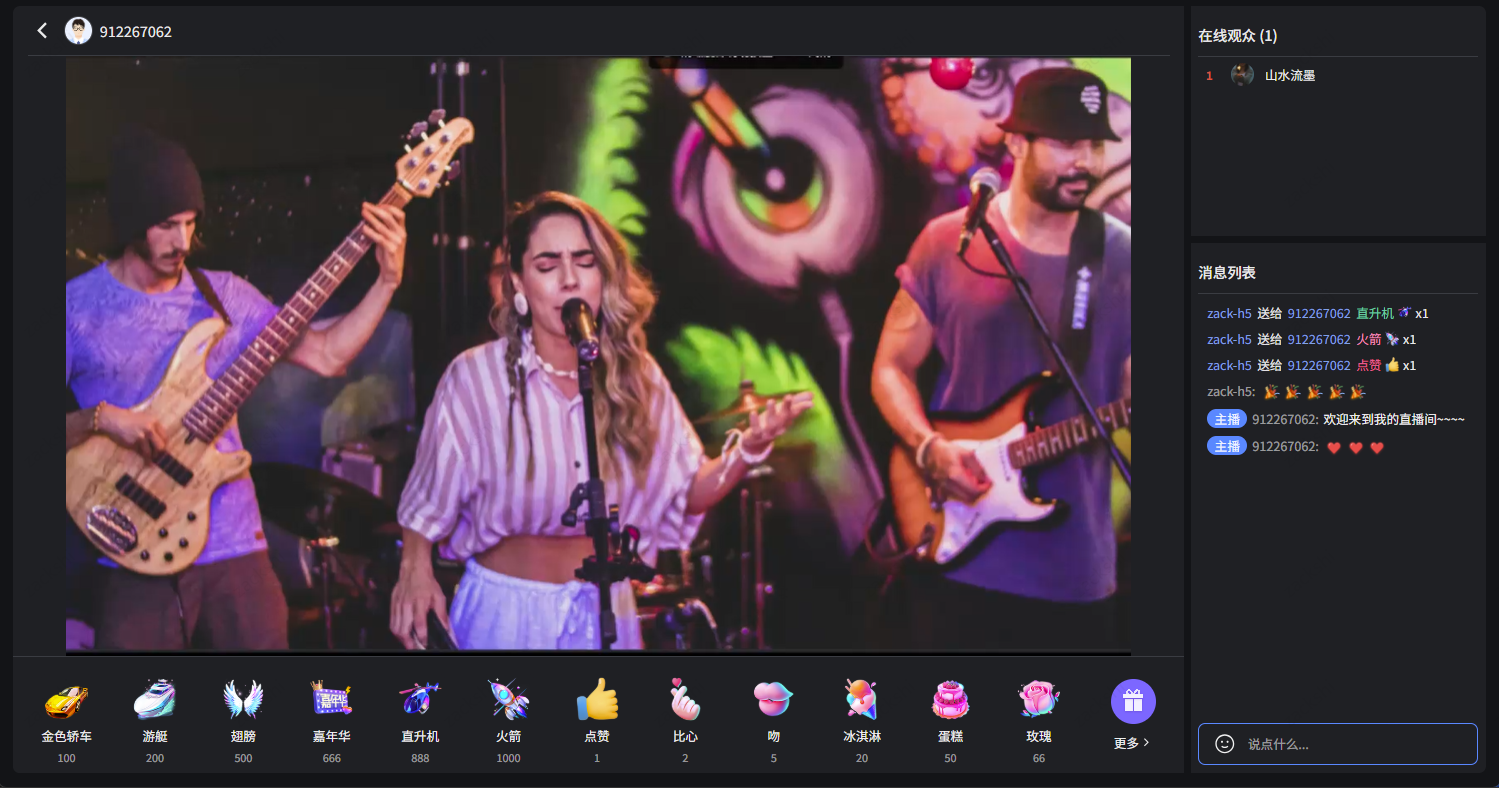
Refer to the sample code in Quick Integration > Step 3 above. After entering the login account and live room ID, you can enter the live room to watch the live stream. The viewer experience is shown below:
Customization
Theme and Language
You can use the
UIKitProvider component to modify the default theme and language.UIKitProvider Parameter | Options | Default Value |
theme | "light" | "dark" | "light" |
language | "zh-CN" | "en-US" | - |
1. Global Setting in App.tsx
Wrap your app with
UIKitProvider at the root level in App.tsx.import { RouterProvider } from 'react-router-dom'import { UIKitProvider } from '@tencentcloud/uikit-base-component-react'import { router } from './router'import './App.css'function App() {return (<UIKitProvider theme="dark" language='zh-CN'><RouterProvider router={router} /></UIKitProvider>);}export default App
2. Setting in Individual Page or Component
const LivePlayerView: React.FC = () => {return (<UIKitProvider theme="dark" language='zh-CN'><div className={styles.livePlayerView}><div className={styles.livePlayerView__body}><LivePlayer /></div></div></UIKitProvider>);};export default LivePlayerView;
Set Nickname and Avatar
The code in Quick Integration > Step 3 includes nickname and avatar configuration, shown below. Your display name and avatar will appear in member lists and chat messages across all live rooms. If not set, the nickname defaults to your user ID and the avatar to a default image.
const initLogin = useCallback(async () => {try {await login({SDKAppID: 0, // Please replace with your SDKAppID (obtained when activating service)userID: '', // Please replace with your user IDuserSig: '', // Please replace with your user signature (see [Step 1: Environment Configuration and Service Activation] document for detailed instructions)});await setSelfInfo({userName: '', // User nickname, displayed in member list and chat messages. If not set, user ID will be displayedavatarUrl: '', // User avatar, must be a complete URL image address, e.g.: https://your.domain.com/avatar-default.png});} catch (error) {console.error('Login failed:', error);}}, [login, setSelfInfo]);
FAQ
Why doesn't autoplay work in browsers?
Modern browsers restrict autoplay to improve user experience. Media with audio can only play after user interaction (e.g., clicking or tapping). This prevents websites from playing audio without explicit user consent. Most browsers allow silent video autoplay, but iOS Safari in low power mode and iOS WKWebView with custom restrictions (e.g., WeChat in-app browser) also block silent video autoplay.
Autoplay Failure Behavior
When a site's Media Engagement Index (MEI) hasn't reached the required threshold, attempting to autoplay audio will fail. By default, the SDK displays a dialog prompting user interaction (e.g., clicking OK). After interaction, the browser policy is satisfied and playback resumes normally.
Solution: Custom Handling of Autoplay Failure
If you want to customize the interaction method when autoplay fails (for example, replacing the default popup UI), you can do so by listening to the
onAutoplayFailed callback thrown by the SDK. The following is a code snippet from Quick Integration > Step 3, which listens to the event and displays a custom dialog to prompt the user.import React, { useEffect, useCallback } from 'react';import TUIRoomEngine, { TUIRoomEvents } from "@tencentcloud/tuiroom-engine-js";import { useLiveListState, useRoomEngine } from 'tuikit-atomicx-react';import { MessageBox } from '@tencentcloud/uikit-base-component-react';import styles from './LivePlayerView.module.scss';const LivePlayer: React.FC<LivePlayerProps> = ({ className }) => {const roomEngine = useRoomEngine();const { currentLive, leaveLive, subscribeEvent, unsubscribeEvent } = useLiveListState();// Autoplay failure event handlerconst handleAutoPlayFailed = useCallback(() => {MessageBox.alert({content: 'Content is ready, click the [Play] button to start playback',confirmText: 'Play',showClose: false,modal: false,});}, []);// Setup event listenersuseEffect(() => {// Listen for autoplay failure event. Browsers disable audio playback by default. When autoplay fails, add a UI interaction to trigger audio playbackif (roomEngine.instance) {roomEngine.instance.on(TUIRoomEvents.onAutoPlayFailed, handleAutoPlayFailed);} else {TUIRoomEngine.once("ready", () => {roomEngine.instance?.on(TUIRoomEvents.onAutoPlayFailed, handleAutoPlayFailed);});}// ... other code omittedreturn () => {roomEngine.instance?.off(TUIRoomEvents.onAutoPlayFailed, handleAutoPlayFailed);// ... other code omitted};}, [handleAutoPlayFailed, handleLiveEnded, handleKickedOutOfLive, roomEngine.instance, subscribeEvent, unsubscribeEvent]);//... other code omitted}
Next Steps
Congratulations, you have successfully integrated the audience viewing feature. Next, you can continue to integrate features such as live list.
Feature | Description | Integration Guide |
Live List | Display live list interface and features, including live list and room information display. |

