
Answering Your First Call
This guide walks you through implementing the "answer call" feature using the AtomicXCore SDK, leveraging its DeviceStore, CallStore, and the core UI component CallCoreView.
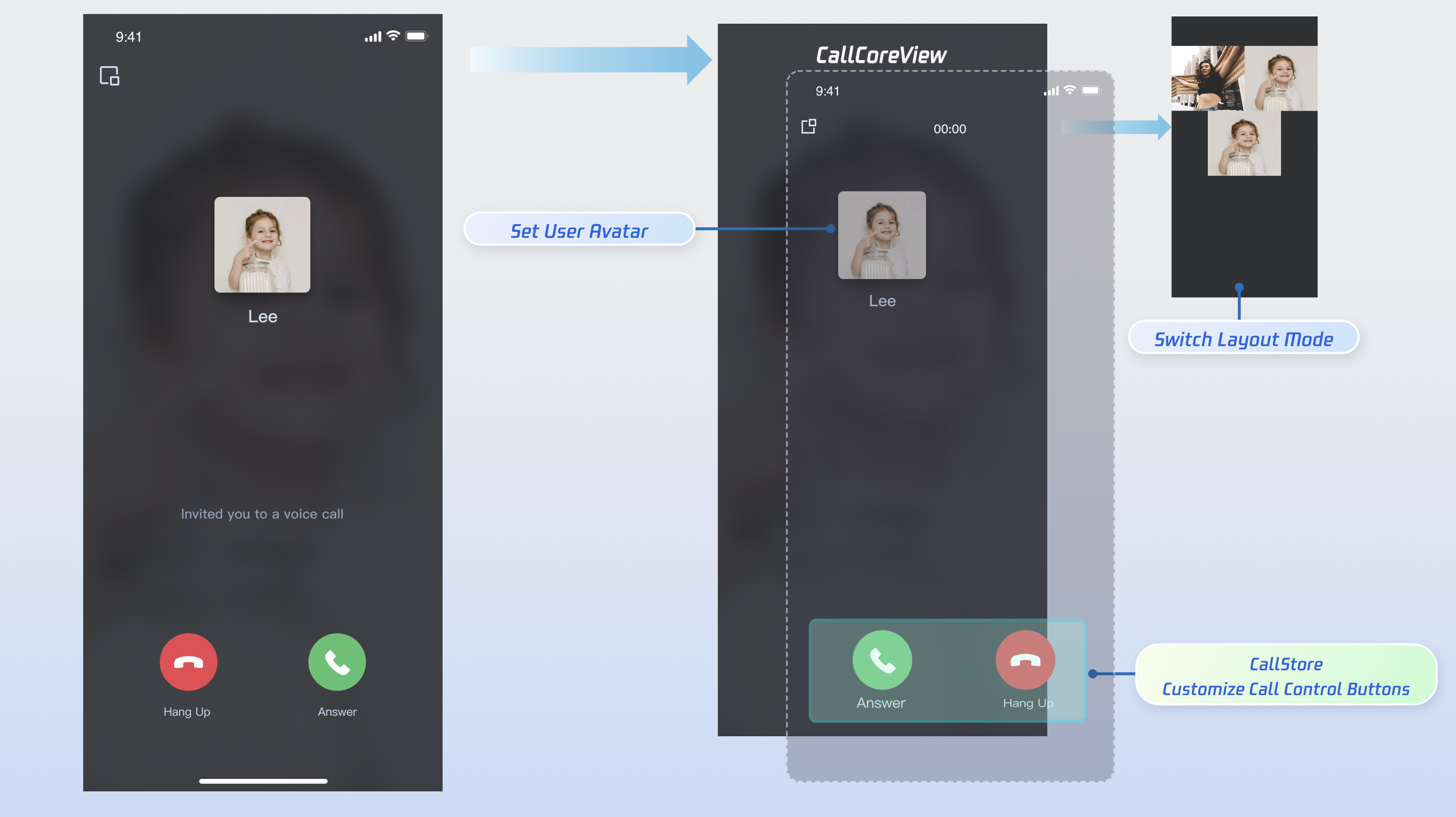
Core Features
To build multi-party Audio/Video Call scenarios with AtomicXCore, you’ll use the following core modules:
Module | Description |
The main call UI component. It automatically observes CallStore data, renders video streams, and supports UI customization such as layout switching, avatar, and icon configuration. | |
Manages the call lifecycle: make call, answer call, reject call, hang up. Provides real-time access to participant audio/video status, call timer, call records, and related data. | |
Controls audio/video devices: microphone (toggle/volume), camera (toggle/switch/quality), screen sharing, and real-time device status monitoring. |
Getting Started
Step 1: Activate the Service
Step 2: Integrate the SDK
1. Add Pod Dependency: Add
pod 'AtomicXCore' to your project's Podfile.target 'YourProjectTarget' dopod 'AtomicXCore'end
Tips:
If your project does not have a Podfile: In your terminal, navigate to your
.xcodeproj directory and run pod init to generate a Podfile.2. Install Components: In the terminal, navigate to the directory containing your Podfile and run:
pod install --repo-update
Tips:
After installation, open your project using the
YourProjectName.xcworkspace file.Step 3: Initialize and Log In
To start the call service, initialize CallStore and log in the user. CallStore will automatically sync user info after a successful login and enter the ready state. See the flowchart and sample code below:
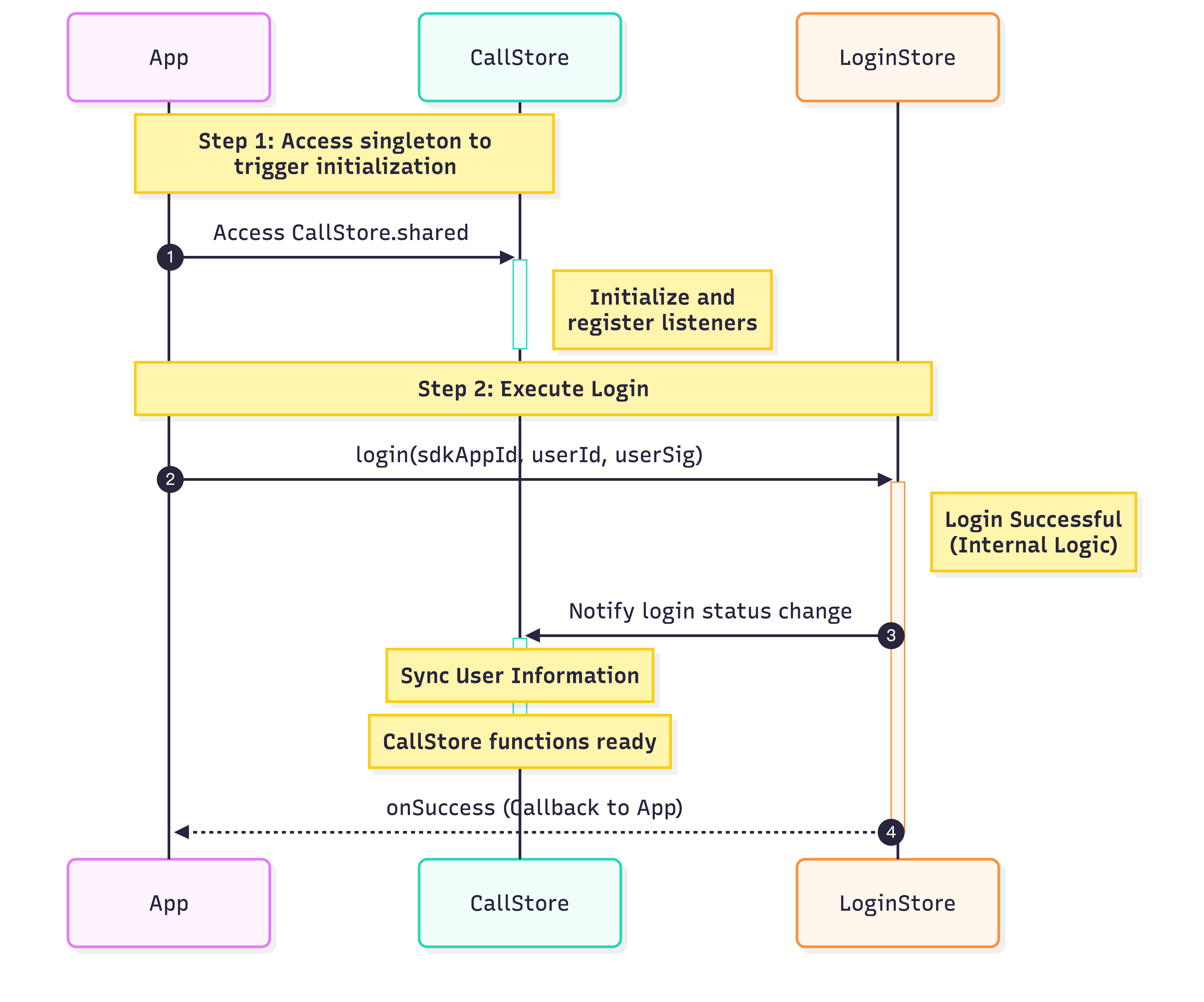
import UIKitimport AtomicXCoreimport Combineclass ViewController: UIViewController {var cancellables = Set<AnyCancellable>()override func viewDidLoad() {super.viewDidLoad()// Initialize CallStorelet _ = CallStore.shared// Set up user informationlet userID = "test_001" // Replace with your UserIDlet sdkAppID: Int = 1400000001 // Replace with your SDKAppID from the consolelet secretKey = "**************" // Replace with your SecretKey from the console// Generate UserSig (for local testing only; always generate UserSig on your server in production)let userSig = GenerateTestUserSig.genTestUserSig(userID: userID,sdkAppID: sdkAppID,secretKey: secretKey)// Log inLoginStore.shared.login(sdkAppID: sdkAppID,userID: userID,userSig: userSig) { result inswitch result {case .success:Log.info("login success")// Initialize TUICallEngineTUICallEngine.createInstance().`init`(Int32(sdkAppID), userId: userID, userSig: userSig) {Log.info("TUICallEngine init success")} fail: { code, message inLog.error("TUICallEngine init failed, code: \(code), message: \(message ?? "")")}case .failure(let error):Log.error("login failed, code: \(error.code), error: \(error.message)")}}}}
Parameter | Type | Description |
userID | String | Unique identifier for the current user. Only letters, numbers, hyphens, and underscores are allowed. Avoid simple IDs like 1 or 123 to prevent multi-device login conflicts. |
sdkAppID | int | |
secretKey | String | |
userSig | String | Authentication token for TRTC. Development: Use GenerateTestUserSig.genTestUserSig or UserSig Tool to generate a temporary UserSig. Production: Always generate UserSig server-side to prevent secret key leakage. See Server-side UserSig Generation for details. For more info, see How to Calculate and Use UserSig. |
Implement Answer Call
Important: Make sure the user is logged in before answering a call. This is required for the service to work. Follow these 6 steps to implement the answer call feature.
Step 1: Create Call Screen
You need a call screen that appears when a call is received.
1. Create the call screen: Implement a new UIViewController to serve as the call screen. This screen will be presented when an incoming call arrives.
2. Attach CallCoreView to the call screen: This core component observes CallStore data, renders video, and supports UI customization for layout, avatars, and icons.
import UIKitimport AtomicXCoreclass CallViewController: UIViewController {// 1. Create the call screenoverride func viewDidLoad() {super.viewDidLoad()view.backgroundColor = .black// 2. Attach CallCoreView to the call screencallCoreView = CallCoreView(frame: view.bounds)callCoreView?.autoresizingMask = [.flexibleWidth, .flexibleHeight]if let callCoreView = callCoreView {view.addSubview(callCoreView)}}}
CallCoreView Feature Overview:
Feature | Description | Reference |
Set layout mode | Switch between different layout modes. If not set, layout adapts automatically based on participant count. | Switch layout mode |
Set avatar | Set custom avatars for specific users by providing avatar resource paths. | Customize default avatar |
Set volume indicator icon | Display custom volume indicator icons for different volume levels. | Customize volume indicator icon |
Set network status icon | Show network status icons based on real-time network quality. | Customize network status icon |
Set waiting animation for users | In multi-party calls, display a GIF animation for users in the waiting state. | Customize loading animation |
Step 2: Add Answer and Reject Controls
DeviceStore: Controls microphone (toggle/volume), camera (toggle/switch/quality), screen sharing, and monitors real-time device status. Bind these methods to button actions and update the UI in real time by listening for device status changes.
CallStore: Provides core call controls such as answer, hang up, and reject. Bind these methods to button actions and listen for call status changes to keep the UI in sync with the call state.
Icon resources: Download button icons from GitHub. These icons are designed for TUICallKit, copyright-free, and safe to use.
Icons |  |  |  |  |  |  |  |  |
Sample implementation for adding Answer and Reject buttons:
1.1 Add Answer and Reject Buttons: Add "Answer" and "Reject" buttons, and bind their actions to the accept and reject methods.
import UIKitimport AtomicXCoreclass CallViewController: UIViewController {private var buttonReject: UIButton?private var buttonAccept: UIButton?override func viewDidLoad() {super.viewDidLoad()view.backgroundColor = .blackaddControlButtons()}private func addControlButtons() {let buttonWidth: CGFloat = 80let buttonHeight: CGFloat = 80let spacing: CGFloat = 60let bottomMargin: CGFloat = 100let totalWidth = buttonWidth * 2 + spacinglet startX = (view.bounds.width - totalWidth) / 2let buttonY = view.bounds.height - bottomMargin - buttonHeight// Answer buttonbuttonAccept = createButton(frame: CGRect(x: startX, y: buttonY, width: buttonWidth, height: buttonHeight),title: "Answer",backgroundColor: .systemGreen)buttonAccept?.addTarget(self, action: #selector(touchAcceptButton), for: .touchUpInside)view.addSubview(buttonAccept!)// Reject buttonbuttonReject = createButton(frame: CGRect(x: startX + buttonWidth + spacing, y: buttonY, width: buttonWidth, height: buttonHeight),title: "Reject",backgroundColor: .systemRed)buttonReject?.addTarget(self, action: #selector(touchRejectButton), for: .touchUpInside)view.addSubview(buttonReject!)}@objc private func touchAcceptButton() {CallStore.shared.accept(completion: nil)}@objc private func touchRejectButton() {CallStore.shared.reject(completion: nil)}private func createButton(frame: CGRect, title: String, backgroundColor: UIColor) -> UIButton {let button = UIButton(type: .system)button.frame = framebutton.setTitle(title, for: .normal)button.setTitleColor(.white, for: .normal)button.backgroundColor = backgroundColorbutton.layer.cornerRadius = frame.width / 2button.titleLabel?.font = UIFont.systemFont(ofSize: 16)return button}}
1.2 Close the call screen when the call ends: Whether the caller cancels or the callee rejects, the
onCallEnded event is triggered. Listen for this event and close (dismiss) the call screen when the call ends.import UIKitimport AtomicXCoreimport Combineclass CallViewController: UIViewController {private var cancellables = Set<AnyCancellable>()override func viewDidLoad() {super.viewDidLoad()addListener()}private func addListener() {CallStore.shared.callEventPublisher.receive(on: DispatchQueue.main).sink { [weak self] event inif case .onCallEnded = event {self?.dismiss(animated: true)}}.store(in: &cancellables)}}
Step 3: Request Audio/Video Permissions
Check audio and video permissions before connecting the call. If permissions are missing, prompt the user to grant them.
1. Declare permissions: Add the following entries to your
Info.plist file with appropriate usage descriptions. These will be displayed when the system requests permissions.<key>NSCameraUsageDescription</key><string>Camera access is required for video calls and group video calls.</string><key>NSMicrophoneUsageDescription</key><string>Microphone access is required for audio calls, group audio calls, video calls, and group video calls.</string>
2. Request permissions dynamically: Request audio/video permissions when an incoming call is received, or as needed by your business logic.
import AVFoundationimport UIKitextension UIViewController {// Check microphone permissionfunc checkMicrophonePermission(completion: @escaping (Bool) -> Void) {let status = AVCaptureDevice.authorizationStatus(for: .audio)switch status {case .authorized:completion(true)case .notDetermined:AVCaptureDevice.requestAccess(for: .audio) { granted inDispatchQueue.main.async {completion(granted)}}case .denied, .restricted:completion(false)@unknown default:completion(false)}}// Check camera permissionfunc checkCameraPermission(completion: @escaping (Bool) -> Void) {let status = AVCaptureDevice.authorizationStatus(for: .video)switch status {case .authorized:completion(true)case .notDetermined:AVCaptureDevice.requestAccess(for: .video) { granted inDispatchQueue.main.async {completion(granted)}}case .denied, .restricted:completion(false)@unknown default:completion(false)}}// Show permission alertfunc showPermissionAlert(message: String) {let alert = UIAlertController(title: "Permission Request",message: message,preferredStyle: .alert)alert.addAction(UIAlertAction(title: "Go to Settings", style: .default) { _ inif let url = URL(string: UIApplication.openSettingsURLString) {UIApplication.shared.open(url)}})alert.addAction(UIAlertAction(title: "Cancel", style: .cancel))present(alert, animated: true)}}
Step 4: Handle Incoming Call Notifications
Listen for the current user's call status and play a ringtone or vibration when a call is incoming. Stop the notification when the call is answered or ends.
1. Subscribe to user status: Subscribe to
CallStore.shared.state.value.selfInfo to reactively monitor the current user's status.2. Play/stop ringtone or vibration: If
selfInfo.status is .waiting, play a ringtone or vibration. If the status changes to .accept, stop the notification.import UIKitimport AtomicXCoreimport Combineimport AVFoundationclass MainViewController: UIViewController {private var audioPlayer: AVAudioPlayer?private var cancellables = Set<AnyCancellable>()override func viewDidLoad() {super.viewDidLoad()observeSelfStatus()}private func observeSelfStatus() {CallStore.shared.state.subscribe(StatePublisherSelector<CallState, CallParticipantStatus>(keyPath: \.selfInfo.status)).removeDuplicates().receive(on: DispatchQueue.main).sink { [weak self] status inself?.handleRingtoneByStatus(status)}.store(in: &cancellables)}private func handleRingtoneByStatus(_ status: CallParticipantStatus) {switch status {case .waiting:// Start ringtone while waiting to answer// playRingtone()case .accept:// Stop ringtone after answering// stopRingtone()default:// Stop ringtone for other statuses// stopRingtone()}}}
Step 5: Enable Media Devices on Incoming Call
When an incoming call arrives, determine the media type via the onCallReceived event. Enable the appropriate media devices when the call UI is displayed.
1. Listen for incoming call event: Subscribe to the
onCallReceived event.2. Enable devices based on media type: For audio calls, enable the microphone only. For video calls, enable both the microphone and camera.
import UIKitimport AtomicXCoreimport Combineclass MainViewController: UIViewController {private var cancellables = Set<AnyCancellable>()override func viewDidLoad() {super.viewDidLoad()addListener()}private func addListener() {CallStore.shared.callEventPublisher.receive(on: DispatchQueue.main).sink { [weak self] event inif case .onCallReceived(_, let mediaType, _) = event {self?.openDeviceForMediaType(mediaType)}}.store(in: &cancellables)}private func openDeviceForMediaType(_ mediaType: CallMediaType) {DeviceStore.shared.openLocalMicrophone(completion: nil)if mediaType == .video {let isFront = trueDeviceStore.shared.openLocalCamera(isFront: isFront, completion: nil)}}}
openLocalCamera API Parameters:
Parameter | Type | Required | Description |
isFront | Bool | Yes | Whether to use the front camera. - true: Front camera - false: Rear camera |
completion | CompletionHandler | No | Completion callback, returns the result of enabling the camera. If it fails, returns error code and message. |
openLocalMicrophone API Parameters:
Parameter | Type | Required | Description |
completion | CompletionHandler | No | Completion callback, returns the result of enabling the microphone. If it fails, returns error code and message. |
Step 6: Present Call UI on Incoming Call
1. Subscribe to the incoming call event: Listen for
onCallReceived.2. Present the call screen: Show the call UI when an incoming call is detected.
import UIKitimport AtomicXCoreimport Combineclass MainViewController: UIViewController {private var cancellables = Set<AnyCancellable>()override func viewDidLoad() {super.viewDidLoad()addListener()}private func addListener() {CallStore.shared.callEventPublisher.receive(on: DispatchQueue.main).sink { [weak self] event inif case .onCallReceived(_, _, _) = event {let callVC = CallViewController()callVC.modalPresentationStyle = .fullScreenself?.present(callVC, animated: true)}}.store(in: &cancellables)}}
onCallReceived Event Parameters:
Parameter | Type | Description |
callId | String | Unique identifier for the call. |
mediaType | Specifies whether the call is audio or video. CallMediaType.video: Video call CallMediaType.audio: Audio call |
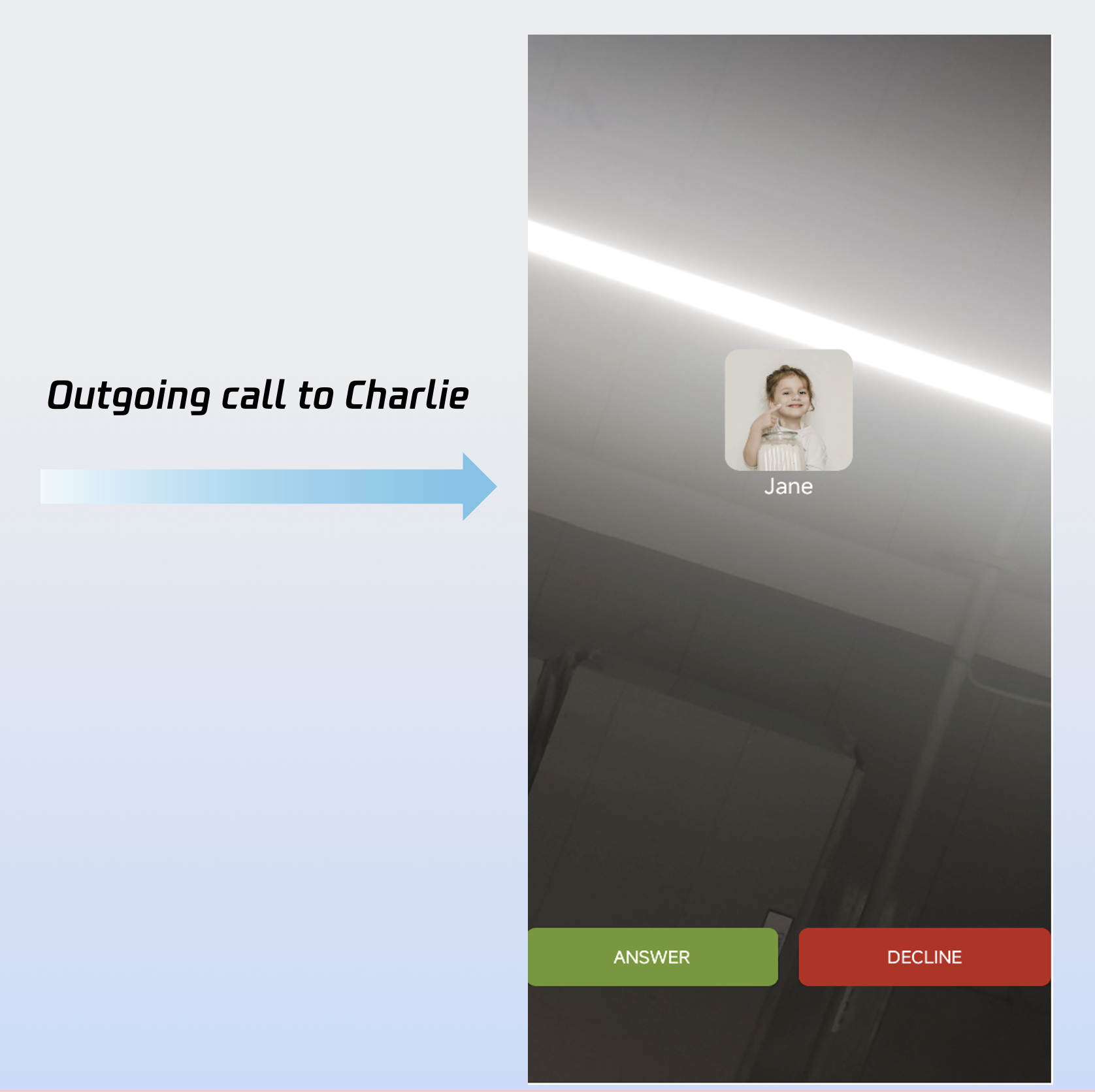
Demo Effect
After completing the above 6 steps, your answer call feature will look like this:
Customize the Call UI
CallCoreView offers extensive UI customization, including support for custom avatars and volume indicator icons. To speed up your integration, you can download ready-to-use resources from GitHub. All resources are copyright-free.
Custom Volume Indicator Icons
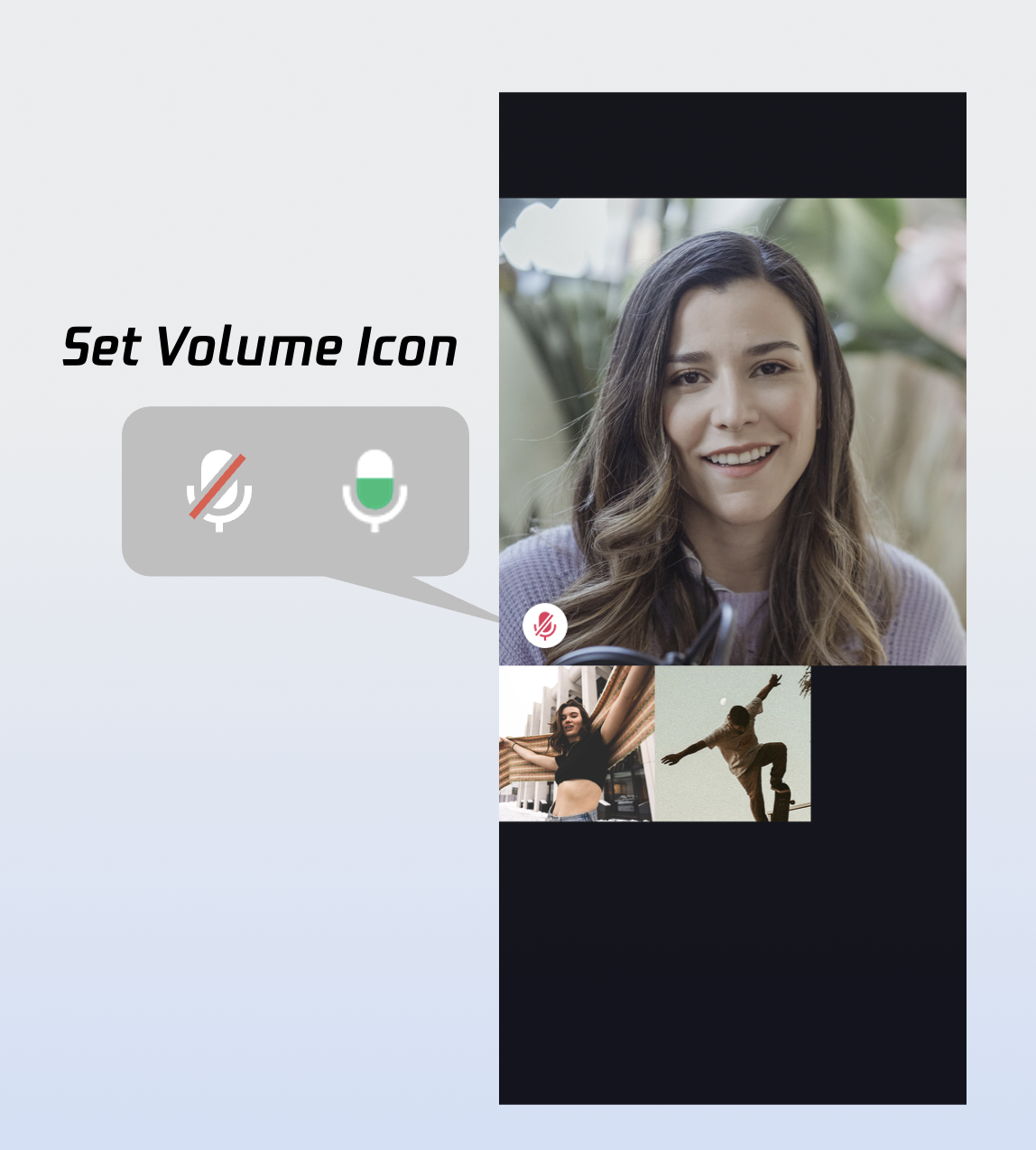
// Set volume indicator iconslet volumeLevelIcons: [VolumeLevel: String] = [.mute: "path to the corresponding icon resource"]callCoreView.setVolumeLevelIcons(icons: volumeLevelIcons)
setVolumeLevelIcons API Parameters:
Parameter | Type | Required | Description |
icons | [VolumeLevel: String] | Yes | A dictionary mapping volume levels to icon resources. Key (VolumeLevel): VolumeLevel.mute: Microphone muted VolumeLevel.low: Volume (0 ~ 25] VolumeLevel.medium: Volume (25 ~ 50] VolumeLevel.high: Volume (50 ~ 75] VolumeLevel.peak: Volume (75 ~ 100] Value (String): Path to the icon resource for each level. |
Volume Indicator Icons:
Icon | Description |
 | Volume indicator icon. Recommended for VolumeLevel.low or VolumeLevel.medium. |
 | Mute icon. Recommended for VolumeLevel.mute. |
Custom Network Status Icons
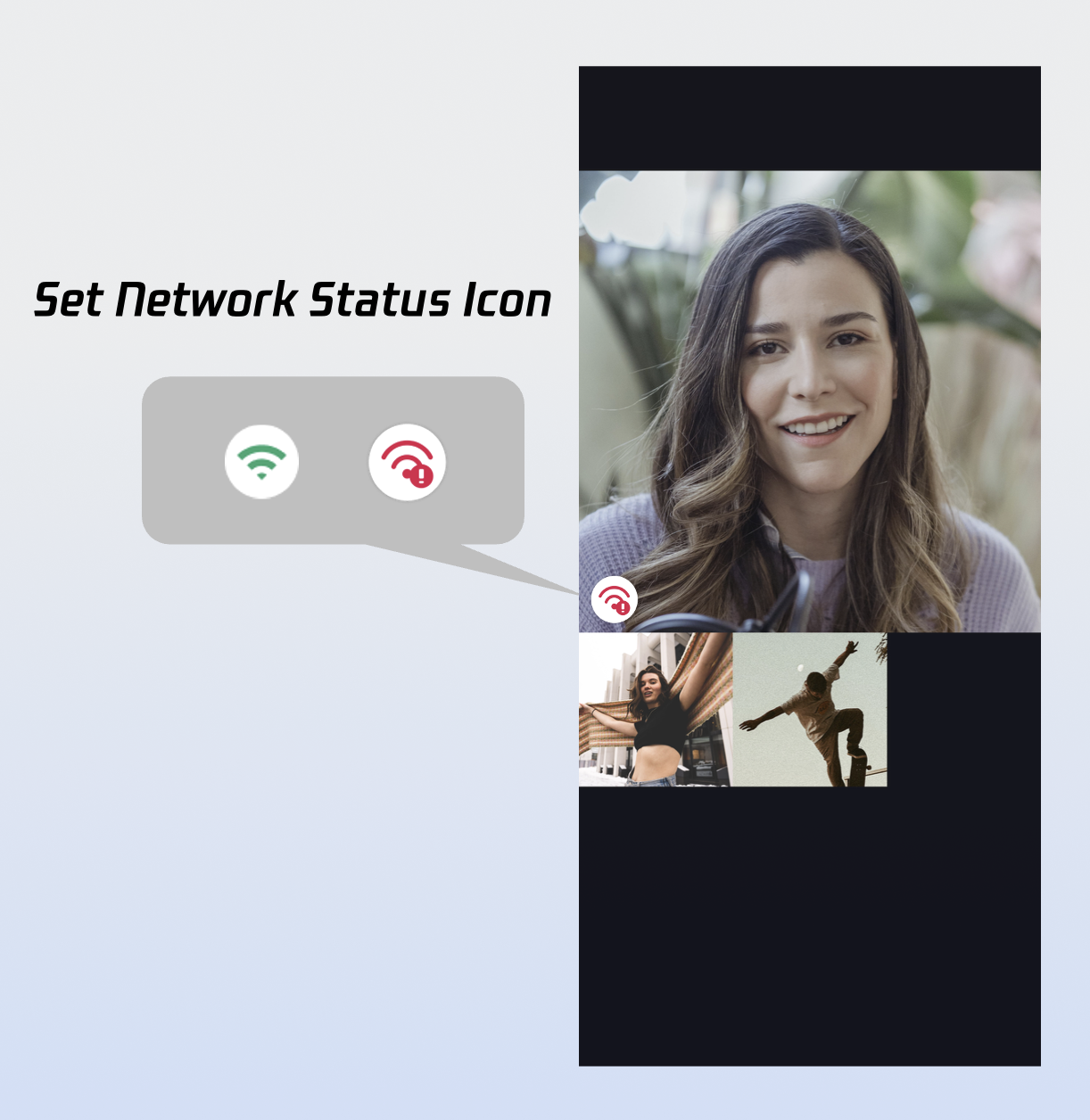
// Set network quality iconslet networkQualityIcons: [NetworkQuality: String] = [.bad: "path to the corresponding icon"]callCoreView.setNetworkQualityIcons(icons: networkQualityIcons)
setNetworkQualityIcons API Parameters:
Parameter | Type | Required | Description |
icons | [NetworkQuality: String] | Yes | Network Quality Icon Mapping Table. The dictionary structure is defined as follows: Key ( NetworkQuality ) : NetworkQuality NetworkQuality.unknown :Network status is undetermined. NetworkQuality.excellent:Outstanding network connection.NetworkQuality.good : Stable and good network connection.NetworkQuality.poor : Weak network signal.NetworkQuality.bad : Very weak or unstable network. NetworkQuality.veryBad :Extremely poor network, near disconnection. NetworkQuality.down :Network is disconnected. Value ( String ) : The absolute path or resource name of the icon corresponding to each network status level. |
Poor Network Indicator Icon:
Icon | Description |
 | Poor network indicator icon. Recommended for NetworkQuality.bad, NetworkQuality.veryBad, or NetworkQuality.down. |
Custom Default Avatar
Use setParticipantAvatars to set user avatars. Listen to the allParticipants data to update avatars as needed. If an avatar is not set or fails to load, the default avatar is displayed.
// Set user avatarsvar avatars: [String: String] = [:]let userId = "" // User IDlet avatarPath = "" // Path to user's default avatar resourceavatars[userId] = avatarPathcallCoreView.setParticipantAvatars(avatars: avatars)
setParticipantAvatars API Parameters:
Parameter | Type | Required | Description |
avatars | [String: String] | Yes | A dictionary mapping userID to the absolute path of the user's avatar resource. |
Default Avatar Resource:
Icon | Description |
 | Default avatar. Use as the fallback when a user's avatar fails to load or is not set. |
Custom Waiting Animation
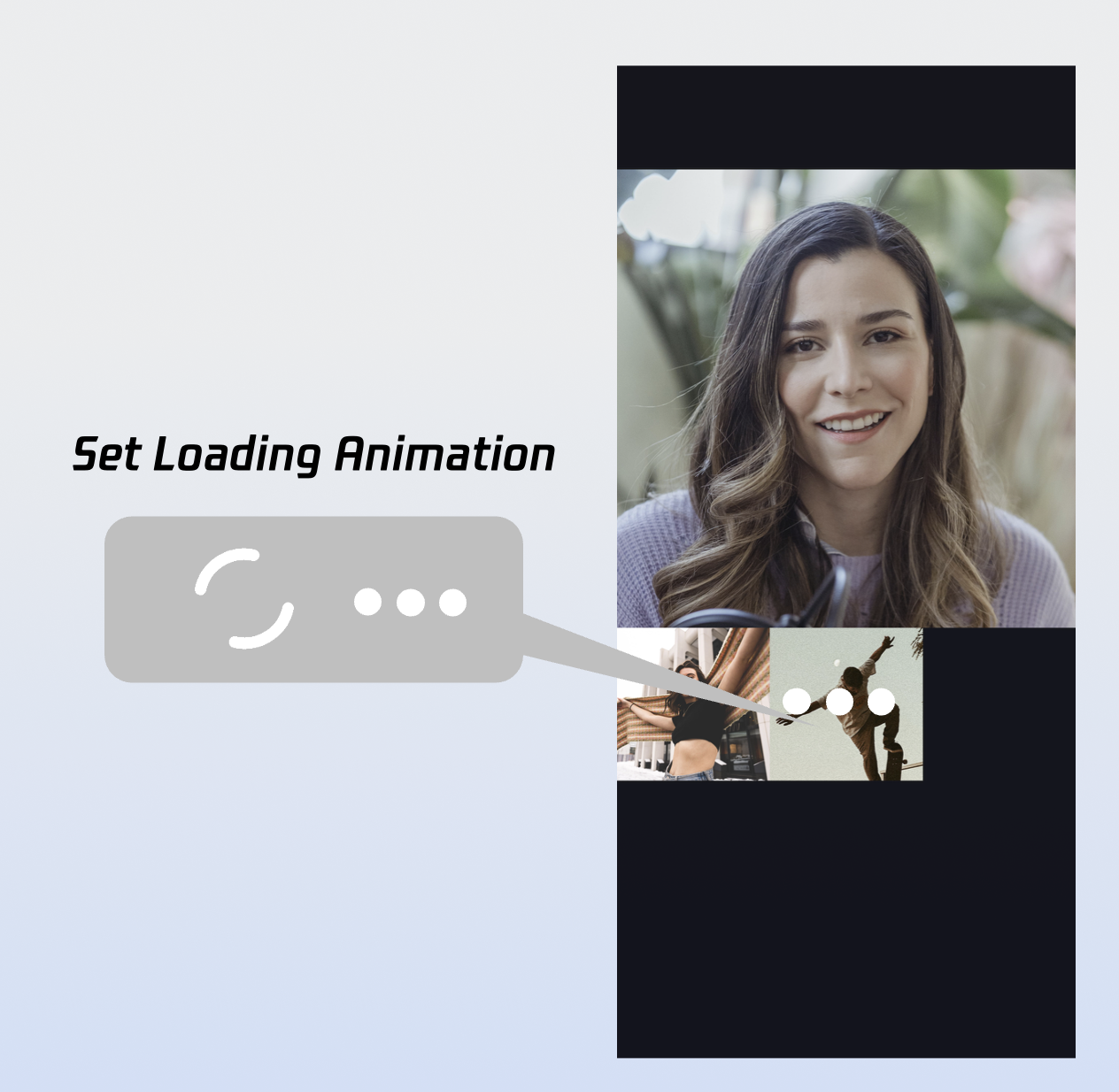
// Set waiting animationlet waitingAnimationPath = "" // Path to the waiting animation GIF resourcecallCoreView.setWaitingAnimation(path: waitingAnimationPath)
setWaitingAnimation API Parameters:
Parameter | Type | Required | Description |
path | String | Yes | Absolute path to the GIF animation resource. |
Waiting Animation:
Icon | Description |
 | User waiting animation. Recommended for group calls; display when a user's status is waiting. |
Add Call Timer
1. Subscribe to the active call: Listen to
CallStore.observerState.activeCall for updates.2. Bind duration to your UI: Bind
activeCall.duration to your timer UI. This field is reactive and updates automatically; you do not need to manage a timer manually.import UIKitimport AtomicXCoreimport Combineclass TimerView: UILabel {private var cancellables = Set<AnyCancellable>()override init(frame: CGRect) {super.init(frame: frame)setupView()}required init?(coder: NSCoder) {super.init(coder: coder)setupView()}private func setupView() {textColor = .whitetextAlignment = .centerfont = .systemFont(ofSize: 16)}override func didMoveToWindow() {super.didMoveToWindow()if window != nil {registerActiveCallObserver()} else {cancellables.removeAll()}}private func registerActiveCallObserver() {CallStore.shared.state.subscribe().map { $0.activeCall }.removeDuplicates { $0.duration == $1.duration }.receive(on: DispatchQueue.main).sink { [weak self] activeCall inself?.updateDurationView(activeCall: activeCall)}.store(in: &cancellables)}private func updateDurationView(activeCall: CallInfo) {let currentDuration = activeCall.durationlet minutes = currentDuration / 60let seconds = currentDuration % 60text = String(format: "%02d:%02d", minutes, seconds)}}
Note:
More Features
Set User Avatar and Nickname
import AtomicXCorevar userProfile = UserProfile()userProfile.userID = "" // Your userIduserProfile.avatarURL = "" // Avatar URLuserProfile.nickname = "" // NicknameLoginStore.shared.setSelfInfo(userProfile: userProfile) { result inswitch result {case .success:// Successfully setcase .failure(let error):// Failed to set}}
setSelfInfo API Parameters:
Parameter | Type | Required | Description |
userProfile | Yes | User info struct: userID: User ID avatarURL: User avatar URL nickname: User nickname | |
completion | CompletionHandler | No | Completion callback, returns the result of the operation. |
Switch Layout Modes
CallCoreView supports three built-in layout modes. Use setLayoutTemplate to set the layout. If not set, CallCoreView will automatically use
Float mode for 1v1 calls and Grid mode for multi-party calls.Float Mode | Grid Mode | PIP Mode |
 |  | 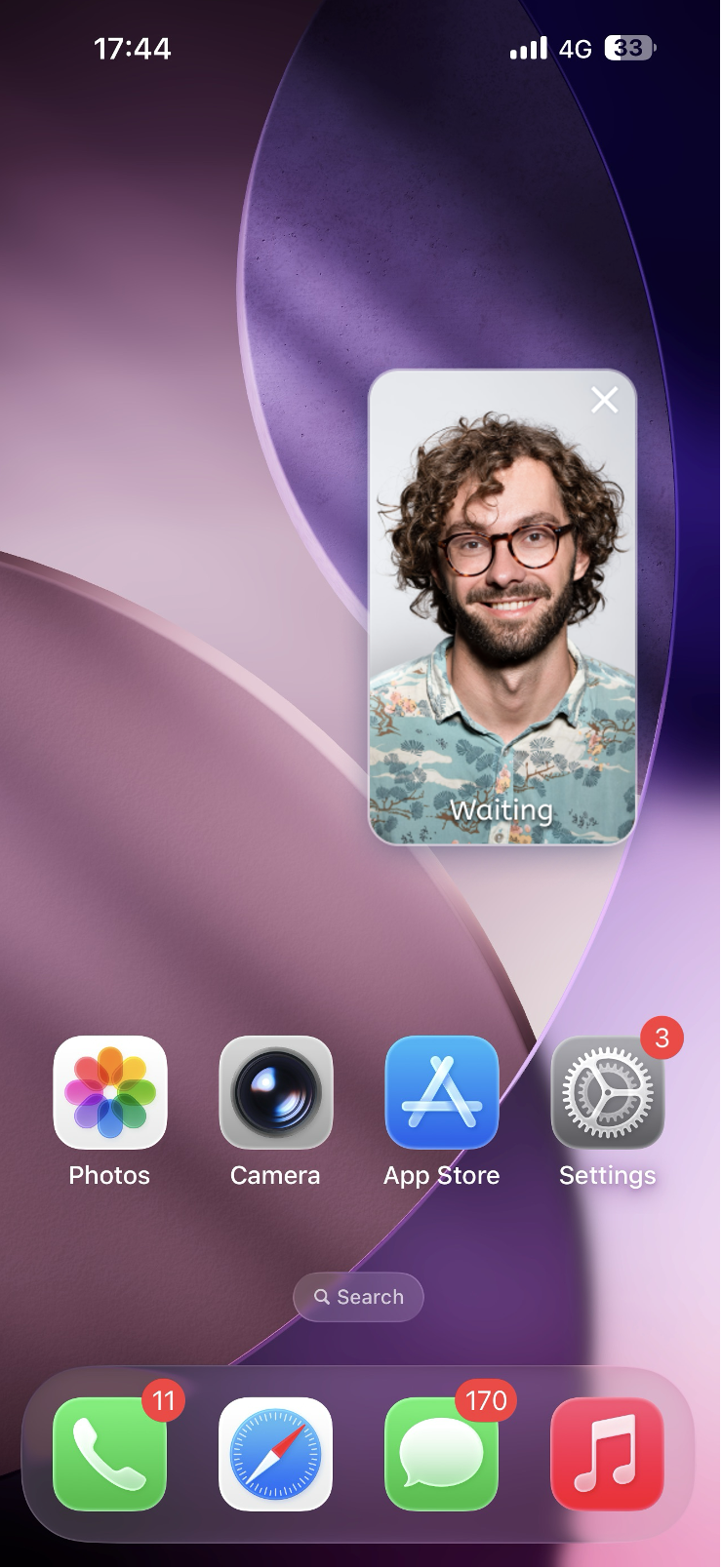 |
Layout: While waiting, display your own video full screen. After answering, show the remote video full screen and your own video as a floating window. Interaction: Drag the small window or tap to swap big/small video. | Layout: All participant videos are tiled in a grid. Best for 2+ participants. Tap to enlarge a video. Interaction: Tap a participant to enlarge their video. | Layout: In 1v1, remote video is fixed; in multi-party, the active speaker is shown full screen. Interaction: Shows your own video while waiting, displays call timer after answering. |
// Create CallCoreViewlet callCoreView = CallCoreView(frame: view.bounds)callCoreView.autoresizingMask = [.flexibleWidth, .flexibleHeight]// Set layout modelet template = CallLayoutTemplate.gridcallCoreView.setLayoutTemplate(template)
setLayoutTemplate API Parameters:
Parameter | Type | Required | Description |
template | Yes | CallCoreView's layout mode CallLayoutTemplate.float :Layout: While waiting, display your own video full screen. After answering, show the remote video full screen and your own video as a floating window. Interaction: Drag the small window or tap to swap big/small video. CallLayoutTemplate.grid :Layout: All participant videos are tiled in a grid. Best for 2+ participants. Tap to enlarge a video. Interaction: Tap a participant to enlarge their video. CallLayoutTemplate.pip : Layout: In 1v1, remote video is fixed; in multi-party, the active speaker is shown full screen. Interaction: Shows your own video while waiting, displays call timer after answering. |
Implement In-App Floating Window
The AtomicXCore SDK provides a
CallPipView component for in-app floating windows. If your call UI is covered by other pages (e.g., user presses back while a call is ongoing), a floating window can be shown so users can always see call status and quickly return to the call UI.Step 1: Create the floating window controller.
import UIKitimport AtomicXCoreimport Combine/*** Floating Window Controller* * Used to display the call floating window, containing a CallCoreView internally.*/class FloatWindowViewController: UIViewController {var tapGestureAction: (() -> Void)?private var cancellables = Set<AnyCancellable>()private lazy var callCoreView: CallCoreView = {let view = CallCoreView(frame: self.view.bounds)view.autoresizingMask = [.flexibleWidth, .flexibleHeight]view.setLayoutTemplate(.pip) // Set to Picture-in-Picture (PiP) layout modeview.isUserInteractionEnabled = false // Disable interaction to allow touch events to pass through to the parent viewreturn view}()override func viewDidLoad() {super.viewDidLoad()view.backgroundColor = UIColor(white: 0.1, alpha: 1.0)view.layer.cornerRadius = 10view.layer.masksToBounds = trueview.addSubview(callCoreView)// Add tap gesture recognizerlet tapGesture = UITapGestureRecognizer(target: self, action: #selector(handleTap))view.addGestureRecognizer(tapGesture)// Delay observing state changes to prevent the window from closing immediately upon creationDispatchQueue.main.asyncAfter(deadline: .now() + 1.0) { [weak self] inself?.observeCallStatus()}}@objc private func handleTap() {tapGestureAction?()}/*** Observe call status changes* Automatically closes the floating window when the call ends.*/private func observeCallStatus() {CallStore.shared.state.subscribe(StatePublisherSelector<CallState, CallParticipantStatus>(keyPath: \.selfInfo.status)).removeDuplicates().receive(on: DispatchQueue.main).sink { [weak self] status inif status == .none {// Call ended, post a notification to hide the floating windowNotificationCenter.default.post(name: NSNotification.Name("HideFloatingWindow"), object: nil)}}.store(in: &cancellables)}deinit {cancellables.removeAll()}}
Step 2: Add floating window management logic to your main UI.
import UIKitimport AtomicXCoreclass MainViewController: UIViewController {private var floatWindow: UIWindow?override func viewDidLoad() {super.viewDidLoad()// Observe notification to display the floating windowNotificationCenter.default.addObserver(self,selector: #selector(showFloatingWindow),name: NSNotification.Name("ShowFloatingWindow"),object: nil)// Observe notification to hide the floating windowNotificationCenter.default.addObserver(self,selector: #selector(hideFloatingWindow),name: NSNotification.Name("HideFloatingWindow"),object: nil)}/*** Displays the in-app floating window*/@objc private func showFloatingWindow() {// Check if a call is currently active/acceptedlet selfStatus = CallStore.shared.state.value.selfInfo.statusguard selfStatus == .accept else {return}// Prevent duplicate creation if the floating window already existsguard floatWindow == nil else { return }// ⚠️ CRITICAL: The window must be created using the current windowSceneguard let windowScene = UIApplication.shared.connectedScenes.first as? UIWindowScene else {return}// Define floating window dimensions (9:16 aspect ratio)let pipWidth: CGFloat = 100let pipHeight: CGFloat = pipWidth * 16 / 9let pipX = UIScreen.main.bounds.width - pipWidth - 20let pipY: CGFloat = 100// Initialize the floating UIWindow and associate it with the windowScenelet window = UIWindow(windowScene: windowScene)window.windowLevel = .alert + 1 // Ensure it stays on top of the main UIwindow.backgroundColor = .clearwindow.frame = CGRect(x: pipX, y: pipY, width: pipWidth, height: pipHeight)// Initialize the floating window controllerlet floatVC = FloatWindowViewController()floatVC.tapGestureAction = { [weak self] inself?.openCallViewController()}window.rootViewController = floatVCself.floatWindow = window// Make the window visiblewindow.isHidden = falsewindow.makeKeyAndVisible()// Immediately restore the main window as the key window to maintain proper focusif let mainWindow = windowScene.windows.first(where: { $0 != window }) {mainWindow.makeKey()}}/*** Hides the in-app floating window*/@objc private func hideFloatingWindow() {floatWindow?.isHidden = truefloatWindow = nil}/*** Opens the call interface (triggered by tapping the floating window)*/private func openCallViewController() {// Dismiss the floating window firsthideFloatingWindow()// Retrieve the current top-most ViewControllerguard let topVC = getTopViewController() else {return}let callVC = CallViewController()callVC.modalPresentationStyle = .fullScreentopVC.present(callVC, animated: true)}/*** Helper method to find the top-most ViewController in the current view hierarchy*/private func getTopViewController() -> UIViewController? {guard let windowScene = UIApplication.shared.connectedScenes.first as? UIWindowScene,let keyWindow = windowScene.windows.first(where: { $0.isKeyWindow }),let rootVC = keyWindow.rootViewController else {return nil}var topVC = rootVCwhile let presentedVC = topVC.presentedViewController {topVC = presentedVC}return topVC}deinit {NotificationCenter.default.removeObserver(self)}}
Step 3: Add floating window trigger logic in the call UI.
import UIKitimport AtomicXCoreclass CallViewController: UIViewController {override func viewWillAppear(_ animated: Bool) {super.viewWillAppear(animated)// Post a notification to hide the floating window when entering the call interface.NotificationCenter.default.post(name: NSNotification.Name("HideFloatingWindow"), object: nil)}override func viewWillDisappear(_ animated: Bool) {super.viewWillDisappear(animated)// When leaving the call interface, check if the call is still active.let selfStatus = CallStore.shared.state.value.selfInfo.statusif selfStatus == .accept {// If the call is still ongoing, post a notification to display the floating window.NotificationCenter.default.post(name: NSNotification.Name("ShowFloatingWindow"), object: nil)}}}
Implement System Picture-in-Picture (PiP)
AtomicXCore SDK supports system PiP via the underlying TRTC engine. When the app goes to the background, the call video can float as a system PiP window above other apps, allowing users to continue video calls while multitasking.
Note:
1. Add the
Background Modes capability in Xcode's Signing & Capabilities and enable Audio, AirPlay, and Picture in Picture.2. Requires iOS 15.0 or later.
1. Configure PiP parameters: Set fill mode, user video regions, canvas parameters, etc.
import AtomicXCore// Fill Mode Enumerationenum PictureInPictureFillMode: Int, Codable {case fill = 0 // Aspect Fill: Scales the content to fill the view (may crop)case fit = 1 // Aspect Fit: Scales the content to fit the view (no cropping)}// User Video Regionstruct PictureInPictureRegion: Codable {let userId: String // Unique User IDlet width: Double // Width (0.0 - 1.0, relative to the canvas)let height: Double // Height (0.0 - 1.0, relative to the canvas)let x: Double // X-coordinate (0.0 - 1.0, relative to the top-left of the canvas)let y: Double // Y-coordinate (0.0 - 1.0, relative to the top-left of the canvas)let fillMode: PictureInPictureFillMode // Content fill modelet streamType: String // Stream type ("high" for HD or "low" for SD)let backgroundColor: String // Background color (e.g., Hex string)}// Canvas Configurationstruct PictureInPictureCanvas: Codable {let width: Int // Canvas width in pixelslet height: Int // Canvas height in pixelslet backgroundColor: String // Background color}// Picture-in-Picture Parametersstruct PictureInPictureParams: Codable {let enable: Bool // Toggle PiP functionalitylet cameraBackgroundCapture: Bool? // Whether to continue camera capture in the backgroundlet canvas: PictureInPictureCanvas? // Canvas configuration (Optional)let regions: [PictureInPictureRegion]? // List of user video regions (Optional)}// Picture-in-Picture Requeststruct PictureInPictureRequest: Codable {let api: String // API name/identifierlet params: PictureInPictureParams // Parameter payload}
2. Enable PiP: Use
configPictureInPicture to enable or disable PiP.let params = PictureInPictureParams(enable: true,cameraBackgroundCapture: true,canvas: nil,regions: nil)let request = PictureInPictureRequest(api: "configPictureInPicture",params: params)// Encode the request into a JSON stringlet encoder = JSONEncoder()if let data = try? encoder.encode(request),let jsonString = String(data: data, encoding: .utf8) {// Invoke the experimental API via the TUICallEngine instanceTUICallEngine.createInstance().callExperimentalAPI(jsonObject: jsonString)}
Keep Screen Awake During Calls
To prevent the screen from sleeping during a call, set
UIApplication.shared.isIdleTimerDisabled = true when the call UI appears, and restore it when the UI disappears.class CallViewController: UIViewController {override func viewDidLoad() {super.viewDidLoad()UIApplication.shared.isIdleTimerDisabled = true}override func viewWillDisappear(_ animated: Bool) {super.viewWillDisappear(animated)UIApplication.shared.isIdleTimerDisabled = false}}
Background Audio/Video Capture Issues
To allow your app to capture audio and video in the background (e.g., when locked or switched to another app), you must:
1. Configure iOS background modes: In Xcode, open your project, select your target, go to
Signing & Capabilities, add Background Modes, and enable:Audio, AirPlay, and Picture in PictureVoice over IPRemote notifications (optional, for offline push) Your Info.plist will include:
<key>UIBackgroundModes</key><array><string>audio</string><string>voip</string><string>remote-notification</string></array>
2. Configure AVAudioSession: Set up the audio session before the call starts (e.g., in the call UI's
viewDidLoad or before making/answering a call).import AVFoundationprivate func setupAudioSession() {let audioSession = AVAudioSession.sharedInstance()do {try audioSession.setCategory(.playAndRecord, options: [.allowBluetooth, .allowBluetoothA2DP])try audioSession.setActive(true)} catch {// Handle audio session configuration failure}}
3. Special handling for ringtone playback (optional): To play the ringtone through the speaker, temporarily switch the audio session to
.playback mode.private func setAudioSessionForRingtone() {let audioSession = AVAudioSession.sharedInstance()do {try audioSession.setCategory(.playback, options: [.allowBluetooth, .allowBluetoothA2DP])try audioSession.overrideOutputAudioPort(.speaker)try audioSession.setActive(true)} catch {// Handle configuration failure}}private func restoreAudioSessionForCall() {let audioSession = AVAudioSession.sharedInstance()do {try audioSession.setCategory(.playAndRecord, options: [.allowBluetooth, .allowBluetoothA2DP])try audioSession.setActive(true)} catch {// Handle restore failure}}
Next Steps
Congratulations! You have implemented the answer call feature. Next, see Making Your First Call to add call initiation to your app.
FAQs
If the callee is offline and comes online within the call invitation timeout, will they receive the incoming call event?
For one-on-one calls, if the callee comes online within the timeout, they will receive the incoming call invitation. For group calls, if the callee comes online within the timeout, up to 20 unprocessed group messages will be retrieved, and if there is a call invitation, the incoming call event will be triggered.
Contact Us
If you have any questions or suggestions during the integration or usage process, feel free to join our Telegram technical group or contact us for support.

