This document describes two authorization methods to resolve the following issues. Detailed steps are as below. To configure more complex permission policies, see Custom Policy.
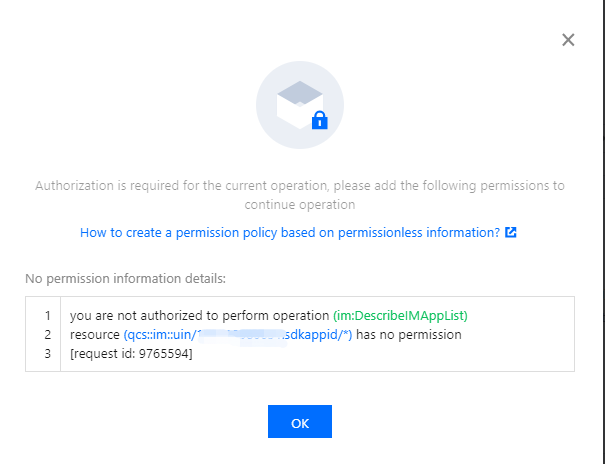
When a sub-account uses the TRTC service, the main account must grant permission to access the Console and configure settings. If permission is not granted, the application list will not appear in the console, as shown below:
When a sub-account has access to tags, but it does not match its access to the console application tags, the sub-account cannot view the newly created applications.
Solution 1. Global Authorization
Step 1. Go to CAM to authorize
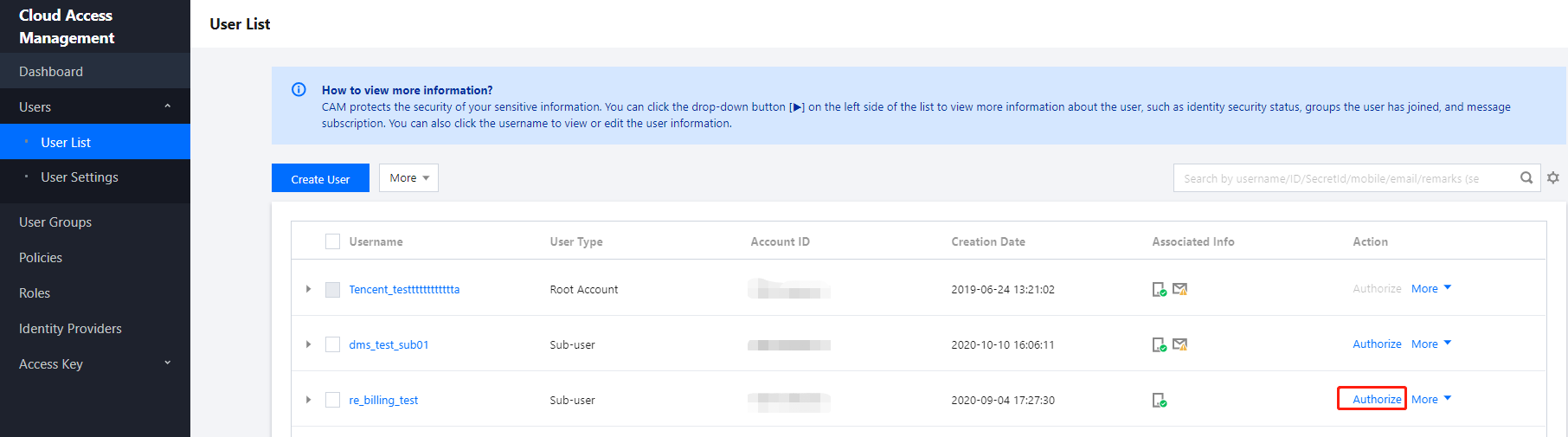
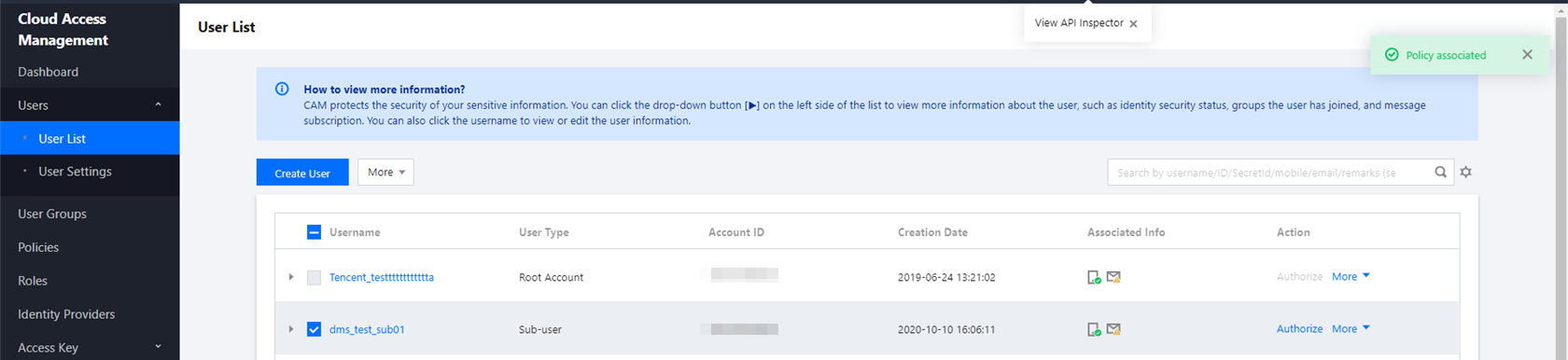
Log in to the CAM console using the root account, go to User List, click Authorize on the left of the sub-user, and the Associate Policy dialog box will pop up.
Step 2. Select policies
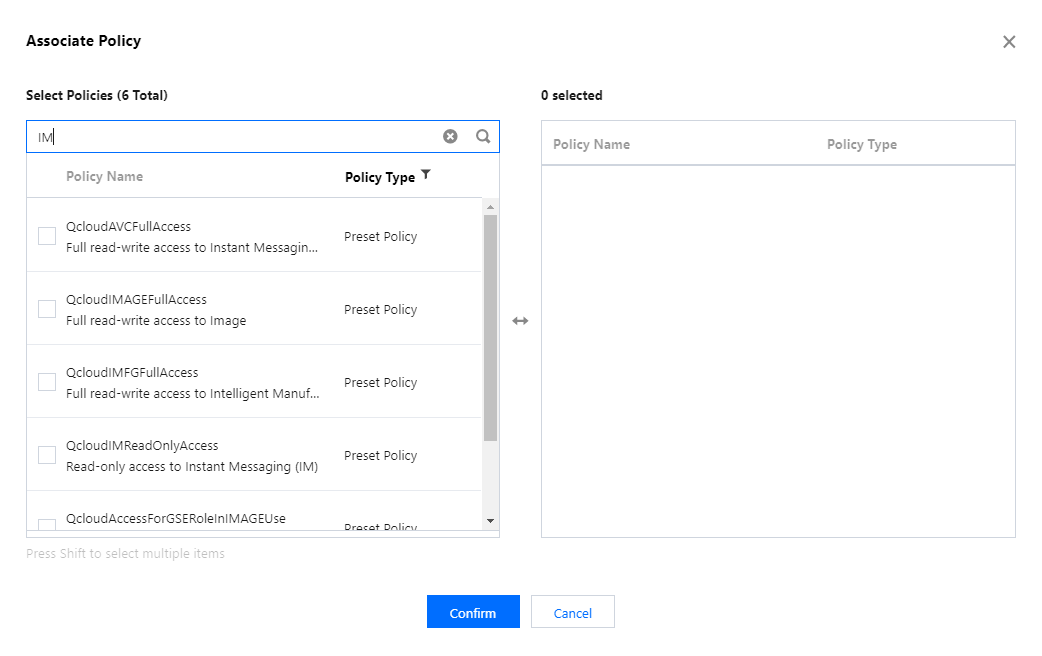
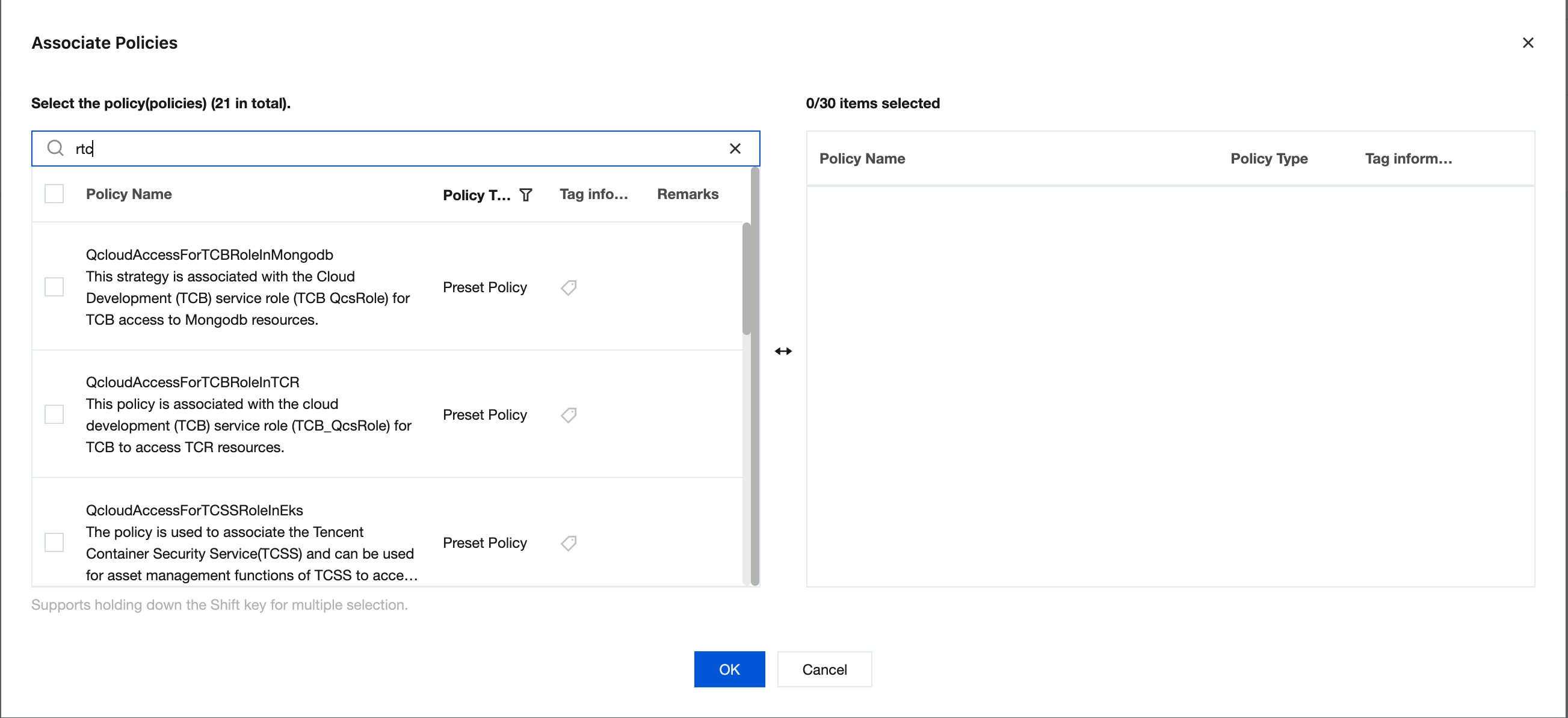
In the policy filter box, search for IM and TRTC, select the desired policies, and click Confirm to complete the authorization.
1. Search for IM.
2. Search for TRTC.
Note:
Read/write access: Allows users to access the console and modify configurations.
Read-only access: Allows users to access the console only, not to perform other operations.
Step 3. Complete authorization
If Policy associated is prompted in the upper right corner, the authorization is completed.
Solution 2. Authorization by Tag
This solution is designed for customers who need to authorize and manage sub-accounts by tag. Sub-accounts can only access and operate applications under the authorized tags.
Caution:
After a tag policy is assigned to a sub-account, the sub-account cannot access or operate applications with no tags. For a sub-account, there are no tags in a newly created application in the Console. Therefore, the root account needs to change the application tags to authorized tags so that the sub-account can use the application.
If you want to grant a sub-account the access to an existing app by tag, make sure you have configured tags for the app; otherwise, you will be unable to authorize by tag.
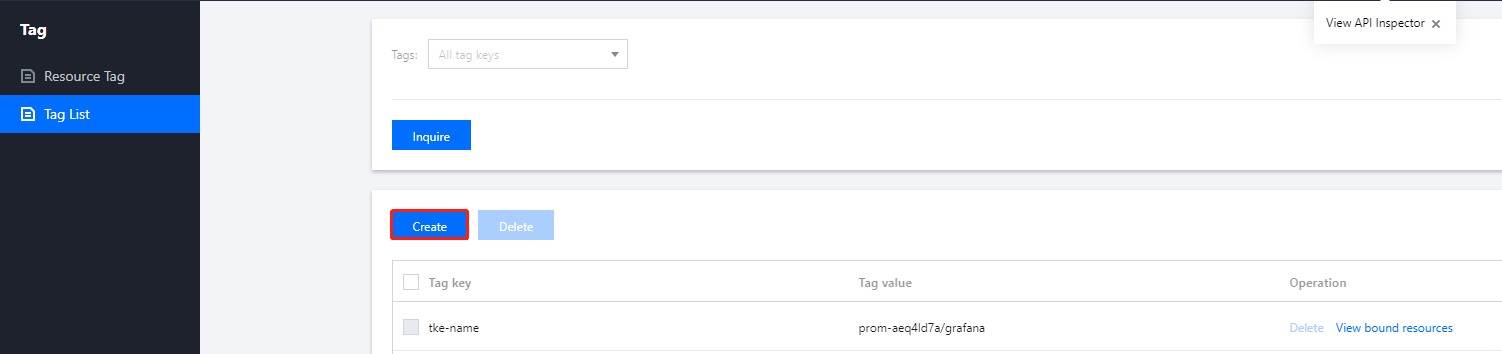
If an application does not have tags, go to the Tag Console to set them. For detailed steps, see Create Tags.
Alternatively, use the Tag List to batch bind applications to tags. See Bind Resources for more information.
Step 1. Go to CAM to authorize
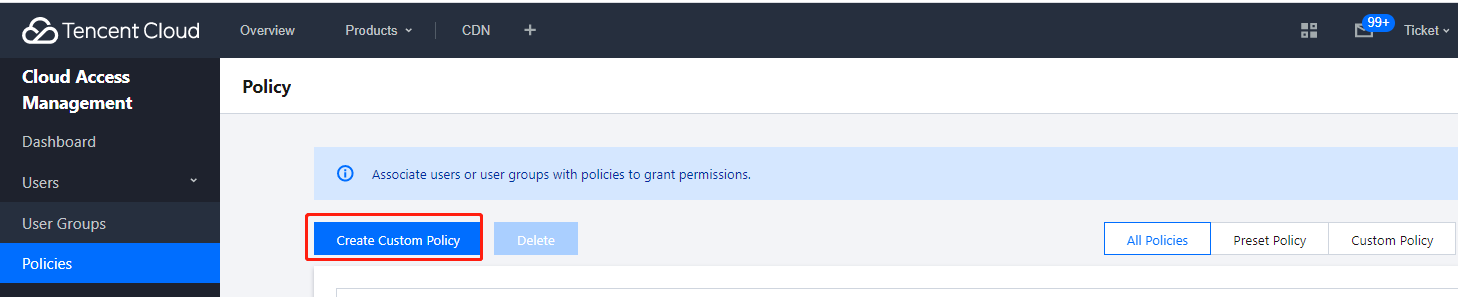
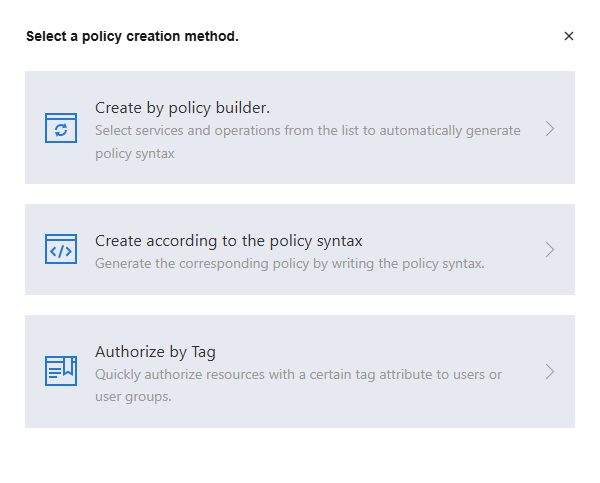
Log in to the CAM console using the root account, click Policies > Create Custom Policy, and the Select Policy Creation Method dialog box will pop up.
Step 2. Select a tag
Select Authorize by Tag to go to Tag Policy Generator.
Step 3. Generate a policy
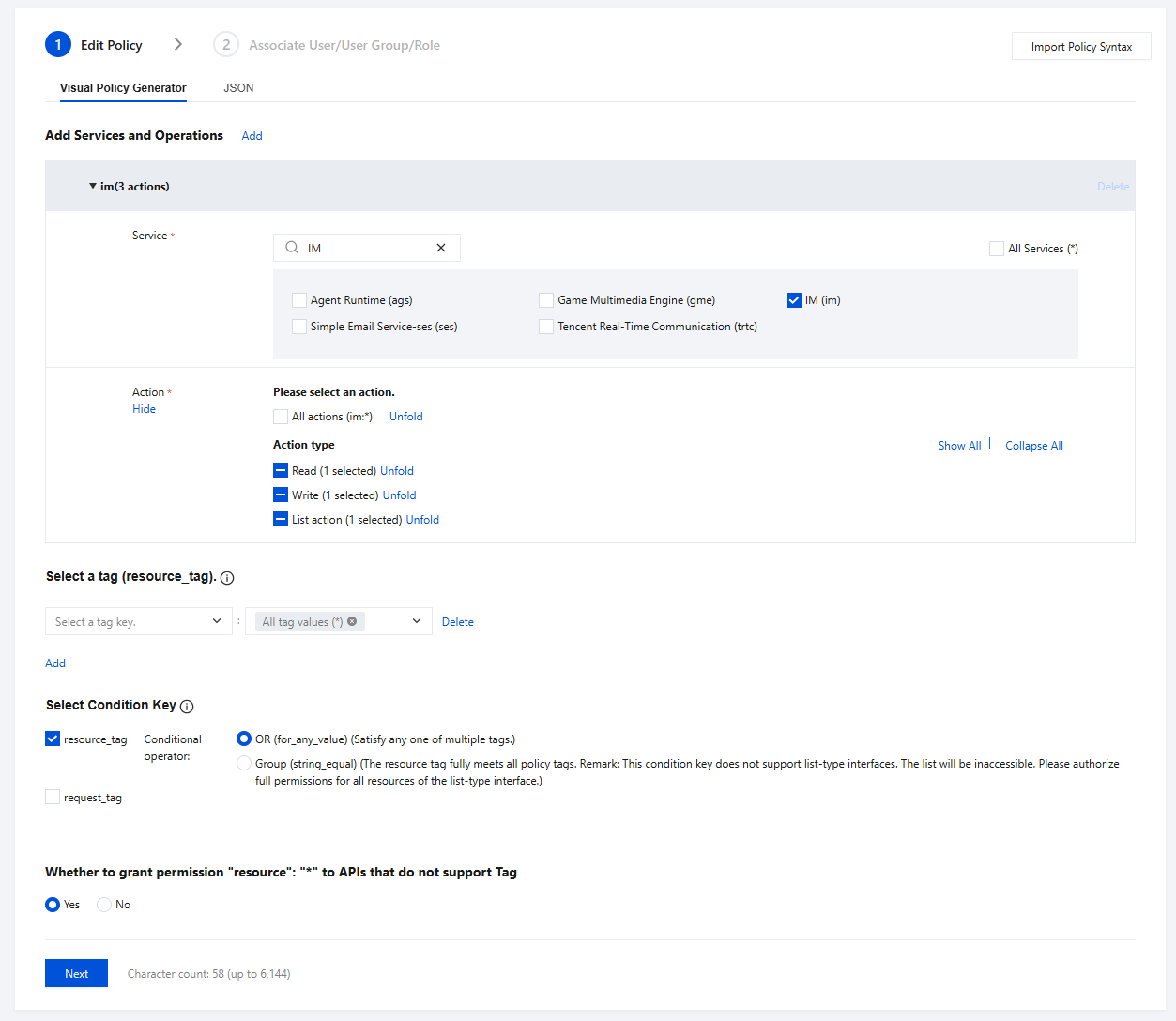
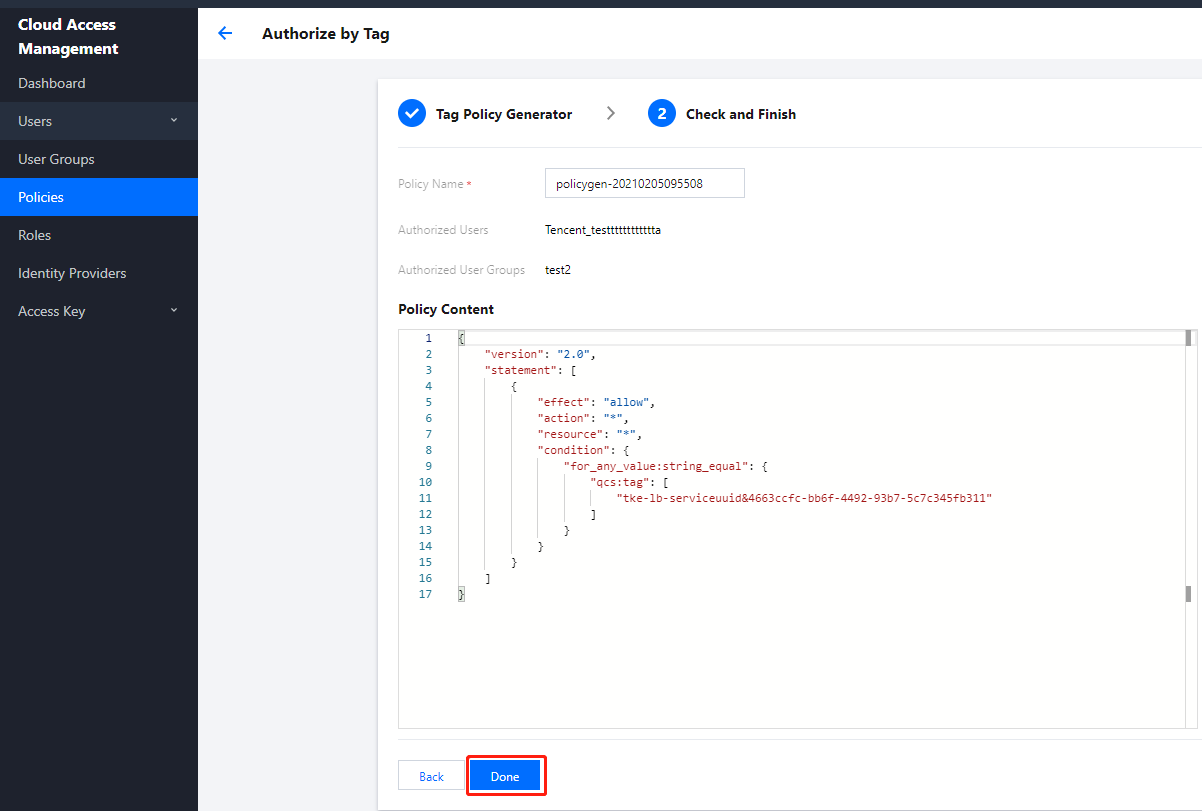
In the Tag Policy Generator, Edit Policy and Associate User/User Group/Role, or roles as needed. For detailed instructions, see Create Custom Policy via Tag Authorization.
Note:
If there are no tags, you need to log in to the Tag console to create a tag.
Step 4. Complete authorization
After confirming the information is correct, click Done to complete the authorization.