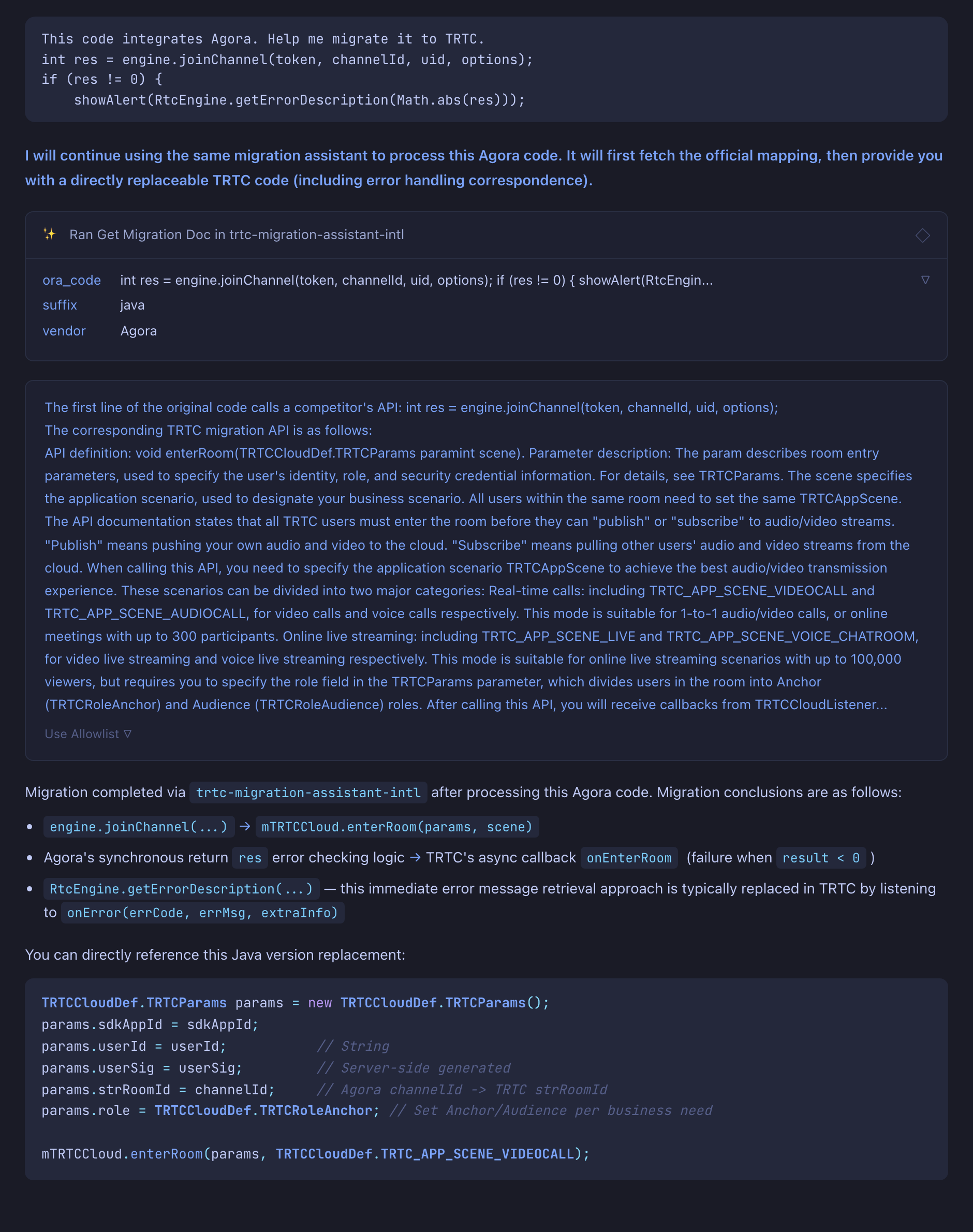
Use MCP Server for Migration
As AI-assisted coding continues to mature, migrating between audio/video SDKs no longer has to be a painful manual process. Tencent RTC's MCP Server lets you migrate from providers like Agora, ZEGO, and Twilio to the TRTC SDK using natural language — with your AI coding tool handling API mapping and code rewriting automatically.
Preparations
Prepare the Environment
MCP-supported AI programming tools, such as Cursor, Trae, CodeBuddy, Claude Code, Codex CLI.
Python is installed.
uv is installed. uv is a dependency and environment management tool in the Python ecosystem, used to quickly pull and run the components required by MCP Server.
Obtain the access secret key
The MCP Server calls Tencent Cloud APIs on your behalf, which requires a
SecretID and SecretKey for request signing. Follow these steps to obtain them:1. Log in to the CAM console.
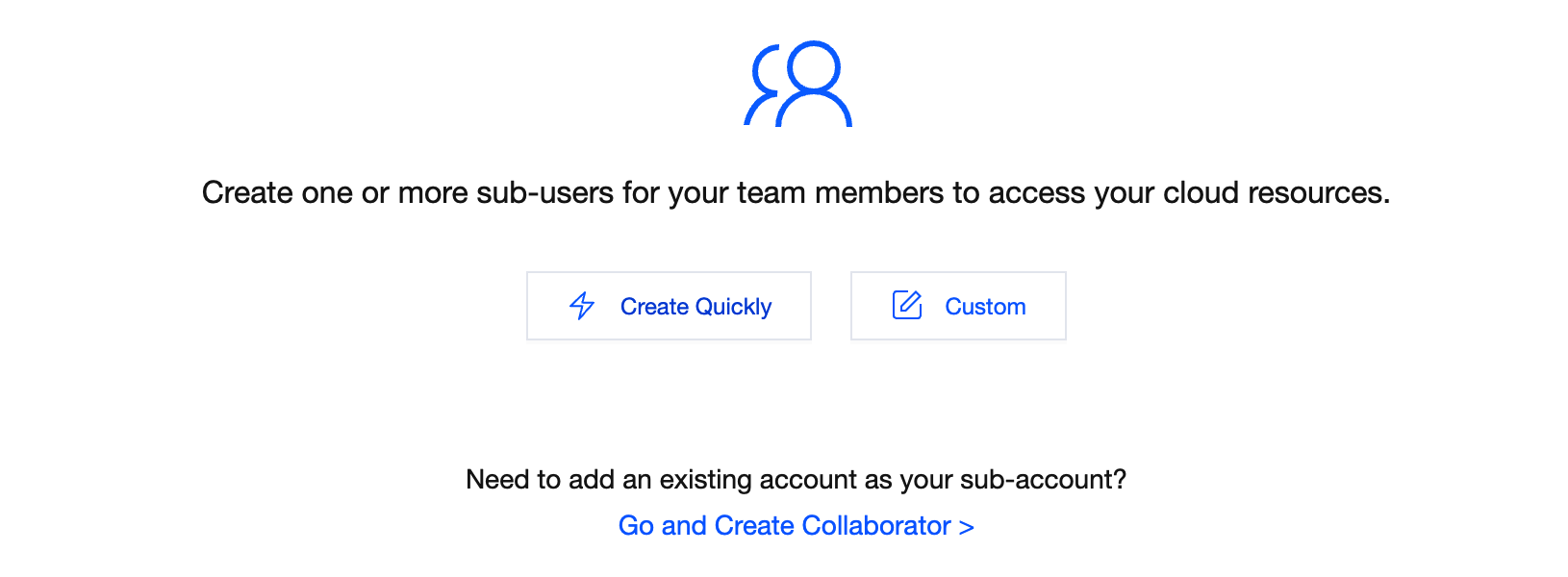
2. Set sub-user permissions.
Grant the
QcloudTrtccopilotFullAccess permission (full read and write access to TRTC Copilot) to this sub-user.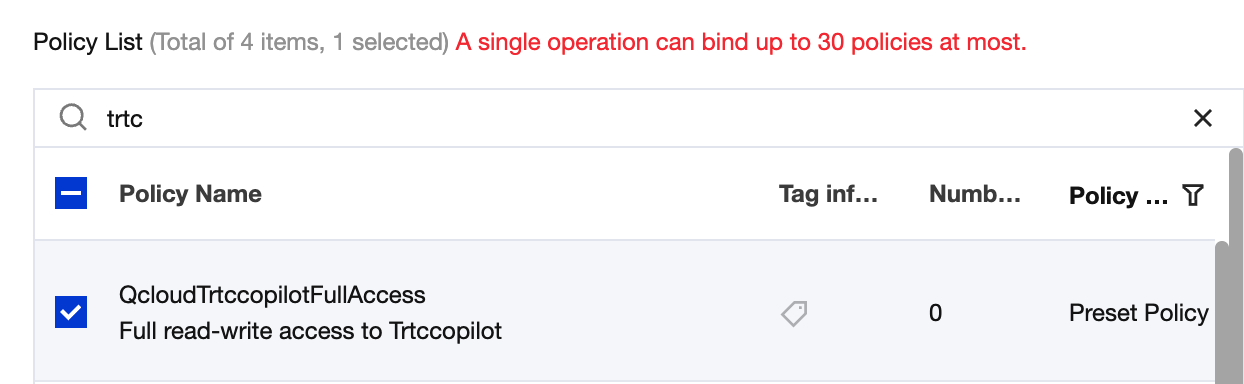
3. Copy
SecretID and SecretKey On the API Key Management page, obtain the
SecretID and SecretKey of the aforementioned sub-user to access the MCP service.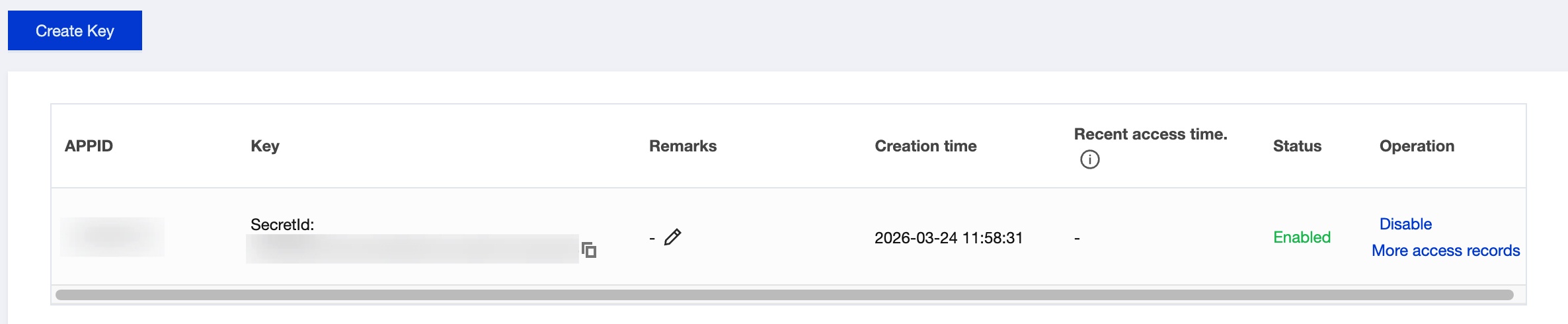
Warning:
SecretID and SecretKey are sensitive secret keys. Do not commit them to code repositories or share them through public channels. For local development, they can be temporarily stored in the MCP configuration for debugging purposes.To reduce the risk of secret key leakage, the feature to query
SecretKey is disabled for all primary and sub-accounts. SecretKey can only be viewed during creation. Please save the SecretKey promptly.Configure MCP Server
The MCP config file location depends on whether you're configuring at the project level or globally. Choose whichever fits your workflow.
Replace
TENCENTCLOUD_SECRET_ID and TENCENTCLOUD_SECRET_KEY in the snippets below with the credentials you obtained above.1. Download Cursor.
2. In the project root directory, create the
.cursor/mcp.json file, update the configuration information of mcpServers into mcp.json, and save it.{"mcpServers": {"trtc-migration-assistant-intl": {"command": "uvx","args": ["trtc-migration-assistant-intl"],"env": {"TENCENTCLOUD_SECRET_ID": "<your-secret-id>","TENCENTCLOUD_SECRET_KEY": "<your-secret-key>"}}}}
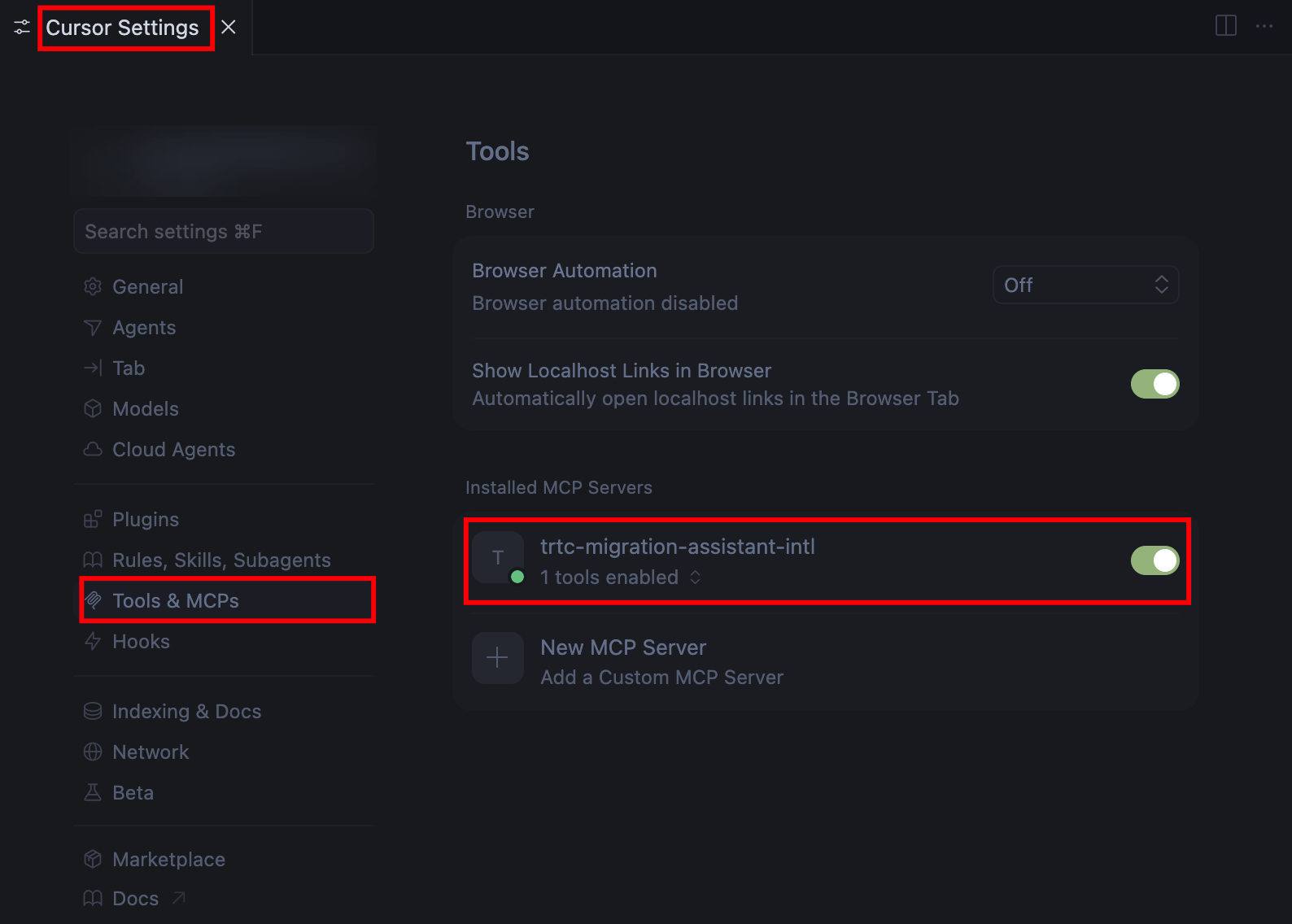
3. After configuration is complete, check whether the MCP tool is successfully loaded in the Settings > Tools & MCP option of Cursor.
1. Download Trae.
2. Click Settings > MCP.
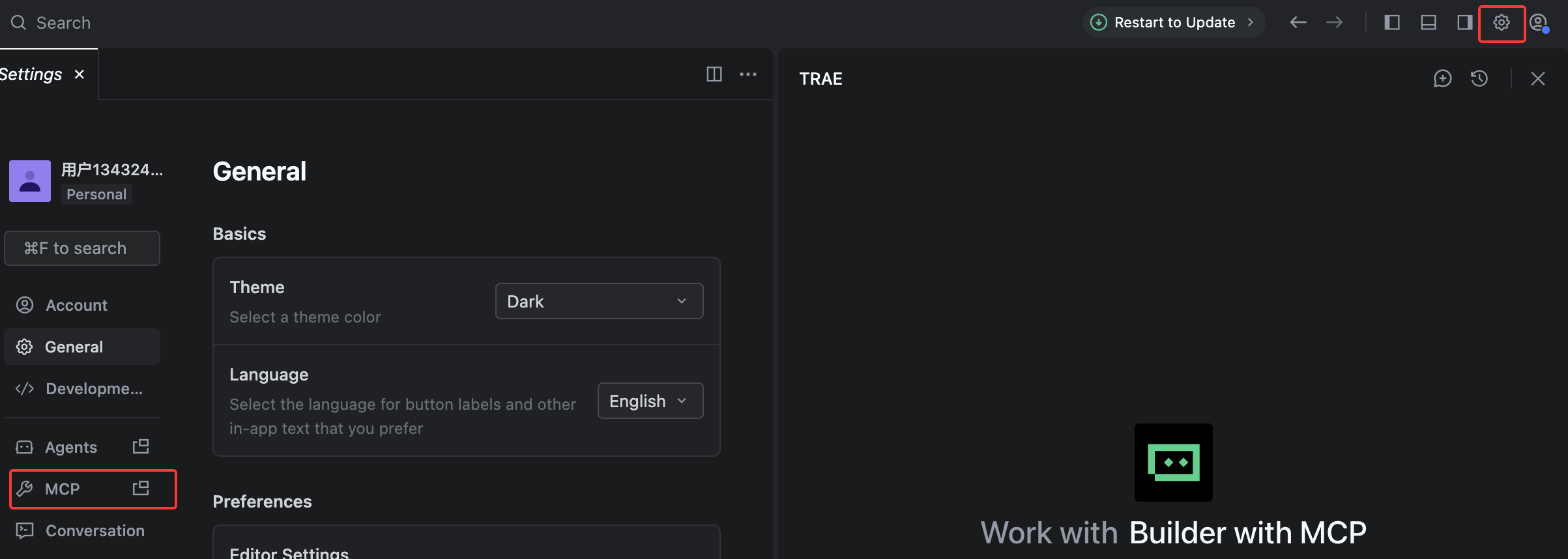
3. Choose Add > Configure Manually, click Raw Config (JSON) to open the configuration file, update the configuration information of
mcpServers to the configuration file and save it.{"mcpServers": {"trtc-migration-assistant-intl": {"command": "uvx","args": ["trtc-migration-assistant-intl"],"env": {"TENCENTCLOUD_SECRET_ID": "<your-secret-id>","TENCENTCLOUD_SECRET_KEY": "<your-secret-key>"}}}}
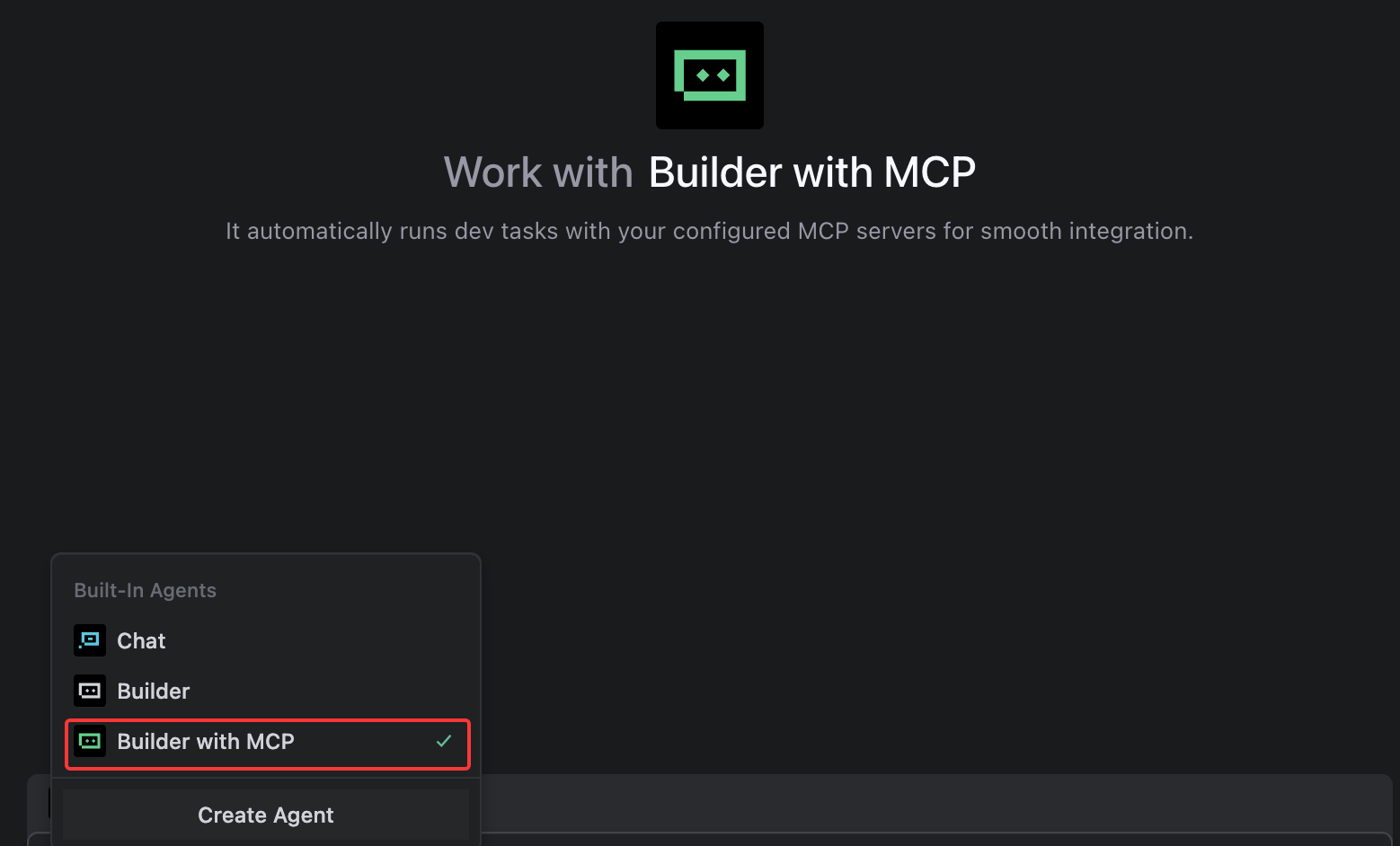
4. Select the editor's default Builder with MCP or add MCP to your custom Builder.
1. Download CodeBuddy.
2. Click Settings > Add MCP to open
settings.json and configure MCP.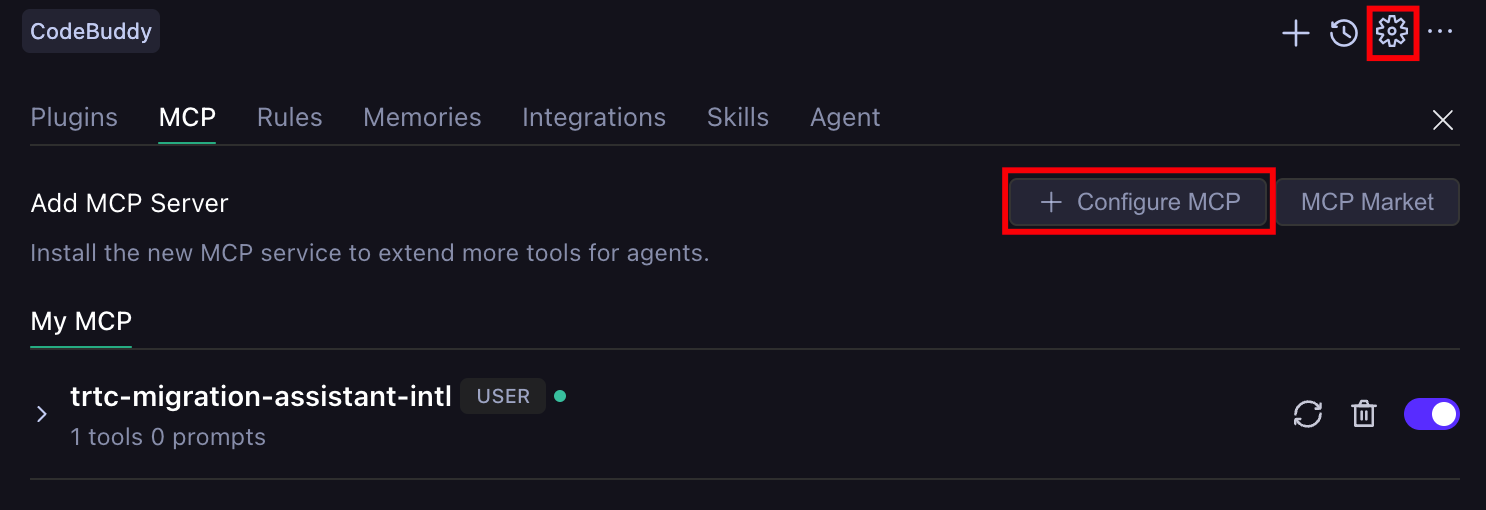
3. Update the configuration information of
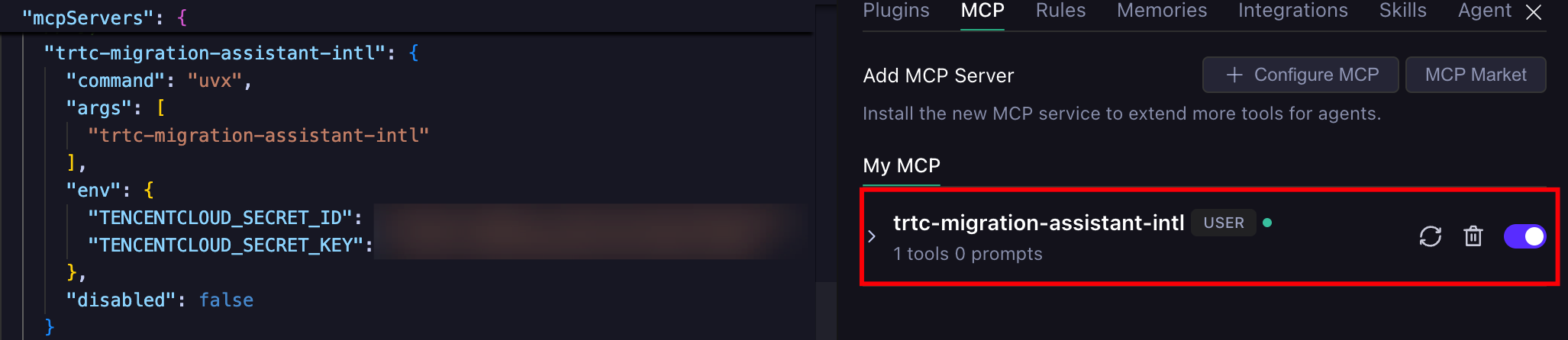
mcpServers to the settings.json file and save it.{"mcpServers": {"trtc-migration-assistant-intl": {"command": "uvx","args": ["trtc-migration-assistant-intl"],"env": {"TENCENTCLOUD_SECRET_ID": "<your-secret-id>","TENCENTCLOUD_SECRET_KEY": "<your-secret-key>"}}}}
4. Check whether the MCP tools are successfully loaded.
1. Run the following command to configure MCP, replacing
TENCENTCLOUD_SECRET_ID and TENCENTCLOUD_SECRET_KEY with actual secret key information.claude mcp add trtc-migration-assistant-intl \-e TENCENTCLOUD_SECRET_ID=<your-secret-id> \-e TENCENTCLOUD_SECRET_KEY=<your-secret-key> \-- uvx trtc-migration-assistant-intl
To configure at the project level, append
--scope project to write to the .mcp.json in the project root directory.2. Run
claude mcp list to verify whether MCP is configured successfully. The appearance of trtc-migration-assistant-intl in the list indicates successful configuration.1. Run the following command to configure MCP, replacing
TENCENTCLOUD_SECRET_ID and TENCENTCLOUD_SECRET_KEY with actual secret key information.codex mcp add trtc-migration-assistant-intl \--env TENCENTCLOUD_SECRET_ID=<your-secret-id> \--env TENCENTCLOUD_SECRET_KEY=<your-secret-key> \-- uvx trtc-migration-assistant-intl
To configure at the project level, manually create
.codex/config.toml in the project root directory and write the configuration information for mcp_servers.[mcp_servers."trtc-migration-assistant-intl"]command = "uvx"args = ["trtc-migration-assistant-intl"][mcp_servers."trtc-migration-assistant-intl".env]TENCENTCLOUD_SECRET_ID = "<your-secret-id>"TENCENTCLOUD_SECRET_KEY = "<your-secret-key>"
2. Run
codex mcp list to verify whether MCP is configured successfully. The appearance of trtc-migration-assistant-intl in the list indicates successful configuration.Use MCP Server
Once configured, open your AI coding tool, paste or reference the code from your existing audio/video integration, and describe what you want in plain English. The AI will invoke the MCP tools to map APIs, pull migration reference docs, and produce the migrated TRTC code.
A sample prompt:
@ xxx (original code)This is the code integrated with the xxx service provider. Please help me migrate it to TRTC.