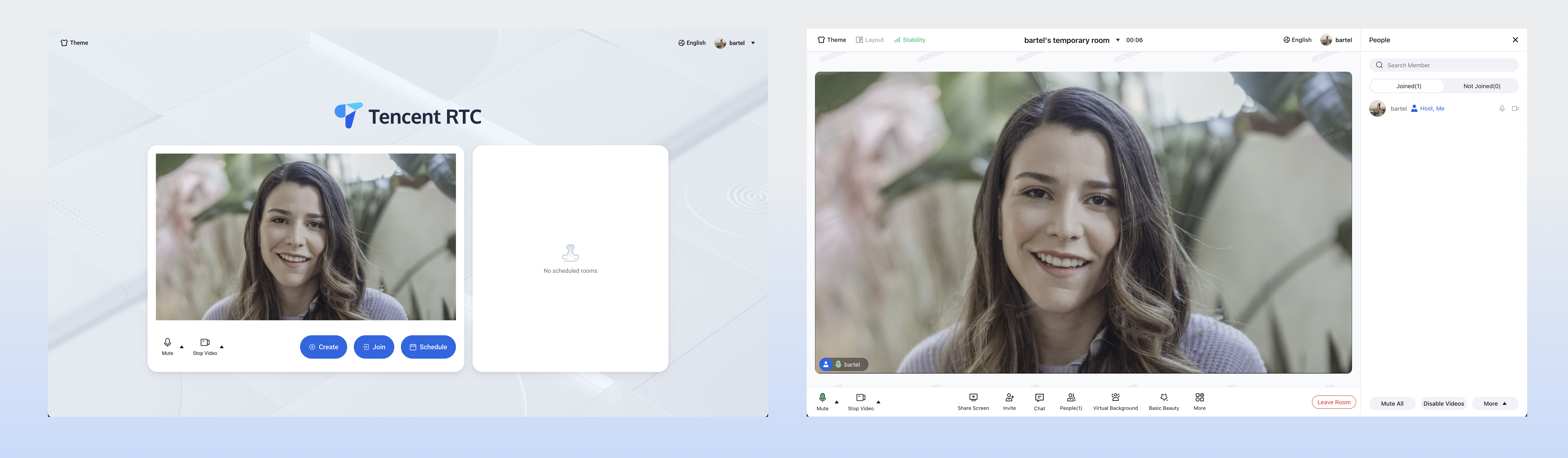
This guide walks you through running the TUIRoomKit Webinar demo project, so you can quickly explore core features including pre-meeting checks, webinar room creation, Audio/Video streaming, screen sharing, participant management, and large-scale message interaction.
What is the difference between a Standard Conference and a Webinar?
Standard Conference: Designed for small to medium-sized collaborative meetings, where all participants have equal Audio/Video permissions. Supports multiple layouts such as grid and speaker view, plus full interactive features like screen sharing and participant management.
Webinar: Built for large-scale live presentations, supporting unlimited audience members who can Enter Room and watch. Audience members may use Raise Hand to apply to become a guest and join the discussion. The system is optimized for high-concurrency messaging in large interactive sessions, meeting professional presentation needs.
Feature Overview
Webinar Host
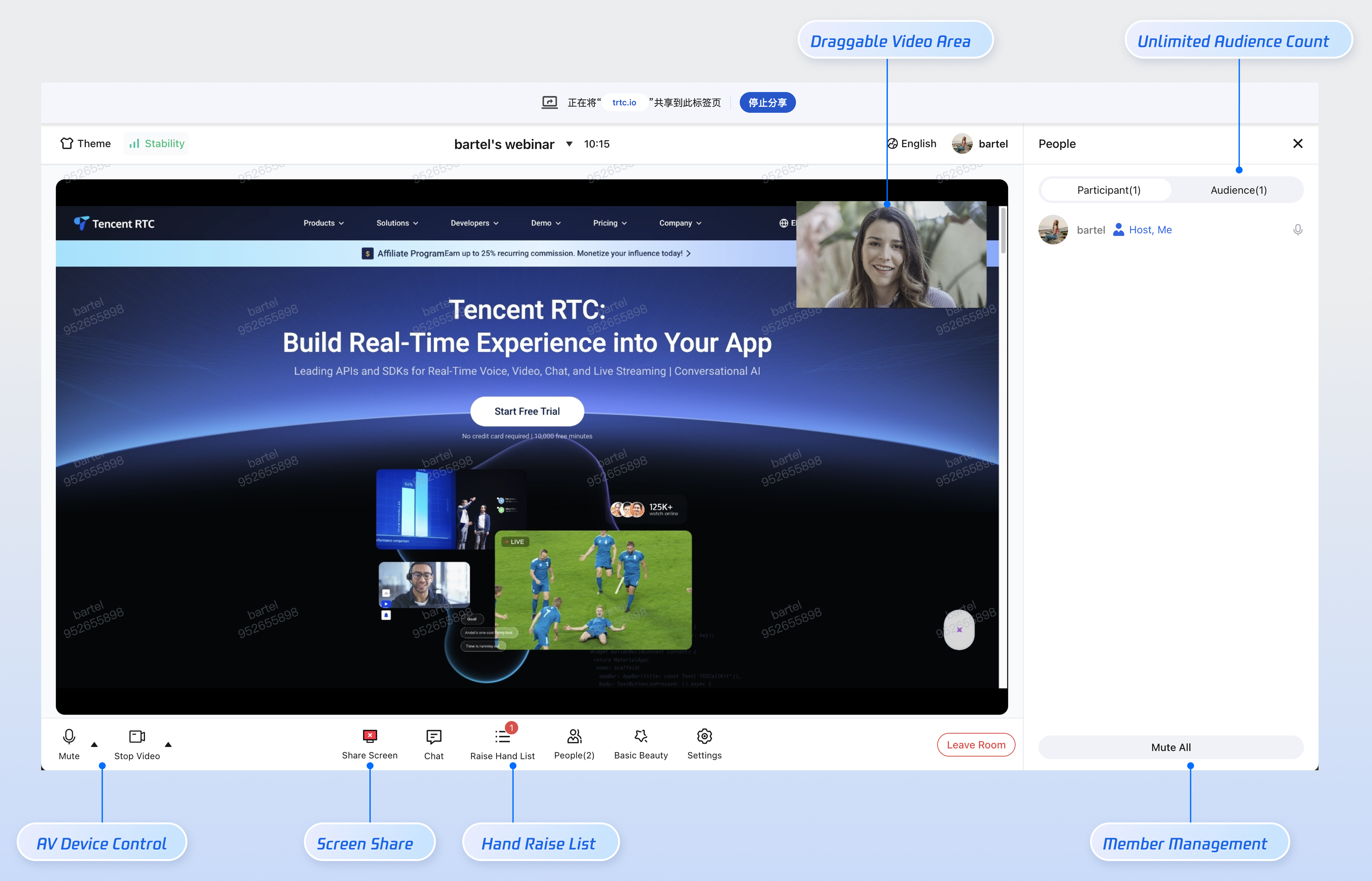
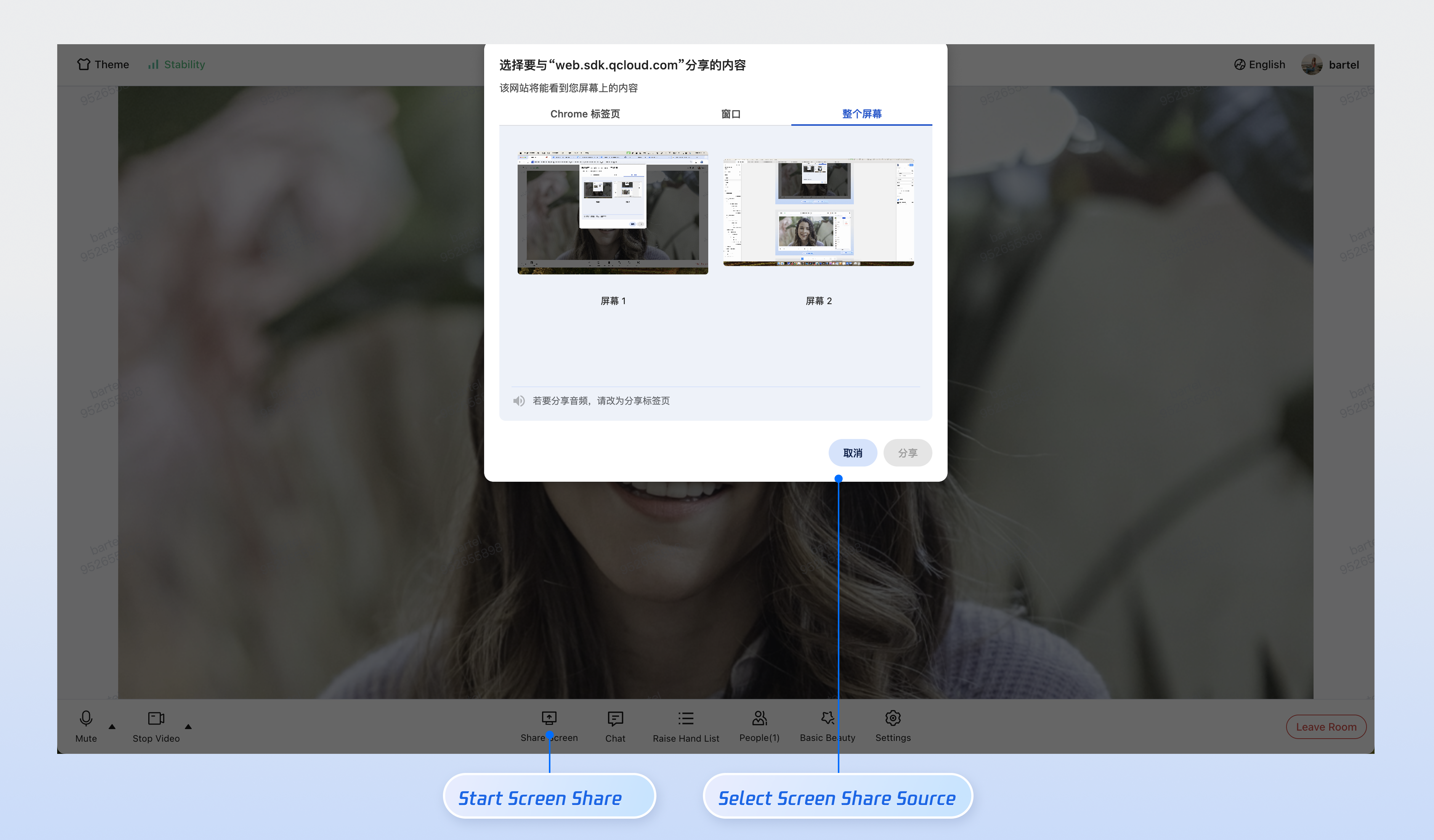
Hosts can start high-definition Audio/Video streaming and share their screen. When both video and screen sharing are enabled, the video window can be dragged and repositioned, allowing flexible layout changes.
Webinar Panelist
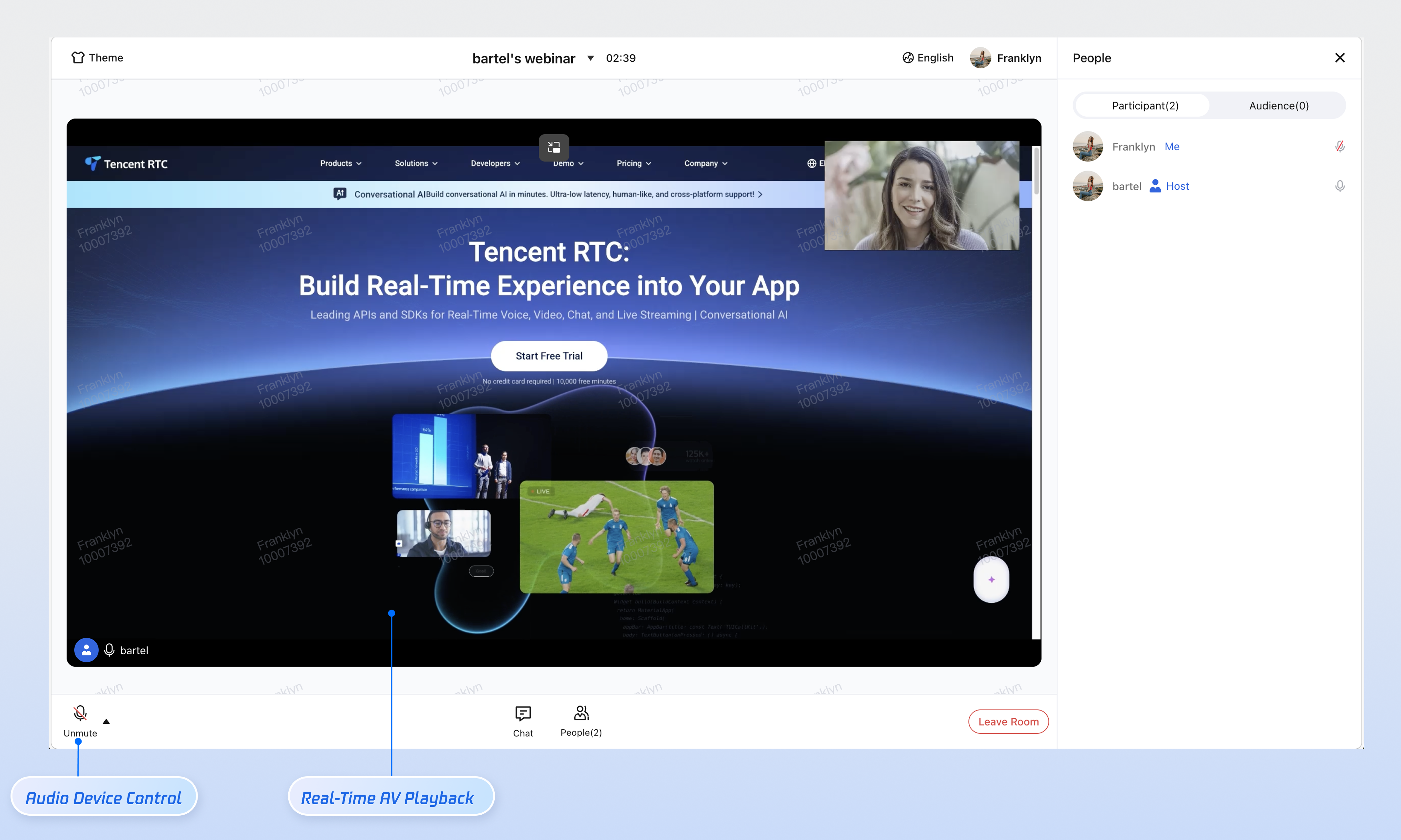
Guests can turn on their microphone for real-time voice discussions and sharing.
Webinar Attendee
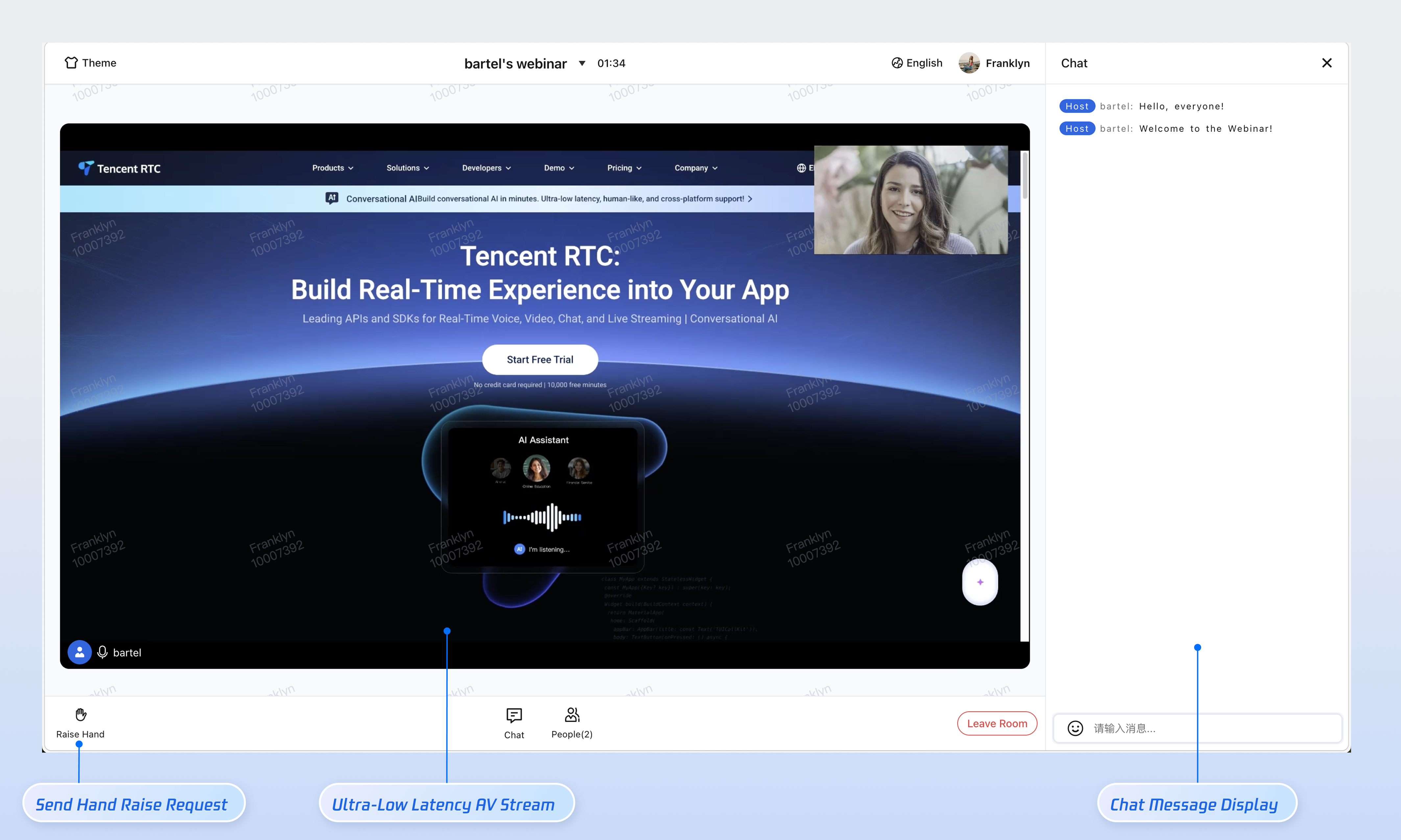
Supports unlimited concurrent attendees. Attendees can join the session, watch the live stream with ultra-low latency, and engage in real-time chat. They can also use Raise Hand to request to become a panelist.
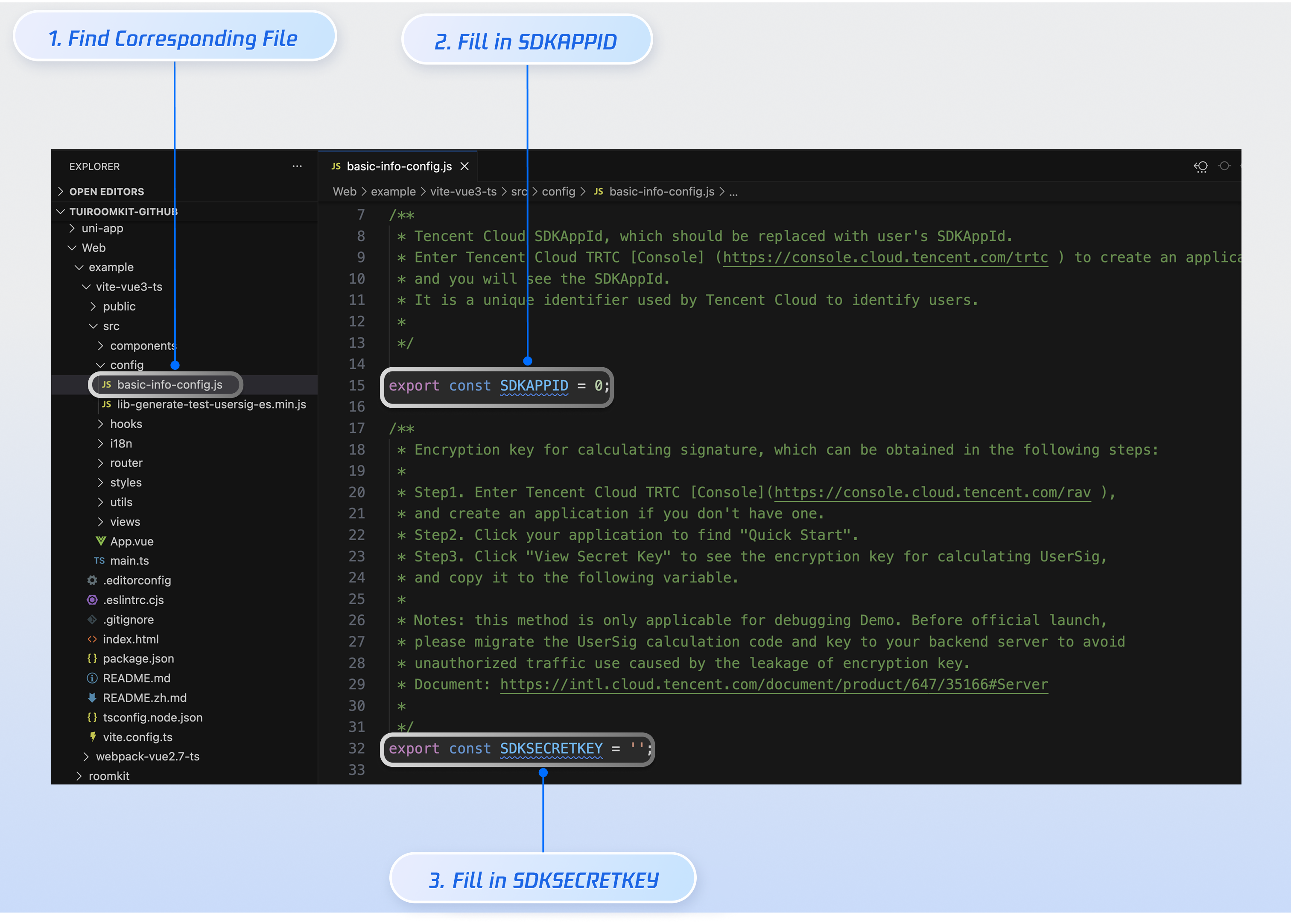
SDKAppID: Application identifier (required), used by TRTC for billing and statistics.
SDKSecretKey: SecretKey for initializing the configuration file.
Note:
The webinar scenario is built on live streaming capabilities. To use webinar features, you must obtain the TUILiveKit trial version or activate the official TUILiveKit version to ensure all related features work properly.
Environment Setup
Node.js: ≥ 18.19.1 (official LTS version recommended).
Install the required dependencies in the project root directory.
npm
pnpm
yarn
npminstall
pnpminstall
yarn
Step 4: Configure Application Information
Open the TUIRoomKit/Web/example/vite-vue3-ts/src/config/basic-info-config.js configuration file in your project directory. Enter the SDKAppID and SDKSecretKey you obtained from the TRTC Console.
Caution:
In this demo, SDKSecretKey is set in the client code for authentication. Because SDKSecretKey can be easily reverse-engineered, if leaked, attackers could steal your TRTC traffic. This method is only suitable for local demo runs and feature debugging.
In production, generate UserSig on your server. When UserSig is needed, your app should request a dynamic UserSig from your business server for authentication. See How to calculate UserSig in production.
Step 5: Start the Project
Run the following command to launch the development server.
npm
pnpm
yarn
npm run dev
pnpm run dev
yarn run dev
Once started, the browser will automatically open the debug address (usually http://localhost:5173). Enter a user ID and log in to access the conference interface:
Experience the Webinar Room
Webinar Core Feature Showcase
TUIRoomKit webinar scenarios provide the following core meeting features:
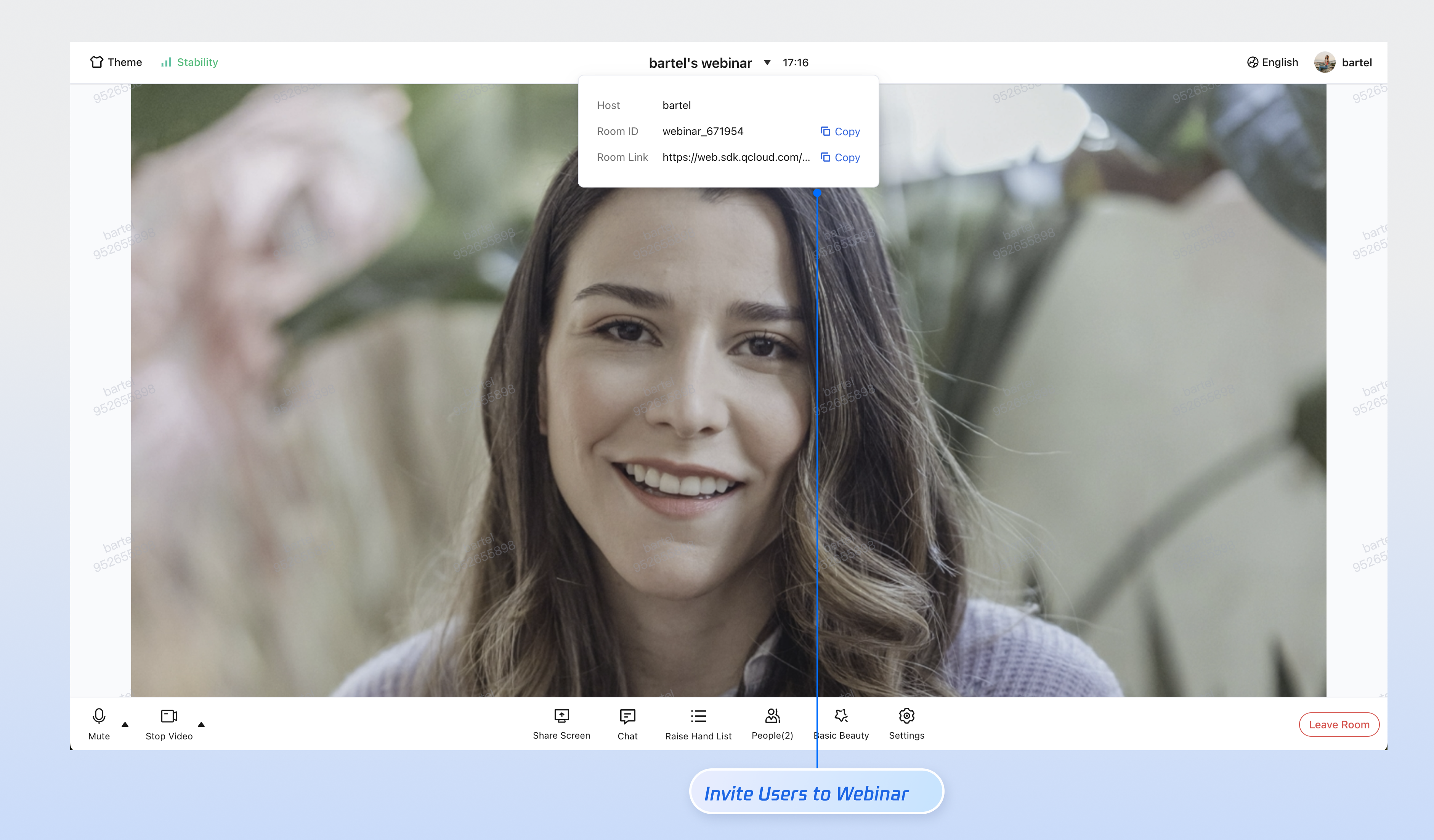
Create/Join Room: Hosts can create webinar rooms, and audience members can join webinar rooms.
Screen Sharing: Hosts can share their screen content. When video is enabled, the video window can be dragged.
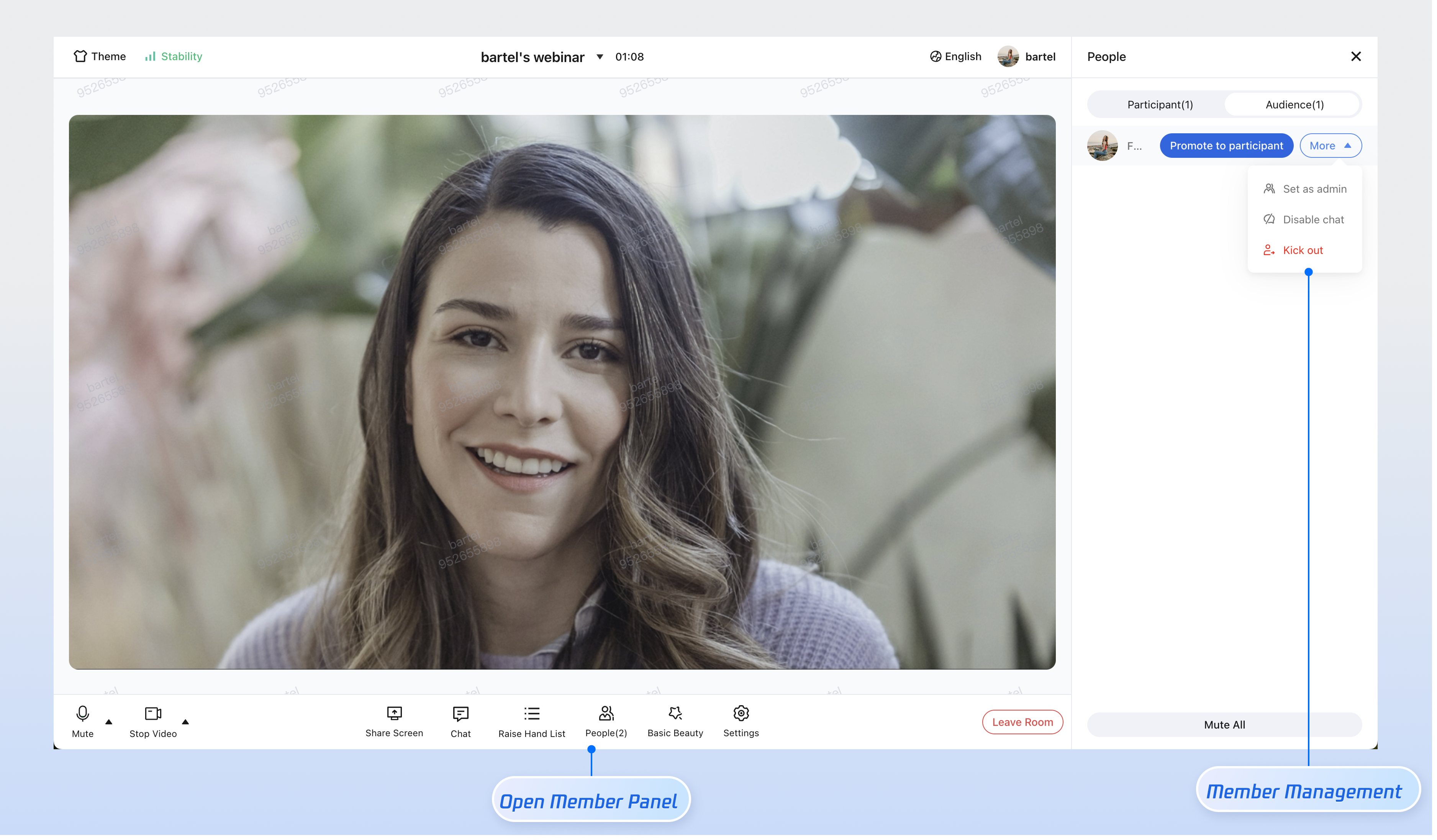
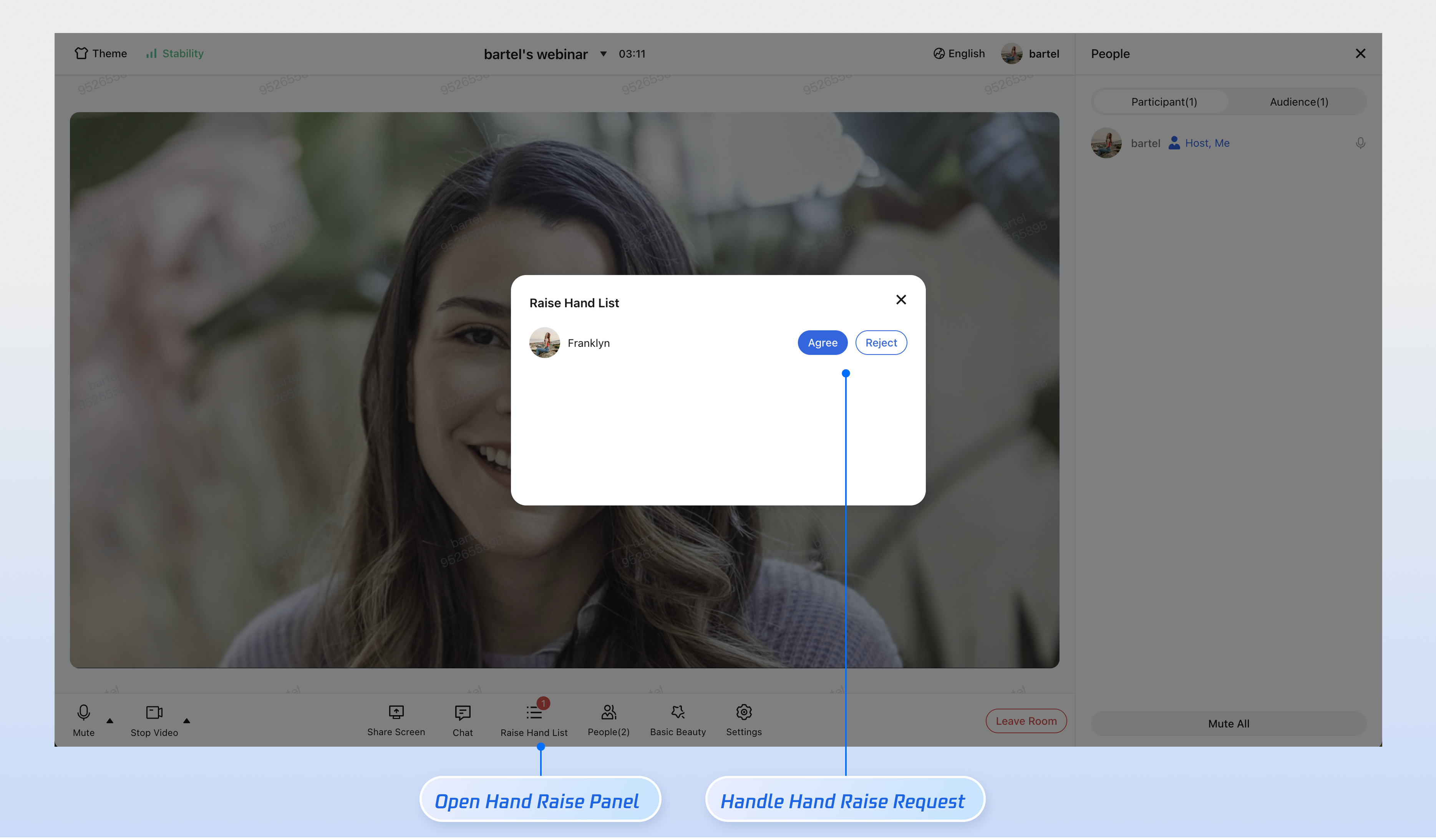
Participant Management: Hosts and admins can set audience members as guests or handle Raise Hand requests to manage participation.
Raise Hand: Attendees can send a raise-hand request to the host. Once approved, they are promoted to panelist and can unmute to speak.
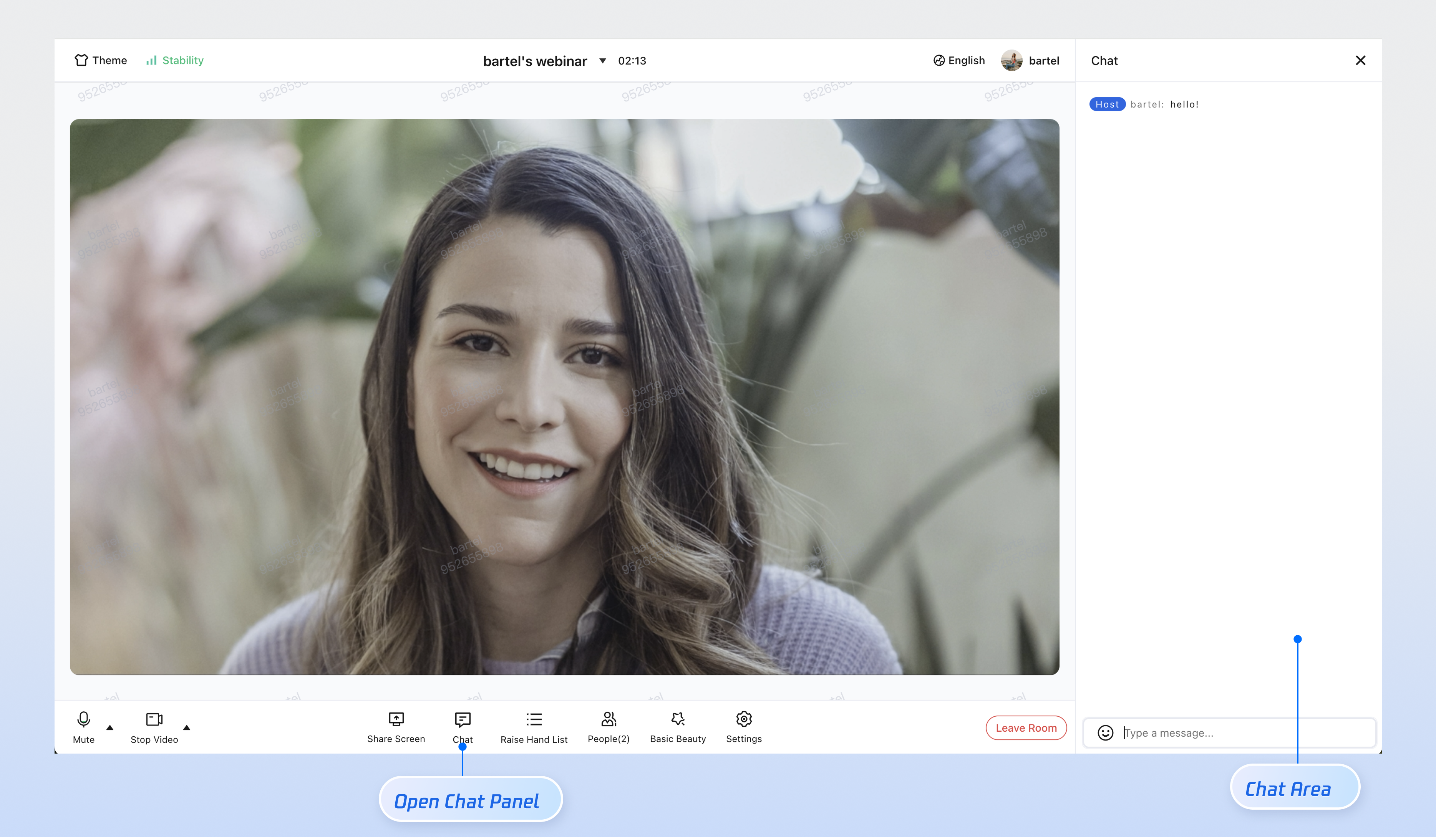
Chat Interaction: Supports high-concurrency text chat in large rooms, enabling real-time communication for tens of thousands of online users.
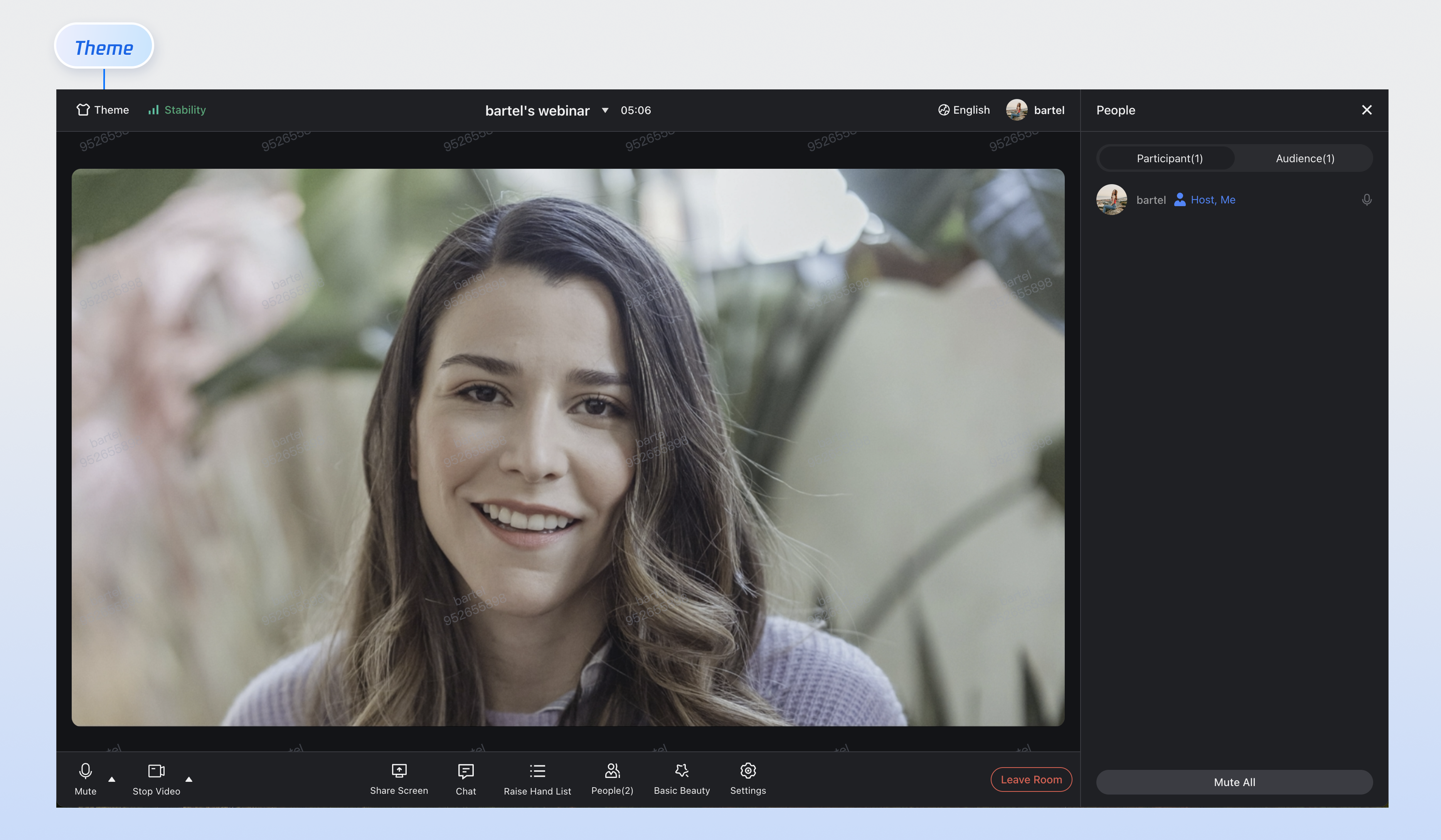
Theme Customization: Allows you to customize brand colors and UI styles using CSS variables.
FAQs
Why does TUIRoomKit work locally but fail to access the camera or microphone after deployment?
Analysis: For security and privacy, browsers strictly restrict access to Audio/Video devices (microphone, camera). Device access is only permitted in secure contexts, such as https://, localhost, file://, etc. HTTP is considered insecure, and browsers block access to media devices by default.
Solution: If everything works on localhost but fails after deployment, check whether your site is deployed over HTTP. You must deploy your site over HTTPS and ensure you have a valid security certificate.