
Live Stream List(React Native)
LiveListState is the central module in AtomicXCore for managing the live stream room list, creating and joining rooms, and maintaining room state. With LiveListState, you can implement full live stream lifecycle management within your application.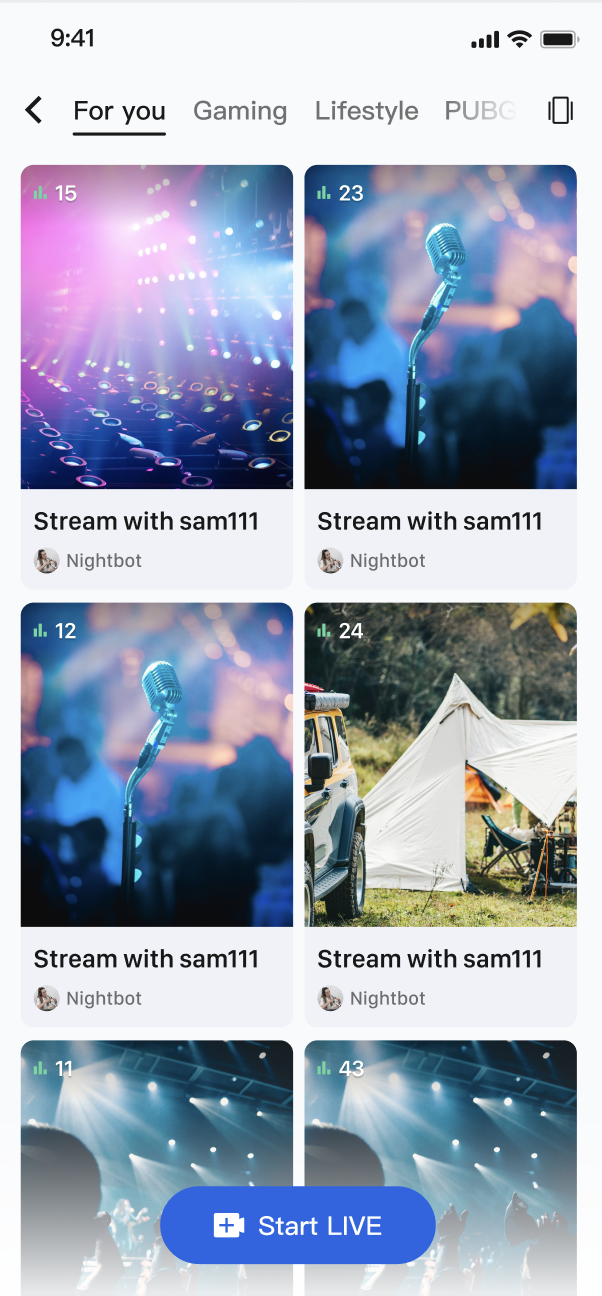
Core Features
Live Stream List Retrieval: Retrieve the current list of all public live stream rooms, with support for paginated loading.
Live Stream Lifecycle Management: Access a comprehensive set of interfaces to handle every stage of a live stream, including room creation, start, join, leave, and end.
Live Stream Information Update: Hosts can update public room information at any time, such as cover images, announcements, and more.
Real-Time Event Listening: Listen for key events like stream ending or users being removed from a room.
Custom Business Data: Flexible metadata (
metaData) lets you store and synchronize any business-relevant information in a room, such as live stream status, music details, custom roles, and more.Implementation Steps
Step 1: Component Integration
Live streaming: Refer to Quick Access for seamless integration with AtomicXCore and service access.
Voice chat room: Refer to Quick Access for integration with AtomicXCore and access completed.
Step 2: Audience Entry from the Live Stream List
Build a page to display the live stream list. When a user taps a card, retrieve the
liveID and navigate to the audience viewing page.import React, { useEffect } from 'react';import {StyleSheet, Text, View, FlatList, TouchableOpacity,Dimensions, ImageBackground,} from 'react-native';import { useLiveListState } from 'react-native-tuikit-atomic-x/lib/module/atomic-x/state/LiveListState';const defaultCover = 'https://liteav-test-1252463788.cos.ap-guangzhou.myqcloud.com/voice_room/voice_room_cover1.png';const { width: SCREEN_WIDTH } = Dimensions.get('window');const CARD_GAP = 12;const CARD_PADDING = 16;const CARD_WIDTH = (SCREEN_WIDTH - CARD_PADDING * 2 - CARD_GAP) / 2;const CARD_HEIGHT = CARD_WIDTH * 1.3;// Live Stream Card Componentfunction LiveCard({ item, onPress }) {return (<TouchableOpacity style={styles.card} activeOpacity={0.75} onPress={onPress}><ImageBackgroundsource={{ uri: item.coverURL || defaultCover }}style={styles.cardBg}resizeMode="cover"><View style={styles.viewerBadge}><Text style={styles.viewerBadgeText}>{item.totalViewerCount || 0} viewers</Text></View><View style={styles.bottomInfo}><Text style={styles.liveName} numberOfLines={1}>{item.liveName}</Text><Text style={styles.ownerName} numberOfLines={1}>{item.liveOwner?.userName}</Text></View></ImageBackground></TouchableOpacity>);}export default function LiveListScreen({ navigation }) {// State managementconst { liveList, liveListCursor, fetchLiveList, joinLive } = useLiveListState();// InitializationuseEffect(() => {fetchLiveList({ cursor: liveListCursor, count: 20 });}, []);// Join Live Streamconst handleJoinLive = (live) => {joinLive({liveID: live.liveID,onSuccess: () => {navigation.navigate('Audience', { liveID: live.liveID }); // Navigate to your audience page},onError: (error) => {console.log('Failed to enter voice chat room', error);},});};return (<View style={styles.container}>{/* Live Stream List */}<FlatListdata={liveList || []}keyExtractor={(item) => item.liveID}numColumns={2}columnWrapperStyle={styles.row}contentContainerStyle={styles.listContent}renderItem={({ item }) => (<LiveCard item={item} onPress={() => handleJoinLive(item)} />)}/></View>);}const styles = StyleSheet.create({container: {flex: 1,backgroundColor: '#fff',},listContent: {paddingHorizontal: CARD_PADDING,paddingTop: 12,},row: {justifyContent: 'space-between',marginBottom: CARD_GAP,},card: {width: CARD_WIDTH,height: CARD_HEIGHT,borderRadius: 12,overflow: 'hidden',},cardBg: {flex: 1,justifyContent: 'space-between',},viewerBadge: {alignSelf: 'flex-start',backgroundColor: 'rgba(0, 0, 0, 0.45)',borderRadius: 10,paddingHorizontal: 8,paddingVertical: 3,margin: 8,},viewerBadgeText: {fontSize: 11,color: '#fff',},bottomInfo: {padding: 8,paddingTop: 20,backgroundColor: 'rgba(0, 0, 0, 0.35)',},liveName: {fontSize: 14,fontWeight: '600',color: '#fff',},ownerName: {fontSize: 12,color: 'rgba(255, 255, 255, 0.8)',marginTop: 2,},});
LiveInfo Parameter Description
Parameter Name | Type | Description |
liveID | string | Unique identifier for the live stream room |
liveName | string | Title of the live stream room |
coverURL | string | Cover image URL for the live stream room |
liveOwner | LiveUserInfo | Host's profile information |
totalViewerCount | number | Total number of viewers in the live stream room |
categoryList | [number] | List of category tags for the live stream room |
notice | string | Announcement for the live stream room |
metaData | [string: string] | Developer-defined metadata for advanced business use cases |
Advanced Features
Scenario 1: Filter Live Stream List by Category
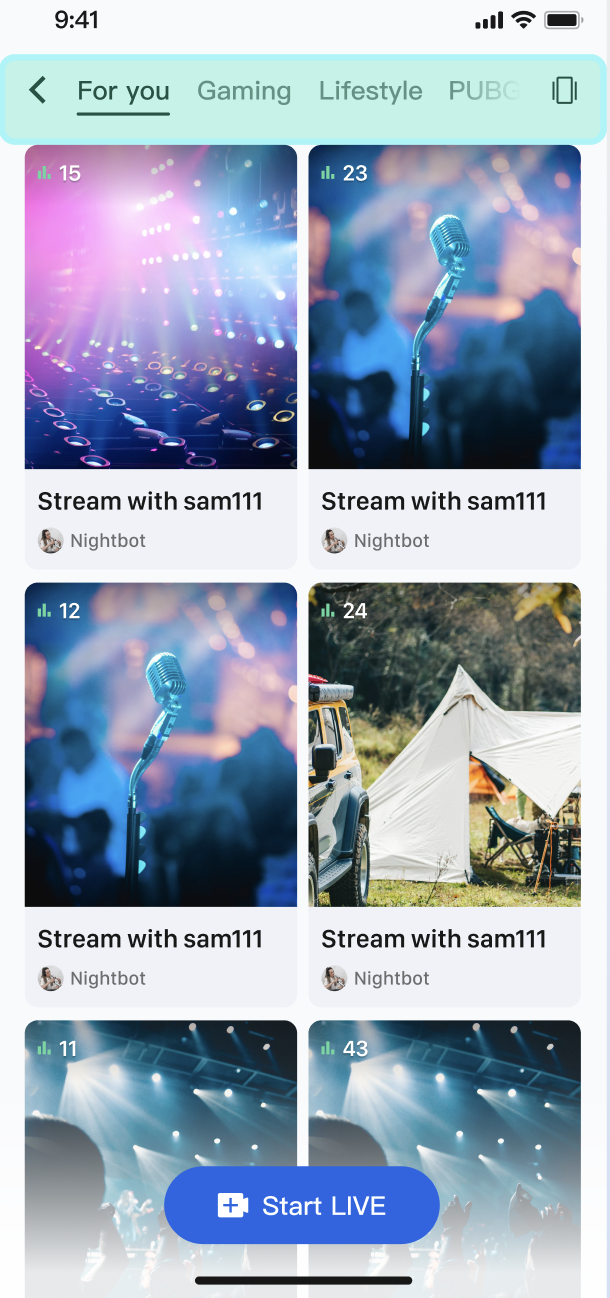
On the live stream plaza page, category tags such as "Popular", "Music", and "Games" are displayed at the top. When a user selects a category, the live stream list below dynamically updates to show only streams in that category, helping audiences quickly find relevant content.
Implementation
This feature relies on the
categoryList property in the LiveInfo model. When the host assigns a category during stream setup, the returned LiveInfo from fetchLiveList will contain those category values. After retrieving the full live stream list, filter it client-side according to the selected category and refresh the UI.Code Example
The example below adds data handling and filtering logic based on
categoryList to the live stream list page UI.import React, { useEffect, useState, useMemo } from 'react';import {StyleSheet, Text, View, FlatList, TouchableOpacity,Dimensions, ImageBackground, ScrollView,} from 'react-native';import { useLiveListState } from 'react-native-tuikit-atomic-x/lib/module/atomic-x/state/LiveListState';const defaultCover = 'https://liteav-test-1252463788.cos.ap-guangzhou.myqcloud.com/voice_room/voice_room_cover1.png';const { width: SCREEN_WIDTH } = Dimensions.get('window');const CARD_GAP = 12;const CARD_PADDING = 16;const CARD_WIDTH = (SCREEN_WIDTH - CARD_PADDING * 2 - CARD_GAP) / 2;const CARD_HEIGHT = CARD_WIDTH * 1.3;// Category Listconst categories = [{ id: 0, name: 'All' },{ id: 1, name: 'Games' },{ id: 2, name: 'Music' },{ id: 3, name: 'Chat' },{ id: 4, name: 'Sports' },{ id: 5, name: 'Entertainment' },];// Category Name Mappingconst categoryMap = {1: 'Games',2: 'Music',3: 'Chat',4: 'Sports',5: 'Entertainment',};// Get Category Nameconst getCategoryName = (categoryId) => {return categoryMap[categoryId] || 'Other';};// Live Stream Card Componentfunction LiveCard({ item, onPress }) {const firstCategory = item.categoryList?.[0];return (<TouchableOpacity style={styles.card} activeOpacity={0.75} onPress={onPress}><ImageBackgroundsource={{ uri: item.coverURL || defaultCover }}style={styles.cardBg}resizeMode="cover"><View style={styles.viewerBadge}><Text style={styles.viewerBadgeText}>{item.totalViewerCount || 0} viewers</Text></View><View style={styles.bottomInfo}>{firstCategory ? (<View style={styles.categoryBadge}><Text style={styles.categoryBadgeText}>{getCategoryName(firstCategory)}</Text></View>) : null}<Text style={styles.liveName} numberOfLines={1}>{item.liveName}</Text><Text style={styles.ownerName} numberOfLines={1}>{item.liveOwner?.userName}</Text></View></ImageBackground></TouchableOpacity>);}export default function LiveListScreen({ navigation }) {// State managementconst { liveList, fetchLiveList, joinLive } = useLiveListState();// Currently selected category, 0 means allconst [selectedCategory, setSelectedCategory] = useState(0);// InitializationuseEffect(() => {fetchLiveList({ cursor: '', count: 20 });}, []);// Filter list by selected categoryconst filteredList = useMemo(() => {const list = liveList || [];if (selectedCategory === 0) {return list;}return list.filter((live) => {const categoryList = live.categoryList || [];return categoryList.includes(selectedCategory);});}, [liveList, selectedCategory]);// Join Live Streamconst handleJoinLive = (live) => {joinLive({liveID: live.liveID,onSuccess: () => {navigation.navigate('Audience', { liveID: live.liveID }); // Navigate to your target page},onError: (error) => {console.log('Failed to enter voice chat room', error);},});};return (<View style={styles.container}>{/* Category Tabs Bar */}<View style={styles.categoryTabsWrapper}><ScrollView horizontal showsHorizontalScrollIndicator={false} contentContainerStyle={styles.categoryTabs}>{categories.map((cat) => (<TouchableOpacitykey={cat.id}style={[styles.tab, selectedCategory === cat.id && styles.tabActive]}activeOpacity={0.7}onPress={() => setSelectedCategory(cat.id)}><Text style={[styles.tabText, selectedCategory === cat.id && styles.tabTextActive]}>{cat.name}</Text></TouchableOpacity>))}</ScrollView></View>{/* Live Stream List */}<FlatListdata={filteredList}keyExtractor={(item) => item.liveID}numColumns={2}columnWrapperStyle={styles.row}contentContainerStyle={styles.listContent}renderItem={({ item }) => (<LiveCard item={item} onPress={() => handleJoinLive(item)} />)}/></View>);}const styles = StyleSheet.create({container: {flex: 1,backgroundColor: '#fff',},categoryTabsWrapper: {backgroundColor: '#f9f9f9',borderBottomWidth: StyleSheet.hairlineWidth,borderBottomColor: '#e8e8e8',},categoryTabs: {flexDirection: 'row',paddingHorizontal: 16,paddingVertical: 10,},tab: {paddingHorizontal: 14,paddingVertical: 6,marginRight: 10,backgroundColor: '#fff',borderWidth: 1,borderColor: '#e0e0e0',borderRadius: 16,},tabActive: {backgroundColor: '#0468FC',borderColor: '#0468FC',},tabText: {fontSize: 13,color: '#666',},tabTextActive: {color: '#fff',},listContent: {paddingHorizontal: CARD_PADDING,paddingTop: 12,},row: {justifyContent: 'space-between',marginBottom: CARD_GAP,},card: {width: CARD_WIDTH,height: CARD_HEIGHT,borderRadius: 12,overflow: 'hidden',},cardBg: {flex: 1,justifyContent: 'space-between',},viewerBadge: {alignSelf: 'flex-start',backgroundColor: 'rgba(0, 0, 0, 0.45)',borderRadius: 10,paddingHorizontal: 8,paddingVertical: 3,margin: 8,},viewerBadgeText: {fontSize: 11,color: '#fff',},categoryBadge: {alignSelf: 'flex-start',backgroundColor: 'rgba(4, 104, 252, 0.9)',borderRadius: 3,paddingHorizontal: 6,paddingVertical: 2,marginBottom: 4,},categoryBadgeText: {fontSize: 10,color: '#fff',fontWeight: '600',},bottomInfo: {padding: 8,paddingTop: 20,backgroundColor: 'rgba(0, 0, 0, 0.35)',},liveName: {fontSize: 14,fontWeight: '600',color: '#fff',},ownerName: {fontSize: 12,color: 'rgba(255, 255, 255, 0.8)',marginTop: 2,},});
Scenario 2: Real-Time Product Cards for E-Commerce Live Streams
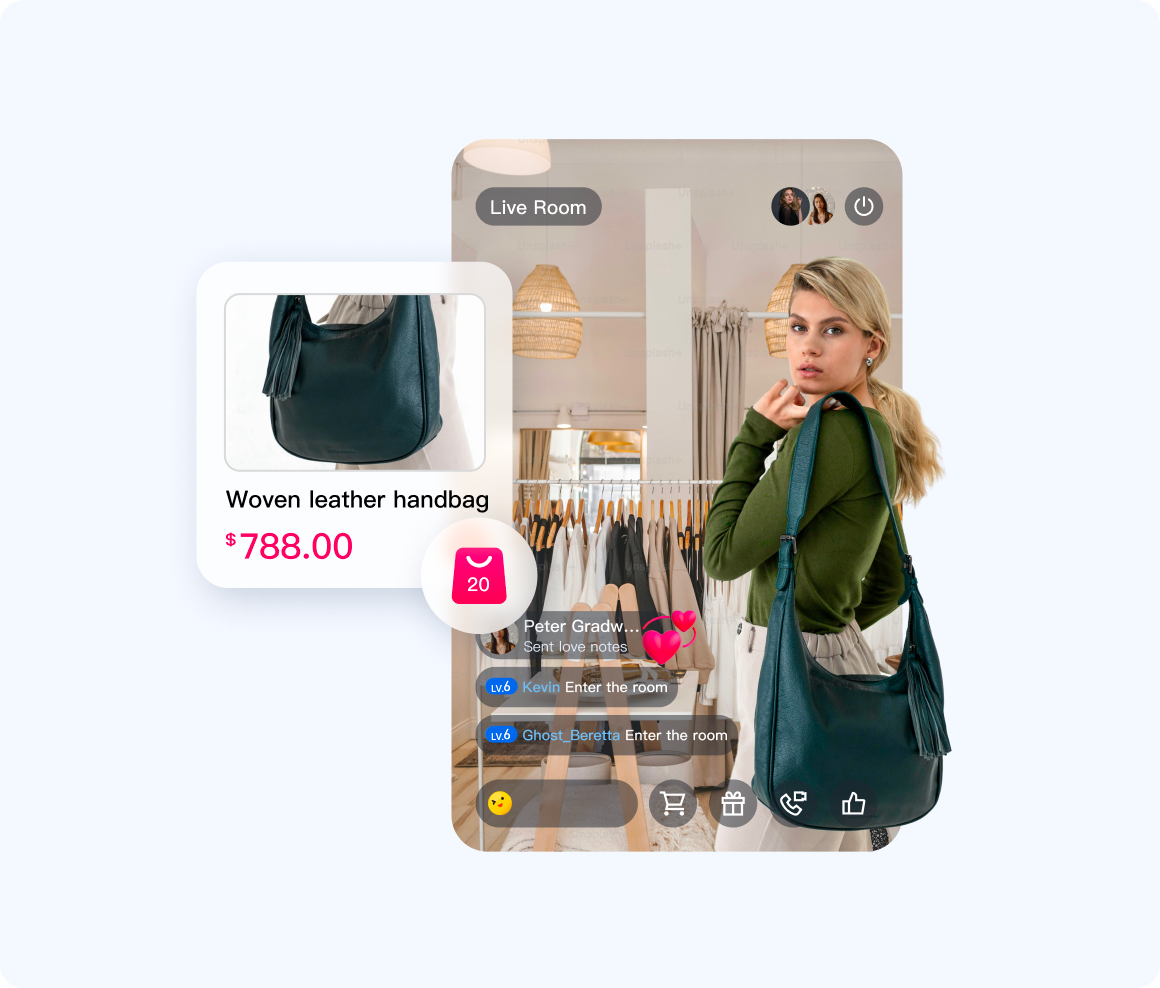
In e-commerce live streaming, the host introduces products to the audience. When a product is showcased, a product card appears below the live stream for all audience members, displaying the product image, name, and price in real time. When the host switches to another product, the product card updates instantly for everyone.
Implementation
On the host side, use the
updateLiveMetaData interface to push structured product information (recommended in JSON format) under a custom key (such as "product_info"). AtomicXCore synchronizes this update in real time for all audience members. On the audience side, listen for changes in currentLive. When metaData for product_info changes, parse the JSON data and update the product card UI.Code Example
import React, { useEffect, useState } from 'react';import { useLiveListState } from 'react-native-tuikit-atomic-x/lib/module/atomic-x/state/LiveListState';// Host Side Example Componentfunction AnchorProductPanel() {const { updateLiveMetaData } = useLiveListState();// Host: Push product info to all audience membersconst updateProduct = (product) => {updateLiveMetaData({metaData: {product_id: product.id,product_name: product.name,product_price: product.price,product_image_url: product.image_url,},onSuccess: () => {console.log(`Product ${product.name} info pushed successfully`);},onError: (error) => {console.log('Failed to push product info', error);},});};return null; // Replace with your host-side UI}// Audience Side Example Componentfunction AudienceProductCard() {const { currentLive } = useLiveListState();const [product, setProduct] = useState(null);// Audience: Listen for currentLive changes and parse product infouseEffect(() => {if (!currentLive) return;const metaData = currentLive.metaData;if (metaData?.product_id) {const newProduct = {id: metaData.product_id,name: metaData.product_name,price: metaData.product_price,imageUrl: metaData.product.image_url,};setProduct(newProduct);// Render your product UI based on fields in newProduct}}, [currentLive]);return null; // Replace with your audience-side product card UI}
API Documentation
For full details on all public interfaces, properties, and methods of LiveListState and related classes, refer to the official API documentation provided with the AtomicXCore framework. The relevant Store documented here is as follows:
State | Function Description | API Documentation |
LiveListState | Manage the complete lifecycle of live stream rooms: create, join, leave, destroy rooms, query room lists, update live stream information (such as name, announcement), and listen for live stream status (e.g., kicked out, stream ended). |
FAQs
What should I keep in mind when using updateLiveMetaData?
To maintain system stability and efficiency,
metaData usage is governed by these rules:Permissions: Only the host and administrators can call
updateLiveMetaData. Regular audience members do not have access.Quantity and Size Limits:
Each room can store up to 10 keys.
Each key must be no longer than 50 bytes. Each value must not exceed 2KB.
The total value size for all keys in a room must stay below 16KB.
Conflict Resolution: Updates to
metaData use a "last write wins" strategy. If multiple administrators modify the same key in quick succession, only the latest update applies. To minimize conflicts, ensure your business logic restricts simultaneous edits to critical information.
