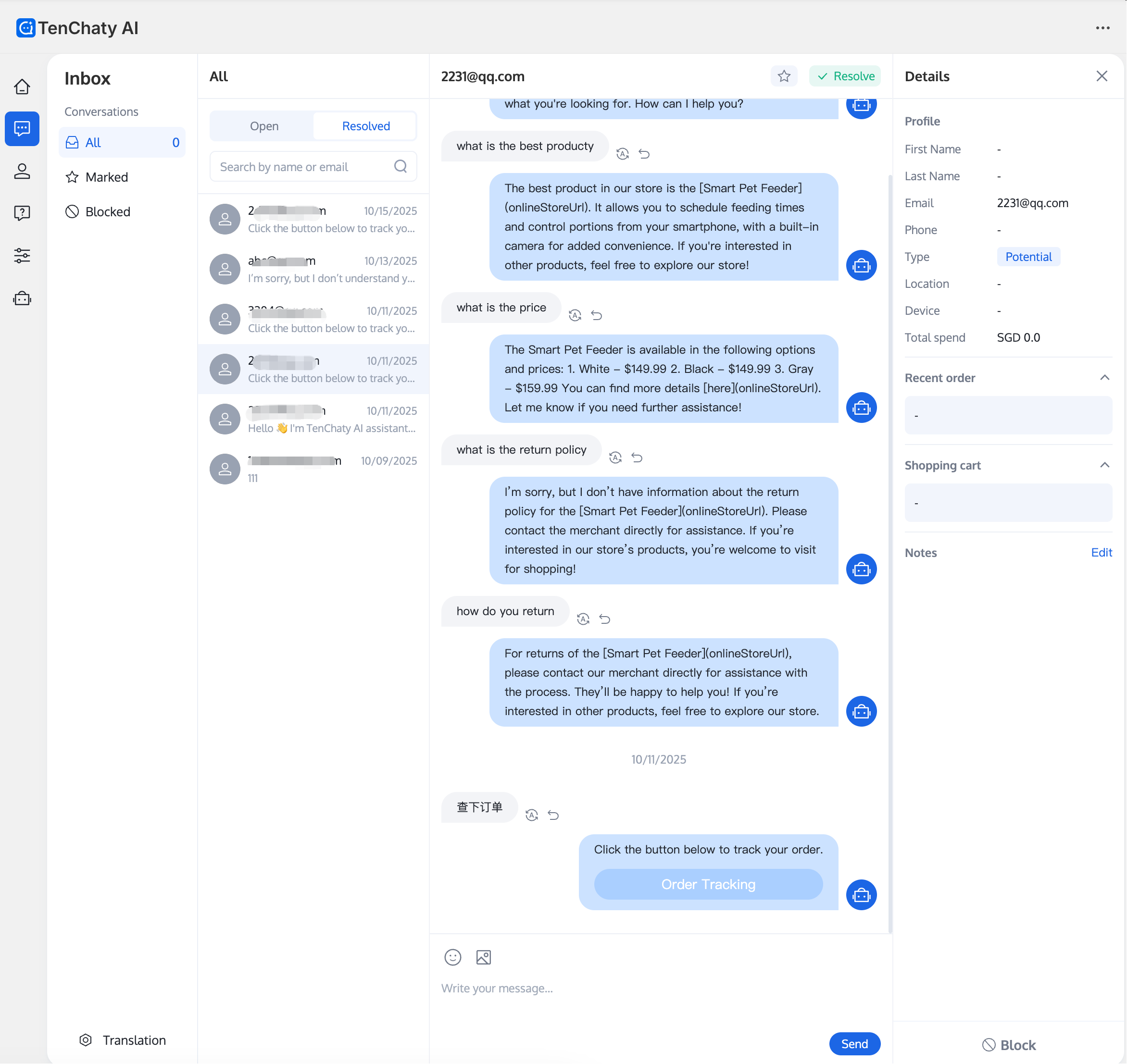
Inbox enables you to view and manage all customer message conversations. Here, you can:
Reply to customer inquiries
Search and filter conversations
Efficiently manage, tag, star, or mark conversations as resolved
How to Use Inbox
1. Log in to TenChaty AI as a Shopify account administrator
2. In the left navigation, click Inbox
The conversation list appears on the left side of the Inbox. Conversation details are displayed on the right.
How to Reply to a Conversation
1. In the conversation list, select the conversation that requires a manual agent response
2. Enter your message in the input box at the bottom
3. Press Enter or click Send
Note:
After you select a conversation and reply, the AI assigns the conversation to you for handling. If there are no new messages in the conversation for more than 3 minutes, the AI will take over the conversation.
Conversation Filtering and Tagging
1. Click the search box at the top of the conversation list and enter the user account email keyword to search
2. Select Open, Resolved, or Marked. The conversation list displays conversations under the selected tag group.
Managing Conversations
Mark as Resolved
After handling a customer conversation, click "Resolved". The conversation moves to the "Resolved" group.
Star Conversation
Tag important conversations by clicking the star icon. Starred conversations appear under "Marked".
Block Conversation
Block conversations from customers that do not require attention. Blocked conversations are collapsed under "Blocked".
Viewing Customer Details
View customer information on the right side of the conversation, including:
User name
User contact information (email, phone)
User notes, type, location, device
Total spending
Recent orders
Shopping cart
This information helps you understand the customer's intent and respond appropriately.