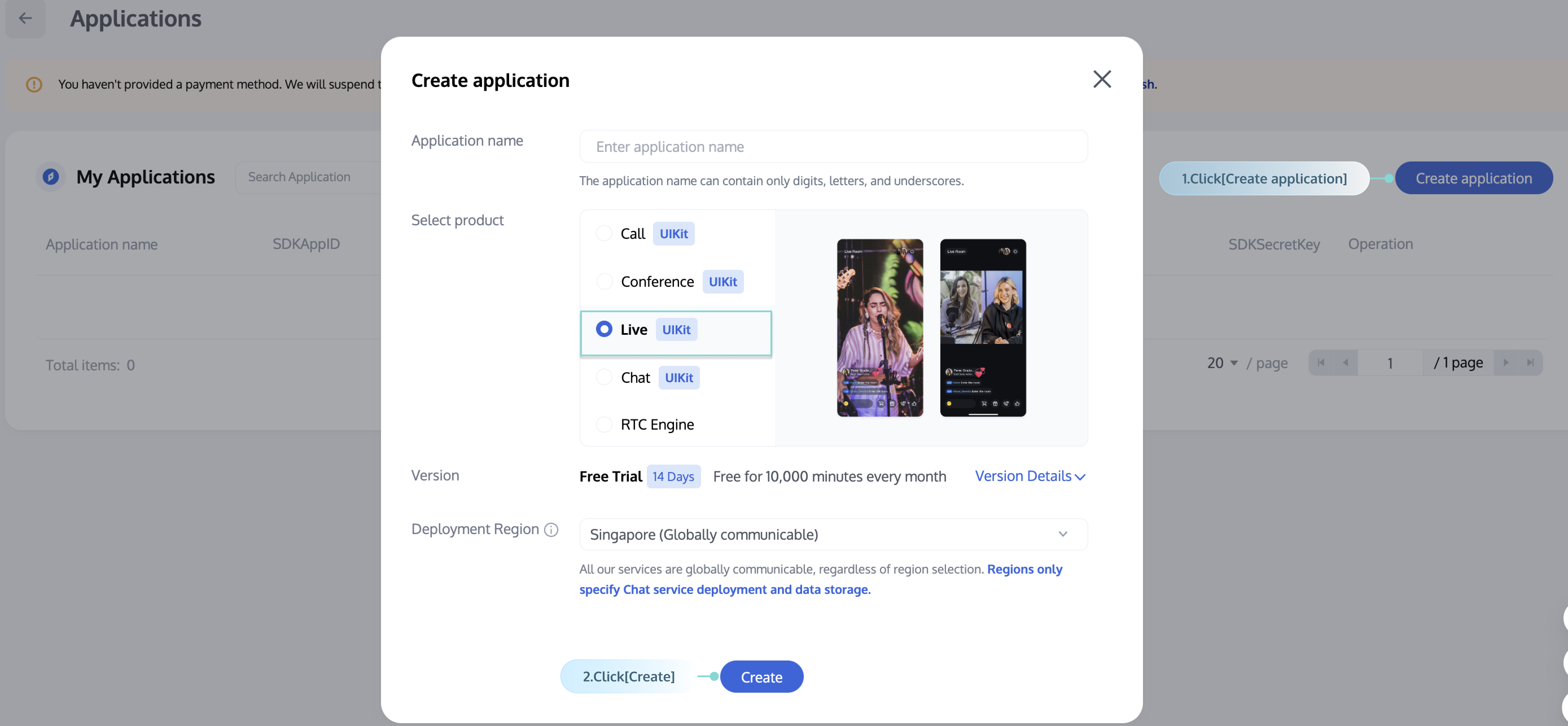
The SDKAppID is a unique identifier used to distinguish customer accounts. We recommend that each independent app apply for a new SDKAppID. Messages between different SDKAppIDs are naturally isolated and cannot interconnect. You must have the correct SDKAppID to perform initialization. You can view all SDKAppIDs in the Console, click the Create Application button to create a new SDKAppID.
Feature Description
You need to call the SDK login API to authenticate account identity and have permissions to use features. Upon success, you can enter a room and perform a series of operations.
Login
For first log in to account, you do not need to register first. Just log in directly. During log-in, if the SDK detects an unregistered account, it will automatically register. You can call the login(iOS & Mac / Android / Web) API to log in.
Key parameters of the login interface are as follows:
Parameter
Meaning
Description
UserID
Unique user ID for login
Use only letters (a-z, A-Z), digits (0-9), underscores (_), and hyphens (-). Length not exceeding 32 bytes.
UserSig
login ticket
The business server calculates to ensure security. For the calculation method, see user authentication.
You need to call the login interface in the following scenarios:
Use SDK features for the first time after App launch.
Kicked offline while connected: If a user is kicked while online, the SDK will notify you via the onKickedOffline callback. At this point, you can prompt the user via UI and call login to log in again.
No need to call the login interface in the following scenarios:
After the user's network disconnection and reconnection, there is no need to call the login function. The SDK will automatically go online.
When a login process is in progress, no need to perform duplicate login.
Note:
1. After successfully calling the SDK API to log in, MAU calculation will start. Based on business scenario, call the login API appropriately to avoid extremely high MAU.
2. In an App, the SDK does not support multiple accounts being online simultaneously. If multiple accounts are logged in at the same time, only the last logged-in account remains online.
Below is an example code:
Swift
Java
Web
let sdkAppId =1400000000// Set up your own SDK app ID
Upon successful log-in, obtain the logged-in user's basic info by calling getSelfInfo(iOS & Mac / Android / Web). If login failed, the retrieved login user UserID will be empty.
avatarUrl:'avatarUrl',// fill in your new profile photo url
});
Logout
Under normal circumstances, if your application lifecycle matches the SDK lifecycle, you can exit directly without logging out. However, in special scenarios, such as when you only use the SDK after entering specific interfaces and no longer use it after exiting, you can call the logout API (iOS & Mac / Android / Web) to log out of the SDK.
If you wish to implement account switch in application, only need to call login each time when switching accounts.
For example, if you are already logged in as alice, you can just switch to bob by directly logging in as bob. There is no need to explicitly call logout alice before logging in bob, as the SDK handles it automatically.