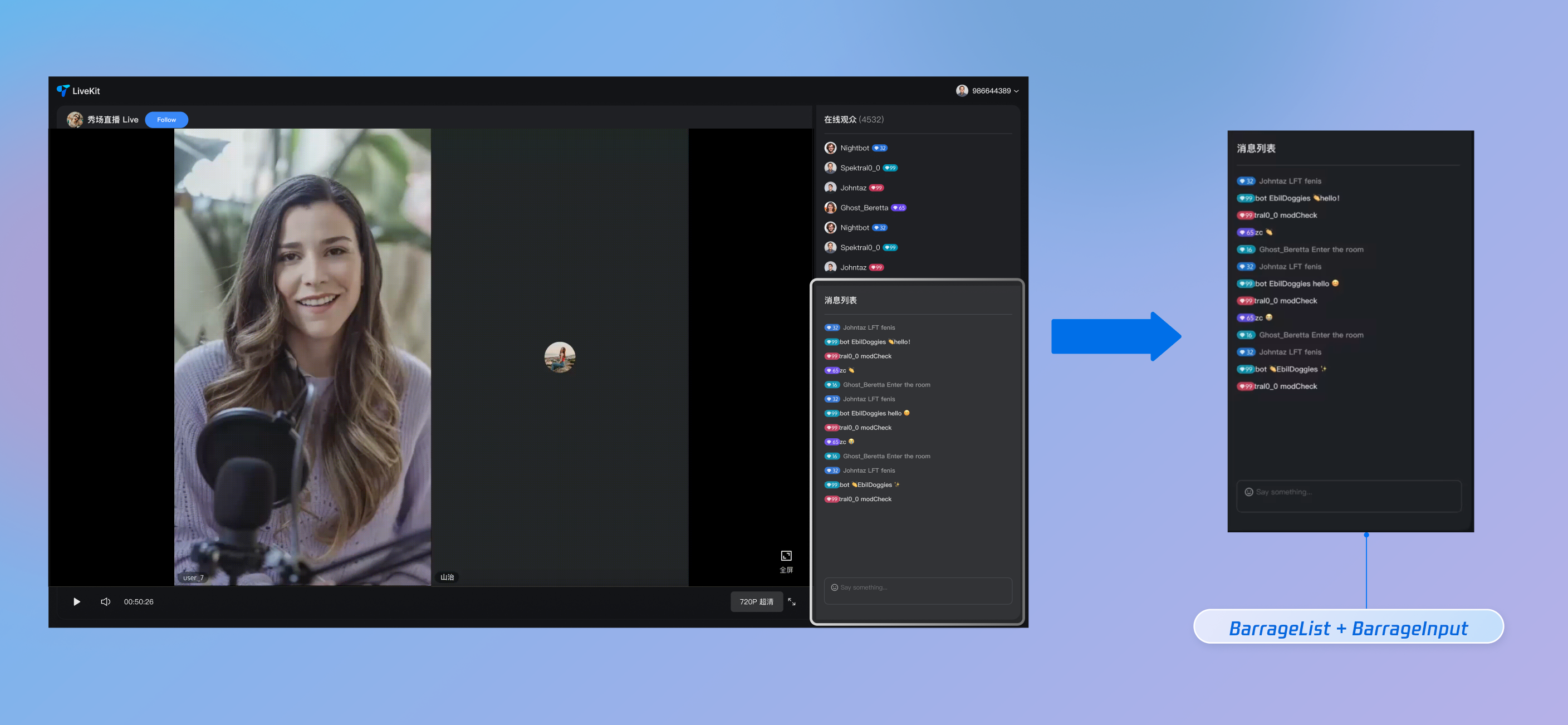
This guide shows web developers how to quickly add a robust, high-performance live comment system to your live streaming app, using the BarrageState module from the AtomicXCore framework.
Core Features
BarrageState delivers a complete live comments solution for your live streaming app. Main features include:
Receiving and displaying live comment messages in your stream.
Sending text live comments to interact with your audience.
Sending custom live comments for scenarios like gifts, likes, and other advanced audience interactions.
Inserting system notifications into the local message list (for example, "Welcome XX to the live room").
Additional extension info for custom business use.
Send Custom Live Comments
Send messages with custom business logic, such as gifts, likes, or gamified commands. The message format is defined by your business layer, and the receiver should parse and handle it using businessId and data.
console.error('Failed to send gift message:', error);
}
};
API Parameters
Parameter
Type
Description
businessId
string
Unique business identifier, such as "live_gift", used by the receiver to distinguish different custom messages.
data
string
Business data, typically a JSON-formatted string.
Step 4: Insert Local Tip Message
Add a local message to the current user's message list. This message is not sent to other users in the live room. Use this for system welcomes, warnings, or operation tips.
messageType:0,// Message type enum value (e.g., 0 for plain text message; see API enum definition)
textContent:'Welcome to the live room',// Text content to display
extensionInfo:{ type:'system'},// Extension field for special UI rendering
}
appendLocalTip(systemTip)
Step 5: Manage User Speaking Permissions (Mute and Unmute)
Hosts or admins can control which users can send messages in the live room.
Mute/Unmute Individual Users
Use the disableSendMessage API from LiveAudienceState to mute or unmute a specific user. This status persists—even if the user rejoins the live room, their mute state remains.
// LiveListState will automatically merge and update the live room info based on the parameters
awaitupdateLiveInfo({
// Maps to the isMessageDisable field in LiveInfo
// true: mute all audience members
// false: allow audience members to send messages
isMessageDisable: shouldMute
});
console.log(`Global mute status updated to: ${shouldMute}`);
}catch(error){
console.error('Failed to update global mute:', error);
}
};
// Example usage: Enable global mute
awaitsetGlobalMute(true);
API Documentation
For full details on all public APIs, properties, and methods for BarrageState and related classes, see the official API documentation for the AtomicXCore framework.
FAQs
How can we implement advanced styles like "colored live comments" or "gift live comments" beyond basic text?
You can use custom messages via sendCustomMessage. BarrageState supports flexible custom message formats, so you can define message structures and styles to fit your business needs.
Implementation Approach
1. Define the Data Structure: Work with your client and server teams to design the JSON structure for custom messages. For example, a colored live comment might look like:
{"type":"colored_text","text":"This is a colored live comment!","color":"#FF5733"}
2. Sender: Convert this JSON structure to a string and send it using the data parameter of sendCustomMessage. Set businessId to a unique identifier for your business, such as "barrage_style_v1".
3. Receiver: When you receive a live comment message, check if its messageType is 'CUSTOM' and whether the businessId matches. If so, parse the data string (usually as JSON), and render your custom UI style based on the parsed data (for example, color, text).
Why doesn’t my sent message appear in the message list after calling sendTextMessage?
Troubleshooting steps:
1. Check for errors in catch: The sendTextMessage method includes error handling. Review the callback result for success or failure. If it fails, the error message will indicate the reason (such as "You have been muted", "Network error", etc.).
2. Confirm subscription timing: Make sure you subscribe to barrageState after the corresponding liveId live stream has started. If you start listening before joining the live room, you may miss some messages.
3. Check liveId: Ensure the liveId used to create the BarrageState instance, join the live room, and send messages is exactly the same—including case sensitivity.
4. Network issues: Verify that the device’s network connection is stable. Message sending depends on network connectivity.
How can new viewers see historical barrage messages sent before they joined the live room?
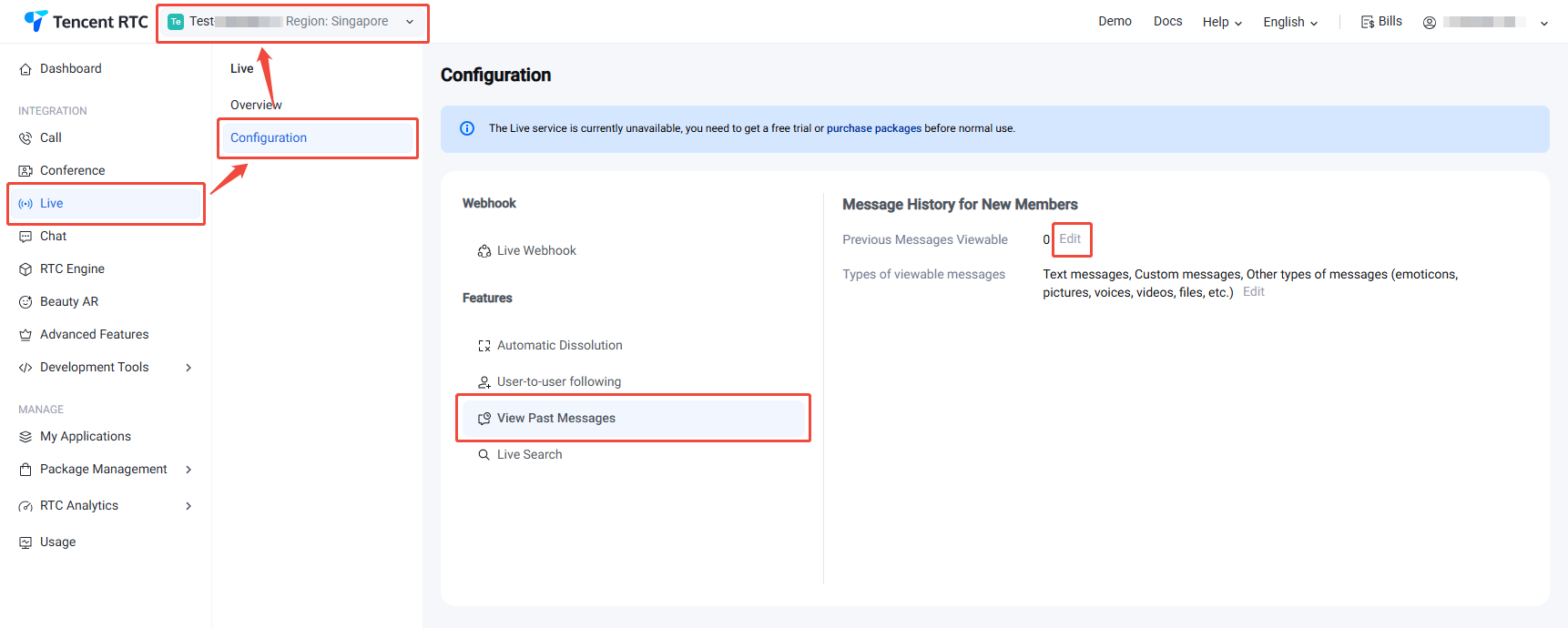
AtomicXCore supports retrieving historical chat messages, but you need to enable this feature in the server console. Once configured, the SDK handles everything automatically—no additional client code is required.
2. On the Live Configuration page, select View Past Messages, and set Previous Messages Viewable to specify the number of messages (up to a maximum of 50) that new viewers can see.
Step 2: Automatic Retrieval on the Client Side
After completing the above configuration, no changes are needed in your client code.
When a new user joins the live room, AtomicXCore automatically retrieves the configured number of historical chat messages in the background. These messages are delivered to the UI layer through the BarrageState subscription channel, just like real-time messages. Your application will receive and display these historical chat messages in the same way as live messages.