
CDNストリーミングを有効にする
Feature Description
This document describes how to use the CDNStreaming plugin to implement cloud-based stream mixing, relay streams to CDN, and push mixed streams back to TRTC rooms.
Prerequisites
1. TRTC SDK version must be >= 5.1.
2. Enable the Tencent Cloud Live service.
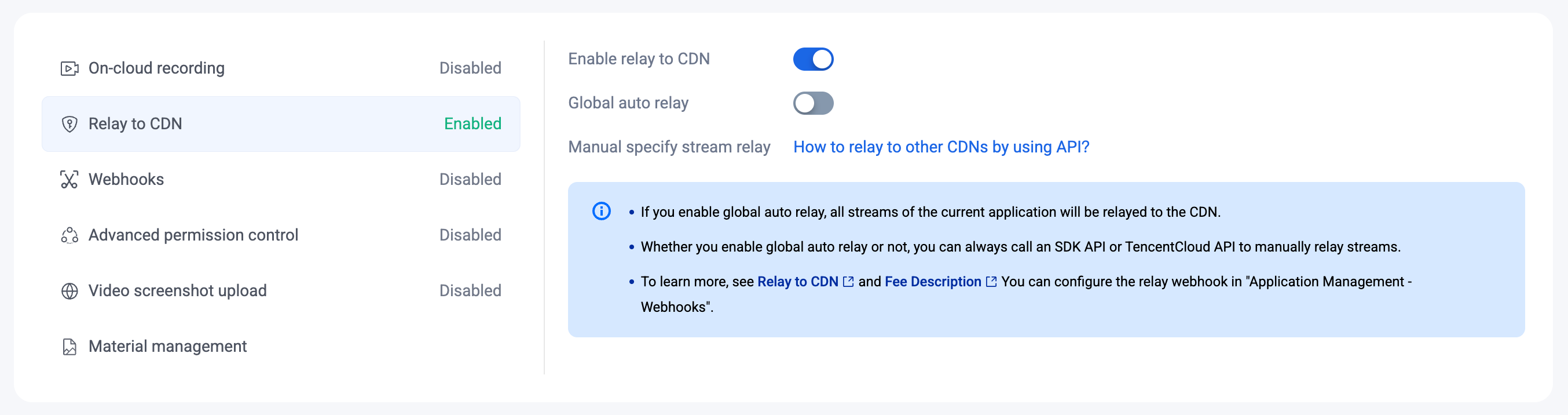
3. In the TRTC Console - Advanced Features, click Relay to CDN, and enable the Enable relay to CDN switch.
Relay Mode Options:
Global Auto-Relay: When the Global auto relay is enabled, all upstream audio and video streams in TRTC are automatically relayed to TRTC CDN.
Manual Relay: When the Global auto relay is disabled, you can use this plugin or the server REST API to relay specific audio and video streams to the CDN and specify the playback address.
Getting Started
Install and Register the Plugin
import TRTC from 'trtc-sdk-v5';import { CDNStreaming, PublishMode } from 'trtc-sdk-v5/plugins/cdn-streaming';const trtc = TRTC.create({ plugins: [CDNStreaming] });
Plugin Modes Overview
This plugin provides four streaming modes:
Mode | PublishMode | Description |
A | PublishMainStreamToCDN | Relay camera and microphone stream to CDN. |
B | PublishSubStreamToCDN | Relay screen sharing stream to CDN. |
C | PublishMixStreamToCDN | Mix multiple streams and relay to CDN. |
D | PublishMixStreamToRoom | Mix multiple streams and push back to TRTC room. |
For each mode, the following lifecycle applies:
trtc.startPlugin('CDNStreaming', options) : Starts the plugin.trtc.updatePlugin('CDNStreaming', options) : Updates parameters (0 or more times).trtc.stopPlugin('CDNStreaming', options) : Stops the plugin.Relay a Single Stream to CDN
Relay a camera stream (Mode A) or screen sharing stream (Mode B) to TRTC CDN.
Step 1: Select a Relay Mode
Global Auto-Relay Mode:
Streams will be automatically pushed to CDN with the following default playback address format:
http://[playback-domain]/live/[streamId].flv[playback-domain]: The playback domain configured in Domain ManagementDefault
[streamId] for camera stream: ${sdkAppId}_${roomId}_${userId}_mainDefault
[streamId] for screen sharing: ${sdkAppId}_${roomId}_${userId}_auxWhen
roomId or userId contain special characters, [streamId] uses MD5 hashing on the string ${roomId}_${userId}_main: ${sdkAppId}_${md5(${roomId}_${userId}_main)}Manual Relay Mode:
Streams will not be automatically pushed. Follow Step 2 below to manually enable streaming.
Step 2: Start Relay
// Start relaying camera streamconst options = {target: {publishMode: PublishMode.PublishMainStreamToCDN}}try {await trtc.startPlugin('CDNStreaming', options);} catch (error) {console.error('CDNStreaming start failed', error);}
The playback address will be:
http://[playback-domain]/live/${sdkAppId}_${roomId}_${userId}_main.flvStep 3: Update StreamId (Optional)
// Customize the playback addressconst options = {target: {publishMode: PublishMode.PublishMainStreamToCDN,streamId: 'stream001'}}try {await trtc.updatePlugin('CDNStreaming', options);} catch (error) {console.error('CDNStreaming update failed', error);}
The new playback address will be:
http://[playback-domain]/live/stream001.flvStep 4: Stop Relay
const options = {target: {publishMode: PublishMode.PublishMainStreamToCDN,}}try {await trtc.stopPlugin('CDNStreaming', options);} catch (error) {console.error('CDNStreaming stop failed', error);}
Relay Mixed Stream to CDN
Mix multiple audio and video streams in the room into one stream and relay it to CDN.
How It Works
This plugin sends commands to TRTC's transcoding server to mix multiple streams. You can customize:
encoding: Output stream quality (resolution, bitrate, frame rate)mix: Layout configuration for the mixed streams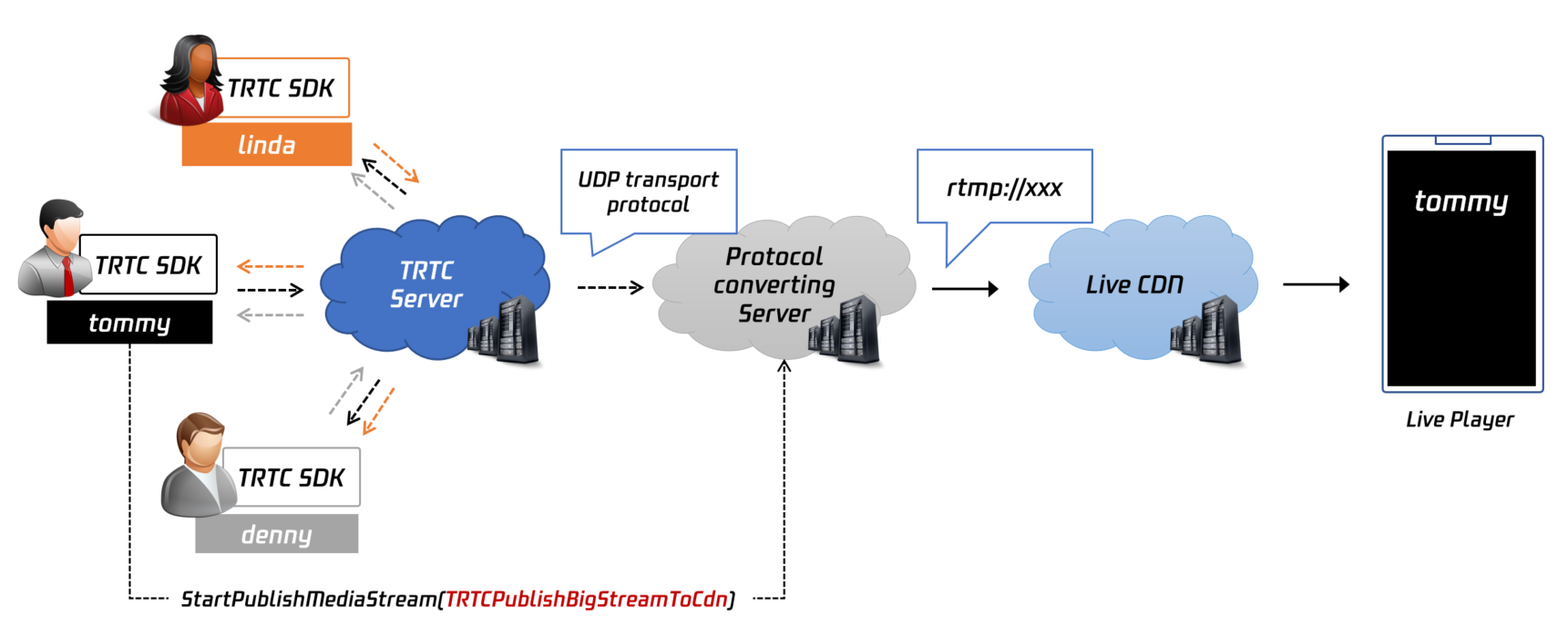
Example Workflow
1. Call
startPlugin- the mixing layout is shown in Figure A2. Call
updatePlugin to add screen sharing - the mixing layout is shown in Figure B3. Call
stopPlugin when mixing is no longer needed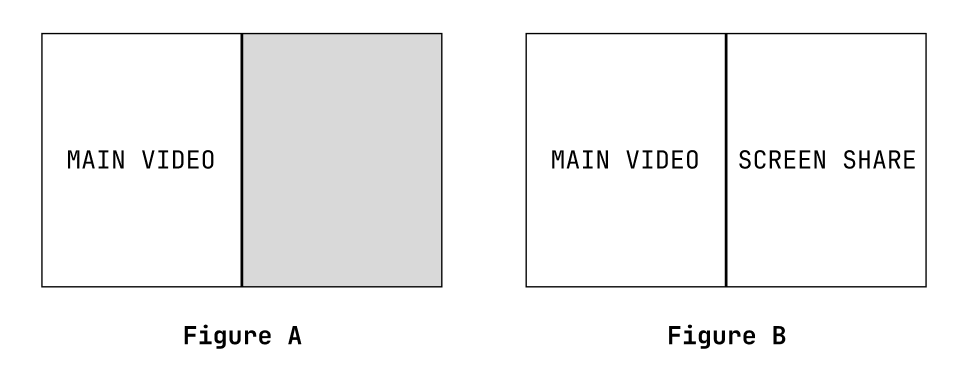
Configuration
1. Set
target.publishMode to PublishMode.PublishMixStreamToCDN2. Configure
encoding for output quality: videoWidth, videoHeight, videoBitrate, videoFramerate, videoGOP, audioSampleRate, audioBitrate, audioChannels3. Configure
mix.backgroundColor and mix.backgroundImage for the backgroundTip:
Background images must be uploaded in TRTC Console - Advanced Features > Material management. Use the "Image ID" as a string for
backgroundImage (e.g., "63").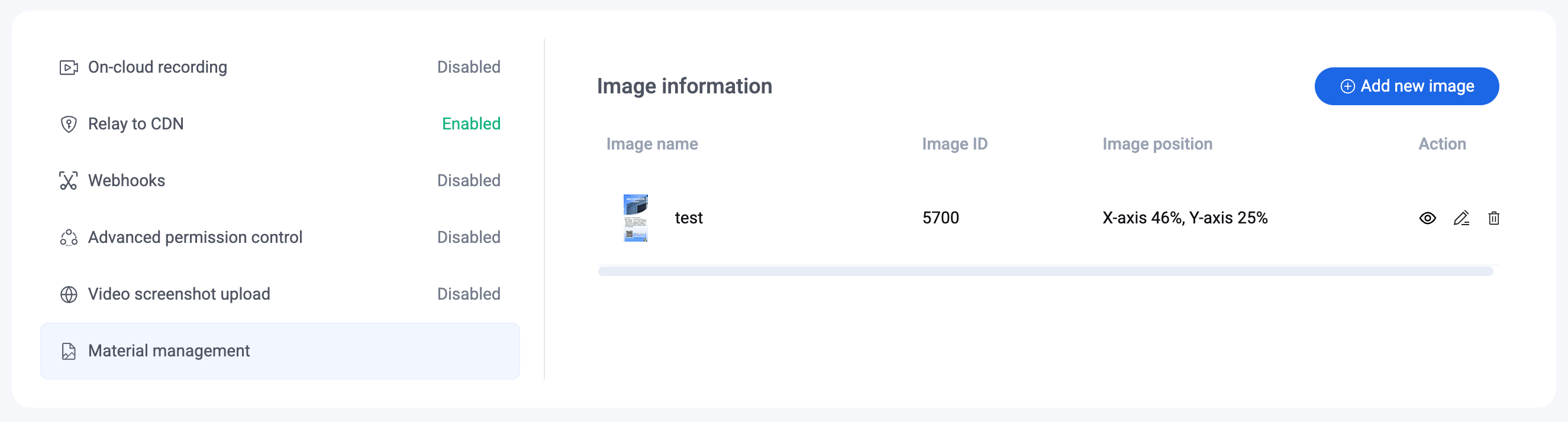
4. Configure
mix.audioMixUserList for audio mixing (if empty, all users will be mixed by default)5. Configure
mix.videoLayoutList for video layoutTip:
Coordinate system:
The origin (0, 0) is at the top-left corner of the output canvas, measured in pixels.
locationX/locationY specifies the top-left position of each stream.width/height defines the layout region size. All coordinates and sizes are relative to
encoding.videoWidth/encoding.videoHeight - if you change the resolution, scale the layout parameters accordingly to avoid misalignment.Start Mixing
let options = {target: {publishMode: PublishMode.PublishMixStreamToCDN,streamId: 'mix-stream',},encoding: {videoWidth: 1280,videoHeight: 720,videoBitrate: 1500,videoFramerate: 15,},mix: {audioMixUserList: [{ userId: 'current_user_id' }],videoLayoutList: [{fixedVideoUser: { userId: 'current_user_id' },width: 640,height: 480,locationX: 0,locationY: 0,fixedVideoStreamType: TRTC.TYPE.STREAM_TYPE_MAIN,zOrder: 1},]}};try {await trtc.startPlugin('CDNStreaming', options);} catch (error) {console.error('CDNStreaming start failed', error);}
The playback address will be:
http://[playback-domain]/live/mix-stream.flvUpdate Layout
// Add screen sharing to the mixlet options = {target: {publishMode: PublishMode.PublishMixStreamToCDN,streamId: 'mix-stream',},encoding: {videoWidth: 1280,videoHeight: 720,videoBitrate: 1500,videoFramerate: 15,},mix: {audioMixUserList: [{ userId: 'current_user_id' }],videoLayoutList: [{fixedVideoUser: { userId: 'current_user_id' },width: 640,height: 480,locationX: 0,locationY: 0,fixedVideoStreamType: TRTC.TYPE.STREAM_TYPE_MAIN,zOrder: 1},{fixedVideoUser: { userId: 'current_user_id' },width: 640,height: 480,locationX: 640,locationY: 0,fixedVideoStreamType: TRTC.TYPE.STREAM_TYPE_SUB,zOrder: 1},]}}try {await trtc.updatePlugin('CDNStreaming', options);} catch (error) {console.error('CDNStreaming update failed', error);}
Stop Mixing
let options = {target: {publishMode: PublishMode.PublishMixStreamToCDN,}}try {await trtc.stopPlugin('CDNStreaming', options);} catch (error) {console.error('CDNStreaming stop failed', error);}
Push to Third-Party CDN
Push streams to a CDN from any cloud service provider.
Step 1: Get CDN Push Address
Obtain a CDN stream push address (URL) from your cloud service provider.
Step 2: Get bizId and appId
xxxxx is the bizIdUse your
SDKAppId as appId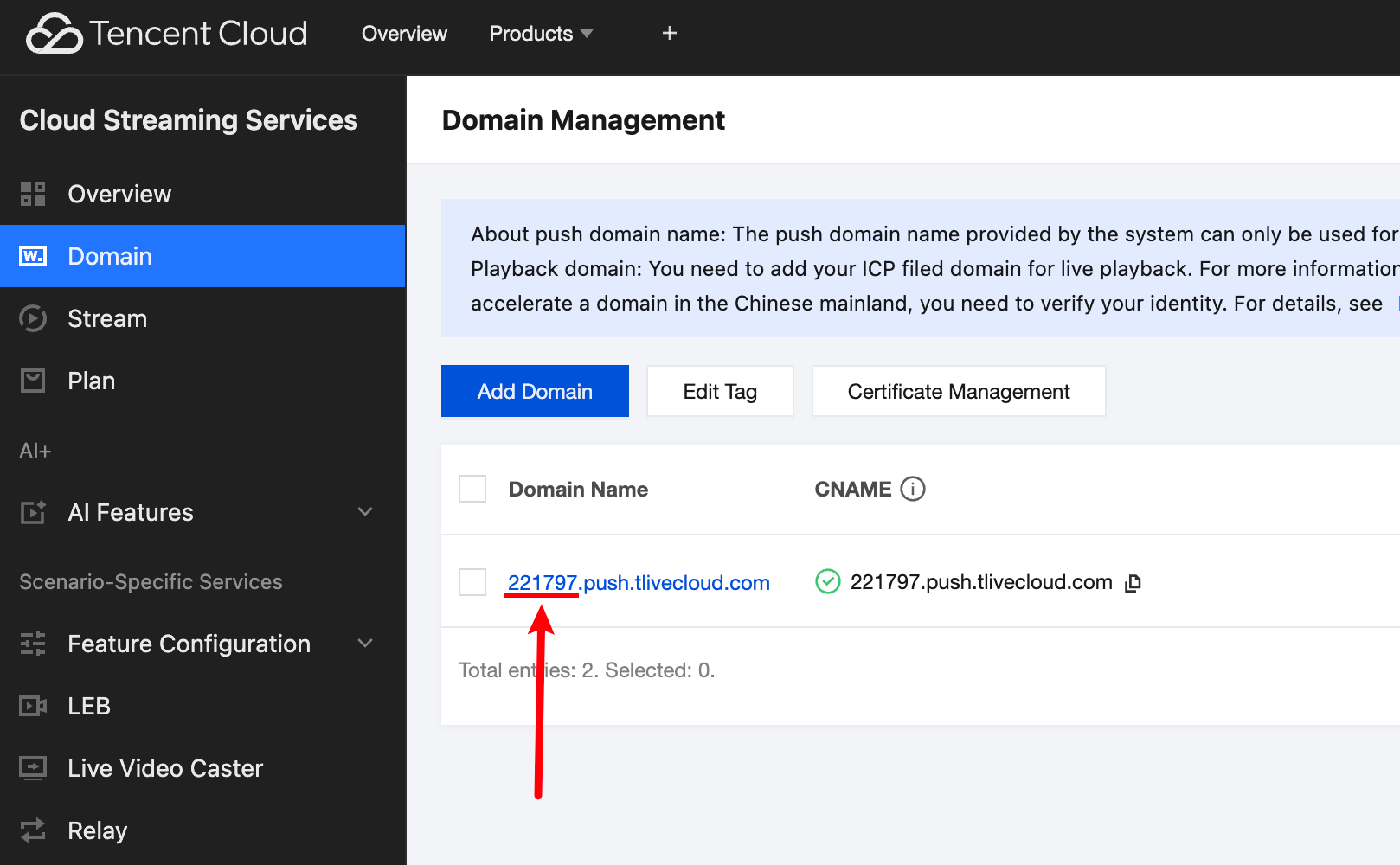
Step 3: Start Publishing
let options = {target: {publishMode: PublishMode.PublishMainStreamToCDN,appId: 0, // Your appIdbizId: 0, // Your bizIdurl: '' // Your CDN push address}};try {await trtc.startPlugin('CDNStreaming', options);} catch (error) {console.error('CDNStreaming start customCDN failed', error);}
Stop Publishing
let options = {target: {publishMode: PublishMode.PublishMainStreamToCDN,}}try {await trtc.stopPlugin('CDNStreaming', options);} catch (error) {console.error('CDNStreaming stop customCDN failed ', error);}
Push Back to TRTC Room
Mix streams and push the mixed stream back to a specified TRTC room as a robot user.
Note:
A robot user with
userId as mcu_robot_${roomId}_${userId} will automatically enter the current room to relay the mixed stream. Ensure this userId doesn't conflict with existing users.This feature incurs transcoding fees for stream mixing.
When
audioMixUserList is empty, all users are mixed by default. To disable audio mixing, pass a non-existent userId.For full parameter details, see CDNStreamingOptions.
Start Pushing Back
// User user_123 in room 3333 initiates this task// Mixed stream will be published as robot push_back_user_321 in room 4444let options = {target: {publishMode: PublishMode.PublishMixStreamToRoom,robotUser: {userId: 'push_back_user_321', // Recommended: dynamically generate this IDroomId: 4444,}},encoding: {videoWidth: 1280,videoHeight: 720,videoBitrate: 1500,videoFramerate: 15,},mix: {audioMixUserList: [{ userId: 'user_123', roomId: 3333 }],videoLayoutList: [{fixedVideoUser: { userId: 'user_123', roomId: 3333 },width: 640,height: 480,locationX: 0,locationY: 0,fixedVideoStreamType: TRTC.TYPE.STREAM_TYPE_MAIN,zOrder: 1},{fixedVideoUser: { userId: 'user_123', roomId: 3333 },width: 640,height: 480,locationX: 640,locationY: 0,fixedVideoStreamType: TRTC.TYPE.STREAM_TYPE_SUB,zOrder: 1},]}};try {await trtc.startPlugin('CDNStreaming', options);} catch (error) {console.error('CDNStreaming start push stream to room failed', error);}
Update Layout
let options = {target: {publishMode: PublishMode.PublishMixStreamToRoom},mix: {videoLayoutList: [{fixedVideoUser: { userId: 'user_123', roomId: 3333 },width: 640,height: 480,locationX: 640,locationY: 0,fixedVideoStreamType: TRTC.TYPE.STREAM_TYPE_MAIN,zOrder: 1}]}};try {await trtc.updatePlugin('CDNStreaming', options);} catch (error) {console.error('CDNStreaming update push stream to room failed', error);}
Stop Pushing Back
let options = {target: {publishMode: PublishMode.PublishMixStreamToRoom,}}try {await trtc.stopPlugin('CDNStreaming', options);} catch (error) {console.error('CDNStreaming stop push stream to room failed ', error);}
API Description
For
startPlugin('CDNStreaming', options) and updatePlugin('CDNStreaming', options), parameter types can be found in CDNStreamingOptions.For
stopPlugin('CDNStreaming', options), you only need to specify the options.target.publishMode field.Notes
1. To record mixed audio streams, refer to Cloud Recording.
2. Cloud-based stream mixing and transcoding requires decoding and re-encoding audio and video streams in the MCU cluster, which incurs additional service costs. TRTC charges users an additional value-added fee based on the transcoded output resolution and transcoding duration. Higher resolution and longer transcoding time result in higher costs. For details, refer to Cloud-Based Stream Mixing and Transcoding Billing Description.
3. For audio and video duration billing, refer to Billing Description.
4. Billing stops when you leave the room but automatically resumes when you re-enter. To completely terminate CDN relay and mixing, call
stopPlugin with the corresponding publishMode.FAQ
Unable to stop streaming?
Please check if "Global Auto-Relay" is enabled in the console. When this mode is active, streaming cannot be stopped through the API.
How can I view all current streams?
Screen sharing appears blurry?
The SDK uses
1080p parameter configuration by default to capture screen sharing. Please refer to the interface: startScreenShare.
