On Android, incoming audio/video call invitations won't trigger notifications when your app is killed or running in the background. This prevents users from receiving and answering calls when the app isn't actively running.
To solve this, you need to integrate offline push notifications using FCM Data Messages. This allows critical signaling—like call invitations—to reach the device and wake up your app, even when it's completely closed, launching the call interface so users can answer incoming calls.
Note:
Offline push is not required if users are only calling always-online web agents.
This guide shows you how to integrate FCM Data Message push for audio/video calls.
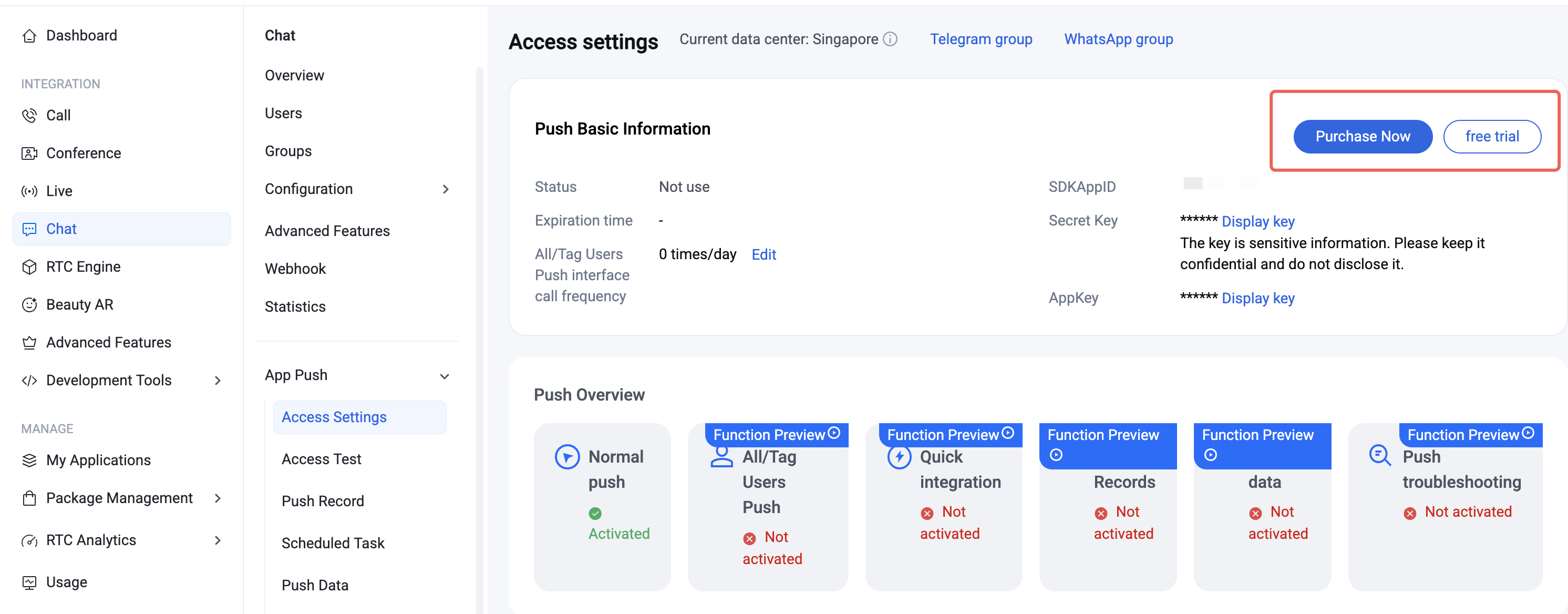
When your push plugin trial or subscription expires, all push services (including offline push for regular messages, broadcast/tag push, etc.) will be automatically suspended. To ensure uninterrupted service, please purchase or renew your subscription in advance.
Integration Considerations
Improve Call Reach Rate
Over 90% of missed call notifications are due to users manually disabling app notification permissions. To maximize call delivery, we strongly recommend:
1. Send notifications responsibly: Avoid sending low-quality or irrelevant notifications to reduce the risk of users disabling notification permissions due to spam.
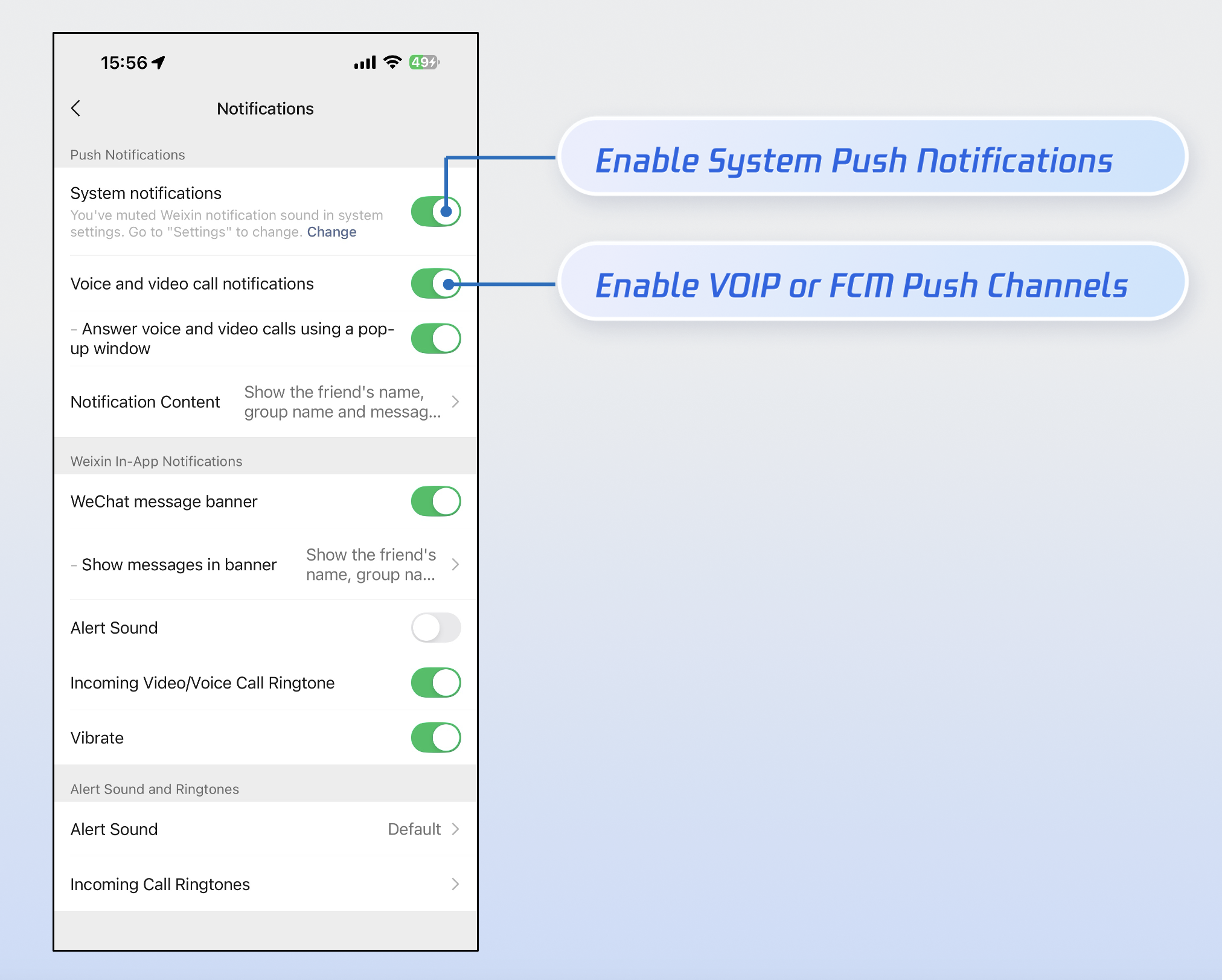
2. Offer granular notification controls: Like WeChat, provide separate toggles in your app settings for Notification and FCM Data Message instead of instructing users to disable all notifications in system settings.
Implementation Steps
Step 1: Configure Vendor
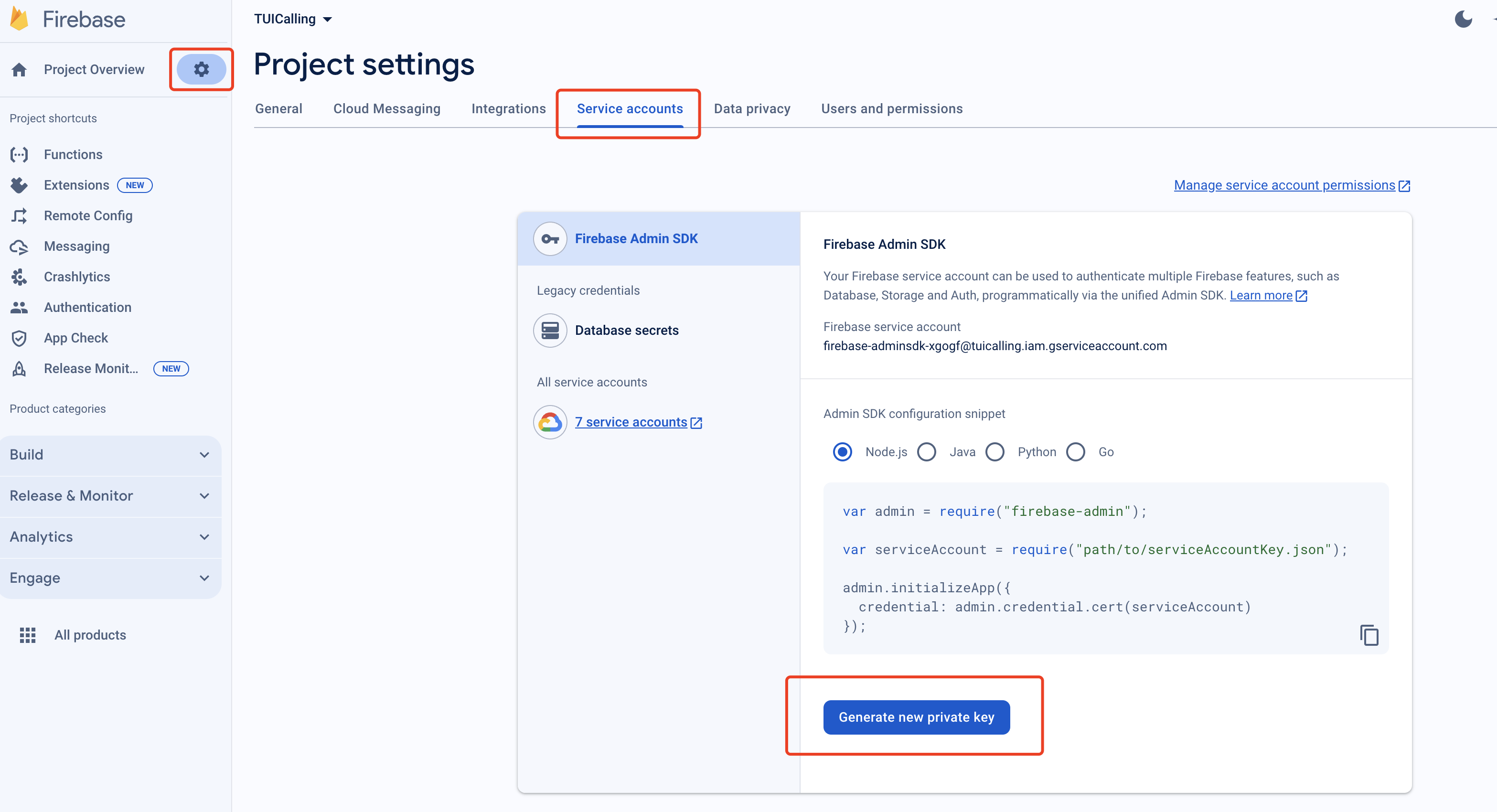
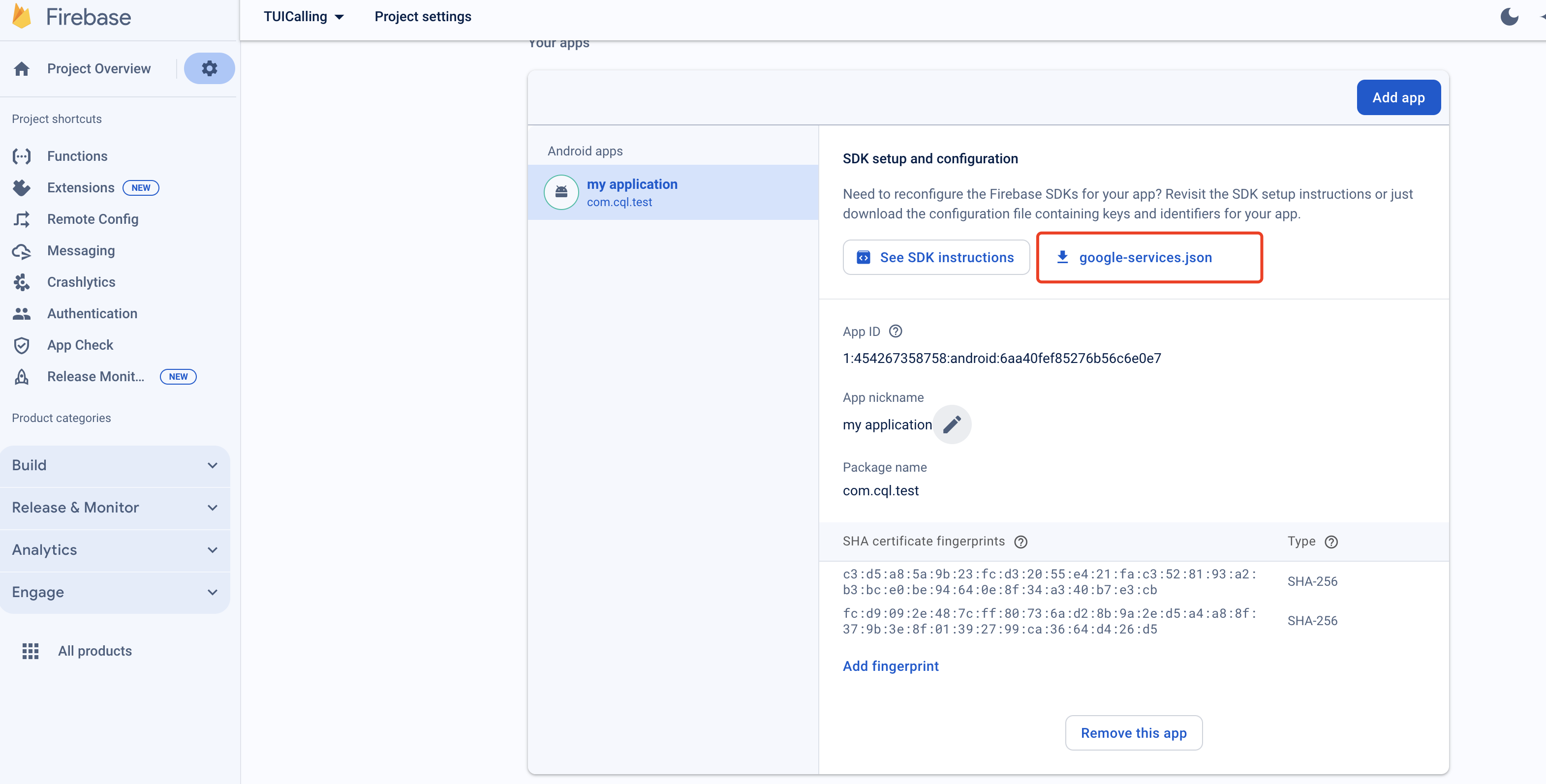
1. Register your app on the FCM Push Platform to obtain your AppID, AppKey, and the google-services.json file required for offline push.
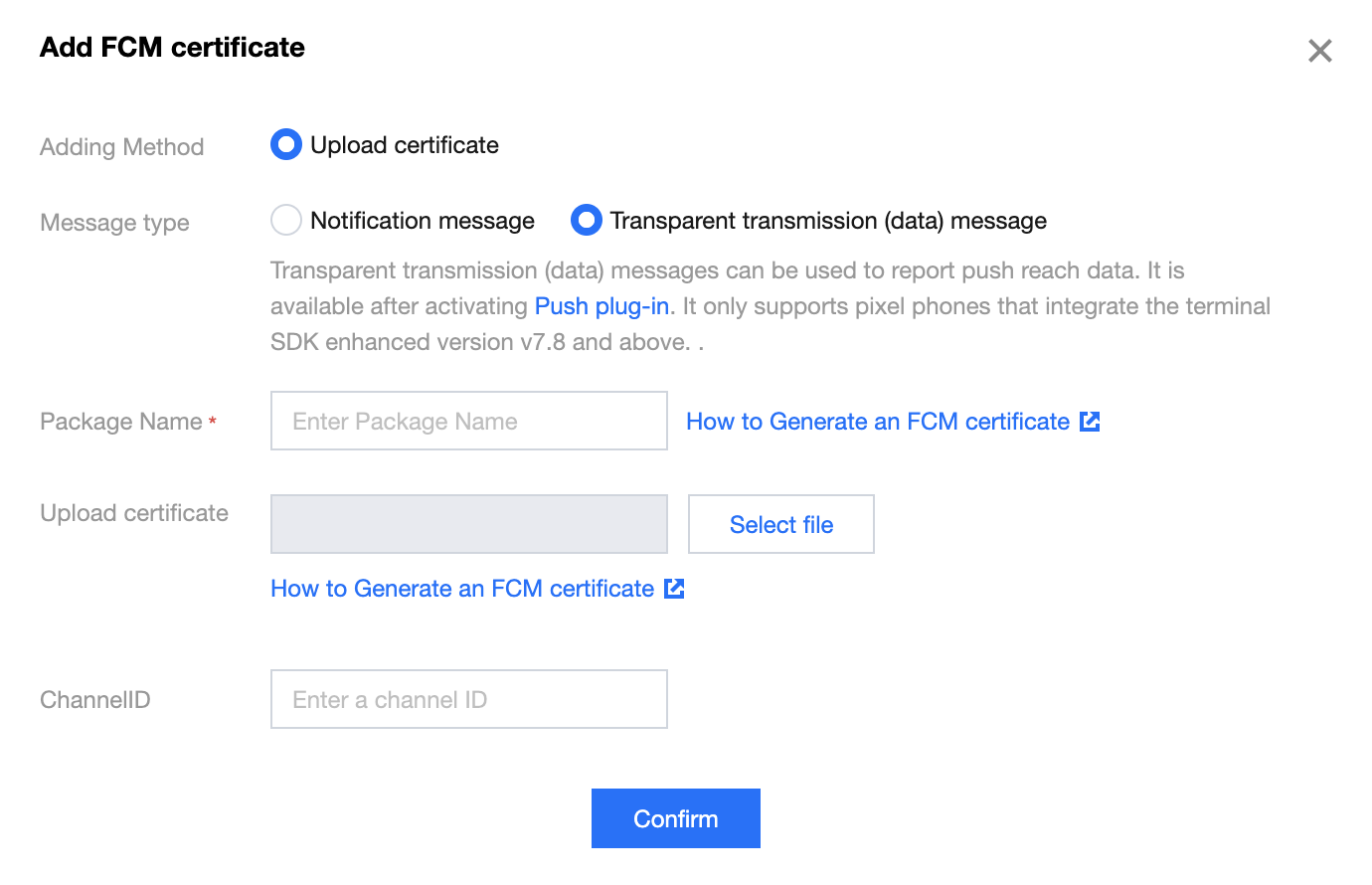
2. Log in to the Chat Console, go to App Push > Access settings feature tab, select FCM, add FCM's certificate, and select Transparent transmission(data) message.
Vendor Push Platform
IM Console Configuration
Step 2: Integrate the Push Plugin
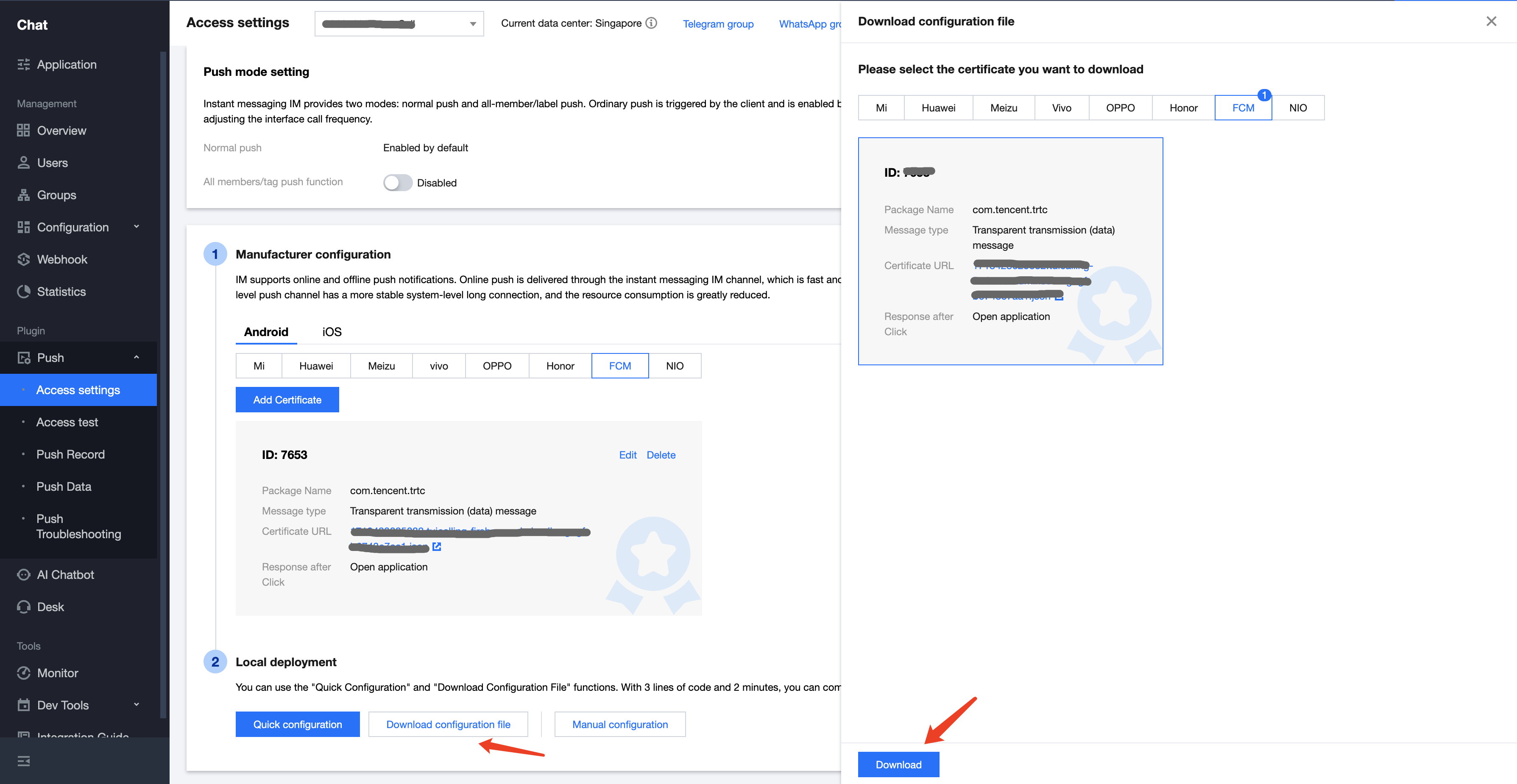
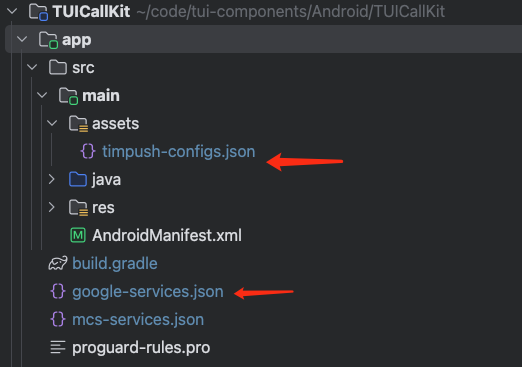
1. Add configuration files: After completing the vendor push setup in the console, download the configuration files and add them to your project. Place the downloaded timpush-configs.json file in your app module's assets directory, and add google-services.json to your project's app directory.
Download the file timpush-configs.json
Download file google-services.json
Add to your project
2. Integrate the push plugin: Add the following dependencies to your project's app module build.gradle file:
TIMPush requires IM SDK version 7.9.5666 or above.
You can update the Chat SDK version in the tuicallkit-kt/build.gradle file.
Step 3: Project Configuration
1. Add the following to the buildscript > dependencies section of your project-level build.gradle file:
buildscript {
dependencies {
classpath 'com.google.gms:google-services:4.3.15'
}
}
2. In your app module's build.gradle file, apply the following plugin:
apply plugin: 'com.google.gms.google-services'
3. In the same build.gradle file, set the applicationId to your actual app package name:
applicationId 'com.****.callkit'
Customize Incoming Call Notifications
Step 1: Listen for FCM Push
When FCM push wakes up your app, the TIMPush plugin sends an "app wakeup" broadcast. To display incoming call notifications correctly, follow these steps:
1. Listen for the app wakeup broadcast: Register a broadcast receiver to handle the wakeup event sent by TIMPush.
2. Perform auto login: After logging in, the call service becomes available. For login implementation, see login.
Use the NotificationManager class to display a custom incoming call notification interface:
1. Create an incoming call notification manager class (IncomingCallNotificationManager): Encapsulate the logic for creating and displaying notifications.
2. Customize the notification UI: Use RemoteViews to define the notification layout. For details on configuring notifications with NotificationCompat.Builder (such as Channel, PendingIntent, priority, etc.), refer to the Android documentation: NotificationCompat.Builder.
importandroid.app.Notification
importandroid.app.NotificationChannel
importandroid.app.NotificationManager
importandroid.content.Context
importandroid.content.Intent
importandroid.os.Build
importandroid.widget.RemoteViews
importandroidx.core.app.NotificationCompat
classIncomingCallNotificationManager(private val context:Context){
private val channelId ="incoming_call_channel"
private val channelName ="Call notification"
private val notificationId =1001
privatevar remoteViews:RemoteViews?=null
private val notificationManager:NotificationManager=
context.getSystemService(Context.NOTIFICATION_SERVICE) as NotificationManager
Listen for incoming call events. After a successful login (Step 1), if there are offline incoming call events, CallStore will automatically resend them. You can then display your custom notification (from Step 2) as follows:
1. Listen for incoming call events: Subscribe to the onCallReceived event. This event is triggered when an incoming call is received and contains key call information.
2. Display the incoming call notification: When the onCallReceived event is received, display the notification interface using the call information from the event. In the callback, use the event data to trigger your custom notification (see Step 2).
classMainActivity:AppCompatActivity(){
private val wakeupReceiver =PushWakeupReceiver()
privatevar callListener:CallListener?=null
override fun onCreate(savedInstanceState:Bundle?){
super.onCreate(savedInstanceState)
// 1.Listening to incoming call events
observeCallReceived()
}
private fun observeCallReceived(){
callListener = object :CallListener(){
override fun onCallReceived(callId:String, mediaType:CallMediaType, userData:String){
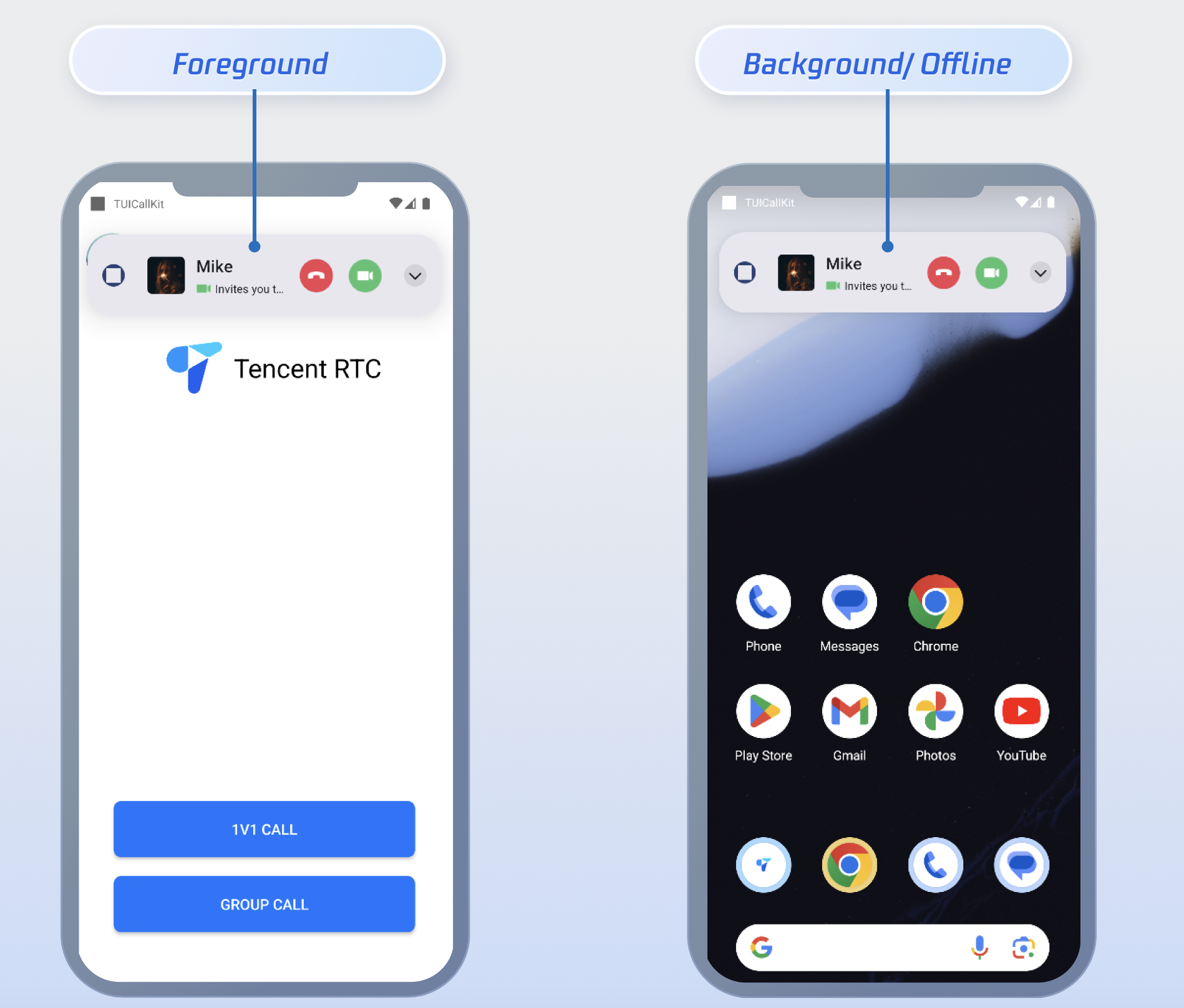
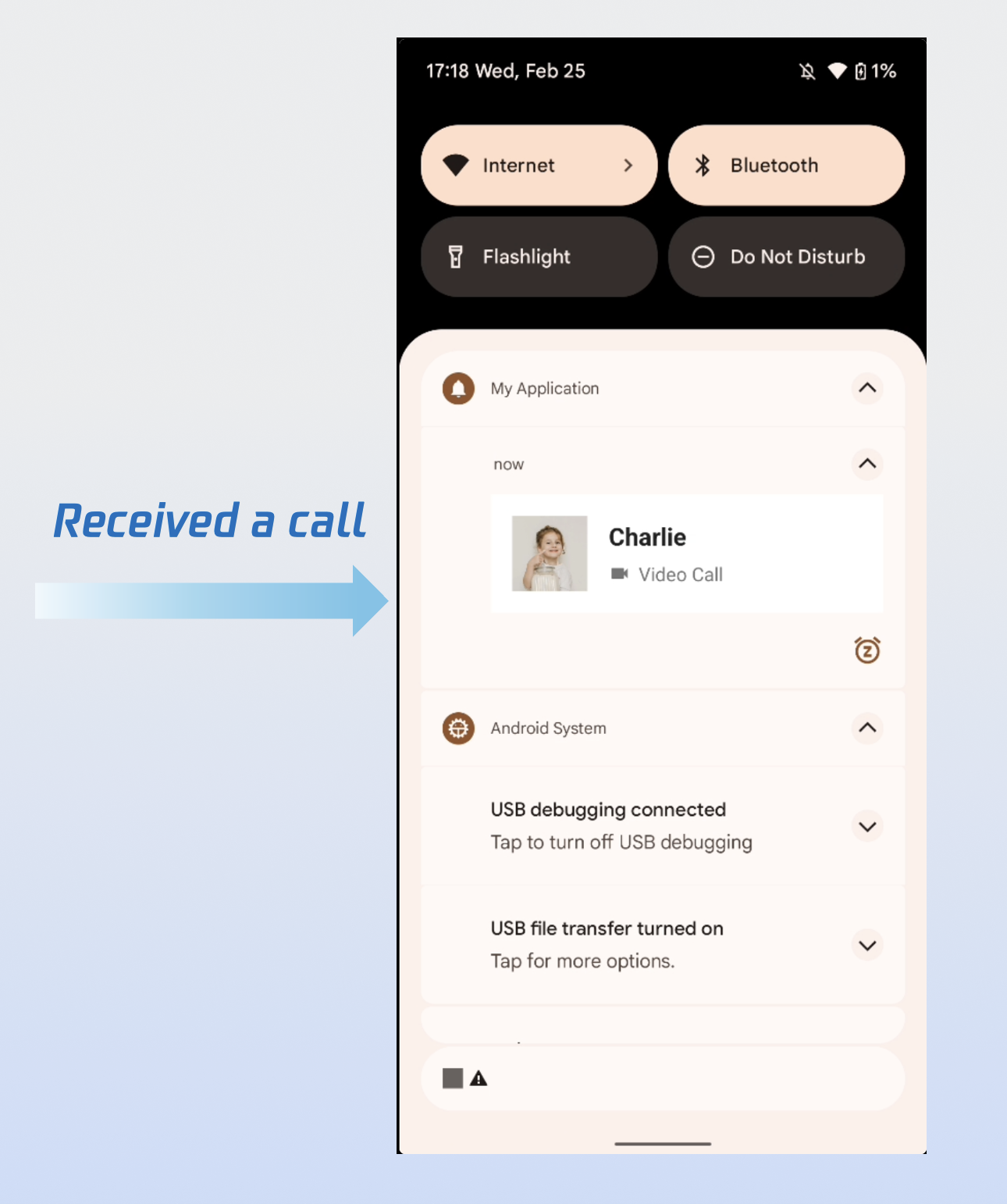
After completing all three steps above, the incoming call notification will appear as shown below:
FAQs
Unable to Display Incoming Call Interface After App Is Killed?
Check if push notifications are being received. If not, verify that the IM Console certificate was uploaded correctly. Refer to Step 1 of Quick Integration in this guide.
Ensure that FCM Data Message is selected in the console, as described in Step 2 of Prerequisites above.
Confirm that data messages are being received. Filter your logs (keyword: TIMPush) and look for the following log output:
Make sure auto login is implemented. Only after auto login will call requests be pulled and the incoming call interface displayed.
How to Force FCM Channel Usage?
To force your app to always use the FCM channel, call the following method: