This guide shows you how to use the core component LiveCoreView from the AtomicXCore SDK to quickly build a basic live streaming app with host broadcasting and audience viewing features.
Key Features
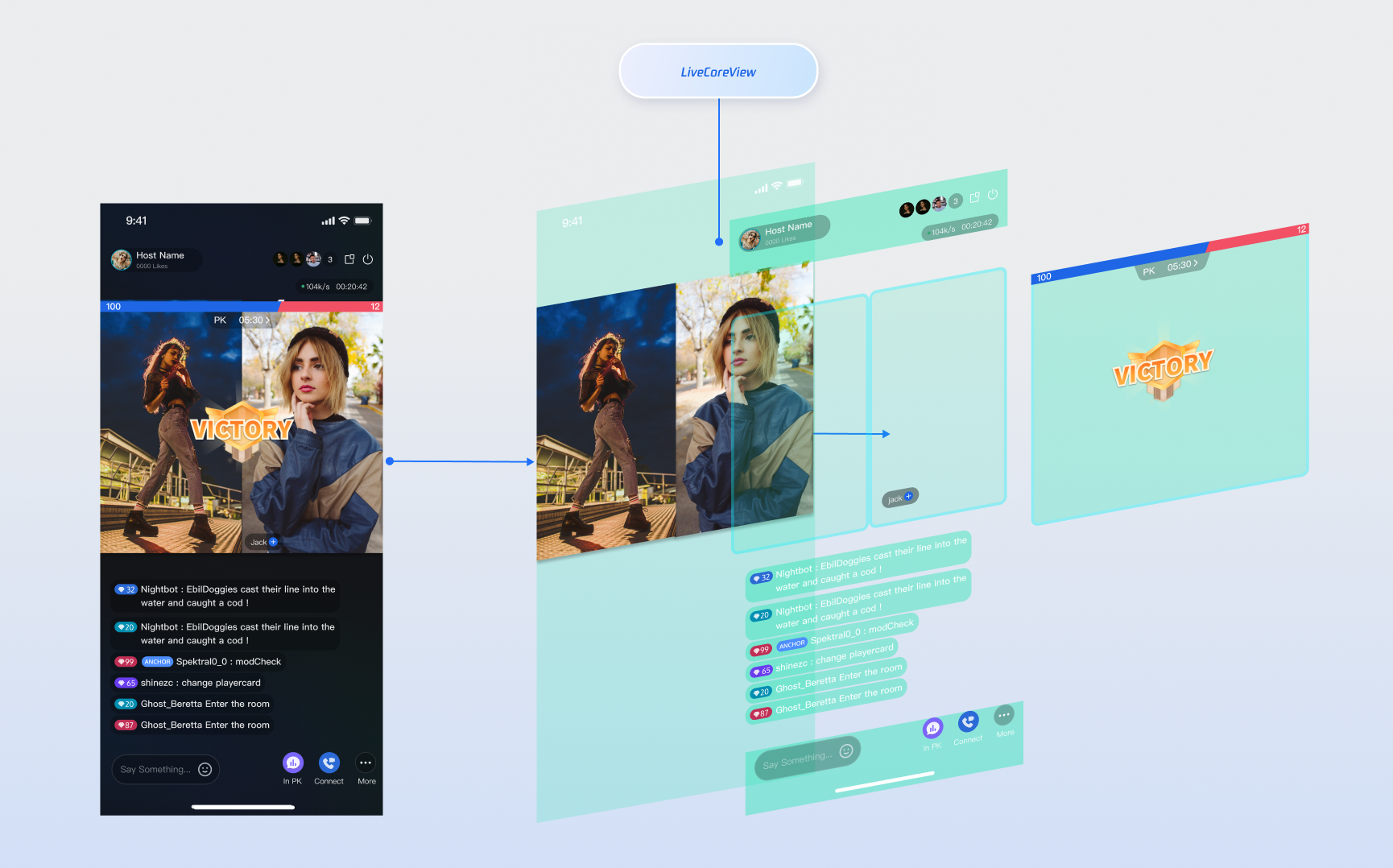
LiveCoreView is a lightweight UI component designed specifically for live streaming. It acts as the foundation of your live streaming interface, handling all the underlying technologies—including streaming, co-hosting, and audio/video rendering. Think of LiveCoreView as the “canvas” for your live broadcast, so you can focus on building your custom UI and interactive features.
The diagram below illustrates where LiveCoreView fits within the live streaming interface:
Preparation
Step 1: Activate the Service
Visit Activate the Service to obtain either the trial or paid version of the SDK.
Step 2: Import AtomicXCore into Your Project
1. Install components: Run the following commands in your project to add AtomicXCore dependencies:
# 1. Install live streaming core and native build tools (required)
2. Configure project permissions: Open the app.json file in your project root and set the required system permissions for live streaming (camera, microphone, background audio):
{
"expo":{
"name":"ExpoLive",
"slug":"ExpoLive",
// ... Other Configurations
"ios":{
// ... Other Configurations
"bundleIdentifier":"com.anonymous.ExpoLive",
"infoPlist":{
"NSMicrophoneUsageDescription":"This app requires access to your microphone for live streaming.",
"NSCameraUsageDescription":"This app requires access to your camera for live streaming.",
"UIBackgroundModes":[
"audio"
]
}
},
"plugins":[
"react-native-localize",
[
"expo-build-properties",
{
"ios":{
"useFrameworks":"static"
}
}
]
]
}
}
3. Rebuild the native development package: After adding the AtomicXCore native code library, recompile your native app in the project root to package the new C++/Java/Swift code. This step is required only for initial integration or SDK upgrades; for daily development, proceed directly to step 4.
# If you have local Android and iOS development environments, run:
npx expo run:ios # Make sure CocoaPods is installed
npx expo run:android
# Or use cloud build to regenerate the development installation package
npx eas build --profile development --platform all
4. Run the app: Execute the following command in your project root. On iOS, scan the app QR code with your device camera to launch the app. On Android, open the app installed in the previous step and scan the code. Subsequent JS code changes will be hot-reloaded automatically.
npx expo start
Step 3: Complete Login
Call the login method from LoginState in your project to log in. This step is required before you can use any features of AtomicXCore.
Note:
For clear and consistent login logic, call the login method in LoginState only after your app's own user account login is successful.
The unique ID for the current user. Must contain only English letters, numbers, hyphens, and underscores.
userSig
String
A ticket for Tencent Cloud authentication. Please note:
Development Environment: You can use the local GenerateTestUserSig.genTestSig function to generate a UserSig or generate a temporary UserSig via the UserSig Generation Tool.
Production Environment: To prevent key leakage, you must use a server-side method to generate UserSig. For details, see Generating UserSig on the Server.
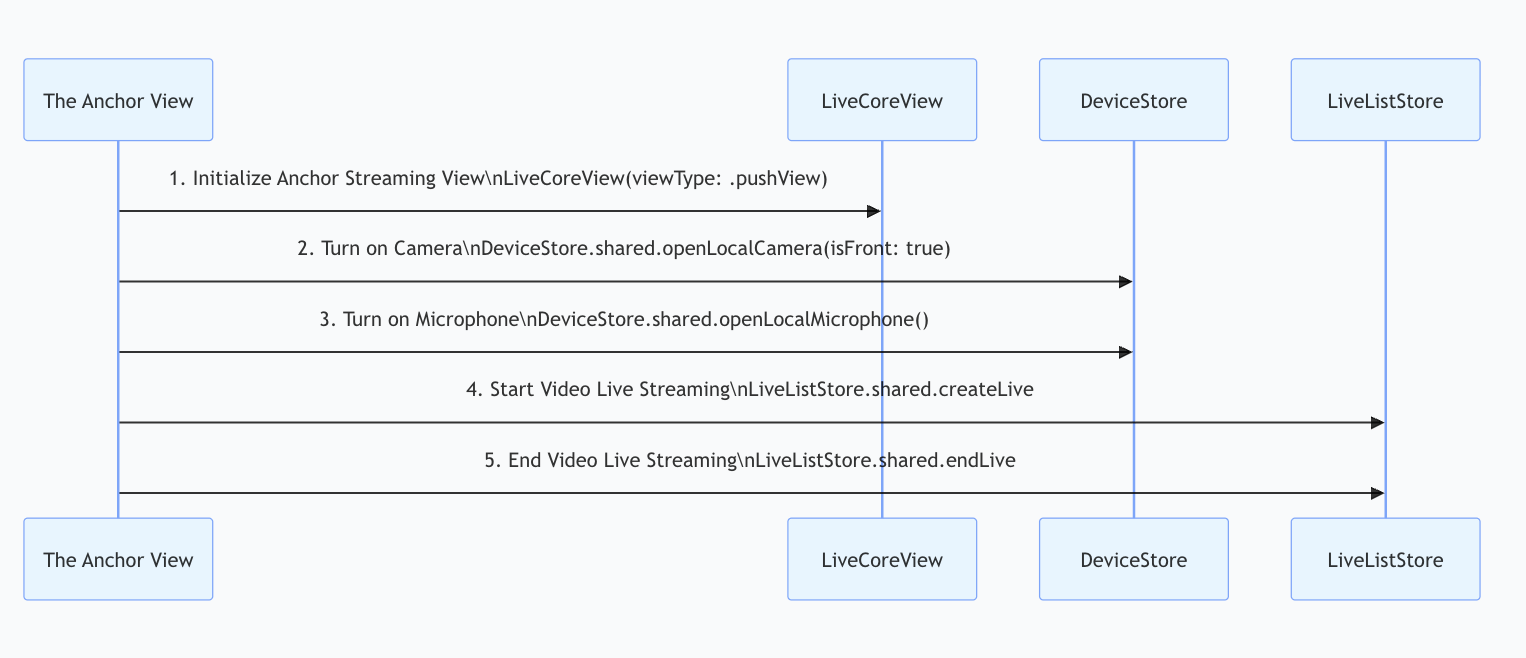
Call the openLocalCamera and openLocalMicrophone methods from DeviceState to enable the camera and microphone. No extra steps are needed—LiveCoreView** will automatically preview the current camera video stream.** Example:
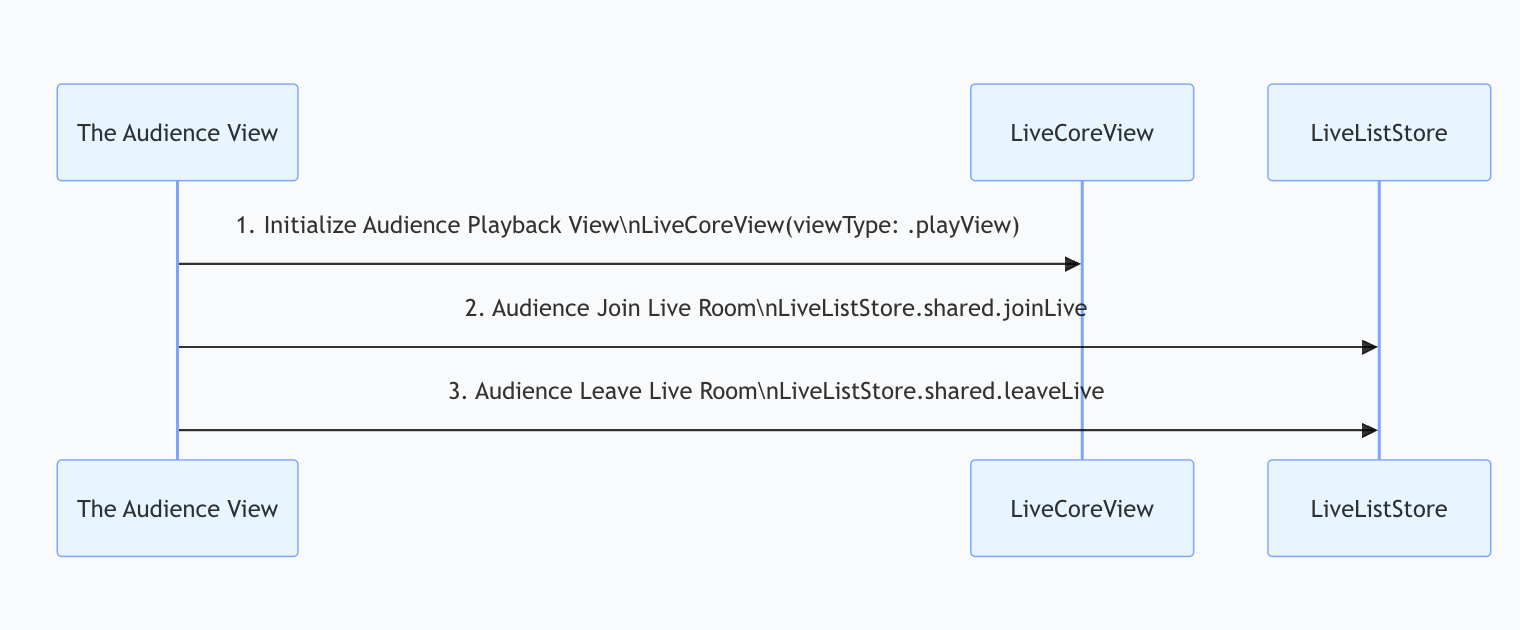
Call the joinLive method from LiveListState to join the live room. No extra steps are needed—LiveCoreView** will automatically play the room's video stream.** Example:
onSuccess:()=>{console.log('Joined live room successfully');},
onError:(error)=>{console.log('Failed to join live room', error);},
});
},[]);
}
3. Leave the live room
When the audience exits, call the leaveLive method from LiveListState to leave the live stream. The SDK will automatically stop playback and exit the room.
onSuccess:()=>{console.log('Left live room successfully');},
onError:(error)=>{console.log('Failed to leave live room', error);},
});
};
Step 3: Listen for Live Events
After the audience enters the live room, you should handle certain “passive” events, such as the host ending the live stream or the audience being removed for violations. If you don't listen for these events, the audience UI may remain on a black screen, impacting user experience.
Subscribe to events using addLiveListListener from LiveListState:
After integrating LiveCoreView, you'll have a clean video rendering view with full live streaming capabilities, but no interactive UI. To enhance your live streaming experience, see the next section Enrich Live Streaming Scenarios.
Enrich Live Streaming Scenarios
Once you’ve completed the basic live streaming setup, use the following feature guides to add interactive experiences to your live stream.
Live Feature
Feature Description
Feature States
Implementation Guide
Enable audience audio/video connection
Audience can apply to join the stream and interact with the host in real-time video.
Manage the full live video lifecycle: create/join/leave/destroy room, query room list, edit live info (name, announcement, etc.), listen for live status (e.g., kicked out, ended).