
Live Streaming Widget Customization (Flutter)
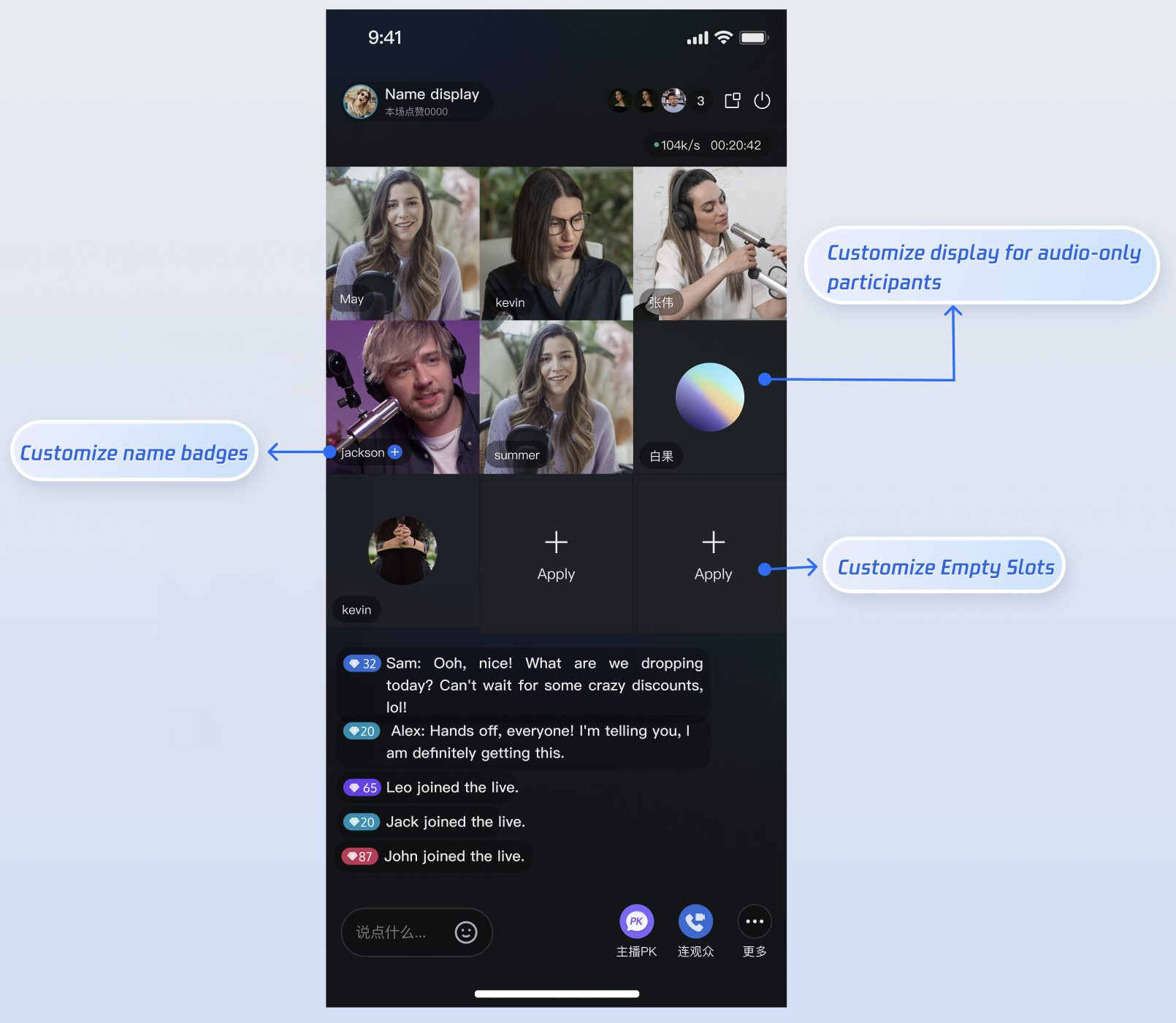
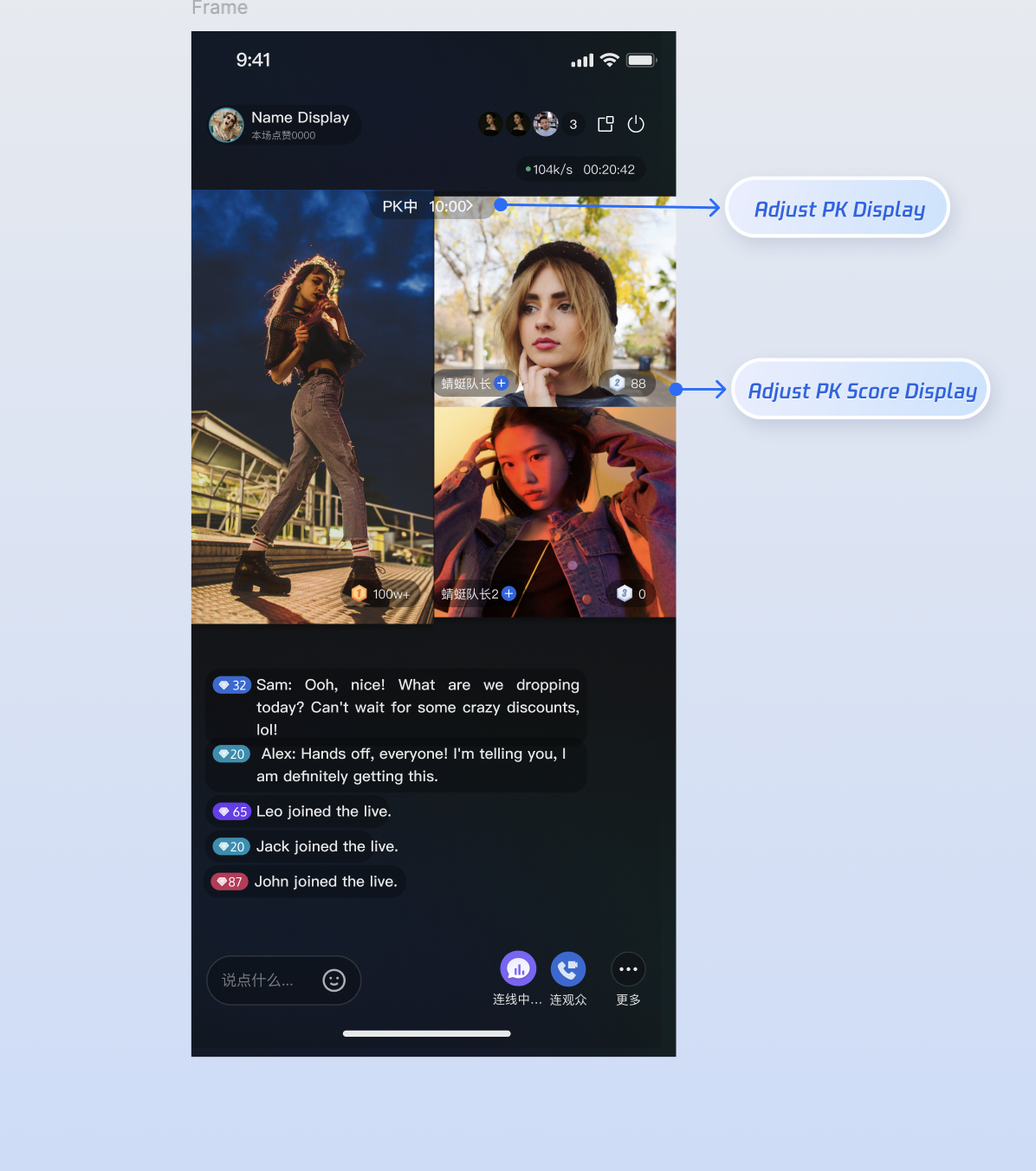
LiveCoreWidget is a cross-platform core component for live video streaming, delivering essential features such as hosting, audience viewing, co-hosting, and host PK. Through its widget system, this component enables real-time display of custom information within the video area—such as usernames, user levels, and PK progress bars. This guide provides step-by-step instructions for Flutter developers to quickly implement and customize dedicated video widget components using provided interfaces.Effect Preview
Co-hosting Video Widget | PK Video Widget |
 |  |
Prerequisites
Before customizing video widgets, ensure you have completed the core live streaming workflow by following Host Start Streaming and Audience Viewing.
Core Principle
LiveCoreWidget enables custom view rendering through the VideoWidgetBuilder delegate. When the live room state changes—for example, when a user takes a mic seat or a PK session starts—LiveCoreWidget automatically invokes delegate methods to determine which view to display. As a developer, you implement these interface methods and return your custom Widget instances.Callback | Description | Related Business Scenario |
CoGuestWidgetBuilder | Builds the widget for audience co-hosting views. | Audience co-hosting, invite to mic |
CoHostWidgetBuilder | Builds the widget for cross-room co-hosting (host co-hosting) views. | Host co-hosting |
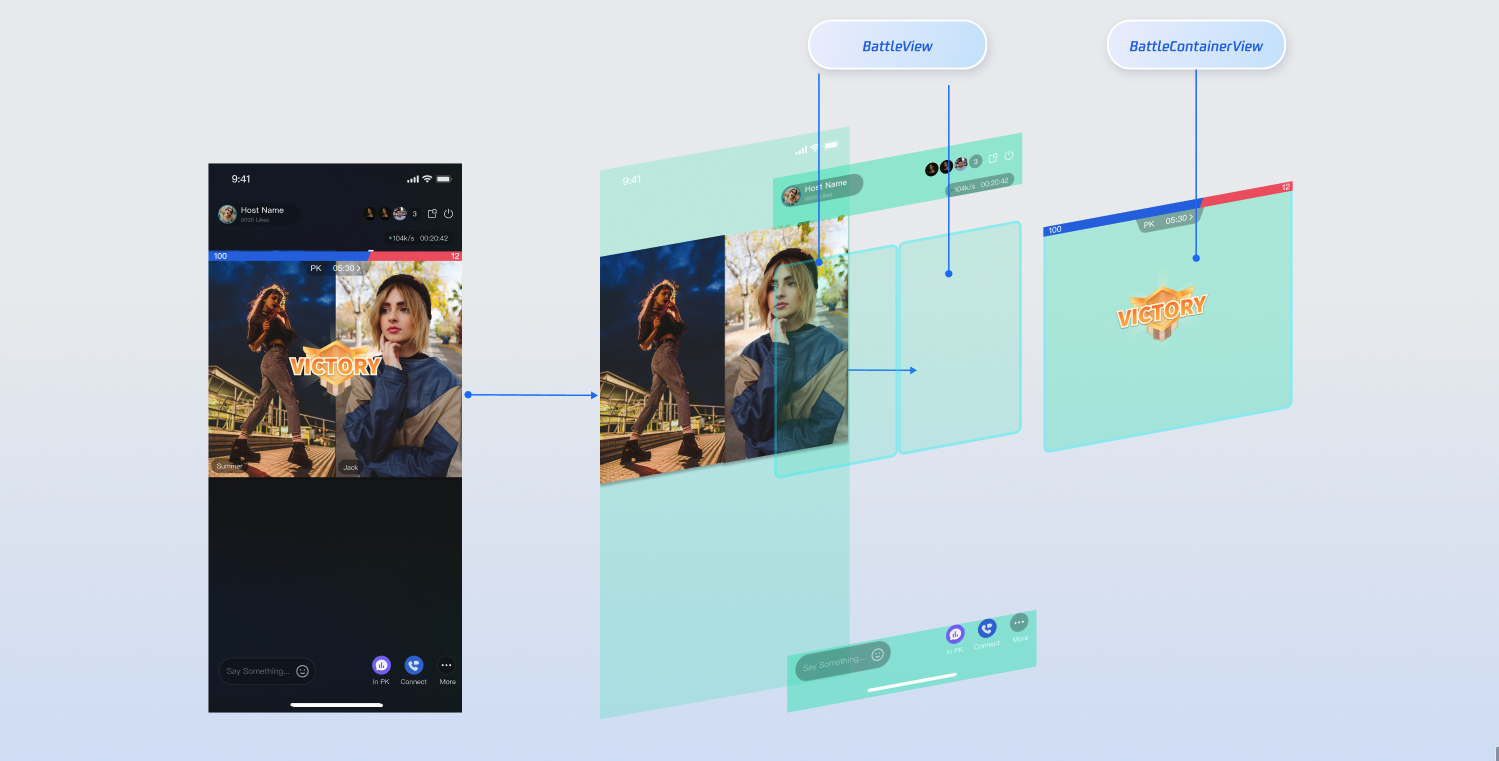
BattleWidgetBuilder | Builds the widget for individual users in PK scenarios (e.g., avatar, score). | Host PK |
BattleContainerWidgetBuilder | Builds the overall container for PK scenarios (e.g., background, PK score bar). | Host PK |
Customizing Co-hosting Scene Widgets
When an audience member co-hosts with a host, or when hosts co-host across rooms, the live room interface switches from a single-user view to a multi-user layout. In these scenarios, you’ll want to display additional user information—such as nickname, user level, or mute status—to clearly distinguish each mic seat.
Applicable Scenarios
When a host and audience member are co-hosting via video, customize the user info displayed on each mic seat (e.g., nickname, level, mute icon).
When hosts are co-hosting across rooms, adjust the display style for the other host (e.g., nickname, level, mute icon).
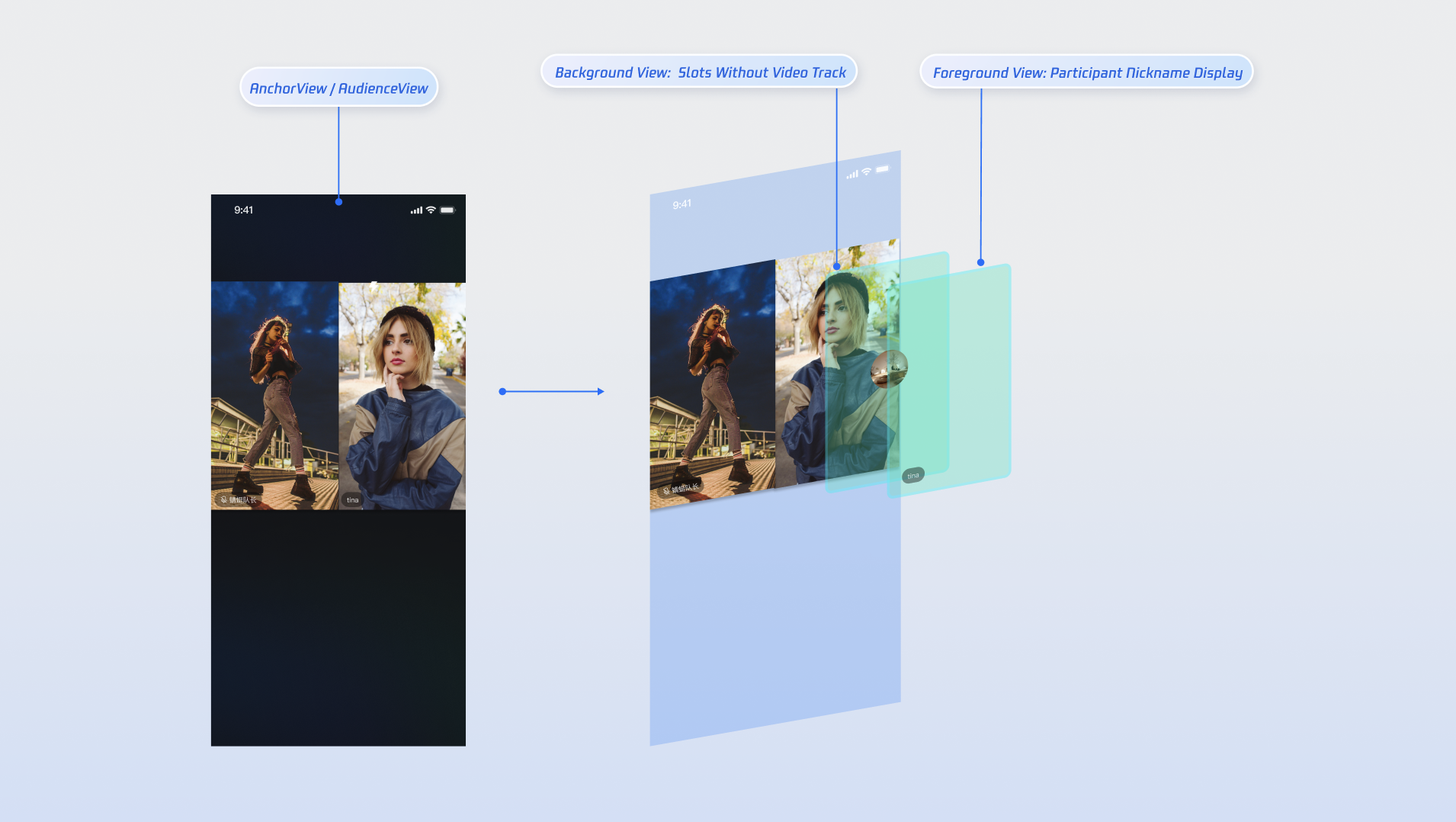
Change the default background placeholder when there is no video stream (e.g., show a placeholder avatar).
Customize the view shown for empty mic seats.
View Hierarchy Illustration
Implementation Steps
Note:
You can also refer to the CoGuestWidgets and CoHostWidgets directories in the TUILiveKit open source project for complete implementation examples.
Step 1. Create Custom Widget Components
Define three basic widget classes to display user information, empty mic seat prompts, and a background for when no video stream is available.
Custom user information view:
import 'package:flutter/material.dart';class CustomInfoWidget extends StatelessWidget {final String name;final bool isMuted;const CustomInfoWidget({super.key,required this.name,required this.isMuted,});@overrideWidget build(BuildContext context) {return Stack(children: [Text(name),if (isMuted) const Icon(Icons.mic_off),// Layout parameter code omitted here],);}}
Custom empty mic seat view:
import 'package:flutter/material.dart';class EmptySeatWidget extends StatelessWidget {const EmptySeatWidget({super.key});@overrideWidget build(BuildContext context) {return Column(mainAxisAlignment: MainAxisAlignment.center,children: const [Icon(Icons.add),Text('Invite to co-host'),// Image resource loading and layout parameter code omitted here],);}}
Custom avatar placeholder for no video stream:
import 'package:flutter/material.dart';class CustomAvatarWidget extends StatelessWidget {final String avatarURL;const CustomAvatarWidget({super.key,required this.avatarURL,});@overrideWidget build(BuildContext context) {// In production, use an image loading library (e.g., CachedNetworkImage) to load avatarURLreturn Image.network(avatarURL);// Layout parameter code omitted here}}
Step 2. Implement VideoWidgetBuilder Logic
Create a builder class and implement the
VideoWidgetBuilder callbacks coGuestWidgetBuilder (for audience co-hosting) and coHostWidgetBuilder (for host co-hosting), returning your custom widgets as needed.Implement the
coGuestWidgetBuilder callback to return the audience co-hosting video widget:import 'package:flutter/material.dart';import 'package:atomic_x_core/atomicxcore.dart';VideoWidgetBuilder(coGuestWidgetBuilder: (context, seatInfo, viewLayer) {final isUserOnSeat = seatInfo.userInfo.userID.isNotEmpty;if (viewLayer == ViewLayer.foreground) {if (isUserOnSeat) {// Occupied mic seat: return custom foreground widgetreturn CustomInfoWidget(name: seatInfo.userInfo.userName,isMuted: seatInfo.userInfo.microphoneStatus == DeviceStatus.off);} else {// Empty mic seat: return custom empty seat widgetreturn EmptySeatWidget();}} else {if (isUserOnSeat) {// User camera is off: display custom background widgetreturn CustomAvatarWidget(avatarURL: seatInfo.userInfo.avatarURL);} else {return SizedBox.shrink();}}})
Implement the
coHostWidgetBuilder callback for host co-hosting video widgets:import 'package:flutter/material.dart';import 'package:atomic_x_core/atomicxcore.dart';VideoWidgetBuilder(coHostWidgetBuilder: (context, seatInfo, viewLayer) {final isUserOnSeat = seatInfo.userInfo.userID.isNotEmpty;if (viewLayer == ViewLayer.foreground) {if (isUserOnSeat) {// Return custom foreground widget; can use a style different from audience co-hostingreturn CustomInfoWidget(name: seatInfo.userInfo.userName,isMuted: seatInfo.userInfo.microphoneStatus == DeviceStatus.off);} else {// Return custom empty seat widget; can use a style different from audience co-hostingreturn EmptySeatWidget();}} else {if (isUserOnSeat) {// Return custom background widget (shown when camera is off); can use a style different from audience co-hostingreturn CustomAvatarWidget(avatarURL: seatInfo.userInfo.avatarURL);} else {return SizedBox.shrink();}}})
Parameter Descriptions
Parameter | Type | Description |
seatInfo | SeatInfo | Mic seat information object containing details about the user occupying the mic seat. |
seatInfo.userInfo.userName | String | The nickname of the user on the mic seat. |
seatInfo.userInfo.avatarURL | String | The avatar URL of the user on the mic seat. |
seatInfo.userInfo.microphoneStatus | DeviceStatus | The microphone status of the user on the mic seat. |
seatInfo.userInfo.cameraStatus | DeviceStatus | The camera status of the user on the mic seat. |
viewLayer | ViewLayer | View layer enum. .foreground: The foreground widget, always displayed above the video..background: The background widget, displayed below the foreground view and shown only when the user has no video stream (e.g., camera is off). Typically used to display a default avatar or placeholder image. |
Customizing Host PK Scene Widgets
PK is the most interactive part of a live streaming session. During PK, the screen is typically divided based on the number of participants. Developers can add PK-specific UI elements—such as PK score bars, score displays above each mic seat, countdown animations, or VS effect icons—to create an engaging competitive atmosphere.
View Hierarchy Illustration
Note:
PK functionality depends on co-hosting. You must establish host co-hosting before initiating a PK session.
Implementation Steps
Step 1. Create Custom UI Components
PK scenarios typically require two types of widgets:
Single-user widget: Displayed above each host’s video window (e.g., score capsule).
Global container: Overlays the entire video area (e.g., VS animation, countdown).
Note:
You can also review the BattleWidgets directory in the TUILiveKit open source project for complete implementation samples.
import 'package:flutter/material.dart';// Example: Single-user score barclass MyBattleScoreWidget extends StatelessWidget {const MyBattleScoreWidget({super.key});@overrideWidget build(BuildContext context) {// Internal score display logicreturn const Placeholder();}}// Example: Global VS panelclass MyBattleContainer extends StatelessWidget {const MyBattleContainer({super.key});@overrideWidget build(BuildContext context) {// Internal countdown and VS animation logicreturn const Placeholder();}}
Step 2. Implement VideoWidgetBuilder Logic
In your
VideoWidgetBuilder, implement the remaining PK view builder methods as follows:import 'package:flutter/material.dart';import 'package:atomic_x_core/atomicxcore.dart';VideoWidgetBuilder(// Omitted coGuestWidgetBuilder / coHostWidgetBuilder for brevity...// 1. Build the PK single-user info widget (displayed above each host's video)battleWidgetBuilder: (context, seatInfo) {return MyBattleScoreWidget();},// 2. Build the PK global container widget (displayed above the entire video area)battleContainerWidgetBuilder: (context) {return MyBattleContainer();})
Integration and Activation
This is a crucial step: You must inject the
VideoWidgetBuilder—with your custom delegate logic—into the core live streaming workflow.Host Integration:
Before initializing your main container, create the
LiveCoreWidget and set the VideoWidgetBuilder via the videoWidgetBuilder parameter.import 'package:flutter/material.dart';import 'package:atomic_x_core/atomicxcore.dart';class AnchorWidget extends StatefulWidget {const AnchorWidget({super.key});@overrideState<AnchorWidget> createState() => _AnchorWidgetState();}class _AnchorWidgetState extends State<AnchorWidget> {// Assume liveInfo is already obtained herefinal LiveInfo liveInfo = LiveInfo();late final LiveCoreController _liveCoreController;@overridevoid initState() {super.initState();// 1. Initialize the LiveCoreWidget controller_liveCoreController = LiveCoreController.create(CoreViewType.pushView);_liveCoreController.setLiveID(liveInfo.liveID);}@overrideWidget build(BuildContext context) {return LiveCoreWidget(// 2. Place the core video component in the parent widget and pass in the controllercontroller: _liveCoreController,// 3. Pass the VideoWidgetBuilder with your custom implementationvideoWidgetBuilder: VideoWidgetBuilder(coGuestWidgetBuilder: (context, seatInfo, viewLayer) {// Insert your coGuestWidgetBuilder implementation herereturn Placeholder();},coHostWidgetBuilder: (context, seatInfo, viewLayer) {// Insert your coHostWidgetBuilder implementation herereturn Placeholder();},battleWidgetBuilder: (context, seatInfo) {// Insert your battleWidgetBuilder implementation herereturn Placeholder();},battleContainerWidgetBuilder: (context) {// Insert your battleContainerWidgetBuilder implementation herereturn Placeholder();}));}}
Audience Integration:
Audience integration is similar to host integration. Just set the
CoreViewType for LiveCoreController to CoreViewType.pushView.import 'package:flutter/material.dart';import 'package:atomic_x_core/atomicxcore.dart';class AudienceWidget extends StatefulWidget {const AudienceWidget({super.key});@overrideState<AudienceWidget> createState() => _AudienceWidgetState();}class _AudienceWidgetState extends State<AudienceWidget> {// Assume liveInfo is already obtained herefinal LiveInfo liveInfo = LiveInfo();late final LiveCoreController _liveCoreController;@overridevoid initState() {super.initState();// 1. Initialize the LiveCoreWidget controller_liveCoreController = LiveCoreController.create(CoreViewType.pushView);_liveCoreController.setLiveID(liveInfo.liveID);}@overrideWidget build(BuildContext context) {return LiveCoreWidget(// 2. Place the core video component in the parent widget and pass in the controllercontroller: _liveCoreController,// 3. Pass the VideoWidgetBuilder with your custom implementationvideoWidgetBuilder: VideoWidgetBuilder(coGuestWidgetBuilder: (context, seatInfo, viewLayer) {// Insert your coGuestWidgetBuilder implementation herereturn Placeholder();},coHostWidgetBuilder: (context, seatInfo, viewLayer) {// Insert your coHostWidgetBuilder implementation herereturn Placeholder();},battleWidgetBuilder: (context, seatInfo) {// Insert your battleWidgetBuilder implementation herereturn Placeholder();},battleContainerWidgetBuilder: (context) {// Insert your battleContainerWidgetBuilder implementation herereturn Placeholder();}));}}
Advanced: Accessing Real-time Business Data
For complex scenarios such as PK,
SeatInfo provides only basic mic seat data. If your custom widgets require real-time business data—such as countdowns or PK scores—connect your widgets to the relevant data stores in AtomicXCore.Store/Component | Function Description | API Documentation |
CoGuestStore | Audience co-hosting data: list of co-hosted users, invitation list, application list, etc. | |
CoHostStore | Host co-hosting data: list of co-hosted users, invitation list, application list, etc. | |
BattleStore | PK data: current PK info, PK user list, PK score list. |
FAQs
I only want to modify the co-hosting view, but keep the default PK view. What should I do?
Simply update the
coGuestWidgetBuilder in your VideoWidgetBuilder implementation to return your custom widget, and leave the PK-related builders unchanged.My custom widget is displayed, but can't be clicked?
Because the foreground view (
.foreground) is always rendered above the video layer, ensure your CustomWidget is assigned to the .foreground layer and that its parent widget does not block user interactions.
