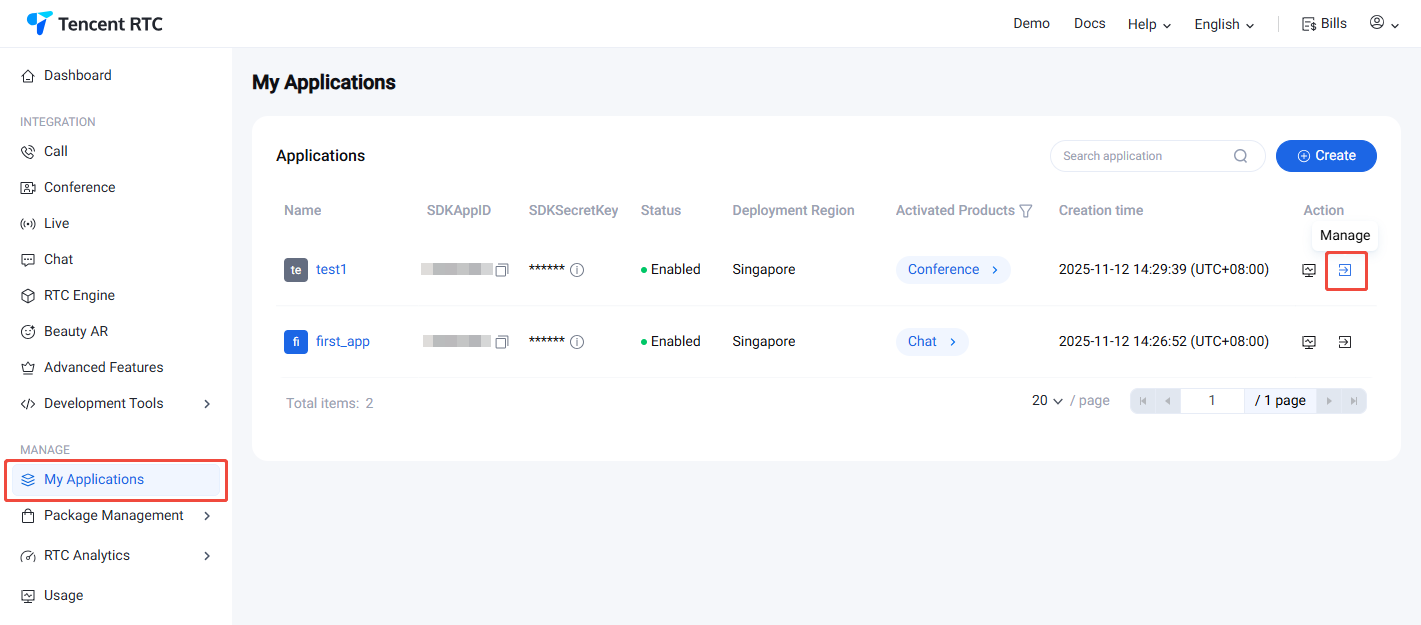
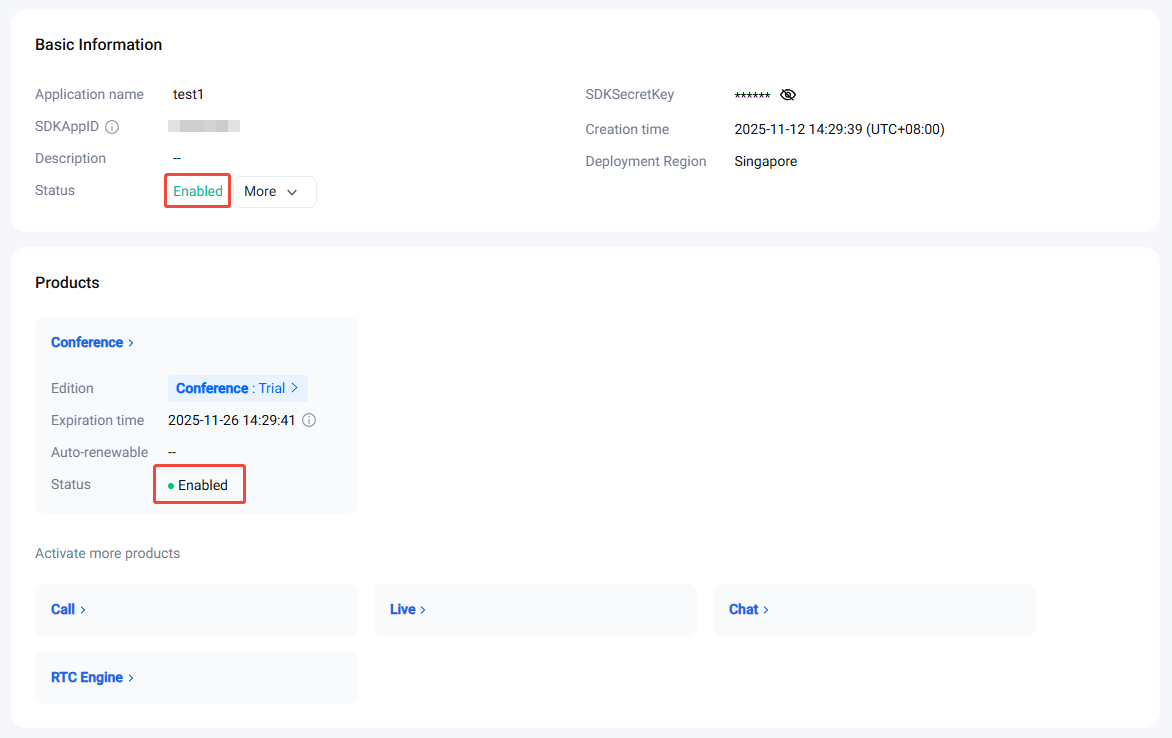
After the application is created successfully, you can view the application list and info in My Applications. The display information includes basic information of the app, Real-Time Communication (TRTC) service status, and opened products etc.
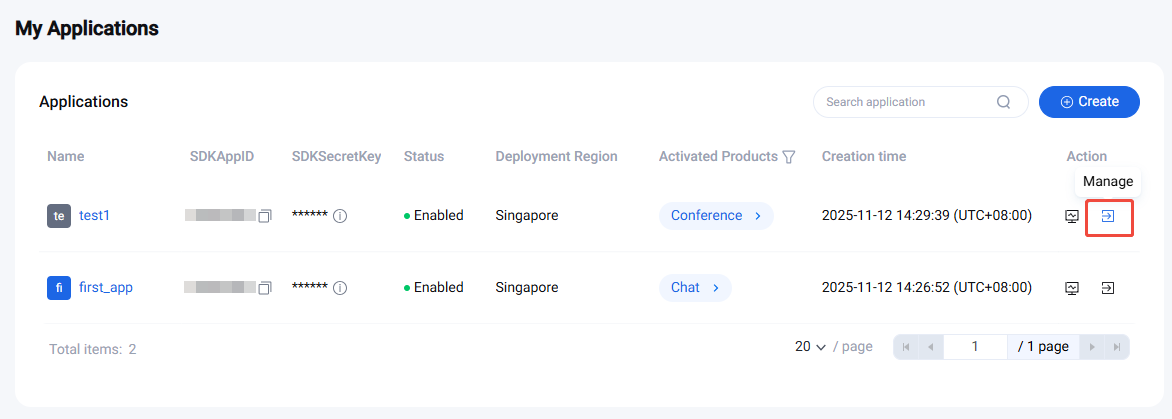
2. Click the Manage button on the right of the application you want to view.
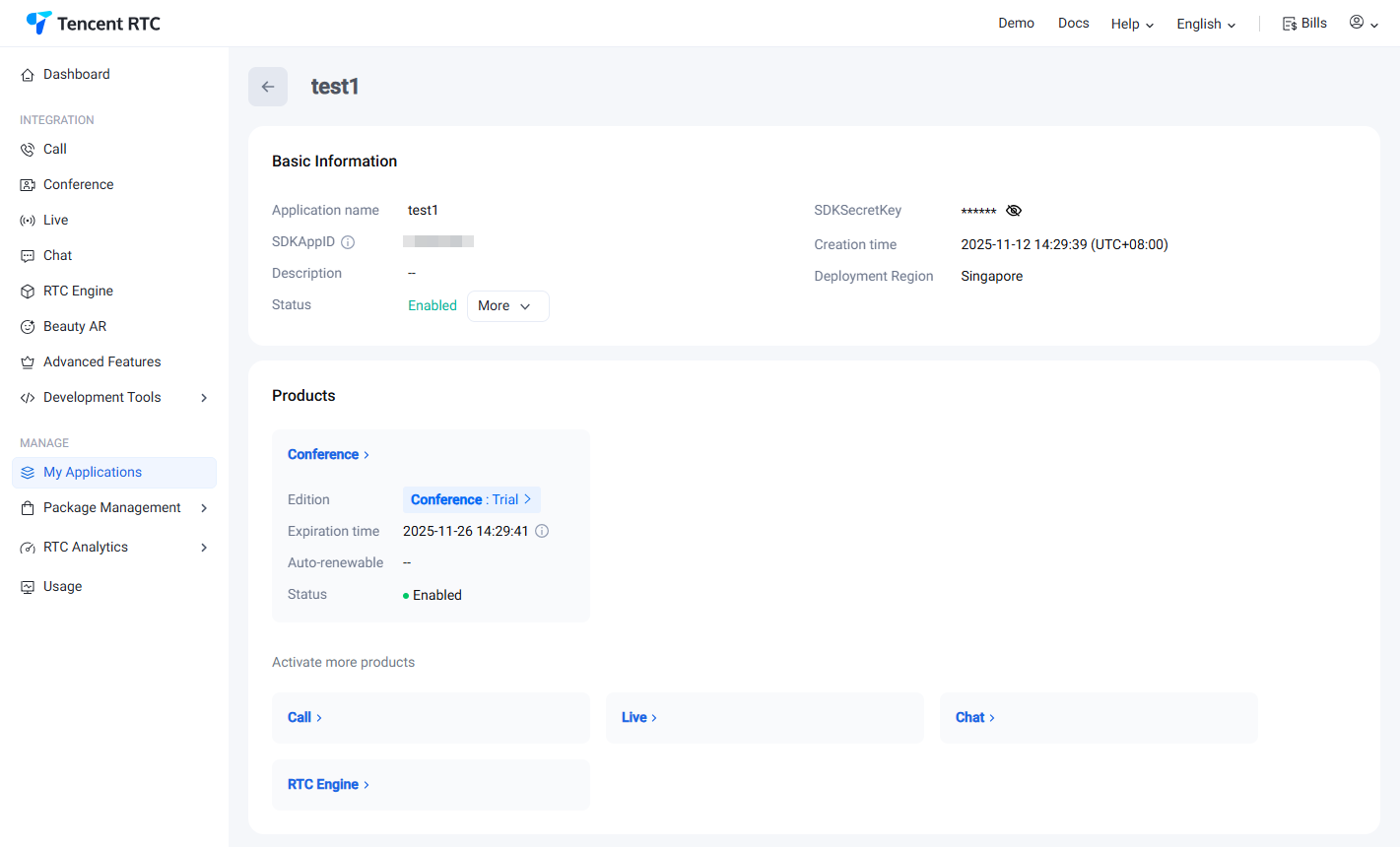
3. Go to the application details page to view the basic information of this application and product version information.
Information Item
Description
Application Name
Set a custom application name when creating an application.
SDKAppID
The SDKAppID, automatically generated after the creation of the application, serves as the unique identifier for the application. This parameter must be provided when invoking the VOICE API interface.
SDKSecretKey
Key information for initializing the SDK configuration file.
Application Description
You have the option to create a custom description for the application.
Application Version
By default, RTC engine are set to the basic version. You may upgrade to a higher version in order to unlock additional features based on your business needs. For more information, see RTC-Engine Packages.To use the Call application, you need to claim the Free Trial version. You can upgrade to a higher version based on your business needs to unlock corresponding value-added features. TRTC Call Monthly Packages
Service Status
The current service status of the application comprises two states: Normal and Disabled. If the service status indicates "Disabled" and it was not manually suspended, please ascertain whether the package balance is zero, and if the Tencent Cloud Account has an overdue balance.
Creation Time
The time at which the application was successfully established.
Deployment Region
Service deployment storage area. Tencent Real-Time Communication (TRTC) service data is stored in Singapore by default, while Chat service data is stored in your selected data center.
Alteration of Application Information
1. Within My Applications, select the application for information modification, and click on the management button in its right side action bar to access the application's detailed page.
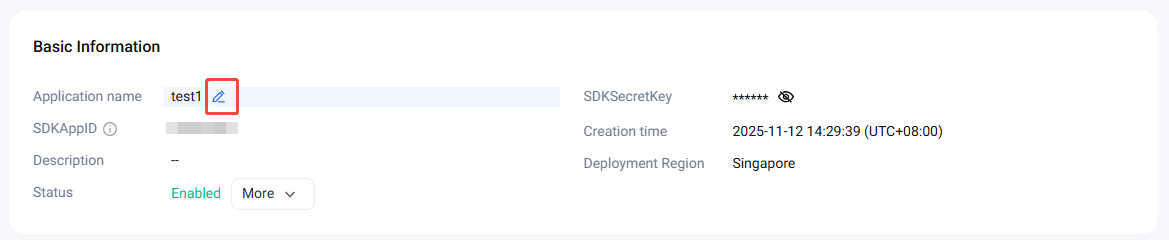
2. On the application details page, view the Basic Information module and click the icon on the right of Application name.
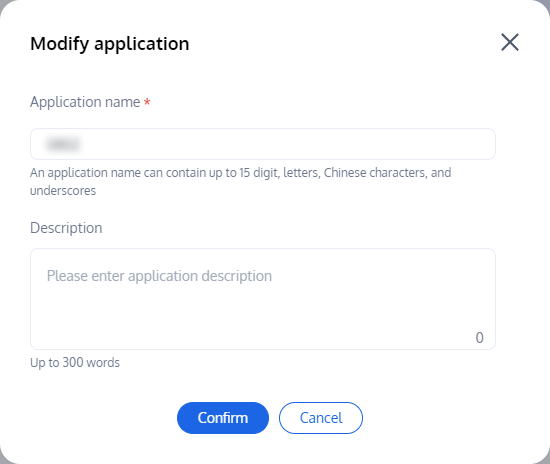
3. Upon entering the application's information editing dialog box, you can change the Application Name and the Description. By clicking Confirm, the changes will successfully be saved.
Note:
The Application Name field supports only digits, letters, and underscores, and cannot exceed 15 characters.
The Description field supports only digits, letters, and underscores, and must not exceed 300 characters.
Application Version Information.
By default, RTC Engine applications are set to 'Free Trial'. Depending on your business needs, upgrading to a paid version will unlock additional features. For detailed information, please refer to Features and Billing Instructions.
Free Trial
Standard
Pro
Call applications require a 7-day 'Free Trial'. Upgrading to a paid version will unlock additional features according to your business needs. For detailed information, please refer to Features and Billing Instructions.
1-to-1 Call
Group Call
Information Item
Description
Application Version
The current application's monthly subscription plan version. By default, RTC Engine applications are set to 'Free Trial' and Call applications require a 7-day 'Free Trial'. Depending on your business needs, you can unlock additional features by upgrading to a paid version. For detailed information, refer to Features and Billing Instructions.
Version Details: Displays the basic and value-added audio and video features of the current monthly subscription package, including the supported SDK platforms.
Obtain a Free Trial Version: Each application can obtain trial eligibility for the free version up to 2 times (limited to 10 times per account), each time with a validity period of 7 days. The capabilities of the trial version are consistent with those of the flagship version. Please note: if you subscribe to a paid version during the validity period of the trial version, your current trial version will expire and be converted to the paid version you have subscribed to.
Expiration Time
The expiration time for the current application's monthly subscription version. You can manually purchase the same version to extend its validity period. If you need to switch to a different paid version, please submit a service ticket.
Auto-Renewal
Enables the auto-renewal feature upon expiration for the current application's monthly subscription package.
Application Service Status
Important Note: Disable or Delete Applications
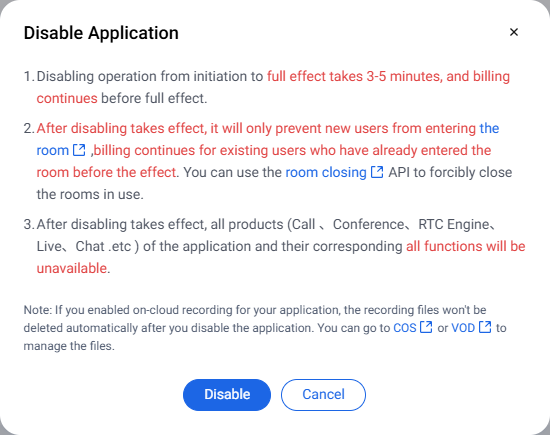
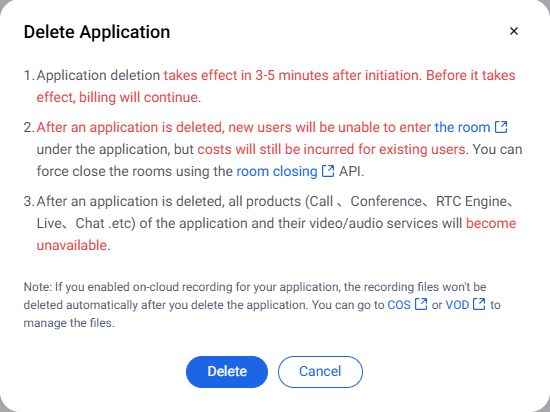
Status Update Latency: After manually disabling, re-enabling, or deleting an application, it takes 3–5 minutes for the changes to take effect across the system.
Billing During Update: During this 3–5 minute window, new users may still enter rooms, and usage will be billed as usual.
Once disabled or deleted, new entries are blocked, but billing continues for users already in rooms. Use the Dismiss Room API to force-close active rooms.
Global Impact: Disabling or deleting an application affects all associated services, including Call, Conference, RTC Engine, Live, and Chat.
Applications in a Enabled state cannot be deleted directly. You must disable the application first before performing a deletion.
Cloud Recording Assets: Disabling an application will not automatically delete your cloud recording files. Please manage these files via the COS or VOD console.
The service status of the current application (SDKAppID) can be either normal or disabled. When the status is normal, the TRTC service is available. When it's disabled, the service is unavailable.
For application deactivation not initiated by you, this may be due to not enabling pay-as-you-go services or arrears. Please respond by enabling pay-as-you-go services, purchasing audio and video duration packages, or clearing arrears to reactivate the application. Doing so will ensure normal service availability.
TRTC Service Status
Primarily displays the status of the current application's TRTC basic and value-added services, including the states of "Normal" and "Disabled".
Enabled
When the status is normal, both the TRTC basic services and value-added services can be used as expected. To ensure uninterrupted service availability, please renew the package in a timely manner and ensure that your Tencent Cloud account maintains an adequate balance.
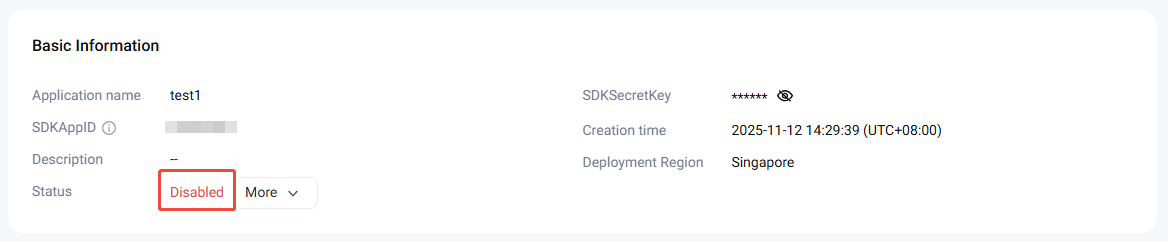
When the status is disabled, both the TRTC basic services and value-added services are unavailable. Please check for the following scenarios:
Case 1: Self-disabled Application
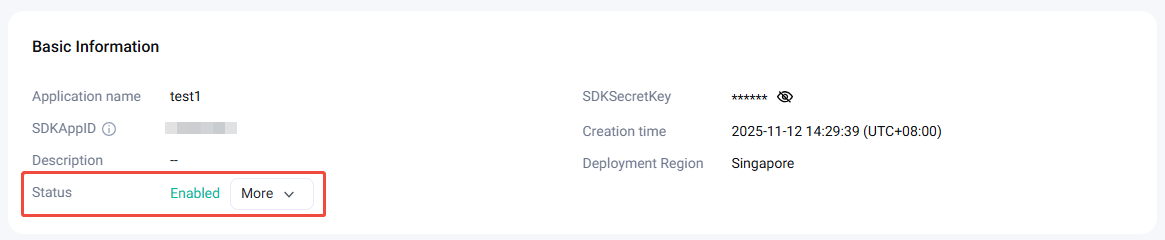
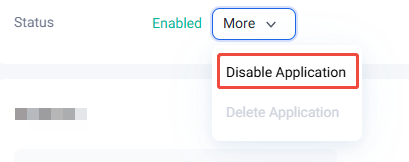
1. Select the dropdown menu More and click on Disable Application.
2. Read the <Disable Statement> and confirm by clicking Disable.
3. Upon successful initiation of the disable operation, it takes around 3-5 minutes for the changes to be universally effected. Your patience is appreciated.
Case 2: Self-enable Application
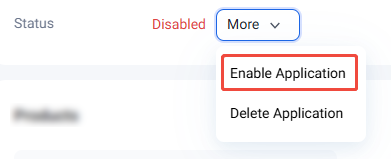
1. Click Enable Application.
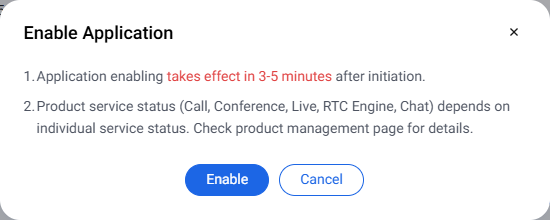
2. Read the<Enable Statement>and click Enable.
3. Once the enabling operation is successfully initiated, it requires approximately 3 to 5 minutes for the changes to fully take effect. Kindly refresh the page later to view the updates.
Case 3: Self-service Application Deletion
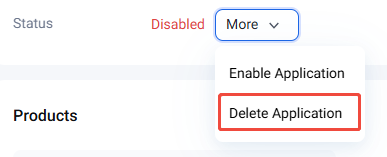
1. Select More and click Delete Application.
2. Read the <Delete Statement> and click Confirm Delete.
3. Once the deletion operation is initiated successfully, it takes approximately 3 to 5 minutes for the changes to take full effect. Please wait patiently.
Tags
Tags is used to identify and orchestrate your various resources on Tencent Cloud. For instance, a corporate entity may be divided into numerous business divisions, each incorporating one or more TRTC applications. In this context, enterprise can demarcate department information by allocating a TAG to the TRTC application.
Adding an Application Tag
1. In Application Management, you can view the All Product Applications List where you can observe the Tags information of each application.
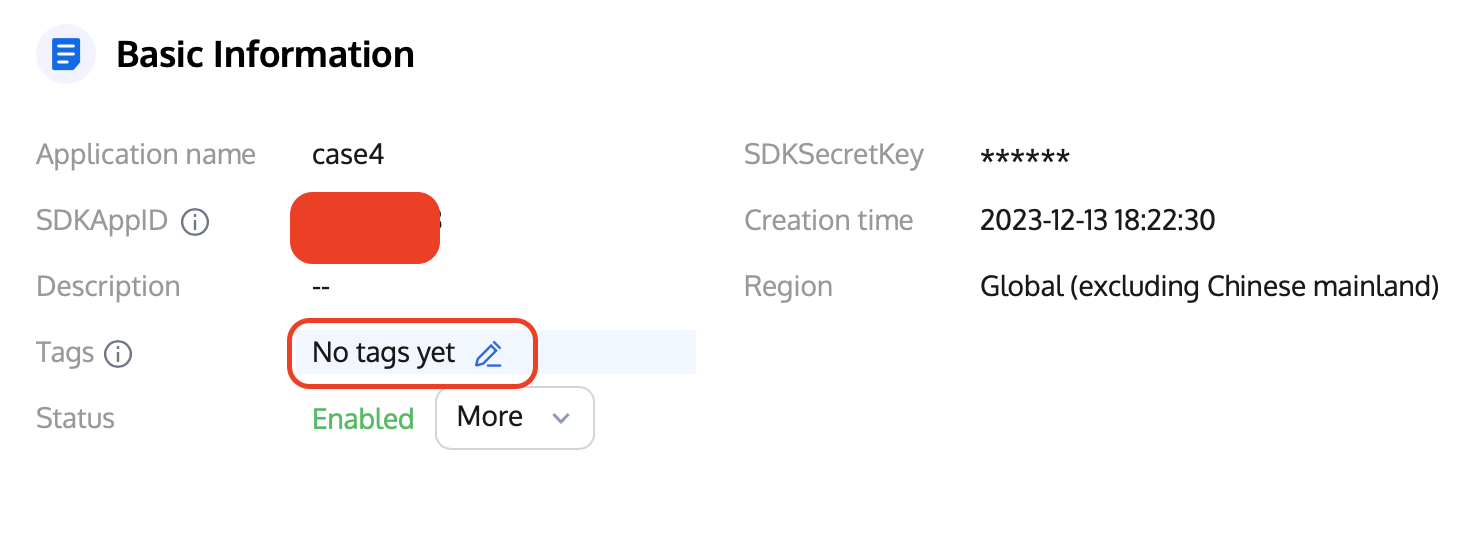
2. Click on Manage under Operation to enter the application details page. Once there, click on the Edit icon located next to TAG.
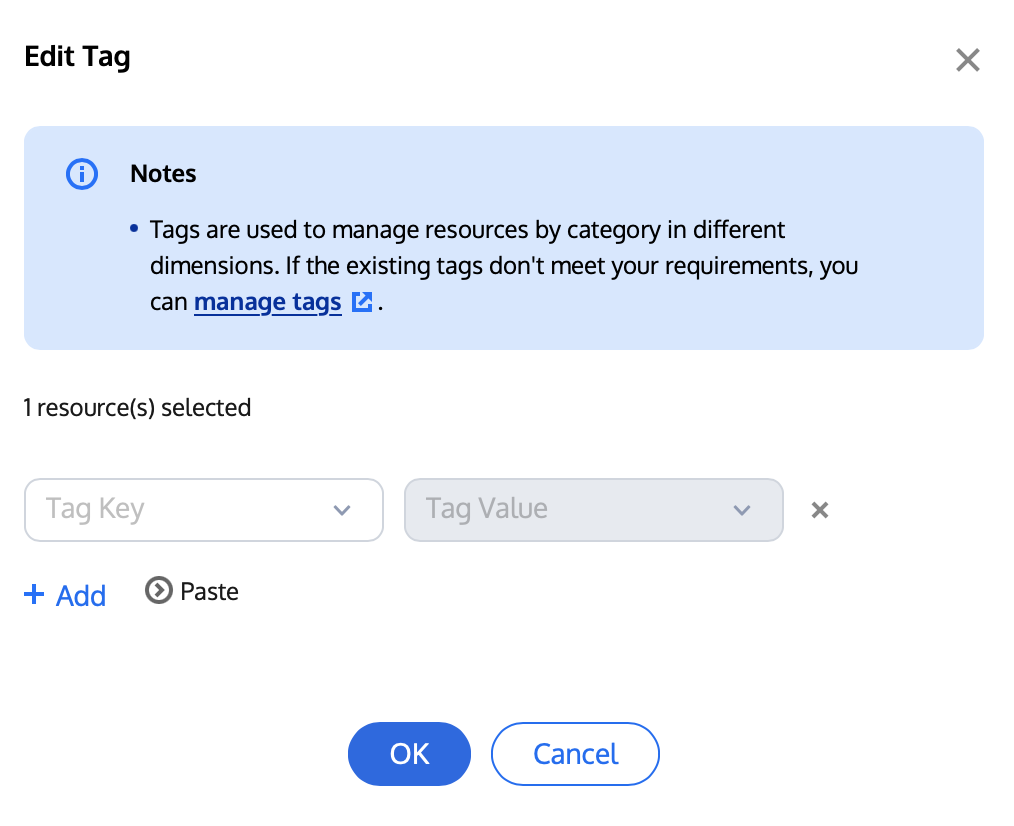
3. Navigate to the TAG editing dialog box, select the TAG Key and TAG Value that have already been created in TAG Management.
Note:
If the current TAG does not meet your requirements, please go to TAG Management to create a new one.
Multiple TAGS can be added to an application. Simply click on + Add to create a new TAG configuration box.
4. Click OK to save. The console will refresh and display whether the modification was successful.
Deleting Application TAG
1. In Application Management, select the application for which the TAG information requires modification; click Manage on the operation bar on its right to go to the application details page.
2. In the Application Overview tab, view the "TAG" module and click Edit on the right.
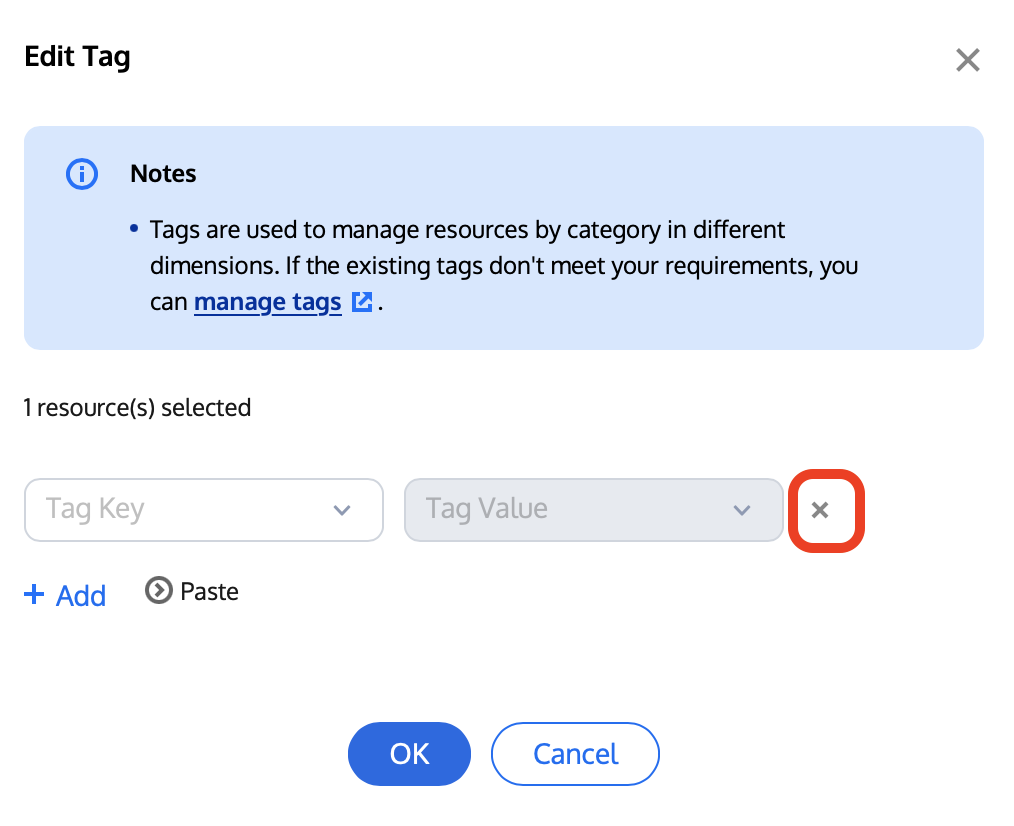
3. Enter the TAG editing dialog box, select the TAG you wish to delete, and click on the delete button on the right.
4. Click OK to save. The console will refresh and display whether the modification was successful.
Related Documents
For instructions on creating a new application, please refer to Creating Application.
If you need to configure or view the function configuration of an application, please see Function Configuration.