
Configuration Tutorial
Makeup Configuration
Makeup Asset Package Structure
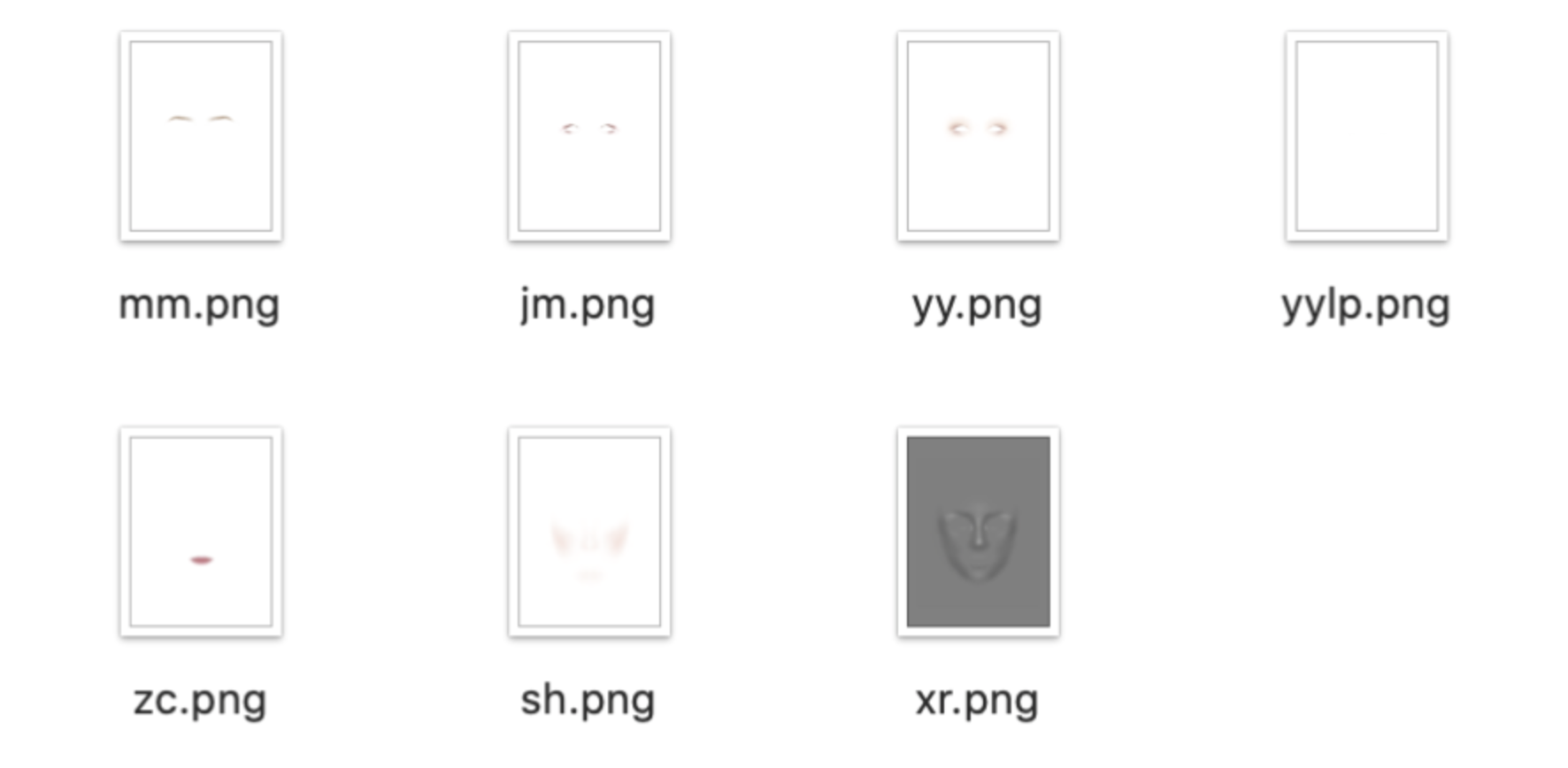
The standard PNG size for each makeup asset is 768 × 1024.
Name makeup assets using the pinyin abbreviation for the facial part to simplify identification in the tool. For example, use
mm for eyebrows.Download the makeup PSD template here: basic_model.psd.
Download the colored contact lens PSD template here: iris.psd.
Importing Makeup Assets
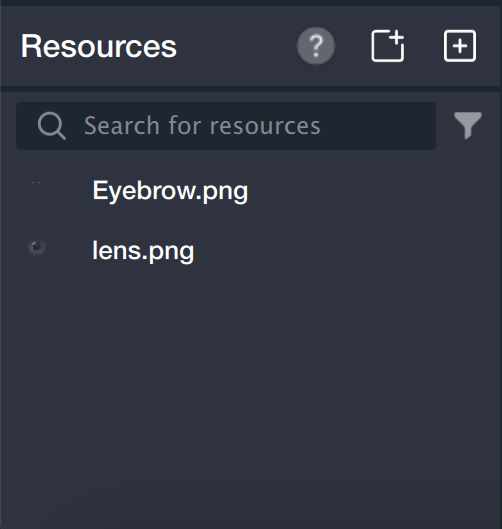
Import valid makeup assets into the Tencent Effect resource panel located at the bottom left.
Makeup Asset Configuration
Note:
Makeup assets are anchored to facial feature points and cannot be repositioned within Tencent Effect.
To change the position of a makeup asset, edit the original PSD file and re-export.
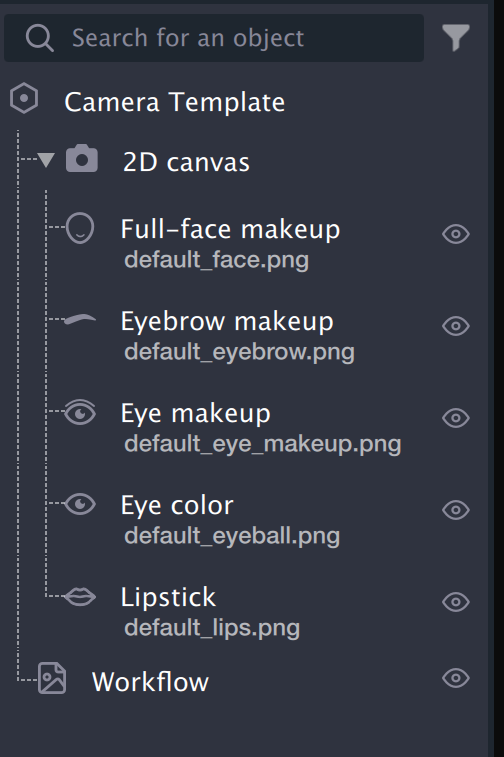
1. In the object panel, select the makeup object linked to the facial feature you want to configure.
2. Check the layer order of makeup assets:
For example, glitter assets should be layered above base overlay assets.
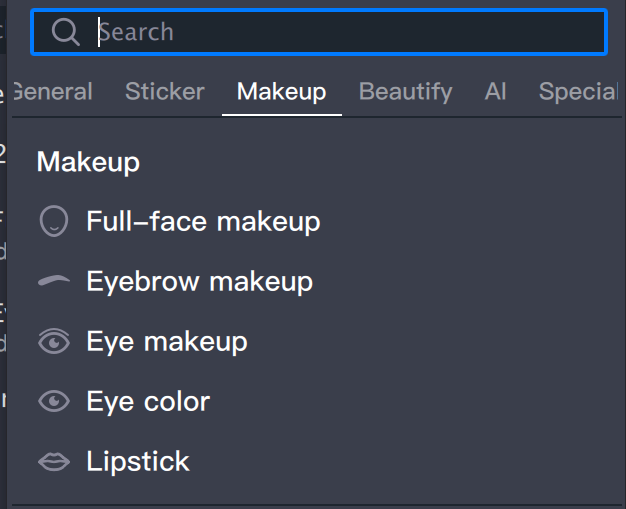
3. In the makeup component panel, select the desired makeup asset from the resource panel.
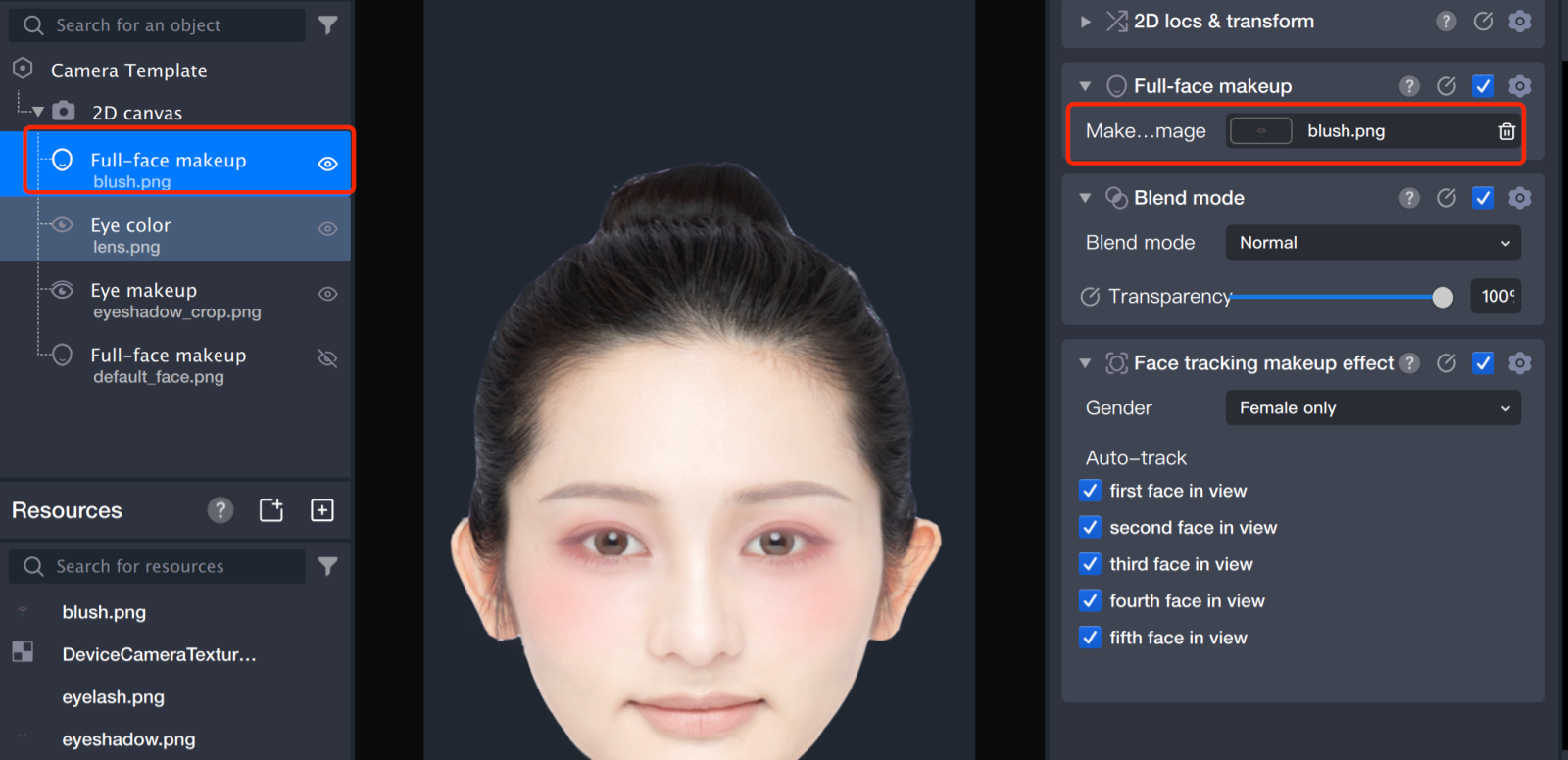
4. Set the blend mode and opacity for the makeup asset.
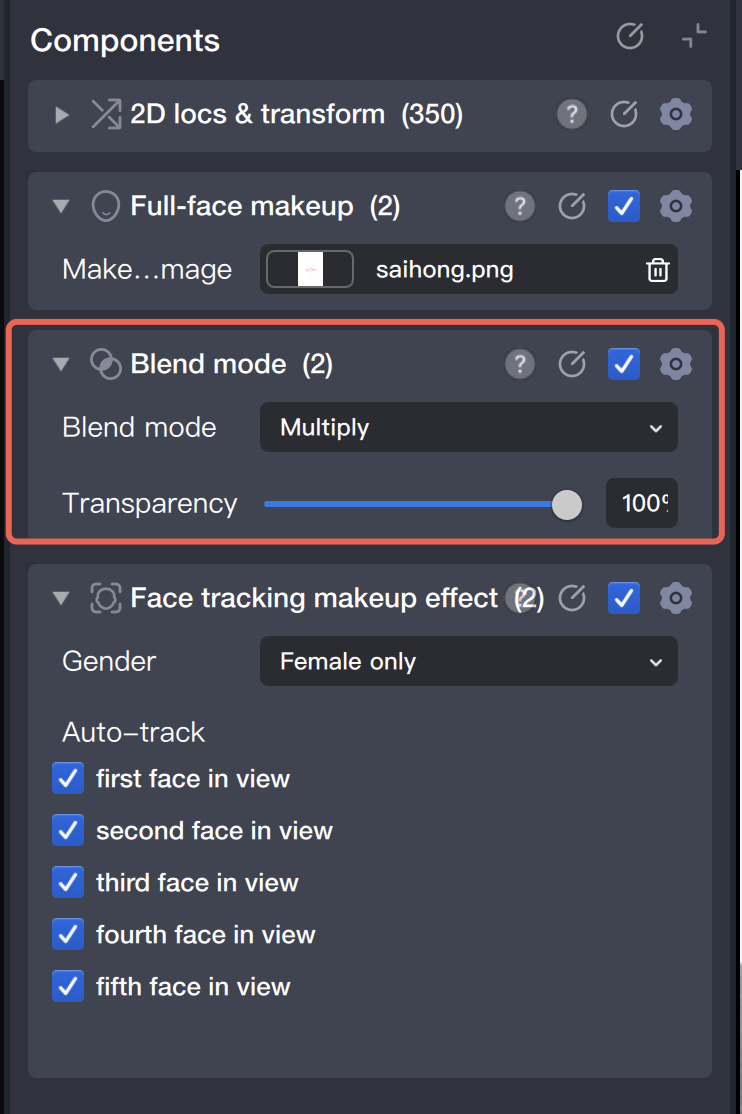
Real-Time Preview of Makeup Effects
1. Click "Mobile Preview" to download the TencentEffect App.
2. Make sure your mobile device and computer are connected to the same Wi-Fi network.
3. Open the "Scan" feature in the TencentEffect App and scan the generated QR code to preview in real time.
Note:
Confirm that the preview effect on your mobile device matches what you see on your computer.
Filter Configuration
Importing Filter Assets
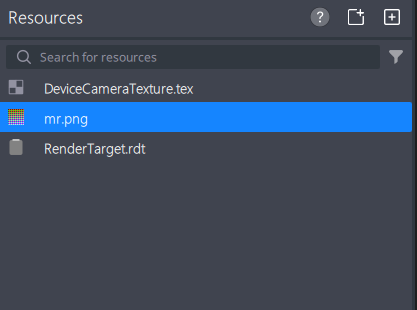
Import the color-graded LUT into the resource panel.
Note:
Design the LUT using the standard file.
Download the standard LUT image here:
Filter Asset Configuration
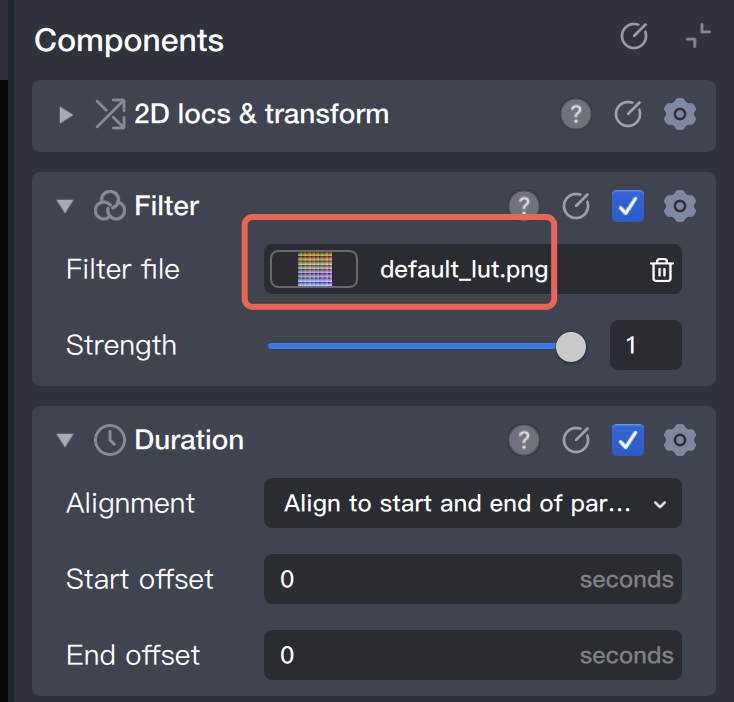
1. In the object panel, select the "Filter Object".
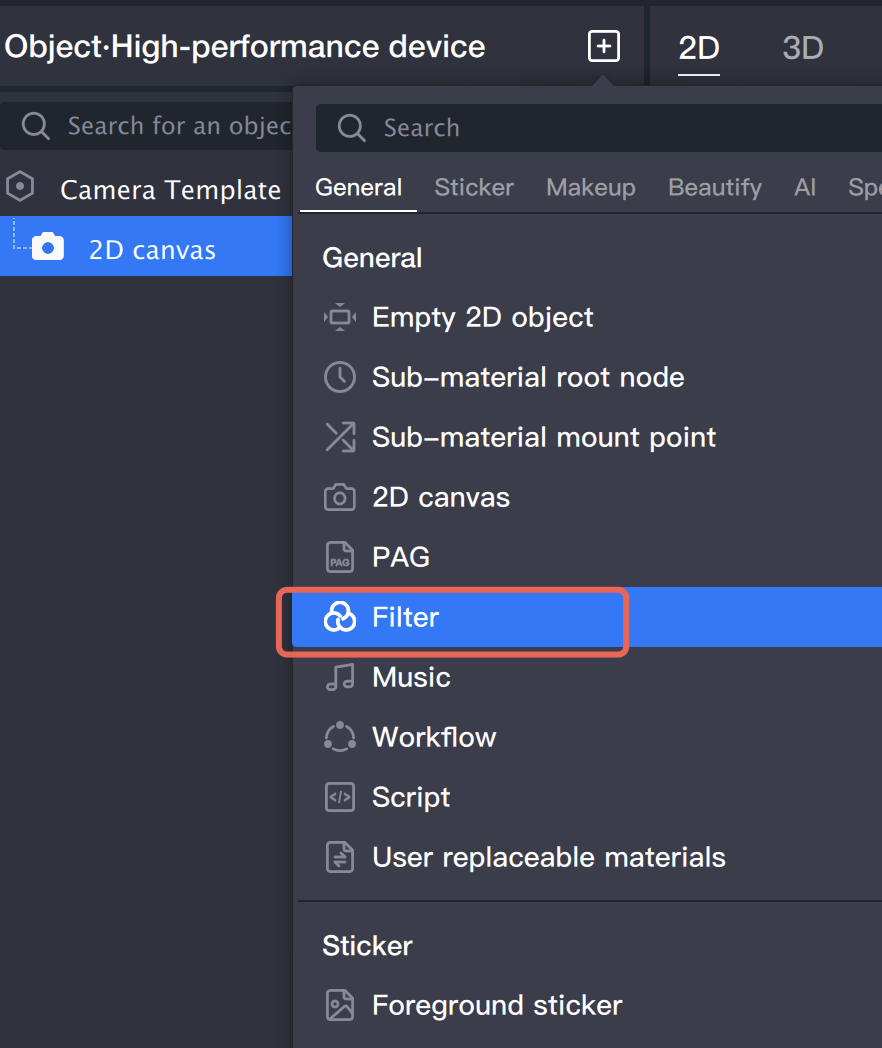
2. In the filter component panel on the right, import the LUT file and adjust the opacity as needed.
Real-Time Preview of Filter Effects
1. Click "Mobile Preview" to download the TencentEffect App.
2. Make sure your mobile device and computer are connected to the same Wi-Fi network.
3. Open the "Scan" feature in the TencentEffect App and scan the generated QR code to preview in real time.
Note:
Confirm that the preview effect on your mobile device matches what you see on your computer.

