
Audience Watching
TUILiveKit's audience viewing page provides users with various and convenient live streaming and interaction features, enabling quick integration into your application to meet diverse audience needs.
Feature Overview
Live streaming: Clear and smooth viewing of the host's real-time live stream.
Interactive co-guest: Apply for mic connection to interact with the host via audio and video.
Live information: View the live streaming room title, description, and audience list, etc.
Live interactive: Send a gift (with animation effects and host notification), like (with animation and real-time statistics), and interact via bullet screen.
Live Streaming | Interactive co-guest | Live Information | Live Interactive |
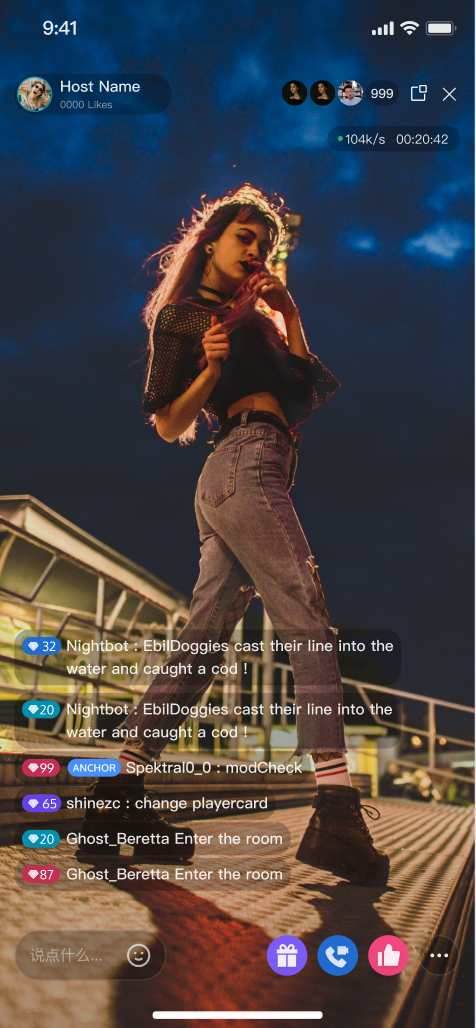 |
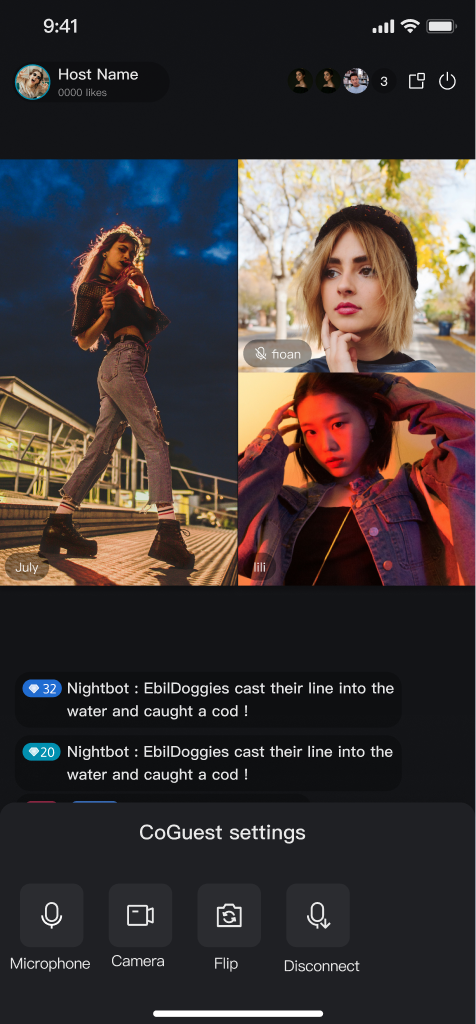 | 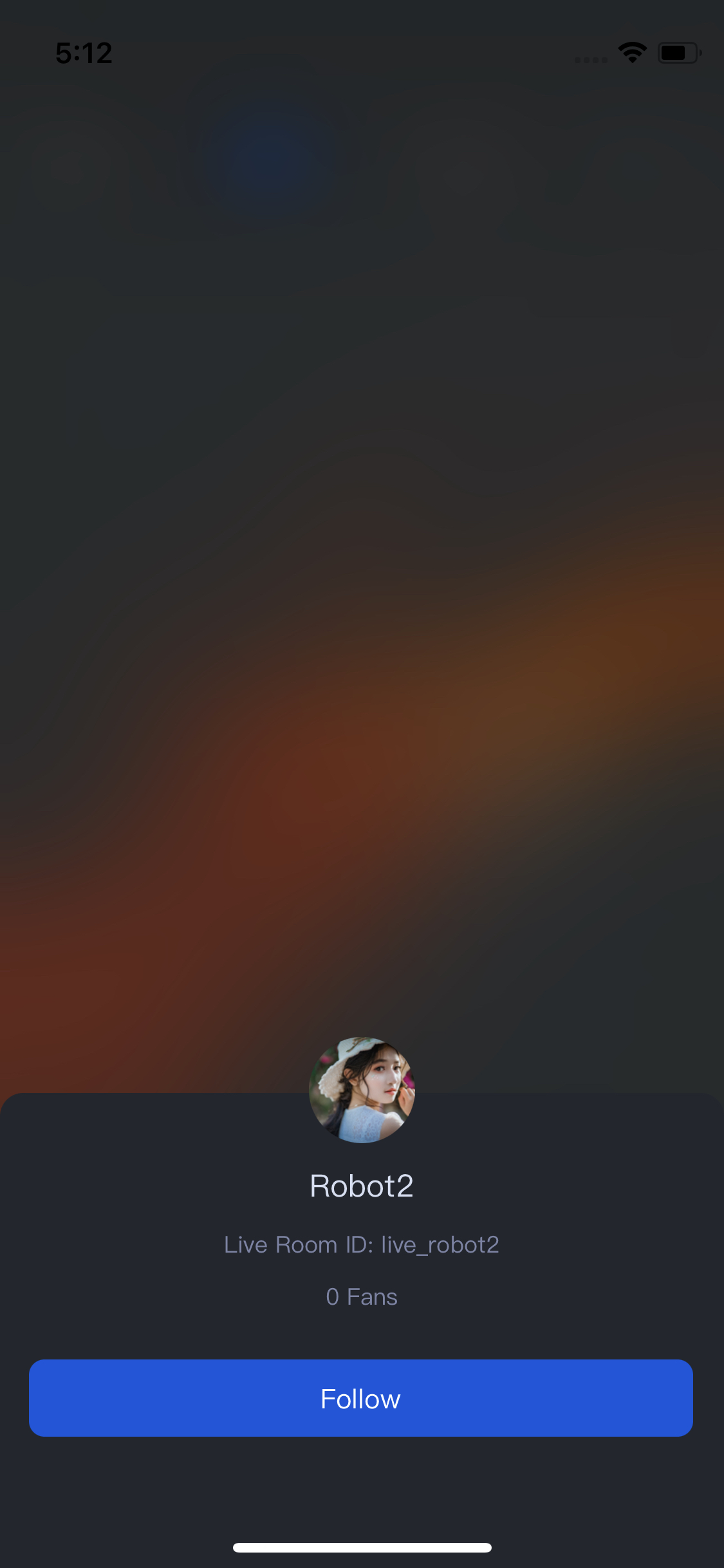 | 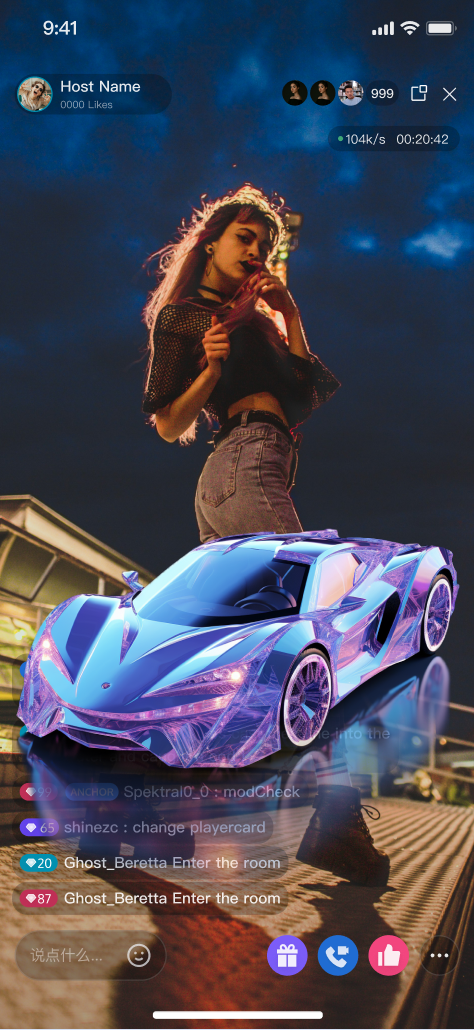 |
Quick Start
Step 1. Activate the Service
Refer to the Activate Service document to get the
TUILiveKit trial version or activate the paid version.Step 2. Code Integration
Step 3. Add an Audience Viewing view
In your viewer watching Activity, initialize and add the
AudienceView viewer watching view.import android.os.Bundleimport androidx.appcompat.app.AppCompatActivityimport com.trtc.uikit.livekit.features.audienceview.AudienceViewimport com.trtc.uikit.livekit.features.audienceview.AudienceViewDefine.AudienceViewListenerclass AudienceActivity : AppCompatActivity() {lateinit var audienceView: AudienceViewlateinit var listener: AudienceViewListeneroverride fun onCreate(savedInstanceState: Bundle?) {super.onCreate(savedInstanceState)// 1. create AudienceViewaudienceView = AudienceView(this)val roomId = "live_1236666"// 2. init AudienceViewaudienceView.init(this, roomId)// 3. (optional)add AudienceContainerView listenerlistener = object : AudienceViewListener {override fun onLiveEnded(roomId: String, ownerName: String, ownerAvatarUrl: String) {finish()}override fun onClickFloatWindow() {// Picture-in-Picture (PiP) button click event.enterPictureInPictureMode()}}audienceView.addListener(listener)setContentView(audienceView)}override fun onDestroy() {// 4.(Optional) If you have added event listeners,// you must remove them when the page is destroyed.audienceView.removeListener(listener)super.onDestroy()}}
Step 4. Navigate to the Audience Viewing view
Usually in the live stream list, use the following code example when you need to jump to the viewer watching page:
fun startActivity(context: Context) {val intent = Intent(context, YourAudienceActivity::class.java)intent.putExtra("roomId", "1236666")context.startActivity(intent)}
private void startActivity(Context context){Intent intent = new Intent(context, YourAudienceActivity.class);intent.putExtra("roomId", "1236666");context.startActivity(intent);}
Customize Your UI Layout
Customize the AudienceView Feature Area
Customize the audience interface by referring to the Core Audience Page Modify the UI styles and add your business components in AudienceView.
Customize video-slot widgets by referring to Adjust Live Streaming Widgets. Modify the UI of nameplates, avatar decorations, and other elements on the video slot in AudienceView.
Text Customization (String Resources)
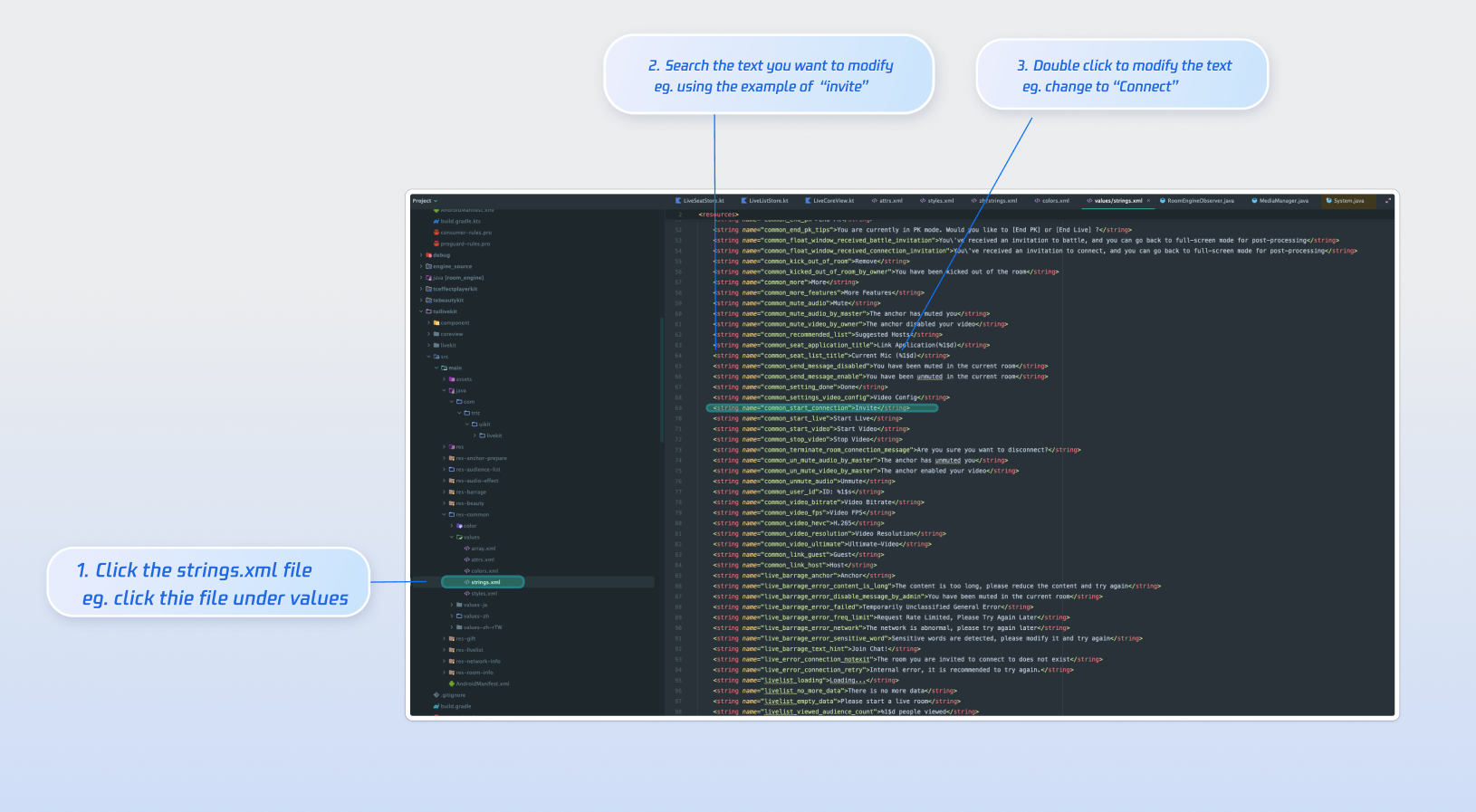
TUILiveKit uses standard Android XML resource files to manage the text displayed in the UI. You can directly modify the strings that need adjustment via the XML file:
Icon Customization (Drawable Resources)
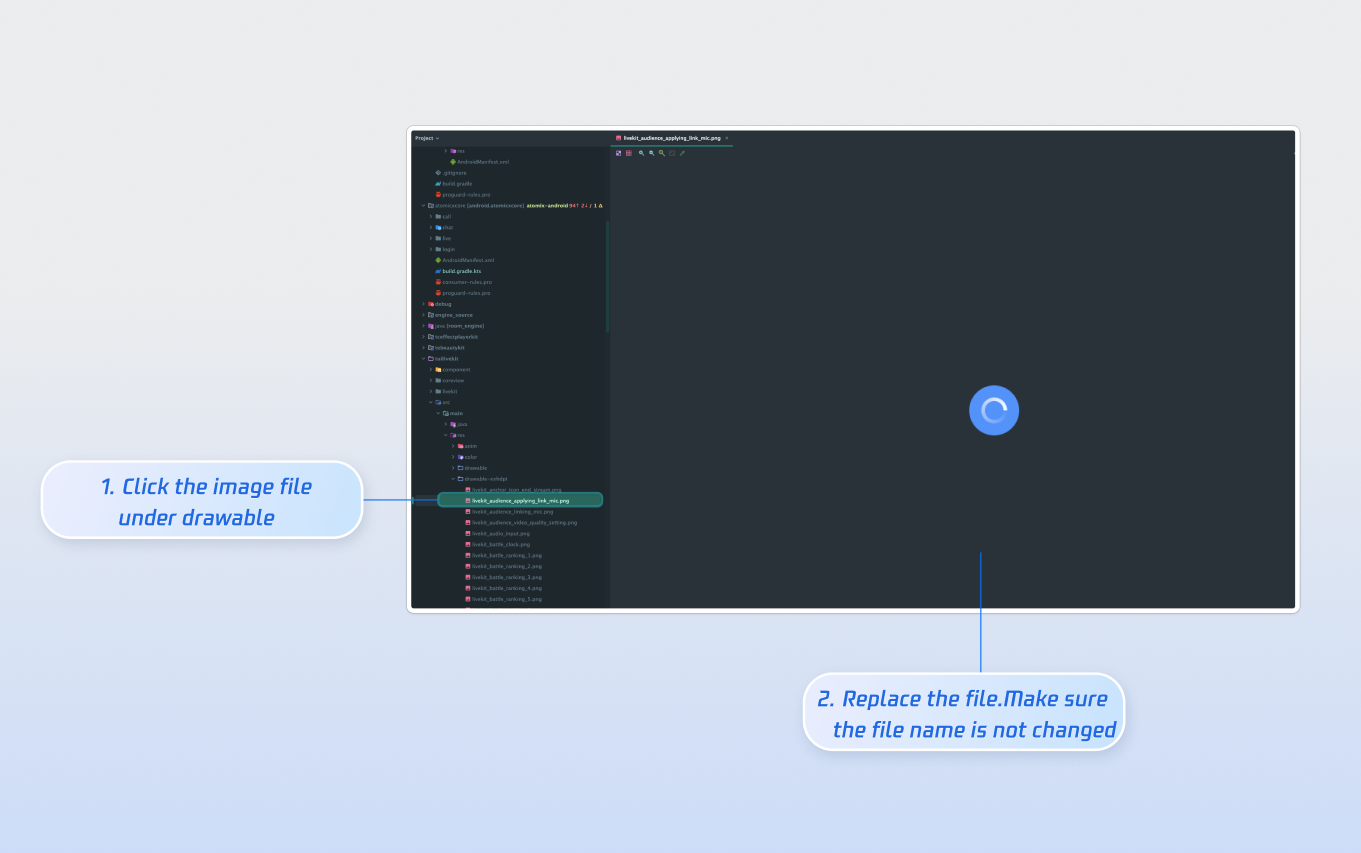
TUILiveKit uses the standard Android drawable resource folder to manage the image resources for the UI. You can quickly change the custom icons by replacing the resource files. When replacing, ensure that the new file names are consistent with the original file names.
Next Steps
Congratulations! You have successfully integrated Audience Viewing. Next, you can implement features such as host streaming, live stream list and gift system. Please refer to the table below:
Feature | Description | Integration Guide |
Host Streaming | The complete workflow for a host to start a stream, including pre-stream setup and various in-stream interactions. | |
Live Stream List | Display the live stream list interface and features, including the live stream list and room information display. | |
Gift System | Support custom gift asset configuration, billing system integration, and gift-sending in PK scenarios. |
FAQs
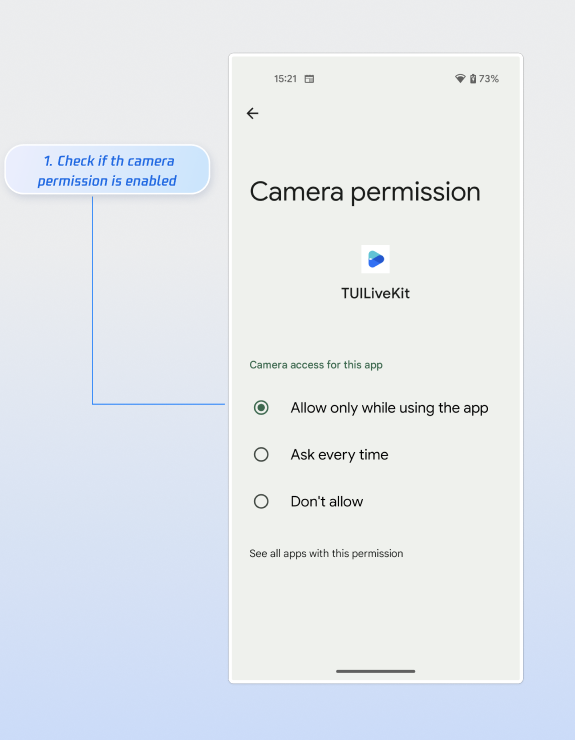
Why is the video screen black when a viewer selects video co-hosting?
Please go to App Info > Permissions > Camera and check if the camera permission is enabled. Refer to the image below:
Why can't other viewers in the live room see the barrage content sent by a viewer?
Reason 1: First check the network connection to ensure the viewer's device network is normal.
Reason 2: The viewer has been muted (banned) by the host and cannot send barrage.
Reason 3: The viewer's barrage content involves keyword blocking. Please confirm whether the content sent by the viewer complies with the live room rules.

