• 서비스
  • 가격
  • 리소스
  • 기술지원
이 페이지는 현재 영어로만 제공되며 한국어 버전은 곧 제공될 예정입니다. 기다려 주셔서 감사드립니다.

Unreal Engine

Operation Steps

Step 1: TIMPush Integration

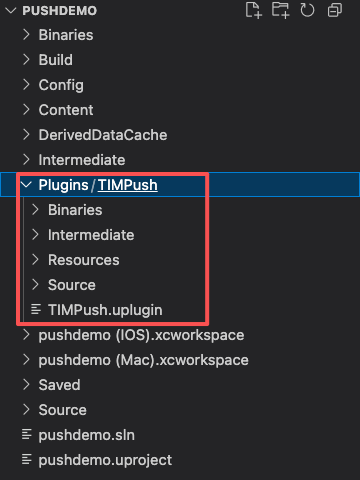
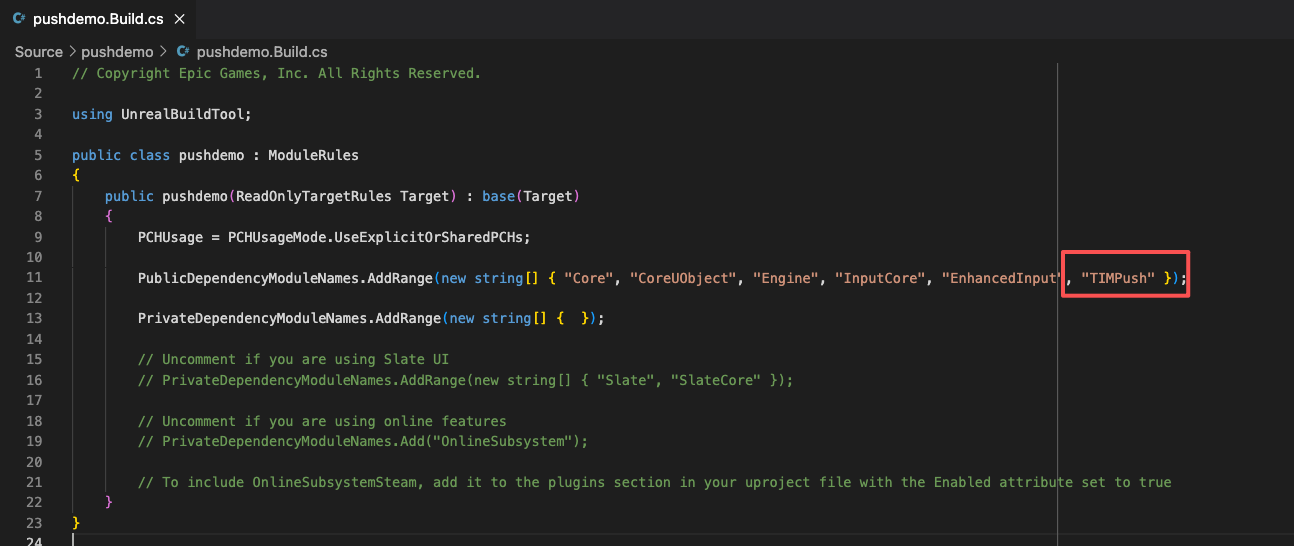
Download TIMPush and copy to the Plugins directory under the project. In the Build.cs file of the main module, introduce TIMPush.
copy directory
Introduce plug-in


Step 2: Push Parameter Configuration

iOS
Android
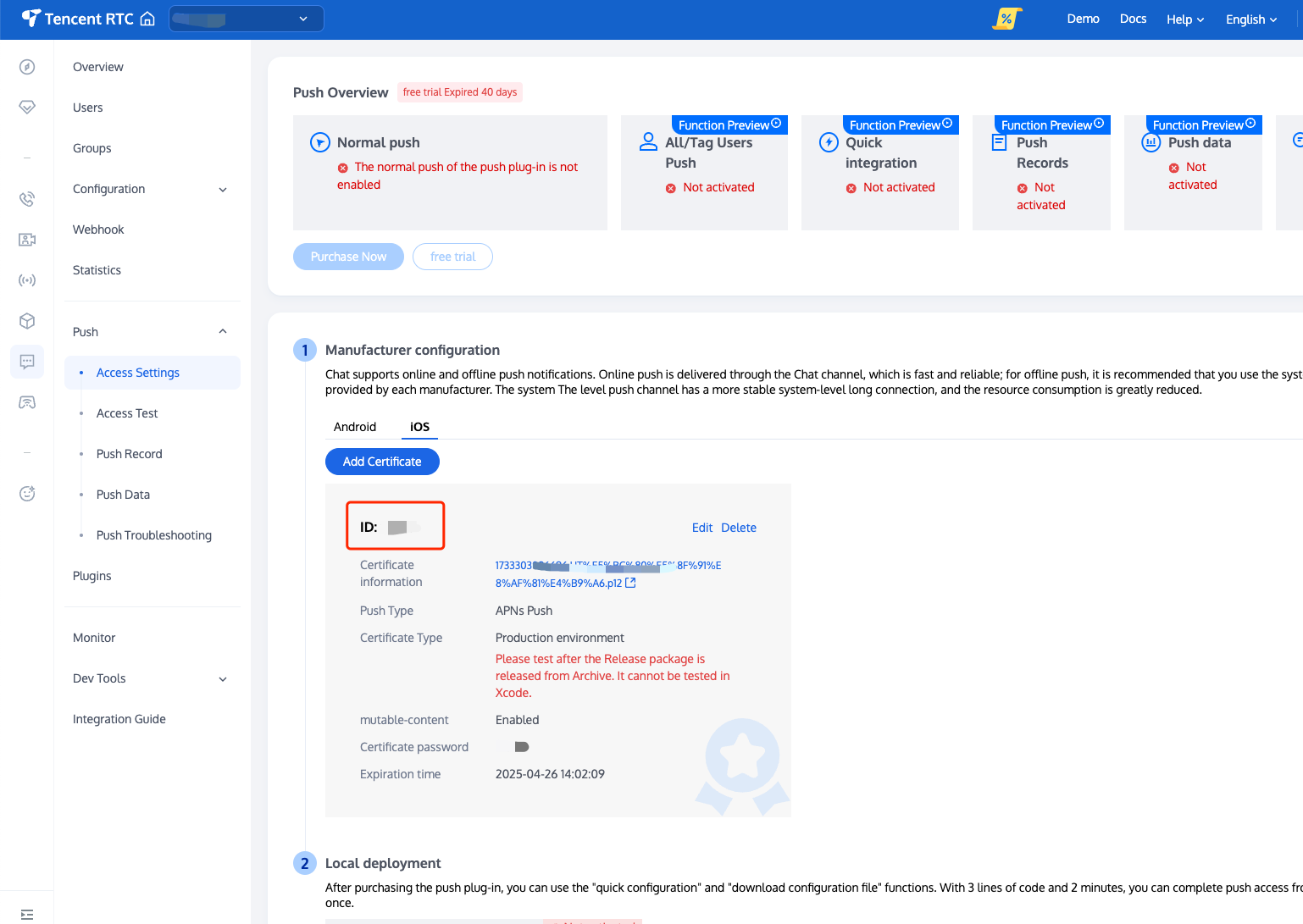
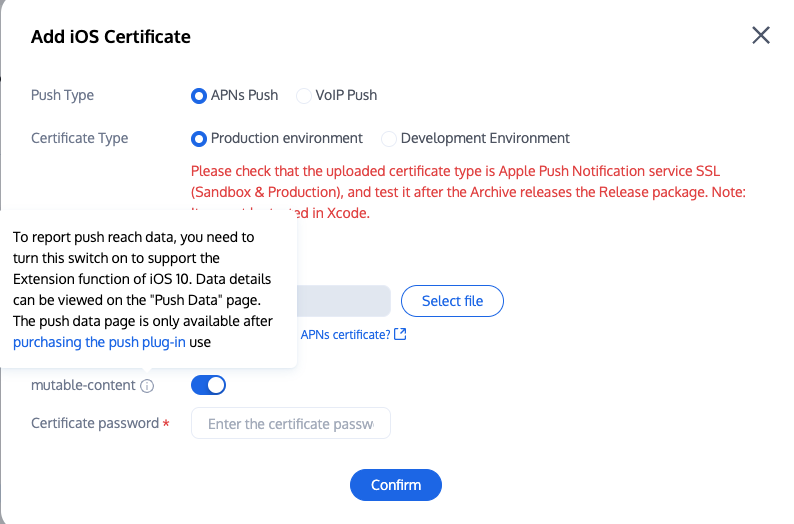
Upload the obtained iOS APNs Push Certificate to the IM console during the manufacturer configuration process.
The IM console will allocate a certificate ID for you, as shown below:

Set businessID:
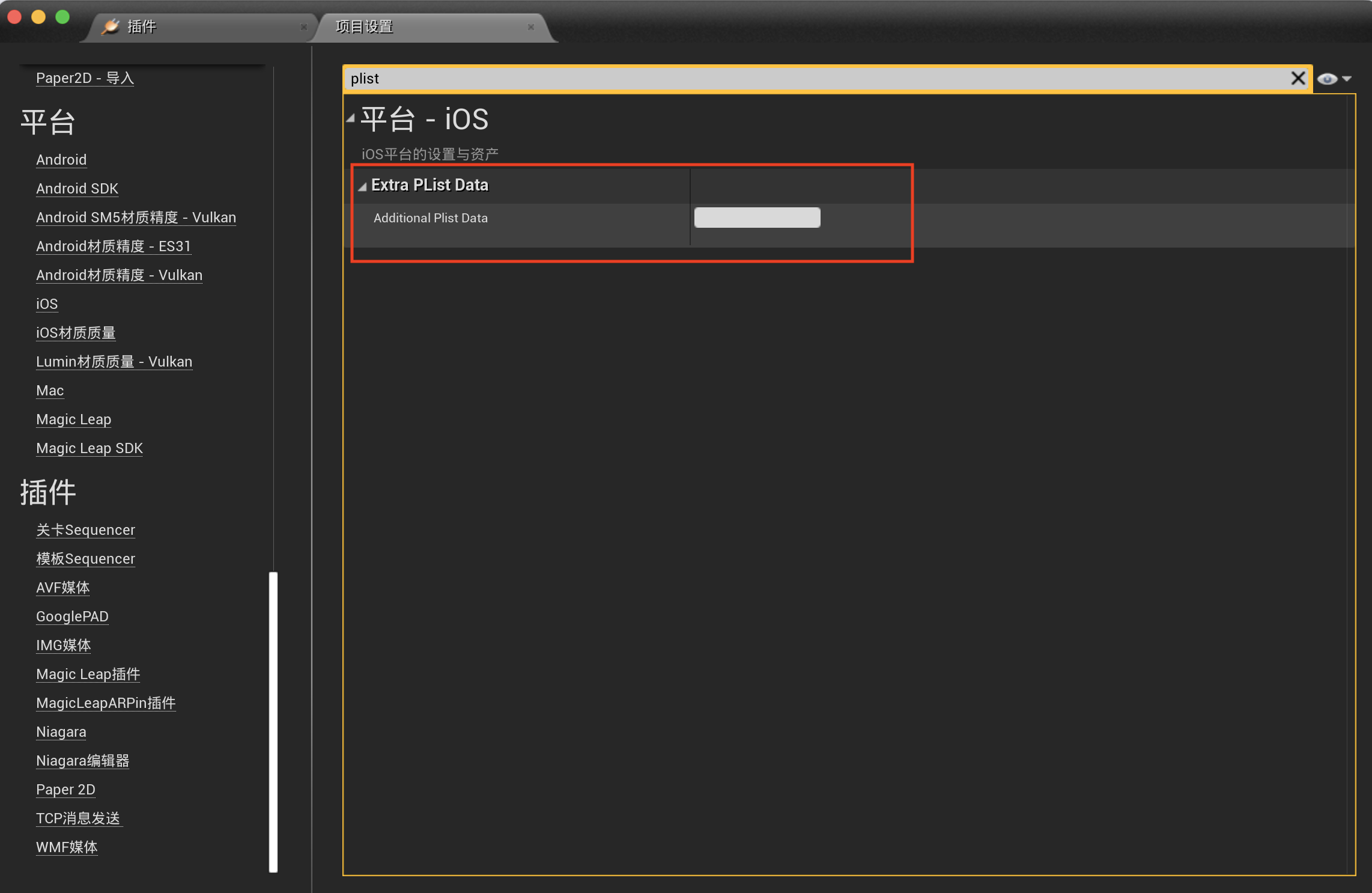
Open "Project Settings" in UE4 Editor, search for Additional Plist Data, modify the following text and copy it into the textbox. YourBusinessID is required, while YourGroupID needs to be modified when you need to count push reach and click data.
<key>businessID</key><string>YourBusinessID</string><key>TIMPushAppGroupID</key><string>YourGroupID</string>

Enable remote push capability:
After completing the certificate ID configuration, you need to enable the app's Push Notifications capability:
If your UE engine is built from source code manually, you can enable the corresponding capacity by checking "Enable Remote Notifications Support" in Project Settings > iOS.
If your UE engine is downloaded from Epic Games, you can open "<proj_dir>/Config/DefaultEngine.ini" and add the following under IOSRuntimeSettings in the script:
// Some code
[/Script/IOSRuntimeSettings.IOSRuntimeSettings]
bEnableRemoteNotificationsSupport=True
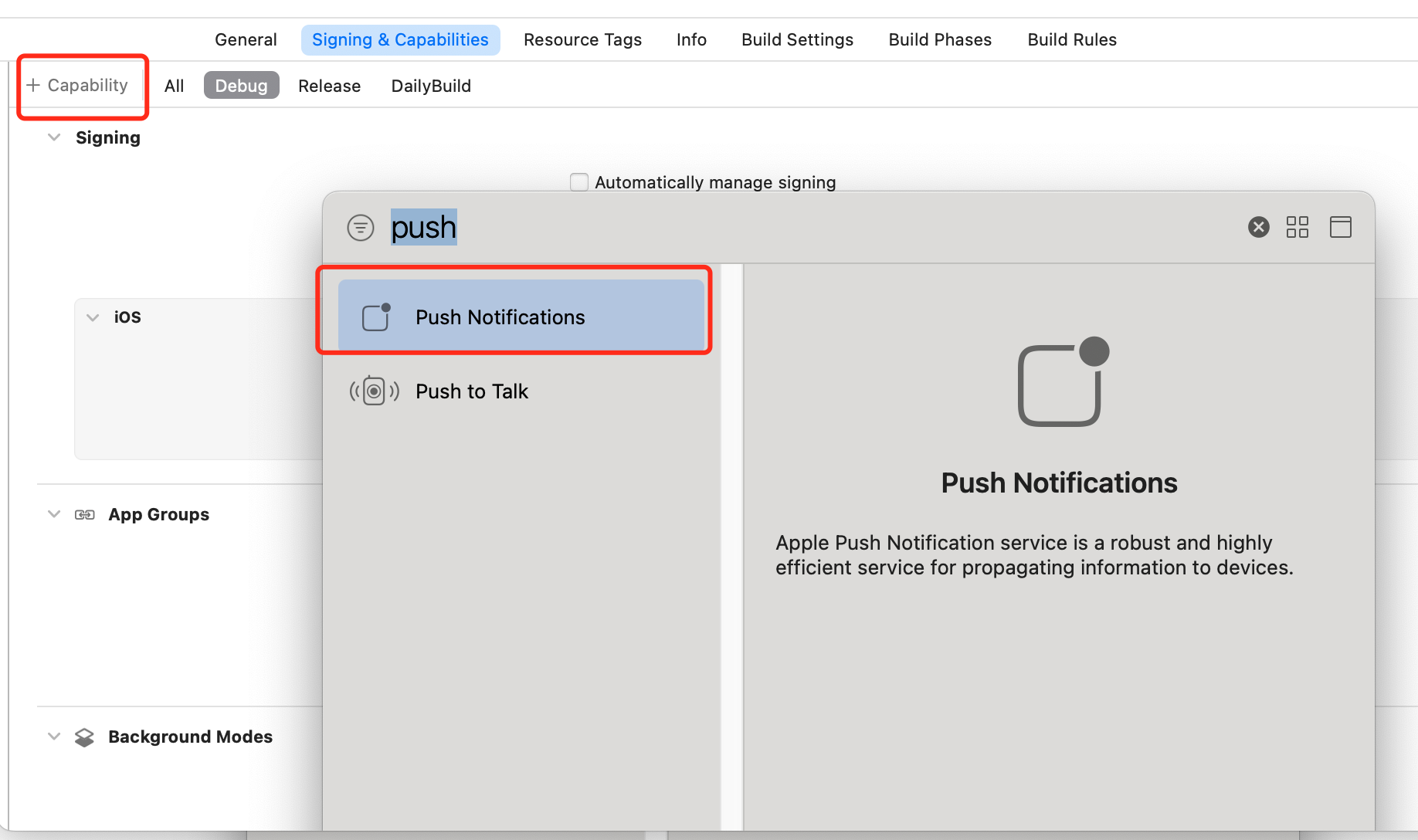
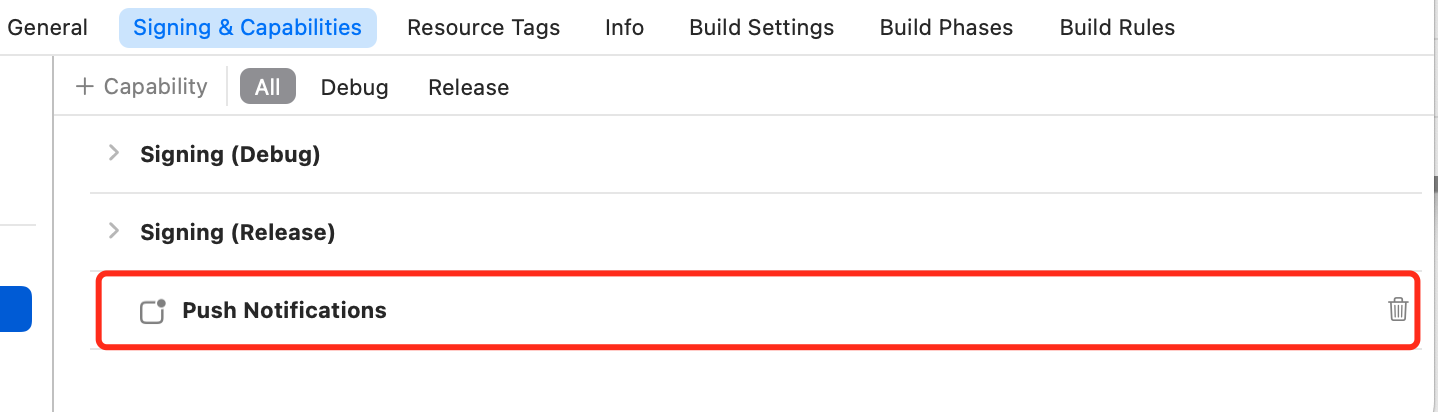
Alternatively, you can also choose to open the UE-generated YourProject.xcworkspace with Xcode in the project root directory. Under Project > Target, click the Signing & Capabilities option, select Capability in the top-left corner, and search to add Push Notifications capability to your project.


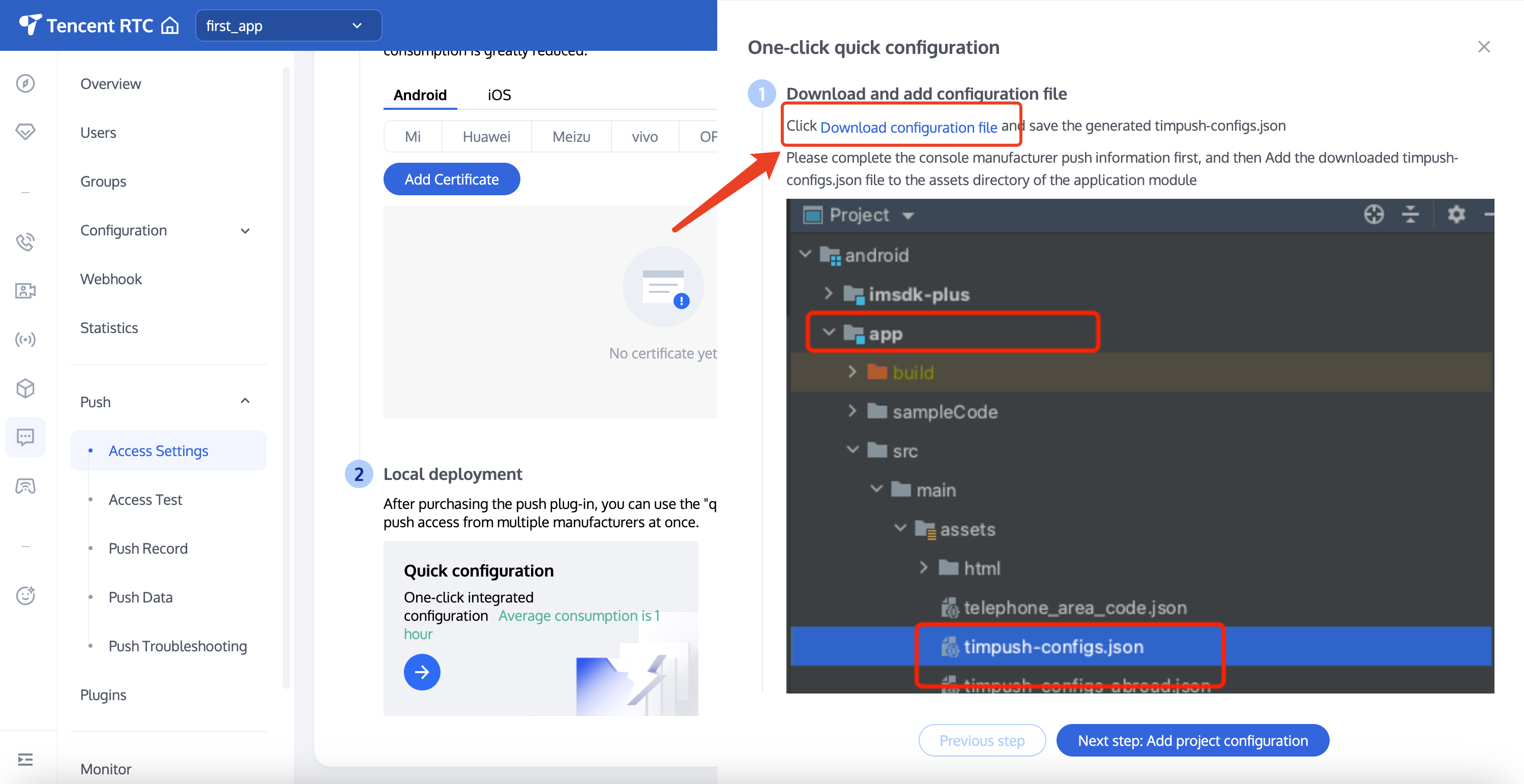
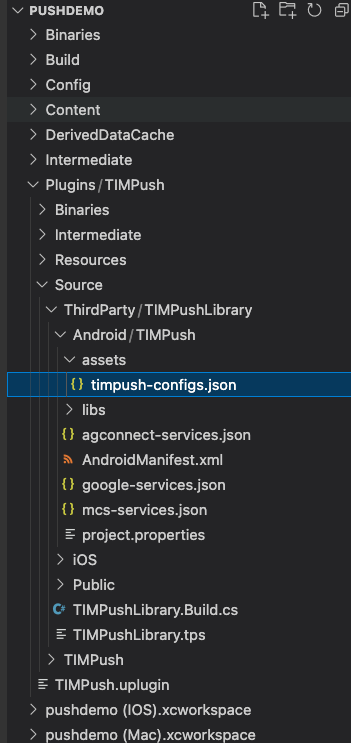
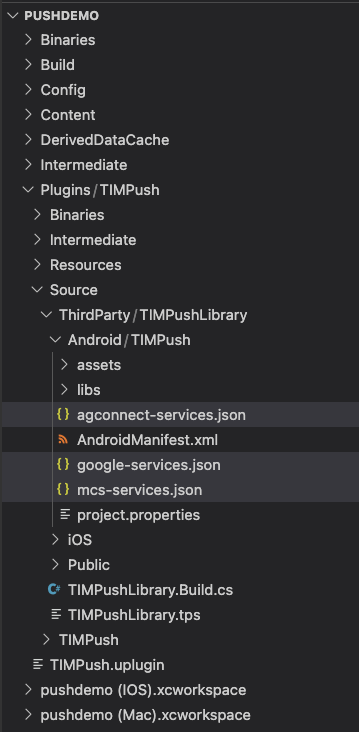
After completing the console manufacturer push information, download and add the configuration file to the project. Place the downloaded timpush-configs.json file under the Source/ThirdParty/TIMPushLibrary/Android/TIMPush/Assets directory.
download configuration file
copy path


Step 3: Client Vendor Configuration

iOS
Android
No need to perform this step on iOS.
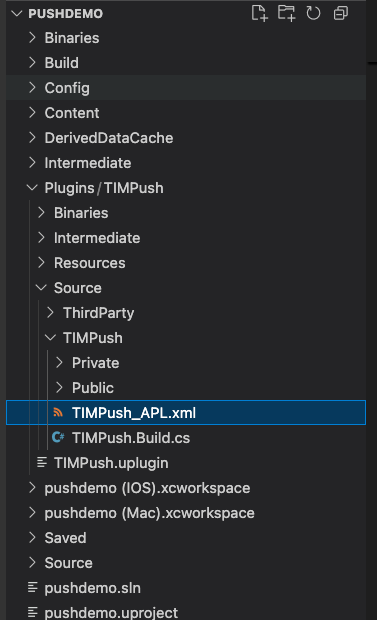
APL configuration details are configured, only need to replace with your own configuration message. The path of TIMPush_APL.xml is: /Plugins/TIMPush/Source/TIMPush/


Push Package Integration Configuration

<buildGradleAdditions>
<insert>
dependencies {
// Version number "VERSION", please visit update log to get configuration.
// Push main package requires integration
implementation 'com.tencent.timpush:tpush:VERSION'
// Integrate corresponding manufacturers as needed
implementation 'com.tencent.timpush:huawei:VERSION'
implementation 'com.tencent.timpush:xiaomi:VERSION'
implementation 'com.tencent.timpush:oppo:VERSION'
implementation 'com.tencent.timpush:vivo:VERSION'
implementation 'com.tencent.timpush:honor:VERSION'
implementation 'com.tencent.timpush:meizu:VERSION'
implementation 'com.tencent.timpush:fcm:VERSION'
}
</insert>
</buildGradleAdditions>

Vivo and Honor Adaptation (Attention Required Only for Manufacturer Integration)

According to the vivo and Honor vendor access guide, you need to add APPID and APPKEY in the configuration file, otherwise compilation issues may occur.
<buildGradleAdditions>
<insert>
android {
defaultConfig {
manifestPlaceholders = [
"VIVO_APPKEY" : "xxxxxx", // VIVO AppKey
"VIVO_APPID" : "xxxxxx", // VIVO AppId
"HONOR_APPID" : "xxxxxx" // Honor AppId
]
}
}
</insert>
</buildGradleAdditions>

3. Huawei, Honor and Google FCM Adaptation

Integrate the corresponding plugin and json configuration file using the vendor method.
Note:
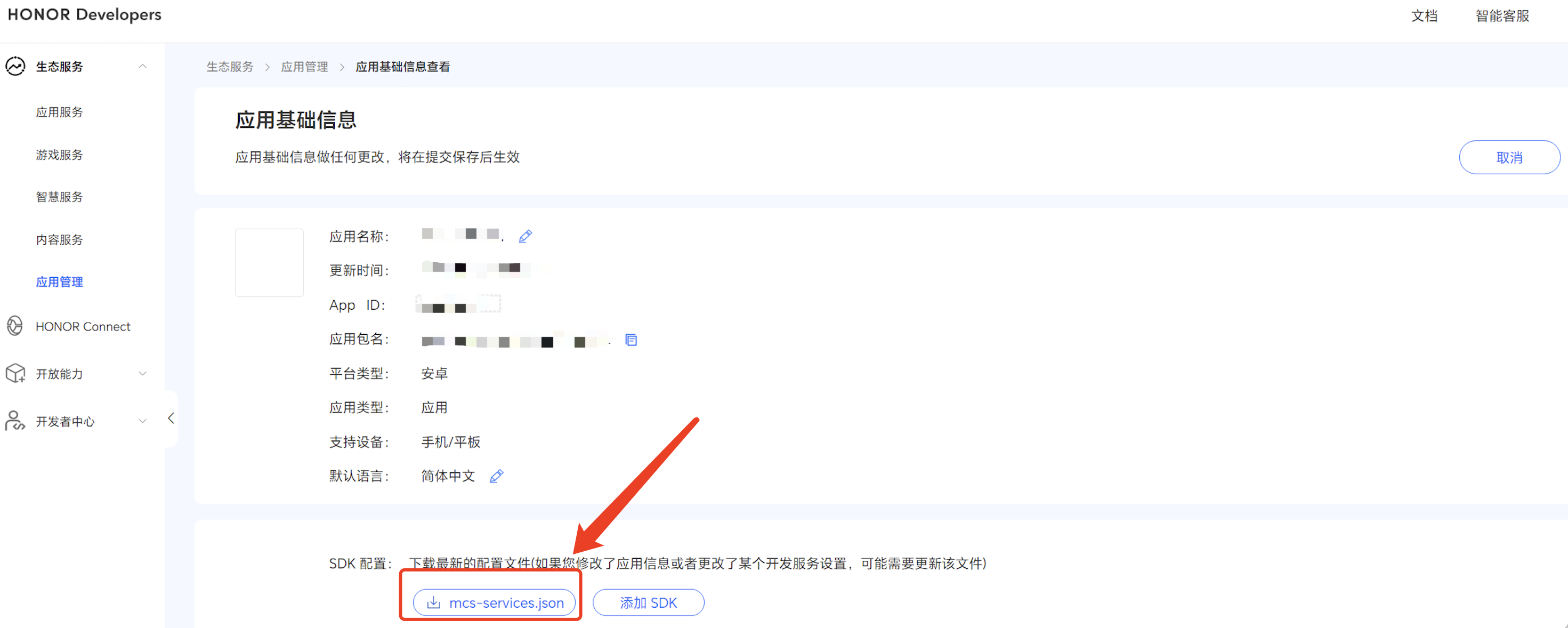
Note: The following Honor adaptation requires configuration for version 7.7.5283 and above.
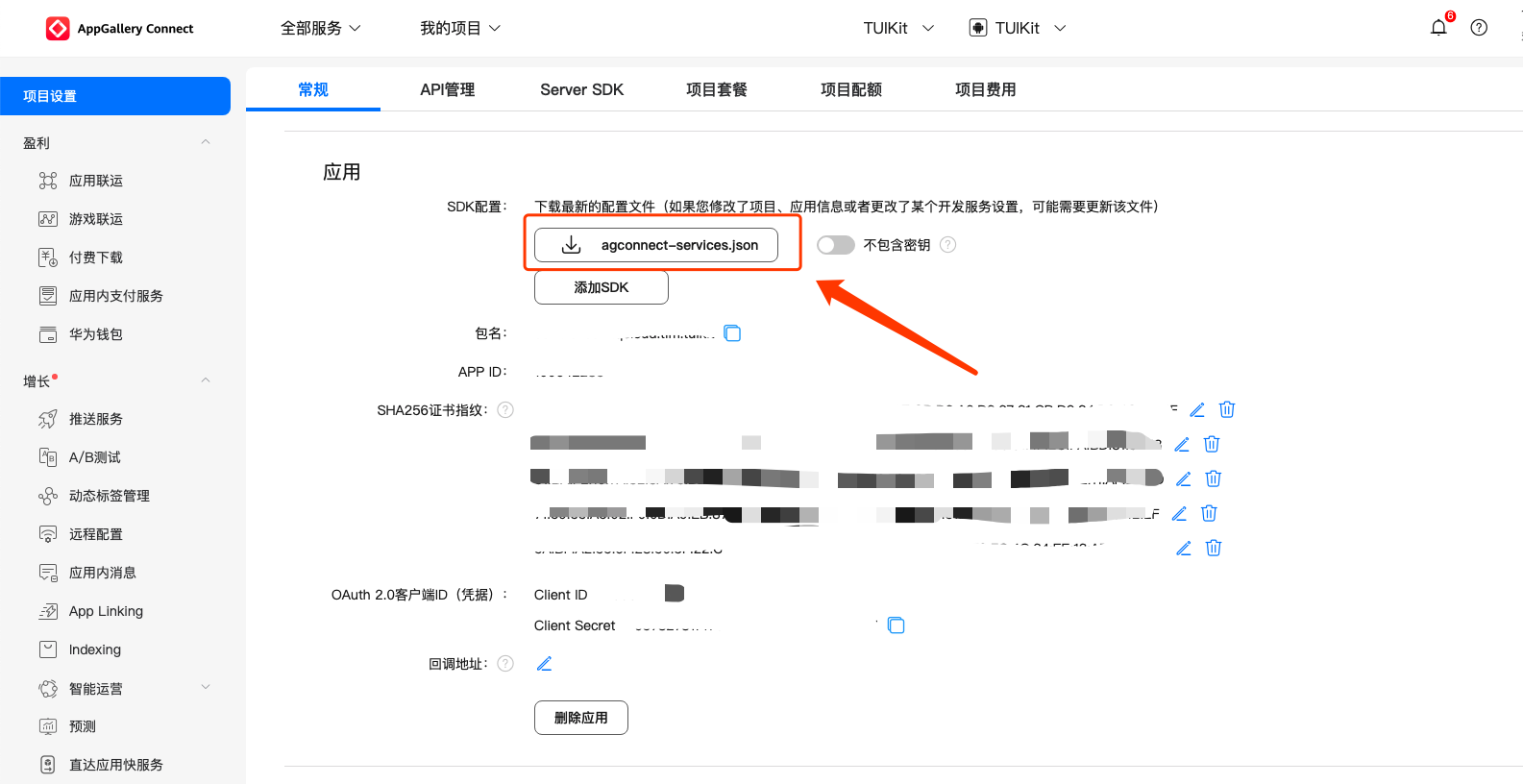
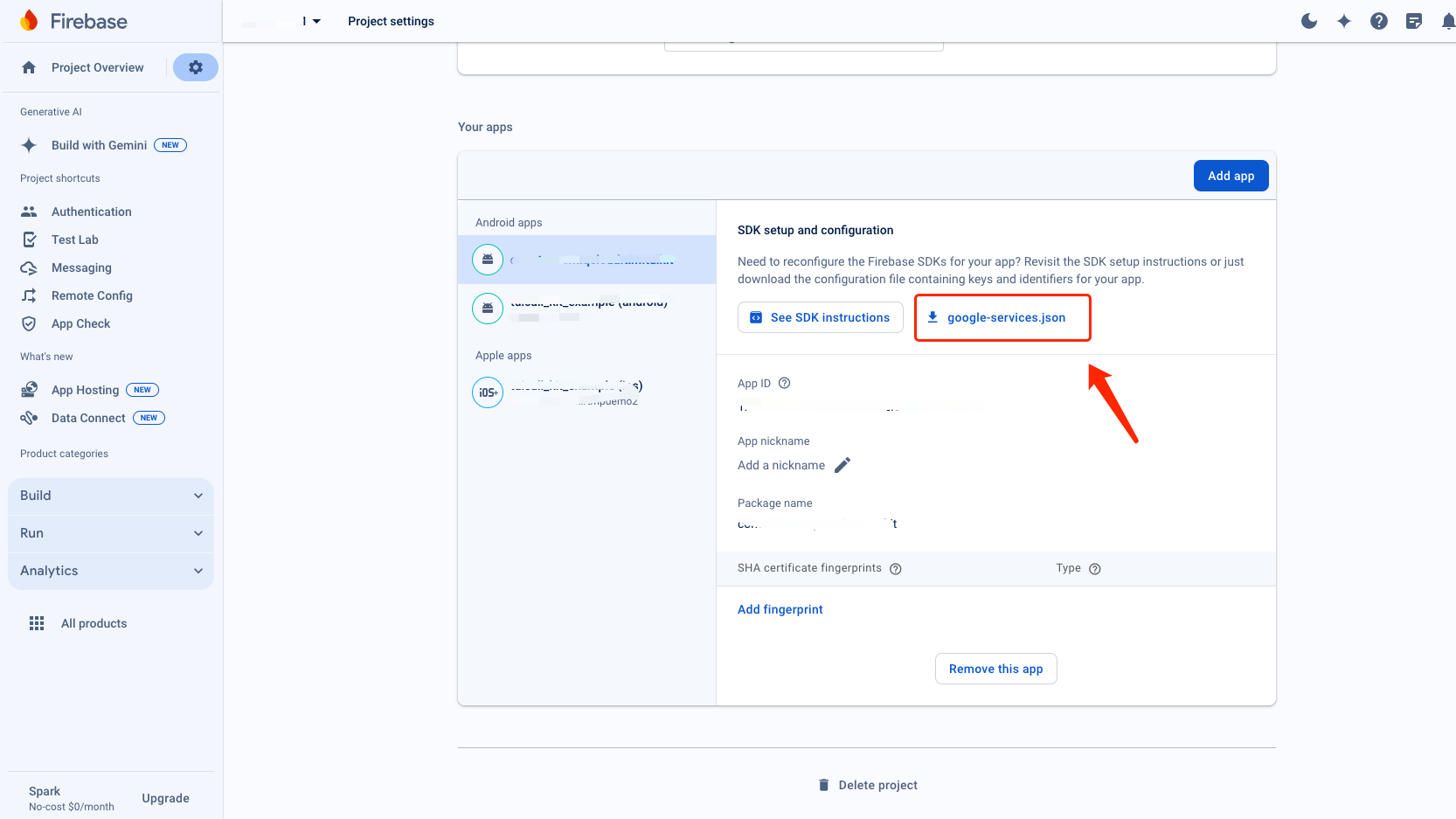
3.1 Download the json configuration file and add it to the TIMPush plug-in directory Source/ThirdParty/TIMPushLibrary/Android/TIMPush/.
Huawei
Honor
Google FCM
Target Path


3.2 The plugin configuration is configured and can be scaled or version-adapted as needed.
<baseBuildGradleAdditions>
<insert>
allprojects {
repositories {
mavenCentral()
maven { url "https://mirrors.tencent.com/nexus/repository/maven-public/" }
maven { url "https://mirrors.tencent.com/repository/maven/liteavsdk/" }
maven { url 'https://developer.huawei.com/repo/' }
maven { url 'https://mirrors.tencent.com/repository/maven/SensitiveScan' }
maven { url 'https://developer.hihonor.com/repo' }
}
}
</insert>
</baseBuildGradleAdditions>

<buildscriptGradleAdditions>
<insert>
repositories {
mavenCentral()
maven { url "https://mirrors.tencent.com/nexus/repository/maven-public/" }
maven { url "https://mirrors.tencent.com/repository/maven/liteavsdk/" }
maven { url 'https://developer.huawei.com/repo/' }
maven { url 'https://mirrors.tencent.com/repository/maven/SensitiveScan' }
maven { url 'https://developer.hihonor.com/repo' }
}
dependencies {
classpath 'com.google.gms:google-services:4.4.3' // FCM Plugin
classpath 'com.huawei.agconnect:agcp:1.9.1.300' // Huawei Plugin
classpath 'com.hihonor.mcs:asplugin:2.0.1.300' // Honor Plugin
}
</insert>
</buildscriptGradleAdditions>

<buildGradleAdditions>
<insert>
apply plugin: 'com.google.gms.google-services' // FCM Plugin
apply plugin: 'com.huawei.agconnect' // Huawei Plugin
apply plugin: 'com.hihonor.mcs.asplugin' // Honor Plugin
</insert>
</buildGradleAdditions>

Step 4: Handling Message Click Callback and Parsing Parameters

If you need custom parsing for received remote push, you can implement it by the following method.
Note:
1. Register callback timing is recommended to be placed in the program entry function.
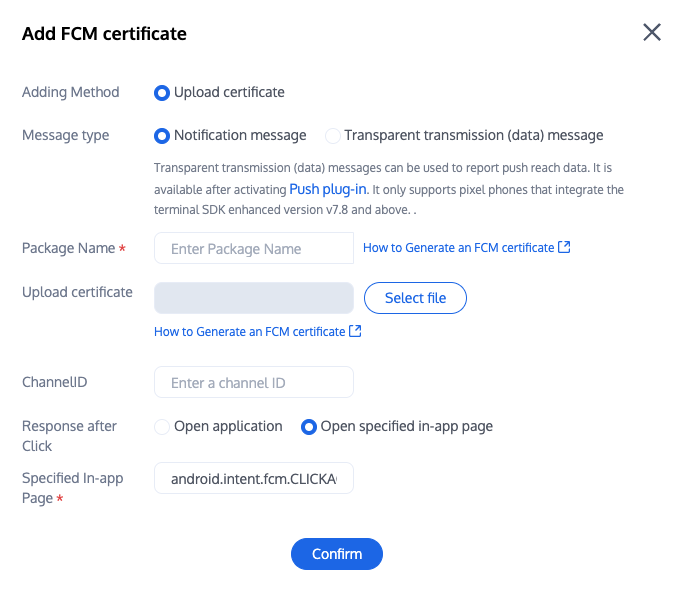
2. Configure the console and click subsequent actions with the following configuration. Select open specified in-app page. Do not modify and use default values.

class DemoPushListener: public PushListener {
public:
using OnRecvPushMessageCallback = std::function<void(const PushMessage &)>;
using OnRevokePushMessageCallback = std::function<void(const FString &)>;
using OnNotificationClickedCallback = std::function<void(const FString &)>;
void SetCallback(OnRecvPushMessageCallback recv_cb, OnRevokePushMessageCallback revoke_cb, OnNotificationClickedCallback clicked_cb) {
on_recv_message_callback_ = std::move(recv_cb);
on_revoke_message_callback_ = std::move(revoke_cb);
on_notification_clicked_callback_ = std::move(clicked_cb);
}
void OnRecvPushMessage(const PushMessage& message) override {
if (on_recv_message_callback_) {
on_recv_message_callback_(message);
}
}
void OnRevokePushMessage(const FString& messageID) override {
if (on_revoke_message_callback_) {
on_revoke_message_callback_(messageID);
}
}
void OnNotificationClicked(const FString& ext) override {
if (on_notification_clicked_callback_) {
on_notification_clicked_callback_(ext);
}
}
private:
OnRecvPushMessageCallback on_recv_message_callback_;
OnRevokePushMessageCallback on_revoke_message_callback_;
OnNotificationClickedCallback on_notification_clicked_callback_;
};

auto listener = new DemoPushListener();
listener.SetCallback(
[](const PushMessage& message) {
UE_LOG(LogTemp, Warning, TEXT("Push Called in OnRecvPushMessage. Message title: %s, desc: %s, ext: %s, id: %s"), *message.GetTitle(), *message.GetDesc(), *message.GetExt(), *message.GetMessageID());
},
[](const FString& messageID) {
UE_LOG(LogTemp, Warning, TEXT("Push Called in OnRevokePushMessage. Message id: %s"), *messageID);
},
[](const FString& ext) {
UE_LOG(LogTemp, Warning, TEXT("Push Called in OnNotificationClicked. Message ext: %s"), *ext);
}
);
PushManager::GetInstance()->AddPushListener(&DEMO_PUSH_LISTENER);

Step 6: Register Push Plugin

Call the API to push after registration is successful. You can receive offline push notifications.
template <class T>
class DemoPushValueCallback : public PushValueCallback<T> {
public:
using SuccessCallback = std::function<void(const T &)>;
using ErrorCallback = std::function<void(int, const FString &)>;
DemoPushValueCallback<T>() = default;
~DemoPushValueCallback() override = default;
void SetCallback(SuccessCallback success_cb, ErrorCallback error_cb) {
success_callback_ = std::move(success_cb);
error_callback_ = std::move(error_cb);
}
void OnSuccess(const T &value) override {
if (success_callback_) {
success_callback_(value);
}
}
void OnError(int error_code, const FString &error_message) override {
if (error_callback_) {
error_callback_(error_code, error_message);
}
}
private:
SuccessCallback success_callback_;
ErrorCallback error_callback_;
};

auto callback = new DemoPushValueCallback<FString>();
callback->SetCallback(
[=](const FString &value) {
UE_LOG(LogTemp, Warning, TEXT("Push succeed, device token is %s"), *value);
delete callback;
},
[=](int error_code, const FString &error_message) {
UE_LOG(LogTemp, Warning, TEXT("Push failed erro code: %d, desc: %s"), error_code, *error_message);
delete callback;
}
);
PushManager::GetInstance()->RegisterPush(your sdkAppId, "your appKey", callback);

Step 7: Message Push Delivery Statistics

If you need statistics for reach data, complete the configuration as follows:
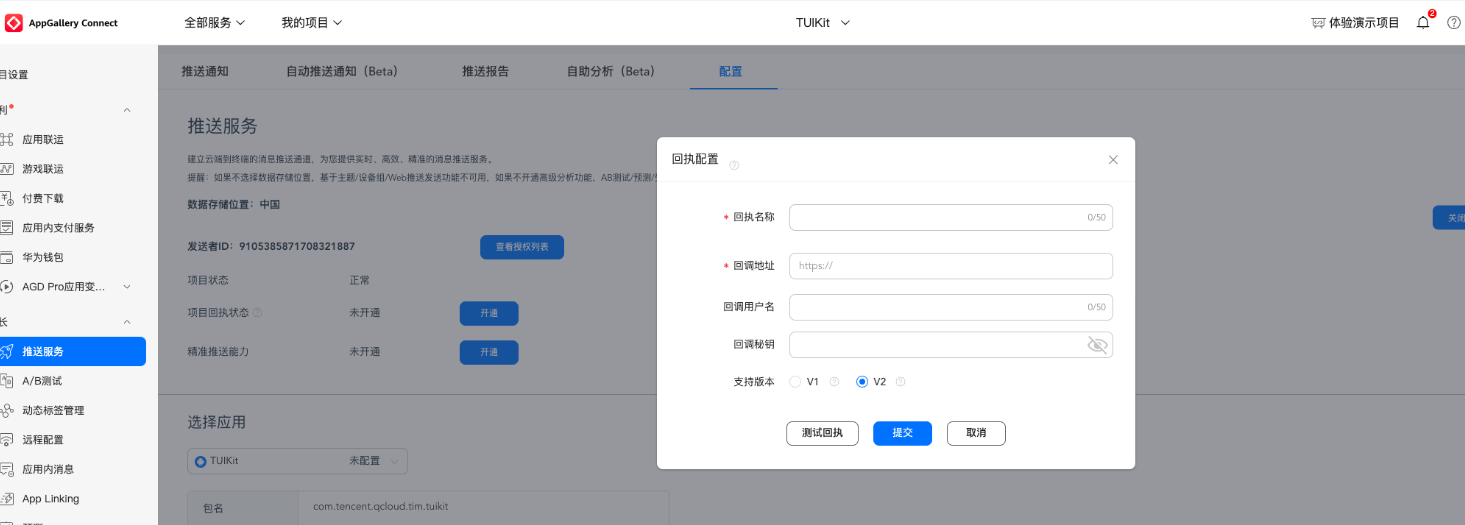
Huawei
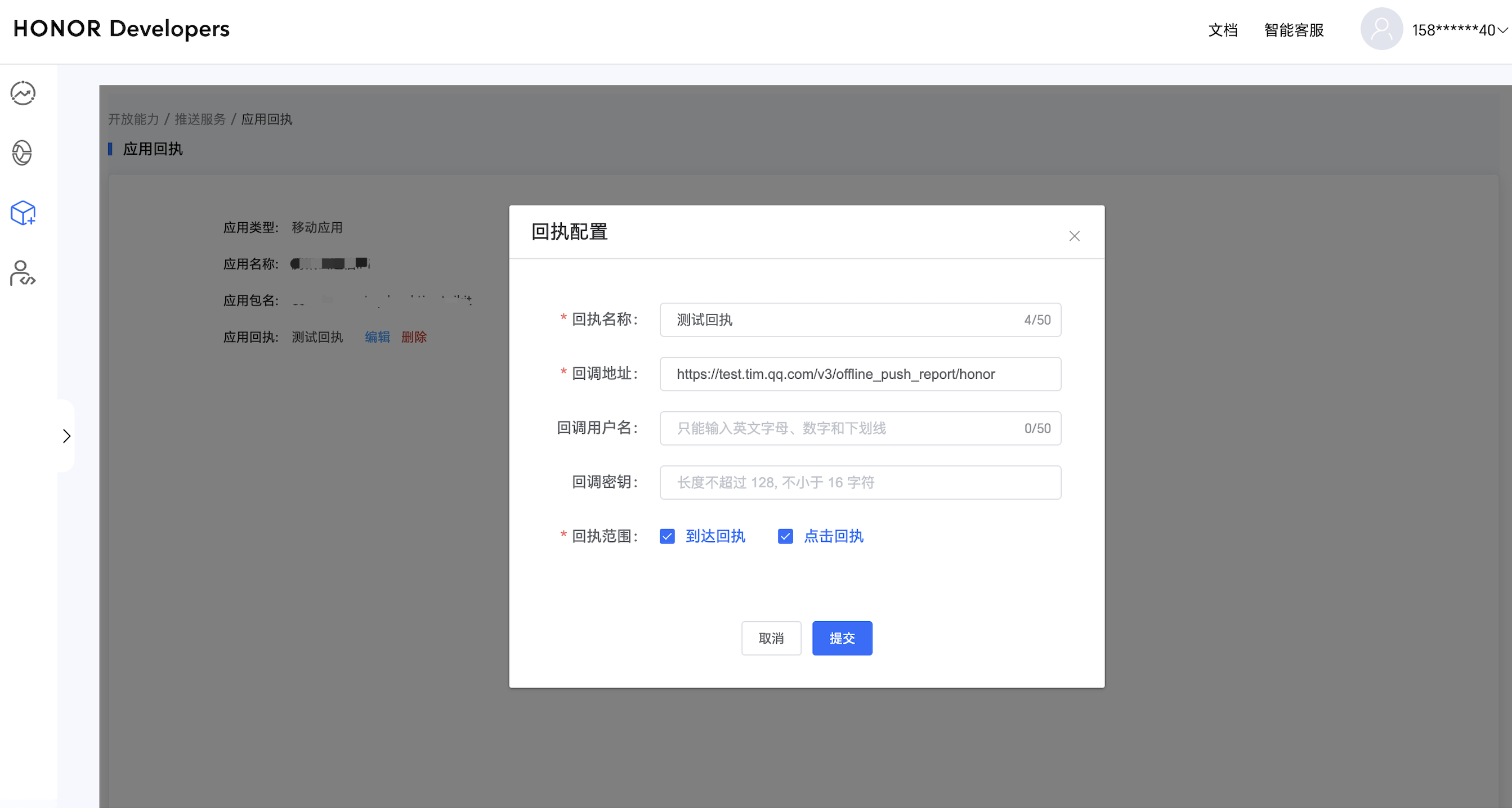
Honor
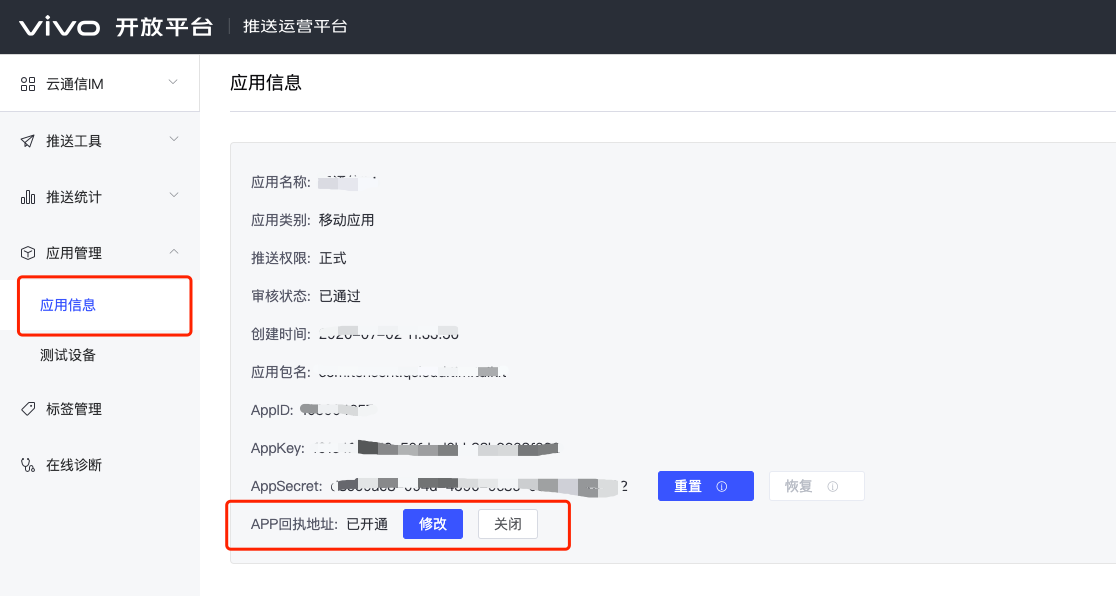
vivo
Meizu
iOS

Receipt Address:
Singapore : https://apisgp.im.qcloud.com/v3/offline_push_report/huawei
Korea: https://apikr.im.qcloud.com/v3/offline_push_report/huawei
USA: https://apiusa.im.qcloud.com/v3/offline_push_report/huawei
Germany: https://apiger.im.qcloud.com/v3/offline_push_report/huawei
Indonesia: https://apiidn.im.qcloud.com/v3/offline_push_report/huawei
China: https://api.im.qcloud.com/v3/offline_push_report/huawei
Note:
Note: Huawei Push certificate ID <= 11344 uses Huawei Push v2 API. Reach and Receipt Click are unsupported. Please regenerate and update the certificate ID.

Receipt Address:
Singapore : https://apisgp.im.qcloud.com/v3/offline_push_report/honor
Korea: https://apikr.im.qcloud.com/v3/offline_push_report/honor
USA: https://apiusa.im.qcloud.com/v3/offline_push_report/honor
Germany: https://apiger.im.qcloud.com/v3/offline_push_report/honor
Indonesia: https://apiidn.im.qcloud.com/v3/offline_push_report/honor
China: https://api.im.qcloud.com/v3/offline_push_report/honor
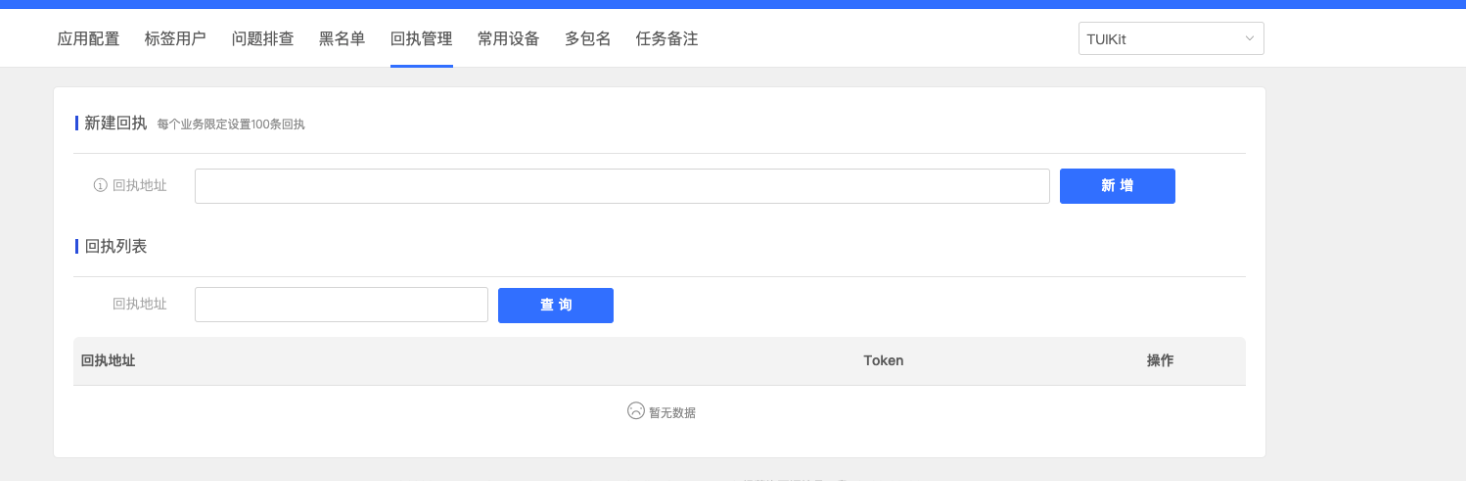
Callback Address Configuration
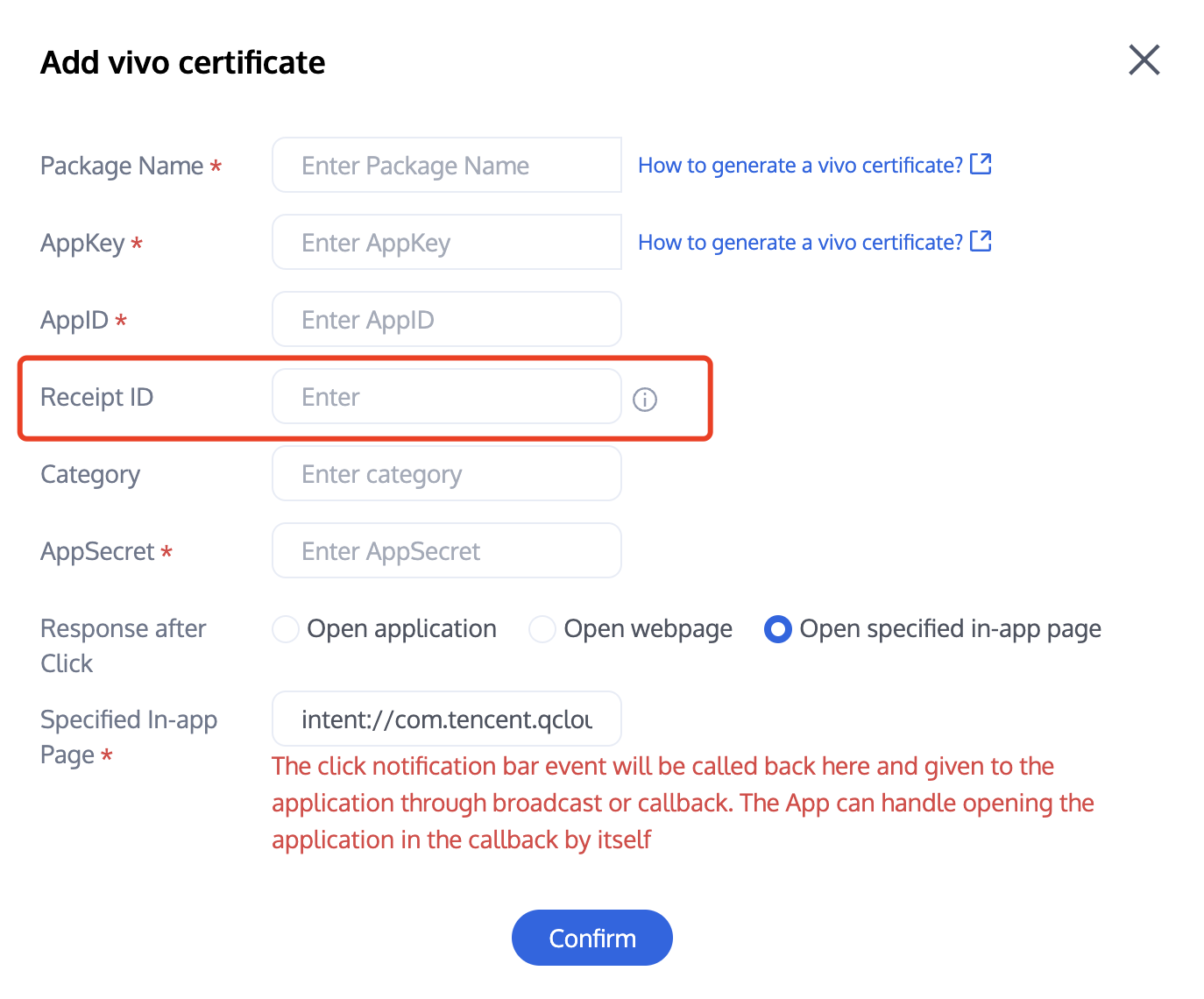
Receipt ID Configuration in the IM Console


Receipt Address:
Singapore :https://apisgp.im.qcloud.com/v3/offline_push_report/vivo
Korea:
https://apikr.im.qcloud.com/v3/offline_push_report/vivo
USA: https://apiusa.im.qcloud.com/v3/offline_push_report/vivo
Germany: https://apiger.im.qcloud.com/v3/offline_push_report/vivo
Indonesia: https://apiidn.im.qcloud.com/v3/offline_push_report/vivo
China:
https://api.im.qcloud.com/v3/offline_push_report/vivo


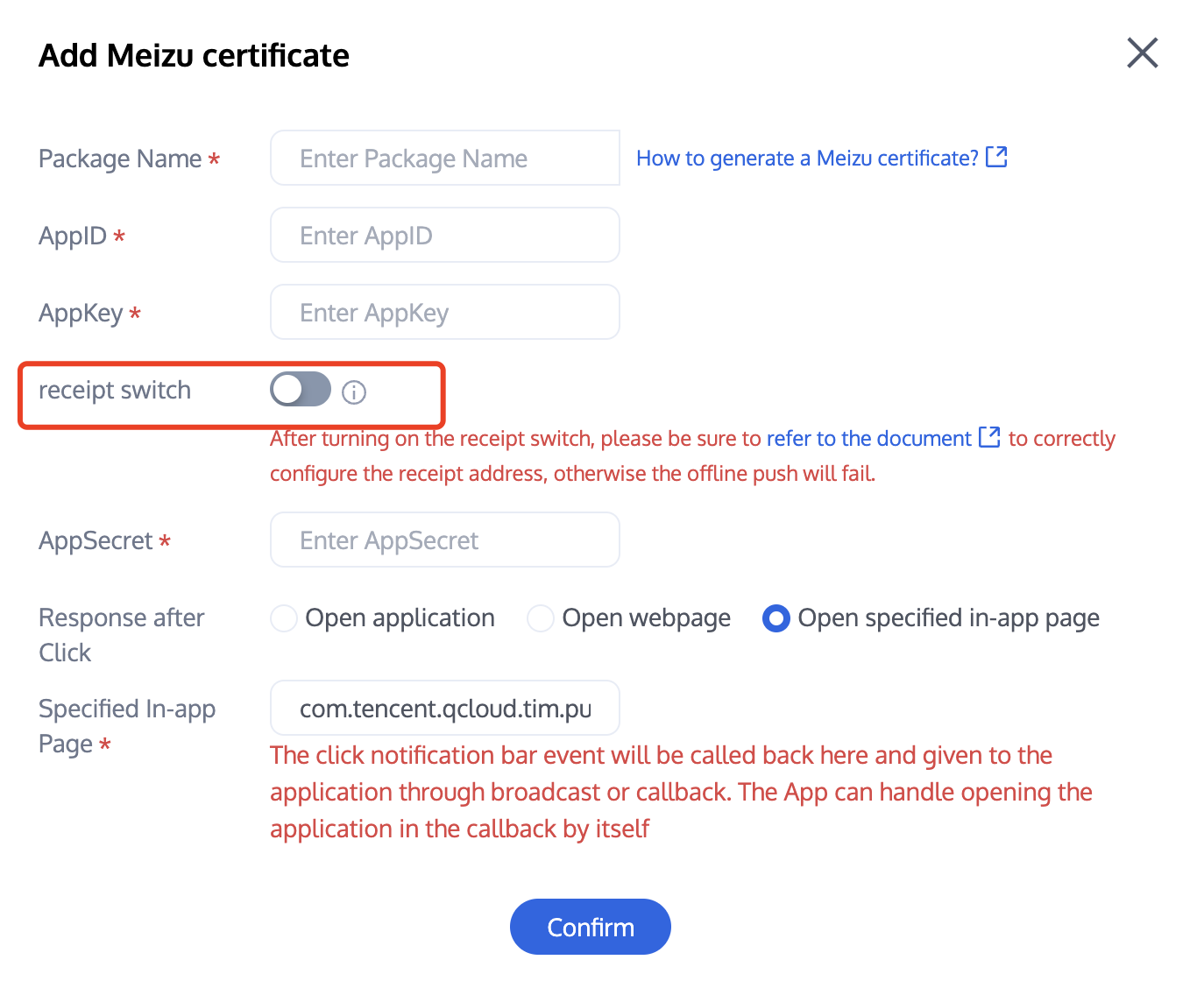
Enable Receipt Switch
Configure Receipt Address


Receipt Address:
Singapore : https://apisgp.im.qcloud.com/v3/offline_push_report/meizu
Korea: https://apikr.im.qcloud.com/v3/offline_push_report/meizu
USA: https://apiusa.im.qcloud.com/v3/offline_push_report/meizu
Germany: https://apiger.im.qcloud.com/v3/offline_push_report/meizu
Indonesia: https://apiidn.im.qcloud.com/v3/offline_push_report/meizu
China: https://api.im.qcloud.com/v3/offline_push_report/meizu
Note:
Note: After enabling the receipt switch, please ensure the receipt address is configured correctly. Without configuring or with an incorrect address, it will impact the push notification feature.

1. If you need to track push notification reach and click data, you need to change "YourGroupID" to your own App Group ID in the "project setting" (see manufacturer configuration - generate App GroupID).
2. After configuring the App Group ID, you need to use Xcode to open the xcworkspace file generated by UE in the project directory, and refer to the method in Manufacturer Configuration - Generate App Group ID - Step 4 to configure your App Group ID. Then, enable the Notification Service Extension Target in Editor - Add Target in the Xcode project.
3. You also need to unzip the two framework compressed packages in the Plugins-TIMPush-Source-ThirdParty-TIMPushLibrary-iOS path of the project root directory, and add the internal .framework folder to your pushservice target in the Xcode project.
4. You can now call the push arrival rate statistics function in the Notification Service Extension's -didReceiveNotificationRequest:withContentHandler: method:
@implementation NotificationService

- (void)didReceiveNotificationRequest:(UNNotificationRequest *)request withContentHandler:(void (^)(UNNotificationContent * _Nonnull))contentHandler {
//appGroup indicates the shared APP Group between the main APP and Extension, and the App Groups capacity needs to be configured in the main APP's Capability.
//Format: group + [main bundleID] + key
//for example group.com.tencent.im.pushkey
NSString * appGroupID = kTIMPushAppGroupKey;
__weak typeof(self) weakSelf = self;
[TIMPushManager handleNotificationServiceRequest:request appGroupID:appGroupID callback:^(UNNotificationContent *content) {
weakSelf.bestAttemptContent = [content mutableCopy];
// Modify the notification content here...
// self.bestAttemptContent.title = [NSString stringWithFormat:@"%@ [modified]", self.bestAttemptContent.title];
weakSelf.contentHandler(weakSelf.bestAttemptContent);
}];
}

@end
Note:
1. Report push reach data. The mutable-content switch needs to be enabled to support the Extension function for iOS 10.

2. Data details can be viewed on the push data page. The push data page is only available after purchasing the push plugin.
Other manufacturers support it with no need to configure. FCM does not currently support the push notification statistics feature.
Congratulations on completing the access of the push plugin. Remind you: the push plugin will automatically stop providing push service (including regular message offline push, all users/tag push, etc.) after trial or purchase expiry. To avoid affecting normal business operation, please advise in advance to purchase/renew.
Note:
1. Manufacturer offline channels have a message categorization mechanism, and different types will also have different push strategies.
If the push demand belongs to IM type push and requires timely delivery, set your own app to the corresponding push type according to the vendor's rules. It will be categorized as a high-priority system message type or important message type.
Conversely, offline push has quantity and frequency limits and may not reach devices in time.
2. Integration completed but not receiving push notifications. Please first use the troubleshooting tool to check the reason. To view push metrics data, use data statistics for querying.

3. For all users/Tag push notification feature, please refer to: RESTful APIs - Initiate Push to All Users/Tags.