
Sound Effects (iOS)
This document provides guidance on integrating audio effect controls into your live streaming application using the
AudioEffectStore and DeviceStore modules from the AtomicXCore framework. These modules enable features such as microphone volume control, ear monitoring, and a variety of voice changing and reverb effects.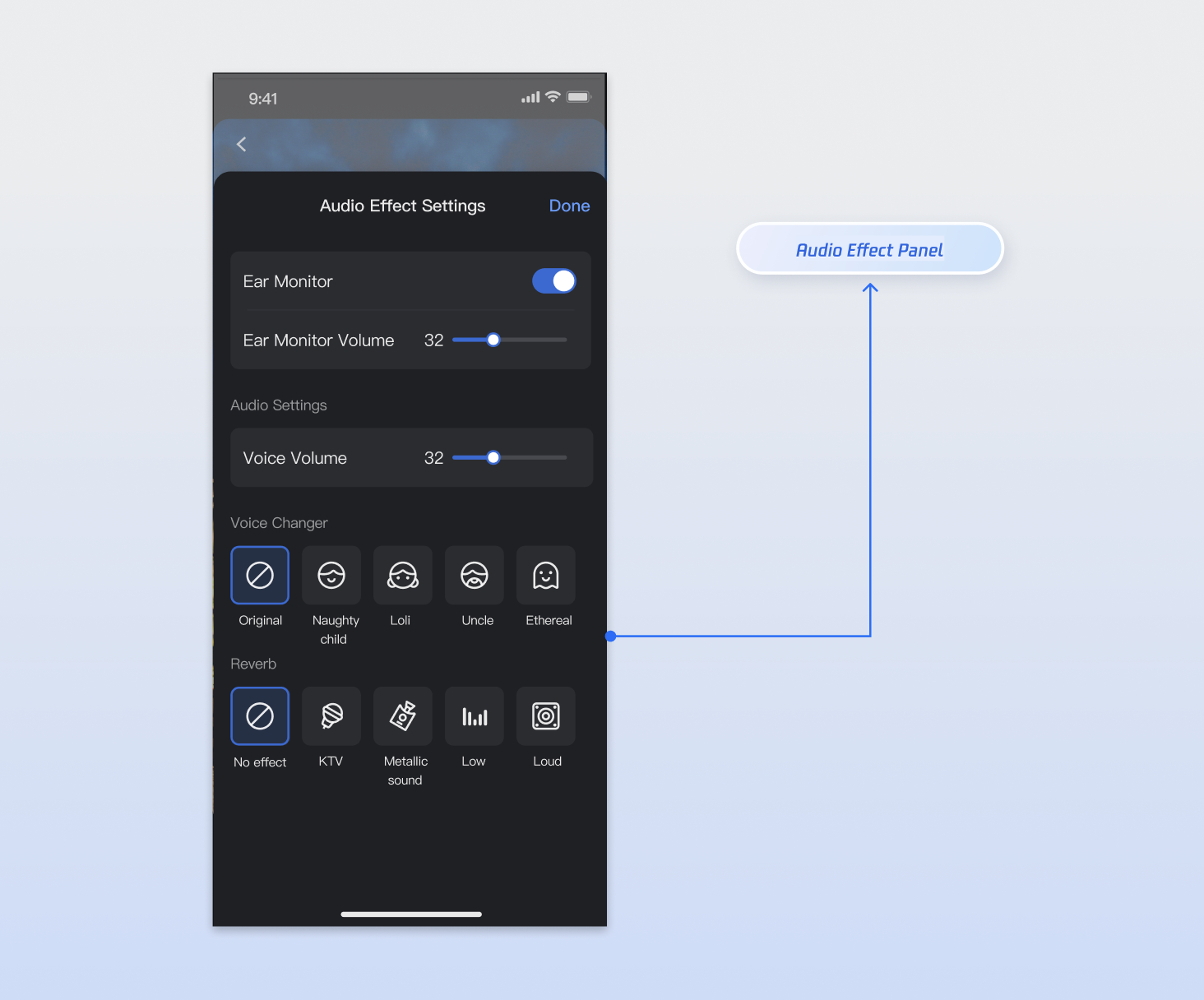
Core Features
By combining
AudioEffectStore and DeviceStore, you can implement the following core features:Microphone Volume Adjustment: Control the local microphone (capture) volume, which determines the volume your audience hears.
Ear Monitoring: Allow hosts or co-hosts to hear their own voice in real time through headphones for monitoring and pronunciation correction.
Voice Effects: Apply various voice changing effects, such as "Little Girl", "Deep Male", "Naughty Child", and more.
Reverb Effects: Simulate different acoustic environments, such as KTV, metallic, deep, bright, and others.
Core Concepts
Core Concept | Type | Core Responsibility & Description |
AudioChangerType | enum | Enumerates available voice changing effects, such as "child", "man", etc. |
AudioReverbType | enum | Enumerates available reverb effects, such as "ktv", "hall", etc. |
AudioEffectState | struct | Represents the current state of the audio effect module, typically used for UI rendering. Includes voice changing effect state, reverb state, ear monitoring enabled state, and ear monitor volume. |
AudioEffectStore | class | Singleton data management class for audio effects. Use it to invoke audio effect APIs. After calling an API, the corresponding state property is automatically updated. Subscribe to this reactive state to receive and monitor updates. |
DeviceState | struct | Represents the current state of the device module, typically used for UI rendering. Core properties include camera and microphone status. |
DeviceStore | class | Singleton data management class for device operations. Use it to control the camera and microphone. After calling an API, the corresponding state property is automatically updated. Subscribe to this reactive state to receive and monitor updates. |
Implementation
Step 1: Component Integration
Video Live Streaming: Please refer to Quick Start to integrate AtomicXCore.
Voice Chat Room: Please refer to Quick Start to integrate AtomicXCore.
Step 2: Obtain Store Instances
AudioEffectStore and DeviceStore are singleton objects. Access their instances via the shared property anywhere in your project. For a complete implementation example, see AudioEffectView.swift in the TUILiveKit open-source UI demo project.import UIKitimport AtomicXCoreimport Combinelet audioEffectStore = AudioEffectStore.sharedlet deviceStore = DeviceStore.shared
Step 3: Implement In-ear Monitoring
In-ear monitoring allows users to hear their microphone audio in real time. Manage in-ear monitoring by calling the interfaces described below.
Note:
In-ear monitoring typically requires headphones to function properly.
Implementation
1. Toggle Ear Monitoring: Use a
UISwitch control to enable or disable in-ear monitoring.2. Set Ear Monitor Volume: Use a
UISlider control to adjust the volume. Map the UISlider value to the range [0, 150] and call setVoiceEarMonitorVolume(_:).3. Subscribe to State Updates: Listen for real-time ear monitor state changes to update the UI.
Code Example
// 1. Enable ear monitoringaudioEffectStore.setVoiceEarMonitorEnable(enable: true)// 2. Adjust ear monitor volumeaudioEffectStore.setVoiceEarMonitorVolume(volume: 80)// 3. Disable ear monitoringaudioEffectStore.setVoiceEarMonitorEnable(enable: false)// 4. Listen for state changesaudioEffectStore.state.subscribe(StatePublisherSelector(keyPath: \AudioEffectState.earMonitorVolume)).removeDuplicates().sink { currentVolume inprint("Ear monitor volume: \(currentVolume)")valueLabel.text = "\(currentVolume)" // Update UILabel to display the value}.store(in: &cancellables)
setVoiceEarMonitorEnable Parameters
Parameter Name | Type | Description |
enable | Bool | Whether to enable ear monitoring. - true: Enable - false: Disable |
setVoiceEarMonitorVolume Parameters
Parameter Name | Type | Description |
volume | Int | Ear monitor volume. - Value range: [0, 150] - Default: 100 |
Step 4: Implement Microphone Volume Adjustment
To adjust the microphone (capture) volume, call the
setCaptureVolume(volume:) method of DeviceStore with the desired value.Implementation
1. Set Capture Volume: Use a
UISlider control to adjust the volume. Map the UISlider value to the range [0, 150] and call setCaptureVolume(volume:).2. Subscribe to State Updates: Listen for real-time volume state changes to update the UI.
Code Example
// 1. Adjust capture volumedeviceStore.setCaptureVolume(volume: 80)// 2. Listen for state changesdeviceStore.state.subscribe(StatePublisherSelector(keyPath: \DeviceState.captureVolume)).removeDuplicates().sink { captureVolume inprint("Capture volume: \(captureVolume)")valueLabel.text = "\(captureVolume)" // Update UILabel to display the value}.store(in: &cancellables)
setCaptureVolume Parameters
Parameter Name | Type | Description |
volume | Int | Microphone (capture) volume. - Value range: [0, 150] - Default: 100 |
Step 5: Implement Voice Effects
To apply a voice changing effect, call the
setAudioChangerType(type:) method and pass the desired enum value.Code Example
// Set voice changer effect to "child"audioEffectStore.setAudioChangerType(type: .child)// Disable voice changer effectaudioEffectStore.setAudioChangerType(type: .none)
setAudioChangerType Parameters
Parameter Name | Type | Description |
type | AudioChangerType | Voice changer effect enumeration. |
Step 6: Implement Reverb Effects
To apply a reverb effect, call the
setAudioReverbType(type:) method and pass the desired enum value.// Set reverb effect to "KTV"audioEffectStore.setAudioReverbType(type: .ktv)// Disable reverb effectaudioEffectStore.setAudioReverbType(type: .none)
setAudioReverbType Parameters
Parameter Name | Type | Description |
type | AudioReverbType | Reverb effect enumeration. |
Step 7: Reset Audio Effect Settings
Note:
AudioEffectStore and DeviceStore are singletons, so audio effect and device settings apply globally. To prevent settings from one live room affecting others, reset the audio effect and device settings when the current live room ends.
Reset audio effect settings in the following scenarios:
1. When the current live room ends.
2. To provide a "one-click restore" feature, call the store's
reset() method.class YourMainViewController: UIViewController {func reset() {AudioEffectStore.shared.reset()DeviceStore.shared.reset()}}
API Documentation
For detailed information on all public interfaces and properties of AudioEffectStore, DeviceStore, and related classes, refer to the official API documentation for the AtomicXCore framework.
Store/Component | Description | API Reference |
DeviceStore | Controls audio/video devices: microphone (on/off, volume), camera (on/off, switch, quality), screen sharing, and real-time device status monitoring. | |
AudioEffectStore | Audio effects: voice changing (child/male), reverb (KTV, etc.), ear monitoring adjustment, and real-time effect switching. |
FAQs
Are there any restrictions on when to call audio effect and device APIs?
No.
AudioEffectStore and DeviceStore settings are globally effective. You can call relevant APIs (such as setting voice changing effects, reverb, or ear monitoring) at any time before or after entering a live room. Settings take effect immediately and persist.What is the difference between "Microphone Volume" and "Ear Monitor Volume"?
This is a common point of confusion:
Microphone Volume (Capture Volume): Set via
DeviceStore.setCaptureVolume(). Controls the volume your audience hears.Ear Monitor Volume: Set via
AudioEffectStore.setVoiceEarMonitorVolume(). It only determines the volume level you hear in your in-ear monitor and does not affect the audience.Why does a newly created live room already have audio effects, or why is the volume too high or too low?
Because
AudioEffectStore and DeviceStore are singletons, audio effect and device settings are globally applied. If you previously set audio effects and did not reset them, those settings persist. Call the reset() method at the appropriate time to clear them.Why can't I hear my own voice after enabling "Ear Monitoring"?
Check the following:
1. Are headphones connected? Ear monitoring generally requires headphones. Ensure wired or Bluetooth headphones are connected.
2. Is the ear monitor volume set to 0? Check that the ear monitor volume is above 0.
3. Is the microphone enabled? Confirm that the microphone is enabled in DeviceStore (i.e., openLocalMicrophone has been called).
Can voice effects and reverb be enabled at the same time?
Yes.
AudioChangerType and AudioReverbType can be enabled simultaneously. For example, you can set both AudioChangerType.LITTLE_GIRLand AudioReverbType.KTV at the same time.
