
AI 인터뷰
Scenario Introduction
AI Interview combines artificial intelligence with real-time audio/video communication to automate online interviews. Traditional interview processes suffer from limited interviewer availability, scheduling conflicts, and subjective evaluations—resulting in inefficiencies, high costs, and poor candidate experiences, especially during large-scale hiring. AI Interview delivers a standardized, efficient, and always-available solution. The AI interviewer, powered by large language models (LLMs), conducts natural dialogues, asks real-time follow-up questions, evaluates comprehensive skills, and automatically records interview transcripts for post-interview assessment.
Core Advantages:
Stable Infrastructure: Tencent RTC ensures high-quality, low-latency audio/video communication
Cross-Platform Compatibility: Seamless participation from iOS, Android, Windows, Mac, Web, and WeChat/QQ Mini Programs
Rapid Integration: Scenario-specific UI components and streamlined tools enable quick deployment with minimal code
Implementation Overview
A complete AI Interview solution typically includes several core modules: real-time audio/video, AI real-time conversation, large language model (LLM), text-to-speech (TTS), and interview management backend. The following table outlines each module's features and functions:
Feature Module | Application in AI Interview Scenarios |
Real-Time Audio/Video | RTC Engine delivers high-quality, low-latency audio/video connections. Supports 720P/1080P/2K HD video and 48kHz high-fidelity audio for smooth interaction that simulates real interview scenarios regardless of network conditions. |
Conversational AI | Enables flexible integration with multiple LLM services for real-time AI-user audio/video interaction. Built on Tencent RTC's global low-latency network for natural, realistic conversations with easy integration. |
Large Language Model (LLM) | Understands candidate responses, extracts key points, dynamically generates follow-up questions, and enables personalized interview processes. Automatically adjusts scoring criteria for different roles, improving fairness and accuracy. |
Text-to-Speech (TTS) | Supports third-party TTS services, multiple languages, and voice styles. Simulates various tones and personalities to closely mimic human interviewers and enhance candidate experience. |
Instant Messaging (Chat) | Uses Chat to transmit essential business signaling. |
Interview Management Backend | Includes question bank and interview design, automated scoring, data storage, visual analytics, and interview scheduling capabilities. |
Solution Architecture
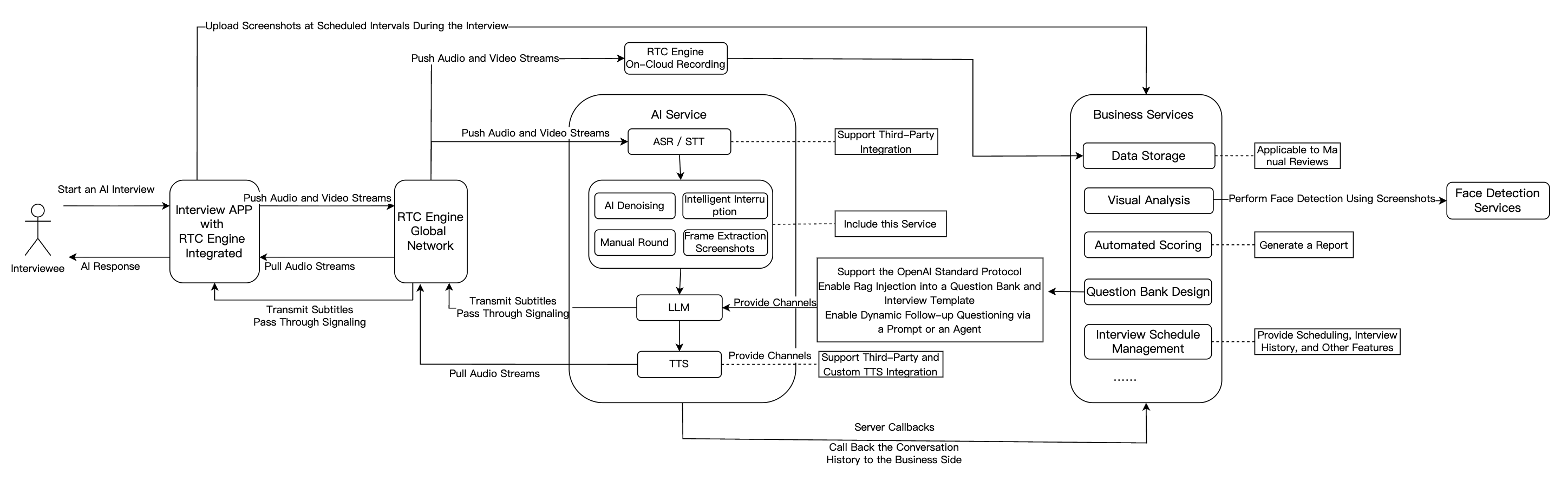
The following sections introduce the main integration workflow for AI Interview.
Prerequisites
Preparations
Conversational AI supports any LLM model that implements the OpenAI standard protocol, as well as LLM application development platforms such as Tencent Cloud Agent Development Platform, Dify, Coze, and others. For a list of supported platforms, see the LLMConfig Configuration Guide.
Preparing TTS
Using Tencent Cloud TTS:
1. Activate the TTS service for your application
2. Obtain
AppID from Account Information3. Obtain
SecretId and SecretKey from API Key ManagementNote:
SecretKey is only visible during creation—save it immediately4. Select voice from the Timbre List
Using Third-Party TTS:
Preparing RTC Engine
Note:
Conversational AI calls may incur fees. For more information, see Billing of Conversational AI Service .
Integration Steps
Business Workflow
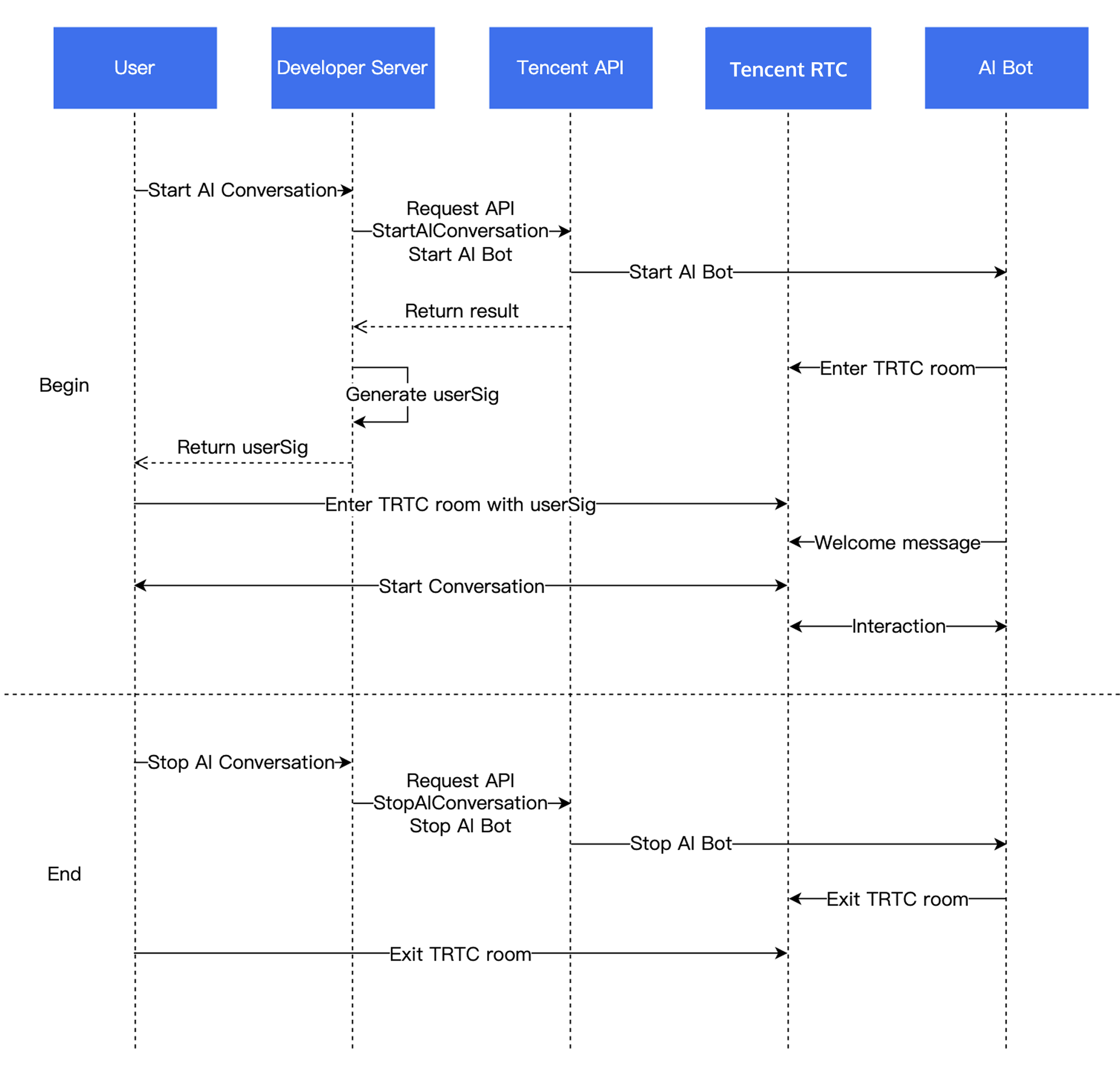
Step 1: Import RTC Engine SDK and Enter Room
Step 2: Publish Audio Stream
Call startLocalAudio to begin microphone capture. The
quality parameter specifies the capture mode. “Quality” here refers to the scenario, not just fidelity, but also the optimal setting depends on your use case.For Conversational AI, use
SPEECH mode; it prioritizes voice extraction, aggressively suppresses background noise, and handles poor network conditions well.// Enable capture via microphone and set the mode to SPEECH mode (strong denoising capability and resistance to poor network conditions).mCloud.startLocalAudio(TRTCCloudDef.TRTC_AUDIO_QUALITY_SPEECH );
self.trtcCloud = [TRTCCloud sharedInstance];// Enable capture via microphone and set the mode to SPEECH mode (strong denoising capability and resistance to poor network conditions).[self.trtcCloud startLocalAudio:TRTCAudioQualitySpeech];
// Enable capture via microphone and set the mode to SPEECH mode (strong denoising capability and resistance to poor network conditions).trtcCloud.startLocalAudio(TRTCAudioQuality.speech);
await trtc.startLocalAudio();
Call startLocalAudio to enable microphone capture.
SPEECH mode is recommended for Conversational AI.// Enable capture via microphone and set the mode to SPEECH mode.// Provide strong denoising capability and resistance to poor network conditions.ITRTCCloud* trtcCloud = CRTCWindowsApp::GetInstance()->trtc_cloud_;trtcCloud->startLocalAudio(TRTCAudioQualitySpeech);
Call startLocalAudio to enable microphone capture.
SPEECH mode is recommended for Conversational AI.// Enable capture via microphone and set the mode to SPEECH mode.// Provide strong denoising capability and resistance to poor network conditions.AppDelegate *appDelegate = (AppDelegate *)[[NSApplication sharedApplication] delegate];[appDelegate.trtcCloud startLocalAudio:TRTCAudioQualitySpeech];
Step 3: Start an AI Conversation
Starting an AI Conversation:
Use your backend to call the Start AI Conversation Task API to initiate an AI real-time conversation. On success, the AI bot joins the RTC Engine room. Configure
LLMConfig and TTSConfig with the parameters from Prerequisites.LLMConfig
The following describes how to configure
LLMConfig by using an LLM that follows the OpenAI standard protocol as an example.Configuration Descriptions
Name | Type | Required | Description |
LLMType | String | Yes | LLM type. Fill in openai for LLMs that comply with the OpenAI API protocol. |
Model | String | Yes | Specific model name, such as gpt-4o and deepseek-chat. |
APIKey | String | Yes | LLM APIKey. |
APIUrl | String | Yes | LLM APIUrl. |
Streaming | Boolean | No | Whether streaming is used. Default: false. Recommended: true. |
SystemPrompt | String | No | System prompts. |
Timeout | Float | No | Timeout period. Value range: 1–50. Default value: 3 seconds (Unit: second). |
History | Integer | No | Set the context rounds for LLM. Default value: 0 (No context management is provided). Maximum value: 50 (Context management is provided for the most recent 50 rounds). |
MaxTokens | Integer | No | Maximum token limit for output text. |
Temperature | Float | No | Sampling temperature. |
TopP | Float | No | Selection range for sampling. This parameter controls the diversity of output tokens. |
UserMessages | Object[] | No | User prompt. |
MetaInfo | Object | No | Custom parameters. These parameters will be contained in the request body and passed to the LLM. |
Configuration Example
"LLMConfig": {"LLMType": "openai","Model": "gpt-4o","APIKey": "api-key","APIUrl": "https://api.openai.com/v1/chat/completions","Streaming": true,"SystemPrompt": "You are a personal assistant","Timeout": 3.0,"History": 5,"MetaInfo": {},"MaxTokens": 4096,"Temperature": 0.8,"TopP": 0.8,"UserMessages": [{"Role": "user","Content": "content"},{"Role": "assistant","Content": "content"}]
The following describes how to configure TTSConfig by using Tencent TTS as an example.
{"TTSType": "tencent", // TTS type in String format. Valid values: "tencent" and "minixmax". Other vendors will be supported in future versions."AppId": Your application ID, // Required. Integer value."SecretId": "Your key ID", // Required. String value."SecretKey": "Your key", // Required. String value."VoiceType": 101001, // Required. Integer value. Voice ID, including standard timbre and premium timbre. Premium timbre offers higher realism with different pricing from standard timbre. Please refer to the TTS billing overview. For the complete voice ID list, see the TTS timbre list."Speed": 1.25, // Optional. Integer. Speaking rate, range: [-2,6], corresponding to different speeds: -2: 0.6x -1: 0.8x 0: 1.0x (default) 1: 1.2x 2: 1.5x 6: 2.5x. For more refined rates, keep 2 decimal places such as 0.5/1.25/2.81. Parameter value to actual speed conversion can be found in speech speed conversion."Volume": 5, // Optional. Integer value. Volume level. Range: [0, 10], corresponding to 11 severity levels. Default value: 0, representing normal volume."PrimaryLanguage": 1, // Optional. Primary language in integer format. 1: Chinese (default value); 2: English; 3: Japanese."FastVoiceType": "xxxx" // Optional. Fast voice cloning parameter in String format."EmotionCategory":"angry",// Optional. String value. This parameter controls the emotion of the synthesized audio and is only available for multi-emotion timbres. Example values: neutral and sad."EmotionIntensity":150 // Optional. Integer value. This parameter controls the emotion intensity of the synthesized audio. Value range: [50, 200]. Default value: 100. This parameter takes effect only when EmotionCategory is not empty.}
Additional Configuration Guides:
Note:
RoomId must match the client's RoomId (including type: number/string). The chatbot and user must be in the same room.TargetUserId must match the client's UserId.LLMConfig and TTSConfig are JSON strings—configure them properly to successfully start the conversation.Step 4: Conduct Interview
Users can now communicate with the AI interviewer.
Step 5: Stop AI Conversation and Exit Room
1. Stop AI conversation: Use your backend to call the Stop AI Conversation API.
2. Exit room: The client exits the RTC Engine room. See Exit Room.
Advanced Features
Far-Field Voice Suppression
During AI interviews, the AI may mistakenly recognize nearby voices as the user's speech. To reduce this, enable far-field voice suppression by setting
STTConfig.VadLevel to 2 or 3 when calling the Start AI Conversation Task API.Optimize Conversation Latency
AI response latency depends primarily on:
LLM and TTS first packet latency (greatest impact)
ASR VadSilenceTime
RTC Engine channel latency (minimal impact—typically under 300ms)
ASR
VadSilenceTime Tuning:Set too high: Increases latency
Set too low: Causes premature sentence segmentation
Metric Name Descriptions
Metric Name | Description |
asr_latency | ASR latency. This metric includes the time set by VadSilenceTime when Conversational AI is started. |
llm_network_latency | Network latency of LLM requests. |
llm_first_token | LLM first-token duration, including network latency. |
tts_network_latency | Network latency of TTS requests. |
tts_first_frame_latency | TTS first-frame duration, including network latency. |
tts_discontinuity | Number of occurrences of TTS request discontinuity. Discontinuity indicates that no result is returned for the next request after the current TTS streaming request is completed. This is usually caused by high TTS latency. |
interruption | This metric indicates that this round of conversation is interrupted. |
Key metrics:
llm_first_token(LLM first packet latency)Recommended: Keeping the LLM first-token duration below 2 seconds (lower is better)
Enable streaming: Set
LLMConfig.Streaming = true for voice conversations to minimize latencyAvoid "thinking" models: DeepSeek-R1 and similar models have excessive latency for voice scenarios
Select smaller models: If latency is critical, many smaller models achieve <500ms first packet latency
Minimize middleware: Agent/workflow platforms add latency—LLM + Prompt alone is faster
tts_first_frame_latency(TTS first packet latency)Typical range: 500-1000ms
If latency is high: Switch to a different voice or TTS provider to optimize conversation experience
Receive AI Subtitles and Status
Use RTC Engine's Custom Message Reception to receive real-time subtitles and AI status. cmdID is always 1.
Real-Time Subtitles
Message format:
{"type": 10000, // 10000 indicates real-time subtitles are delivered."sender": "user_a", // userid of the speaker."receiver": [], // List of receiver userid. The message is actually broadcast within the room."payload": {"text":"", // Text recognized by ASR."start_time":"00:00:01", // Start time of a sentence."end_time":"00:00:02", // End time of a sentence."roundid": "xxxxx", // Unique identifier of a conversation round."end": true // If the value is true, the sentence is a complete sentence.}}
Chatbot Status
Message format:
{"type": 10001, // Chatbot status."sender": "user_a", // userid of the sender, which is the chatbot ID in this case."receiver": [], // List of receiver userid. The message is actually broadcast within the room."payload": {"roundid": "xxx", // Unique identifier of a conversation round."timestamp": 123,"state": 1, // 1: Listening; 2: Thinking; 3: Speaking; 4: Interrupted; 5: Finished speaking.}}
Example code
@Overridepublic void onRecvCustomCmdMsg(String userId, int cmdID, int seq, byte[] message) {String data = new String(message, StandardCharsets.UTF_8);try {JSONObject jsonData = new JSONObject(data);Log.i(TAG, String.format("receive custom msg from %s cmdId: %d seq: %d data: %s", userId, cmdID, seq, data));} catch (JSONException e) {Log.e(TAG, "onRecvCustomCmdMsg err");throw new RuntimeException(e);}}
func onRecvCustomCmdMsgUserId(_ userId: String, cmdID: Int, seq: UInt32, message: Data) {if cmdID == 1 {do {if let jsonObject = try JSONSerialization.jsonObject(with: message, options: []) as? [String: Any] {print("Dictionary: \(jsonObject)")} else {print("The data is not a dictionary.")}} catch {print("Error parsing JSON: \(error)")}}}
trtcClient.on(TRTC.EVENT.CUSTOM_MESSAGE, (event) => {let data = new TextDecoder().decode(event.data);let jsonData = JSON.parse(data);console.log(`receive custom msg from ${event.userId} cmdId: ${event.cmdId} seq: ${event.seq} data: ${data}`);if (jsonData.type == 10000 && jsonData.payload.end == false) {// Subtitle intermediate state.} else if (jsonData.type == 10000 && jsonData.payload.end == true) {// That is all for this sentence.}});
void onRecvCustomCmdMsg(const char* userId, int cmdID, int seq,const uint8_t* message, uint32_t msgLen) {std::string data;if (message != nullptr && msgLen > 0) {data.assign(reinterpret_cast<const char*>(message), msgLen);}if (cmdID == 1) {try {auto j = nlohmann::json::parse(data);std::cout << "Dictionary: " << j.dump() << std::endl;} catch (const std::exception& e) {std::cerr << "Error parsing JSON: " << e.what() << std::endl;}return;}}
void onRecvCustomCmdMsg(String userId, int cmdID, int seq, String message) {if (cmdID == 1) {try {final decoded = json.decode(message);if (decoded is Map<String, dynamic>) {print('Dictionary: $decoded');} else {print('The data is not a dictionary. Raw: $decoded');}} catch (e) {print('Error parsing JSON: $e');}return;}}
Note:
Additional Conversational AI callbacks:
Proxy LLM Requests
Conversational AI supports the standard OpenAI protocol, enabling custom LLM implementations. Build an OpenAI-compatible API in your backend, encapsulate context logic and RAG, and forward requests to third-party LLMs:
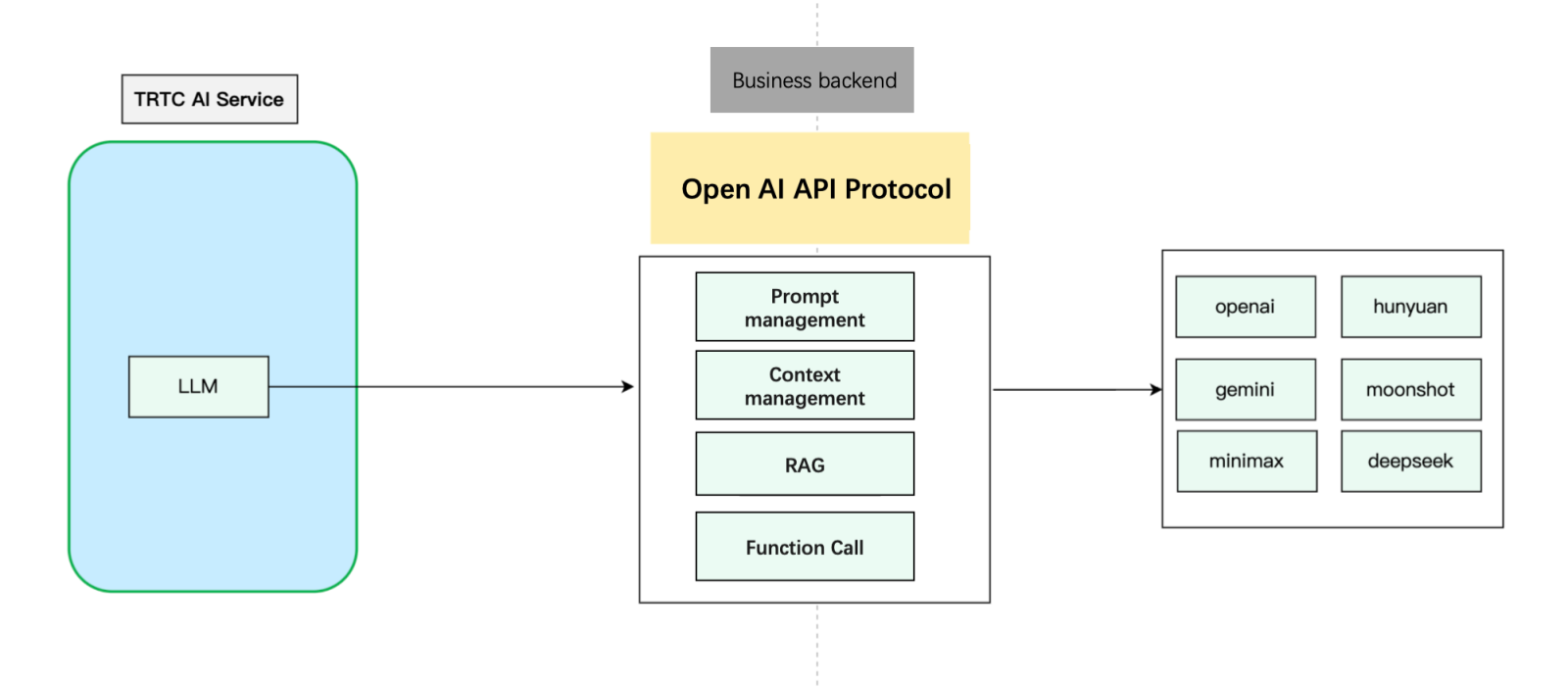
This diagram shows the basic steps for custom context management. Adjust based on your business needs.
Example code
import timefrom fastapi import FastAPI, HTTPExceptionfrom fastapi.middleware.cors import CORSMiddlewarefrom pydantic import BaseModelfrom typing import List, Optionalfrom langchain_core.messages import HumanMessage, SystemMessagefrom langchain_openai import ChatOpenAIapp = FastAPI(debug=True)# Add CORS middleware.app.add_middleware(CORSMiddleware,allow_origins=["*"],allow_credentials=True,allow_methods=["*"],allow_headers=["*"],)class Message(BaseModel):role: strcontent: strclass ChatRequest(BaseModel):model: strmessages: List[Message]temperature: Optional[float] = 0.7class ChatResponse(BaseModel):id: strobject: strcreated: intmodel: strchoices: List[dict]usage: dict@app.post("/v1/chat/completions")async def chat_completions(request: ChatRequest):try:# Convert the request message to the LangChain message format.langchain_messages = []for msg in request.messages:if msg.role == "system":langchain_messages.append(SystemMessage(content=msg.content))elif msg.role == "user":langchain_messages.append(HumanMessage(content=msg.content))# add more historys# Use the ChatOpenAI model from LangChain.chat = ChatOpenAI(temperature=request.temperature,model_name=request.model)response = chat(langchain_messages)print(response)# Construct a response that conforms to the OpenAI API format.return ChatResponse(id="chatcmpl-" + "".join([str(ord(c))for c in response.content[:8]]),object="chat.completion",created=int(time.time()),model=request.model,choices=[{"index": 0,"message": {"role": "assistant","content": response.content},"finish_reason": "stop"}],usage={"prompt_tokens": -1, # LangChain does not provide this information. Thus, we use a placeholder value."completion_tokens": -1,"total_tokens": -1})except Exception as e:raise HTTPException(status_code=500, detail=str(e))if __name__ == "__main__":import uvicornuvicorn.run(app, host="0.0.0.0", port=8000)
Transmit Custom Signaling via LLM
If you need the LLM to return content that should not be processed by TTS, add a custom
metainfo field to the model’s response. When the AI service detects metainfo, it pushes it to the client SDK via Custom Message.LLM sending method: When streaming
chat.completion.chunk objects, return a meta.info chunk:{"id":"chatcmpl-123","object":"chat.completion.chunk","created":1694268190,"model":"gpt-xxxx", "system_fingerprint": "fp_xxxx", "choices":[{"index":0,"delta":{"role":"assistant","content":""},"logprobs":null,"finish_reason":null}]}{"id":"chatcmpl-123","object":"chat.completion.chunk","created":1694268190,"model":"gpt-xxxx", "system_fingerprint": "fp_xxxx", "choices":[{"index":0,"delta":{"content":"Hello"},"logprobs":null,"finish_reason":null}]}// Add the following custom message.{"id":"chatcmpl-123","type":"meta.info","created":1694268190,"metainfo": {}}{"id":"chatcmpl-123","object":"chat.completion.chunk","created":1694268190,"model":"gpt-xxxx", "system_fingerprint": "fp_xxxx", "choices":[{"index":0,"delta":{},"logprobs":null,"finish_reason":"stop"}]}
Client-side receiving method: Once the AI service detects
metainfo, it will distribute the data via the Custom Message feature of RTC Engine. The client can receive the data through the onRecvCustomCmdMsg API in the SDK callback.{"type": 10002, // Custom message."sender": "user_a", // userid of the sender, which is the chatbot ID in this case."receiver": [], // List of receiver userid. The message is actually broadcast within the room."roundid": "xxxxxx","payload": {} // metainfo}
Transmit Key Signaling via Chat
Server-side message sending:
Client-side message reception:
Web
Flutter
Prevent AI Interruptions
Manual Round Mode
Set
AgentConfig.TurnDetectionMode to 1 in StartAIConversation to enable manual round mode. The client decides when to trigger the next conversation round after receiving subtitles.Parameter Descriptions
Parameter | Type | Description |
TurnDetectionMode | Integer | Control the trigger mode for a new round of conversation, default is 0. - 0 means a new round of conversation is automatically triggered once the server speech recognition detects a complete sentence. - 1 means the client determines whether to manually send a chat signaling trigger for a new round of conversation upon receiving a caption message. Example value: 0 |
Chat Signaling
{"type": 20000, // Custom text message sent by the client."sender": "user_a", // Sender userid. The server will check whether the userid is valid."receiver": ["user_bot"], // List of receiver userid. Fill in the chatbot userid. The server will check whether the userid is valid."payload": {"id": "uuid", // Message ID. You can use a UUID. The ID is used for troubleshooting."message": "xxx", // Message content."timestamp": 123 // Timestamp. The timestamp is used for troubleshooting.}}
Example code
public void sendMessage() {try {int cmdID = 0x2;long time = System.currentTimeMillis();String timeStamp = String.valueOf(time/1000);JSONObject payLoadContent = new JSONObject();payLoadContent.put("timestamp", timeStamp);payLoadContent.put("message", message);payLoadContent.put("id", String.valueOf(GenerateTestUserSig.SDKAPPID) + "_" + mRoomId);String[] receivers = new String[]{robotUserId};JSONObject interruptContent = new JSONObject();interruptContent.put("type", 20000);interruptContent.put("sender", mUserId);interruptContent.put("receiver", new JSONArray(receivers));interruptContent.put("payload", payLoadContent);String interruptString = interruptContent.toString();byte[] data = interruptString.getBytes("UTF-8");Log.i(TAG, "sendInterruptCode :" + interruptString);mTRTCCloud.sendCustomCmdMsg(cmdID, data, true, true);} catch (UnsupportedEncodingException e) {e.printStackTrace();} catch (JSONException e) {throw new RuntimeException(e);}}
@objc func sendMessage() {let cmdId = 0x2let timestamp = Int(Date().timeIntervalSince1970 * 1000)let payload = ["id": userId + "_\(roomId)" + "_\(timestamp)", // Message ID. You can use a UUID. The ID is used for troubleshooting."timestamp": timestamp, // Timestamp. The timestamp is used for troubleshooting."message": "xxx" // Message content.] as [String : Any]let dict = ["type": 20001,"sender": userId,"receiver": [botId],"payload": payload] as [String : Any]do {let jsonData = try JSONSerialization.data(withJSONObject: dict, options: [])self.trtcCloud.sendCustomCmdMsg(cmdId, data: jsonData, reliable: true, ordered: true)} catch {print("Error serializing dictionary to JSON: \(error)")}}
const message = {"type": 20000,"sender": "user_a","receiver": ["user_bot"],"payload": {"id": "uuid","timestamp": 123,"message": "xxx", // Message content.}};trtc.sendCustomMessage({cmdId: 2,data: new TextEncoder().encode(JSON.stringify(message)).buffer});
Note:
Custom messages are limited to a maximum size of 1 KB per message packet (data size). To send messages larger than 1 KB, you can use the Chat Signaling Channel.
Optimize Interruption Latency
If you notice a high latency when interrupting AI speech during a conversation, you can lower the values of
AgentConfig.InterruptSpeechDuration and STTConfig.VadSilenceTime parameters in StartAIConversation to reduce the interruption latency. We also recommend enabling the Far-Field Voice Suppression to reduce the likelihood of false interruptions.Parameters
Parameter | Type | Description |
AgentConfig.InterruptSpeechDuration | Integer | Used when InterruptMode is 0. Unit: millisecond. Default value: 500 ms. This means that the server will interrupt when it detects continuous human speech for the specified InterruptSpeechDuration duration. Example value: 500. |
STTConfig.VadSilenceTime | Integer | The time for ASR VAD ranges from 240 to 2000, with a default of 1000 (unit: ms). A smaller value enables faster sentence segmentation in speech recognition. Example value: 500. |
Server Callbacks
Note:
The callback address is configured in the RTC Engine console for Conversational AI callbacks.
Developers can use server callbacks together with Room&Media Webhooks to enable more features.
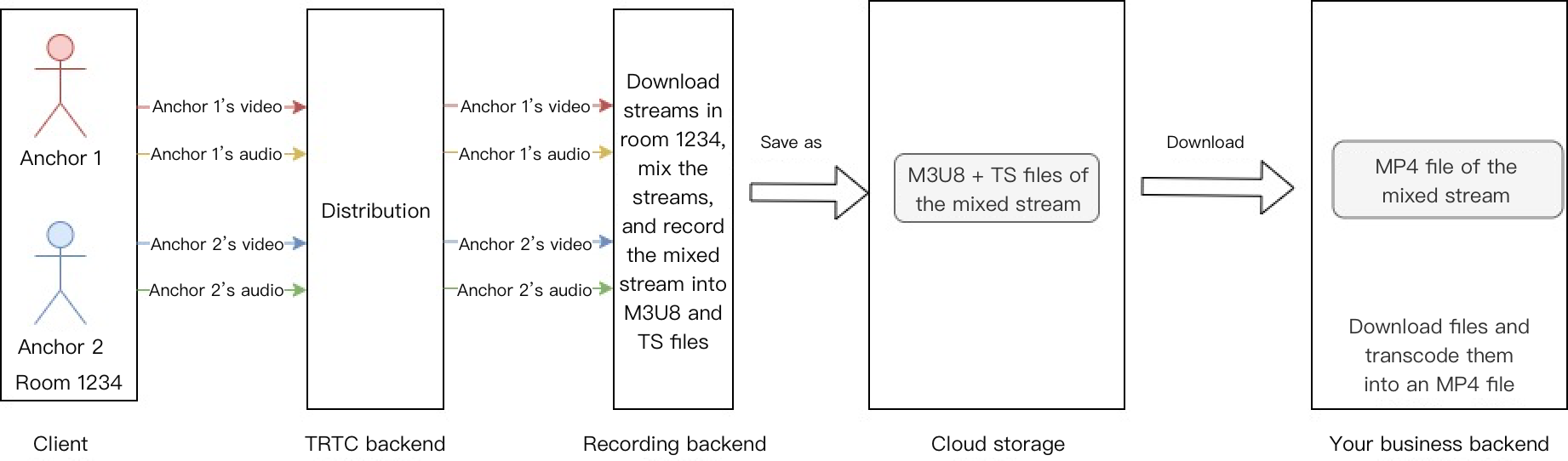
Cloud Recording
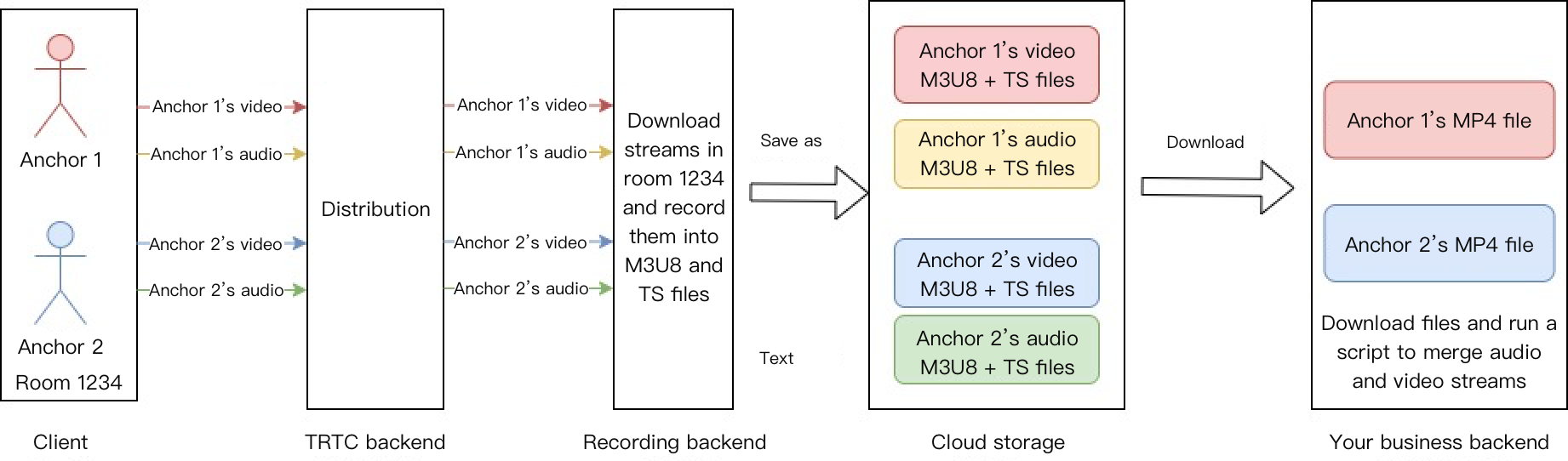
RTC Engine's cloud recording uses its internal real-time cluster for unified audio/video recording.
Single-stream recording
Record each user's audio stream as a separate file:
Mixed-stream recording
Mix all room audio streams into a single file:
Note:
For a detailed introduction and activation instructions of on-cloud recording in RTC Engine, see RTC Engine On-Cloud Recording Instructions.
FAQs
Why Isn't the Chatbot Speaking?
Troubleshooting Steps:
1. Check microphone: Verify microphone is enabled and audio stream is publishing
2. Check message reception: Verify you can receive subtitles and AI status via Receive Custom Message
If messages are not received:
Verify
RoomId values match exactly (both value and type: number vs string)Verify
TargetUserId from API matches client's UserIdThe chatbot and user must be in the same room
3. Check LLM: If you see your speech subtitles but not bot replies, verify LLM configuration
4. Check TTS: If you see bot reply subtitles but hear no voice, verify TTS configuration
5. Check errors: Monitor SDK Webhooks and Server Webhooks for LLM/TTS errors
Service Category | Error code | Error Description |
ASR | 30100 | Request timeout. |
| 30102 | Internal error. |
LLM | 30200 | LLM request timeout. |
| 30201 | LLM request frequency limited. |
| 30202 | LLM service return failure. |
TTS | 30300 | TTS request timeout. |
| 30301 | TTS request frequency limited. |
| 30302 | TTS service return failure. |
LLM Timeout Errors
Error like
LLM error Timeout on reading data from socket indicates LLM request timeout.Solutions:
Increase
Timeout in LLMConfig (default: 3 seconds)If first-token exceeds 3 seconds, optimize LLM performance (see Optimize Conversation Latency)
Tencent TTS Errors
If you encounter Tencent TTS errors, such as the following errors:
TencentTTS chunk error {'Response': {'RequestId': 'xxxxxx', 'Error': {'Code': 'AuthorizationFailed', 'Message': "Please check http header 'Authorization' field or request parameter"}}}
You can troubleshoot from the following aspects:
1. Check whether the TTS service is activated for your application.
2. Check whether the
APPID, SecretId, and SecretKey are filled in correctly.3. Check whether you have claimed a free TTS resource package.
4. Check whether the specified timbre ID is included in the free resource package.
See the TTS section in Prerequisites and complete the steps again. In addition, if a sub-account is used, you should grant the sub-account TTS permissions.
Why Single-Word Responses Don't Trigger LLM?
Single words like "Yes" or "OK" don't trigger LLM if
AgentConfig.FilterOneWord is true (default). Set to false in StartAIConversation to enable.Parameter | Type | Description |
FilterOneWord | Boolean | Whether to filter out single-word sentences from the user. true: Filter; false: Not filter. Default value: true. Example value: true. |
Exception Error Handling
When the RTC Engine SDK encounters an unrecoverable error, the error is thrown in the onError callback. For details, see the following Error Code Table.
UserSig error: UserSig verification failure can lead to room entry failure. You can use the UserSig tool for verification.
Enumeration | Value | Description |
ERR_TRTC_INVALID_USER_SIG | -3320 | Room entry parameter UserSig is incorrect. Please check if TRTCParams.userSig is empty. |
ERR_TRTC_USER_SIG_CHECK_FAILED | -100018 | UserSig verification failed. Check if the parameter TRTCParams.userSig is filled in correctly or has expired. |
Room Entry/Exit Errors: If room entry fails, first verify the room entry parameters are correct. Entry and exit APIs must be called in pairs—even if entry fails, you must still call the exit API.
Enumeration | Value | Description |
ERR_TRTC_CONNECT_SERVER_TIMEOUT | -3308 | The room entry request times out. Check whether the Internet connection is lost or if a VPN is enabled. You may also attempt to switch to 4G for testing. |
ERR_TRTC_INVALID_SDK_APPID | -3317 | The room entry parameter SDKAppId is incorrect. Check whether TRTCParams.sdkAppId is empty. |
ERR_TRTC_INVALID_ROOM_ID | -3318 | The room entry parameter roomId is incorrect. Check if TRTCParams.roomId or TRTCParams.strRoomId is empty. Note that roomId and strRoomId cannot be used interchangeably. |
ERR_TRTC_INVALID_USER_ID | -3319 | The room entry parameter UserID is incorrect. Check if TRTCParams.userId is empty. |
ERR_TRTC_ENTER_ROOM_REFUSED | -3340 | Room entry request denied. Check if called consecutively enterRoom to enter room with the same ID. |
Device errors: Device exceptions should prompt users via UI
Enumeration | Value | Description |
ERR_MIC_START_FAIL | -1302 | Failed to turn the microphone on. This may occur when there is a problem with the microphone configuration program (driver) on Windows or macOS. Disable and re-enable the microphone, restart the microphone, or update the configuration program. |
ERR_SPEAKER_START_FAIL | -1321 | Failed to turn the speaker on. This may occur when there is a problem with the speaker configuration program (driver) on Windows or macOS. Disable and re-enable the speaker, restart the speaker, or update the configuration program. |
ERR_MIC_OCCUPY | -1319 | The microphone is occupied. For example, when the user is currently having a call on a mobile device, the microphone will fail to turn on. |
Supporting Products for the Solution
System Level | Product Name | Application Scenarios |
Access layer | Provides low-latency, high-quality real-time audio and video interaction solutions, serving as the foundational capability for audio and video call scenarios. | |
Access layer | Completes the transmission of key business signaling. | |
Cloud Services | Enables real-time audio and video interactions between AI and users and develops Conversational AI capabilities tailored to business scenarios. | |
Cloud Services | Provides identity authentication and anti-cheating capabilities. | |
Model | Serves as the brain of intelligent customer services and offers multiple agent development frameworks such as LLM+RAG, Workflow, and Multi-agent. | |
Data Storage | Provides storage services for audio recording files and audio slicing files. |

