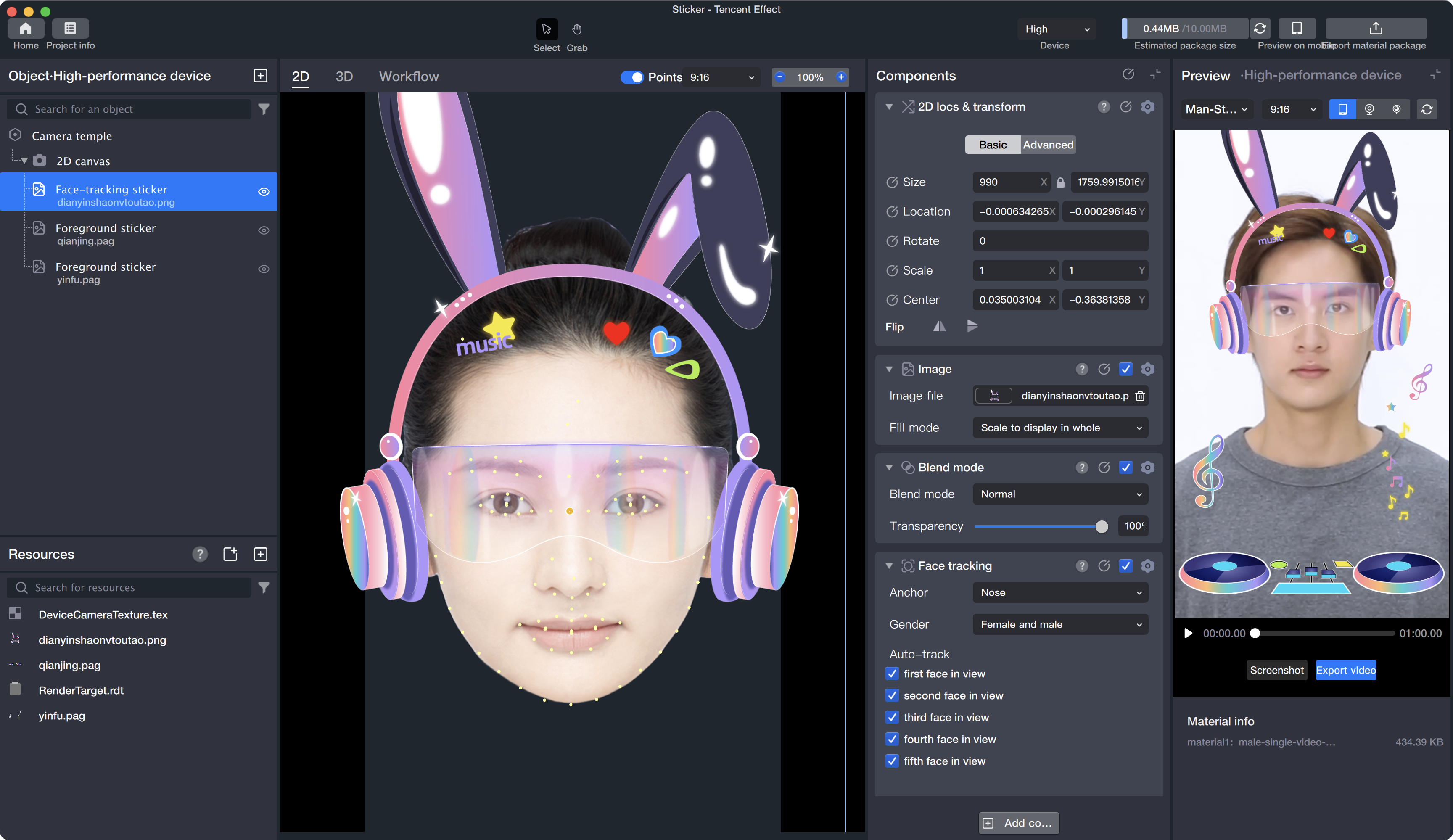
After you finish creating your effect, click the export icon in the upper right corner
or use the Ctrl + S shortcut to export the materials package to your computer. The exported materials package will be a folder (for example, video_xxx) containing several files.
Follow these steps to preview the effect on your mobile device:
1. Click the mobile preview icon in the upper right corner
to download the TencentEffect App.
2. Ensure your phone and computer are connected to the same Wi-Fi network.
3. Open the TencentEffect App, tap the icon in the upper right corner of the home page, select the scan feature, and scan the generated QR code to preview in real time.
If you are unable to preview using the method above, you can preview the effect on an Android device by following these steps:
1. Install the Android version of the TencentEffect App.
2. On your computer desktop, create a directory such as test, then create a subdirectory te_test_res/motion. Copy your completed effect folder, for example video_xxx, into the te_test_res/motion directory.
3. Run the following commands to push the contents of the test/te_test_res directory to your phone.
Note:
The path /Desktop/test/te_test_res in the commands below is for macOS. If you are using Windows, replace it with your local path, such as C:\Users\YourName\Desktop\test\te_test_res.
4. In the TencentEffect App, tap the icon in the upper right corner of the home page, select "Material Test", and you will see the effect you just pushed to your phone.