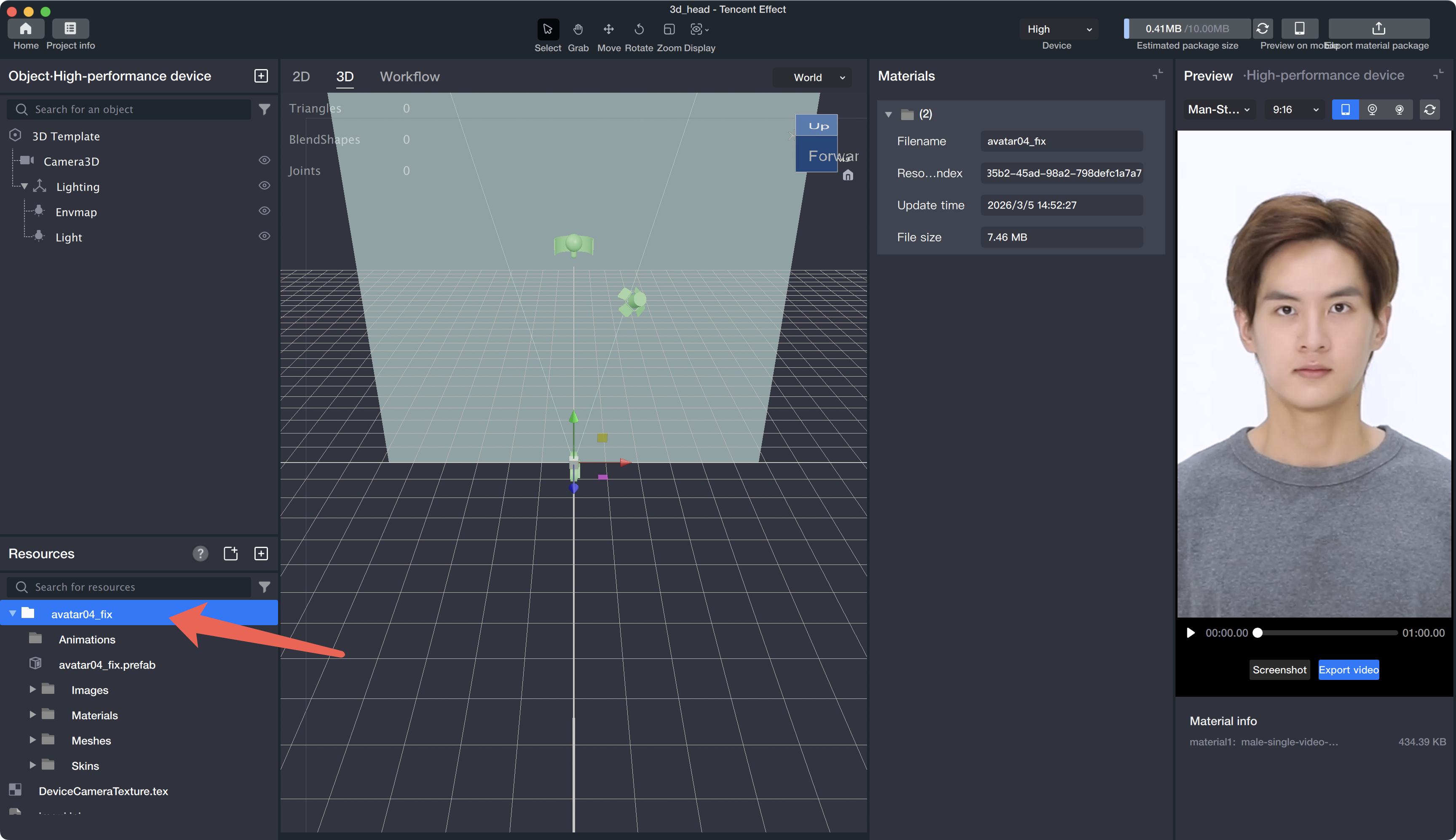
1. Drag the GLB file exported from your design software into the Tencent Effect asset panel.
2. Tencent Effect automatically extracts the model files.
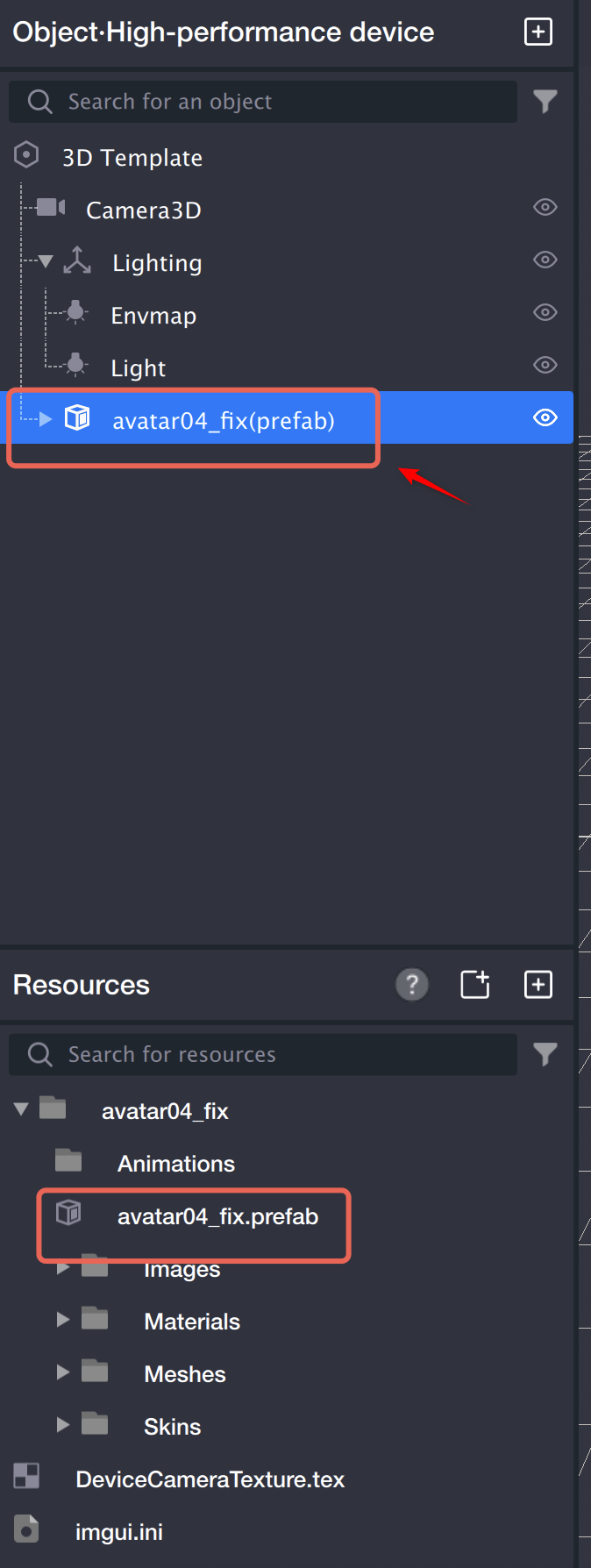
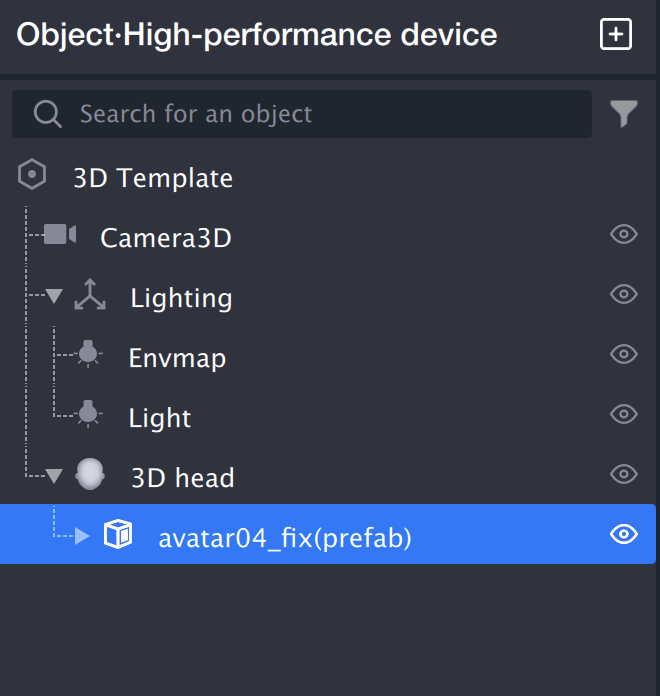
3. Select the prefab file and drag it into the object panel.
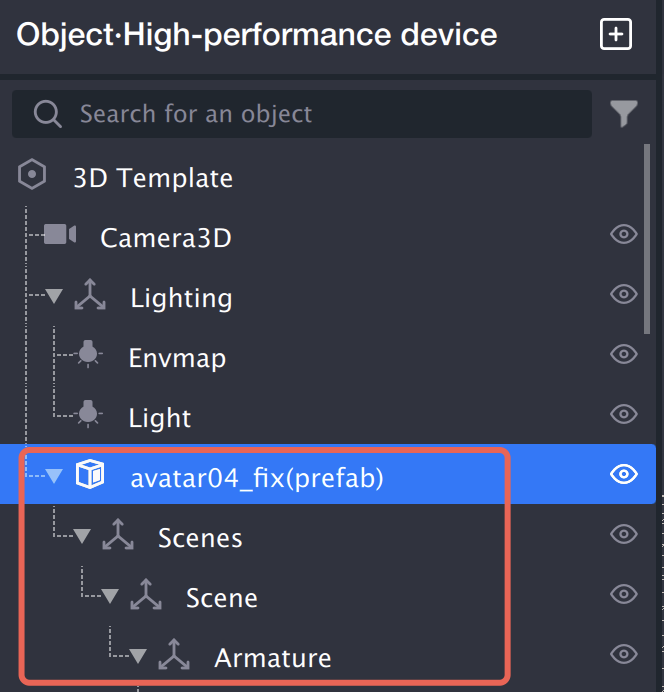
4. The object panel displays the model’s hierarchical structure. This tree includes various node types, such as meshes and skeletal joints.
5. Add components to individual nodes to enable specific features.
3D Head Configuration
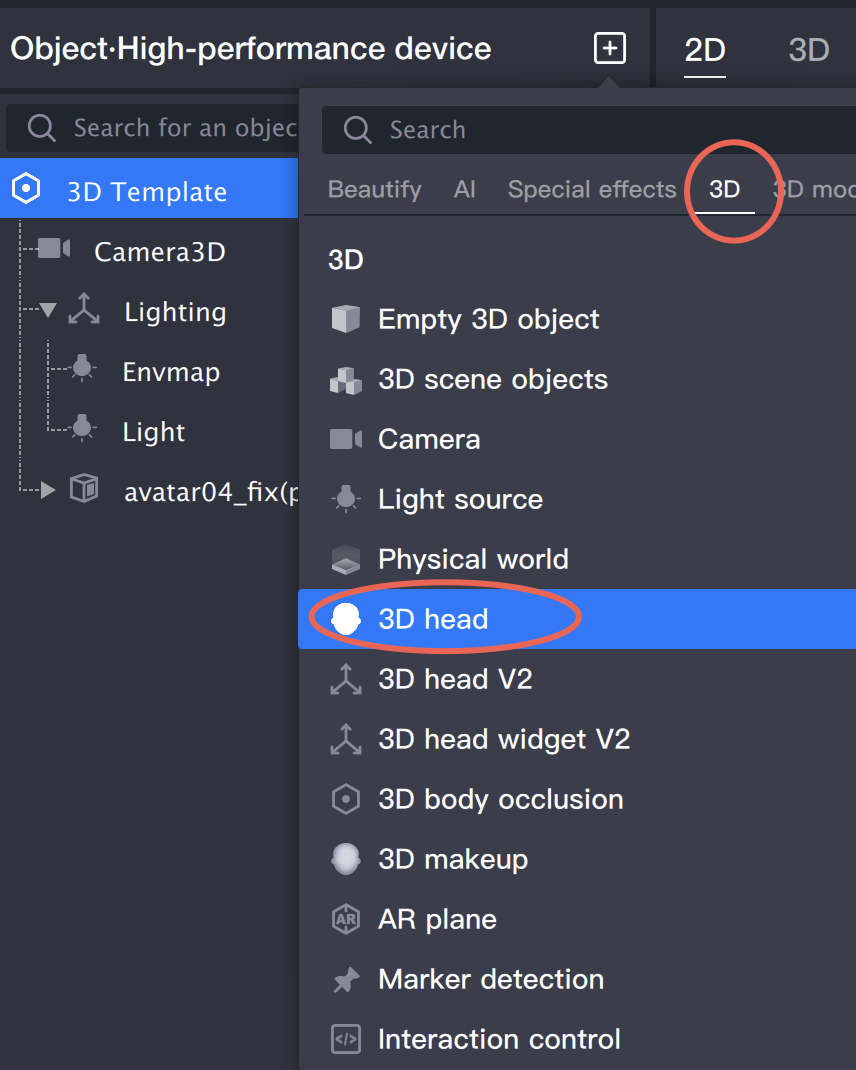
1. Right-click in the object panel and select Create > 3D Head to create a new 3D Head object. Drag the prefab file into the child node of the 3D Head.
2. Adjust the scale and position of the prefab in the component panel as needed.
Texture Import
Currently, 2D textures are supported in PNG and JPG formats only.
HDR Import
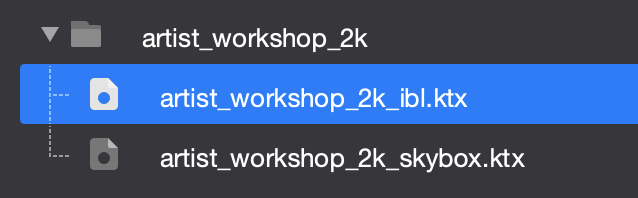
Environment textures support HDR and KTX file imports. When you import an HDR file into the asset panel, three files are generated automatically:
Skybox.ktx: If the Skybox feature is enabled, a skybox environment map is also generated
To update the skybox background, replace the referenced Skybox.ktx file with a new skybox texture (KTX format).
pag Import
Animation assets are only supported in pag format.
Imported pag files can be used for sequence frame animation on model surfaces. To use pag for sequence animation: select the model node, locate the material property in the component panel, and drag the pag file into the "Sequence Frame Animation" texture slot of the material.