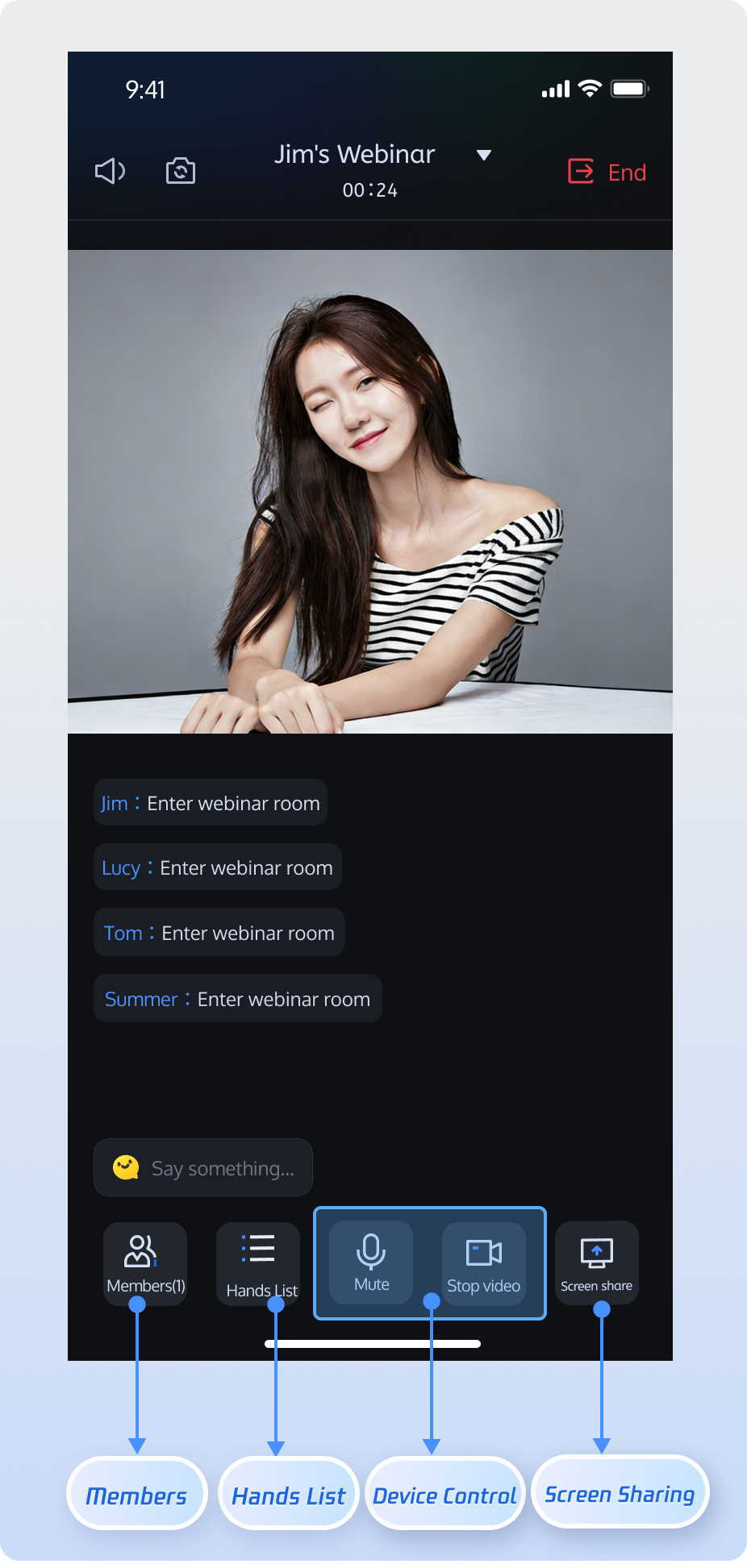
This guide explains how to integrate the TUIRoomKit Webinar scenario into your application. The Webinar scenario enables real-time interaction between hosts, guests, and audiences of up to tens of thousands, delivering ultra-low latency streaming and high-throughput message handling.
What’s the difference between a standard conference and a webinar?
Standard Conference: Designed for small to medium-sized collaborative scenarios where all participants have equal Audio/Video permissions. Features like screen sharing and member management enable full interaction.
Webinar: Built for large-scale live presentations, supporting unlimited audience entry. Audiences can use the Raise Hand feature to apply to become a guest and join the discussion. The system is optimized for high-concurrency messaging in scenarios with tens of thousands of participants, meeting the needs of professional presentations and interactions.
Feature Overview
Host
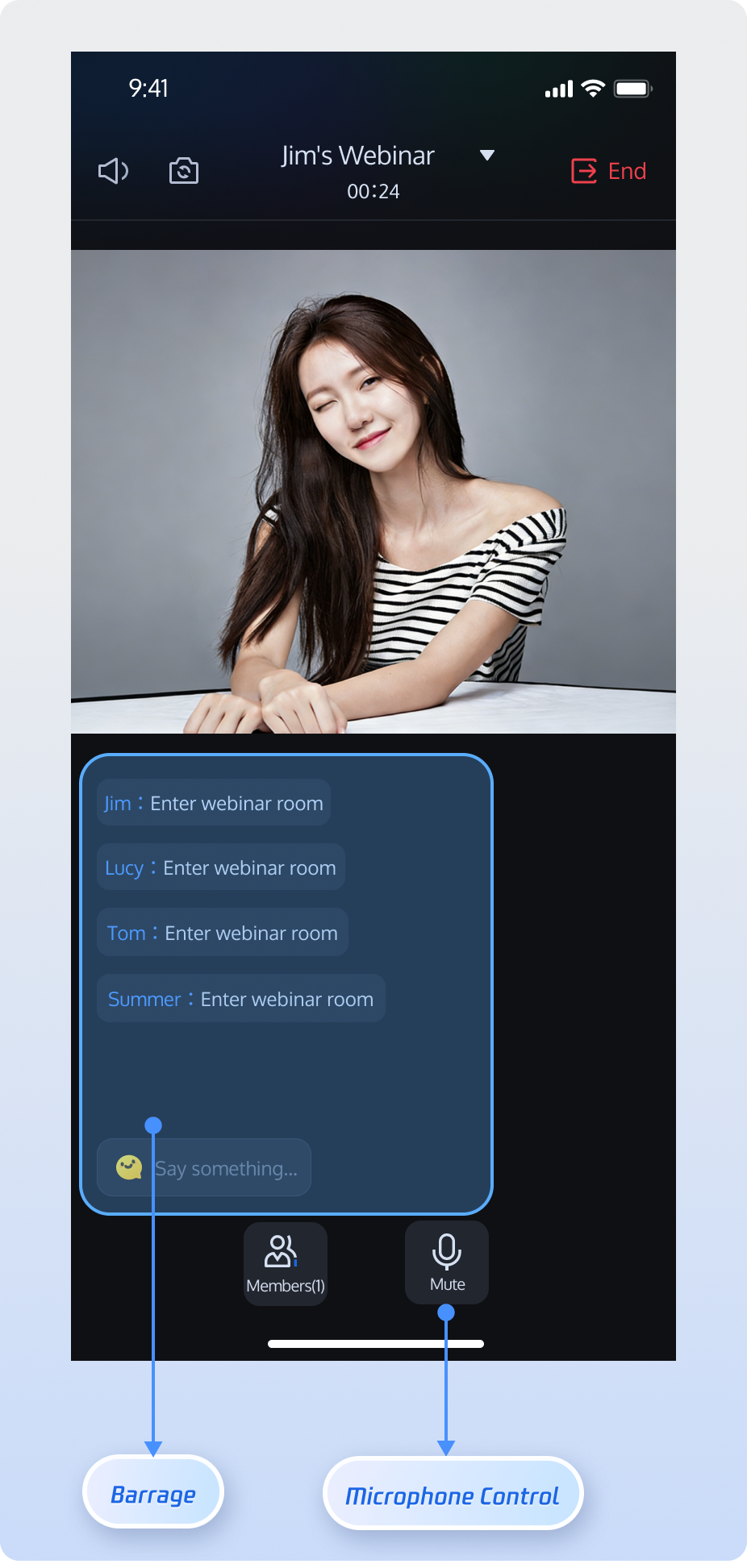
Guest
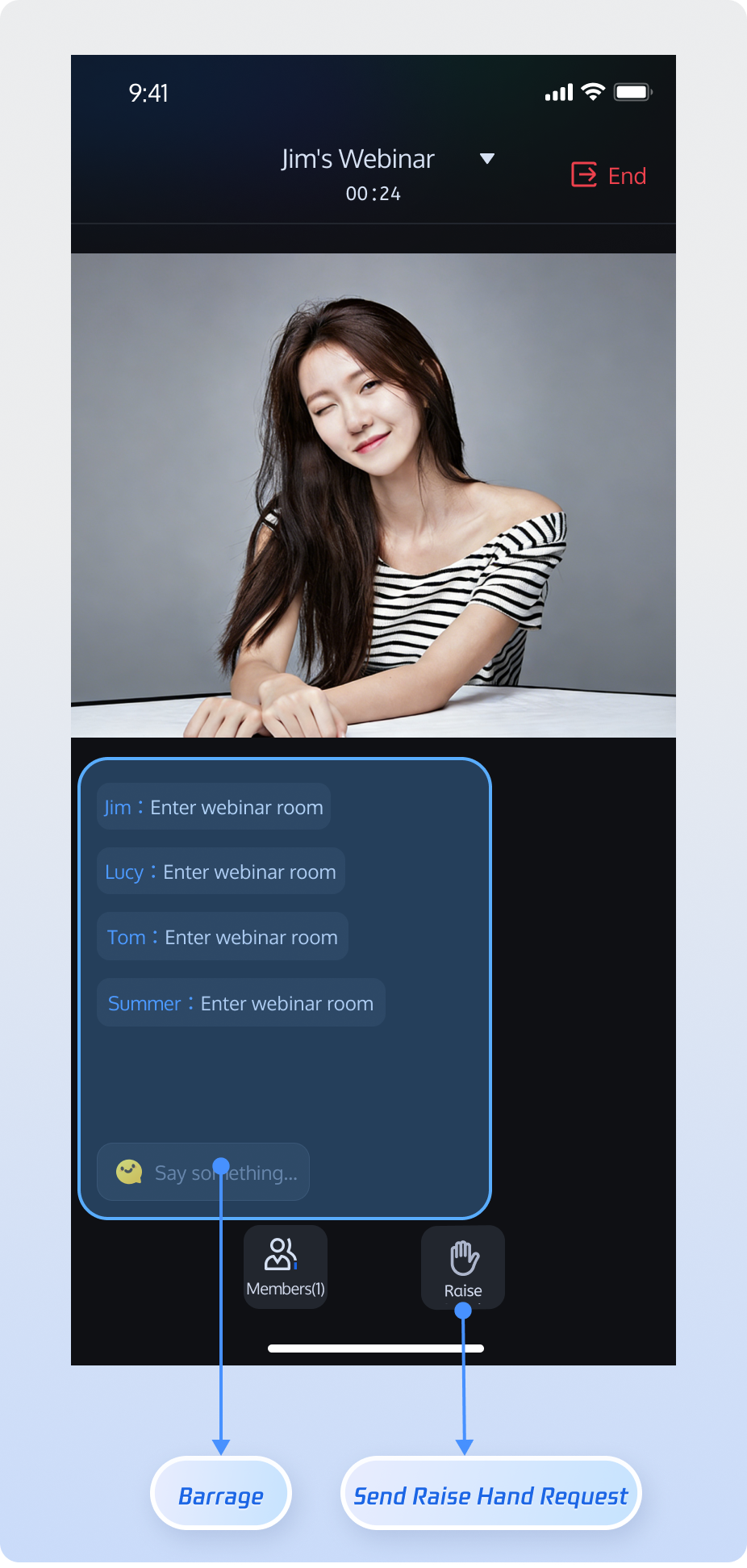
Audience
Host can start high-definition audio/video streaming, share screens, and manage participants.
Guest can enable their microphone for real-time voice discussions and sharing.
Supports unlimited concurrent audience entry, ultra-low latency viewing, and high-frequency chat. Audience can use "Raise Hand" to request guest access.
Prerequisites
Activate the Service
Follow the instructions in Activate the Service to claim the TUILiveKit trial version or activate the official TUILiveKit version. Then, go to Application Management to obtain the following information:
SDKAppID: Application identifier used by TRTC for billing and statistics.
SDKSecretKey: Application secret key used to initialize the configuration file.
Note:
The webinar scenario is built on underlying live streaming capabilities. To use webinar features, you must claim the TUILiveKit trial version or activate the official TUILiveKit version to ensure all related features work properly.
Environment Setup
Before running the demo, make sure your development environment meets these requirements:
Install CocoaPods via gem: Run sudo gem install cocoapods in your terminal.
Tip:
You may be prompted for your computer password during sudo gem install cocoapods. Enter your administrator password as requested.
Quick Integration
Step 1: Integrate TUIRoomKit
1. Add Pod Dependency:
If your project already has a Podfile:
Add pod 'TUIRoomKit' to your project's Podfile. For example:
target 'YourProjectTarget'do
# Other existing Pod dependencies...
# Add pod 'TUIRoomKit' dependency
pod 'TUIRoomKit'
end
If your project does not have a Podfile:
Use the cd command in your terminal to navigate to your .xcodeproj directory, then run pod init to create a Podfile. After that, add pod 'TUIRoomKit' to your Podfile. For example:
# If your project directory is /Users/yourusername/Projects/YourProject
# 1. cd to your .xcodeproj project directory
cd /Users/yourusername/Projects/YourProject
# 2. Run pod init to generate a Podfile in your project directory.
pod init
# 3. Add pod 'TUIRoomKit' dependency to the generated Podfile
target 'YourProjectTarget'do
# Add pod 'TUIRoomKit' dependency
pod 'TUIRoomKit'
end
2. Install the Component:
In your terminal, cd to the directory containing the Podfile, then run:
pod install
Step 2: Configure Project Permissions
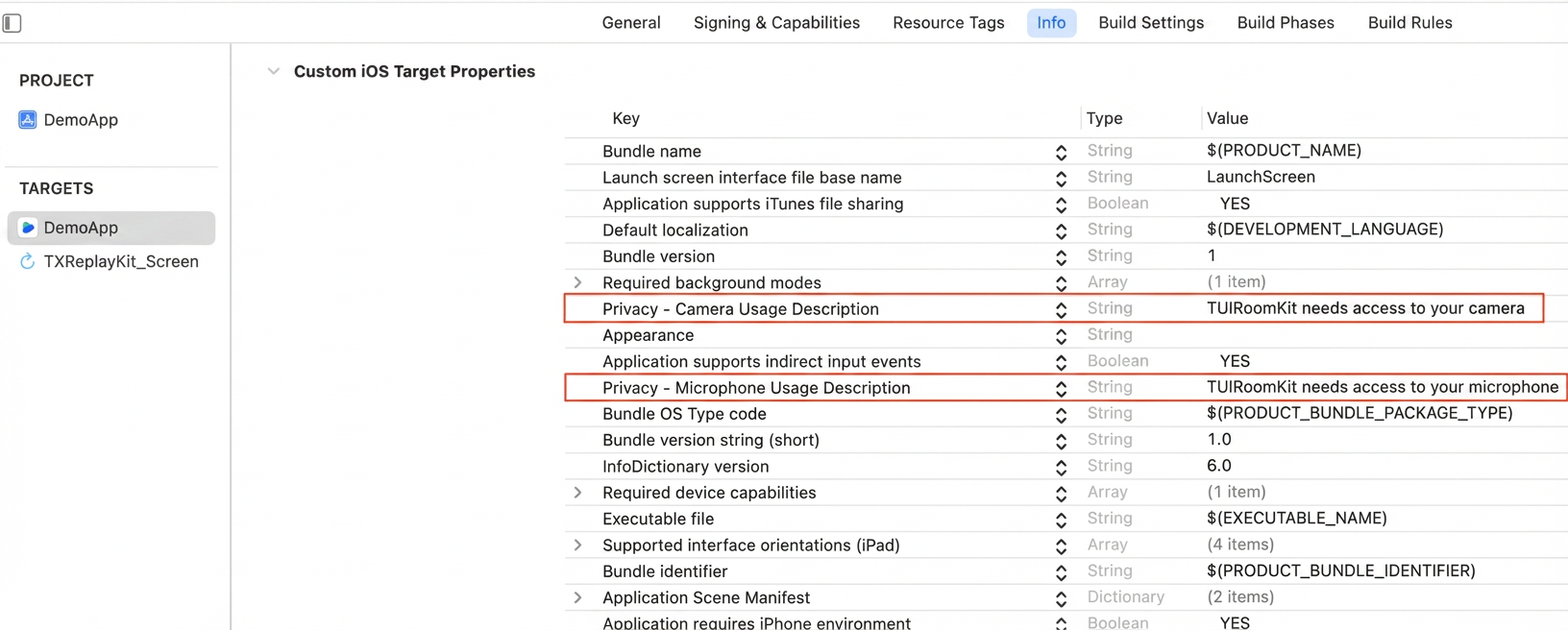
To enable audio/video features, your app must request microphone and camera permissions. Add the following entries to your app's Info.plist file, and provide usage descriptions that will be displayed to users when permissions are requested:
<key>NSCameraUsageDescription</key>
<string>TUIRoomKit requires access to your camera</string>
<key>NSMicrophoneUsageDescription</key>
<string>TUIRoomKit requires access to your microphone</string>
Step 3: Log In
After integrating the code, you must log in before using any TUIRoomKit features. Ensure your parameter configuration is correct:
Note:
In the sample code, login is handled in the didFinishLaunchingWithOptions method. In real-world projects, call the AtomicXCore login service only after your own user authentication and login procedures have completed. This prevents business logic conflicts and ensures seamless integration with your user management and permission systems.
Unique identifier for the current user. Only English letters, numbers, hyphens, and underscores are allowed. To avoid multi-device login conflicts, do not use 1, 123or other simple IDs.
userSig
String
Authentication ticket for Tencent Cloud.
For development: Use GenerateTestUserSig.genTestSig or the UserSig Assistant Tool for a temporary UserSig.
Callback for setting user info. If failed, returns error code and message.
Step 5: Create Webinar Room
In TUIRoomKit, RoomMainView is the central interface for multi-party audio/video rooms. The following shows how to embed RoomMainView in your app as the owner.
Implementation Steps:
1. Conform to Routing Navigation Protocol: TUIRoomKit uses the RouterContext protocol for internal navigation. Your view controller must conform to this protocol to support navigation actions (such as Exited Room and back navigation).
2. Lazy Load RoomMainView: Instantiate RoomMainView lazily in your controller and set its routerContext property. This enables internal navigation via protocol methods.
3. Configure Room Entry: Set up whether to automatically enable audio/video devices upon entering the room.
4. Initialize Room Main Page: Initialize the main page as the owner.
5. Add View to Controller: In your controller's viewDidLoad, add RoomMainView to the view hierarchy and use constraint layout to fill the view.
Note:
TUIRoomKit's internal navigation is based on standard UINavigationController methods (push/pop). Ensure your view controller is either the root controller of a UINavigationController or part of its stack. If not, SDK navigation will fail due to the absence of a valid navigation context, resulting in page switching issues.
Sample Code:
importUIKit
importTUIRoomKit
importSnapKit
importAtomicXCore
// YourMainViewController is your view controller for loading the room main page
Audio/video device control configuration after entering the room.
ConnectConfig Parameters:
Parameter
Type
Description
autoEnableMicrophone
Bool
Automatically enable microphone after entering room.
true: Enable automatically (default).
false: Do not enable automatically.
autoEnableCamera
Bool
Automatically enable camera after entering room.
true: Enable automatically (default).
false: Do not enable automatically.
autoEnableSpeaker
Bool
Automatically enable speaker after entering room.
true: Enable automatically (default).
false: Do not enable automatically.
CreateRoomOptions Struct Reference
Parameter Name
Type
Required
Description
roomName
String
No
Room name, optional, defaults to empty string.
Length: 0-60 bytes.
Supports Chinese, English, numbers, special characters.
password
String
No
Room password. Empty string "" means no password.
Length: 0-32 bytes.
Recommend 4-8 digit numbers for easy mobile input. If set, users must enter the password to join. Do not store sensitive information in plain text. Password is not supported in Webinar scenario; leave blank.
isAllMicrophoneDisabled
Bool
No
Disable microphone for all. If enabled, only owner/admin can use microphone; guests are disabled by default.
true: Disabled.
false: Not disabled (default).
isAllCameraDisabled
Bool
No
Disable camera for all. If enabled, only owner/admin can use camera; guests are disabled by default.
true: Disabled.
false: Not disabled (default).
isAllScreenShareDisabled
Bool
No
Disable screen sharing for all. If enabled, only owner/admin can share screen.
true: Disabled.
false: Not disabled (default).
isAllMessageDisabled
Bool
No
Disable chat messages for all (mute). If enabled, regular members cannot send text messages in the room.
true: Disabled.
false: Not disabled (default).
Step 6: Join Room
The following example shows how to embed RoomMainView in your app as a participant.
Implementation Steps:
1. Conform to Routing Navigation Protocol: TUIRoomKit uses the RouterContext protocol for navigation. Your view controller must conform to this protocol to support navigation actions (such as Exited Room and back navigation).
2. Lazy Load RoomMainView: Instantiate RoomMainView lazily in your controller and set its routerContext property. This enables internal navigation via protocol methods.
3. Configure Room Entry: Set up whether to automatically enable audio/video devices upon entering the room.
4. Initialize Room Main Page: Initialize the main page as a participant.
5. Add View to Controller: In your controller's viewDidLoad, add RoomMainView to the view hierarchy and use constraint layout to fill the view.
Note:
When joining a Webinar room using TUIRoomKit, ensure the room ID starts with webinar_.
Sample Code:
importUIKit
importTUIRoomKit
importSnapKit
importAtomicXCore
// YourMainViewController is your view controller for loading the room main page
config.autoEnableCamera =true// Automatically enable camera after entering room
config.autoEnableMicrophone =true// Automatically enable microphone after entering room
config.autoEnableSpeaker =true// Automatically enable speaker after entering room
// Initialize room main page as participant
let view =RoomMainView(roomID:"webinar_123456", behavior:.join, config: config)
view.routerContext =self
return view
}()
publicoverridefuncviewDidLoad(){
super.viewDidLoad()
// Add RoomMainView to the view controller
view.addSubview(mainView)
mainView.snp.makeConstraints { make in
make.edges.equalToSuperview()
}
}
}
For detailed parameter descriptions, see: RoomMainView Initialization Parameters and ConnectConfig Parameters.
Core Features
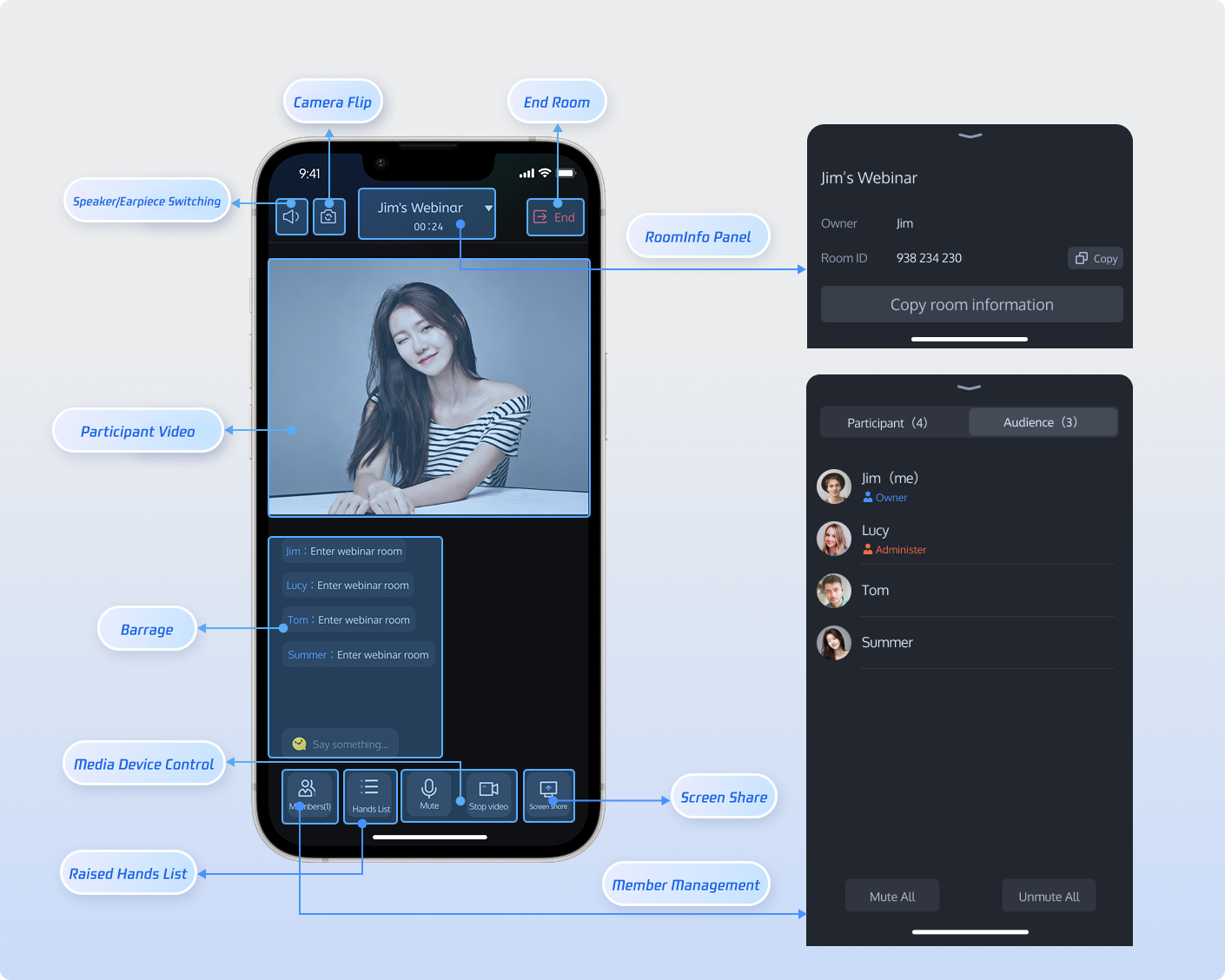
After integrating RoomMainView, you will have a complete Webinar page, including member management, audio/video device control, screen sharing, live comments, video display, room information, and more. This is the core of the TUIRoomKit component.
Customize UI
Note:
Customizing UI elements, icons, or text requires modifying the TUIRoomKit source code. When you integrate TUIRoomKit via CocoaPods, it acts as an immutable dependency. Each time you run pod install, CocoaPods will:
Check the version listed in Podfile.lock.
Download the corresponding source code from the remote repository.
Overwrite files in the Pods/ directory with the original source.
Any manual modifications to the Pods/ directory will be lost the next time you run pod install.
Update your Podfile to reference your fork and branch:
pod 'TUIRoomKit',:git=>'https://github.com/your-username/TUIRoomKit.git',:branch=>'your-branch'
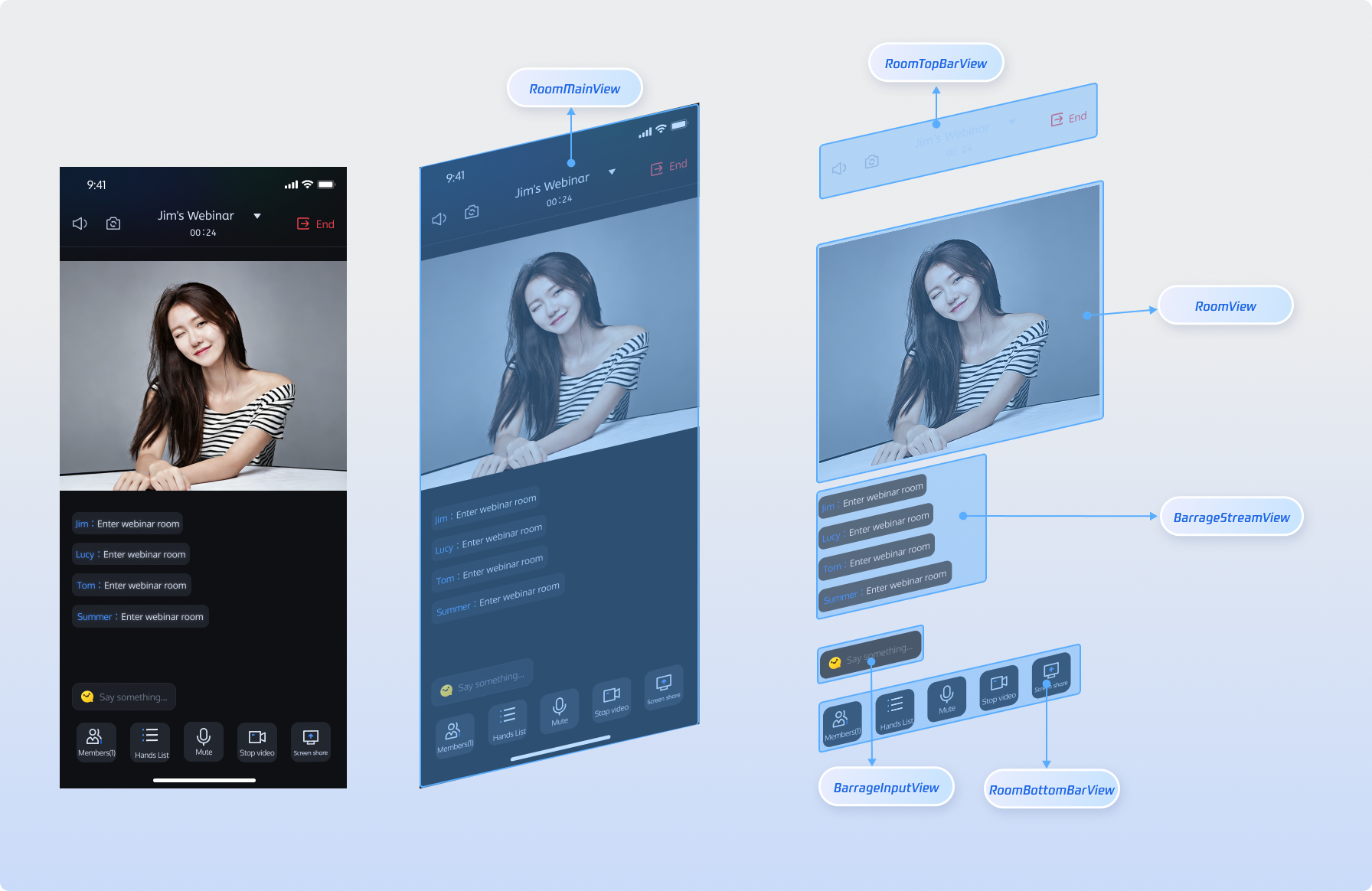
The RoomMainView page is highly customizable and feature-rich. You can modify the UI to fit your business needs. The following table describes the view components within RoomMainView for quick reference.
Video stream display area. Handles Webinar streaming logic and automatically plays real-time audio/video streams of guest presenters based on user role.
Modify layout, size, empty state view, and video stream widgets.
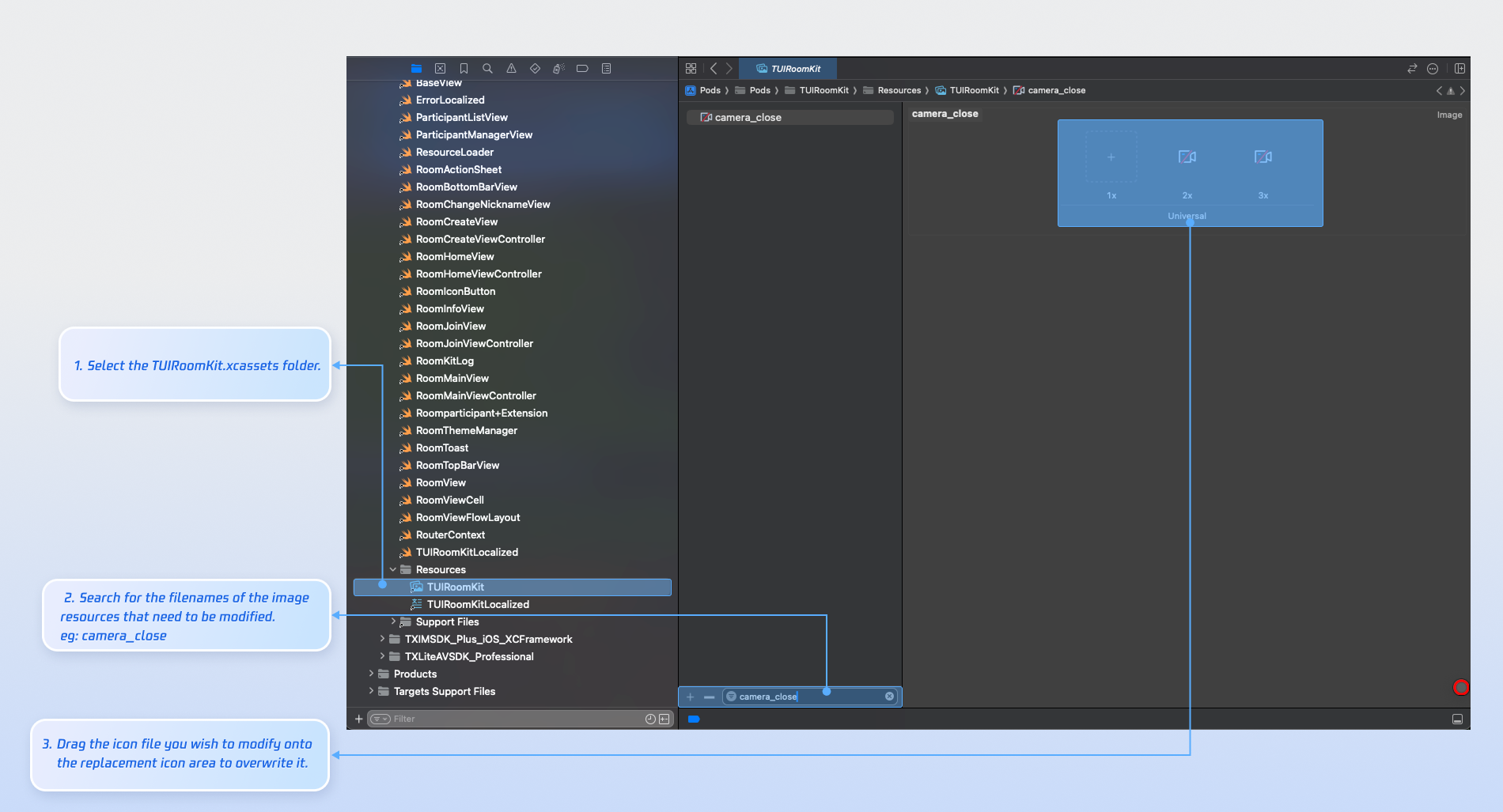
After integrating TUIRoomKit, you can replace icon resources to match your UI requirements.
TUIRoomKit uses TUIRoomKit.xcassets to manage UI image resources. Use Xcode's graphical tools to quickly update icons for your custom interface.
Common Image Files
Icon
Filename
Description
camera_close.png
Camera off icon
camera_open.png
Camera on icon
room_mic_off_red.png
Microphone off icon
room_mic_on_big.png
Microphone on icon
room_admin_tag.png
Admin icon
room_owner_tag.png
Owner icon
Customize Texts
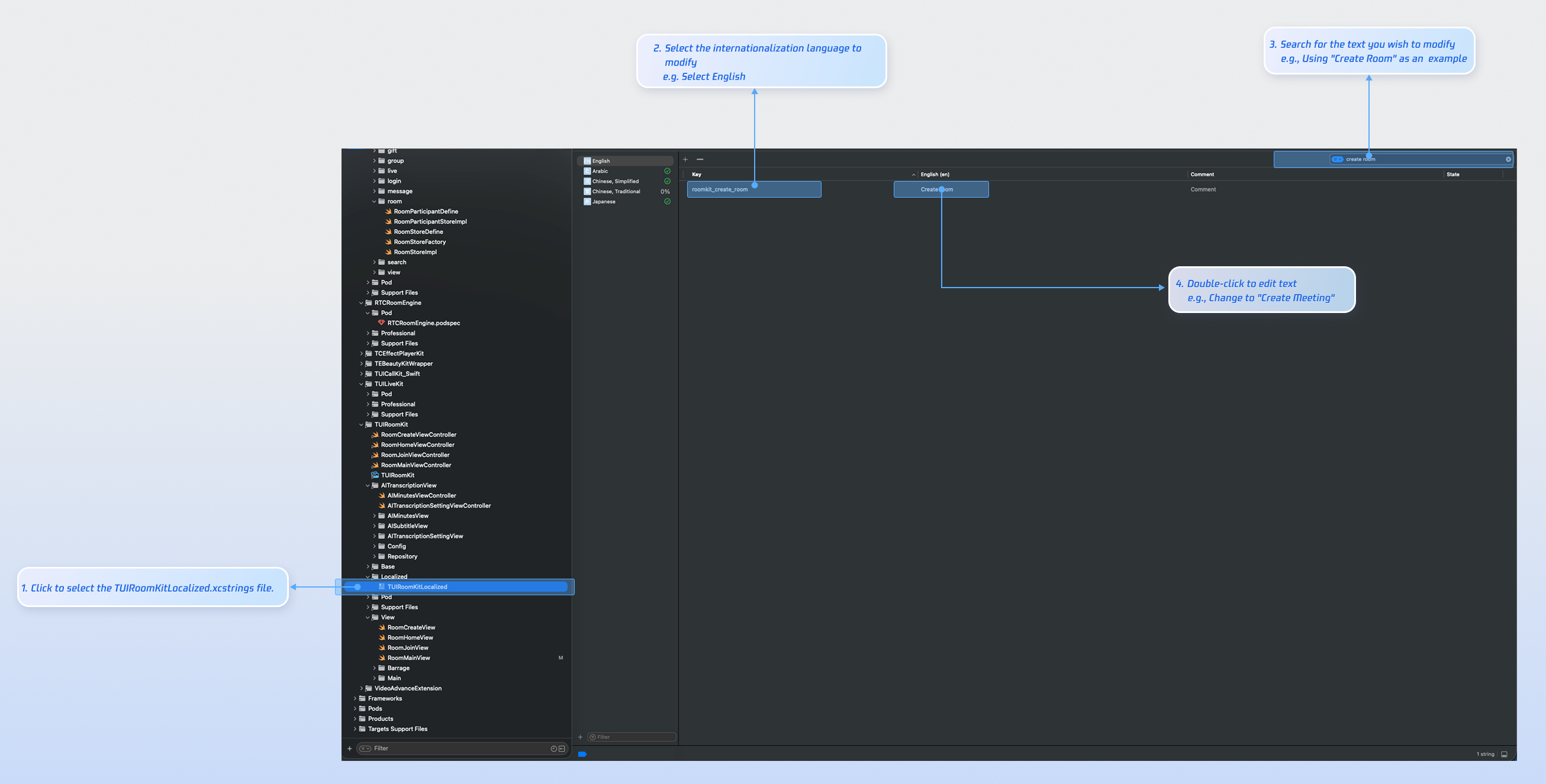
TUIRoomKit uses the Apple Strings Catalog tool to manage UI text. You can easily modify displayed text using Xcode's visual management tools.
Description:
Apple Strings Catalog (.xcstrings) is a localization format introduced in Xcode 15. It provides structured management for localization, including plurals and device-specific variants. This is now the recommended format for managing localization in iOS and macOS apps.
FAQs
Why can't I find the latest version of TUIRoomKit after running pod install?
If you cannot install the latest version of TUIRoomKit, follow these steps:
1. Delete Podfile.lock and the Pods directory in your project. You can do this manually or run:
# cd to the directory containing the Podfile
rm -rf Pods/
rm Podfile.lock
2. Run pod install --repo-update in your project directory:
# cd to the directory containing the Podfile
pod install --repo-update
Do I need to call login every time I enter a room?
No. Typically, you only need to call LoginStore.shared.login once. We recommend associating LoginStore.shared.login and LoginStore.shared.logout with your own login and logout business logic.
Is there a sample Podfile configuration I can reference?