
Live CoHost (React Native)
AtomicXCore provides the
CoHostState core module for managing host co-hosting sessions. This guide walks you through combining these tools to implement a complete co-hosting workflow for live streaming scenarios.Core Scenario
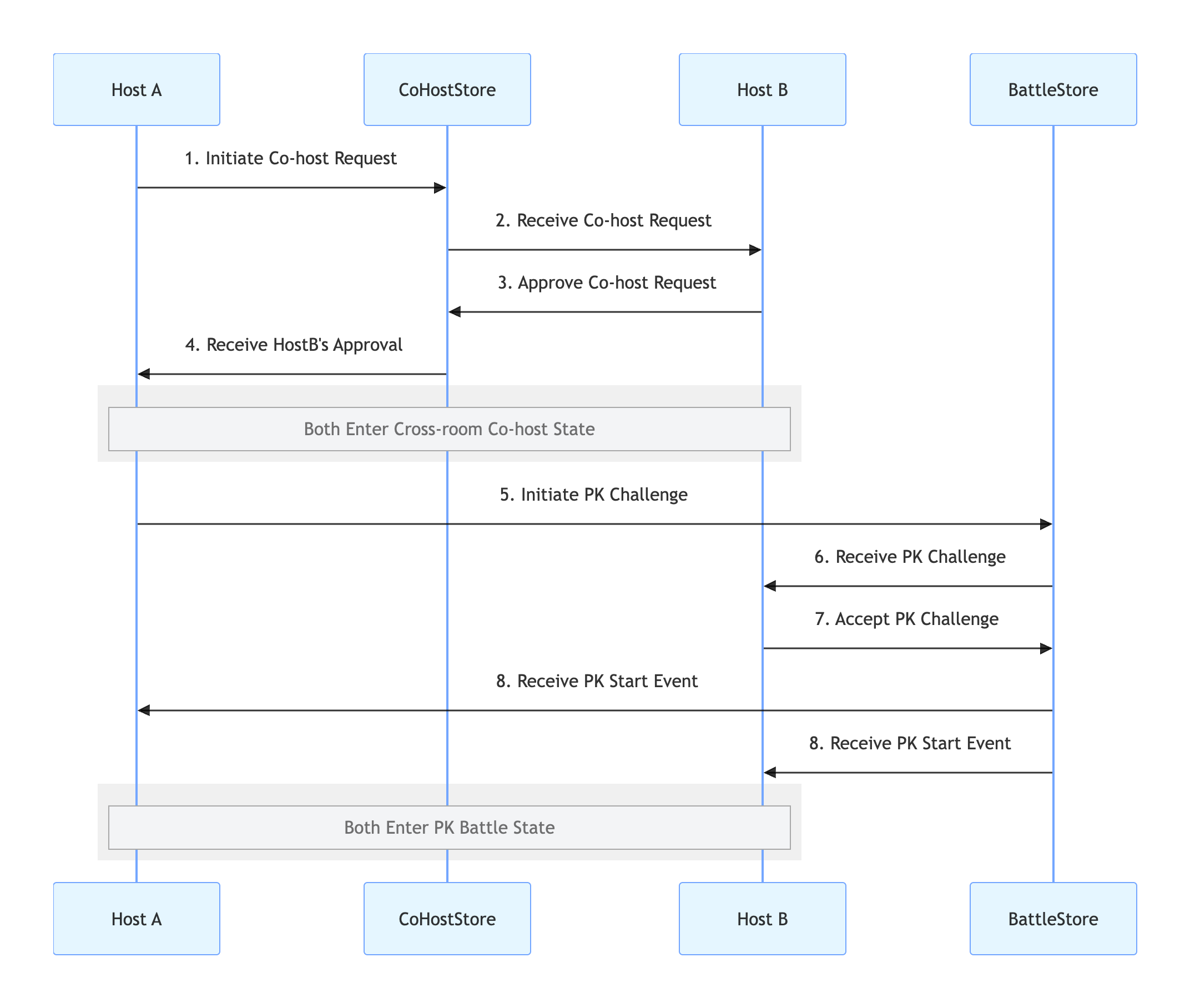
A typical host co-hosting session involves two main stages. The overall workflow is illustrated below:
Implementation Steps
Step 1: Integrate the Components
Step 2: Implement Co-hosting
In this step, the goal is to display video streams from two hosts in a single view. Use the
CoHostState module to enable this functionality.Initiator (Host A) Implementation
1. Sending a Co-host Invitation
When Host A selects Host B and initiates a co-host request in the UI, call the
requestHostConnection method.import { useCoHostState } from 'react-native-tuikit-atomic-x/lib/module/atomic-x/state/CoHostState';const liveID = 'xxx'; // Host A's room ID// Retrieve CoHostState instance by liveIDconst { requestHostConnection } = useCoHostState(liveID);// User clicks the "Co-host" button and selects Host Bconst handleRequestHostConnection = (targetHostLiveID) => {requestHostConnection({liveID, // Host A's room IDtargetHostLiveID, // Host B's room IDlayoutTemplate: 'HOST_DYNAMIC_GRID', // Select layout templatetimeout: 30, // Invitation timeoutonSuccess: () => { console.log('Co-host invitation sent, waiting for response...'); },onError: (error) => { console.log('Invitation failed to send', error); },});};
2. Handling Invitation Response
Use
addCoHostListener to subscribe to events and handle Host B's response.import { useEffect } from 'react';import { useCoHostState } from 'react-native-tuikit-atomic-x/lib/module/atomic-x/state/CoHostState';const liveID = 'xxx'; // Host A's room ID// Retrieve CoHostState instance by liveIDconst { addCoHostListener, removeCoHostListener } = useCoHostState(liveID);useEffect(() => {const onCoHostRequestAccepted = (event) => {console.log('Host accepted your co-host invitation', event);};const onCoHostRequestRejected = (event) => {console.log('Host rejected your co-host invitation', event);};const onCoHostRequestTimeout = () => {console.log('Invitation timed out, no response from the other party');};addCoHostListener('onCoHostRequestAccepted', onCoHostRequestAccepted);addCoHostListener('onCoHostRequestRejected', onCoHostRequestRejected);addCoHostListener('onCoHostRequestTimeout', onCoHostRequestTimeout);return () => {removeCoHostListener('onCoHostRequestAccepted', onCoHostRequestAccepted);removeCoHostListener('onCoHostRequestRejected', onCoHostRequestRejected);removeCoHostListener('onCoHostRequestTimeout', onCoHostRequestTimeout);};}, []);
Recipient (Host B) Implementation
1. Receiving a Co-host Invitation
Subscribe to the
onCoHostRequestReceived event with addCoHostListener so Host B can listen for invitations from Host A.import { useEffect } from 'react';import { useCoHostState } from 'react-native-tuikit-atomic-x/lib/module/atomic-x/state/CoHostState';const liveID = 'xxx'; // Host B's room ID// Retrieve CoHostState instance by liveIDconst { addCoHostListener, removeCoHostListener } = useCoHostState(liveID);useEffect(() => {const onCoHostRequestReceived = (event) => {const inviterData = JSON.parse(event.inviter);console.log('Received co-host invitation', inviterData);// You can trigger a popup prompt here};addCoHostListener('onCoHostRequestReceived', onCoHostRequestReceived);return () => {removeCoHostListener('onCoHostRequestReceived', onCoHostRequestReceived);};}, []);
2. Responding to a Co-host Invitation
When Host B makes a selection in the popup dialog, call the appropriate method.
import { useCoHostState } from 'react-native-tuikit-atomic-x/lib/module/atomic-x/state/CoHostState';const liveID = 'xxx'; // Host B's room ID// Retrieve CoHostState instance by liveIDconst { acceptHostConnection, rejectHostConnection } = useCoHostState(liveID);// Host B accepts the co-host invitationconst handleAcceptHostConnection = (fromHostLiveID) => {acceptHostConnection({liveID,fromHostLiveID, // Obtain this data from the onCoHostRequestReceived eventonSuccess: () => { console.log('Co-host invitation accepted'); },onError: (error) => { console.log('Failed to accept co-host invitation', error); },});};// Host B rejects the co-host invitationconst handleRejectHostConnection = (fromHostLiveID) => {rejectHostConnection({liveID,fromHostLiveID, // Obtain this data from the onCoHostRequestReceived eventonSuccess: () => { console.log('Co-host invitation rejected'); },onError: (error) => { console.log('Failed to reject co-host invitation', error); },});};
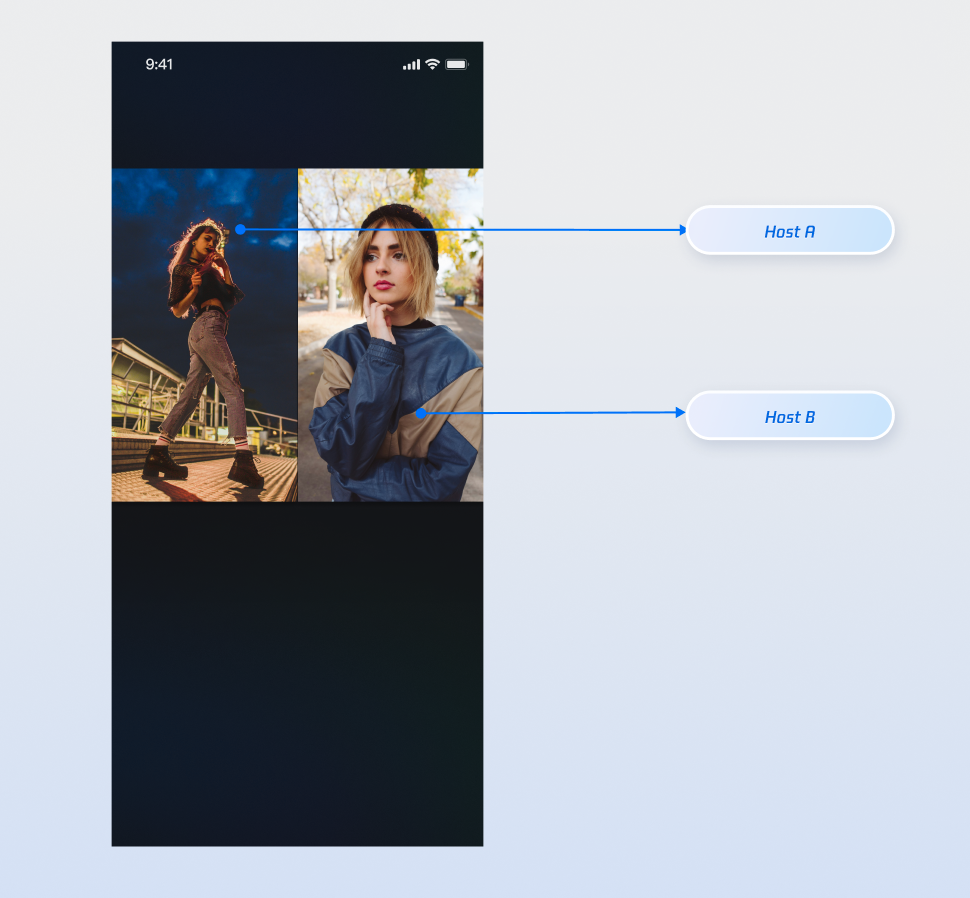
Demo Effect
After completing the above integration, you can operate as Host A and Host B respectively. The resulting effect is shown below. For custom UI logic, see Enhance UI Details.
Enhance UI Details
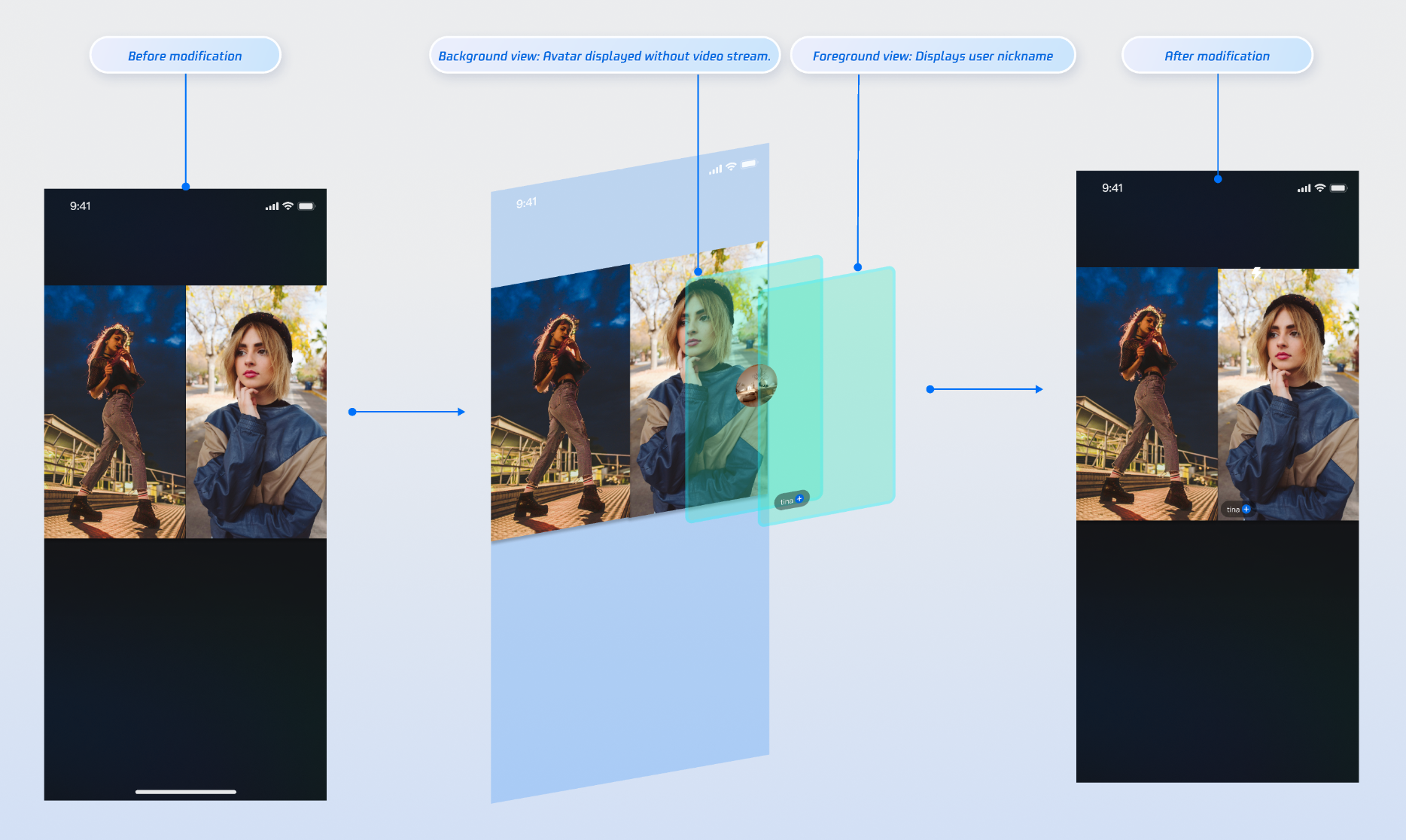
You can add custom overlays to the co-host video streams to show nicknames, avatars, and other information. Display placeholder images when cameras are off to improve the viewer experience.
Display Nicknames on Video Streams
Implementation
Step 1: Create a custom UI overlay component (ParticipantOverlay.js)
This overlay acts as a "UI sticker," responsible for rendering UI elements based on participant data, not video. Create a file named ParticipantOverlay.js in your components directory and copy the following code.
Note: In React Native, region coordinates are based on the canvas returned by the SDK (server-side canvas size). Calculate the scaling ratio using canvas.w / canvas.h and the screen width, rather than a fixed design width.
import React, { useMemo } from 'react';import { View, Text, Image, StyleSheet, Dimensions } from 'react-native';const DEFAULT_AVATAR = 'https://liteav-test-1252463788.cos.ap-guangzhou.myqcloud.com/voice_room/voice_room_cover1.png';const { width: SCREEN_WIDTH } = Dimensions.get('window');// Receives core data from parent: seatList and canvasexport default function ParticipantOverlay({ seatList, canvas }) {if (!seatList || seatList.length === 0) return null;// Calculate scaling ratio based on canvasconst scale = useMemo(() => {if (!canvas?.w || !canvas?.h) return { scaleX: 1, scaleY: 1 };const displayWidth = SCREEN_WIDTH;const displayHeight = SCREEN_WIDTH * (canvas.h / canvas.w);return {scaleX: displayWidth / canvas.w,scaleY: displayHeight / canvas.h,};}, [canvas]);// Compute the position and size of each participant's UI containerconst getParticipantStyle = (participant) => {if (!participant?.region) return {};return {position: 'absolute',left: participant.region.x * scale.scaleX,top: participant.region.y * scale.scaleY,width: participant.region.w * scale.scaleX,height: participant.region.h * scale.scaleY,};};return (// overlay-container<View style={styles.overlayContainer} pointerEvents="none">{/* Iterate seatList, create a separate UI container for each participant */}{seatList.map((participant) => {if (!participant?.userInfo?.userID) return null;const isCameraOff = participant.userInfo.cameraStatus === 'OFF';return (// participant-ui-container<View key={participant.userInfo.userID} style={getParticipantStyle(participant)}>{/* Conditional rendering: show different UI based on camera status */}{isCameraOff ? (// 1. When camera is off, show centered avatar and nickname<View style={styles.avatarPlaceholder}><Imagestyle={styles.avatarImage}source={{ uri: participant.userInfo.userAvatar || DEFAULT_AVATAR }}/><Text style={styles.avatarName}>{participant.userInfo.userName || participant.userInfo.userID}</Text></View>) : (// 2. When camera is on, show nickname bar at bottom left<View style={styles.nicknameBar}><Text style={styles.nicknameText}>{participant.userInfo.userName || participant.userInfo.userID}</Text></View>)}</View>);})}</View>);}const styles = StyleSheet.create({overlayContainer: {position: 'absolute',top: 0,left: 0,right: 0,bottom: 0,},avatarPlaceholder: {flex: 1,backgroundColor: '#2E323A',justifyContent: 'center',alignItems: 'center',},avatarImage: {width: 60,height: 60,borderRadius: 30,},avatarName: {marginTop: 8,fontSize: 13,color: '#fff',},nicknameBar: {position: 'absolute',left: 6,bottom: 6,backgroundColor: 'rgba(0, 0, 0, 0.5)',paddingHorizontal: 8,paddingVertical: 3,borderRadius: 10,},nicknameText: {color: '#fff',fontSize: 11,},});
Step 2: Combine all components on your live room page
Stack the video rendering layer and UI overlay layer together. Open your live room page file and update it as follows.
import React from 'react';import { StyleSheet, View } from 'react-native';import { LiveCoreView } from 'react-native-tuikit-atomic-x/lib/module/components/LiveCoreView';import { useLiveSeatState } from 'react-native-tuikit-atomic-x/lib/module/atomic-x/state/LiveSeatState';import ParticipantOverlay from '../../components/ParticipantOverlay';export default function YourAnchorScreen({ route, navigation }) {const { liveID } = route.params || {};const { seatList, canvas } = useLiveSeatState(liveID);return (// page-container<View style={styles.pageContainer}>{/* live-container */}<View style={styles.liveContainer}>{/* Bottom layer: video rendering layer */}<LiveCoreViewliveID={liveID}coreViewType="pushView" // Host side: pushView, Audience side: playViewstyle={styles.videoLayer}/>{/* Top layer: custom UI overlay */}<ParticipantOverlay seatList={seatList} canvas={canvas} /></View>{/* Other UI elements on the page, such as the bottom control bar */}{/* <View style={styles.bottomControls}>...</View> */}</View>);}const styles = StyleSheet.create({pageContainer: {flex: 1,backgroundColor: '#000',},liveContainer: {flex: 1,},videoLayer: {flex: 1,},});
API Documentation
For complete details on all public interfaces, properties, and methods of CoHostState and related classes, see the official AtomicXCore API documentation. The relevant Store modules referenced in this guide are listed below:
State | Function Description | API Documentation |
DeviceState | Audio/Video device control: microphone (on/off, volume), camera (on/off, switch, quality), screen sharing, real-time device status monitoring. | |
CoHostState | Host co-hosting: supports multiple layout templates (dynamic grid, etc.), initiate/accept/reject co-hosting, co-host interaction management. |
FAQs
Why the co-host invitation did not reach the recipient?
Verify that
targetHostLiveID is correct and that the recipient's live room is actively streaming.Ensure the network connection is stable. The invitation signaling times out after 30 seconds.

