
통합
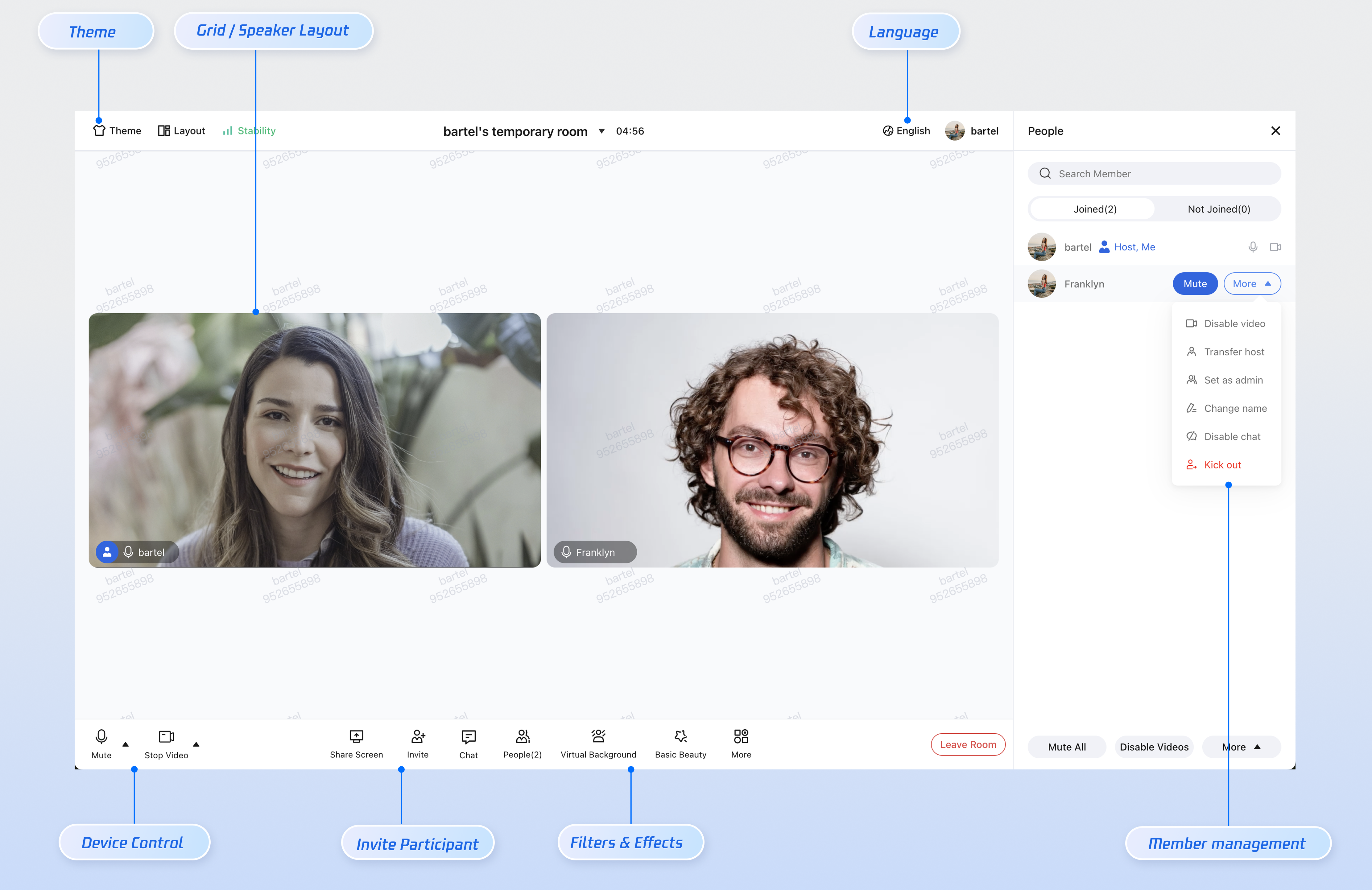
TUIRoomKit is a UI solution for audio/video meeting rooms developed by TRTC. This release introduces a new atomic component integration approach, enabling developers to flexibly combine atomic components and build custom audio/video meeting room interfaces.
This guide walks you through integrating TUIRoomKit into an existing React project and explains how to customize its styles, layout, and functionality.
Prerequisites
Activate the Service
Follow the instructions in Activate the Service to start a TUIRoomKit trial or activate the official version. Obtain your SDKAppID and SDKSecretKey:
SDKAppID: The application identifier used by TRTC for billing and statistics.
SDKSecretKey: The application secret used to initialize secret information in the configuration file.
Environment Setup
Node.js: ≥ 18.19.1 (LTS version recommended)
React: ≥ 18.2.0
Modern browser: Must support WebRTC APIs
Devices: Camera, microphone, speakers
Quick Integration
Step 1: Install Dependencies
Install the required dependencies in your project.
npm install @tencentcloud/roomkit-web-react tuikit-atomicx-react @tencentcloud/uikit-base-component-react @tencentcloud/universal-api
pnpm install @tencentcloud/roomkit-web-react tuikit-atomicx-react @tencentcloud/uikit-base-component-react @tencentcloud/universal-api
yarn add @tencentcloud/roomkit-web-react tuikit-atomicx-react @tencentcloud/uikit-base-component-react @tencentcloud/universal-api
Step 2: Import TUIRoomKit Components
import { UIKitProvider } from '@tencentcloud/uikit-base-component-react';import { ConferenceMainView } from '@tencentcloud/roomkit-web-react';export default function App() {return (<UIKitProvider theme="light" language="zh-CN"><ConferenceMainView /></UIKitProvider>);}
Step 3: User Authentication
Authentication is required to access all TUIRoomKit features. Call conference.login immediately after your business system completes authentication (when the user logs in to your web page). After calling
conference.login, call conference.setSelfInfo to set the user's display name and avatar, which appear in the participant video area and member list.Note:
Make sure to use the generated UserSig in your configuration. In production, generate UserSig on your server and have the client request a dynamic UserSig from your business server as needed. See How to Calculate UserSig in Production.
import { useEffect } from 'react';import { conference } from '@tencentcloud/roomkit-web-react';// Replace these values with your actual business data and SDKAppID from the Consoleconst SDKAppID = 0;const userId = 'your_user_id';const userSig = 'your_dynamic_user_sig';const userName = 'Display Name';function LoginComponent() {useEffect(() => {const init = async () => {try {// 1. Log in to the SDKawait conference.login({sdkAppId: SDKAppID,userId,userSig,});// 2. (Optional) Set user profileawait conference.setSelfInfo({userName,avatarUrl: 'https://your-avatar-url.com/image.png',});} catch (error) {console.error('TUIRoomKit login failed:', error);}};init();}, []);return null;}
Integration Issue: Listening for Login Success Across Separate Routes
If your login page and room entry page are on different routes, the login logic for
conference.login may not have executed when the room page loads. Use useEffect to monitor loginUserInfo?.userId; when this field is non-empty, TUIRoomKit is considered successfully authenticated.import { useEffect } from 'react';import { useLoginState } from 'tuikit-atomicx-react/room';import { conference } from '@tencentcloud/roomkit-web-react';function RoomPage() {const { loginUserInfo } = useLoginState();useEffect(() => {if (loginUserInfo?.userId) {conference.createAndJoinRoom({ roomId: '123456' });}}, [loginUserInfo?.userId]);return null;}
Step 4: Create a Room
The Room ID (roomId)is the unique identifier for each meeting and must be generated and managed by your business system to ensure global uniqueness. Choose the creation method based on your business scenario:
Scenario 1: Quick Meeting Initiated by Client
Use Case: The user clicks "Quick Meeting" and needs to immediately create and join a room (e.g., ad-hoc meetings, IM chat).
Implementation: The client generates or requests a unique Room ID from the backend, then calls
conference.createAndJoinRoom to create and enter the room.import { conference } from '@tencentcloud/roomkit-web-react';const startQuickMeeting = async () => {// 1. Generate a unique Room IDconst myRoomId = `room_${Date.now()}`;// 2. Create and join the roomawait conference.createAndJoinRoom({roomId: myRoomId,options: {roomName: 'My Quick Meeting',},});};
Scenario 2: Schedule a Meeting
Use Case: Meetings scheduled for a future time (e.g., weekly team meetings, online training). Users can set the Meeting Title, Meeting Time, and invite Participants.
Implementation: The client generates or requests a unique Room ID from the backend, then submits the reservation using the
scheduleRoom API with Meeting Time and other parameters. Upon success, meeting information is synced to each Participant's Meeting List. import { useRoomState } from 'tuikit-atomicx-react/room';function ScheduleDemo() {const { scheduleRoom } = useRoomState();const createSchedule = async () => {try {// Room ID must be a string and unique; backend generation is recommended.const roomId = '123456';// Note: Timestamp must be in seconds (Date.getTime() returns milliseconds, so divide by 1000)const startTime = Math.floor(new Date().getTime() / 1000) + 3600; // Starts in 1 hourconst duration = 1800; // 30 minutesconst options = {roomName: 'Product Requirements Review',scheduleStartTime: startTime, // secondsscheduleEndTime: startTime + duration, // secondsscheduleAttendees: ['userA', 'userB'], // Participant IDspassword: '123', // optional: meeting password};await scheduleRoom({ roomId, options });} catch (error) {console.error('Scheduling failed', error);}};return <button onClick={createSchedule}>Schedule Meeting</button>;}
Scenario 3: Create a Room on the Server Side
Use Case: Highly controlled environments such as government, healthcare, or enterprise OA.
Implementation: The business backend initiates room creation by calling TRTC's Server REST API to Create Room.
POST /v4/room_engine_http_srv/create_room{"roomId": "your-room-id","roomName": "Meeting Name","startTime": 1710000000,"endTime": 1710003600,"invitees": ["userId1", "userId2"]}
Step 5: Join a Room
Choose the appropriate method for joining a room based on your business requirements.
Scenario 1: Join Existing Room with Known Room ID
Use Case: The room has already been created, and Participants have received the Room ID or invitation link.
Implementation: After entering the Room ID or extracting it from the invitation link, call
conference.joinRoom to join.import { conference } from '@tencentcloud/roomkit-web-react';const joinExistingMeeting = async (sharedRoomId: string) => {await conference.joinRoom({roomId: sharedRoomId,});};
Scenario 2: Join from Meeting List
Use Case: Meetings scheduled via "Client Scheduling" or "Server-Side Creation". Users can view their scheduled or invited meetings in the Meeting List and join directly.
Implementation: Use the
getScheduledRoomList API from useRoomState to fetch the user's scheduled meetings and render them in the UI. When the user clicks a meeting, retrieve its Room ID and call conference.joinRoom.import { useState, useEffect } from 'react';import { conference } from '@tencentcloud/roomkit-web-react';import { useRoomState, useLoginState } from 'tuikit-atomicx-react/room';interface RoomInfo {roomId: string;roomName?: string;}export default function ScheduledRoomList() {const { getScheduledRoomList } = useRoomState();const { loginUserInfo } = useLoginState();const [roomList, setRoomList] = useState<RoomInfo[]>([]);// 1. Wait for authentication before fetching Meeting ListuseEffect(() => {if (!loginUserInfo?.userId) return;getScheduledRoomList({ cursor: '' }).then(({ scheduledRoomList }) => setRoomList(scheduledRoomList || [])).catch((error) => console.error('Failed to get scheduled meeting list:', error));}, [loginUserInfo?.userId]);// 2. Join room on clickconst handleJoinRoom = async (roomId: string) => {try {await conference.joinRoom({ roomId });} catch (error) {console.error(`Failed to join meeting (${roomId}):`, error);}};return (<div><h3>My Scheduled Meetings</h3>{roomList.length > 0 ? (<ul style={{ padding: 0, listStyle: 'none' }}>{roomList.map((room) => (<li key={room.roomId} style={{ display: 'flex', justifyContent: 'space-between', padding: '10px', borderBottom: '1px solid #eee' }}><div style={{ display: 'flex', flexDirection: 'column', fontSize: '14px', color: '#666' }}><b style={{ fontSize: '16px', color: '#333' }}>{room.roomName || 'Unnamed Meeting'}</b><span>Room ID: {room.roomId}</span></div><buttononClick={() => handleJoinRoom(room.roomId)}style={{ background: '#006eff', color: '#fff', border: 'none', padding: '6px 12px', borderRadius: '4px', cursor: 'pointer' }}>Join Meeting</button></li>))}</ul>) : (<div>No scheduled meetings to join</div>)}</div>);}
Scenario 3: Enter Room When Existence Is Uncertain
Use Case: Peer-to-peer scenarios (e.g., online consultation, 1v1 video customer service) where room existence is unknown.
Implementation: Both parties use a shared Business Document Number (e.g., order number) as Room ID and call
conference.createAndJoinRoom to enter.import { conference } from '@tencentcloud/roomkit-web-react';const enterDualMeeting = async (bizOrderId: string) => {// No need to check if the room exists; SDK handles creation and entry automaticallyawait conference.createAndJoinRoom({roomId: bizOrderId,options: {roomName: `Business Communication: ${bizOrderId}`,},});};
Tip:
The
conference.createAndJoinRoom API automatically handles "create if not exists (become Host), join if exists (become Participant)", resolving state conflicts under high concurrency.Step 6: Leave and End a Room
TUIRoomKit provides built-in UI buttons for leaving and ending rooms. Users can click "Leave Room"or "End Room"directly.
To trigger leave or end actions programmatically, use the following APIs.
Scenario 1: Leave a Room
Both Participants and Hosts can call
leaveRoom() to exit the meeting. The room remains active for other members.import { conference } from '@tencentcloud/roomkit-web-react';await conference.leaveRoom();
Note:
When the Host leaves or closes the webpage, the room is not automatically ended. Other Participants can continue using TUIRoomKit. The system will reclaim room resources 6 hours after the scheduled end time if there are zero Participants.
Scenario 2: End a Room
When the Host calls
endRoom(), all members receive a notification that the room has ended.import { conference } from '@tencentcloud/roomkit-web-react';await conference.endRoom();
Note:
Only the Host can call
endRoom() after successfully entering the room. Calling as a non-host or before entering will result in an error.Step 7: Listen for Room Status
In real-world audio/video meetings, room status may change due to various factors (e.g., Host ends the meeting, account logs in on another device, network issues).
TUIRoomKit automatically handles audio/video resource cleanup and UI prompts, but route navigation must be managed by your business logic. Register status listeners when the meeting component mounts, and remove them when it unmounts.
import { useEffect } from 'react';import { ConferenceMainView, conference, RoomEvent } from '@tencentcloud/roomkit-web-react';export default function MeetingRoom() {useEffect(() => {const backToHome = () => {};const backToLogin = () => {};conference.on(RoomEvent.ROOM_DISMISS, backToHome);conference.on(RoomEvent.ROOM_LEAVE, backToHome);conference.on(RoomEvent.ROOM_ERROR, backToHome);conference.on(RoomEvent.KICKED_OUT, backToHome);conference.on(RoomEvent.KICKED_OFFLINE, backToLogin);conference.on(RoomEvent.USER_SIG_EXPIRED, backToLogin);return () => {conference.off(RoomEvent.ROOM_DISMISS, backToHome);conference.off(RoomEvent.ROOM_LEAVE, backToHome);conference.off(RoomEvent.ROOM_ERROR, backToHome);conference.off(RoomEvent.KICKED_OUT, backToHome);conference.off(RoomEvent.KICKED_OFFLINE, backToLogin);conference.off(RoomEvent.USER_SIG_EXPIRED, backToLogin);};}, []);return <ConferenceMainView />;}
Event | Trigger Timing | Recommended Handling |
RoomEvent.ROOM_DISMISS | Room ended, triggered for all members | Return to home or Meeting List |
RoomEvent.ROOM_LEAVE | User clicks "Leave" in TUIRoomKit UI | Return to home or Meeting List |
RoomEvent.ROOM_ERROR | Entry failure or unhandled error | Return to home or Meeting List |
RoomEvent.KICKED_OUT | Kicked out by Host | Return to home or Meeting List |
RoomEvent.KICKED_OFFLINE | Same account logged in elsewhere, current device forced offline | Redirect to login page |
RoomEvent.USER_SIG_EXPIRED | UserSig expired | Redirect to login page |
Start the Project
npm run dev
pnpm run dev
yarn run dev
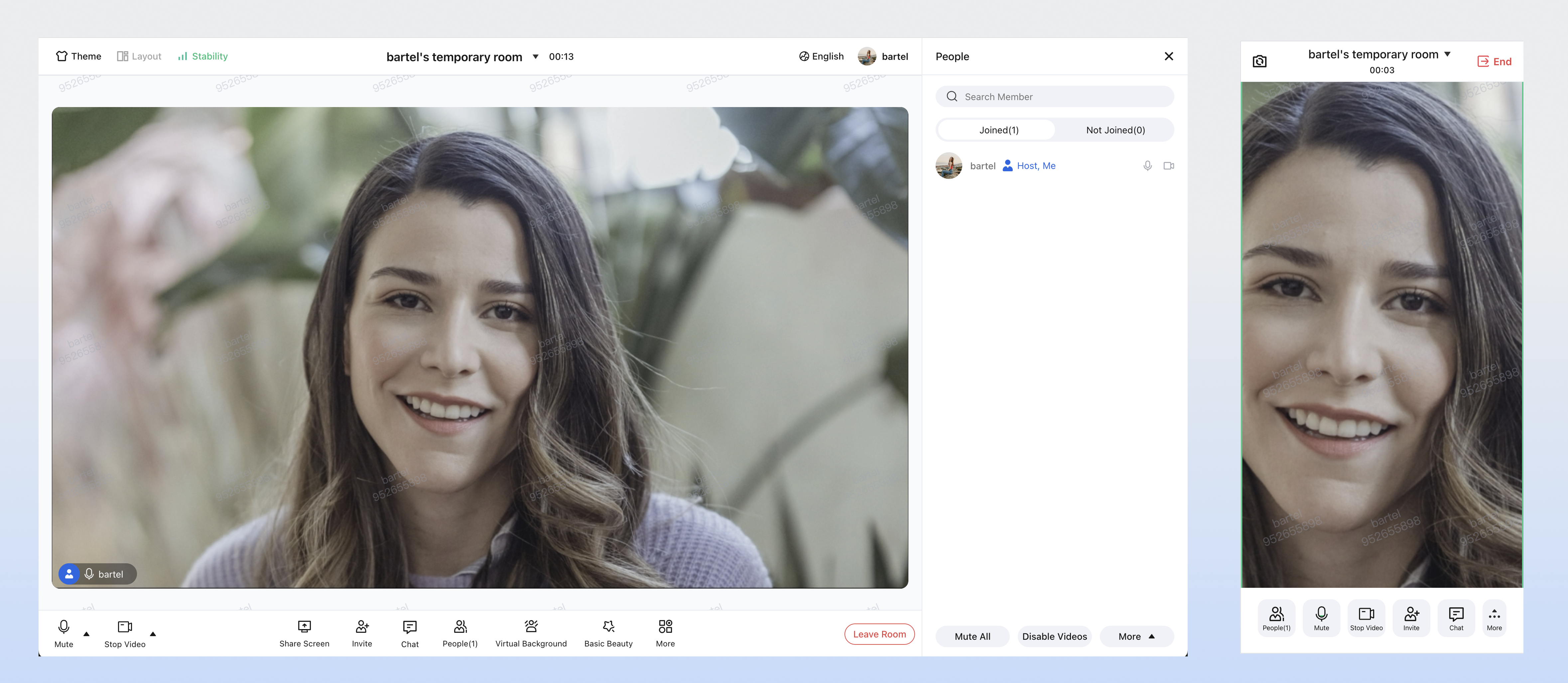
After the project starts, open your browser to the debug address (usually http://localhost:5173) to access the app. You should see the meeting interface as shown below:
Next Steps
After completing the basic integration, you can further customize the UI to fit your business requirements.
Configure Theme and Language
Change the default theme and language by setting the
UIKitProvider parameters in App.vue.UIKitProvider Parameter | Optional Values | Default Value |
theme | "light" | "dark" | "dark" |
language | "zh-CN" | "en-US" | "en-US" |
import { UIKitProvider } from '@tencentcloud/uikit-base-component-react';export default function App() {return (<UIKitProvider theme="light" language="zh-CN">{/* Route or page content */}</UIKitProvider>);}
Configure User Relationship Chain
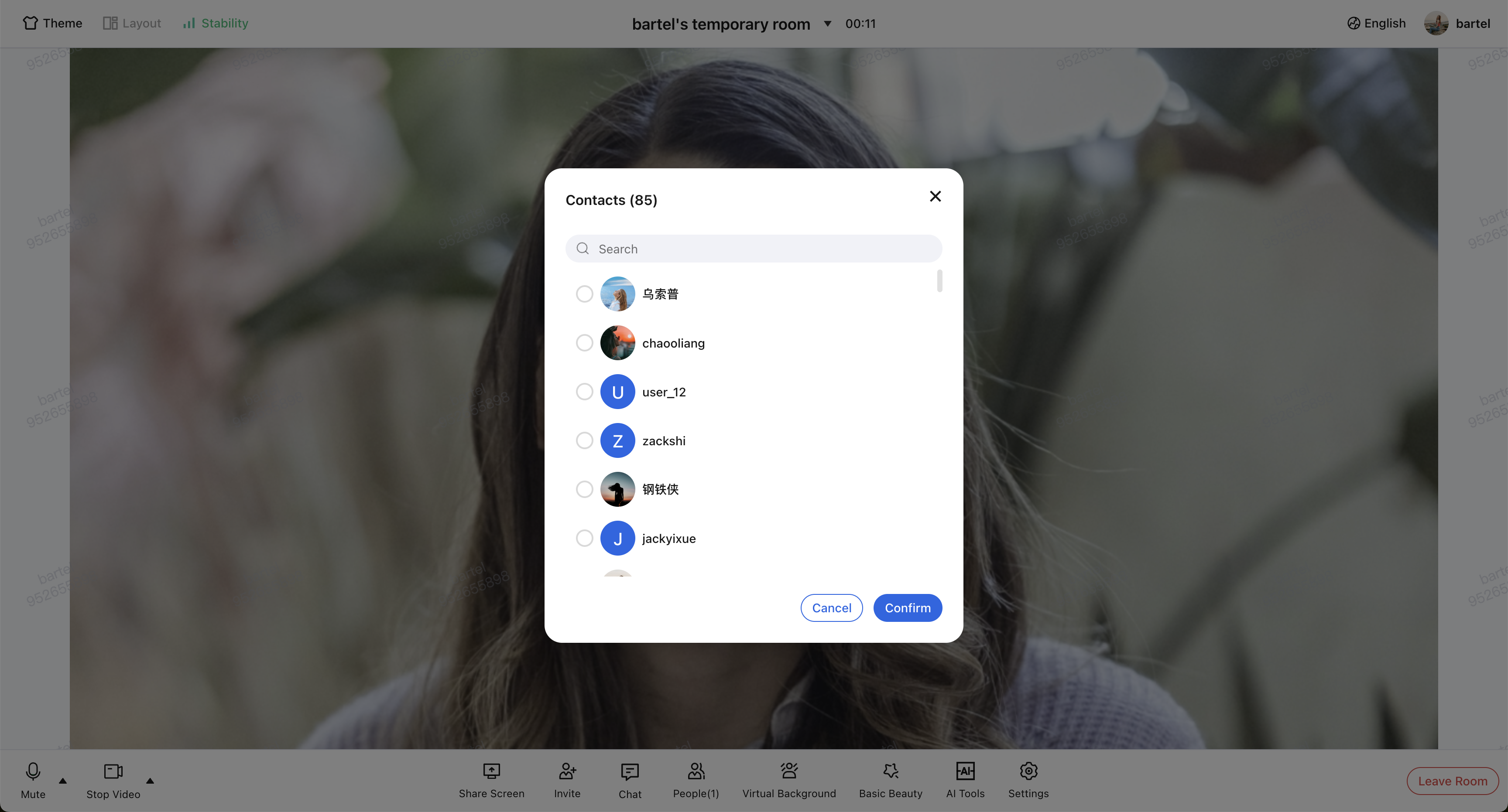
TUIRoomKit's built-in participant invitation and meeting scheduling picker components use TRTC IM's User Relationship Chain (Friend List) by default. To display your organization's internal structure or custom Friend List, sync your business contacts to TRTC IM via Server APIs:
1. Use Account Management > Import Multiple Accounts REST API to batch import user accounts.
2. Use Friend Management > Import Friends REST API to batch import user relationships.
Modify Meeting Share Link
By default, TUIRoomKit uses the current page address as the Meeting Share Link.
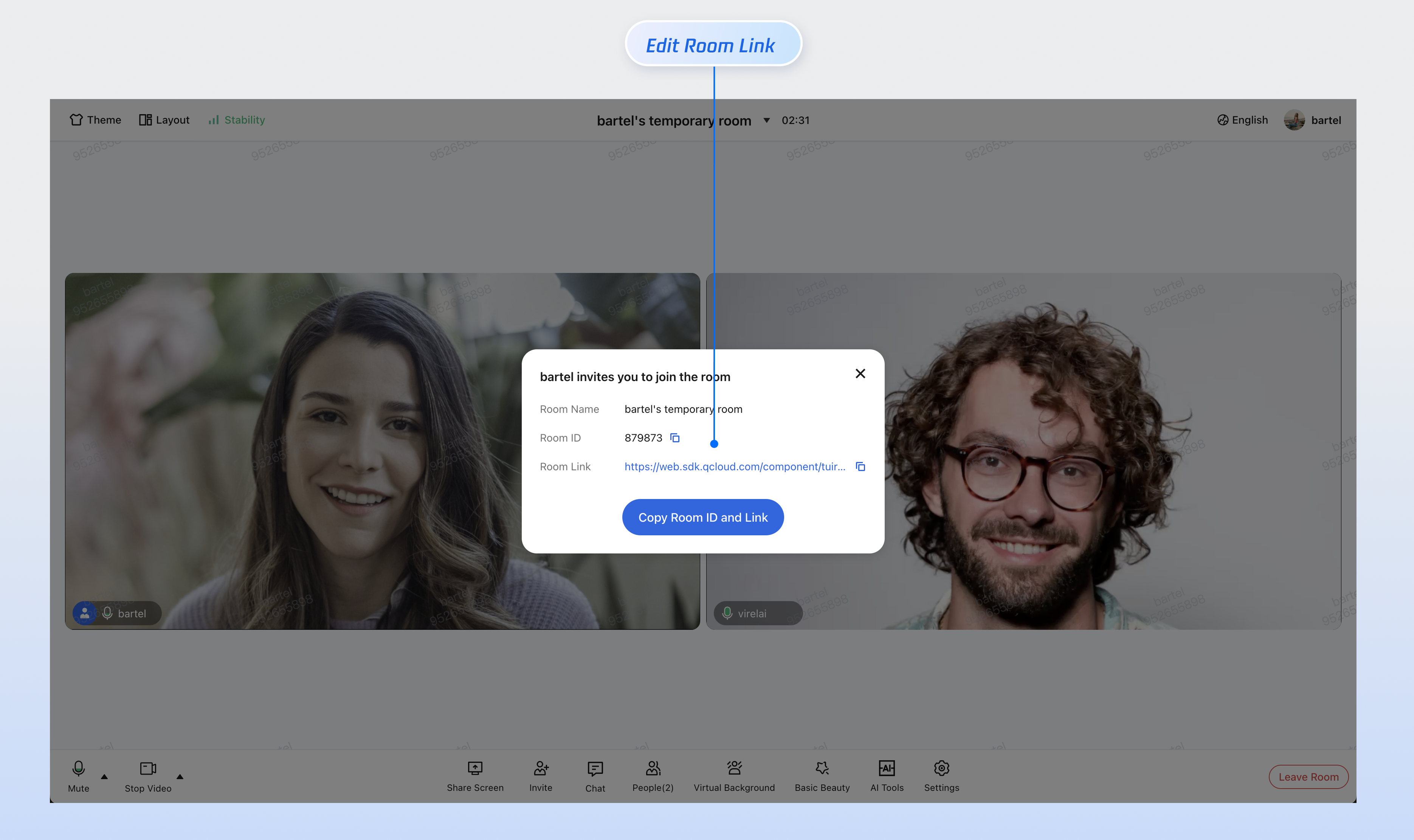
To customize the share link, call
conference.setFeatureConfig after successfully joining or creating a room, ensuring Room ID is available.import { conference } from '@tencentcloud/roomkit-web-react';// Call after conference.createAndJoinRoom / conference.joinRoom succeeds, when roomId is knownconst roomId = '123456';conference.setFeatureConfig({shareLink: `https://your-domain.com/room?roomId=${roomId}`,});
Configure Video Stream Layout and Meeting Widgets
TUIRoomKit supports three video stream layouts: Grid Layout, Sidebar Layout, and Top Bar Layout. The default is Grid Layout. Change the layout by calling
conference.setFeatureConfig.import { RoomLayoutTemplate } from 'tuikit-atomicx-react/room';import { conference } from '@tencentcloud/roomkit-web-react';// Option 1: Set Sidebar Layout as defaultconference.setFeatureConfig({ layoutTemplate: RoomLayoutTemplate.SidebarLayout });// Option 2: Set Top Bar Layout as defaultconference.setFeatureConfig({ layoutTemplate: RoomLayoutTemplate.CinemaLayout });
FAQs
Does the meeting end immediately if the Host closes the webpage or exits unexpectedly?
No. If the Host closes the browser or leaves due to network issues, the meeting continues and other Participants can interact as usual.
To conserve resources, actively end the room when the meeting concludes using one of the following methods:
UI: Host clicks the "End Room" button in TUIRoomKit UI
Client APIs: Call
conference.endRoom()Server APIs: Use REST API for remote destruction
If not ended manually, the system will automatically reclaim resources 6 hours after the scheduled end time if the room has zero Participants.
Can multiple devices use the same userId to join the same meeting at the same time?
No. TUIRoomKit does not allow the same userId to join the same room on multiple devices simultaneously.
Kick mechanism: If a new device joins with the same userId, the device already in the room will be forced offline.
Solution: Assign a unique userId to each device for multi-device participation.
Works locally, but fails to access camera or microphone after deployment?
Cause: Browsers restrict access to audio/video devices for security and privacy. Access is only allowed in secure environments (https://, localhost, file://, etc.). HTTP is not secure and browsers will block media device access.
Solution: If local access works but fails after deployment, check if your site uses HTTP. Deploy over HTTPS and ensure a valid certificate.
For more details, see URL Domain and Protocol Restrictions.
Is iframe integration supported?
Yes. When integrating TUIRoomKit via iframe, set the allow attribute to grant necessary browser permissions (microphone, camera, screen sharing, fullscreen, etc.) as shown below:
// Enable microphone, camera, screen sharing, fullscreen permissions<iframe src="https://your-domain.com/index.html" allow="microphone; camera; display-capture; display; fullscreen;">
Is intranet proxy supported?
Yes. Set intranet proxy parameters as shown below. For more details, see Dealing with Firewall Restrictions.
// Set intranet proxy parameters before entering the roomimport TUIRoomEngine from '@tencentcloud/tuiroom-engine-js';import { useRoomEngine } from 'tuikit-atomicx-react/room';const roomEngine = useRoomEngine();TUIRoomEngine.once('ready', () => {const trtcCloud = roomEngine.instance?.getTRTCCloud();trtcCloud.callExperimentalAPI(JSON.stringify({api: 'setNetworkProxy',params: {websocketProxy: "wss://proxy.example.com/ws/",turnServer: [{url: '14.3.3.3:3478',username: 'turn',credential: 'turn',}],iceTransportPolicy: 'relay',},}));});
Can TUIRoomKit source code be modified directly?
TUIRoomKit offers rich customization out of the box—custom themes and languages, UI tweaks, custom video layouts and widgets, watermarking, and more—so you can meet most UI and interaction requirements without changing the source.
We strongly discourage exporting the source code. Doing so removes your project from TUIRoomKit's standard npm upgrade path, increases maintenance costs, and prevents you from benefiting from new features and performance improvements in the underlying audio/video engine.
Recommended: Explore standard customization options in the UI customization documentation.
Feedback: If the available APIs do not meet your needs, contact us via Contact Us to submit your requirements. We will evaluate and strive to provide stable, standardized API support.
If you have fully considered the maintenance risks and require deep customization, you may export the source code as follows:
1. Run the export script. The default copy path is
./src/components/RoomKitnode ./node_modules/@tencentcloud/roomkit-web-react/scripts/eject.js
2. Follow the script prompts to confirm whether to copy TUIRoomKit source code to
./src/components/RoomKit. Enter 'y' to customize the copy directory, or 'n' otherwise.
3. After exporting, the source code will appear in your specified project path. Update the import paths for the
ConferenceMainView component and conference object from the npm package address to the RoomKit source path.import { ConferenceMainView, conference } from '@tencentcloud/roomkit-web-react';// Change import path to the actual TUIRoomKit source pathimport { ConferenceMainView, conference } from './components/RoomKit/index.ts';
4. Configure ESLint
If you encounter ESLint errors after exporting, add the RoomKit folder to
.eslintignore to ignore ESLint checks.// Replace with the actual TUIRoomKit source pathsrc/components/RoomKit
Contact Us
If you have any questions or suggestions during integration or usage, you are welcome to join our Telegram technical group or contact us for support.

