
屏幕分享
本教程主要介绍如何在 TRTC Web SDK 中实现屏幕分享。
用法
开始屏幕分享
const trtcA = TRTC.create();await trtcA.enterRoom({scene: 'rtc',sdkAppId: 140000000, // Fill in your sdkAppIduserId: 'userA', // Fill in your userIduserSig: 'userA_sig', // Fill in userSig corresponding to userIdroomId: 6969})await trtcA.startScreenShare();// Setting a view if you need to preview local screen sharing.await trtcA.startScreenShare({ view: 'local-screen-sharing-element-id' });
播放屏幕分享
const trtcB = TRTC.create();trtcB.on(TRTC.EVENT.REMOTE_VIDEO_AVAILABLE, ({ userId, streamType }) => {// Main video streamif (streamType === TRTC.TYPE.STREAM_TYPE_MAIN) {trtcB.startRemoteVideo({ userId, streamType, view: `${userId}_main` });} else {// Sub video stream, it's remote screen sharing.// 'view' is the element id of a div for video playback.trtcB.startRemoteVideo({ userId, streamType, view: `${userId}_screen` });}});await trtcB.enterRoom({scene: 'rtc',sdkAppId: 140000000, // Fill in your sdkAppIduserId: 'userB', // Fill in your userIduserSig: 'userB_sig', // Fill in userSig corresponding to userIdroomId: 6969})
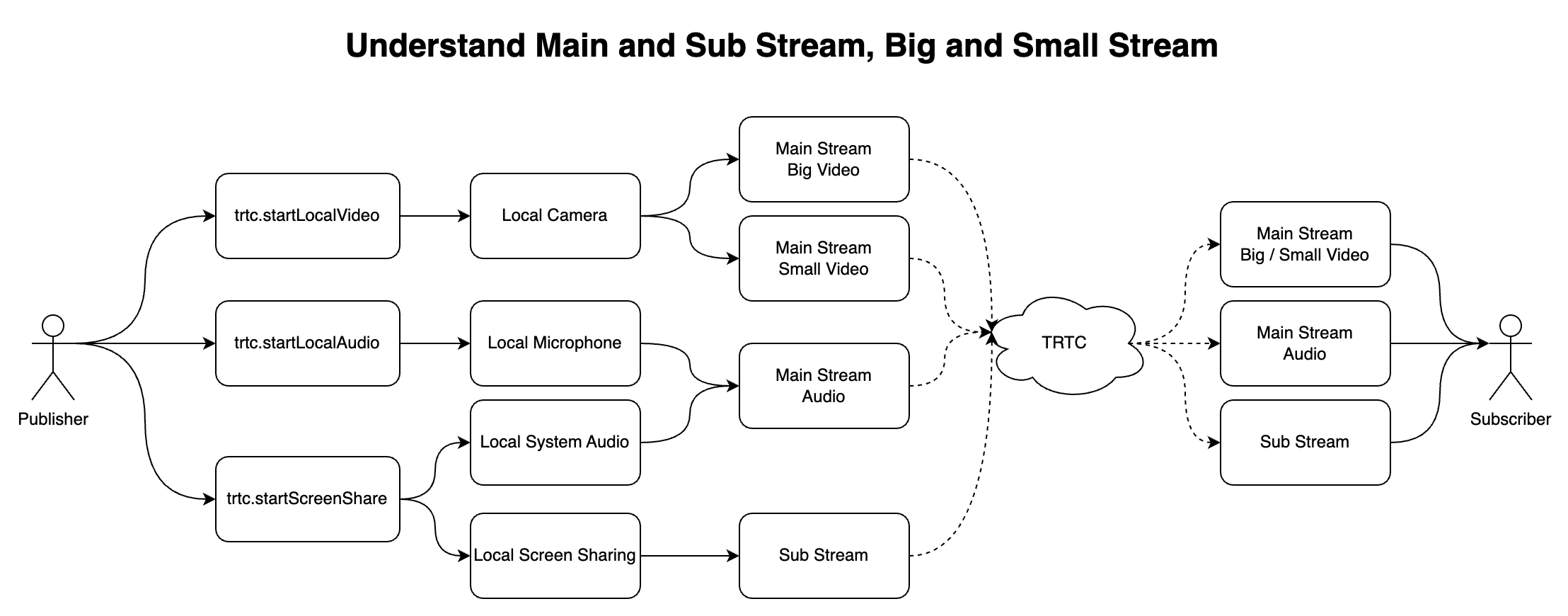
什么是主/辅视频流?
1. TRTC具有主视频流(主流)和辅视频流(辅流)。
2. 摄像头通过主码流发布,屏幕共享通过子码流发布。
3. 主视频码流包括:大码流和小码流。 TRTC.startRemoteVideo 默认播放大码流,可以通过小参数播放小码流。参见: 优化多人视频通话。
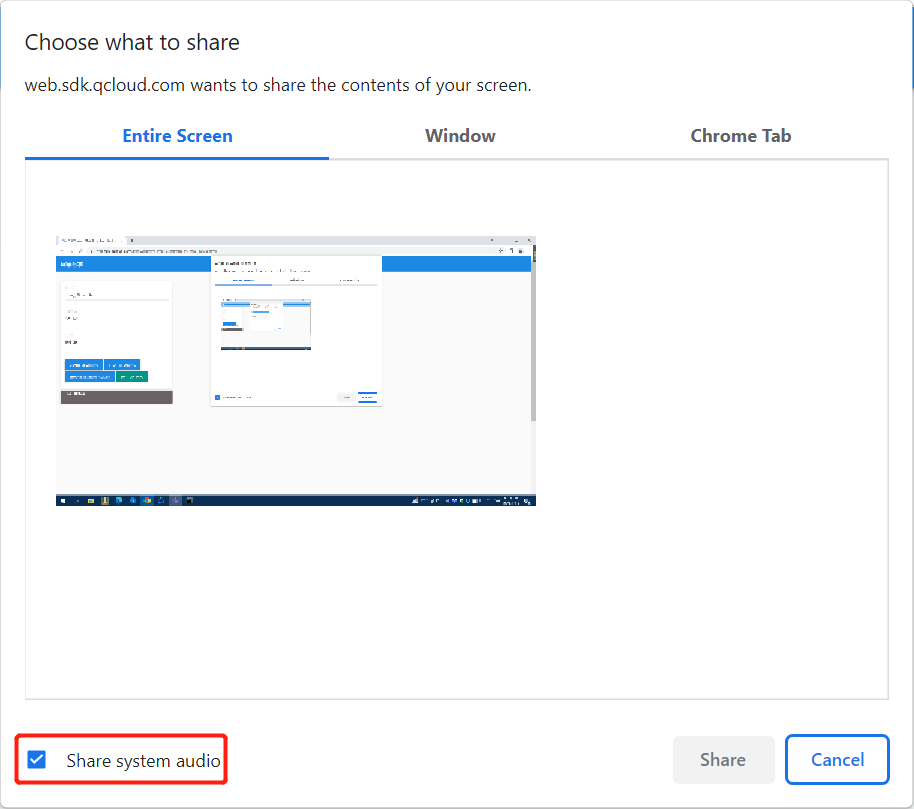
屏幕共享+系统音频
await trtcA.startScreenShare({ option: { systemAudio: true }});
仅基于 Chromium 的浏览器 M74+ 支持捕获系统音频,例如 Chrome、Edge、Opera。
OS | 系统音频 | 选项卡音频 |
Windows | Yes | Yes |
MacOS | No | Yes |
Linux | No | Yes |
非基于 Chromium 的浏览器,例如 Safari、Firefox | No | No |
停止屏幕共享
1. 调用 trtc.stopScreenShare() 启动屏幕共享。
2. 房间内的其他用户会收到 TRTC.EVENT.REMOTE_VIDEO_UNAVAILABLE 事件,streamType 为 TRTC.TYPE.STREAM_TYPE_SUB。
// Stop screen sharingawait trtcA.stopScreenShare();trtcB.on(TRTC.EVENT.REMOTE_VIDEO_UNAVAILABLE, ({ userId, streamType }) => {// Remote user stopped the screen sharing.if (streamType === TRTC.TYPE.STREAM_TYPE_SUB) {}})

// Listen for local screen sharing stop eventtrtcA.on(TRTC.EVENT.SCREEN_SHARE_STOPPED, () => {console.log('screen sharing was stopped');});
FAQ
1. Safari 屏幕分享出现报错 "getDisplayMedia must be called from a user gesture handler"
这是因为 Safari 限制了 getDisplayMedia 屏幕采集的接口,必须在用户点击事件的回调函数执行的 1 秒内才可以调用。
// goodasync function onClick() {// It is recommended to execute the collection logic first when onClick is executedawait trtcA.startScreenShare();await trtcA.enterRoom({roomId: 123123,sdkAppId: 140000000, // Fill in your sdkAppIduserId: 'userA', // Fill in your userIduserSig: 'userA_sig', // Fill in userSig corresponding to userId});}// badasync function onClick() {await trtcA.enterRoom({roomId: 123123,sdkAppId: 140000000, // Fill in your sdkAppIduserId: 'userA', // Fill in your userIduserSig: 'userA_sig', // Fill in userSig corresponding to userId});// Entering the room may take more than 1s, and the collection may failawait trtcA.startScreenShare();}
2. 当屏幕录制已获得授权时,Mac Chrome 屏幕共享失败,并显示错误消息“NotAllowedError:权限被系统拒绝”或“NotReadableError:无法启动视频源”。
1.打开设置
2.单击安全性与隐私
3.单击隐私
4.单击屏幕录制
5.关闭 Chrome 屏幕录制授权
6.重新打开 Chrome 屏幕录制授权
7.关闭 Chrome 浏览器
8.重新打开 Chrome 浏览器。
3. WebRTC 屏幕共享已知问题和解决方法

