
启用视频混合器
Function Description
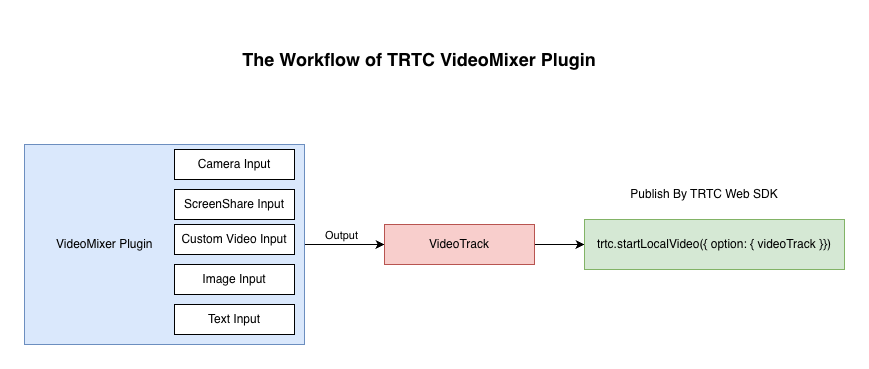
This article introduces how to use the VideoMixer plugin to mix different input sources into a single track.
Prerequisites
TRTC Web SDK version >= 5.12.0.
Compatibility
Browser | Compatibility |
Desktop Chrome | ✅ |
Desktop Safari | ✅ |
Desktop Firefox | ✅ |
Desktop Edge | ✅ |
Mobile Devices | ❌ |
Implementation Steps
Install VideoMixer Plugin
import { VideoMixer } from 'trtc-sdk-v5/plugins/video-effect/video-mixer';let trtc = TRTC.create({ plugins: [VideoMixer] });
Start VideoMixer Plugin
await trtc.startPlugin('VideoMixer', {view: 'local_preview_div', // PreviewcanvasInfo: {width: 1920,height: 1080},camera: [{id: 'camera1',layout: {x: 0,y: 0,width: 640,height: 480,zIndex: 1}}]// ...});
When starting the plugin, the canvas width and height must be set. Other parameters are optional.
Mix Various Input Sources
Camera
You can add a camera input source. The mixing plugin can control the camera's capture, and the
camera parameter array is passed with an object that has a unique id to represent the captured camera source for mixing.await trtc.updatePlugin('VideoMixer', {camera: [{id: 'camera1',profile: { width: 640, height: 480, frameRate: 15 },layout: {x: 100,y: 0,width: 640,height: 480,zIndex: 1}}]});
To update the camera parameters, pass the same id and update other parameters.
await trtc.updatePlugin('VideoMixer', {camera: [{id: 'camera1',layout: {x: 500,y: 500,width: 640,height: 480,zIndex: 1,rotation: 90,mirror: true}}]});
To turn off a camera, simply remove the object from the array.
await trtc.updatePlugin('VideoMixer', { camera: [] });
To temporarily hide the camera instead of physically turning it off, use the
hidden parameter. The same applies to other input sources.await trtc.updatePlugin('VideoMixer', {camera: [{id: 'camera1',layout: {// ...hidden: true,},},],});
Screen Sharing
You can add a screen sharing input source. The plugin can control screen sharing capture, and the
screen parameter array is passed with an object that has a unique id to represent the shared screen capture for mixing.await trtc.updatePlugin('VideoMixer', {screen: [{id: 'screen1',profile: { width: 1920, height: 1080, frameRate: 15 },layout: {x: 0,y: 0,width: 1920,height: 1080,zIndex: 0,}}]});
To update screen sharing parameters:
await trtc.updatePlugin('VideoMixer', {screen: [{id: 'screen1',layout: {x: 100,y: 100,width: 1000,height: 500,zIndex: 2,rotation: 180,mirror: true}}]});
To stop screen sharing, remove the object from the array.
await trtc.updatePlugin('VideoMixer', {screen: []});
Text
You can add a text input source. The
text parameter array is passed with an object that has a unique id to represent the text source for mixing.await trtc.updatePlugin('VideoMixer', {text: [{id: 'text1',content: 'MultiLine\nTest',font: 'bold 60px SimHei',color: 'red',layout: {x: 200,y: 300,width: 300,height: 150,zIndex: 6,}}]});
Note: If the text content exceeds the layout area, the overflowing portion will be clipped. The application side should adjust the layout width and height according to the text content.
To update text parameters:
await trtc.updatePlugin('VideoMixer', {text: [{id: 'text1',content: 'TRTC🥳',font: 'bold 120px Georgia',color: 'blue',layout: {x: 100,y: 200,width: 600,height: 150,zIndex: 7,mirror: true}}]});
To delete text:
await trtc.updatePlugin('VideoMixer', {text: []});
Image
You can add an image input source. The
image parameter array is passed with an object that has a unique id to represent the image source for mixing.await trtc.updatePlugin('VideoMixer', {image: [{id: 'img1',url: './image.png',layout: {x: 0,y: 500,width: 800,height: 400,zIndex: 4,}}]});
To update image parameters:
await trtc.updatePlugin('VideoMixer', {image: [{id: 'img1',url: './another-img.png',layout: {x: 100,y: 100,width: 600,height: 500,zIndex: 4,fillMode: 'fill'}}]});
To delete image:
await trtc.updatePlugin('VideoMixer', {image: []});
Video
You can add a video input source. The
video parameter array is passed with an object that has a unique id to represent the video source for mixing.await trtc.updatePlugin('VideoMixer', {video: [{id: 'video1',url: './video.mp4',layout: {x: 0,y: 0,width: 1000,height: 500,zIndex: 5,}}]});
To update video parameters:
await trtc.updatePlugin('VideoMixer', {video: [{id: 'video1',url: './another-video.mp4',layout: {x: 100,y: 100,width: 1280,height: 720,zIndex: 5,}}]});
To delete video:
await trtc.updatePlugin('VideoMixer', {video: []});
Stop Mixing
Remove all input sources and stop mixing:
await trtc.stopPlugin('VideoMixer');
Publish Mixed Stream
Streaming is not controlled by the Mixing Plugin, but the
startPlugin will return the mixed video track, which can be passed as a parameter to interfaces like startLocalVideo to control publishing stream.const { track } = await trtc.startPlugin('VideoMixer', {canvasInfo: {width: 1920,height: 1080},// ...});// Start publishingawait trtc.startLocalVideo({option: {videoTrack: track,profile: {width: 1920,height: 1080,bitrate: 2000}}});
Specify Frame Rate
Specify the frame rate of the mixed canvas:
await trtc.startPlugin('VideoMixer', {canvasInfo: {width: 1920,height: 1080,frameRate: 20},});
Note: Manually setting the mixed frame rate is not recommended, as the plugin automatically calculates the optimal frame rate——when a camera or screen is present, it uses the maximum frame rate between the camera and screen-sharing video; otherwise, it defaults to 15 fps. Manual settings may result in performance degradation.
Error Handling
Since the mixing plugin accepts a large number of parameters when calling
start/updatePlugin, to ensure that the failure of some input sources does not affect the normal mixing of other sources, the plugin's error handling strategy is as follows:When some input source parameters are successfully applied and others fail, the interface does not throw an error. Instead, it returns the success and failure information to the business side.
When all input source parameters fail, or there are other errors that may interrupt the mixing process, the interface will throw an error with error details.
Example of business logic:
try {const { result } = await trtc.updatePlugin('VideoMixer', {camera: [/**/],screen: [/**/],text: [/**/],image: [/**/],video: [/**/],});// Error handling when some failresult.failedDetails.forEach(({id, error}: {id: string, error: any}) => {console.error(`${id} mix failed`, error);})console.log(result.successOptions) // Information on successfully applied parameters} catch (error: any) {// Error handling when all failconsole.error(error);error?.data?.failedDetails.forEach(({ id, error }: { id: string, error: any }) => {console.error(`${id} mix failed`, error);})}
Detailed Explanation of
successOptionssuccessOptions returns the parameters that were actually applied after the update to the mixing process. Specifically, it means:When no errors occur,
successOptions will be the same as the parameters passed in the options.When some errors occur,
successOptions will include the successfully updated parameters, and the failed ones will retain the previous values.For example, suppose the mixing already has a camera and screen input source:
await trtc.startPlugin('VideoMixer', {camera: [{/*zIndex = 1*/}],screen: [{/*zIndex = 0*/}]});
Now, if you attempt to update the camera's
zIndex to 0 (which will fail because zIndex is duplicated) and update the screen's mirror to true (which will succeed):await trtc.updatePlugin('VideoMixer', {camera: [{/*zIndex = 0*/}],screen: [{/*mirror = true*/}]});
In this case, it’s a partial failure (camera update fails, screen update succeeds), and the returned
successOptions will look like this:{camera: [{/*zIndex = 1*/}], // Update failed, so the previous zIndex is still appliedscreen: [{/*mirror = true*/}] // Update succeeded, so the new parameter is applied}
In other words,
successOptions tells the business side the actual parameters applied after the update, allowing the business side to synchronize the UI or data accordingly.API Description
trtc.startPlugin('VideoMixer', options)
Used to start the mixing plugin.
options: VideoMixerOptions
Name | Type | Required | Description |
view | string | HTMLElement | null | Optional | The HTMLElement instance or id for video preview. If not provided or null, mixed video will not be played. |
canvasInfo | CanvasInfo | Required | Parameters for setting up the mixing canvas. |
camera | CameraSource[] | Optional | Parameters to control the camera input source. |
screen | ScreenSource[] | Optional | Parameters to control the screen share input source. |
text | TextSource[] | Optional | Parameters to control the text input source. |
image | ImageSource[] | Optional | Parameters to control the image input source. |
video | VideoSource[] | Optional | Parameters to control the video input source. |
onScreenShareStop | (id: string) => {} | Optional | Callback triggered when screen sharing stops. This may be used when the user stops screen sharing via the browser button instead of the SDK. The callback parameter is the ID of the screen that stopped being captured. |
CanvasInfo
Name | Type | Required | Description |
canvasColor | string | CanvasGradient | CanvasPattern | Optional | |
width | number | Required | Width of the mixing canvas |
height | number | Required | Height of the mixing canvas |
frameRate | number | Optional | Manually specify the mixing canvas frame rate. Normally, it's better to let the plugin calculate the frame rate automatically to avoid performance loss. |
CameraSourceName | Type | Required | Description |
id | string | Required | The unique id of the input source. |
layout | LayerOption | Required | Layout parameters for the input source. |
cameraId | string | Optional | The camera id to specify which camera to capture. |
videoTrack | MediaStreamTrack | Optional | The custom video track for capture. |
profile | Optional | Video capture parameters. Default: 480p_2. |
ScreenSourceName | Type | Required | Description |
id | string | Required | The unique id of the input source. |
layout | LayerOption | Required | Layout parameters for the input source. |
profile | Optional | Screen capture parameters. Default: 1080p. | |
captureElement | HTMLElement | Optional | Capture a specific HTMLElement from the current page. Supported on Chrome 104+ |
preferDisplaySurface | 'current-tab' | 'tab' | 'window' | 'monitor' | Optional | Controls the priority of the screen capture options in the screen sharing dialog. Default is monitor. If current-tab is chosen, only the current page will be displayed. Supported on Chrome 94+. |
TextSourceName | Type | Required | Description |
id | string | Required | The unique id of the input source. |
layout | LayerOption | Required | Layout parameters for the text source. |
content | string | Required | The text content to be displayed. |
color | string | CanvasGradient | CanvasPattern | Optional | |
font | string | Optional |
ImageSourceName | Type | Required | Description |
id | string | Required | The unique id of the input source. |
layout | LayerOption | Required | Layout parameters for the image source. |
url | string | Required | The URL of the image to be mixed. |
VideoSourceName | Type | Required | Description |
id | string | Required | The unique id of the input source. |
layout | LayerOption | Required | Layout parameters for the video source. |
url | string | Required | The URL of the video to be mixed. |
LayerOptionName | Type | Required | Description |
x | number | Required | The horizontal coordinate relative to the top-left corner of the canvas. Can be negative. |
y | number | Required | The vertical coordinate relative to the top-left corner of the canvas. Can be negative. |
width | number | Required | The layout width of the input source. Must be greater than 0. |
height | number | Required | The layout height of the input source. Must be greater than 0. |
zIndex | number | Required | The layer index of the input source. The layer index must be unique for each source. |
fillMode | 'contain' | 'cover' | 'fill' | Optional | The mode to fill the layout, where cameras default to cover and other sources default to contain. See the CSS object-fit property for more details. |
mirror | boolean | Optional | Whether to mirror the input source. |
rotation | 0 | 90 | 180 | 270 | Optional | The rotation angle of the source (0, 90, 180, or 270 degrees). |
hidden | boolean | Optional | Whether to temporarily hide the input source on the canvas. Use case: To temporarily hide the camera/screen without physically turning it off or destroying the resources. |
Returns: Promise<MixParseResult>
MixParseResult | Type | Description | |||||||||
MixParseResult.track | MediaStreamTrack | The mixed output video track. | |||||||||
MixParseResult.result | object | Contains information about the success or failure of the parameters passed in this update. The structure is as follows:
|
MixFailedDetailMixFailedDetail | Type | Description |
MixFailedDetail.id | string | The id of the input source that failed to update. |
MixFailedDetail.error | Error | The reason the update failed. |
Example:
// Example 1: Start mixing with only the canvas settingsawait trtc.startPlugin('VideoMixer', {view: 'local_preview_div',canvasInfo: {canvasColor: 'green',width: 1920,height: 1080},});// Example 2: Start mixing with input sources and log the reason for failuretry {const { result } = await trtc.startPlugin('VideoMixer', {view: `local_preview_div`,canvasInfo: {width: 1920,height: 1080,},screen: [{id: 'screen1',profile: { width: 1920, height: 1080, frameRate: 15 },preferDisplaySurface: 'tab',layout: {x: 0,y: 0,width: 1920,height: 1080,zIndex: 0,},},],// ...onScreenShareStop: (id: string) => {console.log(`screen share stop, id: ${id}`);},});result.failedDetails.forEach(({ id, error }: { id: string; error: any }) => {console.error(`${id} mix failed`, error);});} catch (error: any) {console.error(error);error?.data?.failedDetails.forEach(({ id, error }: { id: string, error: any }) => {console.error(`${id} mix failed`, error);})}
trtc.updatePlugin('VideoMixer', options)
options: UpdateVideoMixerOptions
UpdateVideoMixerOptions | Type | Required | Description |
view | string | HTMLElement | null | Optional | The HTMLElement instance or Id for the video preview. If not provided or null, mixed video will not be played. |
canvasInfo | CanvasInfo | Optional | Parameters to set up the mixing canvas. |
camera | CameraSource[] | Optional | Parameters to control the camera input sources. |
screen | ScreenSource[] | Optional | Parameters to control the screen sharing input sources. |
text | TextSource[] | Optional | Parameters to control the text input sources. |
image | ImageSource[] | Optional | Parameters to control the image input sources. |
video | VideoSource[] | Optional | Parameters to control the video input sources. |
Returns
The return value is the same as
startPlugin.Example
// Example 1: Remove all camerasawait trtc.updatePlugin('VideoMixer', {camera: []});// Example 2: Update mixing parameters and log the reason for failuretry {const { result } = await trtc.updatePlugin('VideoMixer', {camera: [{id: 'camera1',profile: { width: 640, height: 480, frameRate: 30 },layout: {x: 100,y: 0,width: 640,height: 480,zIndex: 1,},},],// ...});result.failedDetails.forEach(({id, error}: {id: string, error: any}) => {console.error(`${id} mix failed`, error);})} catch (error: any) {console.error(error);error?.data?.failedDetails.forEach(({ id, error }: { id: string, error: any }) => {console.error(`${id} mix failed`, error);})}
trtc.stopPlugin('VideoMixer')
Stops the mixing plugin.
await trtc.stopPlugin('VideoMixer');
Q&A
1. How to set resolution and bitrate?
The resolution refers to the width and height of the canvas.
The bitrate is not controlled by the mixing plugin. Instead, it is set during publishing by calling
start/updateLocalVideo on the business side.2. Why are input source parameters passed as arrays, and how can I update a specific type of input source in the array?
Each input source type is fully updated in order to support batch updates and deletions (by comparing the arrays before and after).
All input source parameters are optional. For example, if you only want to update the camera, you can pass only the
camera array in updatePlugin without passing arrays for other types of input sources, or pass them along while keeping the original parameters. Example:await trtc.startPlugin('VideoMixer', { // Assume camera and screen have already been mixedcamera: [/* config */],screen: [/* config */]});
Now if you only want to update the camera without updating the screen, there are two ways:
Only pass the
camera and omit screen:await trtc.updatePlugin('VideoMixer', { camera: [/* newConfig */], // Only pass the camera array });
Pass the old
screen parameters along with the new camera parameters:await trtc.updatePlugin('VideoMixer', {camera: [/* newConfig */],screen: [/* config */] // Keep the parameters for screen unchanged});
The first approach is generally preferred as it involves fewer parameters for the mixing plugin to process. Although the second approach achieves the same result, it involves redundant parameter parsing.
3. How can I update only one input source when passing an array?
For example, if you want to update a specific camera (id = 1), you should modify only the parameters of the element with id = 1 in the
camera array. Other elements that do not require updates should have their original parameters passed along unchanged.4. Why are the bitrate settings for the camera and screen capture ignored?
The bitrate settings for camera and screen capture are ignored. The upstream bitrate is set by the business side when calling the streaming interface (
start/updateLocalVideo).5. Why isn't the rotation angle set around the center?
The mixing rotation works by rotating the image and keeping the top-left corner of the image at the coordinates provided in the layout. If you want center-based rotation, the business side needs to adjust the coordinates accordingly.
6. How can the business side detect if a user stops screen sharing by clicking the browser button instead of using the SDK?
The
onScreenShareStop callback is provided in the startPlugin parameters. Example usage:await trtc.startPlugin('VideoMixer', {// ...onScreenShareStop: (id: string) => {console.log(`screen share stop, id: ${id}`);}});
Best Practices
1. Since the
start/updatePlugin interface of the mixing plugin accepts many parameters, it is recommended to minimize the transmission of parameters that have not changed and are not required during each update. For example, when updating the camera coordinates frequently, there is no need to pass the capture-related parameters (such as profile, cameraId, etc.), as these only need to be passed once. This helps reduce the overhead of parsing parameters in the plugin's underlying layer.2. The larger the canvas resolution and the more input sources, the greater the rendering overhead. The business side needs to consider the device's capabilities to determine the appropriate mixing parameters.

