
直播列表
LiveListStore 是 AtomicXCore 中负责管理直播房间列表、创建、加入以及维护房间状态的核心模块。通过LiveListStore,可以为您的应用构建完整的直播生命周期管理。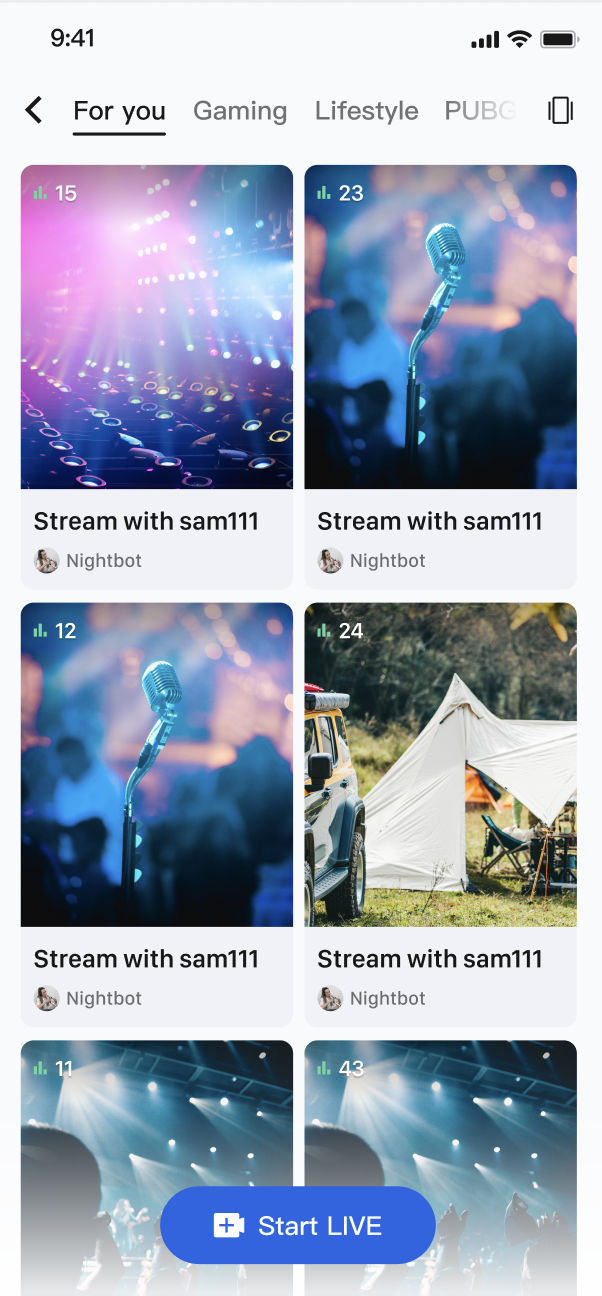
核心功能
直播列表拉取:获取当前所有公开的直播间列表,支持分页加载。
直播生命周期管理:提供从创建、开播、加入、离开到结束直播的全套流程接口。
实时事件监听:监听直播结束、用户被踢出等关键事件。
核心概念
核心概念 | 类型 | 核心职责与描述 |
LiveInfo | struct | 代表一个直播间的所有信息模型。包含了直播ID ( liveID)、名称 (liveName)、房主信息 (liveOwner) 以及自定义元数据 (metaData) 等。 |
LiveListState | struct | 代表直播列表模块的当前状态。其核心属性 liveList 是一个 [LiveInfo] 数组,存储了拉取到的直播列表;currentLive 则代表用户当前所在的直播间信息。 |
LiveListEvent | enum | 代表直播房间的全局事件。分为 .onLiveEnded (直播结束) 和 .onKickedOutOfLive (被踢出直播) 两种,用于处理关键的房间状态变更。 |
LiveListStore | class | 这是与直播列表和房间生命周期交互的核心管理类。它是一个全局单例 (shared),负责所有直播房间的创建、加入、信息更新等操作。 |
实现步骤
步骤1:组件集成
步骤2:实现观众从直播列表进入直播间
创建一个展示直播列表的页面,该页面使用
UICollectionView 来布局直播间卡片。当用户点击某个卡片时,获取该直播间的 liveId,并跳转到观众观看页面。import AtomicXCoreimport SnapKitimport RTCRoomEngineimport Combineclass LiveListViewController: UIViewController, UICollectionViewDataSource, UICollectionViewDelegate, UICollectionViewDelegateFlowLayout {private let liveListStore = LiveListStore.sharedprivate var cancellables = Set<AnyCancellable>()private var liveList: [LiveInfo] = []private var collectionView: UICollectionView!override func viewDidLoad() {super.viewDidLoad()setupUI()bindStore()fetchLiveList()}private func bindStore() {// 订阅 state,自动接收列表更新liveListStore.state.subscribe(StatePublisherSelector(keyPath: \LiveListState.liveList)).receive(on: DispatchQueue.main).sink { [weak self] fetchedList inself?.liveList = fetchedListself?.collectionView.reloadData()}.store(in: &cancellables)}private func fetchLiveList() {liveListStore.fetchLiveList(cursor: "", count: 20) { result inif case .failure(let error) = result {print("直播列表拉取失败: \(error.localizedDescription)")}}}// 当用户点击列表中的某个Cell时func collectionView(_ collectionView: UICollectionView, didSelectItemAt indexPath: IndexPath) {let selectedLiveInfo = liveList[indexPath.item]// 创建观众观看页面,并将 liveId 传入let audienceVC = YourAudienceViewController(liveId: selectedLiveInfo.liveID)audienceVC.modalPresentationStyle = .fullScreenpresent(audienceVC, animated: true)}// --- UICollectionViewDataSource, Delegate, and UI setup methods ---private func setupUI() {let layout = UICollectionViewFlowLayout()// ... (可以自定义您的布局)collectionView = UICollectionView(frame: view.bounds, collectionViewLayout: layout)collectionView.dataSource = selfcollectionView.delegate = selfcollectionView.register(UICollectionViewCell.self, forCellWithReuseIdentifier: "LiveCell")view.addSubview(collectionView)}func collectionView(_ collectionView: UICollectionView, numberOfItemsInSection section: Int) -> Int {return liveList.count}func collectionView(_ collectionView: UICollectionView, cellForItemAt indexPath: IndexPath) -> UICollectionViewCell {let cell = collectionView.dequeueReusableCell(withReuseIdentifier: "LiveCell", for: indexPath)cell.backgroundColor = .lightGray // 自定义您的Cell样式// let liveInfo = liveList[indexPath.item]// ... (例如: cell.titleLabel.text = liveInfo.liveName)return cell}func collectionView(_ collectionView: UICollectionView, layout collectionViewLayout: UICollectionViewLayout, sizeForItemAt indexPath: IndexPath) -> CGSize {// 单列、双列布局可通过自定义您的Cell大小来实现let width = (view.bounds.width - 30) / 2return CGSize(width: width, height: width * 1.2)}}
LiveInfo 参数说明
参数名 | 类型 | 描述 |
liveID | String | 直播间的唯一标识符 |
liveName | String | 直播间的标题 |
coverURL | String | 直播间的封面图片地址 |
liveOwner | 房主的个人信息 | |
totalViewerCount | Int | 直播间的总观看人数 |
categoryList | [NSNumber] | 直播间的分类标签列表 |
notice | String | 直播间的公告信息 |
metaData | [String: String] | 开发者自定义的元数据,用于实现复杂的业务场景 |
功能进阶
场景一:实现直播列表的分类展示
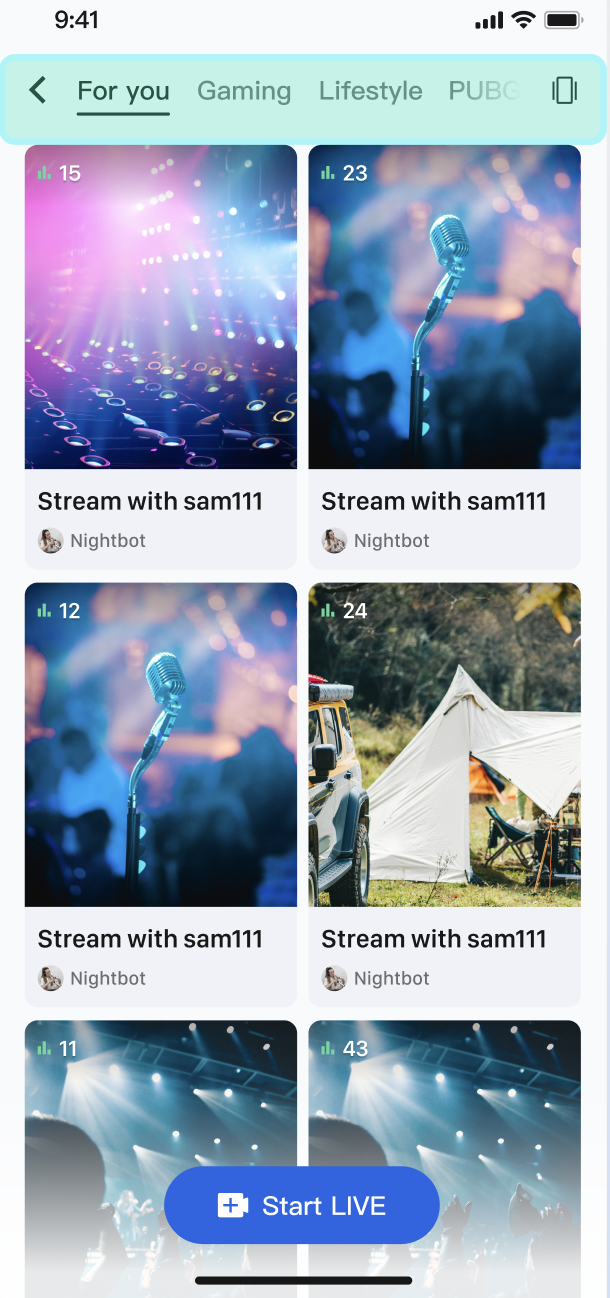
在 App 的直播广场页,顶部设有“热门”、“音乐”、“游戏”等分类标签。用户点击不同的标签后,下方的直播列表会动态筛选,只展示对应分类的直播间,从而帮助用户快速发现感兴趣的内容。
实现方式
核心是利用
LiveInfo 模型中的 categoryList 属性。当主播开播设置分类后,fetchLiveList 返回的 LiveInfo 对象中就会包含这些分类信息。您的 App 在获取到完整的直播列表后,只需在客户端根据用户选择的分类,对这个列表进行一次简单的筛选,然后刷新 UI 即可。代码示例
以下示例展示了如何在
LiveListViewController 中扩展一个 LiveListManager 来处理数据和筛选逻辑。import AtomicXCoreimport Combine// 1. 创建一个数据管理器来封装数据获取和筛选逻辑class LiveListManager {private let liveListStore = LiveListStore.sharedprivate var cancellables = Set<AnyCancellable>()private var fullLiveList: [LiveInfo] = []// 对外暴露最终的直播列表let filteredLiveListPublisher = CurrentValueSubject<[LiveInfo], Never>([])init() {liveListStore.state.subscribe(StatePublisherSelector(keyPath: \LiveListState.liveList)).receive(on: DispatchQueue.main).sink { [weak self] fetchedList inself?.fullLiveList = fetchedList// 默认将完整列表发布出去self?.filteredLiveListPublisher.send(fetchedList)}.store(in: &cancellables)}func fetchFirstPage() {liveListStore.fetchLiveList(cursor: "", count: 20) { _ in }}/// 根据分类筛选直播列表func filterLiveList(by categoryId: NSNumber?) {guard let categoryId = categoryId else {// 如果 categoryId 为 nil,则显示完整列表filteredLiveListPublisher.send(fullLiveList)return}let filteredList = fullLiveList.filter { liveInfo inliveInfo.categoryList.contains(categoryId)}filteredLiveListPublisher.send(filteredList)}}// 2. 在您的 LiveListViewController 中使用 Managerclass LiveListViewController: UIViewController, UICollectionViewDataSource, UICollectionViewDelegate {private let manager = LiveListManager()private var cancellables = Set<AnyCancellable>()private var liveList: [LiveInfo] = []private var collectionView: UICollectionView!override func viewDidLoad() {super.viewDidLoad()// ... setupUI ...// 绑定数据manager.filteredLiveListPublisher.receive(on: DispatchQueue.main).sink { [weak self] filteredList inself?.liveList = filteredListself?.collectionView.reloadData()}.store(in: &cancellables)// 首次拉取manager.fetchFirstPage()}// 当用户点击顶部分类标签 (UISegmentedControl) 时@objc func categorySegmentDidChange(_ sender: UISegmentedControl) {let selectedCategoryId: NSNumber? = 1 // 假设 "音乐" 分类的ID是 1manager.filterLiveList(by: selectedCategoryId)}// ... (UICollectionView 相关代码)}
场景二:实现直播列表的滑动播放

用户可以通过上下滑动来切换直播间,当一个新的直播间滑动到屏幕中央时,视频会自动开始播放预览;当它滑出屏幕时,视频则会自动停止,以节省带宽和设备性能。
说明:
滑动播放仅视频直播场景支持,语聊房场景正在规划中。
交互流程图
实现方式
LiveCoreView 支持多实例使用,我们为每一个 UICollectionViewCell 都创建一个独立的 LiveCoreView 实例。通过监听 UICollectionView 的滚动代理方法,我们可以精确地控制即将出现和已经离开屏幕的 Cell 中的 LiveCoreView 何时开始和停止拉流,从而实现“即滑即播、即走即停”的效果。代码示例
我们创建一个自定义的
LiveFeedCell,它内部持有一个 LiveCoreView。然后在 UIViewController 中管理这些 Cell 的播放状态。import UIKitimport AtomicXCore// 1. 自定义 UICollectionViewCell,内部包含一个 LiveCoreViewclass LiveFeedCell: UICollectionViewCell {private var liveCoreView: LiveCoreView?func setLiveInfo(_ liveInfo: LiveInfo) {// 为新的直播信息创建一个新的 LiveCoreViewliveCoreView = LiveCoreView(viewType: .playView)guard let liveCoreView = liveCoreView else { return }contentView.addSubview(liveCoreView)liveCoreView.frame = contentView.bounds}func startPlay(roomId: String) {liveCoreView?.startPreviewLiveStream(roomId: roomId, isMuteAudio: false)}func stopPlay(roomId: String) {liveCoreView?.stopPreviewLiveStream(roomId: roomId)}}// 2. 在 ViewController 中管理播放逻辑class LiveFeedViewController: UIViewController, UICollectionViewDataSource, UICollectionViewDelegate {private var collectionView: UICollectionView!private var liveList: [LiveInfo] = []private var currentPlayingIndexPath: IndexPath?// 当滑动完全停止后,此代理方法会被调用func scrollViewDidEndDecelerating(_ scrollView: UIScrollView) {let page = Int(scrollView.contentOffset.y / view.frame.height)let indexPath = IndexPath(item: page, section: 0)// 只有当居中的 Cell 变化时才切换播放if currentPlayingIndexPath != indexPath {playVideo(at: indexPath)}}// 当 Cell 即将离开屏幕时调用func collectionView(_ collectionView: UICollectionView, didEndDisplaying cell: UICollectionViewCell, forItemAt indexPath: IndexPath) {if let liveCell = cell as? LiveFeedCell {let liveInfo = liveList[indexPath.item]liveCell.stopPlay(roomId: liveInfo.liveID)}}private func playVideo(at indexPath: IndexPath) {if let cell = collectionView.cellForItem(at: indexPath) as? LiveFeedCell {let liveInfo = liveList[indexPath.item]cell.startPlay(roomId: liveInfo.liveID)currentPlayingIndexPath = indexPath}}// ... (UICollectionViewDataSource 的其他方法)func collectionView(_ collectionView: UICollectionView, cellForItemAt indexPath: IndexPath) -> UICollectionViewCell {let cell = collectionView.dequeueReusableCell(withReuseIdentifier: "LiveFeedCell", for: indexPath) as! LiveFeedCellcell.setLiveInfo(liveList[indexPath.item])return cell}}
API 文档
常见问题
语聊房的列表和视频直播的列表数据是同一份吗?
它们的数据是同一份,您不需要分开拉取。
LiveListStore 是一个全局单例,它负责统一管理应用中所有“直播”房间的生命周期,无论是视频直播还是语聊房。直播列表中如何区分语聊房和视频直播
LiveListStore 本身不区分房间的业务类型。您需要在获取列表后,在客户端的应用层(业务逻辑或 UI 层)进行筛选和分类。我们推荐采用以下两种方式进行区分:
方式一(推荐):使用 seatLayoutTemplateID 区分。这是一个用于定义房间布局的模板
ID,关于目前已支持的模板 ID 和效果,请参阅文档 开始直播 > 运行效果。您要在创建房间时指定 ID,然后在获取列表时根据 ID 范围来识别业务场景。步骤1:创建房间时指定 ID 调用
LiveListStore.shared.createLive 时,您需要根据业务场景为 LiveInfo 的 seatLayoutTemplateID 属性传入指定范围的 ID:语聊房场景:传入 1 - 199 范围内的模板
ID。视频直播场景:传入 200 - 999 范围内的模板
ID。步骤2:获取列表时筛选 客户端在
LiveListStore.state.liveList 中收到列表数据后,通过判断这个 ID 值所属的范围判断,从而在进入直播间的时候区分两种业务场景。重要提示:
创建房间时,如果传入的
seatLayoutTemplateID 范围与您的业务场景(语聊房、视频直播)不匹配,可能会导致麦位布局出现功能异常。方式二:为
liveID 添加业务前缀。这是一种可选的、纯粹的应用层约定,用于辅助您在客户端快速筛选。步骤1:创建房间时添加前缀 在您生成
liveID 并调用 createLive 时,为不同业务类型的 liveID 赋予不同的前缀。例如:视频直播的 ID 以 “Live_” 开头 (例如:Live_12345),语聊房的 ID 以 “voice_” 开头 (例如:voice_67890)。步骤2:获取列表时检查前缀 客户端在拉取到列表后,通过检查
liveID 字符串的前缀来进行区分。
