This document will guide you through integrating TUIKit or TUIChat and successfully sending your first message.
Or, if you prefer a faster and more automated approach, you can refer to Get started with AI integration to streamline the process.
Development Environment Requirements
Android Studio-Giraffe
Gradle-7.2
Android Gradle Plugin Version-7.0.0
kotlin-gradle-plugin-1.5.31
Create an Application
Before integrating TUIKit, you need to create a Chat application in the console. The steps are as follows:
1. Register TRTC account and add a payment method.
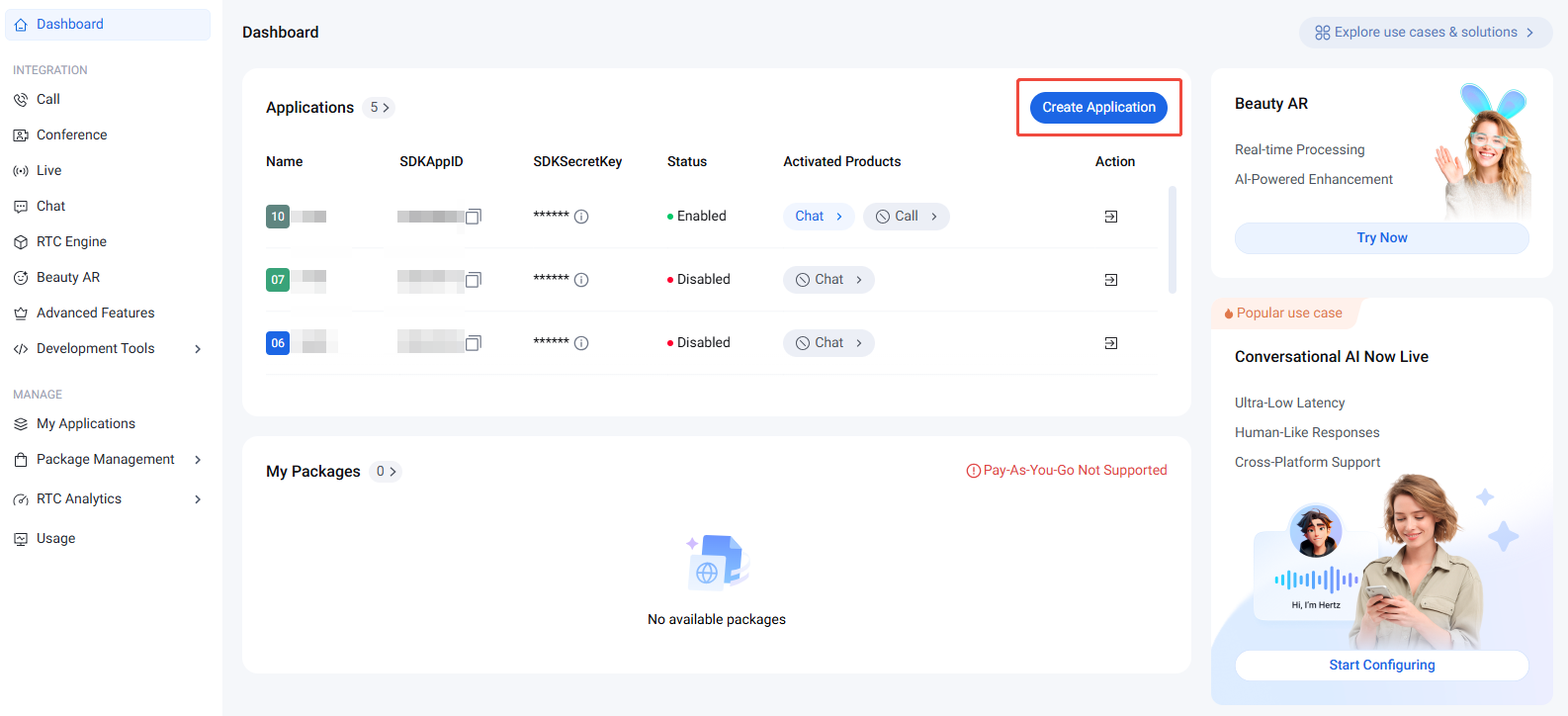
2. Log in to the Chat console and click Create Application.
3. Enter the application name in the create pop-up window and choose Chat, select appropriate Deployment Region, then click Create.
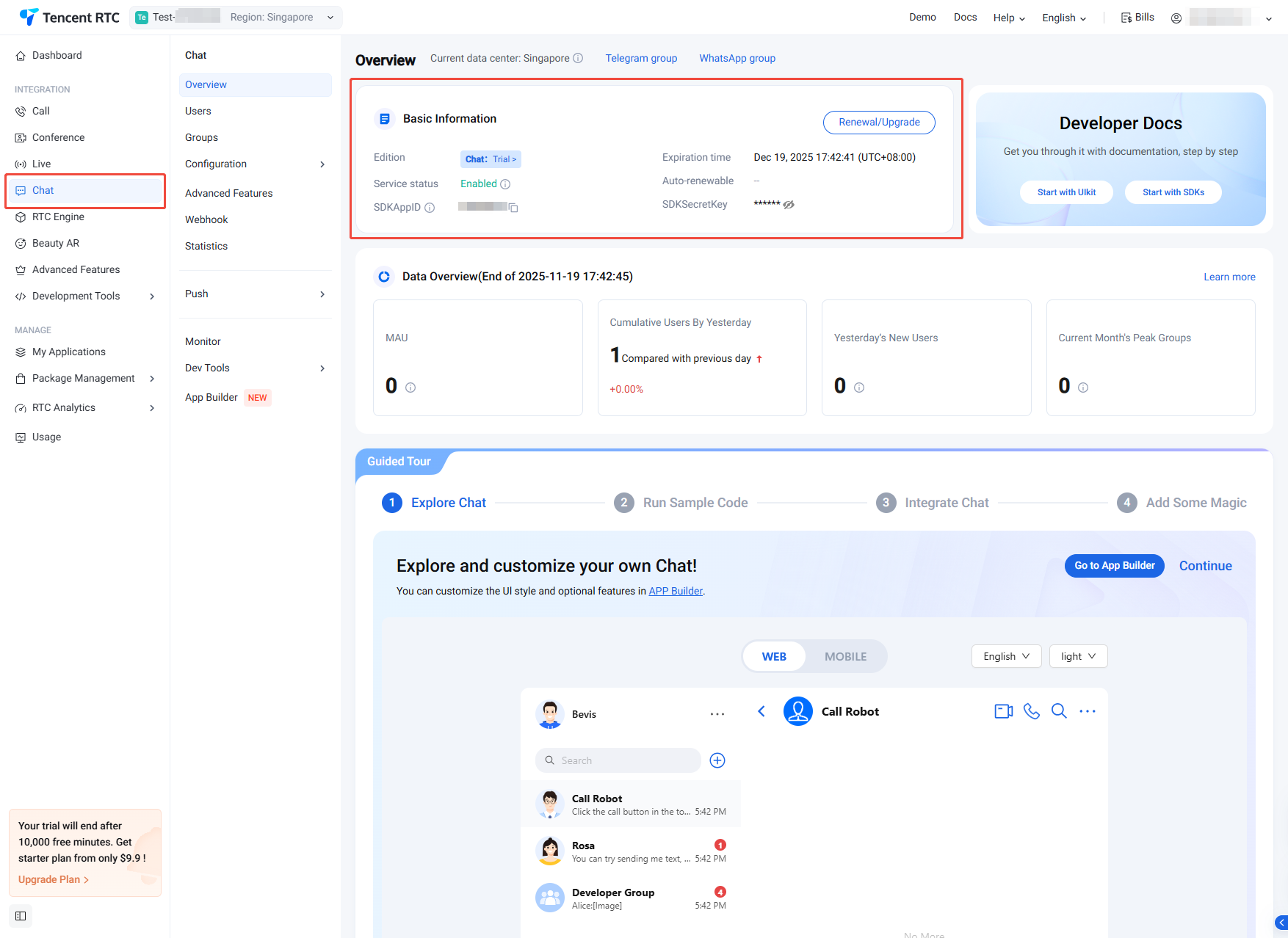
4. After creation, you can view the application status, service version, SDKAppID, SDKSecretKey, creation time, and expiry time on the current Chat Product Details Page or My Applications.
Note
The service version of a new application defaults to Trial Edition, and the status is enabled by default.
A single Tencent Cloud account can create up to 300 Chat applications. If you already have 300 applications, you can first deactivate and delete unused applications before creating new ones. After application deletion, all data and services corresponding to the SDKAppID cannot be restored. Proceed with caution.
Create Accounts
Creating an Application only ensures you can normally initialize the SDK. To successfully send messages, you also need to create user accounts in the Application. There are many ways to create accounts, such as directly in the console or through API client registration. You can choose any suitable method.
Note:
Sending messages requires at least two users to interact with each other, so you need to create at least 2 accounts for this step. Please record the userIDs of these 2 accounts, as they will be used in the next steps.
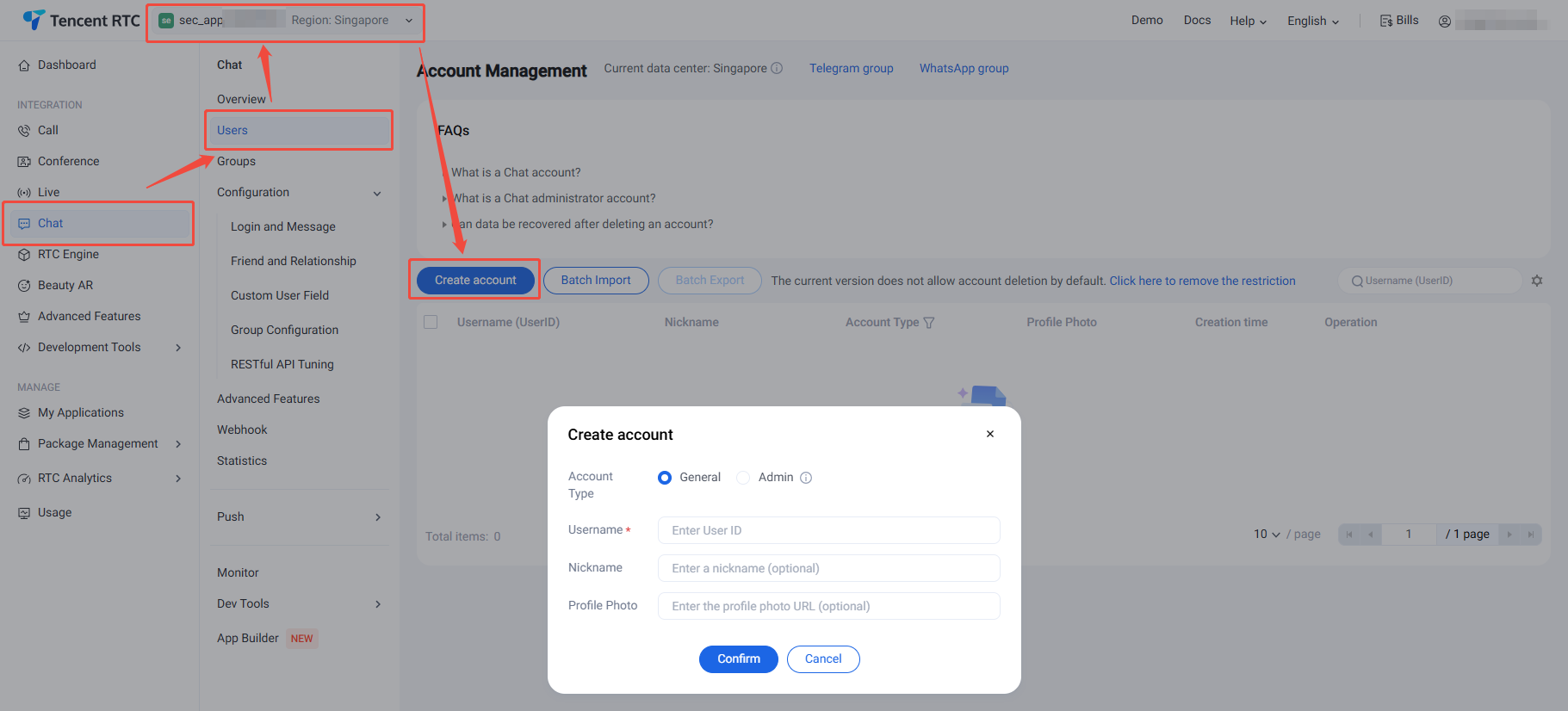
1. Log in to the Chat console, select Chat > Users in the left sidebar, and choose the target application at the top.
2. On the account management page, click Create Account.
3. In the pop-up Create Account dialog box, configure the following parameters:
Account type: Case-sensitive for ordinary account and admin account. "App admin" is a role with the highest level of privileges for the App, allowing calls to RESTful APIs to perform operations such as creating/disbanding groups and sending All Users Push messages. Each application supports configuration of up to 10 administrators.
Username: Enter username (UserID), required.
User nickname: Enter user nickname, optional.
Avatar: Enter user avatar URL, optional.
4. Click Confirm to save configuration.
5. After creating an account, you can view the username, nickname, account type, avatar, and creation time in the account list.
Option B: Create accounts upon logging in
To register via the client, just input a brand new UserID in the Log In to TUIKit section below. At this point, TUIKit will automatically register the UserID for you.
2. In the UserSig generation tool section, select an application and manually input the UserID.
3. Click Generate Signature (UserSig) to generate a signature. The signature validity period defaults to 180 days.
4. Click Copy Signature (UserSig) to paste and save the signature.
Integrate TUIKit
The feature of sending messages in chat interactions is implemented by TUIChat. You need to integrate at least TUIChat to properly send and receive messages. Other components, such as TUIConversation, TUIContact, and TUIGroup, can be integrated as needed.
If you need multiple UI components, you can integrate TUIKit. For details, see Integrate TUIKit.
SDKAppID, the SDKAppID of the new application creation, was obtained in the previous Create Application.
UserID, the UserID of User1, was obtained in the previous Create Account. Note that it is not the user's NickName.
UserSig, User1's UserSig, has been obtained in the Generating UserSig context before.
Go to Chat Interface
To send messages, the next step is:
1. Use one of the previously registered accounts (hereinafter referred to as user1) to log in to TUIKit, and then user1 is online.
2. User1 sends a message to another account (hereinafter referred to as user2). User2 does not need to log in and does not need to have any friend relationship with user1.
Note:
The following steps explain how to send a message to user2 after logging in as user1. If you wish for user1 and user2 to interact via chat, you need to use the same steps to log in as user2 and enter the chat interface with user1.
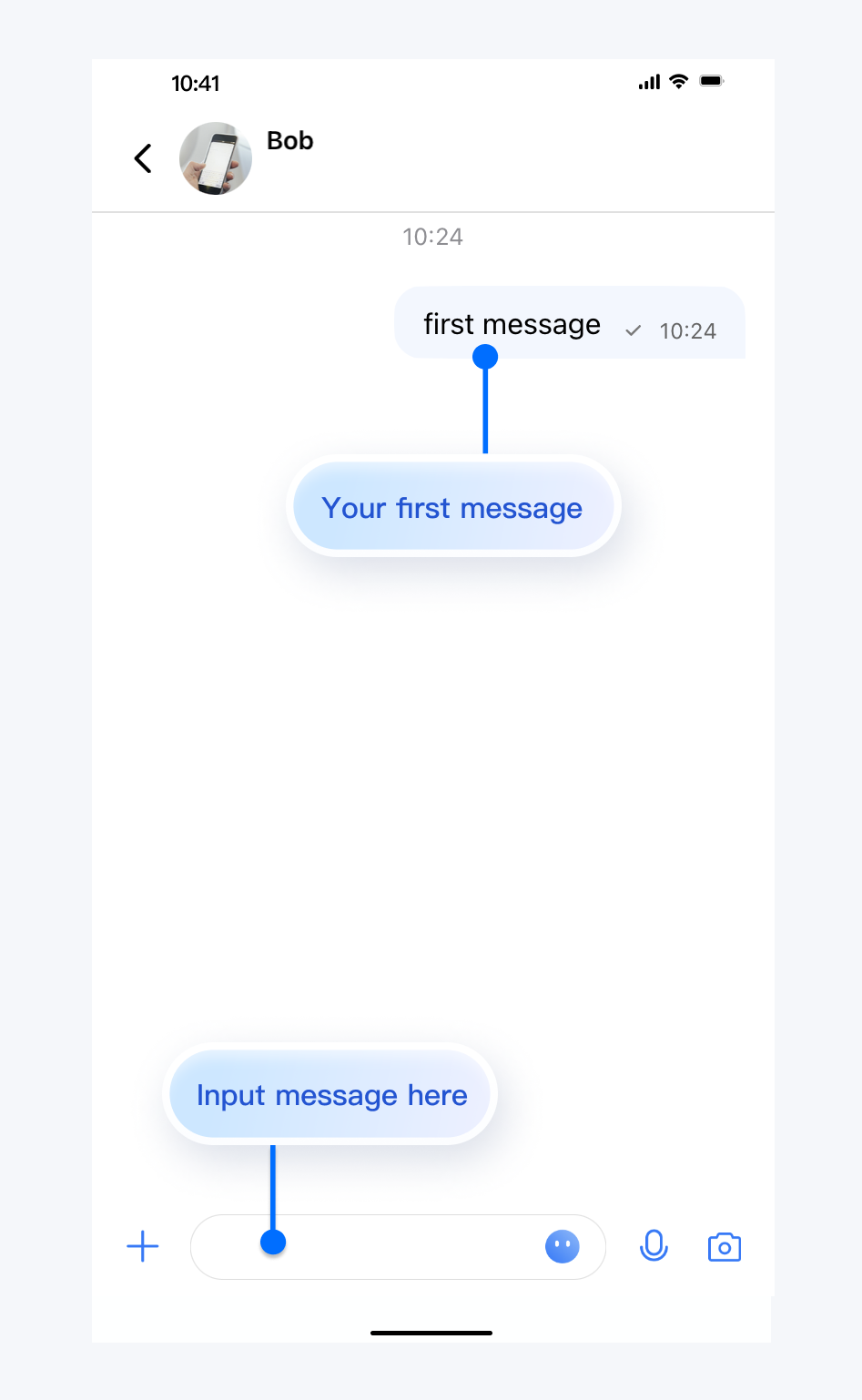
You can navigate to the chat interface in the callback of user1's successful login, and send a message to user2.
The sample code is as follows, where chatID needs to be user2's ID.