
Host Streaming
The TUILiveKit Host Live Streaming Page provides a full-featured UI for live streaming scenarios. It supports the rapid deployment of core host capabilities, allowing you to efficiently integrate the live streaming workflow without worrying about complex UI and logic implementation.
Feature Overview
Pre-stream Setup: Supports various personalized configurations before the host goes live, including room name, background, video preview, beauty filters (beauty effects) debugging, audio effects debugging, and layout templates.
Co-Host Interaction: Supports real-time interaction (co-hosting) with viewers or other hosts during the live stream.
Audience Interaction: Supports rich interaction forms such as barrage (bullet screen) and gifts.
Live Room Management: Supports displaying the online user list and various management operations within the room, such as muting (banning) and kicking users.
Pre-stream Setup | Co-Host Interaction | Audience Interaction | Live Room Management |
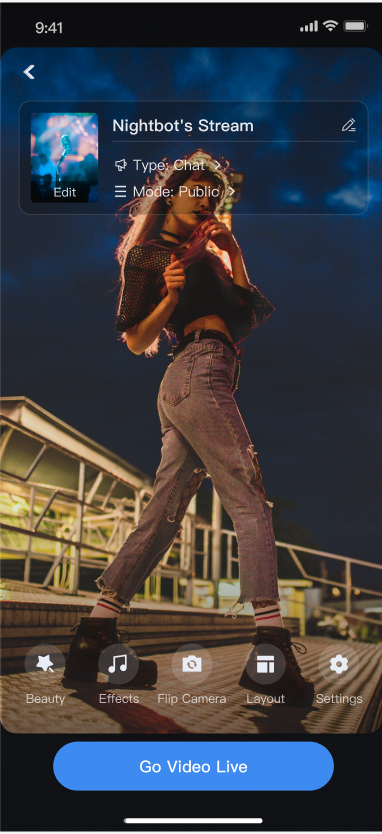 | 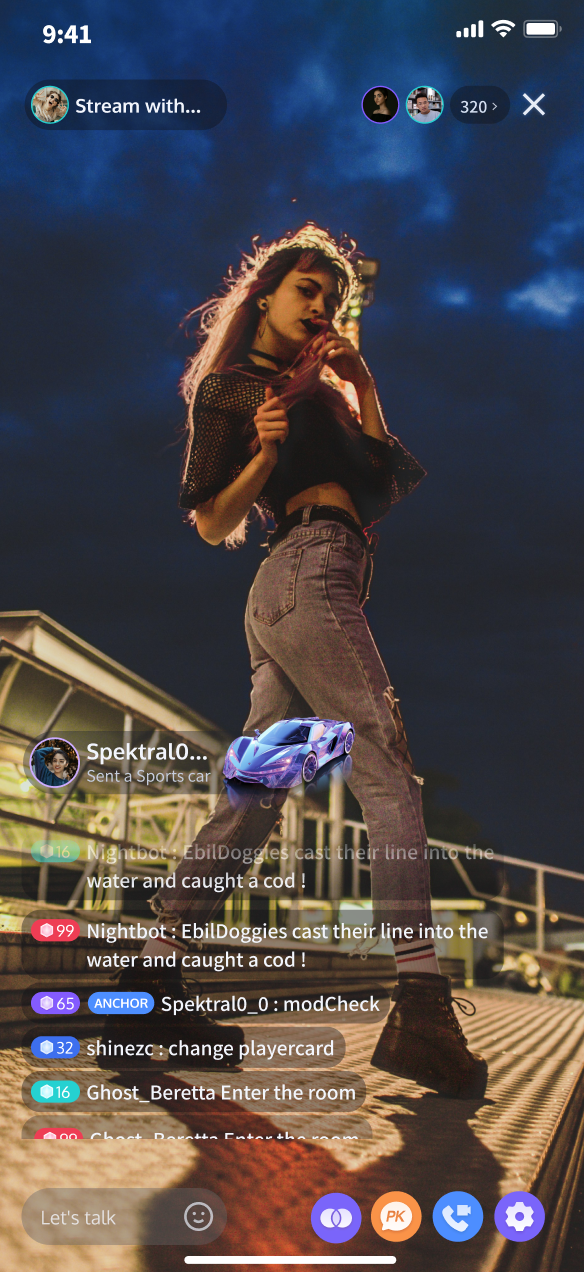 | 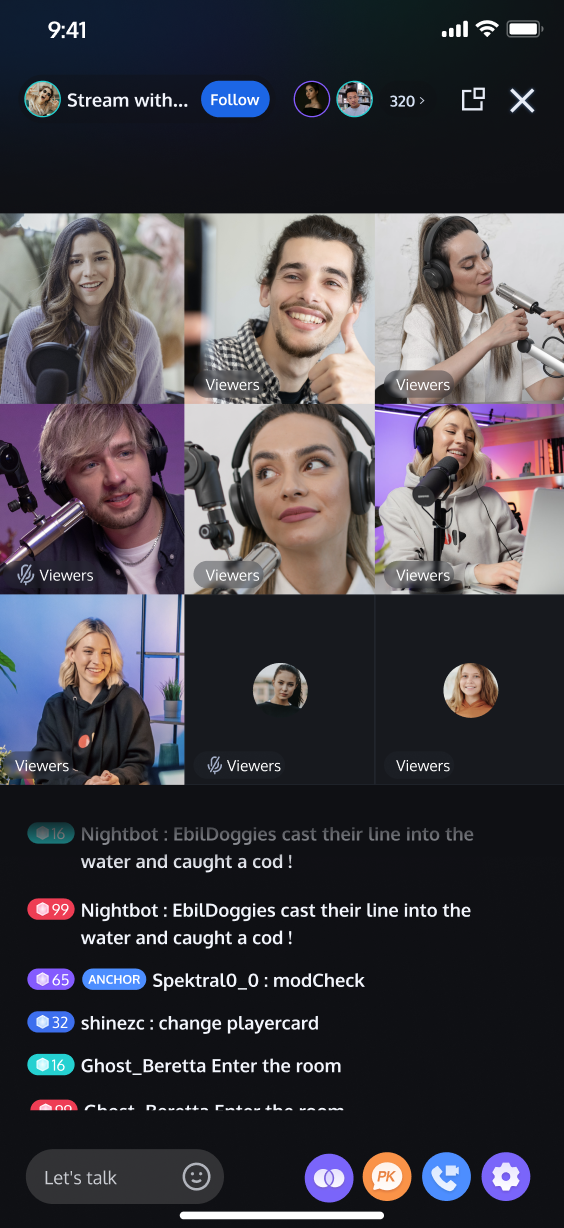 | 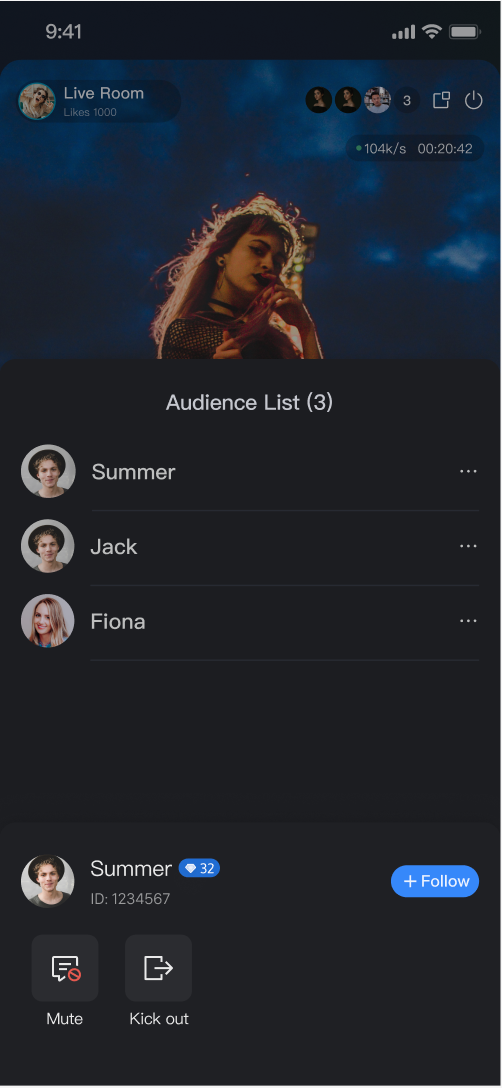 |
Quick Start
Step 1. Activate the Service
Step 2. Code Integration
Step 3. Add the Pre-stream Setup view
The
AnchorPrepareView component already has built-in features for camera preview, audio effects settings, layout settings, and other functional configurations. You need to create and load AnchorPrepareView. The specific example code is as follows:import android.os.Bundleimport androidx.appcompat.app.AppCompatActivityimport com.trtc.uikit.livekit.features.anchorprepare.AnchorPrepareViewclass AnchorActivity : AppCompatActivity() {lateinit var anchorPrepareView: AnchorPrepareViewoverride fun onCreate(savedInstanceState: Bundle?) {super.onCreate(savedInstanceState)// 1. Create and initialize AnchorPrepareViewanchorPrepareView = AnchorPrepareView(this)anchorPrepareView.init("live_1235858", null)// 2. Add AnchorPrepareView to the UIsetContentView(anchorPrepareView)}}
import android.os.Bundle;import androidx.appcompat.app.AppCompatActivity;import com.trtc.uikit.livekit.features.anchorprepare.AnchorPrepareView;public class AnchorActivity extends AppCompatActivity {private AnchorPrepareView anchorPrepareView;@Overrideprotected void onCreate(Bundle savedInstanceState) {super.onCreate(savedInstanceState);// 1. Create and initialize AnchorPrepareViewanchorPrepareView = new AnchorPrepareView(this);anchorPrepareView.init("live_1235858", null);// 2. Add AnchorPrepareView to the interfacesetContentView(anchorPrepareView);}}
Step 4. Add the Host Streaming view
The
AnchorView component has built-in features for audio/video pushing (streaming), viewer co-hosting, live interaction, and live room management. You only need to create and load AnchorView. The specific example code is as follows:import android.os.Bundleimport androidx.appcompat.app.AppCompatActivityimport com.trtc.uikit.livekit.features.anchorboardcast.AnchorViewimport com.trtc.uikit.livekit.features.anchorboardcast.RoomBehaviorimport com.trtc.uikit.livekit.features.anchorprepare.AnchorPrepareViewimport com.trtc.uikit.livekit.features.anchorprepare.LiveStreamPrivacyStatusimport io.trtc.tuikit.atomicxcore.api.live.LiveInfoclass AnchorActivity : AppCompatActivity() {lateinit var anchorPrepareView: AnchorPrepareViewoverride fun onCreate(savedInstanceState: Bundle?) {super.onCreate(savedInstanceState)// 1. Create and initialize AnchorPrepareViewanchorPrepareView = AnchorPrepareView(this)anchorPrepareView.init("live_1235858", null)// 2. Add AnchorPrepareView to the interfacesetContentView(anchorPrepareView)}fun initAnchorView() {// 1. Create AnchorViewval anchorView = AnchorView(this)// 2. Initialize AnchorView, where liveInfo is the live stream information and anchorPrepareView is your preparation page before starting your broadcast.val liveInfo = LiveInfo()liveInfo.liveID = "live_1236666"liveInfo.liveName = anchorPrepareView.getState()?.roomName?.getValue() ?: ""liveInfo.isPublicVisible = anchorPrepareView.getState()?.liveMode?.getValue() == LiveStreamPrivacyStatus.PUBLICliveInfo.coverURL = anchorPrepareView.getState()?.coverURL?.getValue() ?: ""liveInfo.seatTemplate = SeatLayoutTemplate.VideoDynamicGrid9Seats// Entering the room:// RoomBehavior.CREATE_ROOM: The host creates the room// RoomBehavior.ENTER_ROOM: Viewers enter the roomanchorView.init(liveInfo, anchorPrepareView.getCoreView(), RoomBehavior.CREATE_ROOM, null)// 3. Add AnchorView to the interfacesetContentView(anchorView)}}
import android.os.Bundle;import androidx.appcompat.app.AppCompatActivity;import com.trtc.uikit.livekit.features.anchorboardcast.AnchorView;import com.trtc.uikit.livekit.features.anchorboardcast.RoomBehavior;import com.trtc.uikit.livekit.features.anchorprepare.AnchorPrepareView;import com.trtc.uikit.livekit.features.anchorprepare.LiveStreamPrivacyStatus;import io.trtc.tuikit.atomicxcore.api.live.LiveInfo;public class AnchorActivity extends AppCompatActivity {private AnchorPrepareView anchorPrepareView;@Overrideprotected void onCreate(Bundle savedInstanceState) {super.onCreate(savedInstanceState);// 1. Create and initialize AnchorPrepareViewanchorPrepareView = new AnchorPrepareView(this);anchorPrepareView.init("live_1235858", null);// 2.Add AnchorPrepareView to the interfacesetContentView(anchorPrepareView);}private void initAnchorView() {// 1.Create AnchorViewAnchorView anchorView = new AnchorView(this);// 2.Initialize AnchorViewLiveInfo liveInfo = new LiveInfo();liveInfo.setLiveID("live_1236666");liveInfo.setLiveName(anchorPrepareView.getState().roomName.getValue());liveInfo.setPublicVisible(anchorPrepareView.getState().liveMode.getValue() == LiveStreamPrivacyStatus.PUBLIC);liveInfo.setCoverURL(anchorPrepareView.getState().coverURL.getValue());liveInfo.setSeatTemplate(SeatLayoutTemplate.VideoDynamicGrid9Seats);// Entering the room:// RoomBehavior.CREATE_ROOM: The host creates the room// RoomBehavior.ENTER_ROOM: Viewers enter the roomanchorView.init(liveInfo, anchorPrepareView.getCoreView(), RoomBehavior.CREATE_ROOM, null);// 3.Add AnchorView to the interfacesetContentView(anchorView);}
Step 5. Transition from Pre-stream Setup to Host Streaming
Combine this with Step 3 to implement the delegate events of the
AnchorPrepareView component, completing the transition to the host streaming page. The specific example code is as follows:import android.os.Bundleimport androidx.appcompat.app.AppCompatActivityimport com.trtc.uikit.livekit.features.anchorprepare.AnchorPrepareViewimport com.trtc.uikit.livekit.features.anchorprepare.AnchorPrepareViewListenerclass AnchorActivity : AppCompatActivity() {lateinit var anchorPrepareView: AnchorPrepareViewlateinit var anchorPrepareViewListener: AnchorPrepareViewListeneroverride fun onCreate(savedInstanceState: Bundle?) {super.onCreate(savedInstanceState)// 1. Create and initialize AnchorPrepareViewanchorPrepareView = AnchorPrepareView(this)anchorPrepareView.init("live_1235858", null)// 2. Add AnchorPrepareView to the interfacesetContentView(anchorPrepareView)anchorPrepareViewListener = object : AnchorPrepareViewListener {override fun onClickStartButton() {initAnchorView()}override fun onClickBackButton() {finish()}}// 3. Set the callback for AnchorPrepareViewanchorPrepareView.addAnchorPrepareViewListener(anchorPrepareViewListener)}}
import android.os.Bundle;import androidx.appcompat.app.AppCompatActivity;import com.trtc.uikit.livekit.features.anchorprepare.AnchorPrepareView;import com.trtc.uikit.livekit.features.anchorprepare.AnchorPrepareViewListener;public class AnchorActivity extends AppCompatActivity {private AnchorPrepareView anchorPrepareView;private AnchorPrepareViewListener anchorPrepareViewListener;@Overrideprotected void onCreate(Bundle savedInstanceState) {super.onCreate(savedInstanceState);// 1. Create and initialize AnchorPrepareViewanchorPrepareView = new AnchorPrepareView(this);anchorPrepareView.init("live_1235858", null);// 2. Add AnchorPrepareView to the interfacesetContentView(anchorPrepareView);anchorPrepareViewListener = new AnchorPrepareViewListener() {@Overridepublic void onClickStartButton() {initAnchorView();}@Overridepublic void onClickBackButton() {finish();}};// 3. Set the callback for AnchorPrepareViewanchorPrepareView.addAnchorPrepareViewListener(anchorPrepareViewListener);}}
Customize Your UI Layout
TUILiveKit supports flexible customization of the host setup and live pages, allowing you to adjust the layout and hide/show functional modules based on your business requirements.
Live Layout Template Selection
TUILiveKit provides 4 live layout templates. You can select the appropriate style in the "Layout" UI interaction entry on the host setup page:
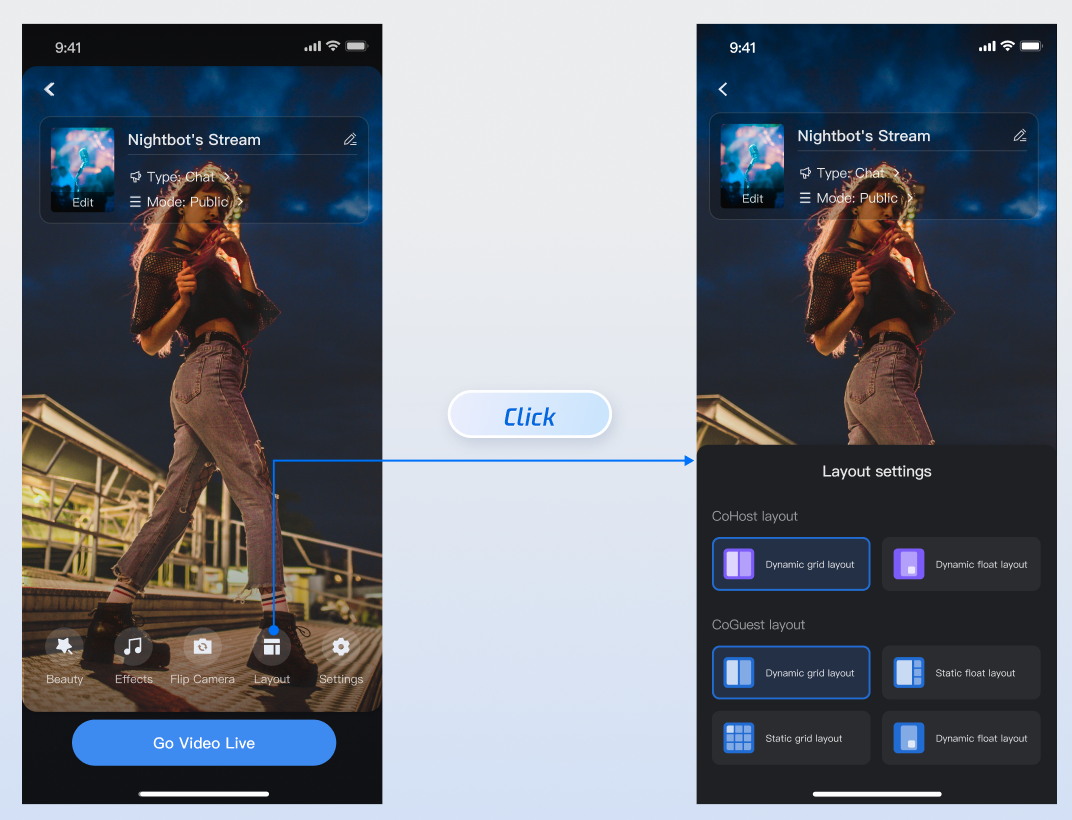
Layout Template Overview
Name | dynamic grid layout | dynamic float layout | static grid layout | static float layout |
Template ID | VideoDynamicGrid9Seats | VideoDynamicFloat7Seats | VideoFixedGrid9Seats | VideoFixedFloat7Seats |
Description | The default layout; grid size adjusts dynamically based on the number of co-hosts. | Co-hosts are displayed in floating small windows. | The number of co-hosts is fixed, and each co-host occupies a fixed grid cell. | The number of co-hosts is fixed, and co-hosts are displayed in fixed small windows. |
Preview | 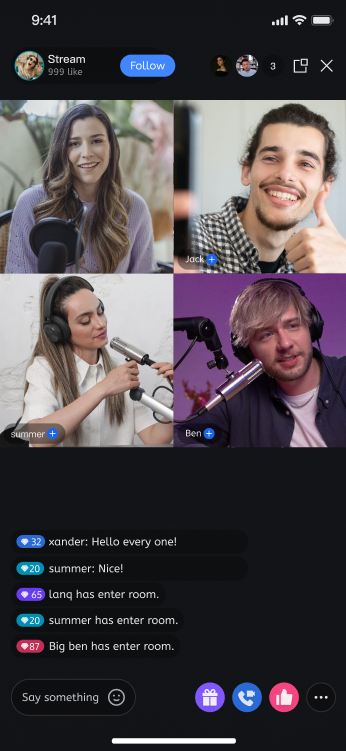 | 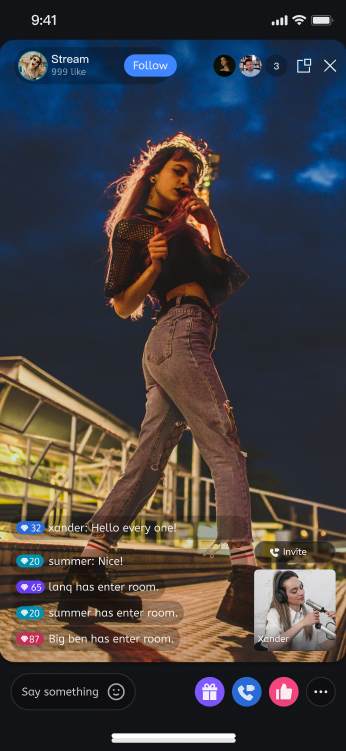 | 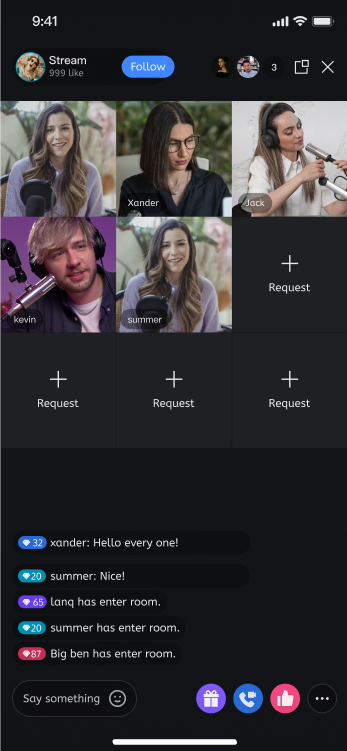 | 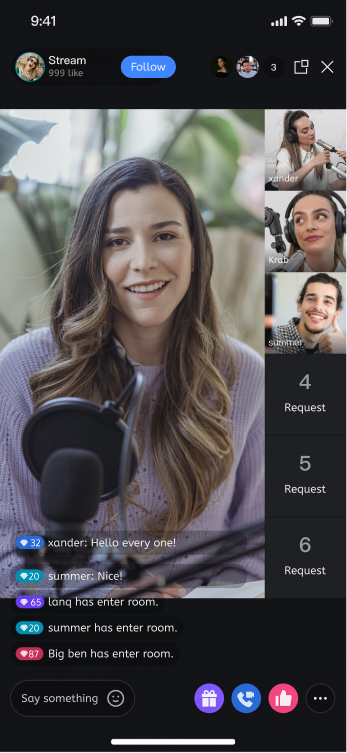 |
Customize AnchorPrepareView Feature Area
By calling the API of
prepareView created in Step 3, you can customize and hide the operation area or specific features on the host setup page:import android.os.Bundleimport androidx.appcompat.app.AppCompatActivityimport com.trtc.uikit.livekit.features.anchorprepare.AnchorPrepareViewclass AnchorActivity : AppCompatActivity() {lateinit var anchorPrepareView: AnchorPrepareViewoverride fun onCreate(savedInstanceState: Bundle?) {super.onCreate(savedInstanceState)anchorPrepareView = AnchorPrepareView(this)anchorPrepareView.init("live_1235858", null)// 1. Customize the ribbon - Example: Hide the entire ribbonanchorPrepareView.disableFeatureMenu(true)setContentView(anchorPrepareView)}}
import android.os.Bundle;import androidx.appcompat.app.AppCompatActivity;import com.trtc.uikit.livekit.features.anchorprepare.AnchorPrepareView;public class AnchorActivity extends AppCompatActivity {private AnchorPrepareView anchorPrepareView;@Overrideprotected void onCreate(Bundle savedInstanceState) {super.onCreate(savedInstanceState);// 1. Customize the ribbon - Example: Hide the entire ribbonanchorPrepareView = new AnchorPrepareView(this);anchorPrepareView.init("live_1235858", null);anchorPrepareView.disableFeatureMenu(true);setContentView(anchorPrepareView);}}
API | Description |
disableFeatureMenu(true) | Hide Entire Feature Area |
disableMenuBeautyButton(true) | Hide Beauty Effect Button |
disableMenuAudioEffectButton(true) | Hide Sound Effect Button |
disableMenuSwitchCameraButton(true) | Hide Camera Toggle Button |
Customize AnchorView Feature Area
By calling the API of
anchorView created in Step 4, you can customize and hide the operation area or specific features on the host live page:import android.os.Bundleimport androidx.appcompat.app.AppCompatActivityimport com.trtc.uikit.livekit.features.anchorboardcast.AnchorViewimport com.trtc.uikit.livekit.features.anchorboardcast.RoomBehaviorimport com.trtc.uikit.livekit.features.anchorprepare.AnchorPrepareViewimport com.trtc.uikit.livekit.features.anchorprepare.AnchorPrepareViewListenerimport com.trtc.uikit.livekit.features.anchorprepare.LiveStreamPrivacyStatusimport io.trtc.tuikit.atomicxcore.api.live.LiveInfoclass AnchorActivity : AppCompatActivity() {...fun initAnchorView() {val anchorView = AnchorView(this)val liveInfo = LiveInfo()liveInfo.liveID = "live_1236666"liveInfo.liveName = anchorPrepareView.getState()?.roomName?.getValue() ?: ""liveInfo.isPublicVisible = anchorPrepareView.getState()?.liveMode?.getValue() == LiveStreamPrivacyStatus.PUBLICliveInfo.coverURL = anchorPrepareView.getState()?.coverURL?.getValue() ?: ""liveInfo.seatLayoutTemplateID = anchorPrepareView.getState()?.coGuestTemplateId?.getValue() ?: 600anchorView.init(liveInfo, anchorPrepareView.getCoreView(), RoomBehavior.CREATE_ROOM, null)// 1. Customize the ribbon - Example: Hide the streamer connection functionanchorView.disableFooterCoHost(true)setContentView(anchorView)}}
import android.os.Bundle;import androidx.appcompat.app.AppCompatActivity;import com.trtc.uikit.livekit.features.anchorboardcast.AnchorView;import com.trtc.uikit.livekit.features.anchorboardcast.RoomBehavior;import com.trtc.uikit.livekit.features.anchorprepare.AnchorPrepareView;import com.trtc.uikit.livekit.features.anchorprepare.AnchorPrepareViewListener;import com.trtc.uikit.livekit.features.anchorprepare.LiveStreamPrivacyStatus;import io.trtc.tuikit.atomicxcore.api.live.LiveInfo;public class AnchorActivity extends AppCompatActivity {...private void initAnchorView() {AnchorView anchorView = new AnchorView(this);LiveInfo liveInfo = new LiveInfo();liveInfo.setLiveID("live_1236666");liveInfo.setLiveName(anchorPrepareView.getState().roomName.getValue());liveInfo.setPublicVisible(anchorPrepareView.getState().liveMode.getValue() == LiveStreamPrivacyStatus.PUBLIC);liveInfo.setCoverURL(anchorPrepareView.getState().coverURL.getValue());liveInfo.setSeatLayoutTemplateID(anchorPrepareView.getState().seatTemplate.getValue());anchorView.init(liveInfo, anchorPrepareView.getCoreView(), RoomBehavior.CREATE_ROOM, null);// 1. Customize the ribbon - Example: Hide the streamer connection functionanchorView.disableFooterCoHost(true);setContentView(anchorView);}
API | Description |
disableHeaderVisitorCnt(true) | Hide Top Audience List Feature |
disableFooterCoGuest(true) | Hide Bottom Audience Mic Connection Feature |
disableFooterCoHost(true) | Hide Bottom Anchor Connection Feature |
disableFooterBattle(true) | Hide Bottom Anchor PK Function |
Text Customization (String Resources)
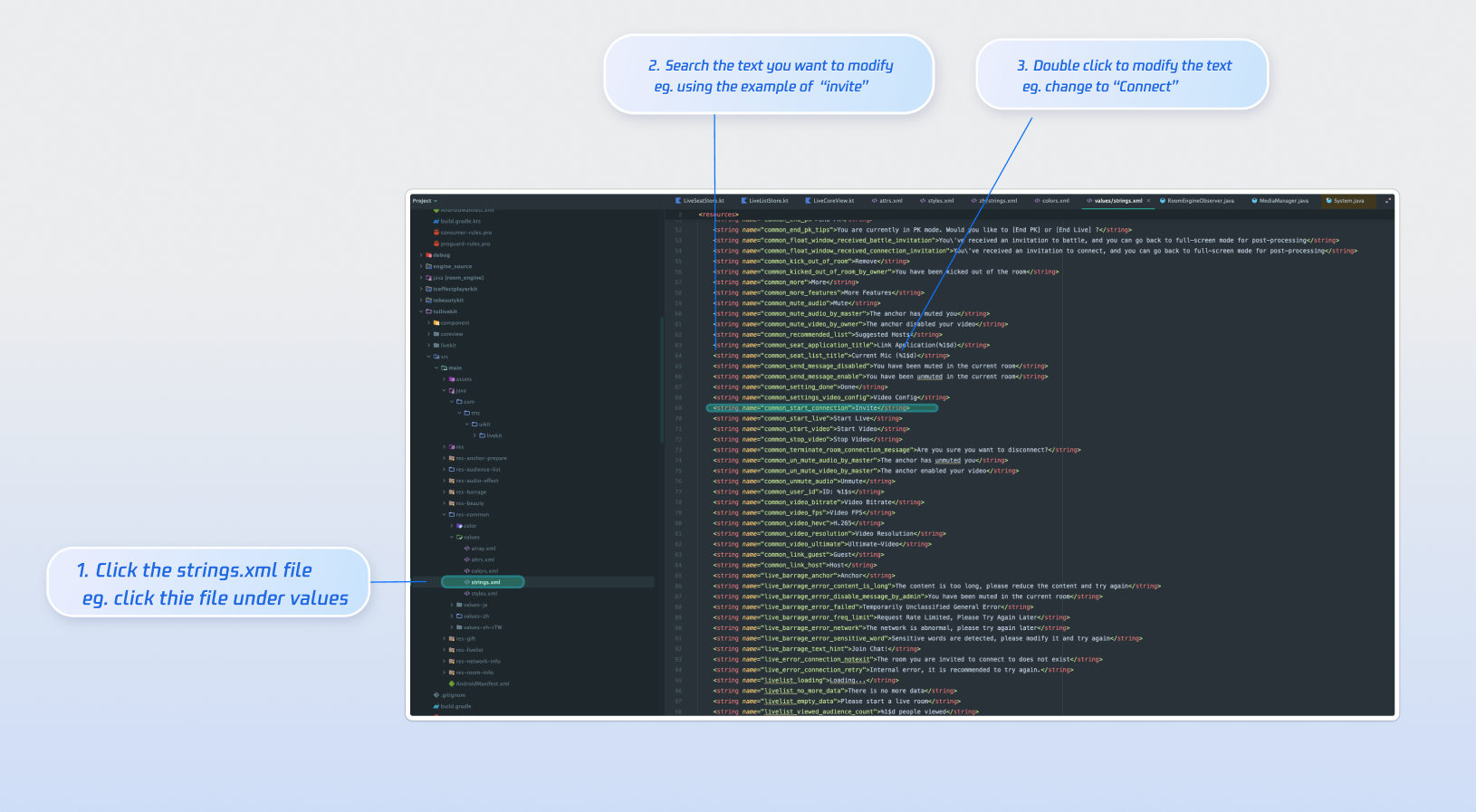
TUILiveKit uses standard Android XML resource files to manage the text displayed in the UI. You can directly modify the strings that need adjustment via the XML file:
Icon Customization (Drawable Resources)
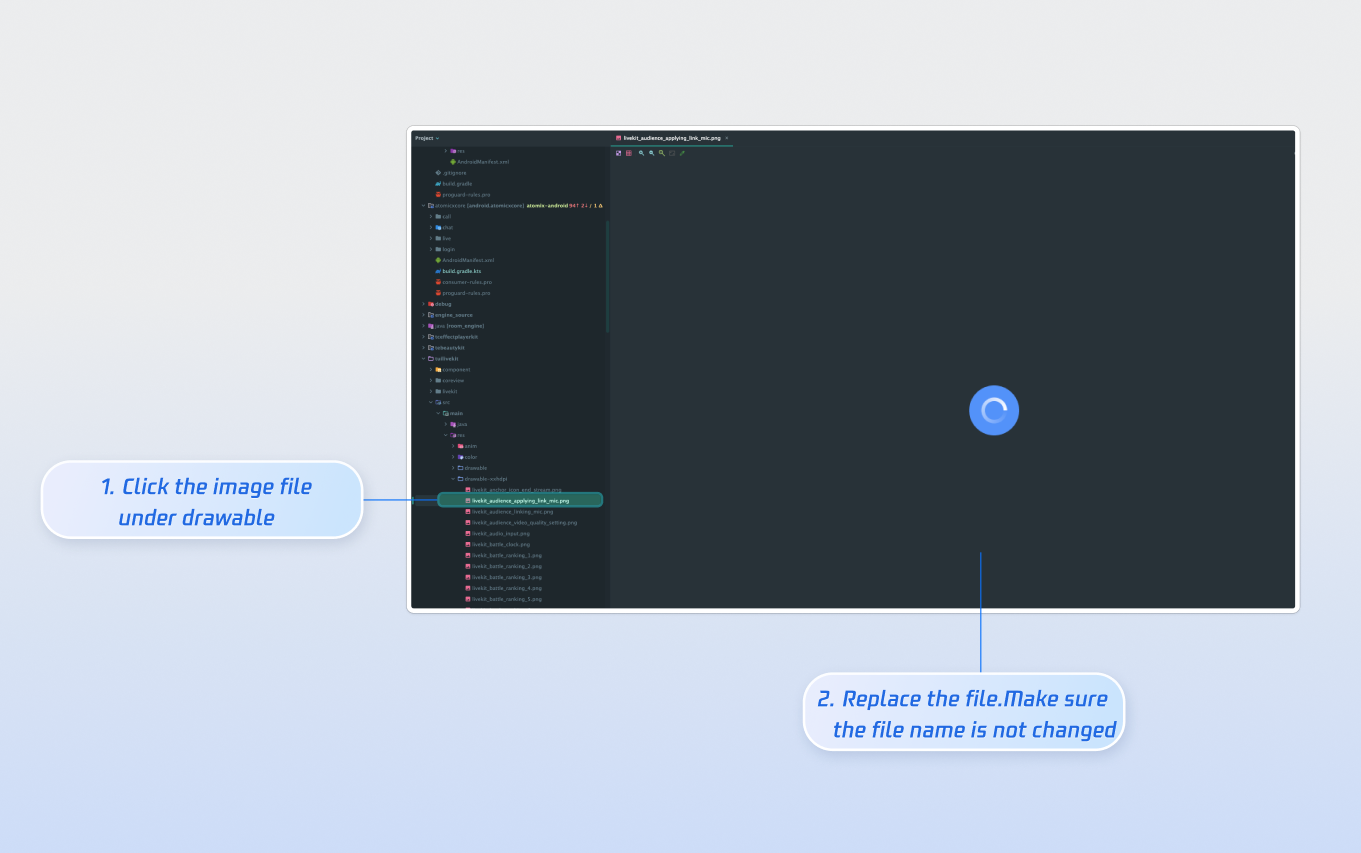
TUILiveKit uses the standard Android drawable resource folder to manage the image resources for the UI. You can quickly change the custom icons by replacing the resource files. When replacing, ensure that the new file names are consistent with the original file names.
Next Steps
Congratulations! You have successfully integrated the Host Live Streaming component. Next, you can implement features such as audience viewing, live stream list and gift system. Please refer to the table below:
Feature | Description | Integration Guide |
Audience Viewing | Audience can watch live streaming after entering the anchor's live streaming room, with features like audience mic connection, live room information, online audience, and bullet screen display. | |
Live Stream List | Display the live stream list interface and features, including the live stream list and room information display. | |
Gift System | Support custom gift asset configuration, billing system integration, and gift-sending in PK scenarios. |
FAQs
Why is there no video feed after starting the stream?
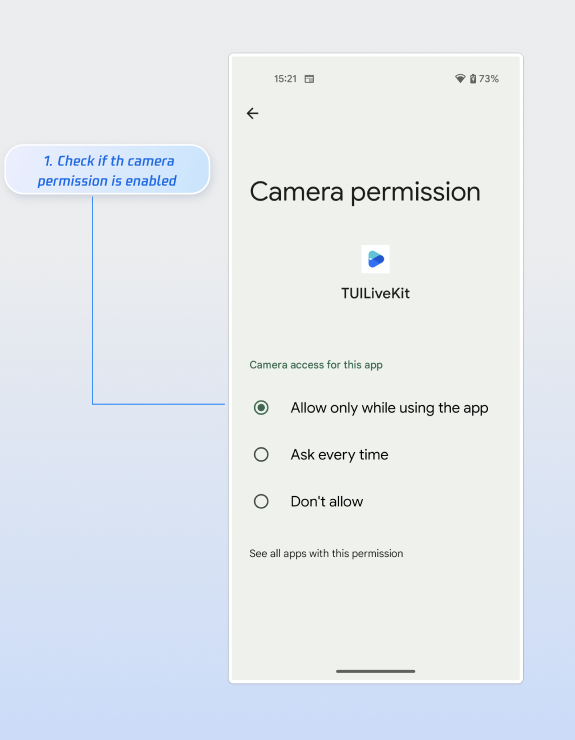
Please go to App Info > Permissions > Camera and check if the camera permission is enabled. Refer to the image below:
Why does clicking the "Start Stream" button fail with a "Not Logged In" prompt?

