To help users be more aware of network quality, we recommend that business personnel perform a speed test before calls, monitor network quality and connection status during calls, and provide appropriate UI prompts and notifications. This way, users can easily evaluate their current network quality and promptly adjust network settings for optimal call performance.
Performing Network Speed Tests Before Calls
Regular users often lack awareness of their network conditions. Therefore, it is recommended that you perform a speed test before calls. This can help users assess their current network quality and promptly adjust network settings for optimal call performance.
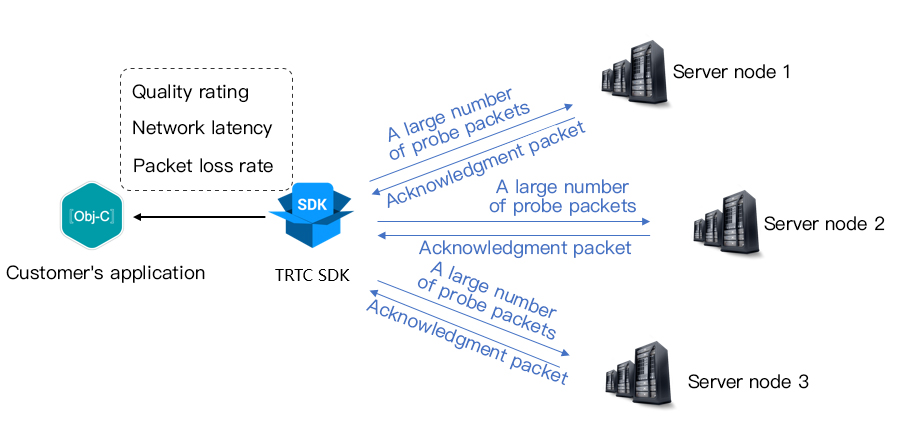
The principle of a speed test is that the SDK sends a batch of probe packets to server nodes, then calculates the quality of the returned packets, and notifies the speed test results through the callback API, as shown below:
Advantages of pre-call speed tests:
The speed test results will be used to optimize the server selection policy for the SDK. Therefore, we recommend running a speed test before a user makes the first call to help the SDK select the optimal server.
If the test results are highly unsatisfactory, you can prompt the user through a prominent UI to choose a better network.
Performing a Speed Test Through startSpeedTest
Android
iOS
Windows
// Example code for starting a network speed test. sdkAppId and UserSig are required (for the acquisition method, refer to Basic Features).
// Here is an example of starting a speed test after logging in
Network quality as calculated by the assessment algorithm. The lower the packet loss and the smaller the rtt, the higher the score.
upLostRate
Upstream packet loss rate
Range: 0–1.0. For example, a value of 0.3 means that 3 out of every 10 packets sent to the server may be lost midway.
downLostRate
Downstream packet loss rate
Range: 0–1.0. For example, a value of 0.2 means that 2 out of every 10 packets received from the server may be lost midway.
rtt
Network latency
Time taken for a round trip between the SDK and the server. The smaller the value, the better. A normal value is between 10 ms and 100 ms.
availableUpBandwidth
Upstream bandwidth
Predicted upstream bandwidth. Unit: kbps. A value of -1 indicates an invalid result.
availableDownBandwidth
Downstream bandwidth
Predicted downstream bandwidth. Unit: kbps. A value of -1 indicates an invalid result.
Performing a Speed Test Through Tools
If you do not want to perform a network speed test through API calls, Real-Time Communication Engine (RTC Engine) also provides a PC-based network speed test tool that allows you to quickly obtain detailed network quality information. Depending on your platform, you can choose the appropriate tool program from the options below to download. The program supports two test options, that is, rapid testing and continuous testing.
Duration of parsing the Tencent Cloud speed test domain name
MTR
A network test tool that can detect the packet loss rate and latency between the client and the RTC Engine node and display detailed information of each hop in the route
UDP Loss
UDP packet loss rate between the client and the RTC Engine node
UDP RTT
UDP latency between the client and the RTC Engine node
Local RTT
Latency between the client and the local gateway
Upload
Estimated upstream bandwidth
Download
Estimated downstream bandwidth
Note:
Do not perform speed tests during video calls, as this may degrade the call quality.
Performing a speed test consumes a small amount of traffic, which may result in minimal (almost negligible) additional traffic fees.
Detecting Network Quality During Calls
To help users be more aware of potential network fluctuations during calls, it is recommended that you add appropriate UI alerts on the call interface. This is particularly important when network conditions are poor, as these alerts inform users of the issue, allowing them to make timely adjustments to improve network quality.
Listening for Local Network Quality Through onNetworkQuality
The callback event onNetworkQuality reports the current network quality to you every 2 seconds. It includes two parameters, that is, localQuality and remoteQuality.
localQuality: Represents your current network quality. The quality is divided into 6 levels, namely, Excellent, Good, Poor, Bad, VeryBad, and Down.
remoteQuality: Represents the network quality of remote users. This is an array where each element represents the network quality of a remote user.
Quality
Name
Description
0
Unknown
Not detected.
1
Excellent
The current network is excellent.
2
Good
The current network is good.
3
Poor
The current network is moderate.
4
Bad
The current network is poor, and obvious lags and call delays may occur.
5
VeryBad
The current network is very poor. RTC Engine can merely sustain the connection but cannot guarantee communication quality.
6
Down
The current network fails to satisfy the minimum requirements of RTC Engine, and normal audio and video calls cannot be performed.
Listen for onNetworkQuality and provide corresponding prompts on the interface.
Android
iOS&Mac
Windows
// Listen for the onNetworkQuality callback to stay aware of changes in the current network status
printf("SDK has not yet sensed the current network quality.");
break;
case TRTCQuality_Excellent:
printf("The current network is very good.");
break;
case TRTCQuality_Good:
printf("The current network is good.");
break;
case TRTCQuality_Poor:
printf("The current network quality barely meets the demand.");
break;
case TRTCQuality_Bad:
printf("The current network is poor, and there may be significant freezes and call delays.");
break;
case TRTCQuality_Vbad:
printf("The current network is very poor, the communication quality cannot be guaranteed");
break;
case TRTCQuality_Down:
printf("The current network does not meet the minimum requirements.");
break;
default:
break;
}
// Get the network quality of remote users
for(int i =0; i < remote_quality_count;++i){
printf("remote user : = %s, quality = %d", remote_quality[i].userId, remote_quality[i].quality);
}
}
Listening for Full Network Quality Through onStatistics
The statistics callback event onStatistics is thrown every 2 seconds to notify the statistics on professional technical metrics related to audio, video, and network performance within the SDK. The metrics are listed in TRTCStatistics:
Video statistics: Video resolution, frame rate (FPS), bitrate, and other information.
Audio statistics: Audio sample rate (samplerate), number of audio channels (channel), bitrate, and other information.
Network statistics: Network duration (rtt), packet loss rate (loss), upstream traffic (sentBytes), downstream traffic (receivedBytes), and other information for a round trip between the SDK and the cloud (SDK > Cloud > SDK).
Enumeration Type
Description
appCpu
CPU utilization of the current application. Unit: %. Android 8.0 or later is not supported.
downLoss
Downstream packet loss rate from the cloud to the SDK. Unit: %.
The smaller the value, the better. If downLoss is 0%, the downstream network quality is very good, and the data packets received from the cloud experience little to no loss.
If downLoss is 30%, 30% of the audio and video data packets transmitted from the cloud to the SDK will be lost in the transmission link.
gatewayRtt
Round-trip latency from the SDK to the local router. Unit: ms. This value represents the total duration for a network packet to travel from the SDK to the local router gateway and back again, that is, the complete cycle of "SDK > gateway > SDK."
The smaller the value, the better. A gatewayRtt value below 50 ms indicates low latency for audio and video calls, while a value above 200 ms indicates high latency for audio and video calls.
When the network type is a cellular network, the value is invalid.
localArray
Local audio and video statistics.
Since three audio and video streams may be available locally (that is, the primary HD stream, secondary low-resolution stream, and substream), the local audio and video statistics are provided as an array.
receiveBytes
Total number of received bytes (including signaling data and audio and video data). Unit: byte.
remoteArray
Remote audio and video statistics.
Since multiple remote users may be present simultaneously, and each of them may carry multiple audio and video streams (that is, a primary HD stream, a secondary low-resolution stream, and a substream), the remote audio and video statistics are provided as an array.
rtt
Round-trip latency from the SDK to the cloud. Unit: ms. This value represents the total duration for a network packet to travel from the SDK to the cloud and back again, that is, the complete cycle of "SDK > cloud > SDK."
The smaller the value, the better. A rtt value below 50 ms indicates low latency for audio and video calls, while a value above 200 ms indicates high latency for audio and video calls.
Note:
rtt represents the total duration on the link of "SDK > cloud > SDK." Therefore, upRtt and downRtt do not need to be distinguished.
sendBytes
Total number of sent bytes (including signaling data and audio and video data). Unit: byte.
systemCpu
CPU utilization of the current system. Unit: %. Android 8.0 or later is not supported.
upLoss
Upstream packet loss rate from the SDK to the cloud. Unit: %.
The smaller the value, the better. If upLoss is 0%, the upstream network quality is very good, and the data packets uploaded to the cloud experience little to no loss.
If upLoss is 30%, 30% of the audio and video data packets sent from the SDK to the cloud will be lost in the transmission link.
// Capture status of the local audio device (used to monitor the health of audio peripherals). 0: capture device in normal status; 1: long-time silence detected; 2: audio clipping detected; 3: abnormal sound intermittency detected.
// Remote video lag rate. Unit: %. Video playback lag rate (videoBlockRate) = Cumulative video playback lag duration (videoTotalBlockTime) / Total video playback duration.
// videoPacketLoss represents the packet loss rate calculated at the audience end after the video stream goes through a complete transmission link of "anchor > cloud > audience."
// The smaller the videoPacketLoss value, the better. A packet loss rate of 0 means that all data of the video stream has fully arrived at the audience end.
// If downLoss == 0 but videoPacketLoss != 0, it means that the video stream experienced no packet loss on the cloud-to-audience link, but irreversible packet loss was detected on the anchor-to-cloud link.
// Playback delay. The playback buffer, maintained by RTC Engine on the player side, organizes received network packets to prevent sound and image lags caused by network jitter and out-of-order network packets. The buffer size adjusts adaptively based on the current network quality. The buffer size, expressed as a time duration in milliseconds, is measured as the jitterBufferDelay.
// point2PointDelay represents the delay in the link of "anchor => cloud => audience." More precisely, it represents the delay in the entire link of "capture => encoding => network transmission => reception => buffering => decoding => playback."
// point2PointDelay takes effect only when both the local and remote SDKs are version 8.5 or later. If the remote user is using a version earlier than 8.5, this value will remain 0, indicating no valid measurement.
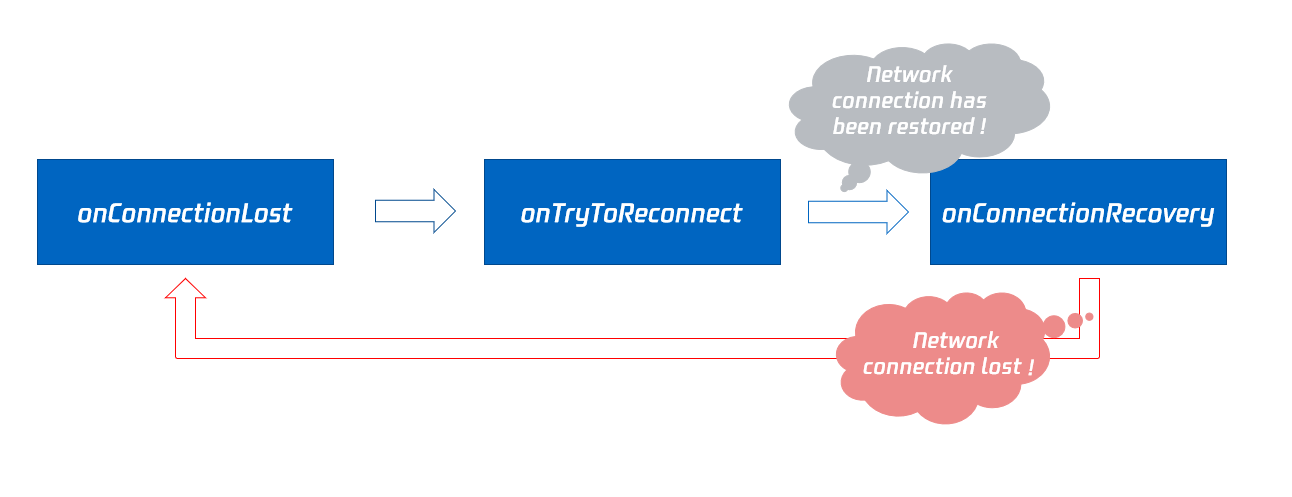
During a call, users need to stay aware of both network fluctuations and the connection status between the SDK and the backend. This allows users to better assess whether the current network adjustments have been completed and if the call can continue normally.
Callback API
Description
onConnectionLost
The SDK has been disconnected from the cloud.
onTryToReconnect
The SDK is trying to connect to the cloud again.
onConnectionRecovery
The connection between the SDK and the cloud has been recovered.
Disconnection and Reconnection Logic
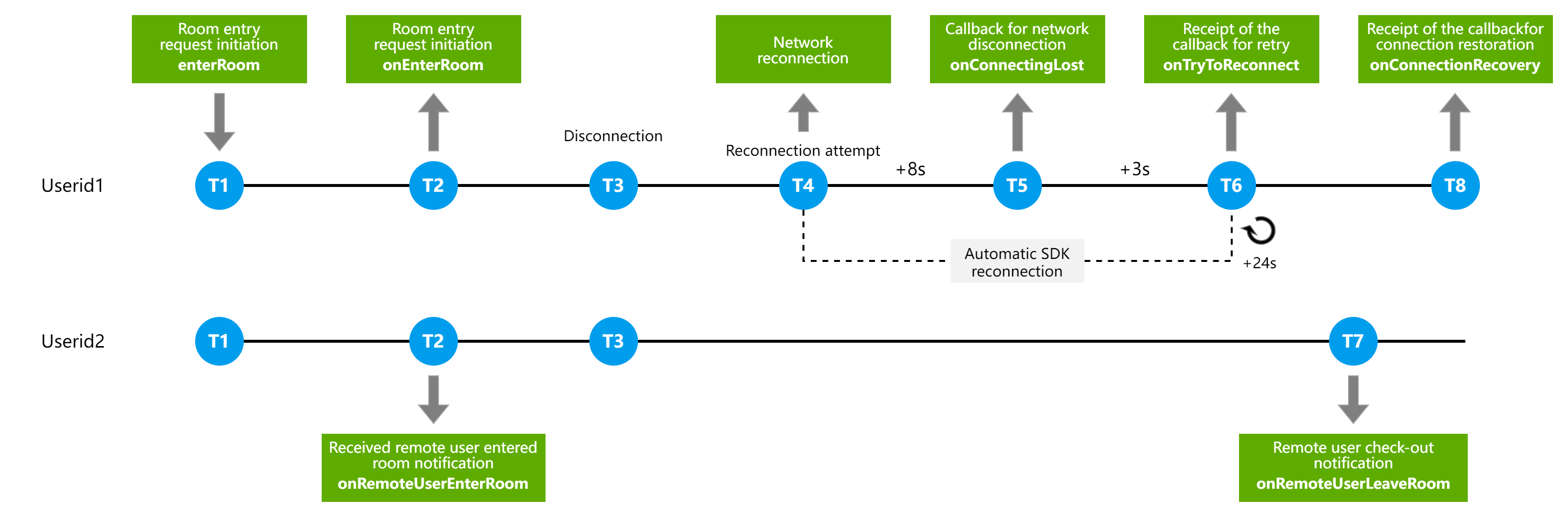
The SDK supports automatic reconnection when a user disconnects (if the reconnection fails for 30 minutes, the user will automatically exit the room, and the error code -3301 will be returned). The specific connection status and handling logic during the connection process are described below. The following diagram shows the listening callback events received from the moment Userid1 joins the channel, through disconnection, to rejoining the room:
Detailed instructions:
T1: The user initiates a call to the enterRoom API to trigger a room entry request.
T2: Userid1 receives the onEnterRoom callback. Userid2 becomes aware of the presence of Userid1 with a delay of approximately 300 ms before receiving the onRemoteUserEnterRoom callback.
T3: The Userid1 client disconnects due to a network issue. The SDK will attempt to join the room again.
T4: If Userid1 does not connect successfully to the server for 8 consecutive seconds, Userid1 will receive the onConnectionLost disconnection callback.
T5: If Userid1 still fails to connect to the server for another 3 seconds, Userid1 receives the onTryToReconnect retry callback.
T6: Userid1 receives the onTryToReconnect retry callback every 24 seconds.
T7: Userid2 will receive the onRemoteUserLeaveRoom callback once the SDK detects that the remote user Userid1 has disconnected 90 seconds after Userid2 receives the Userid1 disconnection notification.
T8: If Userid1 reconnects successfully at any moment during the disconnection period, Userid1 receives the onConnectionRecovery recovery callback.