For mobile applications involving audio and video capture and playback, additional keep-alive processing is typically required. Without this processing, the applications may face certain functional limitations when running in the background, or even be forcibly terminated by the system after a period of background execution. The following introduces the Android Application Keep-Alive Solution and the iOS Application Keep-Alive Solution.
Android Application Keep-Alive Solution
Currently, the commonly used keep-alive method on Android is to start a foreground service. A foreground service is a special type of service that displays a persistent notification while running to inform the user that the service is running. Since the notification of a foreground service remains continuously visible, the system considers the service a high-priority task. This allows an application to run continuously in the background without being easily terminated by the system. The following introduces the implementation method and steps of a foreground service.
Step 1: Declaring Permissions
Add the following permission declarations in the AndroidManifest.xml file.
<!-- Allow the application to use a foreground service -->
If your project sets targetSdkVersion to 34 or later and requires using the camera and microphone in foreground services, the FOREGROUND_SERVICE_CAMERA and FOREGROUND_SERVICE_MICROPHONE permission declarations are required.
On Android 13 or later, if you want foreground services to display in the notification column, the POST_NOTIFICATIONS permission declaration is required.
Step 2: Creating a Service Class
Create a class that inherits from Service and implement the foreground service logic in the class.
You can specify the service type for the foreground service using the android:foregroundServiceType attribute to ensure the normal operation of the background service.
The mediaPlayback service is used for media playback.
The mediaProjection service is used for media projection.
The microphone service is used for microphone access.
The camera service is used for camera access.
Step 4: Starting the Foreground Service
Start the foreground service on-demand where required.
To ensure the foreground service operates normally, we recommend that you check whether notification permissions are disabled before starting the foreground service. If the permissions are disabled, you can prompt the user to enable the notification permissions.
Step 5: Stopping the Foreground Service
The foreground service can be stopped from an external component (such as Activity or BroadcastReceiver).
On most mobile devices, when a user swipes to force-stop an application with a foreground service in the recent apps list, the foreground service is terminated immediately, and the application stops running completely. However, on some mobile devices outside the Chinese mainland (such as Google Pixel series and SAMSUNG A series), the application does not stop running completely after being force-stopped, and the foreground service remains active. As a result, the user can still hear media playback.
For such devices, two solutions can be implemented to prevent media playback from continuing after the application is force-stopped.
Solution 1: Defining the stopWithTask Attribute in the Service Declaration
Add the android:stopWithTask="true" attribute value, and the service will immediately stop when the task is removed.
Solution 2: Listen for the onTaskRemoved Callback in the Service Layer
Listen for onTaskRemoved. When the task is removed, the onTaskRemoved method will be called back. Here, you can execute cleanup operations or data saving logic.
@Override
publicvoidonTaskRemoved(Intent rootIntent){
super.onTaskRemoved(rootIntent);
// For example, execute room exit for Real-Time Communication Engine (RTC Engine) here to terminate all ongoing audio capture and playback.
Choose either one of the above two solutions. Once android:stopWithTask="true" is set, the onTaskRemoved method will not be called back.
iOS Application Keep-Alive Solution
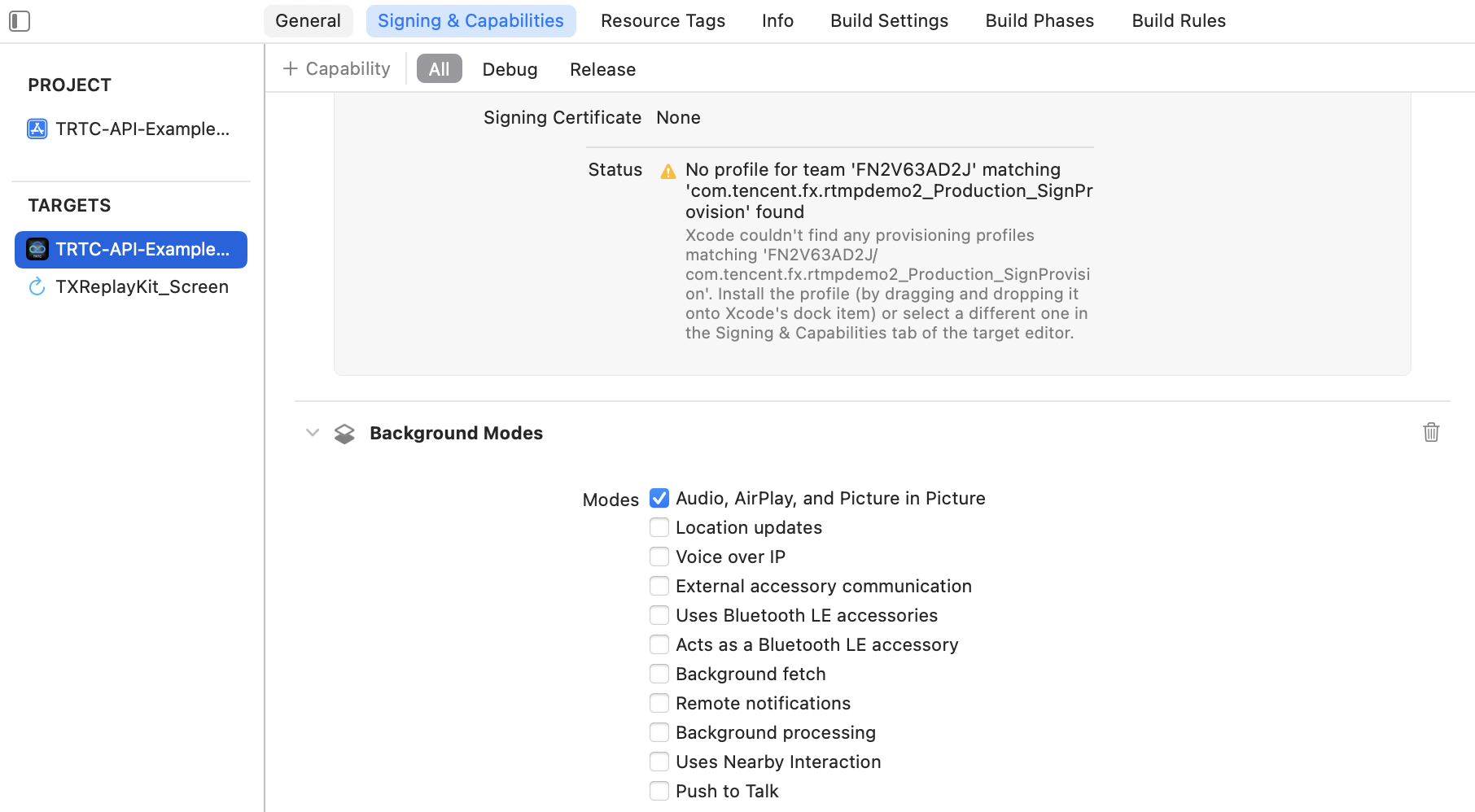
The Apple system imposes strict limitations on application behaviors in the background to protect user privacy and device battery lifetime. Normally, you can enable specific Background Modes to keep an application alive, allowing the application to play audio or videos in the background.
Enabling Background Modes
Follow the steps below to enable Background Modes in Xcode:
1. Open your Xcode project.
2. Select your project file (usually at the top of the project navigator).
3. In the project file, select your target under Targets.
4. In the target settings, select the Signing & Capabilities tab.
5. Find the Background Modes option, and select the Audio, AirPlay, and Picture in Picture mode.
FAQs
1. In voice call or live streaming scenarios, if the anchor moves the application to the background or locks the screen, plugging or unplugging headphones may cause audio capture and playback to go silent.
Under the default audio policy of the SDK, the system volume type is in automatic switching mode. This means "call volume is used when the microphone is on and media volume is used when the microphone is off". The volume type also changes with audio routing. For example, plugging in headphones switches the volume type from call volume to media volume. Therefore, in automatic switching mode, plugging or unplugging headphones by the anchor can trigger a system volume type switch. At this point, the system needs to restart the audio driver. However, on iOS, restarting the audio driver while the application is in the background or the screen is locked may fail, resulting in no audio during capture or playback.
To address such issues, you can set a fixed system volume type, such as using the call volume or media volume throughout the session.
2. In video call or live streaming scenarios, if the anchor moves the application to the background or locks the screen, remote audiences may see a black screen with normal audio while pulling streams.
The Apple system strictly prohibits applications from capturing videos when the applications are running in the background. Even with Background Modes enabled, the camera will automatically stop functioning once the application enters the background. This restriction is designed to protect user privacy and prevent applications from recording videos without user consent. Therefore, the video capture issue in such scenarios cannot be avoided temporarily, and only normal audio capture and playback can be achieved.
3. When an audience enters a room and no streams are currently available in the room, if the audience moves the application to the background or locks the screen, the audience will not receive streams normally even if someone starts streaming in the room later.
If AudioUnit capture or playback is not started when an iOS application is switched to the background, the application will be suspended quickly and cannot be manually woken up until the application is switched back to the foreground. To resolve such issues, just keep AudioUnit running (by playing muted audio) before the application is switched to the background. For the specific implementation method, see the example code below.
The Picture-in-Picture (PIP) feature enables the application video to alway play in the foreground while keeping the application alive. For the specific implementation method, see PIP Solution.