
Live Battles
AtomicXCore provides two primary modules: CoHostStore and BattleStore, which handle cross-room co-hosting and PK battles respectively. This guide walks you through using both modules together to implement the complete workflow from co-hosting to PK in a live streaming scenario.
Core Scenario
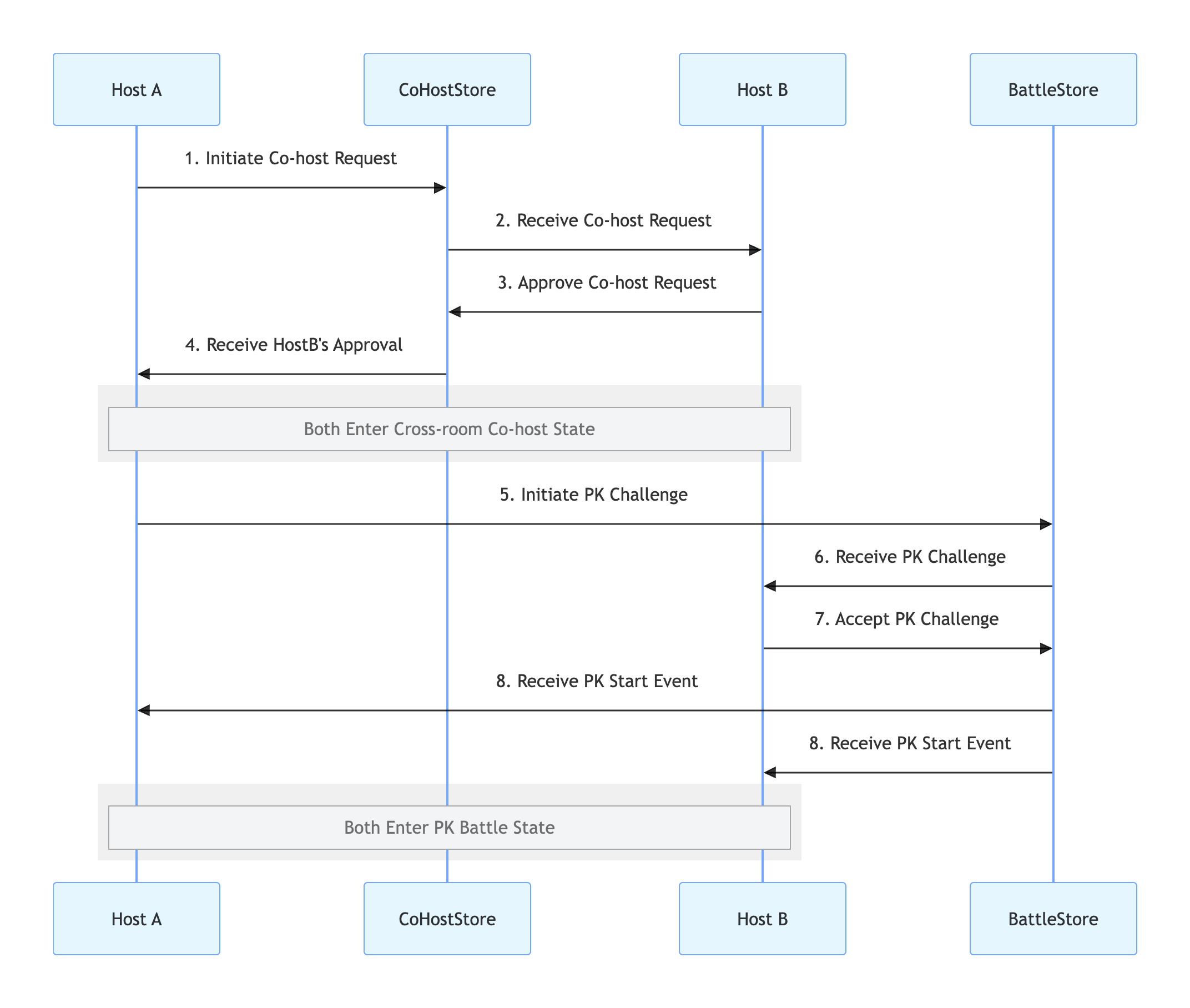
A typical "Host Co-hosting PK" session consists of three main stages, as shown below:
1. Cross-room Co-hosting: Two hosts connect, and both video streams are displayed in a shared view.
2. Initiate PK: After the connection is established, either host can start a PK challenge.
3. PK Battle: Both hosts compete in a PK battle, with scores updated in real time.
Implementation
Step 1: Component Integration
Step 2: Implement Cross-Room Co-hosting
The goal of this step is to display the video streams of two hosts in the same view. Use CoHostStore to achieve this.
Inviter (Host A) Implementation
1. Initiate Co-hosting Invitation
When Host A selects Host B in the UI and initiates a co-hosting request, call the
requestHostConnection method.import androidx.appcompat.app.AppCompatActivityimport io.trtc.tuikit.atomicxcore.api.CompletionHandlerimport io.trtc.tuikit.atomicxcore.api.live.CoHostLayoutTemplateimport io.trtc.tuikit.atomicxcore.api.live.CoHostStore// Host A's Activityclass HostAActivity : AppCompatActivity() {private val liveId = "hostA_roomID" // Host A's Room IDprivate val coHostStore = CoHostStore.create(liveId)// User clicks the "Co-host" button and selects Host Bfun inviteHostB(targetHostLiveId: String) {val layout = CoHostLayoutTemplate.HOST_DYNAMIC_GRID // Select a layout templateval timeout = 30 // Invitation timeout (seconds)coHostStore.requestHostConnection(targetHostLiveID = targetHostLiveId,layoutTemplate = layout,timeout = timeout,extraInfo = null,completion = object : CompletionHandler {override fun onSuccess() {println("Co-hosting invitation sent, waiting for response...")}override fun onFailure(code: Int, desc: String) {println("Invitation failed to send: $desc")}})}}
2. Listen for Invitation Result
Receive Host B's response via the CoHostListener callback methods.
import android.os.Bundleimport androidx.appcompat.app.AppCompatActivityimport io.trtc.tuikit.atomicxcore.api.live.CoHostListenerimport io.trtc.tuikit.atomicxcore.api.live.CoHostStoreimport io.trtc.tuikit.atomicxcore.api.live.SeatUserInfoclass HostAActivity : AppCompatActivity() {private val liveId = "hostA_roomID" // Host A's Room IDprivate val coHostStore = CoHostStore.create(liveId)private val coHostListener = object : CoHostListener() {override fun onCoHostRequestAccepted(invitee: SeatUserInfo) {println("Host ${invitee.userName} accepted your co-hosting invitation")}override fun onCoHostRequestRejected(invitee: SeatUserInfo) {println("Host ${invitee.userName} rejected your invitation")}override fun onCoHostRequestTimeout(inviter: SeatUserInfo, invitee: SeatUserInfo) {println("Invitation timed out, no response received")}}override fun onCreate(savedInstanceState: Bundle?) {super.onCreate(savedInstanceState)// ... initialization code ...// Initialize CoHostStorecoHostStore.addCoHostListener(coHostListener)}}
Invitee (Host B) Implementation
1. Receive Co-hosting Invitation
Host B listens for invitations from Host A via
CoHostListener.import androidx.appcompat.app.AppCompatActivityimport io.trtc.tuikit.atomicxcore.api.live.CoHostListenerimport io.trtc.tuikit.atomicxcore.api.live.CoHostStoreimport io.trtc.tuikit.atomicxcore.api.live.SeatUserInfo// Host B's Activityclass HostBActivity : AppCompatActivity() {private val liveId = "hostB_roomID" // Host B's Room IDprivate val coHostStore = CoHostStore.create(liveId)private val coHostListener = object : CoHostListener() {override fun onCoHostRequestReceived(inviter: SeatUserInfo, extensionInfo: String) {println("Received co-hosting invitation from Host ${inviter.userName}")// Display invitation dialog to respond// showInvitationDialog(inviter)}}}
2. Respond to Co-hosting Invitation
After Host B receives the invitation, prompt for “Accept” or “Reject” and call the appropriate method:
// Part of HostBActivityfun acceptInvitation(fromHostLiveId: String) {coHostStore.acceptHostConnection(fromHostLiveID = fromHostLiveId, completion = null)}fun rejectInvitation(fromHostLiveId: String) {coHostStore.rejectHostConnection(fromHostLiveID = fromHostLiveId, completion = null)}
Step 3: Implement Host PK
After a successful co-hosting connection, either host can initiate a PK. Use BattleStore for PK functionality.
Challenger (e.g., Host A) Implementation
1. Initiate PK Challenge
When Host A clicks the "PK" button, call the
requestBattle method.// Part of HostAActivityclass HostAActivity : AppCompatActivity() {private val liveId = "hostA_roomID" // Host A's Room IDprivate val battleStore = BattleStore.create(liveId)fun startPK(opponentUserId: String) {val config = BattleConfig(duration = 300) // PK lasts 5 minutesbattleStore.requestBattle(config = config,userIDList = listOf(opponentUserId),timeout = 30,completion = null)}}
2. Listen for PK Status
Use
BattleListener to monitor key events such as the start and end of PK.// Part of HostAActivityclass HostAActivity : AppCompatActivity() {private val liveId = "hostA_roomID" // Host A's Room IDprivate val battleStore = BattleStore.create(liveId)private val battleListener = object : BattleListener() {override fun onBattleStarted(battleInfo: BattleInfo,inviter: SeatUserInfo,invitees: List<SeatUserInfo>) {println("PK started")}override fun onBattleEnded(battleInfo: BattleInfo, reason: BattleEndedReason?) {println("PK ended")}}override fun onCreate(savedInstanceState: Bundle?) {super.onCreate(savedInstanceState)// ... other initialization code ...battleStore.addBattleListener(battleListener)}}
Opponent (Host B) Implementation
1. Receive PK Challenge
Listen for PK invitations via
BattleListener.// Add to HostBActivityclass HostBActivity : AppCompatActivity() {private val liveId = "hostB_roomID" // Host B's Room IDprivate val battleStore = BattleStore.create(liveId)private val battleListener = object : BattleListener() {override fun onBattleRequestReceived(battleID: String, inviter: SeatUserInfo, invitee: SeatUserInfo) {println("Received PK challenge from Host ${inviter.userName}")// Pop up a dialog for Host B to choose "Accept" or "Reject"// showPKChallengeDialog(battleID, inviter)}}override fun onCreate(savedInstanceState: Bundle?) {super.onCreate(savedInstanceState)// ... other initialization code ...battleStore.addBattleListener(battleListener)}}
2. Respond to PK Challenge
Prompt Host B for “Accept” or “Reject” and call the corresponding method:
// Part of HostBActivity// User clicks "Accept Challenge"fun acceptPK(battleId: String) {battleStore.acceptBattle(battleID = battleId, completion = null)}// User clicks "Reject Challenge"fun rejectPK(battleId: String) {battleStore.rejectBattle(battleID = battleId, completion = null)}
Step 4: End PK and Disconnect Co-hosting
After the PK session, end the PK and disconnect co-hosting in sequence.
1. End PK Battle
PK typically ends automatically when the timer expires, but hosts can also end PK early. Use
exitBattle:Note:After PK ends, both hosts remain connected (side-by-side video streams). Only the PK progress bar and score panel are removed.
fun stopPK(battleId: String) {battleStore.exitBattle(battleID = battleId, completion = object : CompletionHandler {override fun onSuccess() {println("PK ended")// Handle UI refresh in onBattleEnded event}override fun onFailure(code: Int, desc: String) {println("Failed to end PK: $desc")}})}
2. Disconnect Cross-room Co-hosting
To return to solo live streaming, call
exitHostConnection:fun stopConnection() {coHostStore.exitHostConnection(completion = object : CompletionHandler {override fun onSuccess() {println("Co-hosting disconnected, back to solo live")// UI will receive onCoHostUserLeft event}override fun onFailure(code: Int, desc: String) {println("Failed to disconnect co-hosting: $desc")}})}
3. Listen for End Events
Handle UI cleanup in event listeners for consistency:
private val battleListener = object : BattleListener() {override fun onBattleEnded(battleInfo: BattleInfo, reason: BattleEndedReason?) {println("Received PK end event, reason: $reason")// Remove PK score view, progress bar, etc.// runOnUiThread { removeBattleUI() }}}private val coHostListener = object : CoHostListener() {override fun onCoHostUserLeft(userInfo: SeatUserInfo) {println("Host ${userInfo.userName} has left the co-hosting session")// Remove the other host's video view and restore solo live layout// runOnUiThread { resetToSingleStreamLayout() }}}
Run and Test
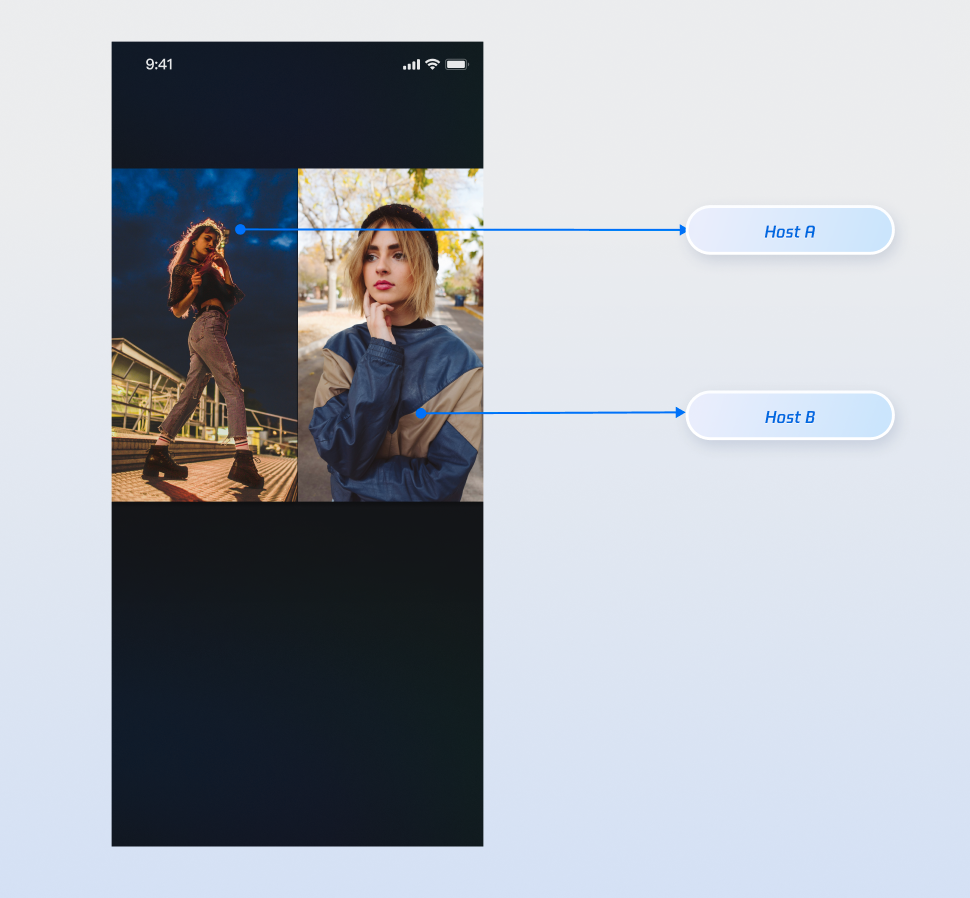
After integrating the above features, use Host A and Host B to test the corresponding operations. The runtime effect is shown below. For UI customization, see Refine UI Details.
Refine UI Details
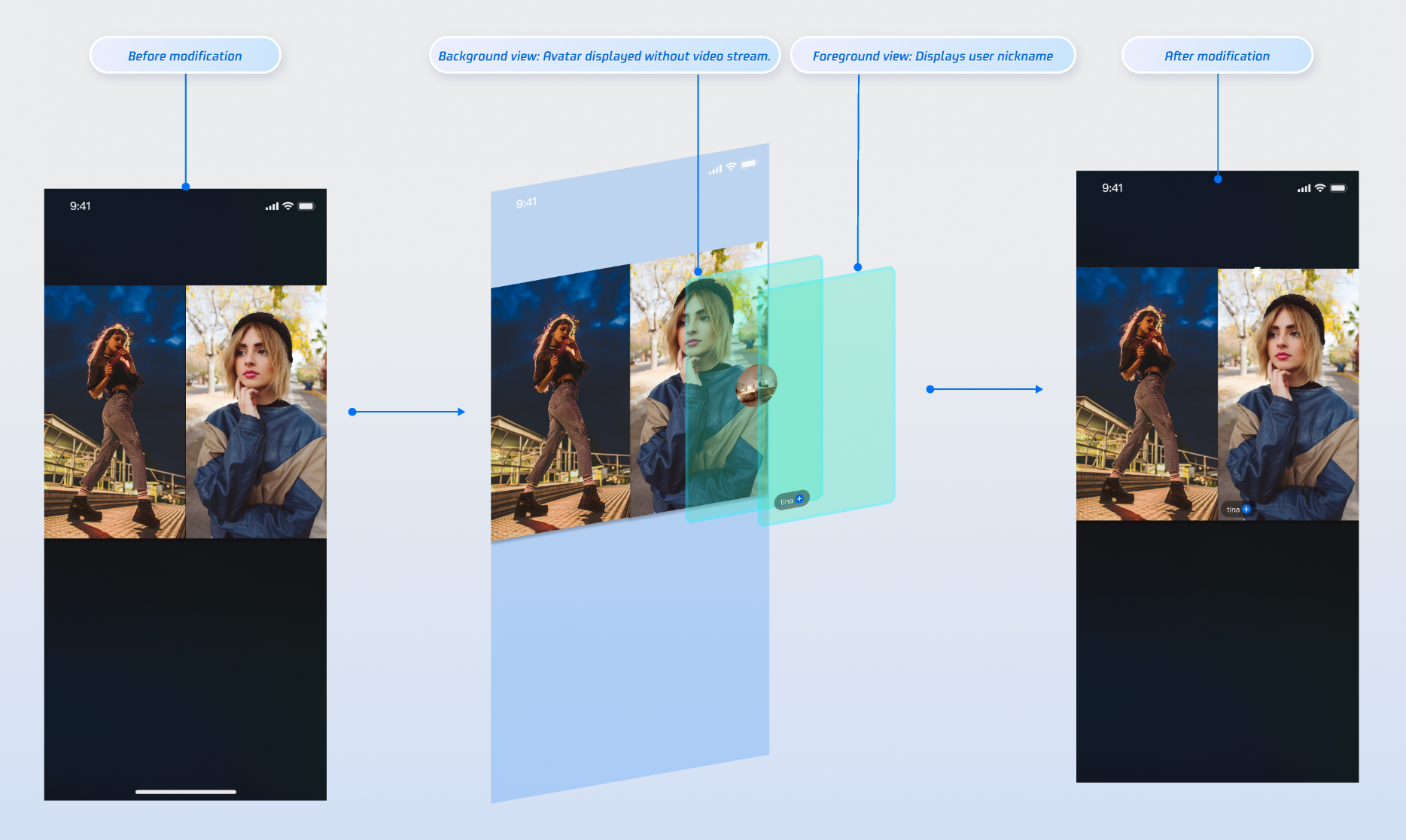
Use the slot capability in the
VideoViewAdapter interface to overlay custom views on video streams, such as nicknames, avatars, PK progress bars, or placeholder images when the host’s camera is off.Display Nicknames on Video Streams
Implementation Example
Implementation
Step 1: Create a foreground view
CustomSeatView to display user information above the video stream.Note:
For a complete implementation, refer to the widgets directory in the open-source TUILiveKit project.
import android.content.Contextimport android.graphics.Colorimport android.view.Gravityimport android.widget.LinearLayoutimport android.widget.TextView// Custom user information overlay view (Foreground)class CustomSeatView(context: Context) : LinearLayout(context) {private val nameLabel: TextViewinit {orientation = VERTICALsetBackgroundColor(Color.parseColor("#80000000")) // Semi-transparent black backgroundnameLabel = TextView(context).apply {setTextColor(Color.WHITE)textSize = 14fgravity = Gravity.CENTER}addView(nameLabel)val layoutParams = nameLabel.layoutParams as LayoutParamslayoutParams.setMargins(5, 0, 5, 5)}fun setUserName(userName: String) {nameLabel.text = userName}}
Step 2: Create a background view
CustomAvatarView to serve as a placeholder when the user has no video stream.import com.tencent.cloud.tuikit.engine.room.TUIRoomDefineimport android.view.Viewimport androidx.appcompat.app.AppCompatActivityimport io.trtc.tuikit.atomicxcore.api.ViewLayerimport io.trtc.tuikit.atomicxcore.api.VideoViewAdapter// 1. In your Activity, implement the VideoViewAdapter interfaceclass YourActivity : AppCompatActivity(), VideoViewAdapter {// ... Other code ...// 2. Fully implement the interface method to handle both view layersoverride fun createCoHostView(coHostUser: TUIRoomDefine.SeatFullInfo?, viewLayer: ViewLayer?): View? {val seatInfo = coHostUser ?: return nullval userId = seatInfo.userIdif (userId.isNullOrEmpty()) {return null}return when (viewLayer) {ViewLayer.FOREGROUND -> {val seatView = CustomSeatView(this)seatView.setUserName(seatInfo.userName ?: "")seatView}ViewLayer.BACKGROUND -> {val avatarView = CustomAvatarView(this)// You can load the user's real avatar here using seatInfo.userAvataravatarView}null -> null}}}
Step 3: Implement the
VideoViewAdapter.createCoHostView method, returning the appropriate view based on viewLayer.import com.tencent.cloud.tuikit.engine.room.TUIRoomDefineimport android.view.Viewimport androidx.appcompat.app.AppCompatActivityimport io.trtc.tuikit.atomicxcore.api.ViewLayerimport io.trtc.tuikit.atomicxcore.api.VideoViewAdapter// 1. In your Activity, implement the VideoViewAdapter interfaceclass YourActivity : AppCompatActivity(), VideoViewAdapter {// ... Other code ...// 2. Fully implement the interface method to handle both view layersoverride fun createCoHostView(coHostUser: TUIRoomDefine.SeatFullInfo?, viewLayer: ViewLayer?): View? {val seatInfo = coHostUser ?: return nullval userId = seatInfo.userIdif (userId.isNullOrEmpty()) {return null}return when (viewLayer) {ViewLayer.FOREGROUND -> {val seatView = CustomSeatView(this)seatView.setUserName(seatInfo.userName ?: "")seatView}ViewLayer.BACKGROUND -> {val avatarView = CustomAvatarView(this)// You can load the user's real avatar here using seatInfo.userAvataravatarView}null -> null}}}
Parameter Description:
Parameter | Type | Description |
seatInfo | SeatFullInfo? | Seat information object containing user details |
seatInfo.userId | String? | User ID on the seat |
seatInfo.userName | String? | User nickname on the seat |
seatInfo.userAvatar | String? | User avatar URL |
seatInfo.userMicrophoneStatus | DeviceStatus | User microphone status |
seatInfo.userCameraStatus | DeviceStatus | User camera status |
viewLayer | ViewLayer | View layer enum FOREGROUND: Foreground widget view, always displayed on top of the videoBACKGROUND: Background widget view, under the foreground view, displayed only when the user has no video stream (e.g., camera off), typically used for the user's default avatar or a placeholder image |
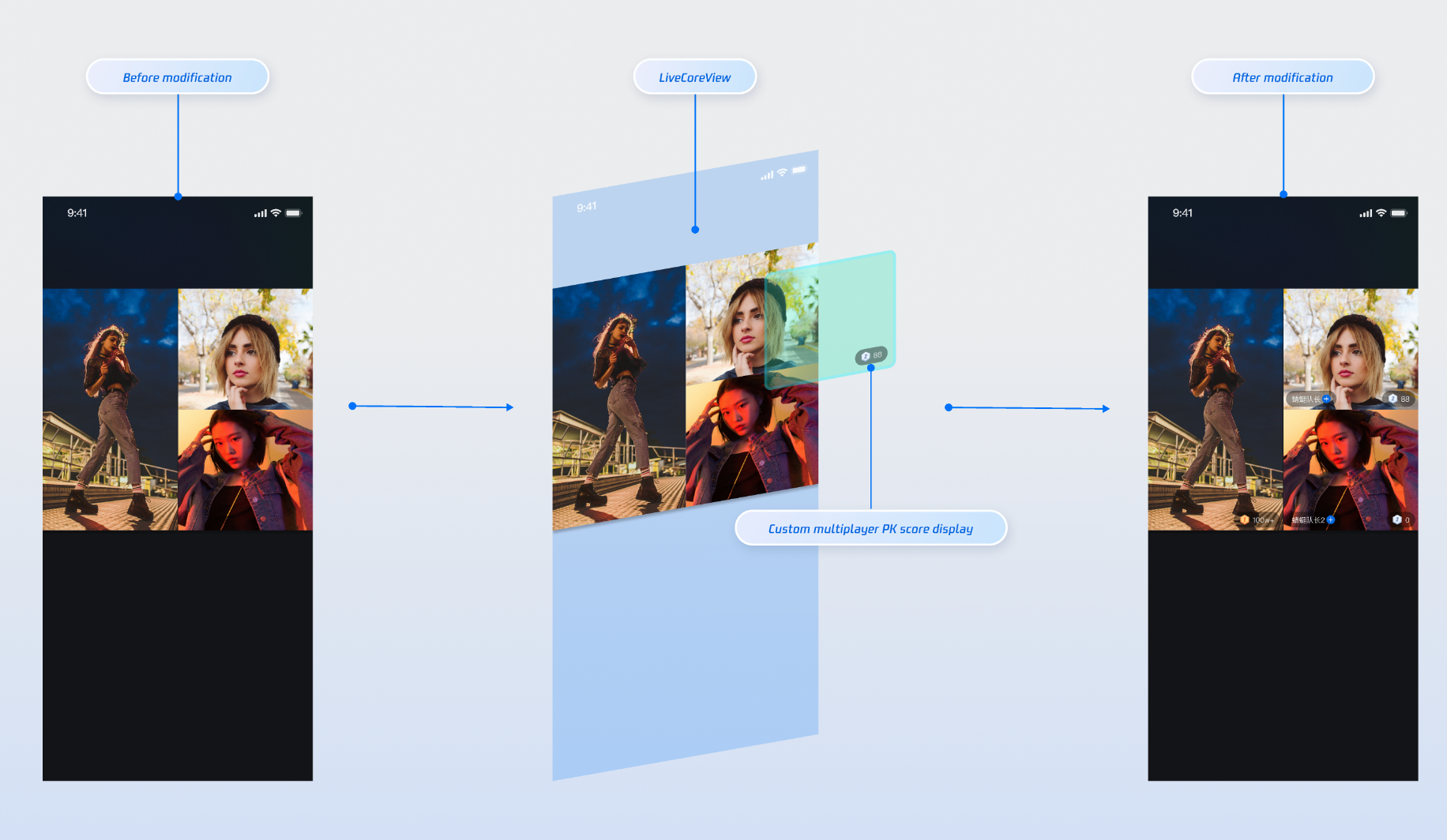
Displaying PK User Score on Video View
When the host starts a PK, you can attach a custom view to the opponent's video to display gift values or other PK-related information.
Implementation Example
Implementation
Step 1: Create a custom PK user view. For a complete implementation, see BattleMemberInfoView.kt in the open-source TUILiveKit project.
import android.content.Contextimport android.graphics.Colorimport android.view.Gravityimport android.widget.LinearLayoutimport android.widget.TextViewimport com.tencent.cloud.tuikit.engine.extension.TUILiveBattleManager.BattleUserimport io.trtc.tuikit.atomicxcore.api.BattleStoreimport kotlinx.coroutines.CoroutineScopeimport kotlinx.coroutines.Dispatchersimport kotlinx.coroutines.launch// Custom PK User Viewclass CustomBattleUserView(context: Context,private val liveId: String,private val battleUser: BattleUser) : LinearLayout(context) {private lateinit var scoreView: LinearLayoutprivate lateinit var scoreLabel: TextViewprivate val battleStore: BattleStoreinit {orientation = VERTICALgravity = Gravity.BOTTOM or Gravity.ENDsetBackgroundColor(Color.TRANSPARENT)isClickable = falsebattleStore = BattleStore.create(liveId)// UI LayoutsetupUI()// Subscribe to score changessubscribeBattleState()}private fun setupUI() {scoreView = LinearLayout(context).apply {setBackgroundColor(Color.parseColor("#66000000"))orientation = VERTICALgravity = Gravity.CENTER}scoreLabel = TextView(context).apply {setTextColor(Color.WHITE)textSize = 14fgravity = Gravity.CENTER}scoreView.addView(scoreLabel)addView(scoreView)val layoutParams = scoreView.layoutParams as LayoutParamslayoutParams.width = LayoutParams.WRAP_CONTENTlayoutParams.height = 48 // 24dplayoutParams.setMargins(0, 0, 10, 10)}// Subscribe to PK score changesprivate fun subscribeBattleState() {CoroutineScope(Dispatchers.Main).launch {battleStore.battleState.battleScore.collect { battleScore ->val score = battleScore[battleUser.userId] ?: 0// Update UIscoreLabel.text = score.toString()}}}}
Step 2: Implement the
VideoViewAdapter.createBattleView method.// 1. Have your Activity implement the VideoViewAdapter interfaceclass YourActivity : AppCompatActivity(), VideoViewAdapter {override fun createBattleView(battleUser: BattleUser?): View? {battleUser ?: return null// CustomBattleUserView is your custom PK user information viewreturn CustomBattleUserView(this, liveId, battleUser)}}
Parameter Description:
Parameter | Type | Description |
battleUser | BattleUser? | PK user info object |
battleUser.roomId | String | PK room ID |
battleUser.userId | String | PK user ID |
battleUser.userName | String | PK user nickname |
battleUser.avatarUrl | String | PK user avatar URL |
battleUser.score | UInt | PK score |
Displaying PK Status on Video Stream
Implementation Example
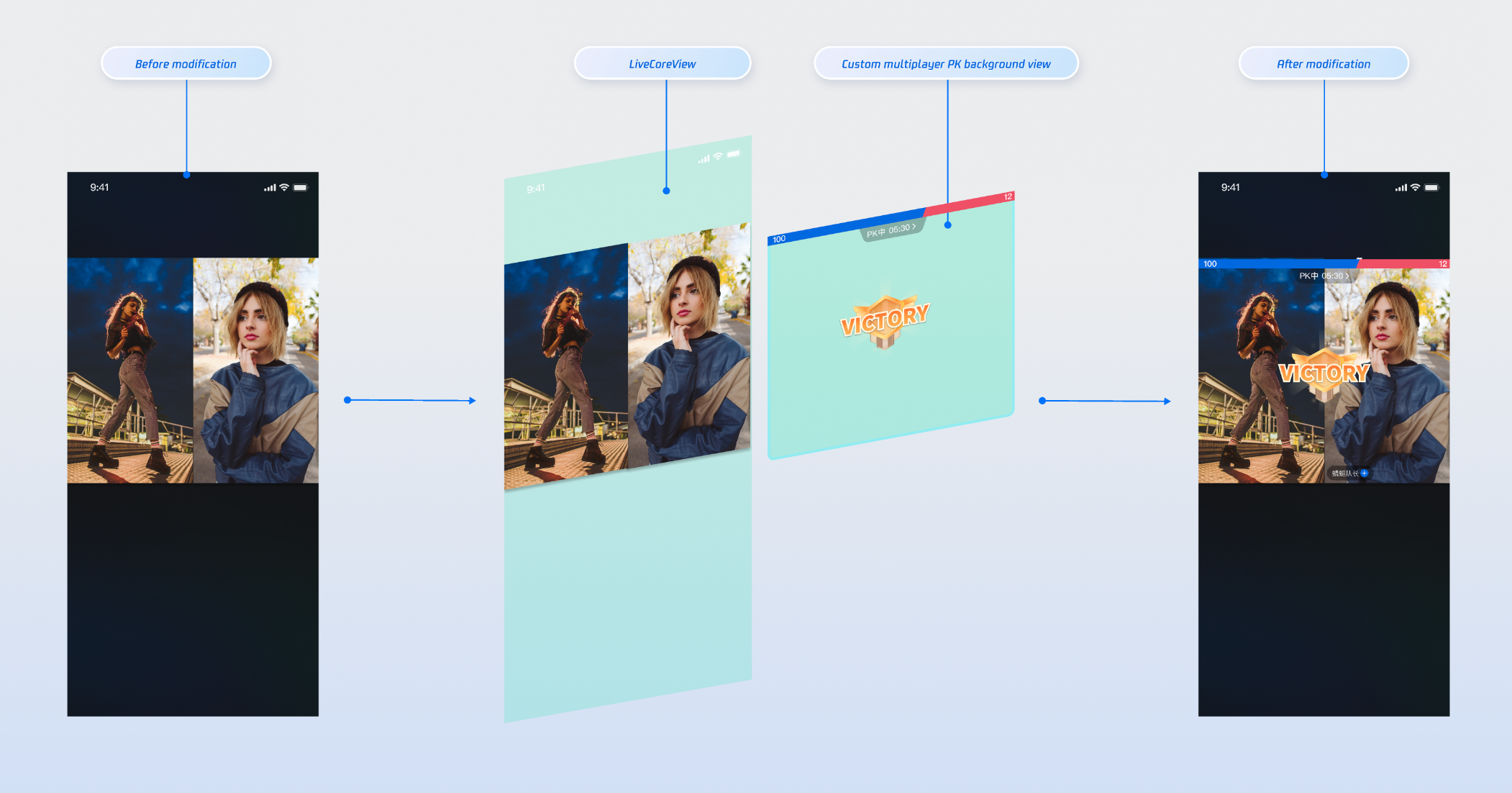
Implementation
Step 1: Create a custom PK global view (CustomBattleContainerView). For a complete implementation, see BattleInfoView.kt in the open-source TUILiveKit project.
Step 2: Implement the
VideoViewAdapter.createBattleContainerView method.// Have your Activity implement the VideoViewAdapter interface and set the adapterclass YourActivity : AppCompatActivity(), VideoViewAdapter {override fun createBattleContainerView(): View? {return CustomBattleContainerView(this)}}
Advanced Features
Updating PK Score via REST API
In typical live host PK scenarios, the value of gifts received by the host is linked to the PK score (for example, when a viewer sends a "Rocket" gift, the host's PK score increases by 500 points). You can implement real-time PK score updates using our REST API.
Note:
The PK score system in the
LiveKit backend uses pure numeric calculation and accumulation. You must calculate the PK score according to your own business logic before calling the update API. See the following PK score calculation examples:Gift Type | Score Calculation Rule | Example |
Basic Gift | Gift value × 5 | 10 RMB gift → 50 points |
Intermediate Gift | Gift value × 8 | 50 RMB gift → 400 points |
Advanced Gift | Gift value × 12 | 100 RMB gift → 1200 points |
Special Effect Gift | Fixed high score | 520 RMB gift → 1314 points |
REST API Call Flow
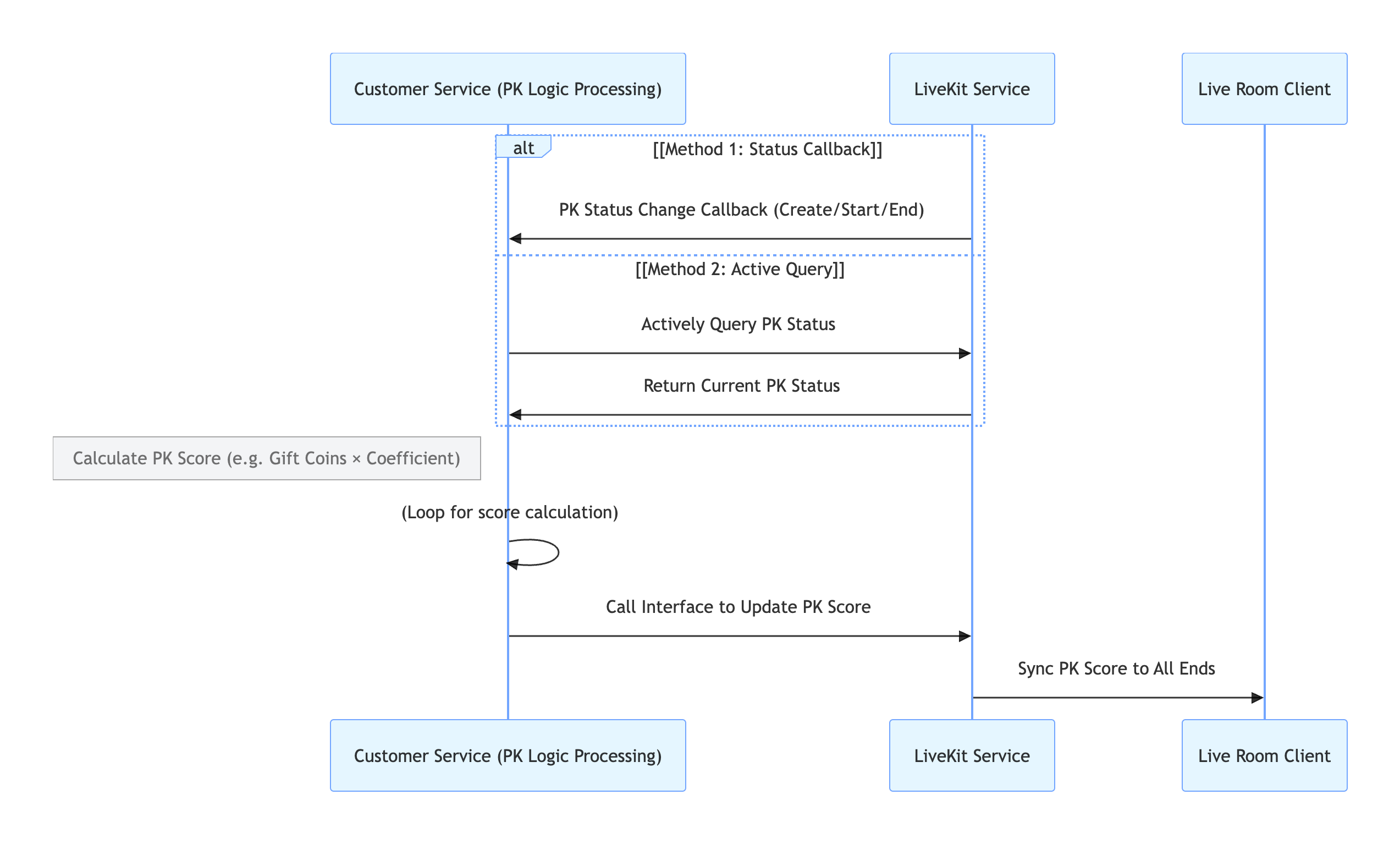
Key Process Description
1. Obtain PK Status:
Callback Configuration: Configure PK Status Callback to have the
LiveKit backend actively notify your system when PK starts or ends.Active Query: Your backend can call the PK Status Query API at any time to check the current PK status.
2. PK Score Calculation: Your backend calculates the PK score increment based on your business rules.
3. PK Score Update: Your backend calls the Update PK Score API to update the PK score in the LiveKit backend.
4. LiveKit Backend Syncs to Client: The backend automatically synchronizes the updated PK score to all clients.
Involved REST API Endpoints
API | Function Description | Request Example |
Active API - Query PK Status | Check whether the current room is in PK | |
Active API - Update PK Score | Update the calculated PK score | |
Callback Configuration - PK Start Callback | Receive real-time notification when PK starts | |
Callback Configuration - PK End Callback | Receive real-time notification when PK ends |
API Documentation
For detailed information on all public interfaces, properties, and methods of CoHostStore and related classes, refer to the official API documentation included with the AtomicXCore framework. The relevant stores used in this guide are as follows:
Store/Component | Description | API Reference |
LiveCoreView | Core view component for displaying and interacting with live video streams. Handles video rendering and view widgets, supports host streaming, audience co-hosting, host connections, and more. | |
DeviceStore | Controls audio/video devices: microphone (on/off, volume), camera (on/off, switch, quality), screen sharing, and real-time device status monitoring. | |
CoHostStore | Handles host cross-room connections: supports multiple layout templates (dynamic grid, etc.), initiates/accepts/rejects connections, and manages co-host interactions. | |
BattleStore | Manages host PK battles: initiate PK (set duration/opponent), manage PK status (start/end), synchronize scores, and listen for battle results. |
FAQs
Why didn't the other party receive my co-hosting invitation?
Ensure that
targetHostLiveId is correct and that the other host's live room is broadcasting normally.Check network stability. The invitation signaling has a default timeout of 30 seconds.
What happens if one host disconnects from the network or the app crashes during co-hosting or PK?
Both
CoHostStore and BattleStore include built-in heartbeat and timeout detection. If one party exits abnormally, the other party is notified via events such as onCoHostUserLeft or onUserExitBattle. You can update the UI accordingly, for example, by displaying "The other party has disconnected" and ending the interaction.Why can PK scores only be updated via REST API?
The REST API meets the security, real-time, and scalability requirements for PK scores:
Tamper-proof and fair: Requires authentication and data validation. Each update is traceable (e.g., tied to a gift action), preventing manual score changes or cheating and ensuring fair competition.
Real-time synchronization across multiple clients: Uses standardized formats (such as JSON) to quickly connect gift, PK, and display systems, ensuring real-time consistency of scores among hosts, viewers, and backend.
Flexible rule adaptation: Backend configuration changes (such as adjusting gift-to-score mapping or bonus points) can be made without modifying the frontend, reducing iteration costs.
How do I manage the lifecycle and events of custom views added via VideoViewAdapter?
LiveCoreView automatically manages views returned by delegate methods, including adding and removing them. No manual lifecycle management is required.
