
Live Stream List
LiveListStore is the core module of AtomicXCore responsible for managing the live room list, creating and joining rooms, and maintaining room state. With LiveListStore, you can implement comprehensive live streaming lifecycle management in your application.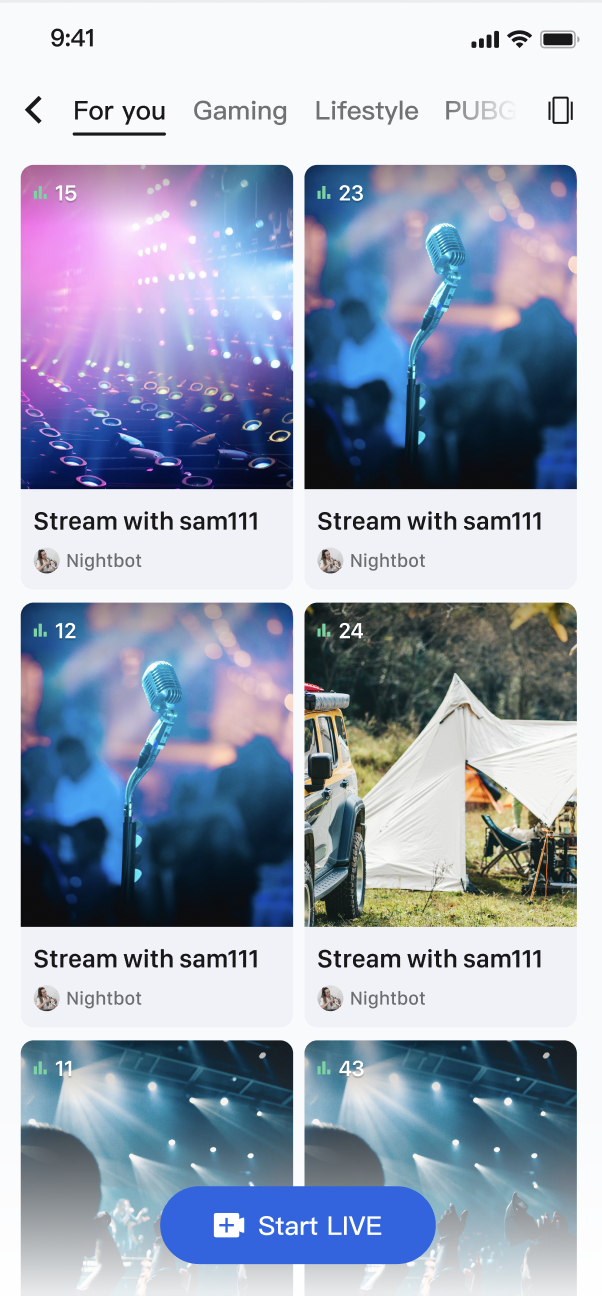
Core Features
Live Room List Fetching: Retrieve a paginated list of all currently public live rooms.
Live Lifecycle Management: Provides a complete set of interfaces for the entire live streaming workflow, including room creation, going live, joining, leaving, and ending a live session.
Real-Time Event Listening: Listen for key events such as live session end or users being removed from a room.
Core Concepts
Core Concept | Type | Core Responsibility & Description |
LiveInfo | data class | Represents the complete information model of a live room. Includes the live room ID (liveID), name (liveName), owner information (liveOwner), and custom metadata (metaData), among other properties. |
LiveListState | data class | Represents the current state of the live list module. The core property liveList is a StateFlow containing the fetched live room list; currentLive represents the information of the live room the user is currently in. |
LiveListListener | abstract class | Handles global live room events, including onLiveEnded (live ended) and onKickedOutOfLive (user removed from live), for responding to key room state changes. |
LiveListStore | abstract class | The core management class for interacting with the live room list and room lifecycle. It is a global singleton responsible for all operations such as creating, joining, and updating live room information. |
Implementation
Step 1: Component Integration
Video Live Streaming:Refer to Quick Start to integrate AtomicXCore and complete the implementation of the Host Video Streaming and Audience Join and Watch features.
Voice Chat Room:Refer to Quick Start to integrate AtomicXCore and complete the implementation of the Host Audio Streaming and Audience Join and Watch features.
Step 2: Implement Audience Entry from Live Room List
Create a page to display the live room list using RecyclerView to layout live room cards. When a user taps a card, retrieve the liveId for that room and navigate to the audience viewing page.
import android.content.Intentimport android.os.Bundleimport android.view.LayoutInflaterimport android.view.Viewimport android.view.ViewGroupimport androidx.appcompat.app.AppCompatActivityimport androidx.recyclerview.widget.GridLayoutManagerimport androidx.recyclerview.widget.RecyclerViewimport io.trtc.tuikit.atomicxcore.api.CompletionHandlerimport io.trtc.tuikit.atomicxcore.api.live.LiveInfoimport io.trtc.tuikit.atomicxcore.api.live.LiveListStoreimport kotlinx.coroutines.*import kotlinx.coroutines.flow.*class LiveListActivity : AppCompatActivity() {private val liveListStore = LiveListStore.shared()private var liveList: List<LiveInfo> = emptyList()private val coroutineScope = CoroutineScope(Dispatchers.Main)private lateinit var recyclerView: RecyclerViewprivate lateinit var adapter: LiveListAdapteroverride fun onCreate(savedInstanceState: Bundle?) {super.onCreate(savedInstanceState)setContentView(R.layout.activity_live_list)setupUI()bindStore()fetchLiveList()}private fun bindStore() {// Subscribe to the state to automatically receive list updatescoroutineScope.launch {liveListStore.liveState.liveList.collect { fetchedList ->liveList = fetchedListadapter.notifyDataSetChanged()}}}private fun fetchLiveList() {liveListStore.fetchLiveList(cursor = "",count = 20,completion = object : CompletionHandler {override fun onSuccess() {println("Live room list fetched successfully")}override fun onFailure(code: Int, desc: String) {println("Failed to fetch live room list: $desc")}})}// When a user clicks an item in the listprivate fun onLiveItemClick(liveInfo: LiveInfo) {// Create the audience viewing page and pass the liveIdval intent = Intent(this, YourAudienceActivity::class.java)intent.putExtra("liveId", liveInfo.liveID)startActivity(intent)}// --- RecyclerView related methods ---private fun setupUI() {recyclerView = findViewById(R.id.recyclerView)adapter = LiveListAdapter(liveList) { liveInfo ->onLiveItemClick(liveInfo)}recyclerView.layoutManager = GridLayoutManager(this, 2)recyclerView.adapter = adapter}override fun onDestroy() {super.onDestroy()coroutineScope.cancel()}}// RecyclerView Adapterclass LiveListAdapter(private var liveList: List<LiveInfo>,private val onItemClick: (LiveInfo) -> Unit) : RecyclerView.Adapter<LiveListAdapter.LiveViewHolder>() {class LiveViewHolder(itemView: View) : RecyclerView.ViewHolder(itemView) {// Define your ViewHolder view components// val titleTextView: TextView = itemView.findViewById(R.id.titleTextView)// val coverImageView: ImageView = itemView.findViewById(R.id.coverImageView)}override fun onCreateViewHolder(parent: ViewGroup, viewType: Int): LiveViewHolder {val view = LayoutInflater.from(parent.context).inflate(R.layout.item_live_card, parent, false)return LiveViewHolder(view)}override fun onBindViewHolder(holder: LiveViewHolder, position: Int) {val liveInfo = liveList[position]// Set data to ViewHolder// holder.titleTextView.text = liveInfo.liveName// Load cover image, etc.holder.itemView.setOnClickListener {onItemClick(liveInfo)}}override fun getItemCount(): Int = liveList.size}
LiveInfo Parameter Reference
Parameter Name | Type | Description |
liveID | String | Unique identifier for the live room |
liveName | String | Title of the live room |
coverURL | String | Cover image URL for the live room |
liveOwner | Personal information of the room owner | |
totalViewerCount | Int | Total number of viewers in the live room |
categoryList | List<Int> | List of category tags for the live room |
notice | String | Announcement information for the live room |
metaData | Map<String, String> | Developer-defined metadata for implementing advanced business scenarios |
Advanced Features
Scenario 1: Category Filtering for Live Room List
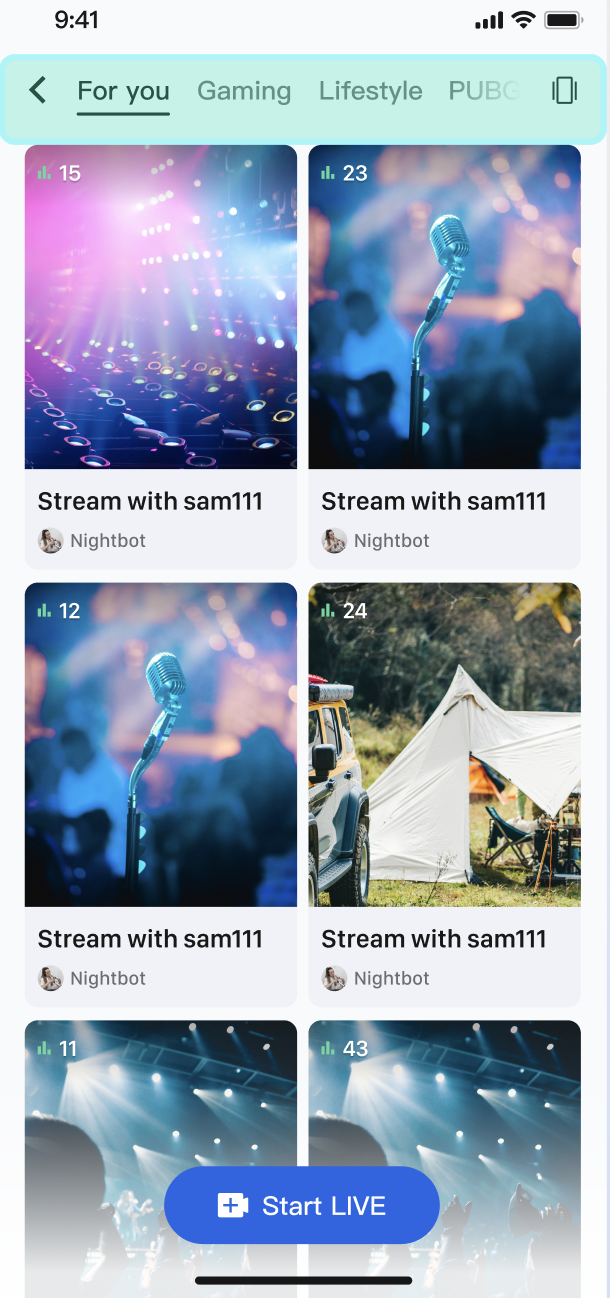
On the live plaza page, users can select category tags such as "Hot", "Music", "Games", etc. When a tag is selected, the live room list dynamically filters to display only rooms in the chosen category, helping users quickly discover relevant content.
Implementation
Use the
categoryList property in the LiveInfo model. When the host selects a category while going live, the fetchLiveList API returns LiveInfo objects that include these category details. After retrieving the full live room list, filter it on the client based on the user’s selected category and refresh the UI.Code Example
The following example shows how to extend a
LiveListManager within LiveListActivity to handle data retrieval and filtering logic.import android.os.Bundleimport androidx.appcompat.app.AppCompatActivityimport androidx.recyclerview.widget.RecyclerViewimport io.trtc.tuikit.atomicxcore.api.live.LiveInfoimport io.trtc.tuikit.atomicxcore.api.live.LiveListStoreimport kotlinx.coroutines.*import kotlinx.coroutines.flow.*// 1. Create a data manager to encapsulate data retrieval and filtering logicclass LiveListManager {private val liveListStore = LiveListStore.shared()private var fullLiveList: List<LiveInfo> = emptyList()// Expose the final filtered live list externallyprivate val _filteredLiveList = MutableStateFlow<List<LiveInfo>>(emptyList())val filteredLiveList: StateFlow<List<LiveInfo>> = _filteredLiveListinit {// Listen for full list changesCoroutineScope(Dispatchers.Main).launch {liveListStore.liveState.liveList.collect { fetchedList ->fullLiveList = fetchedList// By default, publish the complete list_filteredLiveList.value = fetchedList}}}fun fetchFirstPage() {liveListStore.fetchLiveList(cursor = "", count = 20, completion = null)}/// Filter the live list by categoryfun filterLiveList(categoryId: Int?) {if (categoryId == null) {// If categoryId is null, show the complete list_filteredLiveList.value = fullLiveListreturn}val filteredList = fullLiveList.filter { liveInfo ->liveInfo.categoryList.contains(categoryId)}_filteredLiveList.value = filteredList}}// 2. Use the Manager in your LiveListActivityclass LiveListActivity : AppCompatActivity() {private val manager = LiveListManager()private lateinit var recyclerView: RecyclerViewoverride fun onCreate(savedInstanceState: Bundle?) {super.onCreate(savedInstanceState)setContentView(R.layout.activity_live_list)// setupUI()// Bind dataCoroutineScope(Dispatchers.Main).launch {manager.filteredLiveList.collect { filteredList ->// Refresh UI// adapter.updateList(filteredList)}}// Fetch first pagemanager.fetchFirstPage()}// When the user clicks a top category tagfun onCategorySelected(categoryId: Int) {manager.filterLiveList(categoryId)}// ... (RecyclerView related code)}
Scenario 2: Swipe-to-Play for Live Room List

Users can switch between live rooms by swiping up and down. When a new live room is centered on the screen, the video preview automatically starts playing. When it leaves the screen, playback stops automatically to save bandwidth and device resources.
Note:
Swipe-to-Play is currently only supported for Video Live Streaming.
Interaction Flow
Implementation
LiveCoreView supports multiple instances. Create a separate LiveCoreView for each RecyclerView.ViewHolder. By monitoring the scroll state of the RecyclerView, you can precisely control when to start or stop streaming in each ViewHolder, achieving "play on swipe in, stop on swipe out" behavior.Code Example
We create a custom
LiveFeedViewHolder that holds a LiveCoreView internally. We then manage the playback state of these ViewHolders in the Activity.import android.os.Bundleimport android.view.LayoutInflaterimport android.view.Viewimport android.view.ViewGroupimport androidx.appcompat.app.AppCompatActivityimport androidx.recyclerview.widget.LinearLayoutManagerimport androidx.recyclerview.widget.RecyclerViewimport io.trtc.tuikit.atomicxcore.api.live.LiveInfoimport io.trtc.tuikit.atomicxcore.api.view.CoreViewTypeimport io.trtc.tuikit.atomicxcore.api.view.LiveCoreView// 1. Custom RecyclerView.ViewHolder, containing a LiveCoreView internallyclass LiveFeedViewHolder(itemView: View) : RecyclerView.ViewHolder(itemView) {private var liveCoreView: LiveCoreView? = nullfun setLiveInfo(liveInfo: LiveInfo) {// Create a new LiveCoreView for the new live infoliveCoreView = LiveCoreView(itemView.context, viewType = CoreViewType.PLAY_VIEW)liveCoreView?.let { view ->(itemView as ViewGroup).addView(view)view.layoutParams = ViewGroup.LayoutParams(ViewGroup.LayoutParams.MATCH_PARENT,ViewGroup.LayoutParams.MATCH_PARENT)}}fun startPlay(roomId: String) {liveCoreView?.startPreviewLiveStream(roomId, false, callback = null)}fun stopPlay(roomId: String) {liveCoreView?.stopPreviewLiveStream(roomId)}}// 2. Manage playback logic in the Activityclass LiveFeedActivity : AppCompatActivity() {private lateinit var recyclerView: RecyclerViewprivate var liveList: List<LiveInfo> = emptyList()private var currentPlayingPosition: Int = -1override fun onCreate(savedInstanceState: Bundle?) {super.onCreate(savedInstanceState)setContentView(R.layout.activity_live_feed)setupRecyclerView()}private fun setupRecyclerView() {recyclerView = findViewById(R.id.recyclerView)recyclerView.layoutManager = LinearLayoutManager(this, LinearLayoutManager.VERTICAL, false)recyclerView.adapter = LiveFeedAdapter(liveList) { position ->playVideoAtPosition(position)}// Listen for scroll staterecyclerView.addOnScrollListener(object : RecyclerView.OnScrollListener() {override fun onScrollStateChanged(recyclerView: RecyclerView, newState: Int) {super.onScrollStateChanged(recyclerView, newState)if (newState == RecyclerView.SCROLL_STATE_IDLE) {val layoutManager = recyclerView.layoutManager as LinearLayoutManagerval firstVisiblePosition = layoutManager.findFirstCompletelyVisibleItemPosition()if (firstVisiblePosition != RecyclerView.NO_POSITION) {playVideoAtPosition(firstVisiblePosition)}}}})}private fun playVideoAtPosition(position: Int) {// Only switch playback when the centered position changesif (currentPlayingPosition != position) {// Stop current playbackif (currentPlayingPosition != -1) {val currentViewHolder = recyclerView.findViewHolderForAdapterPosition(currentPlayingPosition)if (currentViewHolder is LiveFeedViewHolder) {val liveInfo = liveList[currentPlayingPosition]currentViewHolder.stopPlay(liveInfo.liveID)}}// Start new playbackval newViewHolder = recyclerView.findViewHolderForAdapterPosition(position)if (newViewHolder is LiveFeedViewHolder) {val liveInfo = liveList[position]newViewHolder.startPlay(liveInfo.liveID)currentPlayingPosition = position}}}// RecyclerView Adapterinner class LiveFeedAdapter(private var liveList: List<LiveInfo>,private val onItemClick: (Int) -> Unit) : RecyclerView.Adapter<LiveFeedViewHolder>() {override fun onCreateViewHolder(parent: ViewGroup, viewType: Int): LiveFeedViewHolder {val view = LayoutInflater.from(parent.context).inflate(R.layout.item_live_feed, parent, false)return LiveFeedViewHolder(view)}override fun onBindViewHolder(holder: LiveFeedViewHolder, position: Int) {val liveInfo = liveList[position]holder.setLiveInfo(liveInfo)holder.itemView.setOnClickListener {onItemClick(position)}}override fun getItemCount(): Int = liveList.size}}
API Documentation
For detailed information on all public interfaces, properties, and methods of LiveListStore and related classes, refer to the official API documentation included with the AtomicXCore framework. The relevant Stores used in this document are as follows:
Store/Component | Feature Description | API Documentation |
LiveCoreView | Core view component for live video stream display and interaction. Responsible for video stream rendering and view widget handling, supporting scenarios such as host streaming, audience co-hosting, and host linking. | |
LiveListStore | Full lifecycle management of live rooms: create, join, leave, destroy rooms; query room list; modify live information (name, announcement, etc.); listen to live status (such as being removed or ended). |
FAQs
Is the list data for voice chat rooms and video live rooms the same?
Yes. The data is unified; you do not need to fetch them separately. LiveListStore is a global singleton that manages the lifecycle of all "live" rooms in your application, including both video live rooms and voice chat rooms.
How do I distinguish between voice chat rooms and video live rooms in the live room list?
LiveListStore does not differentiate between room business types. You must filter and categorize the list after fetching, at the application or UI layer.We recommend two approaches:
Approach 1 (Recommended): Use seatLayoutTemplateID for differentiation.
This template ID defines the room layout. For supported template IDs and effects, refer to Run And Test.
Step 1: Specify ID when creating a room
When calling
LiveListStore.shared.createLive, set the seatLayoutTemplateID property of LiveInfo based on your business scenario:Voice chat rooms: Use template IDs in the range 1–199.
Video live rooms: Use template IDs in the range 200–999.
Step 2: Filter when fetching the list
On the client side, after receiving the list in
LiveListStore.state.liveList, determine the business scenario by checking the template ID range.Note:
If the seatLayoutTemplateID does not match your business scenario (voice chat room or video live room), seat layout features may not work as expected.
Approach 2: Add a business prefix to
liveID. This is an optional, application-layer convention to help you filter rooms quickly.
Step 1: Add prefix when creating a room
When generating liveID and calling createLive, assign different prefixes for each business type. For example: video live room IDs start with "Live_" (e.g., Live_12345), voice chat room IDs start with "voice_" (e.g., voice_67890).
Step 2: Check prefix when fetching the list
On the client side, after fetching the list, distinguish rooms by checking the liveID prefix.

