
Voice Chat Room
This guides you through building a voice chat room application with host broadcasting and audience participation features using the AtomicXCore SDK's
LiveListStore and LiveSeatStore.Core Concepts
The following table introduces core concepts of
LiveSeatStore:Core Concepts | Type | Core Responsibilities and Description |
class | The core of seat management is responsible for managing ALL seat information and related operations in the room. Expose the real-time microphone position list data stream through liveSeatState.seatList. | |
class | Represent the current status of the microphone position. seatList is a ValueListenable<List<SeatInfo>> type that stores the real-time status of the seat position list.speakingUsers signifies the person currently speaking and the corresponding volume. | |
class | The data model of one microphone position. The seat position list ( seatList) pushed by LiveSeatStore consists of multiple SeatInfo objects. Key field:index (the index of the seat position).isLocked (whether the seat position is locked).userInfo (user information on the seat position. If the seat position is empty, this field is also an empty object). | |
class | The detailed data model of the on-mic user. When a user successfully gets on mic, the userInfo field in SeatInfo will be filled with this user. Key field:userID (user's unique ID).userName (user's nickname).avatarURL (user's profile photo URL).microphoneStatus (Mic status).cameraStatus (Camera status). |
Preparations
Step 1: Activate the Services
See Activate Service to obtain either the trial or paid version of the SDK.Then, go to the Console for application management, and get the following:
SDKAppID: Application identifier (required). Tencent Cloud uses SDKAppID for billing and details.SDKSecretKey: Application secret key, used to initialize the configuration file with secret information.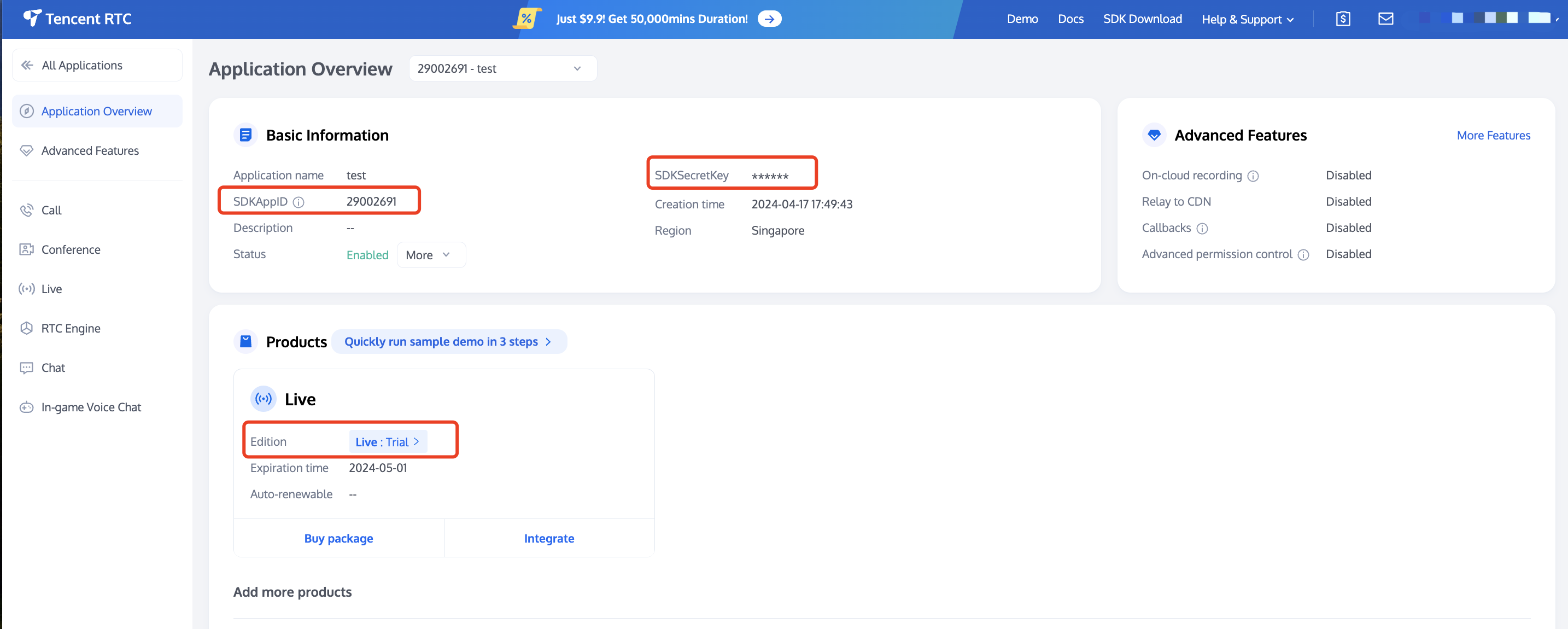
Step 2: Import AtomicXCore into Your Project
1. Install component: Please add
atomic_x_core dependency in your pubspec.yaml file, then execute flutter pub get.dependencies:atomic_x_core: ^4.0.1
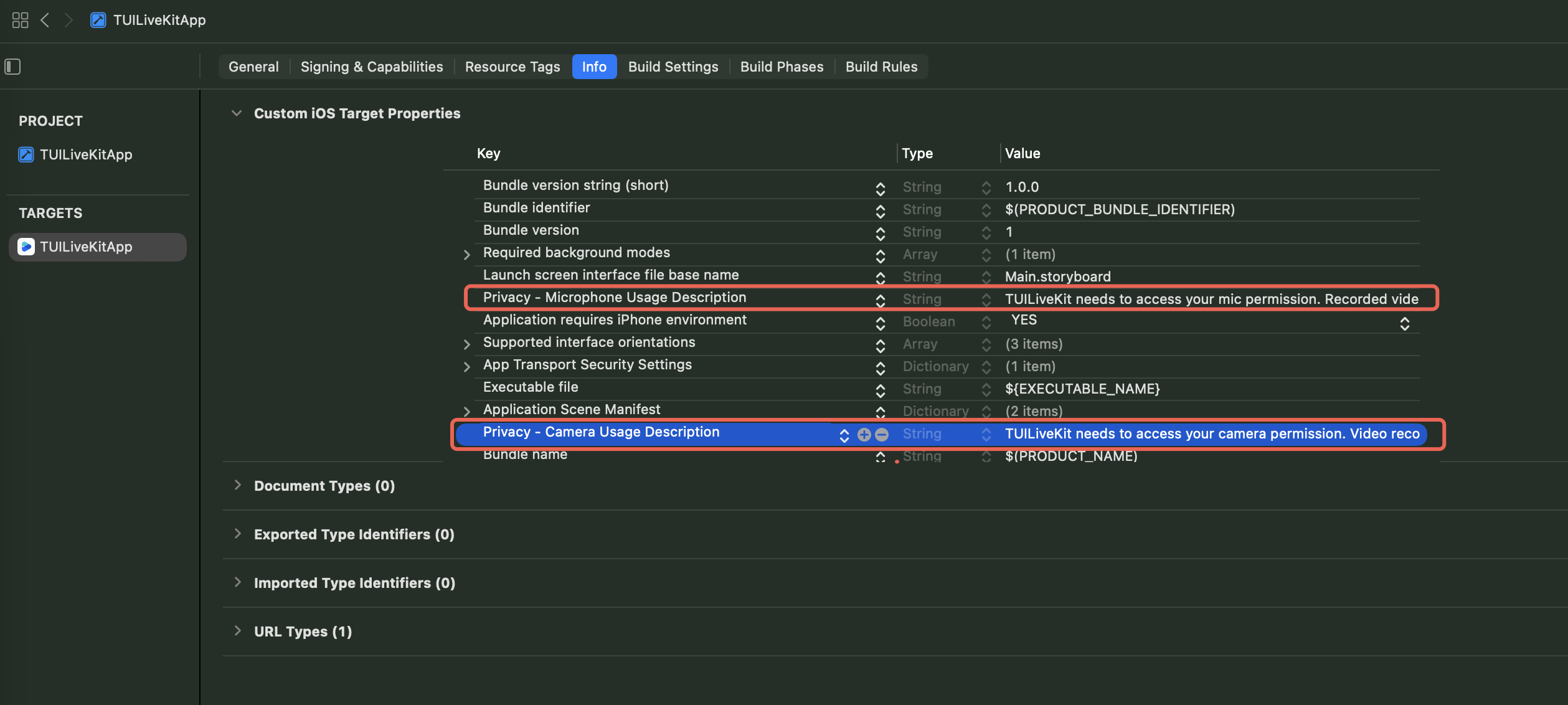
2. Configure project permissions: Android and iOS projects all are needed to configure permissions.
Add permission to use microphone in file
android/app/src/main/AndroidManifest.xml.<uses-permission android:name="android.permission.RECORD_AUDIO" />
Add permission to use microphone in file
ios directory Podfile and ios/Runner directory Info.plist.Podfile
post_install do |installer|installer.pods_project.targets.each do |target|flutter_additional_ios_build_settings(target)target.build_configurations.each do |config|config.build_settings['GCC_PREPROCESSOR_DEFINITIONS'] ||= ['$(inherited)','PERMISSION_MICROPHONE=1',]endendend
Info.plist
<key>NSMicrophoneUsageDescription</key><string>TUILiveKit needs to access your microphone permission. Recorded video will have sound when enabled</string>
Step 3: Implement Login Logic
Call
LoginStore.shared.login in the project to complete login. This is the key premise for using AtomicXCore all functions.Important:
We recommend calling LoginStore.shared.login after successful log-in to your App's user account to ensure clear and consistent login service logic.
import 'package:flutter/material.dart';import 'package:atomic_x_core/atomicxcore.dart';// main.dartvoid main() async {WidgetsFlutterBinding.ensureInitialized();// Log in.final result = await LoginStore.shared.login(sdkAppID: 1400000001, // Replace with your sdkAppIDuserID: "test_001", // Replace with your user IDuserSig: "xxxxxxxxxxx", // Replace with your userSig);if (result.isSuccess) {debugPrint("login success");} else {debugPrint("login failed code: ${result.code}, message: ${result.message}");}runApp(const MyApp());}
Login API parameters:
Parameter | Type | Description |
sdkAppID | Int | |
userID | String | The unique ID for the current user. Must contain only English letters, numbers, hyphens, and underscores. |
userSig | String | A credential for TRTC authentication: Development Environment: You can use the local GenerateTestUserSig.genTestSig function to generate a UserSig or generate a temporary UserSig via the UserSig Generation Tool.Production Environment: To prevent key leakage, you must generate UserSig on the server side. For details, see Generating UserSig on the Server. For more information, see How to Calculate and Use UserSig. |
Build a Basic Voice Chat Room
Step 1: Host Creates a Voice Chat Room
Follow these steps to quickly set up a voice chat room as the host.
1. Initialize LiveSeatStore
On your anchor page, create a
LiveSeatStore instance. You need to listen to changes in liveSeatStore.liveSeatState for real-time seat updates and UI rendering.import 'package:flutter/material.dart';import 'package:atomic_x_core/atomicxcore.dart';// YourAnchorPage represents your host homepageclass YourAnchorPage extends StatefulWidget {const YourAnchorPage({super.key});@overrideState<YourAnchorPage> createState() => _YourAnchorPageState();}class _YourAnchorPageState extends State<YourAnchorPage> {final _liveListStore = LiveListStore.shared;final _deviceStore = DeviceStore.shared;// Initialize LiveSeatStore with liveIDfinal String _liveID = "test_voice_room_001";late final LiveSeatStore _liveSeatStore;late final VoidCallback _seatListListener = _onSeatListChanged;@overridevoid initState() {super.initState();_liveSeatStore = LiveSeatStore.create(_liveID);// Listen to microphone position list adjustment_observeSeatList();}void _observeSeatList() {// Listen to changes in liveSeatState.seatList and refresh your mic seat UI_liveSeatStore.liveSeatState.seatList.addListener(_seatListListener);}void _onSeatListChanged() {// Render your mic seat UI here based on seatInfoListfinal seatInfoList = _liveSeatStore.liveSeatState.seatList.value;debugPrint("Seat list updated: ${seatInfoList.length} seats");setState(() {});}@overridevoid dispose() {_liveSeatStore.liveSeatState.seatList.removeListener(_seatListListener);super.dispose();}@overrideWidget build(BuildContext context) {// Assume that you have your own layoutreturn Container();}}
2. Turn on Microphone
Turn on the microphone by calling the
DeviceStore openLocalMicrophone API:class _YourAnchorPageState extends State<YourAnchorPage> {// ... Other code ...void _openDevices() {// Turn the mic onDeviceStore.shared.openLocalMicrophone();}}
3. Start Voice Chat
By calling the
LiveListStore createLive API to start a voice chat room live stream:class _YourAnchorPageState extends State<YourAnchorPage> {// ... Other code ...final String _liveID = "test_voice_room_001";@overridevoid initState() {super.initState();// ... Other code ...// Start Voice Chat_startLive();}Future<void> _startLive() async {// 1. Prepare the LiveInfo objectfinal liveInfo = LiveInfo(// 2. Set the room idliveID: _liveID,// 3. Set the room nameliveName: "test voice chat room",// 4. Set up the layout template for the video chat room (entering 9 indicates 9 microphones) (enable the microphones)seatTemplate: AudioSalon(9),// 5. Set the microphone mode, such as apply for microphone modeseatMode: TakeSeatMode.apply,);// 6. Call createLive to start live streamingfinal result = await _liveListStore.createLive(liveInfo);if (result.isSuccess) {debugPrint("Response startLive onSuccess");// Once created successfully, the room owner will join the stage by default. At this point, you can call unmuteMicrophone_liveSeatStore.unmuteMicrophone();} else {debugPrint("Response startLive onError: ${result.message}");}}}
LiveInfo parameters:
Parameter Name | Type | Attribute | Description |
liveID | String | Required | Unique identifier of the live streaming room. |
liveName | String | Optional. | Title of the live streaming room. |
notice | String | Optional. | Announcement information of the live streaming room. |
isMessageDisable | bool | Optional. | Whether to mute chat ( true: yes, false: no). |
isPublicVisible | bool | Optional. | Make room public ( true: yes, false: no) |
seatMode | TakeSeatMode | Optional. | Microphone mode ( free: free to take seat, apply: apply to take seat). |
seatTemplate | SeatLayoutTemplate | Required | Seat layout template. |
coverURL | String | Optional. | Cover image URL for the live room. |
backgroundURL | String | Optional. | Background image URL of the live streaming room. |
categoryList | List<int> | Optional. | Category tag list of the live streaming room. |
activityStatus | int | Optional. | Live stream status. |
isGiftEnabled | bool | Optional. | Whether to enable the gift function ( true: yes, false: no). |
4. Build a Seat UI
Note:
For the business code of the Mic Seat
UI effect, see the seat_grid_widget.dart file in the TUILiveKit open-source project to learn about the complete implementation logic.Through the
LiveSeatStore instance, listen to changes in liveSeatState.seatList to get seat data in real time for rendering your UI. You can listen to the data on the page (such as YourAnchorPage or YourAudiencePage) in the following ways:class _YourAnchorPageState extends State<YourAnchorPage> {// ... Other code ...late final LiveSeatStore _liveSeatStore;late final VoidCallback _seatListListener = _onSeatListChanged;@overridevoid initState() {super.initState();_liveSeatStore = LiveSeatStore.create("your_live_id");// ... Other code ...// Listen to seatList transition_observeSeatList();}void _observeSeatList() {// Listen to changes in liveSeatState.seatList and refresh your mic seat UI_liveSeatStore.liveSeatState.seatList.addListener(_seatListListener);}void _onSeatListChanged() {// seatInfoList is the latest microphone position list (List<SeatInfo>)final seatInfoList = _liveSeatStore.liveSeatState.seatList.value;// Render your mic seat UI here based on seatInfoListdebugPrint("Seat list updated: ${seatInfoList.length} seats");setState(() {});}@overridevoid dispose() {_liveSeatStore.liveSeatState.seatList.removeListener(_seatListListener);super.dispose();}@overrideWidget build(BuildContext context) {return ValueListenableBuilder<List<SeatInfo>>(valueListenable: _liveSeatStore.liveSeatState.seatList,builder: (context, seatList, child) {return GridView.builder(gridDelegate: const SliverGridDelegateWithFixedCrossAxisCount(crossAxisCount: 4,),itemCount: seatList.length,itemBuilder: (context, index) {final seat = seatList[index];return _buildSeatItem(seat);},);},);}Widget _buildSeatItem(SeatInfo seat) {// Build one mic seat UIreturn Container();}}
5. End Voice Chat
After the voice chat, the room owner can call the
LiveListStore's endLive API to end the chat. The SDK will handle the logic of stopping streaming and terminating the room.class _YourAnchorPageState extends State<YourAnchorPage> {// ... Other code ...// End Voice ChatFuture<void> _stopLive() async {final result = await _liveListStore.endLive();if (result.isSuccess) {debugPrint("endLive success");} else {debugPrint("endLive error: ${result.message}");}}}
Step 2: Audience Joins the Voice Chat Room
Enable audience members to join the voice chat room with the following steps.
1. Initialize the LiveSeatStore
On your audience page, create a
LiveSeatStore instance and listen to changes in liveSeatState.seatList to render the mic seat UI.import 'package:flutter/material.dart';import 'package:atomic_x_core/atomicxcore.dart';// YourAudiencePage represents your audience pageclass YourAudiencePage extends StatefulWidget {const YourAudiencePage({super.key});@overrideState<YourAudiencePage> createState() => _YourAudiencePageState();}class _YourAudiencePageState extends State<YourAudiencePage> {final _liveListStore = LiveListStore.shared;// Ensure the liveID matches the room ownerfinal String _liveID = "test_voice_room_001";late final LiveSeatStore _liveSeatStore;late final VoidCallback _seatListListener = _onSeatListChanged;@overridevoid initState() {super.initState();_liveSeatStore = LiveSeatStore.create(_liveID);// Listen to microphone position list adjustment_observeSeatList();}void _observeSeatList() {// Listen to changes in liveSeatState.seatList and refresh your mic seat UI_liveSeatStore.liveSeatState.seatList.addListener(_seatListListener);}void _onSeatListChanged() {// Render your mic seat UI here based on seatInfoListfinal seatInfoList = _liveSeatStore.liveSeatState.seatList.value;debugPrint("AudiencePage Seat list updated: ${seatInfoList.length} seats");setState(() {});}@overridevoid dispose() {_liveSeatStore.liveSeatState.seatList.removeListener(_seatListListener);super.dispose();}@overrideWidget build(BuildContext context) {// Assume that you have your own layoutreturn Container();}}
2. Join the Voice Chat Room
By calling the
LiveListStore joinLive API to join a voice chat room, sample code:class _YourAudiencePageState extends State<YourAudiencePage> {// ... Other code ...@overridevoid initState() {super.initState();// ... Other code ...// Enter a voice chat room_joinLive();}Future<void> _joinLive() async {// Call joinLive to enter a voice chat roomfinal result = await _liveListStore.joinLive(_liveID);if (result.isSuccess) {debugPrint("joinLive success");} else {debugPrint("joinLive error: ${result.message}");}}}
3. Build a Seat UI
4. Leave the Voice Chat Room
When the audience logs out of the voice chat room, they need to call the
LiveListStore's leaveLive API to exit.class _YourAudiencePageState extends State<YourAudiencePage> {// ... Other code ...Future<void> _leaveLive() async {final result = await _liveListStore.leaveLive();if (result.isSuccess) {debugPrint("leaveLive success");} else {debugPrint("leaveLive error: ${result.message}");}}}
Run and Test
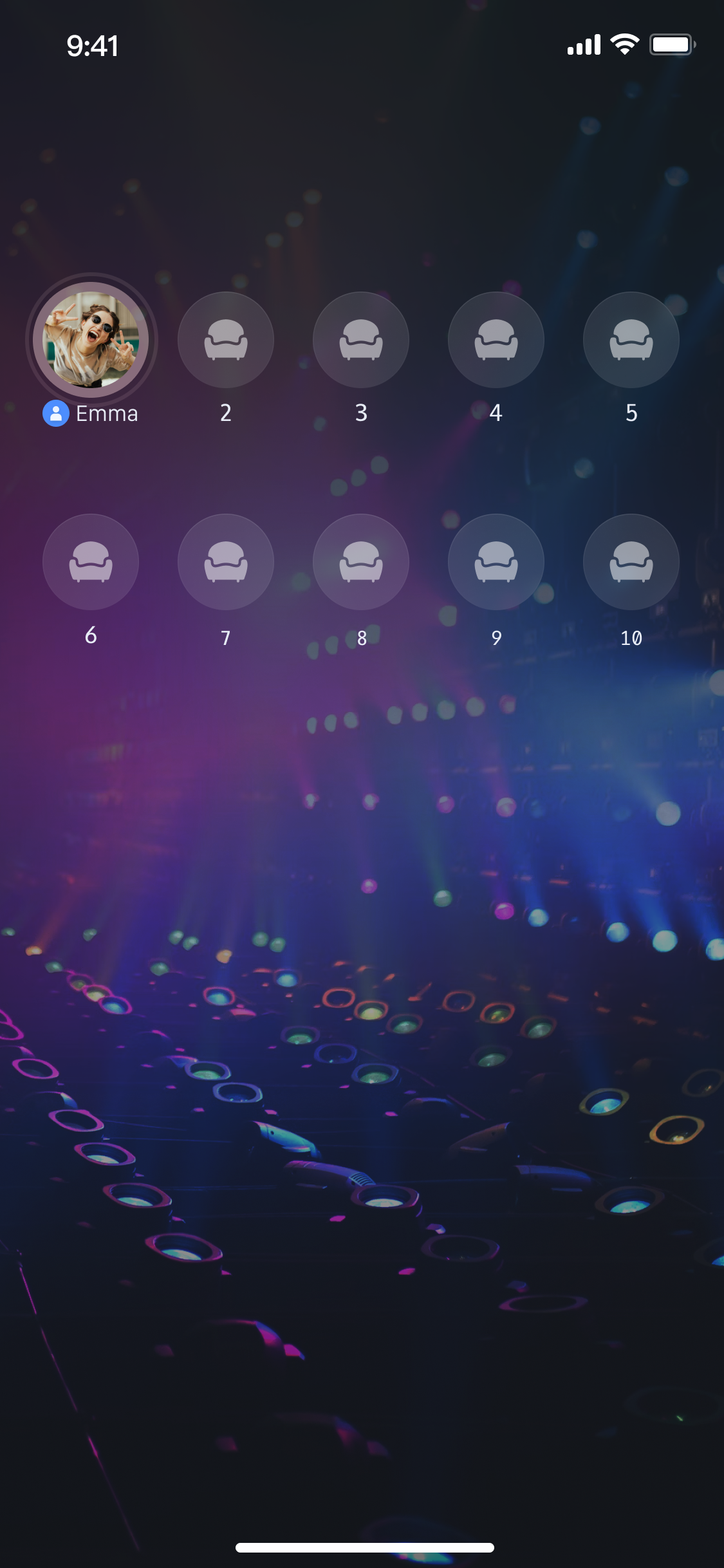
After completing the above steps, you can complete a most basic voice chat live streaming scenario. You can refer to various voice chat room scenarios to refine the voice chat scenario.
Advanced Features
Display Speaking Wave Animation for Users on Seat
In a voice chat room scenario, a common need is to display a wave animation on the avatar of an on-mic user when they speak, notifying all room users "who is speaking".
LiveSeatStore provides the speakingUsers data stream, specialized for implementing this feature.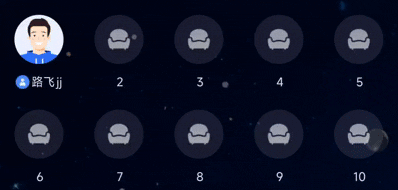
Implementation
Note:
When an Anchor speaks, a wave animation effect is shown. See the seat_grid_widget.dart file in the
TUILiveKit open-source project to learn about the complete implementation logic.On
YourAnchorPage or YourAudiencePage, listen for speakingUsers transition and refresh the "speaking" status. Sample code:class _YourAnchorPageState extends State<YourAnchorPage> {late final VoidCallback _speakingUsersListener = _onSpeakingUsersChanged;// ... Other code ...@overridevoid initState() {super.initState();// ... Other code ...// Listen to speakingUsers transition_observeSpeakingUsersState();}void _observeSpeakingUsersState() {// Listen for liveSeatState.speakingUsers transition and refresh the "speaking" status_liveSeatStore.liveSeatState.speakingUsers.addListener(_speakingUsersListener);}void _onSpeakingUsersChanged() {// Pass the user ID collection of "speaking" users to the UI and update the UI statefinal speakingUserMap = _liveSeatStore.liveSeatState.speakingUsers.value;debugPrint("Speaking users updated: ${speakingUserMap.length} users");setState(() {});}@overridevoid dispose() {_liveSeatStore.liveSeatState.speakingUsers.removeListener(_speakingUsersListener);super.dispose();}@overrideWidget build(BuildContext context) {return ValueListenableBuilder<Map<String, int>>(valueListenable: _liveSeatStore.liveSeatState.speakingUsers,builder: (context, speakingUsers, child) {// speakingUsers is a Map where the key is userID and the value is volumereturn YourSpeakingIndicatorWidget(speakingUsers: speakingUsers);},);}}// Example: Speaking indicator componentclass YourSpeakingIndicatorWidget extends StatelessWidget {final Map<String, int> speakingUsers;const YourSpeakingIndicatorWidget({super.key,required this.speakingUsers,});@overrideWidget build(BuildContext context) {return Container();}}
Enrich Voice Chat Room Scenarios
After completing the basic voice chat room features, you can refer to the following feature guide to add various interactive gameplay features to the voice chat room.
Feature | Feature Description | Feature Stores | Implementation Guide |
Audience Take Seat | Audience members can apply to take a seat and interact with the host in real time. | ||
Add Barrage Chat | Room members can send and receive real-time text messages. | ||
Gift System | Audience can send virtual gifts to hosts to increase interaction and engagement. |
API documentation
Store/Component | Feature Description | API Reference |
LiveListStore | Full lifecycle management of live streaming room: create/join/leave/terminate room, query room list, modify live information (name, notice), listen to live streaming status (for example, being kicked out, ended). | |
LiveSeatStore | Core of seat management: manage seat list, Anchor status, and related operations (taking a seat, leaving a seat, removing user, locking seat, switching microphone on or off/camera), listen to seat events. | |
DeviceStore | Audio/Video device control: microphone (on/off, volume), camera (on/off, switchover, video quality), screen sharing, monitor device status in real time. | |
CoGuestStore | Audience co-broadcasting management: join microphone application/invite/grant/deny, member permission control (microphone/camera), state synchronization. | |
CoHostStore | Anchor cross-room connection: support for multiple layout templates (dynamic grid, etc.), initiate/accept/reject connection, and interactive management of co-broadcasting Anchors. | |
BattleStore | Anchor PK battle: initiate PK (duration configuration/competitor), manage PK status (start/end), synchronize score, listen to battle results. | |
GiftStore | Gift interaction: get gift list, send/receive gifts, listen to gift events (including sender, gift details). | |
BarrageStore | Danmaku function: send text/custom barrage item, maintain bullet screen list, monitor danmaku status in real time. | |
LikeStore | Like interaction: send likes, listen to like events, sync total likes. | |
LiveAudienceStore | Audience management: get real-time audience list (ID/name/avatar), check audience size, listen to Enter/Exit Event. | |
AudioEffectStore | Audio effects: voice-changing (child voice/male voice), reverberation (KTV), ear monitoring adjustment, switch special effects in real time. | |
BaseBeautyStore | Basic beauty filter: adjust skin smoothing/whitening/rosy (0-100 levels), reset beauty status, sync effect parameters. |
FAQs
No Sound After Audience Joins Room
Check device permissions: Please ensure
App has declared and obtained system authorization for microphone in Info.plist (iOS) or AndroidManifest.xml (Android).Check the homeowner side: Whether the room owner has normally called
DeviceStore.shared.openLocalMicrophone() to open the microphone.Check the network: Please check whether the device network connection is normal.
Seat List Not Displayed or Updated
Check Store initialization: Please ensure you have already used the same
liveID to correctly create the LiveSeatStore instance (LiveSeatStore.create(liveID)) before createLive or joinLive.Check data listening: Please check whether you have used
addListener correctly to listen to liveSeatStore.liveSeatState.seatList, and ensure to call removeListener in dispose to remove listener.Check API call: Please ensure the
createLive (room owner) or joinLive (listener) API has been successfully called (confirm when isSuccess in the callback result is true).
