You can use ITRTCCloudCallback to get various event notifications from the SDK, such as error codes, warning codes, and audio/video status parameters.
All TRTC users need to enter a room before they can "publish" or "subscribe to" audio/video streams. "Publishing" refers to pushing their own streams to the cloud, and "subscribing to" refers to pulling the streams of other users in the room from the cloud.
When calling this API, you need to specify your application scenario (TRTCAppScene) to get the best audio/video transfer experience. We provide the following four scenarios for your choice:
Video call scenario. Use cases: [one-to-one video call], [video conferencing with up to 300 participants], [online medical diagnosis], [small class], [video interview], etc.
In this scenario, each room supports up to 300 concurrent online users, and up to 50 of them can speak simultaneously.
Live streaming scenario. Use cases: [low-latency video live streaming], [interactive classroom for up to 100,000 participants], [live video competition], [video dating room], [remote training], [large-scale conferencing], etc.
In this scenario, each room supports up to 100,000 concurrent online users, but you should specify the user roles: anchor (TRTCRoleAnchor) or audience (TRTCRoleAudience).
Audio chat room scenario. Use cases: [Clubhouse], [online karaoke room], [music live room], [FM radio], etc.
In this scenario, each room supports up to 100,000 concurrent online users, but you should specify the user roles: anchor (TRTCRoleAnchor) or audience (TRTCRoleAudience).
After calling this API, you will receive the onEnterRoom(result) callback from ITRTCCloudCallback:
If room entry succeeded, the result parameter will be a positive number ( result > 0), indicating the time in milliseconds (ms) between function call and room entry.
If room entry failed, the result parameter will be a negative number ( result < 0), indicating the TXLiteAVError for room entry failure.
Param
DESC
param
Room entry parameter, which is used to specify the user's identity, role, authentication credentials, and other information. For more information, please see TRTCParams.
scene
Application scenario, which is used to specify the use case. The same TRTCAppScene should be configured for all users in the same room.
2. The same scene should be configured for all users in the same room. Different scene may cause occasional abnormal problems.
3. Please try to ensure that enterRoom and exitRoom are used in pair; that is, please make sure that "the previous room is exited before the next room is entered"; otherwise, many issues may occur.
exitRoom
exitRoom
Exit room.
Calling this API will allow the user to leave the current audio or video room and release the camera, mic, speaker, and other device resources.
After resources are released, the SDK will use the onExitRoom() callback in ITRTCCloudCallback to notify you.
If you need to call enterRoom again or switch to the SDK of another provider, we recommend you wait until you receive the onExitRoom callback, so as to avoid the problem of the camera or mic being occupied.
This API is used to switch the user role between anchor and audience .
As video live rooms and audio chat rooms need to support an audience of up to 100,000 concurrent online users, the rule "only anchors can publish their audio/video streams" has been set. Therefore, when some users want to publish their streams (so that they can interact with anchors), they need to switch their role to "anchor" first.
You can use the role field in TRTCParams during room entry to specify the user role in advance or use the switchRole API to switch roles after room entry.
Param
DESC
role
Role, which is anchor by default:
TRTCRoleAnchor: anchor, who can publish their audio/video streams. Up to 50 anchors are allowed to publish streams at the same time in one room.
TRTCRoleAudience: audience, who cannot publish their audio/video streams, but can only watch streams of anchors in the room. If they want to publish their streams, they need to switch to the "anchor" role first through switchRole. One room supports an audience of up to 100,000 concurrent online users.
This API is used to quickly switch a user from one room to another.
If the user's role is audience , calling this API is equivalent to exitRoom (current room) + enterRoom (new room).
If the user's role is anchor , the API will retain the current audio/video publishing status while switching the room; therefore, during the room switch, camera preview and sound capturing will not be interrupted.
This API is suitable for the online education scenario where the supervising teacher can perform fast room switch across multiple rooms. In this scenario, using switchRoom can get better smoothness and use less code than exitRoom + enterRoom .
The API call result will be called back through onSwitchRoom(errCode, errMsg) in ITRTCCloudCallback.
Due to the requirement for compatibility with legacy versions of the SDK, the config parameter contains both roomId and strRoomId parameters. You should pay special attention as detailed below when specifying these two parameters:
1. If you decide to use strRoomId , then set roomId to 0. If both are specified, roomId will be used.
2. All rooms need to use either strRoomId or roomId at the same time. They cannot be mixed; otherwise, there will be many unexpected bugs.
connectOtherRoom
connectOtherRoom
void connectOtherRoom
(string jsonParams)
Request cross-room call.
By default, only users in the same room can make audio/video calls with each other, and the audio/video streams in different rooms are isolated from each other.
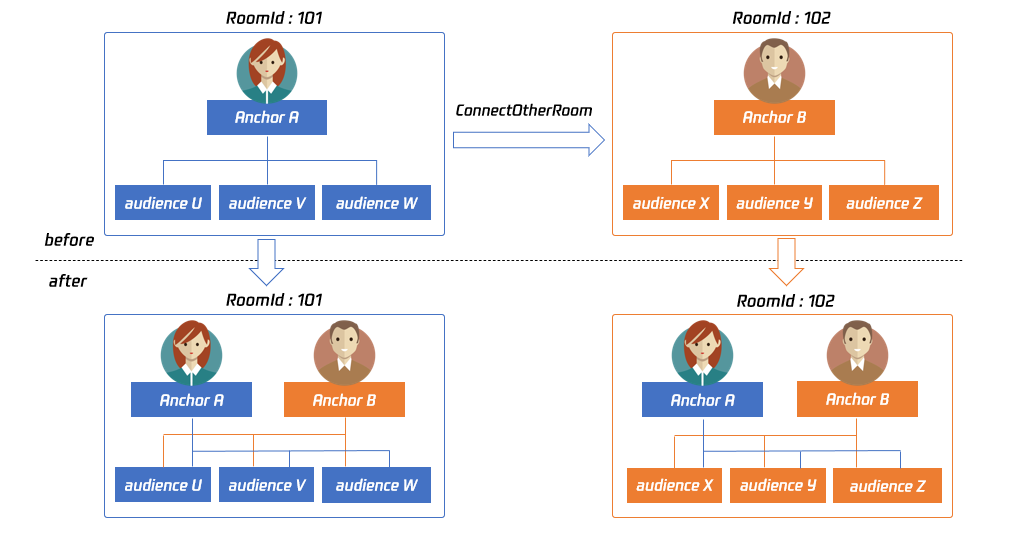
However, you can publish the audio/video streams of an anchor in another room to the current room by calling this API. At the same time, this API will also publish the local audio/video streams to the target anchor's room.
In other words, you can use this API to share the audio/video streams of two anchors in two different rooms, so that the audience in each room can watch the streams of these two anchors. This feature can be used to implement anchor competition.
For example, after anchor A in room "101" uses connectOtherRoom() to successfully call anchor B in room "102":
All users in room "101" will receive the onRemoteUserEnterRoom(B) and onUserVideoAvailable(B,true) event callbacks of anchor B; that is, all users in room "101" can subscribe to the audio/video streams of anchor B.
All users in room "102" will receive the onRemoteUserEnterRoom(A) and onUserVideoAvailable(A,true) event callbacks of anchor A; that is, all users in room "102" can subscribe to the audio/video streams of anchor A.
For compatibility with subsequent extended fields for cross-room call, parameters in JSON format are used currently.
Case 1: numeric room ID
If anchor A in room "101" wants to co-anchor with anchor B in room "102", then anchor A needs to pass in {"roomId": 102, "userId": "userB"} when calling this API.
Below is the sample code:
Case 2: string room ID
If you use a string room ID, please be sure to replace the roomId in JSON with strRoomId , such as {"strRoomId": "102", "userId": "userB"}
Below is the sample code:
Param
DESC
param
You need to pass in a string parameter in JSON format: roomId represents the room ID in numeric format, strRoomId represents the room ID in string format, and userId represents the user ID of the target anchor.
disconnectOtherRoom
disconnectOtherRoom
Exit cross-room call.
The result will be returned through the onDisconnectOtherRoom() callback in ITRTCCloudCallback.
setDefaultStreamRecvMode
setDefaultStreamRecvMode
void setDefaultStreamRecvMode
(bool autoRecvAudio
bool autoRecvVideo)
Set subscription mode (which must be set before room entry for it to take effect).
You can switch between the "automatic subscription" and "manual subscription" modes through this API:
Automatic subscription: this is the default mode, where the user will immediately receive the audio/video streams in the room after room entry, so that the audio will be automatically played back, and the video will be automatically decoded (you still need to bind the rendering control through the startRemoteView API).
Manual subscription: after room entry, the user needs to manually call the startRemoteView API to start subscribing to and decoding the video stream and call the muteRemoteAudio (false) API to start playing back the audio stream.
In most scenarios, users will subscribe to the audio/video streams of all anchors in the room after room entry. Therefore, TRTC adopts the automatic subscription mode by default in order to achieve the best "instant streaming experience".
In your application scenario, if there are many audio/video streams being published at the same time in each room, and each user only wants to subscribe to 1–2 streams of them, we recommend you use the "manual subscription" mode to reduce the traffic costs.
Param
DESC
autoRecvAudio
true: automatic subscription to audio; false: manual subscription to audio by calling muteRemoteAudio(false) . Default value: true
autoRecvVideo
true: automatic subscription to video; false: manual subscription to video by calling startRemoteView . Default value: true
Note
1. The configuration takes effect only if this API is called before room entry (enterRoom).
2. In the automatic subscription mode, if the user does not call startRemoteView to subscribe to the video stream after room entry, the SDK will automatically stop subscribing to the video stream in order to reduce the traffic consumption.
TRTCCloud was originally designed to work in the singleton mode, which limited the ability to watch concurrently in multiple rooms.
By calling this API, you can create multiple TRTCCloud instances, so that you can enter multiple different rooms at the same time to listen/watch audio/video streams.
However, it should be noted that your ability to publish audio and video streams in multiple TRTCCloud instances will be limited.
This feature is mainly used in the "super small class" use case in the online education scenario to break the limit that "only up to 50 users can publish their audio/video streams simultaneously in one TRTC room".
Below is the sample code:
Note
1. The same user can enter multiple rooms with different roomId values by using the same userId .
2. Two devices cannot use the same userId to enter the same room with a specified roomId .
3. You can set ITRTCCloudCallback separately for different instances to get their own event notifications.
4. The same user can push streams in multiple TRTCCloud instances at the same time, and can also call APIs related to local audio/video in the sub instance. But need to pay attention to:
Audio needs to be collected by the microphone or custom data at the same time in all instances, and the result of API calls related to the audio device will be based on the last time;
The result of camera-related API call will be based on the last time: startLocalPreview.
After this API is called, the TRTC server will relay the stream of the local user to a CDN (after transcoding or without transcoding), or transcode and publish the stream to a TRTC room.
The On-Cloud MixTranscoding settings. This parameter is invalid in the relay-to-CDN mode. It is required if you transcode and publish the stream to a CDN or to a TRTC room. For details, see TRTCStreamMixingConfig.
params
The encoding settings. This parameter is required if you transcode and publish the stream to a CDN or to a TRTC room. If you relay to a CDN without transcoding, to improve the relaying stability and playback compatibility, we also recommend you set this parameter. For details, see TRTCStreamEncoderParam.
target
The publishing destination. You can relay the stream to a CDN (after transcoding or without transcoding) or transcode and publish the stream to a TRTC room. For details, see TRTCPublishTarget.
2. You can start a publishing task only once and cannot initiate two tasks that use the same publishing mode and publishing cdn url. Note the task ID returned, which you need to pass to updatePublishMediaStream to modify the publishing parameters or stopPublishMediaStream to stop the task.
3. You can specify up to 10 CDN URLs in target . You will be charged only once for transcoding even if you relay to multiple CDNs.
4. To avoid causing errors, do not specify the same URLs for different publishing tasks executed at the same time. We recommend you add "sdkappid_roomid_userid_main" to URLs to distinguish them from one another and avoid application conflicts.
You can use this API to change the parameters of a publishing task initiated by startPublishMediaStream.
Param
DESC
config
The On-Cloud MixTranscoding settings. This parameter is invalid in the relay-to-CDN mode. It is required if you transcode and publish the stream to a CDN or to a TRTC room. For details, see TRTCStreamMixingConfig.
params
The encoding settings. This parameter is required if you transcode and publish the stream to a CDN or to a TRTC room. If you relay to a CDN without transcoding, to improve the relaying stability and playback compatibility, we recommend you set this parameter. For details, see TRTCStreamEncoderParam.
target
The publishing destination. You can relay the stream to a CDN (after transcoding or without transcoding) or transcode and publish the stream to a TRTC room. For details, see TRTCPublishTarget.
1. You can use this API to add or remove CDN URLs to publish to (you can publish to up to 10 CDNs at a time). To avoid causing errors, do not specify the same URLs for different tasks executed at the same time.
2. You can use this API to switch a relaying task to transcoding or vice versa. For example, in cross-room communication, you can first call startPublishMediaStream to relay to a CDN. When the anchor requests cross-room communication, call this API, passing in the task ID to switch the relaying task to a transcoding task. This can ensure that the live stream and CDN playback are not interrupted (you need to keep the encoding parameters consistent).
3. You can not switch output between "only audio", "only video" and "audio and video" for the same task.
1. If the task ID is not saved to your backend, you can call startPublishMediaStream again when an anchor re-enters the room after abnormal exit. The publishing will fail, but the TRTC backend will return the task ID to you.
2. If taskId is left empty, the TRTC backend will end all tasks you started through startPublishMediaStream. You can leave it empty if you have started only one task or want to stop all publishing tasks started by you.
startLocalPreview
startLocalPreview
void startLocalPreview
(bool frontCamera
GameObject view)
Enable the preview image of local camera (mobile).
If this API is called before enterRoom, the SDK will only enable the camera and wait until enterRoom is called before starting push.
If it is called after enterRoom, the SDK will enable the camera and automatically start pushing the video stream.
When the first camera video frame starts to be rendered, you will receive the onCameraDidReady callback in ITRTCCloudCallback.
Param
DESC
frontCamera
true: front camera; false: rear camera
view
Control that carries the video image
Note
If you want to preview the camera image and adjust the beauty filter parameters through BeautyManager before going live, you can:
Scheme 1. Call startLocalPreview before calling enterRoom.
Scheme 2. Call startLocalPreview and muteLocalVideo(true) after calling enterRoom.
This API can pause (or resume) publishing the local video image. After the pause, other users in the same room will not be able to see the local image.
This API is equivalent to the two APIs of startLocalPreview/stopLocalPreview when TRTCVideoStreamTypeBig is specified, but has higher performance and response speed.
The startLocalPreview/stopLocalPreview APIs need to enable/disable the camera, which are hardware device-related operations, so they are very time-consuming.
In contrast, muteLocalVideo only needs to pause or allow the data stream at the software level, so it is more efficient and more suitable for scenarios where frequent enabling/disabling are needed.
After local video publishing is paused, other members in the same room will receive the onUserVideoAvailable(userId, false) callback notification.
After local video publishing is resumed, other members in the same room will receive the onUserVideoAvailable(userId, true) callback notification.
Subscribe to remote user's video stream and bind video rendering control.
Calling this API allows the SDK to pull the video stream of the specified userId and render it to the rendering control specified by the view parameter. You can set the display mode of the video image through setRemoteRenderParams.
If you already know the userId of a user who has a video stream in the room, you can directly call startRemoteView to subscribe to the user's video image.
If you don't know which users in the room are publishing video streams, you can wait for the notification from onUserVideoAvailable after enterRoom.
Calling this API only starts pulling the video stream, and the image needs to be loaded and buffered at this time. After the buffering is completed, you will receive a notification from onFirstVideoFrame.
Param
DESC
streamType
Video stream type of the userId specified for watching:
1. The SDK supports watching the big image and substream image or small image and substream image of a userId at the same time, but does not support watching the big image and small image at the same time.
2. Only when the specified userId enables dual-channel encoding through enableSmallVideoStream can the user's small image be viewed.
3. If the small image of the specified userId does not exist, the SDK will switch to the big image of the user by default.
Pause/Resume subscribing to remote user's video stream.
This API only pauses/resumes receiving the specified user's video stream but does not release displaying resources; therefore, the video image will freeze at the last frame before it is called.
Param
DESC
mute
Whether to pause receiving
streamType
Specify for which video stream to pause (or resume):
This API can be called before room entry (enterRoom), and the pause status will be reset after room exit (exitRoom). After calling this API to pause receiving the video stream from a specific user, simply calling the startRemoteView API will not be able to play the video from that user. You need to call muteRemoteVideoStream(false) or muteAllRemoteVideoStreams(false) to resume it.
muteAllRemoteVideoStreams
muteAllRemoteVideoStreams
void muteAllRemoteVideoStreams
(bool mute)
Pause/Resume subscribing to all remote users' video streams.
This API only pauses/resumes receiving all users' video streams but does not release displaying resources; therefore, the video image will freeze at the last frame before it is called.
Param
DESC
mute
Whether to pause receiving
Note
This API can be called before room entry (enterRoom), and the pause status will be reset after room exit (exitRoom).
After calling this interface to pause receiving video streams from all users, simply calling the startRemoteView interface will not be able to play the video from a specific user. You need to call muteRemoteVideoStream(false) or muteAllRemoteVideoStreams(false) to resume it.
This setting can determine the quality of image viewed by remote users, which is also the image quality of on-cloud recording files.
Param
DESC
param
It is used to set relevant parameters for the video encoder. For more information, please see TRTCVideoEncParam.
Note
Begin from v11.5 version, the encoding output resolution will be aligned according to width 8 and height 2 bytes, and will be adjusted downward, eg: input resolution 540x960, actual encoding output resolution 536x960.
Enable dual-channel encoding mode with big and small images.
In this mode, the current user's encoder will output two channels of video streams, i.e., HD big image and Smooth small image, at the same time (only one channel of audio stream will be output though).
In this way, other users in the room can choose to subscribe to the HD big image or Smooth small image according to their own network conditions or screen size.
Param
DESC
enable
Whether to enable small image encoding. Default value: false
smallVideoEncParam
Video parameters of small image stream
Note
Dual-channel encoding will consume more CPU resources and network bandwidth; therefore, this feature can be enabled on macOS, Windows, or high-spec tablets, but is not recommended for phones.
Return Desc:
0: success; -1: the current big image has been set to a lower quality, and it is not necessary to enable dual-channel encoding
Switch the big/small image of specified remote user.
After an anchor in a room enables dual-channel encoding, the video image that other users in the room subscribe to through startRemoteView will be HD big image by default.
You can use this API to select whether the image subscribed to is the big image or small image. The API can take effect before or after startRemoteView is called.
Param
DESC
streamType
Video stream type, i.e., big image or small image. Default value: big image
userId
ID of the specified remote user
Note
To implement this feature, the target user must have enabled the dual-channel encoding mode through enableSmallVideoStream; otherwise, this API will not work.
Set the adaptation mode of gravity sensing (version 11.7 and above).
After turning on gravity sensing, if the device on the collection end rotates, the images on the collection end and the audience will be rendered accordingly to ensure that the image in the field of view is always facing up.
It only takes effect in the camera capture scene inside the SDK, and only takes effect on the mobile terminal.
1. This interface only works for the collection end. If you only watch the picture in the room, opening this interface is invalid.
2. When the capture device is rotated 90 degrees or 270 degrees, the picture seen by the capture device or the audience may be cropped to maintain proportional coordination.
The SDK does not enable the mic by default. When a user wants to publish the local audio, the user needs to call this API to enable mic capturing and encode and publish the audio to the current room.
After local audio capturing and publishing is enabled, other users in the room will receive the onUserAudioAvailable(userId, true) notification.
Param
DESC
quality
Sound quality
TRTCAudioQualitySpeech - Smooth: mono channel; audio bitrate: 18 Kbps. This is suitable for audio call scenarios, such as online meeting and audio call.
TRTCAudioQualityDefault - Default: mono channel; audio bitrate: 50 Kbps. This is the default sound quality of the SDK and recommended if there are no special requirements.
TRTCAudioQualityMusic - HD: dual channel + full band; audio bitrate: 128 Kbps. This is suitable for scenarios where Hi-Fi music transfer is required, such as online karaoke and music live streaming.
Note
This API will check the mic permission. If the current application does not have permission to use the mic, the SDK will automatically ask the user to grant the mic permission.
stopLocalAudio
stopLocalAudio
Stop local audio capturing and publishing.
After local audio capturing and publishing is stopped, other users in the room will receive the onUserAudioAvailable(userId, false) notification.
muteLocalAudio
muteLocalAudio
void muteLocalAudio
(bool mute)
Pause/Resume publishing local audio stream.
After local audio publishing is paused, other users in the room will receive the onUserAudioAvailable(userId, false) notification.
After local audio publishing is resumed, other users in the room will receive the onUserAudioAvailable(userId, true) notification.
Different from stopLocalAudio, muteLocalAudio(true) does not release the mic permission; instead, it continues to send mute packets with extremely low bitrate.
This is very suitable for scenarios that require on-cloud recording, as video file formats such as MP4 have a high requirement for audio continuity, while an MP4 recording file cannot be played back smoothly if stopLocalAudio is used.
Therefore, muteLocalAudio instead of stopLocalAudio is recommended in scenarios where the requirement for recording file quality is high.
Param
DESC
mute
true: mute; false: unmute
muteRemoteAudio
muteRemoteAudio
void muteRemoteAudio
(string userId
bool mute)
Pause/Resume playing back remote audio stream.
When you mute the remote audio of a specified user, the SDK will stop playing back the user's audio and pulling the user's audio data.
Param
DESC
mute
true: mute; false: unmute
userId
ID of the specified remote user
Note
This API works when called either before or after room entry (enterRoom), and the mute status will be reset to false after room exit (exitRoom).
muteAllRemoteAudio
muteAllRemoteAudio
void muteAllRemoteAudio
(bool mute)
Pause/Resume playing back all remote users' audio streams.
When you mute the audio of all remote users, the SDK will stop playing back all their audio streams and pulling all their audio data.
Param
DESC
mute
true: mute; false: unmute
Note
This API works when called either before or after room entry (enterRoom), and the mute status will be reset to false after room exit (exitRoom).
setRemoteAudioVolume
setRemoteAudioVolume
void setRemoteAudioVolume
(string userId
int volume)
Set the audio playback volume of remote user.
You can mute the audio of a remote user through setRemoteAudioVolume(userId, 0) .
Param
DESC
userId
ID of the specified remote user
volume
Volume. 100 is the original volume. Value range: [0,150]. Default value: 100
Note
If 100 is still not loud enough for you, you can set the volume to up to 150, but there may be side effects.
setAudioCaptureVolume
setAudioCaptureVolume
void setAudioCaptureVolume
(int volume)
Set the capturing volume of local audio.
Param
DESC
volume
Volume. 100 is the original volume. Value range: [0,150]. Default value: 100
Note
If 100 is still not loud enough for you, you can set the volume to up to 150, but there may be side effects.
getAudioCaptureVolume
getAudioCaptureVolume
Get the capturing volume of local audio.
Return Desc:
capturing volume
setAudioPlayoutVolume
setAudioPlayoutVolume
void setAudioPlayoutVolume
(int volume)
Set the playback volume of remote audio.
This API controls the volume of the sound ultimately delivered by the SDK to the system for playback. It affects the volume of the recorded local audio file but not the volume of in-ear monitoring.
Param
DESC
volume
Volume. 100 is the original volume. Value range: [0,150]. Default value: 100
Note
If 100 is still not loud enough for you, you can set the volume to up to 150, but there may be side effects.
After this feature is enabled, the SDK will return the audio volume assessment information of local user who sends stream and remote users in the onUserVoiceVolume callback of ITRTCCloudCallback.
Param
DESC
enable
Whether to enable the volume prompt. It’s disabled by default.
The watermark position is determined by the xOffset , yOffset , and fWidthRatio parameters.
xOffset : X coordinate of watermark, which is a floating-point number between 0 and 1.
yOffset : Y coordinate of watermark, which is a floating-point number between 0 and 1.
fWidthRatio : watermark dimensions ratio, which is a floating-point number between 0 and 1.
Param
DESC
fWidthRatio
Ratio of watermark width to image width (the watermark will be scaled according to this parameter)
isVisibleOnLocalPreview
true: local preview show wartermark;false: local preview hide wartermark.only effect on win/mac.
nHeight
Pixel height of watermark image (this parameter will be ignored if the source data is a file path)
nWidth
Pixel width of watermark image (this parameter will be ignored if the source data is a file path)
srcData
Source data of watermark image (if nullptr is passed in, the watermark will be removed)
srcType
Source data type of watermark image. For more information, please see TRTCWaterMarkSrcType
streamType
Stream type of the watermark to be set (TRTCVideoStreamTypeBig or @@link TRTCVideoStreamTypeSub})
xOffset
Top-left offset on the X axis of watermark
yOffset
Top-left offset on the Y axis of watermark
Note
This API only supports adding an image watermark to the primary stream
getAudioEffectManager
getAudioEffectManager
Get sound effect management class (TXAudioEffectManager).
TXAudioEffectManager is a sound effect management API, through which you can implement the following features:
Background music: both online music and local music can be played back with various features such as speed adjustment, pitch adjustment, original voice, accompaniment, and loop.
In-ear monitoring: the sound captured by the mic is played back in the headphones in real time, which is generally used for music live streaming.
Reverb effect: karaoke room, small room, big hall, deep, resonant, and other effects.
Voice changing effect: young girl, middle-aged man, heavy metal, and other effects.
Short sound effect: short sound effect files such as applause and laughter are supported (for files less than 10 seconds in length, please set the isShortFile parameter to true ).
Return Desc:
sound effect management class TXAudioEffectManager.
startSystemAudioLoopback
startSystemAudioLoopback
void startSystemAudioLoopback
(string deviceName)
Enable system audio capturing(iOS not supported).
This API captures audio data from the sound card of the anchor’s computer and mixes it into the current audio stream of the SDK. This ensures that other users in the room hear the audio played back by the anchor’s computer.
In online education scenarios, a teacher can use this API to have the SDK capture the audio of instructional videos and broadcast it to students in the room.
In live music scenarios, an anchor can use this API to have the SDK capture the music played back by his or her player so as to add background music to the room.
Param
DESC
deviceName
If this parameter is empty, the audio of the entire system is captured.
Note
On the Windows platform, you can specify the parameter deviceName to the absolute path of an executable file (such as QQMuisc.exe ) of a certain application. In this case, the SDK will only capture the sound of that application (32-bit version of the SDK is supported, 64-bit version of the SDK requires Windows version 10.0.19042 or higher).
You can also specify deviceName as the name of a certain speaker device to capture specific speaker sound (you can use the getDevicesList interface in TXDeviceManager to obtain the speaker devices of type TXMediaDeviceTypeSpeaker).
On the Windows platform, you can also specify deviceName as the process ID of a certain process (in the format of "process_xxx", where xxx is the process ID), and then the SDK will capture the sound of that process (requires Windows version 10.0.19042 or higher).
Alternatively, on the Windows platform, you can specify deviceName as the process ID of a certain process to be excluded (in the format of "exclude_process_xxx", where xxx is the process ID), and then the SDK will capture all sounds except for that process (requires Windows version 10.0.19042 or higher).
About speaker device name you can see TXDeviceManager
This API can capture the content of the entire screen or a specified application and share it with other users in the same room.
Param
DESC
encParam
Image encoding parameters used for screen sharing, which can be set to empty, indicating to let the SDK choose the optimal encoding parameters (such as resolution and bitrate).
2. By default, screen sharing uses the substream image. If you want to use the primary stream for screen sharing, you need to stop camera capturing (through stopLocalPreview) in advance to avoid conflicts.
3. Only one user can use the substream for screen sharing in the same room at any time; that is, only one user is allowed to enable the substream in the same room at any time.
4. When there is already a user in the room using the substream for screen sharing, calling this API will return the onError(ERR_SERVER_CENTER_ANOTHER_USER_PUSH_SUB_VIDEO) callback from ITRTCCloudCallback.
stopScreenCapture
stopScreenCapture
Stop screen sharing.
pauseScreenCapture
pauseScreenCapture
Pause screen sharing.
Note
Begin from v11.5 version, paused screen capture will use the last frame to output at a frame rate of 1fps.
resumeScreenCapture
resumeScreenCapture
Resume screen sharing.
selectScreenCaptureTarget
selectScreenCaptureTarget
void selectScreenCaptureTarget
(TRTCScreenCaptureSourceInfo source
Rect captureRect
TRTCScreenCaptureProperty property)
Select the screen or window to share (for desktop systems only).
After you get the sharable screens and windows through getScreenCaptureSources, you can call this API to select the target screen or window you want to share.
During the screen sharing process, you can also call this API at any time to switch the sharing target.
The following four sharing modes are supported:
Sharing the entire screen: for source whose type is TRTCScreenCaptureSourceTypeScreen in sourceInfoList , set captureRect to { 0, 0, 0, 0 } .
Sharing a specified area: for source whose type is TRTCScreenCaptureSourceTypeScreen in sourceInfoList , set captureRect to a non-nullptr value, e.g., { 100, 100, 300, 300 } .
Sharing an entire window: for source whose type is TRTCScreenCaptureSourceTypeWindow in sourceInfoList , set captureRect to { 0, 0, 0, 0 } .
Sharing a specified window area: for source whose type is TRTCScreenCaptureSourceTypeWindow in sourceInfoList , set captureRect to a non-nullptr value, e.g., { 100, 100, 300, 300 } .
Param
DESC
captureRect
Specify the area to be captured
property
Specify the attributes of the screen sharing target, such as capturing the cursor and highlighting the captured window. For more information, please see the definition of TRTCScreenCaptureProperty
Set the video encoding parameters of screen sharing (i.e., substream) (for desktop and mobile systems).
This API can set the image quality of screen sharing (i.e., the substream) viewed by remote users, which is also the image quality of screen sharing in on-cloud recording files.
Please note the differences between the following two APIs:
After this mode is enabled, the SDK will not run the original video capturing process (i.e., stopping camera data capturing and beauty filter operations) and will retain only the video encoding and sending capabilities.
You need to use sendCustomVideoData to continuously insert the captured video image into the SDK.
length: video frame data length. If pixelFormat is set to I420, length can be calculated according to the following formula: length = width * height * 3 / 2 .
width: video image width, such as 640 px.
height: video image height, such as 480 px.
timestamp (ms): Set it to the timestamp when video frames are captured, which you can obtain by calling generateCustomPTS after getting a video frame.
1. We recommend you call the generateCustomPTS API to get the timestamp value of a video frame immediately after capturing it, so as to achieve the best audio/video sync effect.
2. The video frame rate eventually encoded by the SDK is not determined by the frequency at which you call this API, but by the FPS you set in setVideoEncoderParam.
3. Please try to keep the calling interval of this API even; otherwise, problems will occur, such as unstable output frame rate of the encoder or out-of-sync audio/video.
5. On Windows and Android, only video frames in TRTCVideoPixelFormat_I420 format can be passed in currently.
enableCustomAudioCapture
enableCustomAudioCapture
void enableCustomAudioCapture
(bool enable)
Enable custom audio capturing mode.
After this mode is enabled, the SDK will not run the original audio capturing process (i.e., stopping mic data capturing) and will retain only the audio encoding and sending capabilities.
You need to use sendCustomAudioData to continuously insert the captured audio data into the SDK.
Param
DESC
enable
Whether to enable. Default value: false
Note
As acoustic echo cancellation (AEC) requires strict control over the audio capturing and playback time, after custom audio capturing is enabled, AEC may fail.
We recommend you enter the following information for the TRTCAudioFrame parameter (other fields can be left empty):
audioFormat: audio data format, which can only be TRTCAudioFrameFormatPCM .
data: audio frame buffer. Audio frame data must be in PCM format, and it supports a frame length of 5–100 ms (20 ms is recommended). Length calculation method: for example, if the sample rate is 48000, then the frame length for mono channel will be `48000 * 0.02s * 1 * 16 bit = 15360 bit = 1920 bytes`.
channel: number of channels (if stereo is used, data is interwoven). Valid values: 1: mono channel; 2: dual channel.
timestamp (ms): Set it to the timestamp when audio frames are captured, which you can obtain by calling generateCustomPTS after getting a audio frame.
Please call this API accurately at intervals of the frame length; otherwise, sound lag may occur due to uneven data delivery intervals.
enableMixExternalAudioFrame
enableMixExternalAudioFrame
void enableMixExternalAudioFrame
(bool enablePublish
bool enablePlayout)
Enable/Disable custom audio track.
After this feature is enabled, you can mix a custom audio track into the SDK through this API. With two boolean parameters, you can control whether to play back this track remotely or locally.
Param
DESC
enablePlayout
Whether the mixed audio track should be played back locally. Default value: false
enablePublish
Whether the mixed audio track should be played back remotely. Default value: false
Note
If you specify both enablePublish and enablePlayout as false , the custom audio track will be completely closed.
.2 Set video data callback for third-party beauty filters.
After this callback is set, the SDK will call back the captured video frames through the callback you set and use them for further processing by a third-party beauty filter component. Then, the SDK will encode and send the processed video frames.
Set the callback of custom rendering for local video.
After this callback is set, the SDK will skip its own rendering process and call back the captured data. Therefore, you need to complete image rendering on your own.
You can call setLocalVideoRenderCallback(TRTCVideoPixelFormat_Unknown, TRTCVideoBufferType_Unknown, nullptr) to stop the callback.
Set the callback of custom rendering for remote video.
After this callback is set, the SDK will skip its own rendering process and call back the captured data. Therefore, you need to complete image rendering on your own.
You can call setRemoteVideoRenderCallback(TRTCVideoPixelFormat_Unknown, TRTCVideoBufferType_Unknown, nullptr) to stop the callback.
In actual use, you need to call startRemoteView(userid, nullptr) to get the video stream of the remote user first (set view to nullptr ); otherwise, there will be no data called back.
Return Desc:
0: success; values smaller than 0: error(For more information, please see TXLiteAVError)
After this callback is set, the SDK will internally call back the audio data (in PCM format), including:
onCapturedAudioFrame: callback of the audio data captured by the local mic
onLocalProcessedAudioFrame: callback of the audio data captured by the local mic and preprocessed by the audio module
onPlayAudioFrame: audio data from each remote user before audio mixing
onMixedPlayAudioFrame: callback of the audio data that will be played back by the system after audio streams are mixed
Note
Setting the callback to null indicates to stop the custom audio callback, while setting it to a non-null value indicates to start the custom audio callback.
channel: number of channels (if stereo is used, data is interwoven). Valid values: 1: mono channel; 2: dual channel
samplesPerCall: number of sample points, which defines the frame length of the callback data. The frame length must be an integer multiple of 10 ms.
If you want to calculate the callback frame length in milliseconds, the formula for converting the number of milliseconds into the number of sample points is as follows: number of sample points = number of milliseconds * sample rate / 1000
For example, if you want to call back the data of 20 ms frame length with 48000 sample rate, then the number of sample points should be entered as 960 = 20 * 48000 / 1000 .
Note that the frame length of the final callback is in bytes, and the calculation formula for converting the number of sample points into the number of bytes is as follows: number of bytes = number of sample points * number of channels * 2 (bit width)
For example, if the parameters are 48000 sample rate, dual channel, 20 ms frame length, and 960 sample points, then the number of bytes is 3840 = 960 * 2 * 2
Param
DESC
format
Audio data callback format
Return Desc:
0: success; values smaller than 0: error(For more information, please see TXLiteAVError)
channel: number of channels (if stereo is used, data is interwoven). Valid values: 1: mono channel; 2: dual channel
samplesPerCall: number of sample points, which defines the frame length of the callback data. The frame length must be an integer multiple of 10 ms.
If you want to calculate the callback frame length in milliseconds, the formula for converting the number of milliseconds into the number of sample points is as follows: number of sample points = number of milliseconds * sample rate / 1000 .
For example, if you want to call back the data of 20 ms frame length with 48000 sample rate, then the number of sample points should be entered as 960 = 20 * 48000 / 1000 .
Note that the frame length of the final callback is in bytes, and the calculation formula for converting the number of sample points into the number of bytes is as follows: number of bytes = number of sample points * number of channels * 2 (bit width) .
For example, if the parameters are 48000 sample rate, dual channel, 20 ms frame length, and 960 sample points, then the number of bytes is 3840 = 960 * 2 * 2 .
Param
DESC
format
Audio data callback format
Return Desc:
0: success; values smaller than 0: error(For more information, please see TXLiteAVError)
channel: number of channels (if stereo is used, data is interwoven). Valid values: 1: mono channel; 2: dual channel
samplesPerCall: number of sample points, which defines the frame length of the callback data. The frame length must be an integer multiple of 10 ms.
If you want to calculate the callback frame length in milliseconds, the formula for converting the number of milliseconds into the number of sample points is as follows: number of sample points = number of milliseconds * sample rate / 1000 .
For example, if you want to call back the data of 20 ms frame length with 48000 sample rate, then the number of sample points should be entered as 960 = 20 * 48000 / 1000 .
Note that the frame length of the final callback is in bytes, and the calculation formula for converting the number of sample points into the number of bytes is as follows: number of bytes = number of sample points * number of channels * 2 (bit width) .
For example, if the parameters are 48000 sample rate, dual channel, 20 ms frame length, and 960 sample points, then the number of bytes is 3840 = 960 * 2 * 2 .
Param
DESC
format
Audio data callback format
Return Desc:
0: success; values smaller than 0: error(For more information, please see TXLiteAVError)
sendCustomCmdMsg
sendCustomCmdMsg
bool sendCustomCmdMsg
(int cmdId
byte[] data
int dataSize
bool reliable
bool ordered)
Use UDP channel to send custom message to all users in room.
This API allows you to use TRTC's UDP channel to broadcast custom data to other users in the current room for signaling transfer.
Other users in the room can receive the message through the onRecvCustomCmdMsg callback in ITRTCCloudCallback.
Param
DESC
cmdID
Message ID. Value range: [1, 10]
data
Message to be sent. The maximum length of one single message is 1 KB.
ordered
Whether orderly sending is enabled, i.e., whether the data packets should be received in the same order in which they are sent; if so, a certain delay will be caused.
reliable
Whether reliable sending is enabled. Reliable sending can achieve a higher success rate but with a longer reception delay than unreliable sending.
Note
1. Up to 30 messages can be sent per second to all users in the room (this is not supported for web and mini program currently. this limit is shared with sendSEIMsg).
2. A packet can contain up to 1 KB of data; if the threshold is exceeded, the packet is very likely to be discarded by the intermediate router or server.(this limit is shared with sendSEIMsg).
3. A client can send up to 16 KB of data in total per second.
4. reliable and ordered must be set to the same value ( true or false ) and cannot be set to different values currently.
5. We strongly recommend you set different cmdID values for messages of different types. This can reduce message delay when orderly sending is required.
6. Currently only the anchor role is supported.
Return Desc:
true: sent the message successfully; false: failed to send the message.
sendSEIMsg
sendSEIMsg
bool sendSEIMsg
(byte[] data
int dataSize
int repeatCount)
Use SEI channel to send custom message to all users in room.
This API allows you to use TRTC's SEI channel to broadcast custom data to other users in the current room for signaling transfer.
The header of a video frame has a header data block called SEI. This API works by embedding the custom signaling data you want to send in the SEI block and sending it together with the video frame.
Therefore, the SEI channel has a better compatibility than sendCustomCmdMsg as the signaling data can be transferred to the CSS CDN along with the video frame.
However, because the data block of the video frame header cannot be too large, we recommend you limit the size of the signaling data to only a few bytes when using this API.
The most common use is to embed the custom timestamp into video frames through this API so as to implement a perfect alignment between the message and video image (such as between the teaching material and video signal in the education scenario).
Other users in the room can receive the message through the onRecvSEIMsg callback in ITRTCCloudCallback.
Param
DESC
data
Data to be sent, which can be up to 1 KB (1,000 bytes)
repeatCount
Data sending count
Note
This API has the following restrictions:
1. The data will not be instantly sent after this API is called; instead, it will be inserted into the next video frame after the API call.
2. Up to 30 messages can be sent per second to all users in the room (this limit is shared with sendCustomCmdMsg).
3. Each packet can be up to 1 KB (this limit is shared with sendCustomCmdMsg). If a large amount of data is sent, the video bitrate will increase, which may reduce the video quality or even cause lagging.
4. Each client can send up to 16 KB of data in total per second (this limit is shared with sendCustomCmdMsg).
5. If multiple times of sending is required (i.e., repeatCount > 1), the data will be inserted into subsequent repeatCount video frames in a row for sending, which will increase the video bitrate.
6. If repeatCount is greater than 1, the data will be sent for multiple times, and the same message may be received multiple times in the onRecvSEIMsg callback; therefore, deduplication is required.
Return Desc:
true: the message is allowed and will be sent with subsequent video frames; false: the message is not allowed to be sent
2. Please perform the Network speed test before room entry, because if performed after room entry, the test will affect the normal audio/video transfer, and its result will be inaccurate due to interference in the room.
3. Only one network speed test task is allowed to run at the same time.
Specify whether to enable it, which is disabled by default
setLogCompressEnabled
setLogCompressEnabled
void setLogCompressEnabled
(bool enabled)
Enable/Disable local log compression.
If compression is enabled, the log size will significantly reduce, but logs can be read only after being decompressed by the Python script provided by Tencent Cloud.
If compression is disabled, logs will be stored in plaintext and can be read directly in Notepad, but will take up more storage capacity.
Param
DESC
enabled
Specify whether to enable it, which is enabled by default
setLogDirPath
setLogDirPath
void setLogDirPath
(string path)
Set local log storage path.
You can use this API to change the default storage path of the SDK's local logs, which is as follows:
Windows: C:/Users/[username]/AppData/Roaming/liteav/log, i.e., under %appdata%/liteav/log .
iOS or macOS: under sandbox Documents/log .
Android: under /app directory/files/log/liteav/ .
Param
DESC
path
Log storage path
Note
Please be sure to call this API before all other APIs and make sure that the directory you specify exists and your application has read/write permissions of the directory.