• 製品
  • 価格
  • リソース
  • サポート
このページは現在英語版のみで提供されており、日本語版も近日中に提供される予定です。ご利用いただきありがとうございます。

Unity

Operation Steps

Step 1: Integrating the Message Push Plugin

Adjust the Packages/manifest.json file and add relevant dependencies:
{
"dependencies": {
...
"com.tencent.timpush.unity": "https://github.com/TencentCloud/TIMSDK.git#push_unity"
}
}

Step 2: Push Parameter Configuration

iOS
Android
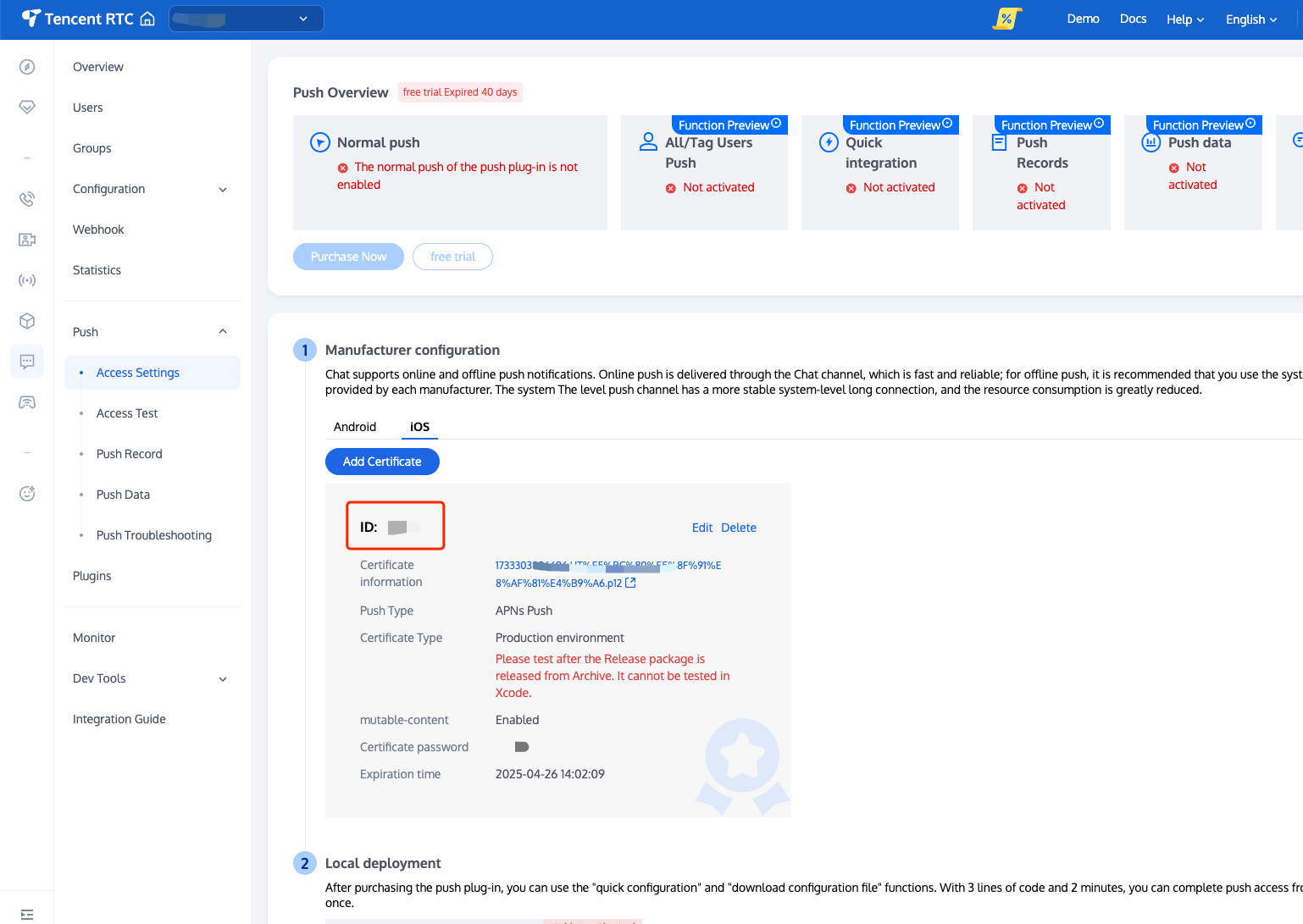
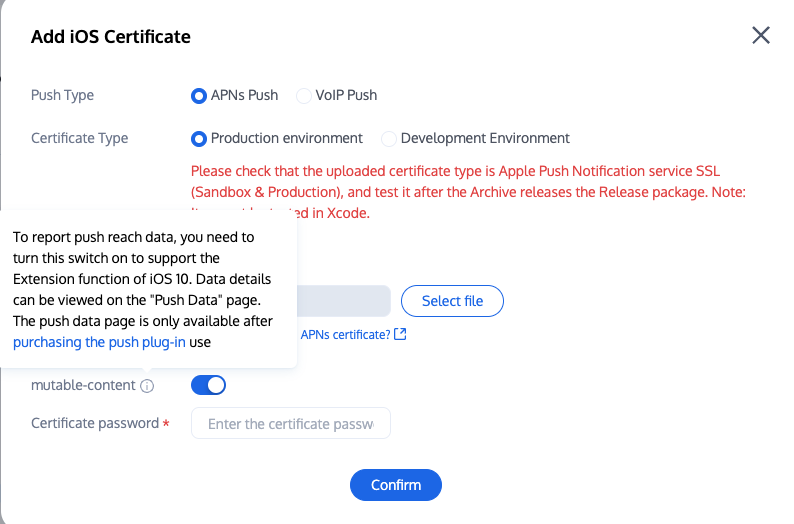
Upload the iOS APNs Push Certificate obtained from the manufacturer configuration process to the Chat console.
The Chat console will allocate a certificate ID for you, as shown below:

You need to create file UnityIMPush.mm under the directory Assets/Plugins/iOS (if the directory does not exist, create it manually), and implement the - businessID protocol method in the file to return the certificate ID. See the implementation as follows:
#import "TIMPush/TIMPush.h"
#import "UnityAppController.h"

@interface UnityAppController (ThirdPartyExtension) <TIMPushDelegate>
- (int)businessID;

- (NSString *)applicationGroupID;
@end

@implementation UnityAppController (ThirdPartyExtension)

#pragma mark - TIMPush
- (int)businessID {
//Certificate ID from the previous step console, such as 1234567
int kBusinessID = 1234567;
return kBusinessID;
}

- (NSString *)applicationGroupID {
//AppGroup ID
return kTIMPushAppGroupKey;
}

- (BOOL)onRemoteNotificationReceived:(NSString *)notice {
// custom navigate
return NO;
}
@end
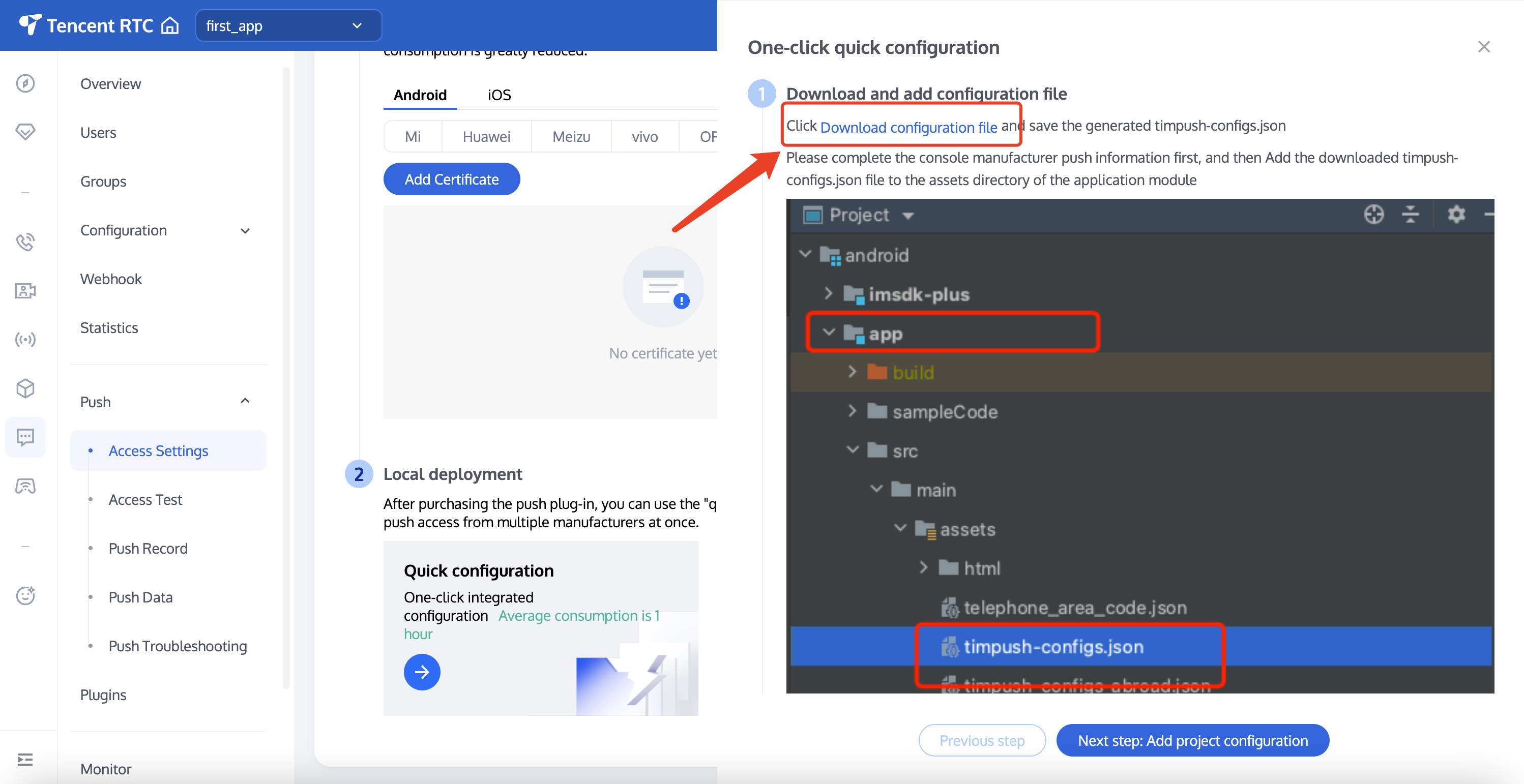
After completing the console manufacturer push information, download and add the configuration file to the project. Add the downloaded timpush-configs.json file to the Assets/Plugins/Android directory of the project. If the directory does not exist, create it manually.


Step 3: Client Vendor Configuration

iOS
Android
No need to perform this step on iOS.
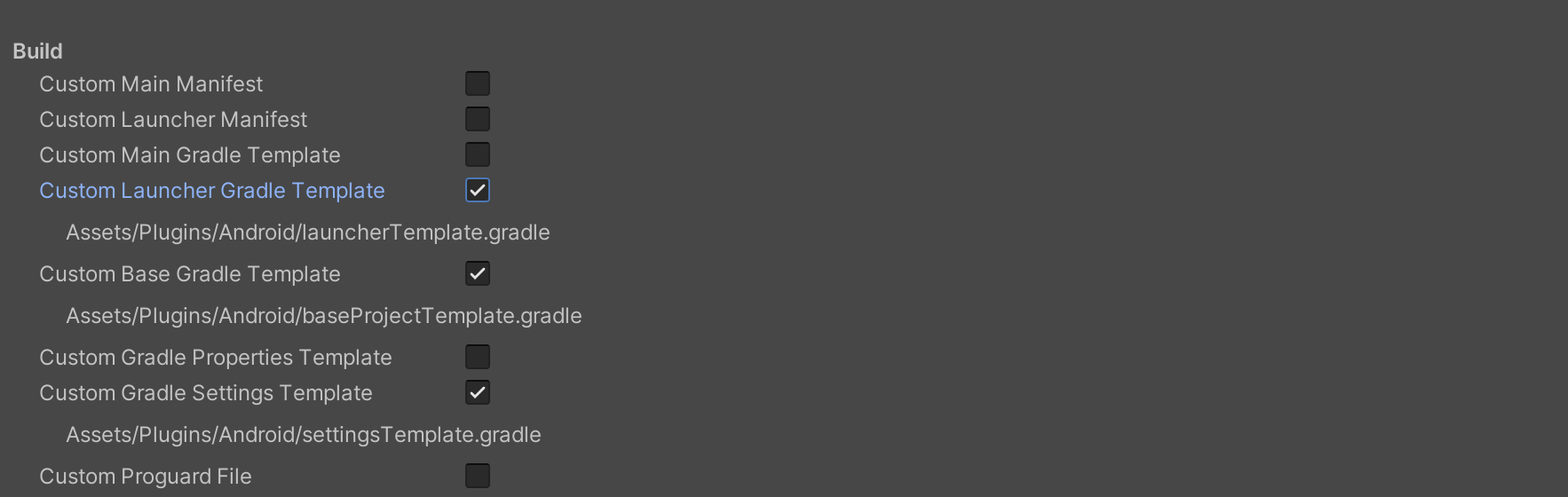
File > Build Settings > Player Settings, then go to Publishing Settings > Build in the Android platform settings and check the following three configurations:

Find the Assets/Plugins/Android/launcherTemplate.gradle file, add the dependencies configuration at the end of the file, and as needed, introduce all or part of the manufacturer's push packages. Only by introducing the corresponding manufacturer's push package can you enable its native push capability.
dependencies {
// Version number "VERSION" please visit update log to get configuration.
// Integration of the push main package is mandatory
implementation 'com.tencent.timpush:tpush:VERSION'
// other need packages
implementation 'androidx.appcompat:appcompat:1.3.0'
implementation 'com.google.code.gson:gson:2.10.1'
// Integrate FCM push package
implementation 'com.tencent.timpush:fcm:VERSION'
// If only the FCM channel is needed, the following packages do not need to be integrated; if you want to prioritize the FCM channel, call the API forceUseFCMPushChannel
implementation 'com.tencent.timpush:huawei:VERSION'
implementation 'com.tencent.timpush:xiaomi:VERSION'
implementation 'com.tencent.timpush:oppo:VERSION'
implementation 'com.tencent.timpush:vivo:VERSION'
implementation 'com.tencent.timpush:honor:VERSION'
implementation 'com.tencent.timpush:meizu:VERSION'
}
Vivo and Honor adaptation
According to the vivo and Honor vendor access guide, APPID and APPKEY need to be added to the manifest file, which can be done by modifying the Assets/Plugins/Android/launcherTemplate.gradle file.
// Assets/Plugins/Android/launcherTemplate.gradle

android {
...
defaultConfig {
...
manifestPlaceholders = [
"VIVO_APPKEY" : "The cert APPKEY assigned to your app",
"VIVO_APPID" : "The cert APPID assigned to your app",
"HONOR_APPID" : "The cert APPID assigned to your app"
]
}
}
Huawei, Honor, and Google FCM adaptation
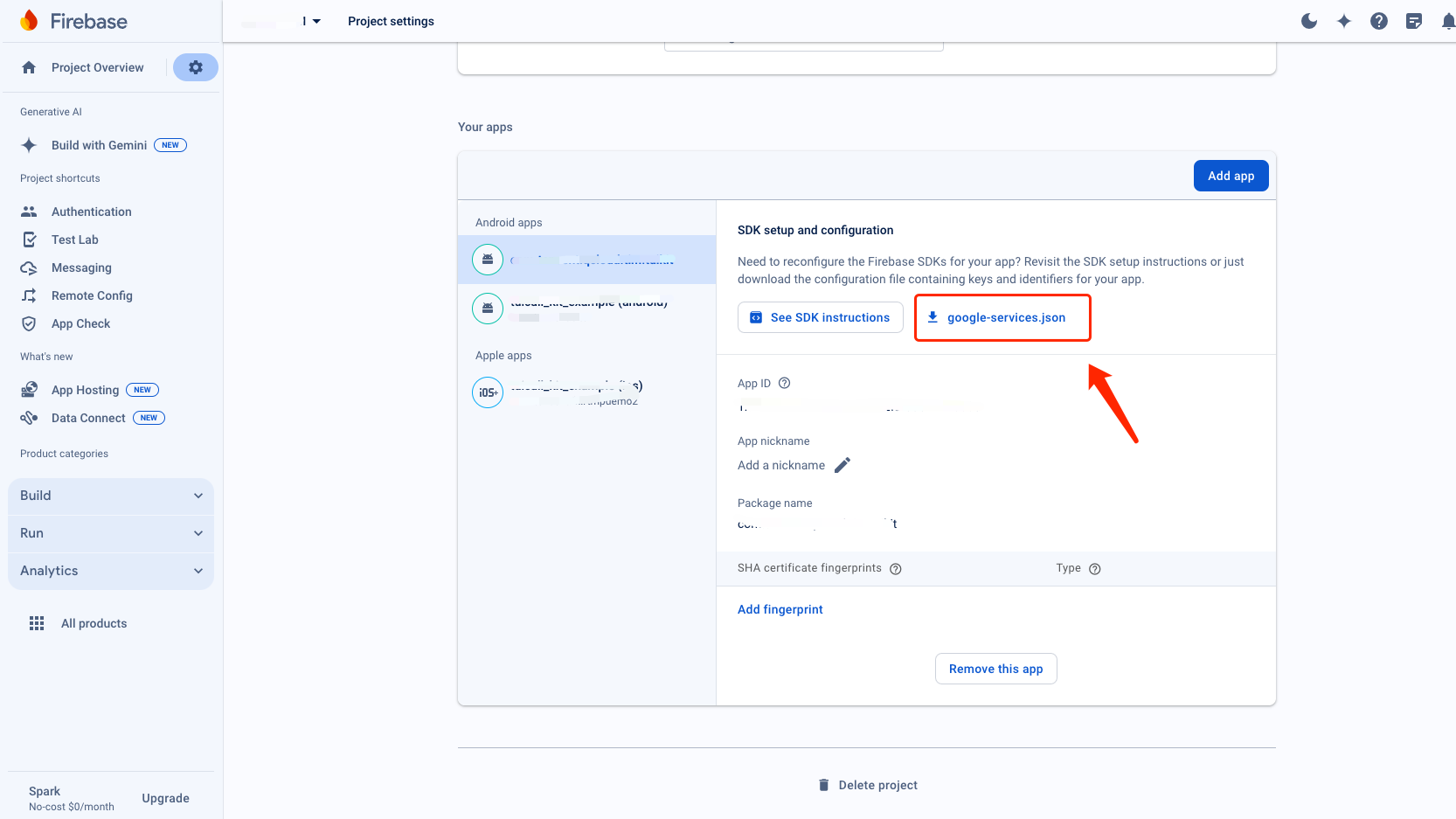
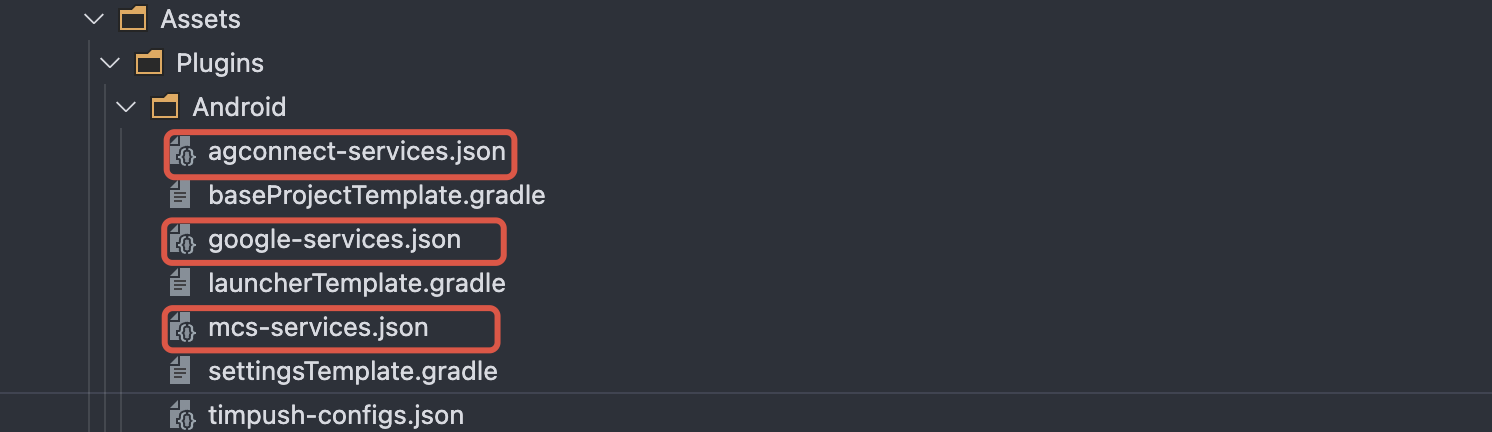
Integrate the plugin and json configuration file by vendor method.
Note:
The following Honor adaptation requires configuration for version 7.7.5283 and above.
1.1 Download the configuration file and add it to the project root directory Assets/Plugins/Android/JsonConfigs. Create the directory manually if it does not exist.
Huawei
Honor
Google FCM
Operation Path


1.2 In the Assets/Plugins/Android/baseProjectTemplate.gradle file, add the following configurations under buildscript -> dependencies (if it is necessary to add a new buildscript, place it at the top of the file):
Gradle 7.1 and above Versions
Gradle 7.0 Version
Gradle 7.0 and below Versions
In the Assets/Plugins/Android/baseProjectTemplate.gradle file, add the following configurations under buildscript -> dependencies:
buildscript {
dependencies {
...
classpath 'com.huawei.agconnect:agcp:1.6.0.300'
classpath 'com.hihonor.mcs:asplugin:2.0.1.300'
classpath 'com.google.gms:google-services:4.3.15'
}
}
In the Assets/Plugins/Android/settingsTemplate.gradle file, add the following repository configurations under buildscript -> repositories and allprojects -> repositories:
pluginManagement {
repositories {
gradlePluginPortal()
mavenCentral()
maven { url "https://mirrors.tencent.com/nexus/repository/maven-public/" }
// Configure the Maven repository address for HMS Core SDK.
maven {url 'https://developer.huawei.com/repo/'}
maven {url 'https://developer.hihonor.com/repo'}
}
}
dependencyResolutionManagement {
...
repositories {
mavenCentral()
maven { url "https://mirrors.tencent.com/nexus/repository/maven-public/" }
// Configure the Maven repository address for HMS Core SDK.
maven {url 'https://developer.huawei.com/repo/'}
maven {url 'https://developer.hihonor.com/repo'}
}
}
}
In the Assets/Plugins/Android/baseProjectTemplate.gradle file, add the following configurations under buildscript:
buildscript {
repositories {
mavenCentral()
maven { url "https://mirrors.tencent.com/nexus/repository/maven-public/" }
// Configure the Maven repository address for HMS Core SDK.
maven {url 'https://developer.huawei.com/repo/'}
maven {url 'https://developer.hihonor.com/repo'}
}
dependencies {
...
classpath 'com.google.gms:google-services:4.2.0'
classpath 'com.huawei.agconnect:agcp:1.4.1.300'
classpath 'com.hihonor.mcs:asplugin:2.0.1.300'
}
}
In the Assets/Plugins/Android/settingsTemplate.gradle file, add the following repository configurations under allprojects -> repositories:
allprojects {
...
repositories {
mavenCentral()
maven { url "https://mirrors.tencent.com/nexus/repository/maven-public/" }
// Configure the Maven repository address for HMS Core SDK.
maven {url 'https://developer.huawei.com/repo/'}
maven {url 'https://developer.hihonor.com/repo'}
}
}
In the project level build.gradle file, add the following configurations under buildscript and allprojects:
buildscript {
repositories {
mavenCentral()
maven { url "https://mirrors.tencent.com/nexus/repository/maven-public/" }
// Configure the Maven repository address for HMS Core SDK.
maven {url 'https://developer.huawei.com/repo/'}
maven {url 'https://developer.hihonor.com/repo'}
}
dependencies {
...
classpath 'com.google.gms:google-services:4.2.0'
classpath 'com.huawei.agconnect:agcp:1.4.1.300'
classpath 'com.hihonor.mcs:asplugin:2.0.1.300'
}
}

allprojects {
repositories {
mavenCentral()
maven { url "https://mirrors.tencent.com/nexus/repository/maven-public/" }
// Configure the Maven repository address for HMS Core SDK.
maven {url 'https://developer.huawei.com/repo/'}
maven {url 'https://developer.hihonor.com/repo'}
}
}

1.3 In the Assets/Plugins/Android/launcherTemplate.gradle file, add the following configurations:
apply plugin: 'com.google.gms.google-services'
apply plugin: 'com.huawei.agconnect'
apply plugin: 'com.hihonor.mcs.asplugin'

Step 5: Handling Message Click Callback and Parsing Parameters

If you need to customize the parsing of received remote push, you can implement it by the following method.
Note:
1. Register the callback timing in the program entry function.
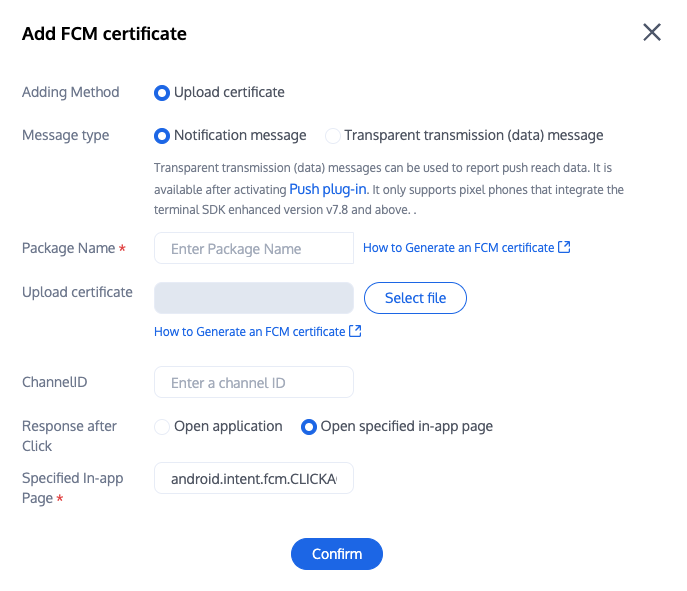
2. Configure the console to click subsequent actions with the following configuration, select open specified in-app page, do not modify and use default values.

PushListener listener = new PushListener(onRecvPushMessage: (message) => {
Debug.Log($"Received push message: Title:{message.title}, Content:{message.desc}, Passthrough content:{message.ext}, Message ID:{message.messageID}");
}, onRevokePushMessage: (messageID) => {
Debug.Log($"Revoke push message ID: {messageID}");
}, onNotificationClicked: (ext) => {
Debug.Log($"Click to push message: {ext}");
});

PushManager.AddPushListener(listener);


Step 6: Registering the Push Plugin

Upon success of calling the PushManager.RegisterPush method, you can receive offline push notifications.
Note:
Note: If you have already integrated the Chat product and call this API after successful log-in, set the appKey parameter to null. Otherwise, the Chat account will be taken offline.
PushManager.RegisterPush(sdkAppId: your sdkAppId, appKey: "client key", new PushCallback(onSuccess: (data) => {
Debug.Log($"Push registration successful: {data}");
}, onError: (errCode, errMsg, data) => {
Debug.Log($"Push registration failed: error code:{errCode}, error info:{errMsg}");
}));

Step 7: Message Push Delivery Statistics

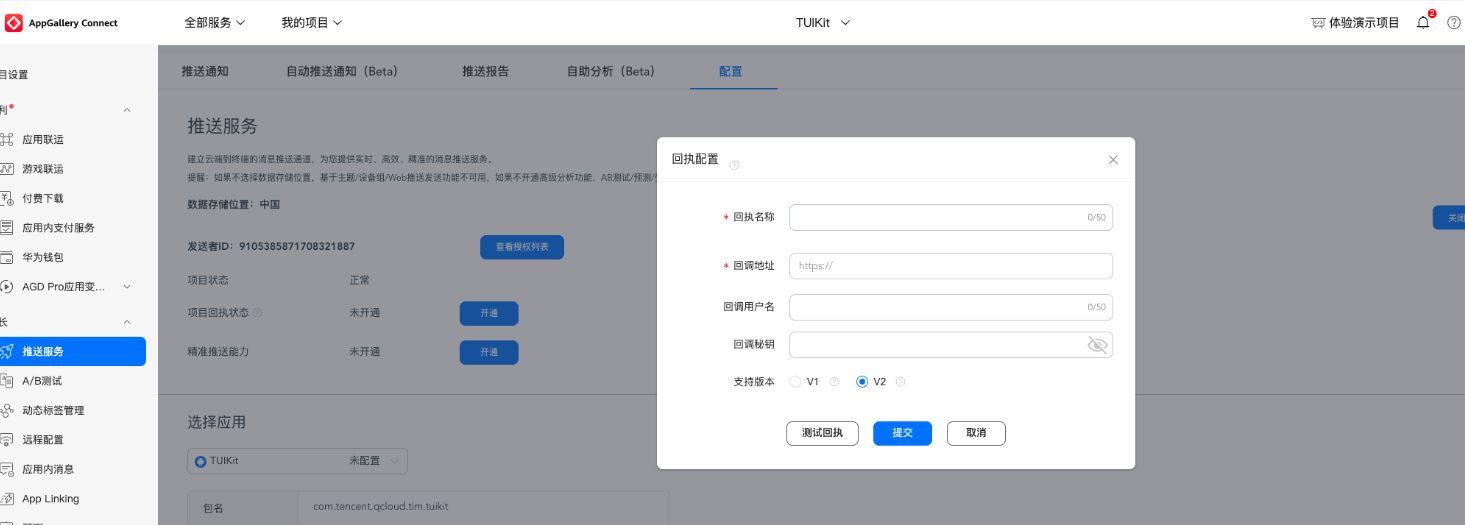
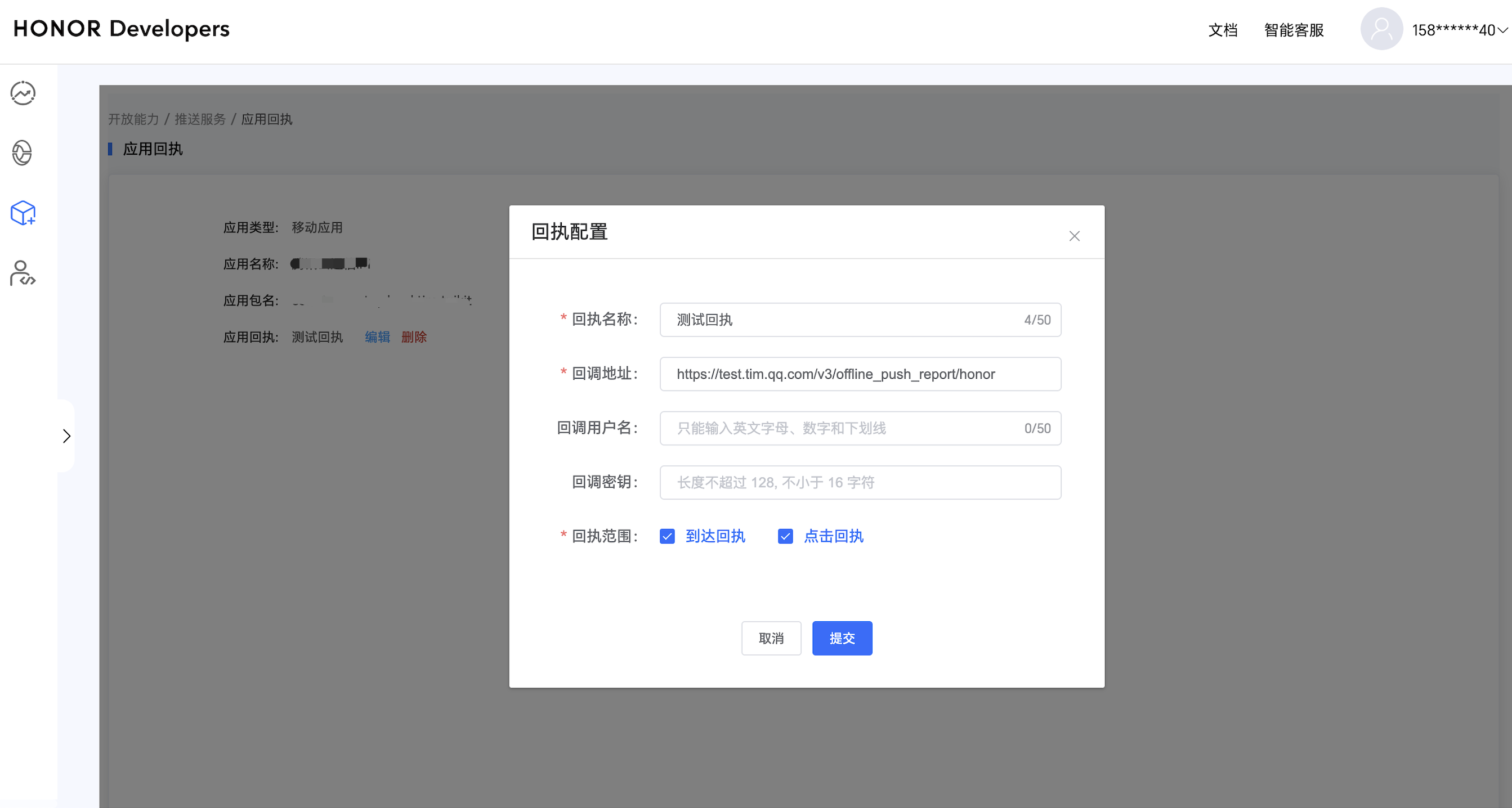
If you need statistics for reach data, complete the configuration as follows:
Huawei
Honor
vivo
Meizu
iOS

Receipt Address:
Singapore : https://apisgp.im.qcloud.com/v3/offline_push_report/huawei
Korea: https://apikr.im.qcloud.com/v3/offline_push_report/huawei
USA: https://apiusa.im.qcloud.com/v3/offline_push_report/huawei
Germany: https://apiger.im.qcloud.com/v3/offline_push_report/huawei
Indonesia: https://apiidn.im.qcloud.com/v3/offline_push_report/huawei
China: https://api.im.qcloud.com/v3/offline_push_report/huawei
Note:
Note: Huawei Push certificate ID <= 11344 uses Huawei Push v2 version interface with no support for reachability and Receipt Click. Please regenerate the certificate ID.

Receipt Address:
Singapore : https://apisgp.im.qcloud.com/v3/offline_push_report/honor
Korea: https://apikr.im.qcloud.com/v3/offline_push_report/honor
USA: https://apiusa.im.qcloud.com/v3/offline_push_report/honor
Germany: https://apiger.im.qcloud.com/v3/offline_push_report/honor
Indonesia: https://apiidn.im.qcloud.com/v3/offline_push_report/honor
China: https://api.im.qcloud.com/v3/offline_push_report/honor
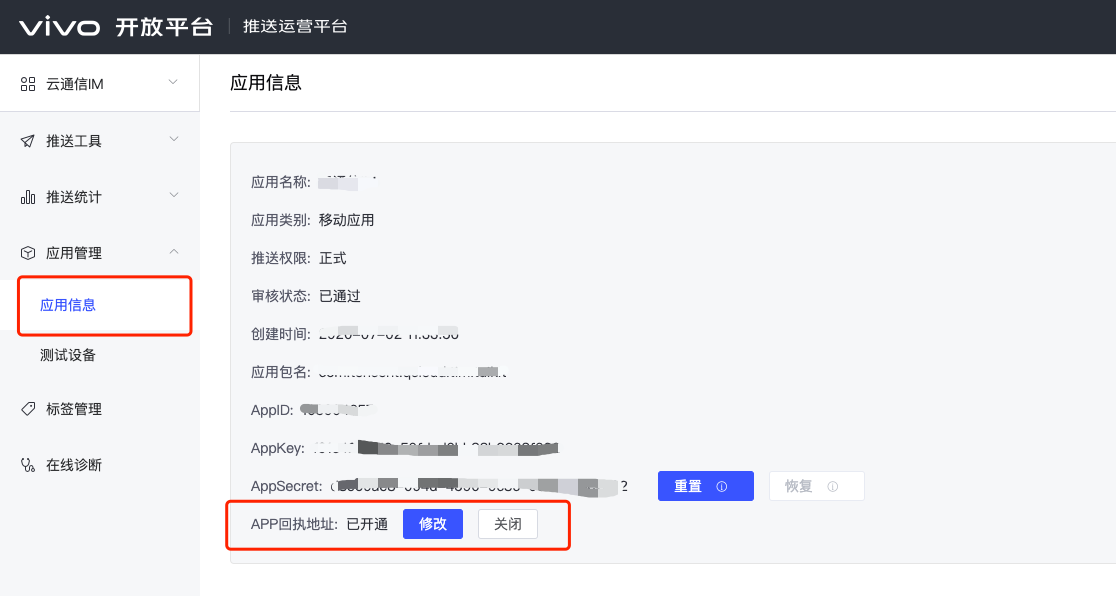
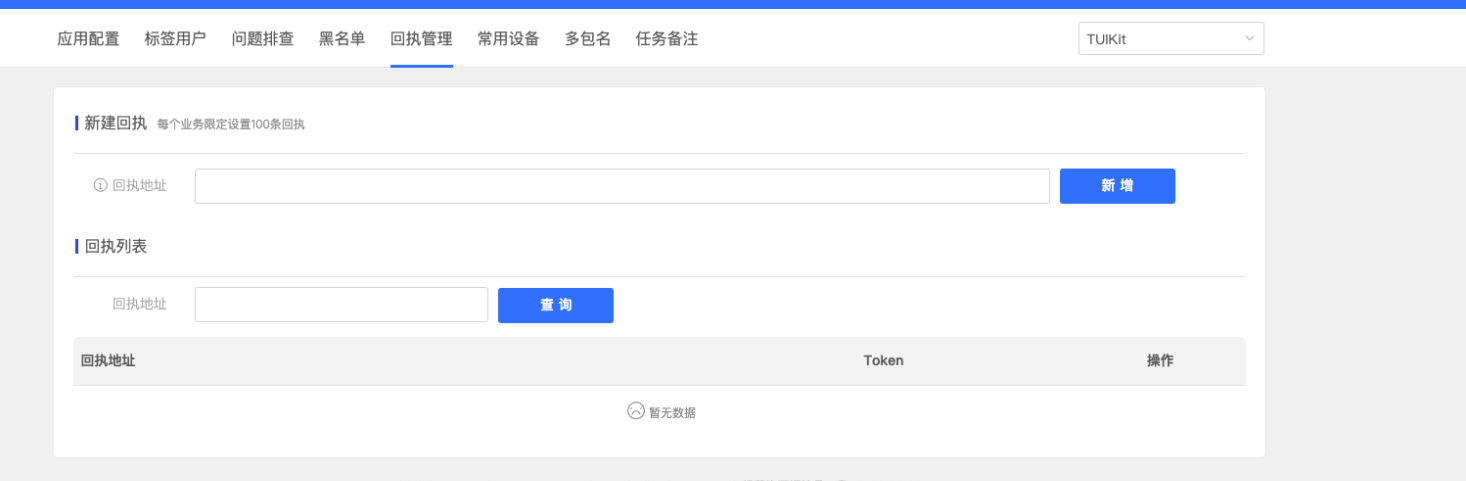
Callback Address Configuration
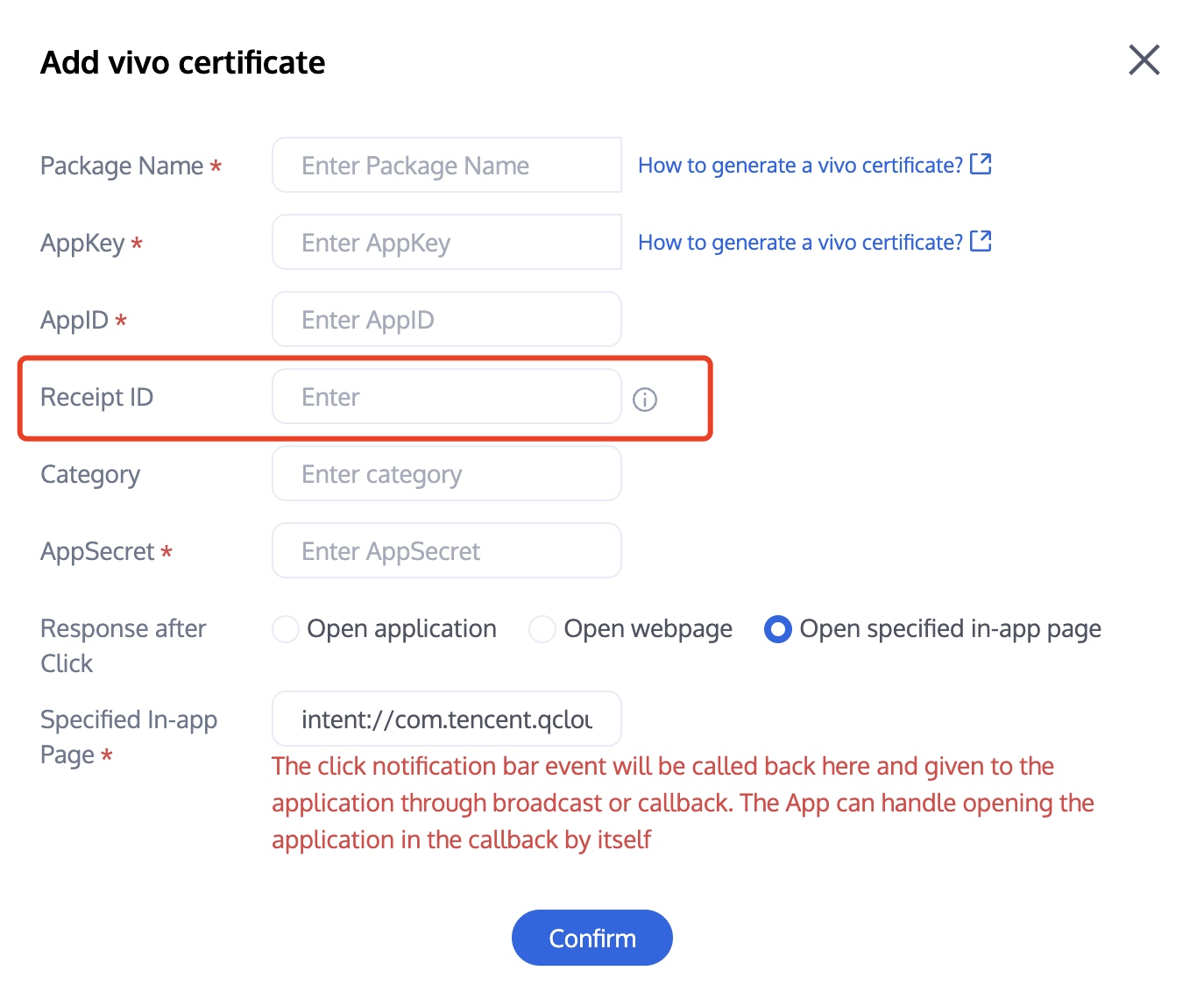
Receipt ID Configuration Chat Console


Receipt Address:
Singapore :https://apisgp.im.qcloud.com/v3/offline_push_report/vivo
Korea:
https://apikr.im.qcloud.com/v3/offline_push_report/vivo
USA: https://apiusa.im.qcloud.com/v3/offline_push_report/vivo
Germany: https://apiger.im.qcloud.com/v3/offline_push_report/vivo
Indonesia: https://apiidn.im.qcloud.com/v3/offline_push_report/vivo
China:
https://api.im.qcloud.com/v3/offline_push_report/vivo


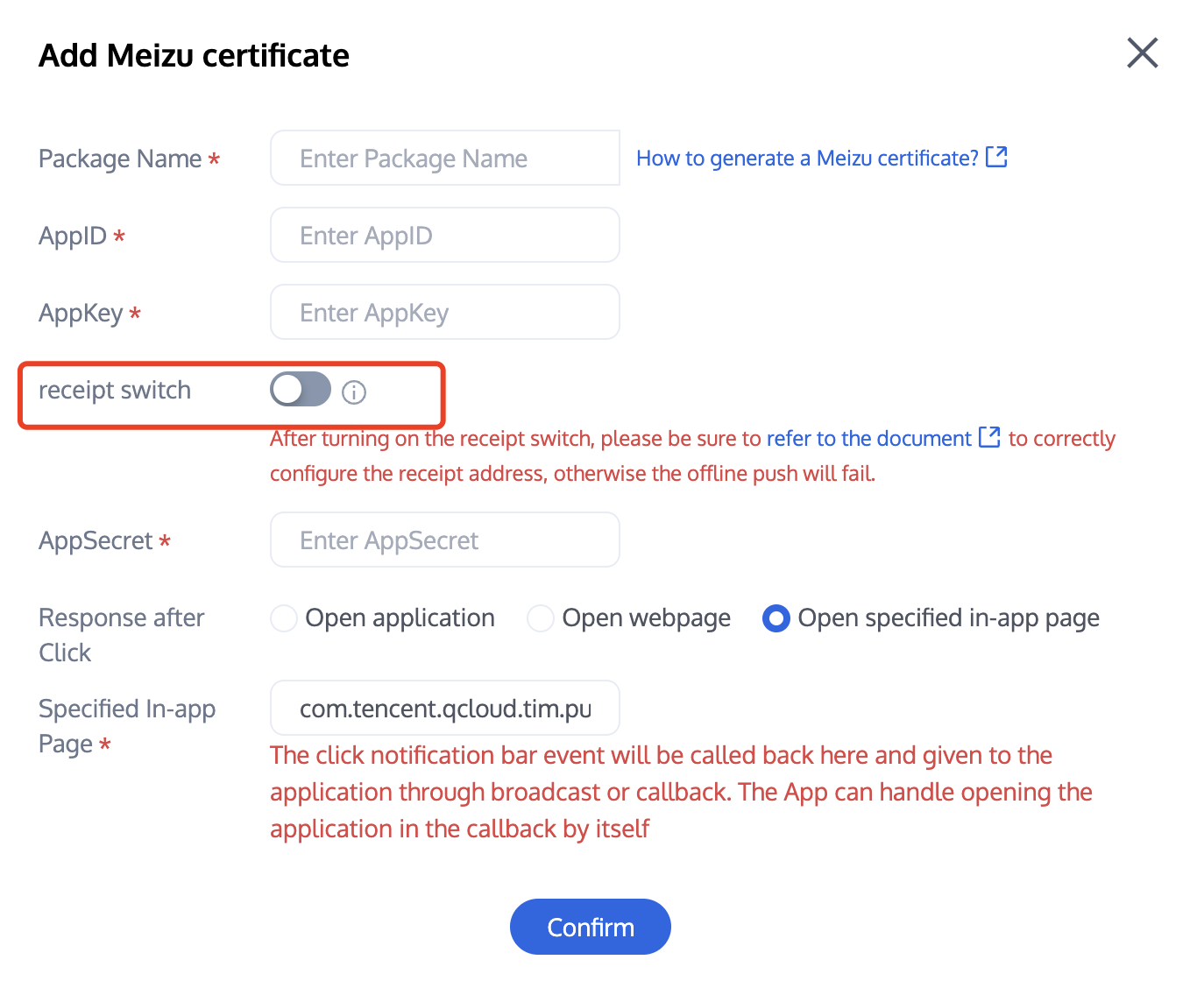
Enable Receipt Switch
Configure Receipt Address


Receipt Address:
Singapore : https://apisgp.im.qcloud.com/v3/offline_push_report/meizu
Korea: https://apikr.im.qcloud.com/v3/offline_push_report/meizu
USA: https://apiusa.im.qcloud.com/v3/offline_push_report/meizu
Germany: https://apiger.im.qcloud.com/v3/offline_push_report/meizu
Indonesia: https://apiidn.im.qcloud.com/v3/offline_push_report/meizu
China: https://api.im.qcloud.com/v3/offline_push_report/meizu
Note:
Note: After enabling the receipt switch, please ensure the receipt address is configured correctly. Without configuring or with an incorrect address, it will impact the push notification feature.

iOS Push Notification Reach Statistics Configuration, see:
If you need to track push notification reach and click data, you need to implement the - applicationGroupID method in the AppDelegate.m file. For reference, see the Push Parameter Configuration section, which returns the App Group ID (for generation method, see Manufacturer Configuration - Generate App GroupID).
Call the push arrival rate statistics function in the Notification Service Extension's -didReceiveNotificationRequest:withContentHandler: method.
@implementation NotificationService

- (void)didReceiveNotificationRequest:(UNNotificationRequest *)request withContentHandler:(void (^)(UNNotificationContent * _Nonnull))contentHandler {
//appGroup indicates the App Group shared between the main APP and Extension. The App Groups capability needs to be configured in the main APP's Capability.
//format is group + [main bundleID] + key
//for example group.com.tencent.im.pushkey
NSString * appGroupID = kTIMPushAppGroupKey;
__weak typeof(self) weakSelf = self;
[TIMPushManager handleNotificationServiceRequest:request appGroupID:appGroupID callback:^(UNNotificationContent *content) {
weakSelf.bestAttemptContent = [content mutableCopy];
// Modify the notification content here...
// self.bestAttemptContent.title = [NSString stringWithFormat:@"%@ [modified]", self.bestAttemptContent.title];
weakSelf.contentHandler(weakSelf.bestAttemptContent);
}];
}

@end
Note:
1. Report push reach data. The mutable-content switch requires enabling to support the iOS 10 Extension function.

2. Data details can be viewed on the push data page. The push data page is only available after purchasing the push plugin.
The rest support manufacturers with no need to configure. FCM does not currently support the push notification statistics feature.
Congratulations on completing the access of the push plugin. Please note: After the trial or purchase expiry of the push plugin, it will automatically stop providing push service (including regular message offline push, all users/tag push, etc.). To avoid affecting your normal business operation, please advise in advance to purchase/renew.