• 製品
  • 価格
  • リソース
  • サポート
このページは現在英語版のみで提供されており、日本語版も近日中に提供される予定です。ご利用いただきありがとうございます。

Voice Chat Room

This document guides you through building a voice chat room application with host broadcasting and audience participation features using the AtomicXCore SDK's LiveListStore and LiveSeatStore.

Core Concepts

Core Concept
Type
Core Responsibilities & Description
LiveListStore
class
createLive(): Start live stream as host.
endLive(): End live stream as host.
joinLive(): Audience joins live room.
leaveLive(): Leave live room.
LiveInfo
struct
liveID: Unique room identifier.
seatLayoutTemplateID: Layout template ID (e.g., 600 for dynamic grid).
LiveSeatStore
class
Core seat management class. Manages all seat information and seat-related operations in the room.
Provides a real-time seat list data stream via liveSeatState.seatList.
LiveSeatState
struct
Represents the current state of all seats.
seatList: a StateFlow containing the real-time seat list.
speakingUsers: users currently speaking and their volume.
SeatInfo
class
Data model for a single seat. The seat list (seatList) emitted by LiveSeatStore is a list of SeatInfo objects.
Key fields:
index: seat position.
isLocked: whether the seat is locked.
userInfo: user information for the seat. If the seat is empty, this field is empty.
SeatUserInfo
class
Detailed data model for the user occupying a seat. When a user successfully takes a seat, the userInfo field in SeatInfo is populated.
Key fields:
userID: unique user ID.
userName: user nickname.
avatarURL: user avatar URL.
microphoneStatus: microphone status (on/off).
cameraStatus: camera status (on/off).

Prerequisites

Step 1: Activate the Service

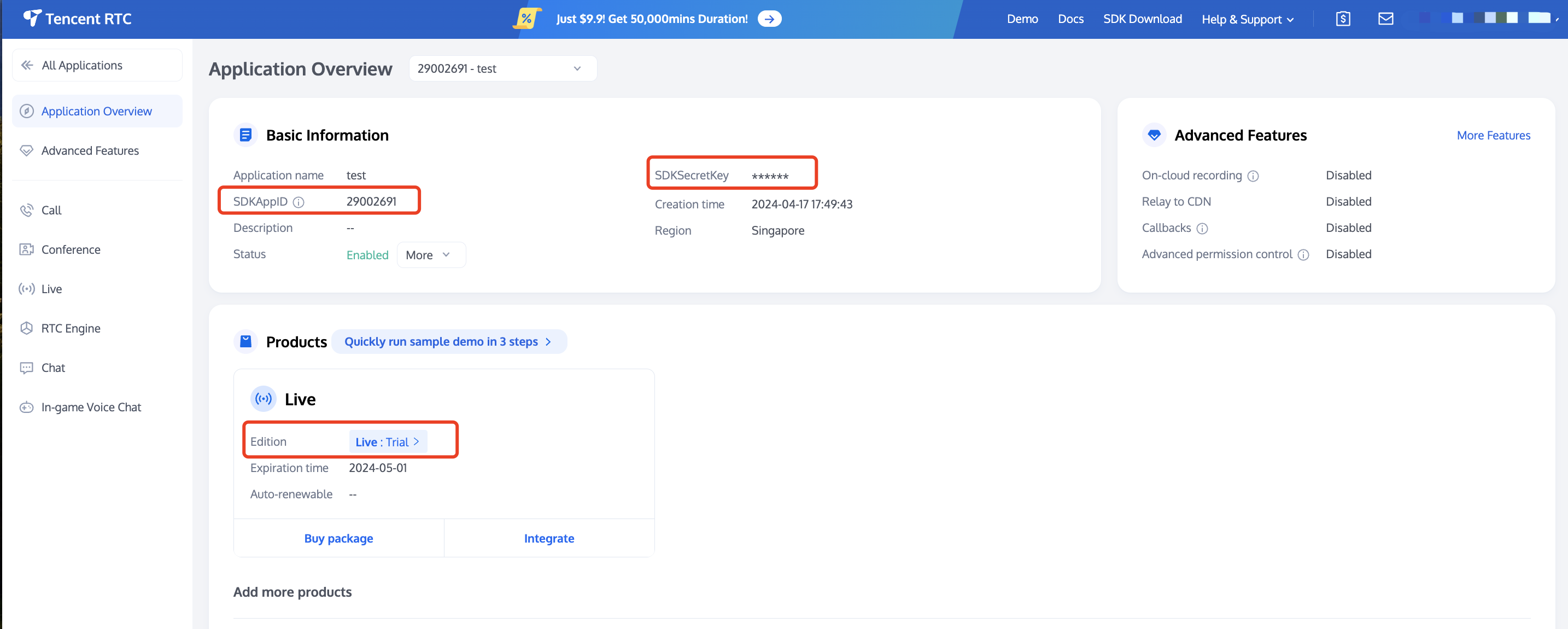
See Activate Service to obtain either the trial or paid version of the SDK.Then, go to the Console for application management, and get the following:
SDKAppID: Application identifier (required). Tencent Cloud uses SDKAppID for billing and details.
SDKSecretKey: Application secret key, used to initialize the configuration file with secret information.


Step 2: Import AtomicXCore into Your Project

1. Install the Component: Add pod 'AtomicXCore' to your Podfile, then run pod install.
target 'xxxx' do
pod 'AtomicXCore'
end
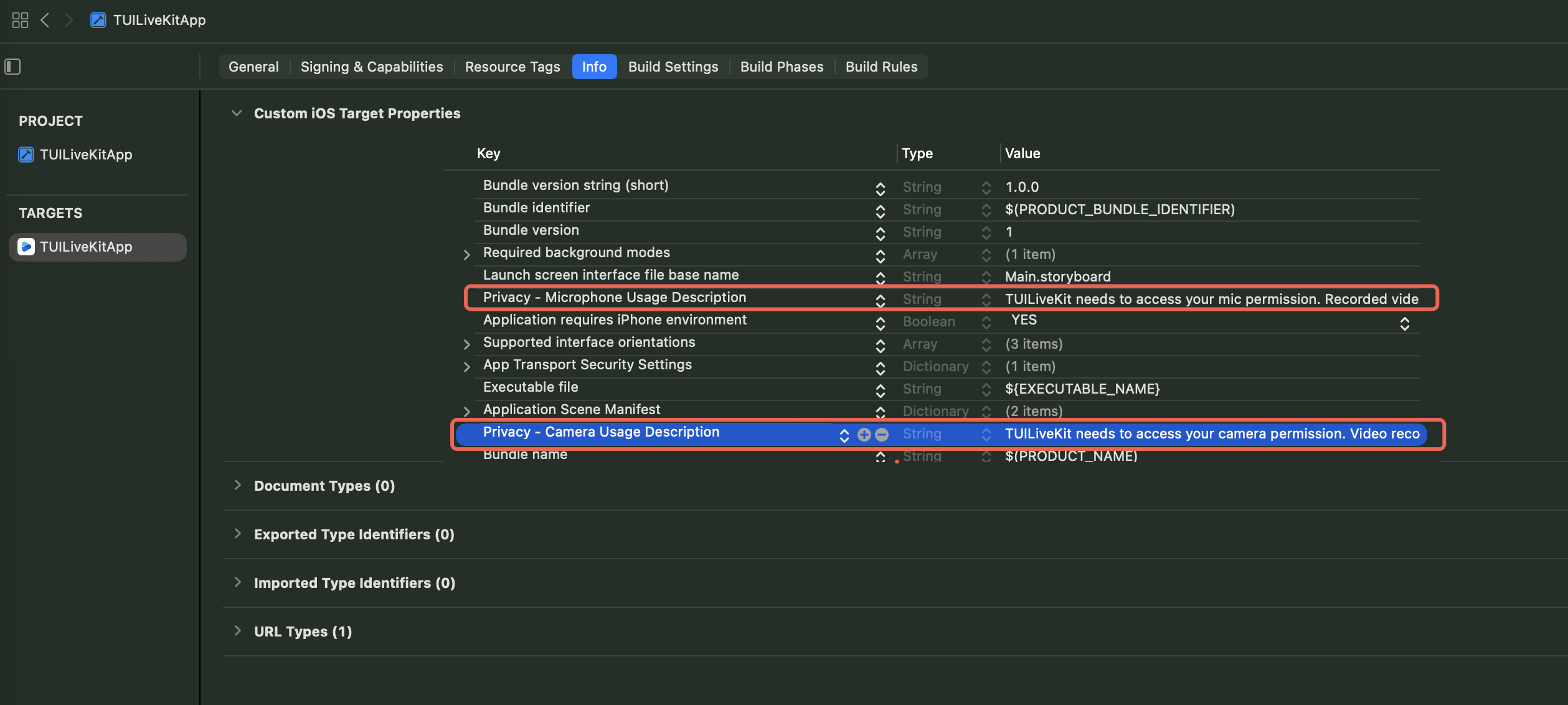
2. Configure App Permissions: Add camera and microphone usage descriptions to your app's Info.plist file.
<key>NSMicrophoneUsageDescription</key>
<string>TUILiveKit needs microphone permission to enable sound in recorded videos</string>


Step 3: Implement Login Logic

Call LoginStore.shared.login in your project to complete authentication. This is required before using any functionality of AtomicXCore.
Note:
We recommend calling LoginStore.shared.login only after your app's own user authentication is successful, to ensure clear and consistent login logic.
import AtomicXCore

// AppDelegate.swift
func application(_ application: UIApplication, didFinishLaunchingWithOptions launchOptions: [UIApplication.LaunchOptionsKey: Any]?) -> Bool {
LoginStore.shared.login(sdkAppID: 1400000001, // Replace with your SDKAppID
userID: "test_001", // Replace with your UserID
userSig: "xxxxxxxxxxx") { result in // Replace with your UserSig
switch result {
case .success(let info):
debugPrint("login success")
case .failure(let error):
debugPrint("login failed code:\(error.code), message:\(error.message)")
}
}
return true
}
Login API Parameter Description
Parameter
Type
Description
sdkAppID
Int
userID
String
The unique ID for the current user. Must contain only English letters, numbers, hyphens, and underscores.
userSig
String
A ticket for Tencent Cloud authentication. Please note:
Development Environment: You can use the local GenerateTestUserSig.genTestSig function to generate a UserSig or generate a temporary UserSig via the UserSig Generation Tool.
Production Environment: To prevent key leakage, you must use a server-side method to generate UserSig. For details, see Generating UserSig on the Server.
For more information, see How to Calculate and Use UserSig.

Building a Basic Voice Chat Room

Step 1: Host Room Creation

Follow these steps to quickly set up a voice chat room as the host.

1. Initialize the Seat Store

In your host ViewController, instantiate LiveSeatStore. Use the Combine framework to observe changes in liveSeatStore.state for real-time seat updates and UI rendering.
import UIKit
import AtomicXCore
import Combine

class YourAnchorViewController: UIViewController {

private let liveListStore = LiveListStore.shared
private let deviceStore = DeviceStore.shared

// Initialize LiveSeatStore with liveID
private let liveID = "test_voice_room_001"
private lazy var liveSeatStore = LiveSeatStore.create(liveID: liveID)

// Manage subscription lifecycle
private var cancellables = Set<AnyCancellable>()

override func viewDidLoad() {
super.viewDidLoad()
// Initialize your layout here
// setupUI()

// Listen for seat list changes
observeSeatList()
}

private func observeSeatList() {
// Subscribe to seat list updates and refresh seat UI
liveSeatStore.state
.subscribe(StatePublisherSelector(keyPath: \LiveSeatState.seatList))
.removeDuplicates()
.receive(on: DispatchQueue.main)
.sink { [weak self] seatInfoList in
// Update seat UI with seatInfoList
// Example: self?.updateMicSeatView(seatInfoList)
print("Seat list updated: \(seatInfoList.count) seats")
}
.store(in: &cancellables)
}
}

2. Turn On Microphone

Turn On Microphone by calling openLocalMicrophone from DeviceStore:
import UIKit
import AtomicXCore

class YourAnchorViewController: UIViewController {
// ... other code ...

private func openDevices() {
DeviceStore.shared.openLocalMicrophone(completion: nil)
}
}

3. Start Voice Chat

Start the voice chat room by invoking createLive on LiveListStore:
import UIKit
import AtomicXCore

class YourAnchorViewController: UIViewController {
// ... other code ...
private let liveID = "test_voice_room_001"
override func viewDidLoad() {
super.viewDidLoad()
// ... other code ...

// Start voice chat
startLive()
}

private func startLive() {
var liveInfo = LiveInfo()

liveInfo.liveID = liveID
liveInfo.liveName = "test voice chat room"
liveInfo.isSeatEnabled = true
liveInfo.keepOwnerOnSeat = true
liveInfo.seatLayoutTemplateID = 70 // Use correct ID per product spec
liveInfo.seatMode = .apply
liveInfo.maxSeatCount = 10

liveListStore.createLive(liveInfo) { [weak self] result in
guard let self = self else { return }
switch result {
case .success(let liveInfo):
print("Response startLive onSuccess")
// Host is on seat by default; unmute microphone if needed
liveSeatStore.unmuteMicrophone(completion: nil)
case .failure(let errorInfo):
print("Response startLive onError: \(errorInfo.message)")
}
}
}
}
LiveInfo Parameter Reference:
Parameter Name
Type
Required
Description
liveID
String
Required
Unique identifier for the live room
liveName
String
Optional
Room title
notice
String
Optional
Room announcement
isMessageDisable
Bool
Optional
Mute chat (true: muted, false: not muted)
isPublicVisible
Bool
Optional
Public visibility (true: visible, false: not visible)
isSeatEnabled
Bool
Optional
Enable seat feature (true: enabled, false: disabled)
keepOwnerOnSeat
Bool
Optional
Keep host on seat
maxSeatCount
Int
Required
Maximum number of seats
seatMode
TakeSeatMode
Optional
Seat mode (.free: free seat, .apply: apply for seat)
seatLayoutTemplateID
UInt
Required
Seat layout template ID
coverURL
String
Optional
Room cover image URL
backgroundURL
String
Optional
Room background image URL
categoryList
[NSNumber]
Optional
Room category tags
activityStatus
Int
Optional
Live activity status
isGiftEnabled
Bool
Optional
Enable gift feature (true: enabled, false: disabled)

4. Build the Mic Seat UI

Note:
For seat UI logic and effects, refer to the open-source SeatGridView.swift in TUILiveKit.
Use your LiveSeatStore instance to subscribe to state.seatList and update the UI in real time:
import UIKit
import AtomicXCore
import Combine

class YourAnchorViewController: UIViewController {
// ... other code ...
private var cancellables = Set<AnyCancellable>()
private lazy var liveSeatStore = LiveSeatStore.create(liveID: "your_live_id")

override func viewDidLoad() {
super.viewDidLoad()
// ... other code ...

observeSeatList()
}

private func observeSeatList() {
liveSeatStore.state
.subscribe(StatePublisherSelector(keyPath: \LiveSeatState.seatList))
.removeDuplicates()
.receive(on: DispatchQueue.main)
.sink { [weak self] seatInfoList in
// seatInfoList contains the latest seat data
print("Seat list updated: \(seatInfoList.count) seats")
}
.store(in: &cancellables)
}
}

5. End Voice Chat

To end the session, call endLive on LiveListStore. The SDK will handle stream termination and room cleanup.
import UIKit
import AtomicXCore
import RTCRoomEngine

class YourAnchorViewController: UIViewController {
// ... other code ...

private func stopLive() {
liveListStore.endLive { result in
switch result {
case .success(let data):
print("endLive success")
case .failure(let errorInfo):
print("endLive error: \(errorInfo.message)")
}
}
}
}

Step 2: Audience Joins the Voice Chat Room

Enable audience members to join the voice chat room with the following steps.

1. Initialize the Seat Store

In your audience ViewController, instantiate LiveSeatStore and subscribe to state.seatList for seat UI updates.
import UIKit
import AtomicXCore
import Combine

class YourAudienceViewController: UIViewController {

private let liveListStore = LiveListStore.shared

// Use the same liveID as the host
private let liveID = "test_voice_room_001"
private lazy var liveSeatStore = LiveSeatStore.create(liveID: liveID)

private var cancellables = Set<AnyCancellable>()

override func viewDidLoad() {
super.viewDidLoad()
// Initialize your layout here
// setupUI()

observeSeatList()
}

private func observeSeatList() {
liveSeatStore.state
.subscribe(StatePublisherSelector(keyPath: \LiveSeatState.seatList))
.removeDuplicates()
.receive(on: DispatchQueue.main)
.sink { [weak self] seatInfoList in
// Update seat UI with seatInfoList
// Example: self?.updateMicSeatView(seatInfoList)
print("AudienceVC Seat list updated: \(seatInfoList.count) seats")
}
.store(in: &cancellables)
}
}

2. Join the Voice Chat Room

Join the room by calling joinLive on LiveListStore:
import UIKit
import AtomicXCore

class YourAudienceViewController: UIViewController {

// ... other code ...
override func viewDidLoad() {
super.viewDidLoad()
// ... other code ...

joinLive()
}

private func joinLive() {
liveListStore.joinLive(liveID: liveID) { result in
DispatchQueue.main.async {
switch result {
case .success(let liveInfo):
print("joinLive success")
case .failure(let errorInfo):
print("joinLive error: \(errorInfo.message)")
}
}
}
}
}

3. Build the Mic Seat UI

Building the seat UI for audience members is identical to the host process. Refer to the host Build the Mic Seat UI.

4. Leave the Voice Chat Room

To leave the room, call leaveLive on LiveListStore:
import UIKit
import AtomicXCore

class YourAudienceViewController: UIViewController {
// ... other code ...
private func leaveLive() {
liveListStore.leaveLive { result in
switch result {
case .success:
print("leaveLive success")
case .failure(let errorInfo):
print("leaveLive error: \(errorInfo.message)")
}
}
}
}

Run and Test

After completing these steps, you will have a functional voice chat live streaming room. For advanced features, see "Enriching Voice Chat Room Scenarios" below.


Advanced Features

Implementing Speaking Wave Animation for Users on Seat

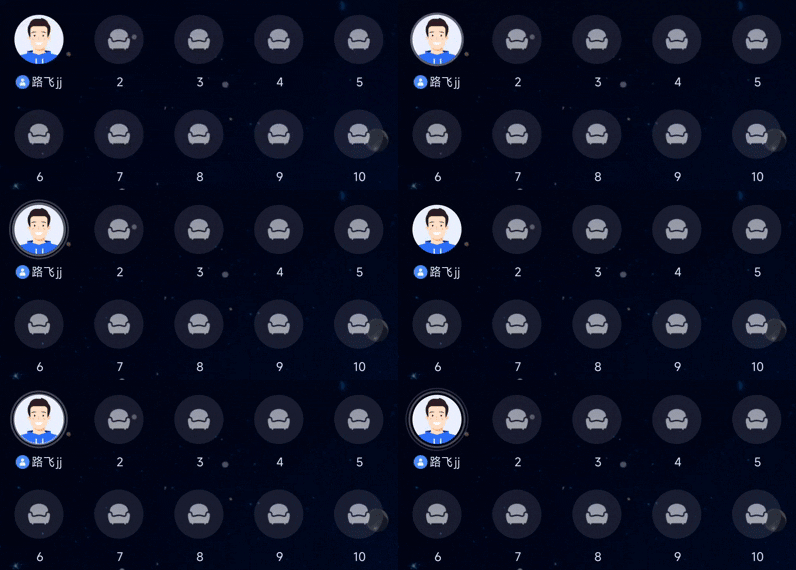
In voice chat rooms, it's common to show a wave animation over the avatar of users who are currently speaking. LiveSeatStore provides a speakingUsers stream for this purpose.

Example


Implementation

Note:
For a complete implementation of the speaking wave animation, refer to SeatGridView.swift in TUILiveKit.
In your YourAnchorViewController or YourAudienceViewController, subscribe to speakingUsers and update the UI accordingly:
import UIKit
import AtomicXCore
import Combine

class YourAnchorViewController: UIViewController {
// ... (other code omitted) ...
private var cancellables = Set<AnyCancellable>()

override func viewDidLoad() {
super.viewDidLoad()
// ... (other code omitted) ...

observeSpeakingUsersState()
}

private func observeSpeakingUsersState() {
liveSeatStore.state
.subscribe(StatePublisherSelector(keyPath: \LiveSeatState.speakingUsers))
.removeDuplicates()
.receive(on: DispatchQueue.main)
.sink { [weak self] speakingUserMap in
// Update UI to indicate which users are speaking
print("Speaking users updated: \(speakingUserMap.count) users")
}
.store(in: &cancellables)
}
}

Synchronizing Custom Status in Live Streaming Room

In live streaming room, the host may need to synchronize custom information to all audience members, such as "current room topic" or "background music info". Use the metaData feature of LiveListStore to achieve this.

Implementation

1. On the host side, set custom information (recommended as JSON) to one or more keys using the updateLiveMetaData API. AtomicXCore will synchronize these changes in real time to all audience members.
2. On the audience side, subscribe to LiveListState.currentLive and listen for changes in metaData. When a relevant key is updated, parse its value and update your business state.

Code Example

import AtomicXCore
import Combine

// 1. Define a background music model (recommended: Codable)
struct MusicModel: Codable {
let musicId: String
let musicName: String
}

// 2. Host side: Push background music info
func updateBackgroundMusic(music: MusicModel) {
guard let jsonData = try? JSONEncoder().encode(music),
let jsonString = String(data: jsonData, encoding: .utf8) else { return }

let metaData = ["music_info": jsonString]

LiveListStore.shared.updateLiveMetaData(metaData) { result in
if case .success = result {
print("Background music \(music.musicName) pushed successfully")
} else if case .failure(let error) = result {
print("Background music push failed: \(error.message)")
}
}
}

// 3. Audience side: Subscribe and update business logic
private func subscribeToDataUpdates() {
LiveListStore.shared.state
// Listen for metaData changes in the current room
.subscribe(StatePublisherSelector(keyPath: \LiveListState.currentLive))
.map { $0.metaData["music_info"] }
.removeDuplicates()
.receive(on: DispatchQueue.main)
.sink { jsonString in
guard let jsonString = jsonString,
let data = jsonString.data(using: .utf8),
let music = try? JSONDecoder().decode(MusicModel.self, from: data) else {
return
}
// Update business state, play new music
// ... (e.g.: playMusic(music))
}
.store(in: &cancellables)
}

Enriching Voice Chat Room Scenarios

After implementing the basic voice chat room, enhance your application with the following features:
Feature
Description
Store
Implementation Guide
Audience Take Seat
Audience members can apply to take a seat and interact with the host in real time.
Host Cross-Room PK
Hosts from different rooms can connect for interaction or PK.
Add Barrage Chat
Room members can send and receive real-time text messages.
Gift System
Audience can send virtual gifts to hosts to increase interaction and engagement.
GiftStore

API Documentation

Store/Component
Description
API Docs
LiveListStore
Manages the full live room lifecycle: create, join, leave, destroy room; query room list; modify room info; listen for room status changes.
LiveSeatStore
Seat management: handle seat list, user status, seat operations (take seat, leave seat, kick, lock, toggle mic/camera), and seat events.
DeviceStore
Audio/video device control: microphone, camera, screen sharing, device status monitoring.
CoGuestStore
Audience co-host management: application, invitation, acceptance, rejection, member permissions, status sync.
CoHostStore
Host cross-room connection: supports multiple layouts, initiate/accept/reject connection, manage co-host interaction.
BattleStore
Host PK battle: initiate PK, manage PK status, synchronize scores, listen for battle results.
GiftStore
Gift interaction: fetch gift list, send/receive gifts, listen for gift events.
BarrageStore
Barrage (chat overlay): send text/custom barrage, maintain barrage list, monitor barrage status.
LikeStore
Like interaction: send likes, listen for like events, synchronize like count.
LiveAudienceStore
Audience management: get real-time audience list, count, entry/exit events.
AudioEffectStore
Audio effects: voice change, reverb, in-ear monitoring, effect switching.
BaseBeautyStore
Basic beauty: adjust smoothing/whitening/redness (0-100), reset beauty status, synchronize effect parameters.

FAQs

Why is there no sound after the audience calls joinLive?

Check device permissions: Ensure your app declares and requests microphone access (NSMicrophoneUsageDescription) in Info.plist.
Check host configuration: Verify the host has enabled the microphone via DeviceStore.shared.openLocalMicrophone(completion: nil).
Check network: Confirm the device has a stable network connection.

Why is the seat list not displayed or not updating?

Check store initialization: Confirm you create the LiveSeatStore instance (LiveSeatStore.create(liveID: liveID)) with the same liveID before calling createLive or joinLive.
Check data subscription: Make sure you use Combine to subscribe to liveSeatStore.state.seatList, and the cancellables lifecycle matches your ViewController.
Check API calls: Ensure createLive (host) or joinLive (audience) was called successfully (check the .success branch in switch result).