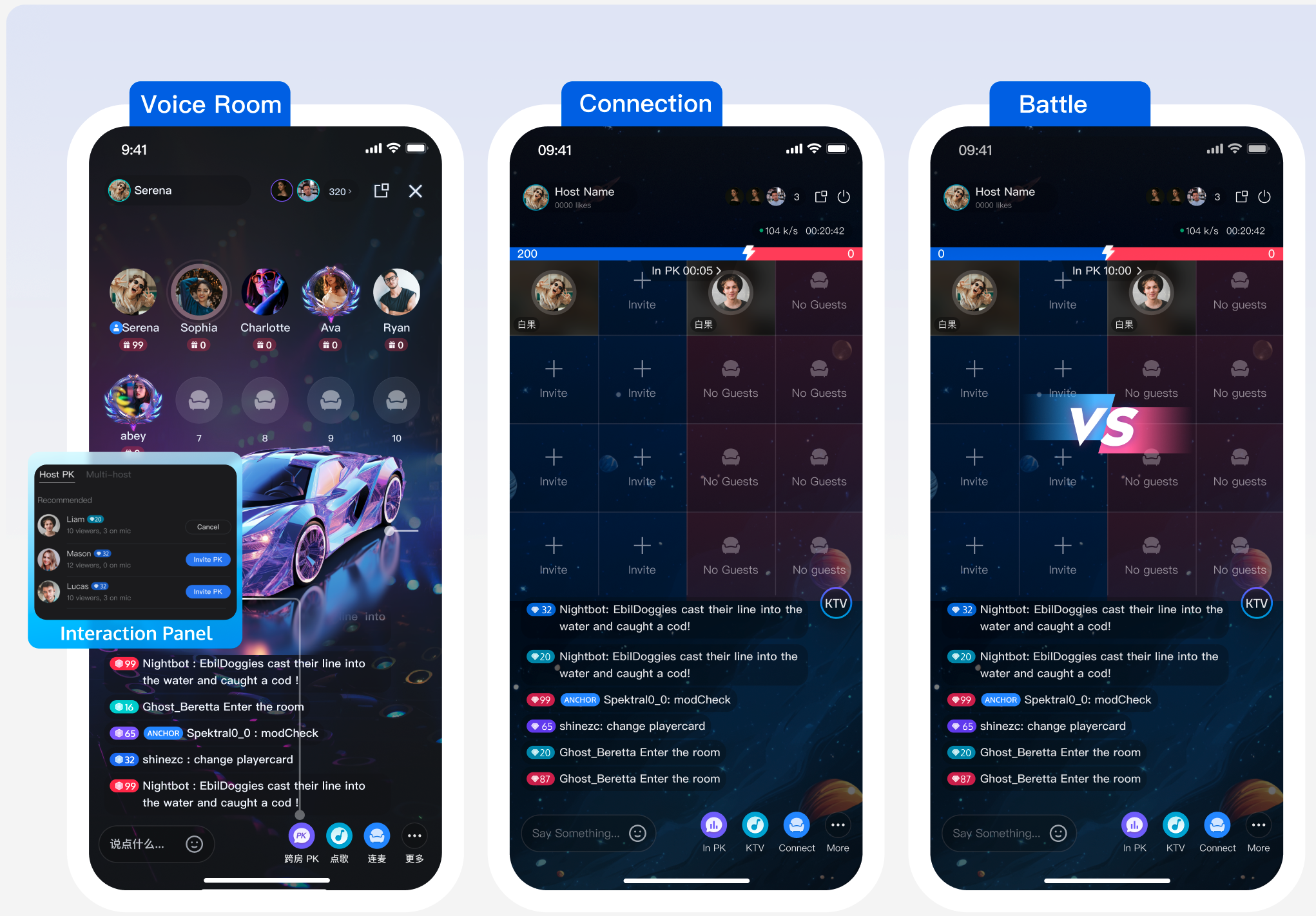
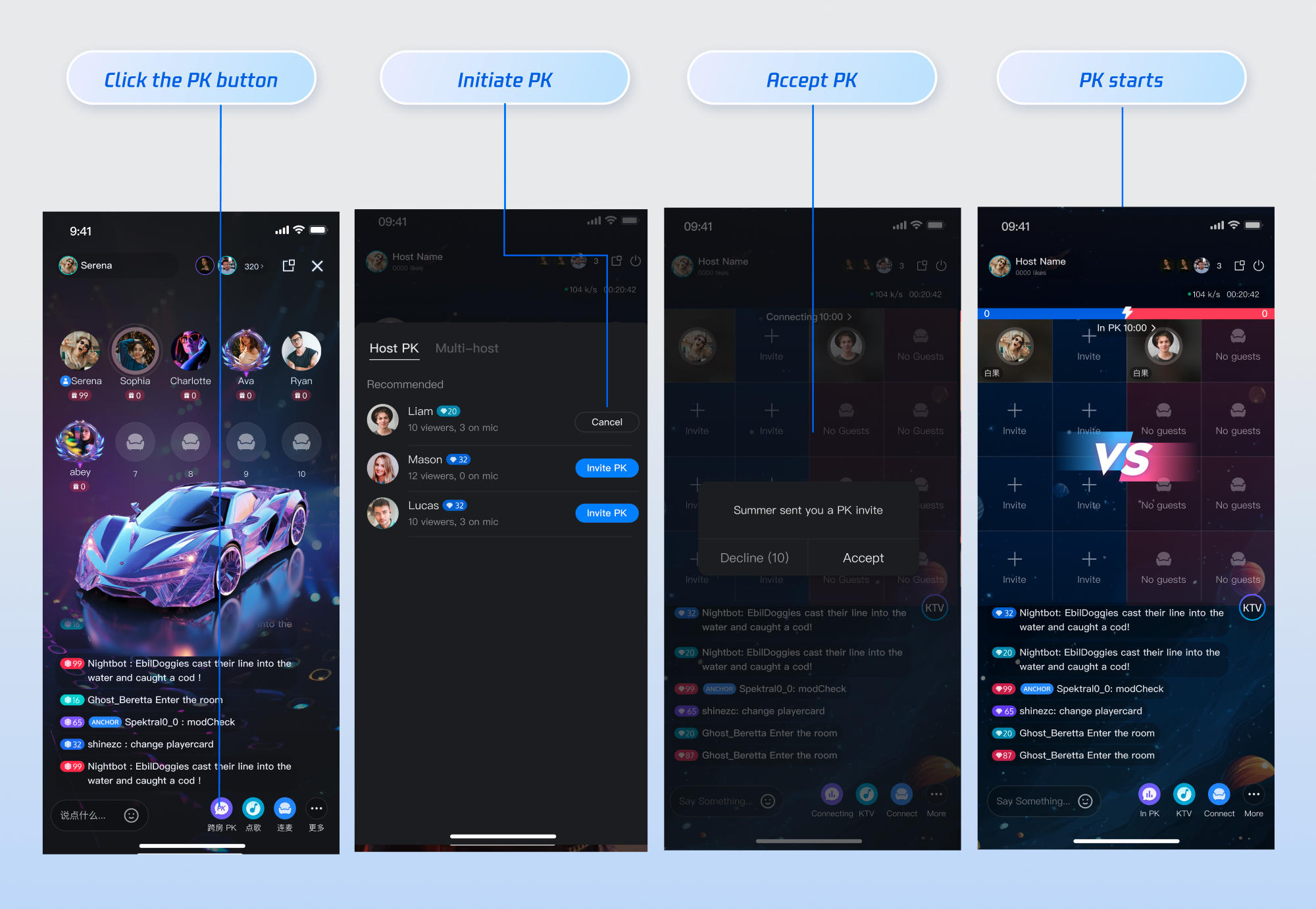
AtomicXCore provides two core modules: CoHostStore for cross-room connections and BattleStore for PK battles. This guide explains how to integrate these modules to enable connection and PK features in a voice chat room application.
Core Concepts
Key Concept
Type
Core Responsibilities & Description
CoHostStore
class
Manages the lifecycle of co-hosting between streamers, providing APIs for co-hosting (requestHostConnection, acceptHostConnection).
BattleStore
class
Handles signaling and state management for cross-room PK battles, including PK status.
LiveListStore
class
Fetches the list of live rooms (fetchLiveList), enabling discovery of other rooms available for co-hosting.
LiveSeatStore
class
Manages the status of all seats in a room (including cross-room seats during co-hosting), tracks users joining/leaving seats and microphone status.
CoHostLayoutTemplate
enum
Defines seat layout templates for co-hosting, such as .hostStaticVoice6v6.
BattleConfig
struct
Configures PK details, including PK duration (duration) and whether a response (needResponse) is required.
Prerequisites
Integrate the Quick Start and ensure you have implemented both streamer start live and audience watch features.
Streamer Initiates a Co-hosting Session
Step 1: Fetch Active Streamers
To initiate co-hosting or PK, fetch the current list of live rooms and select a target streamer.
If the desired live room is missing from the list, verify that the isPublicVisible field in TUILiveInfo was set to true when starting the stream.
This API supports pagination. Use the cursor from the Result is .success callback for subsequent requests. If the returned cursor is empty, all rooms have been fetched.
For optimal performance, set count to 20.
importAtomicXCore
funcfetchLiveListForCoHost(){
var cursor =""// Initial fetch, cursor is empty
let count =20// Fetch 20 items per request
let liveListStore =LiveListStore.shared
liveListStore.fetchLiveList(cursor: cursor, count: count, completion:{[weakself] result in
guardletself=selfelse{return}
switch result {
case.success:
print("Live room list fetched successfully")
// The live room list is updated in LiveListStore.shared.state.value.liveList.
// Update the co-host invitation panel with the recommended users.
print("Failed to fetch live room list: \(error.code), \(error.message)")
}
})
}
Step 2: Send a Co-hosting Invitation
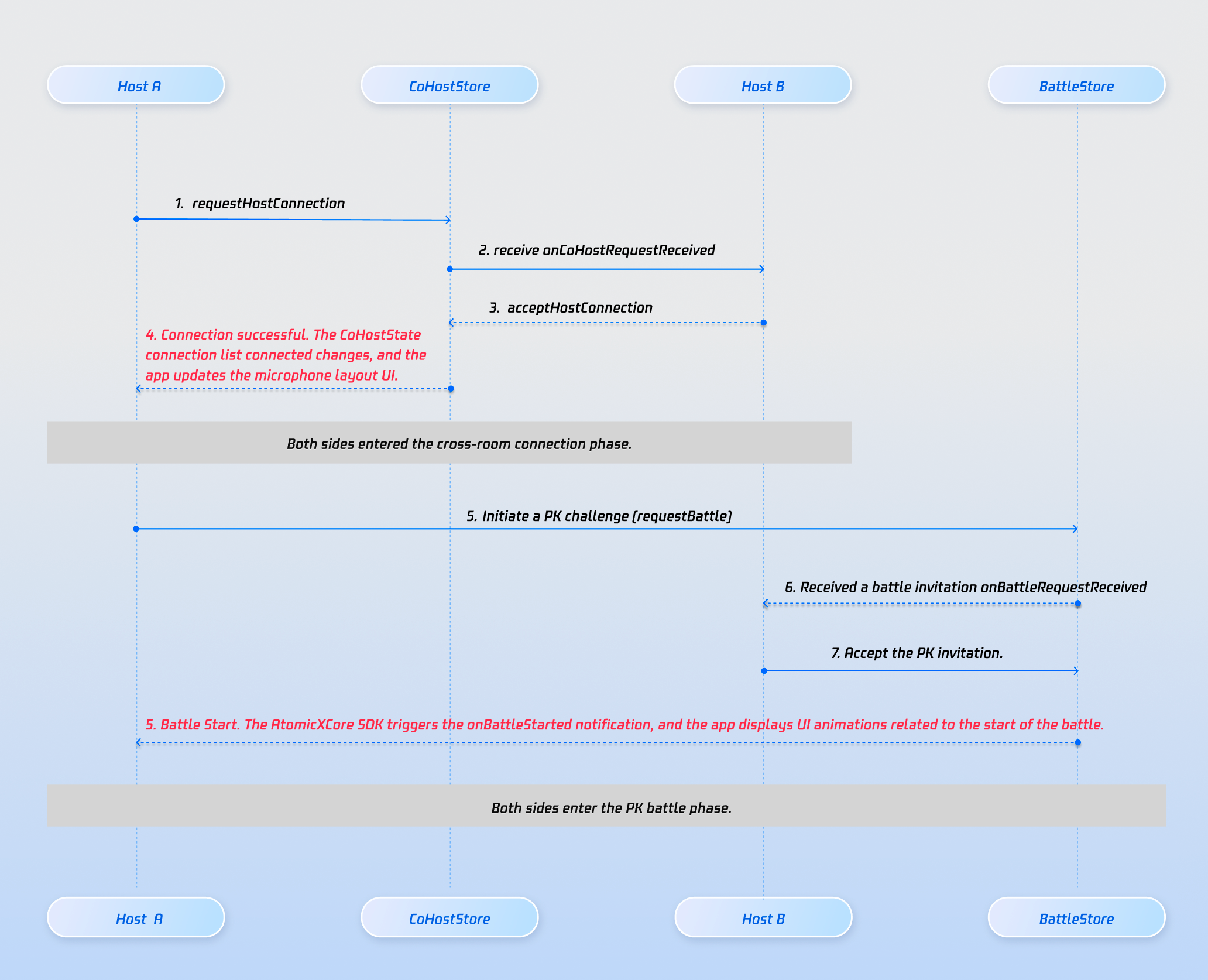
After selecting a target streamer, use CoHostStore.requestHostConnection to send a co-hosting invitation.
Note:
AtomicXCore supports up to 9 rooms for cross-room co-hosting, with 50 users per room.
The API supports batch invitations. To check if an invitation to a single room was successful, you need to check if the Result is .success in the completion callback.
The API accepts extension fields. After the invitation is sent, this field is delivered to the target streamer via the onCoHostRequestReceived callback. Use it to pass custom business data, such as "start PK immediately".
importAtomicXCore
let targetHostLiveID ="target_host_room_id"
let layoutTemplate =.hostStaticVoice6v6
let timeout:TimeInterval=10// Invitation timeout (seconds)
let extraInfo:String=""// Custom business info, e.g., for direct PK
coHostStore.requestHostConnection(
targetHost: targetHostLiveID,
layoutTemplate: layoutTemplate,
timeout: timeout,
extraInfo: extraInfo,
completion:{[weakself] result in
guardletself=selfelse{return}
switch result {
case.success():
print("Invitation sent successfully")
case.failure(let error):
print("Failed to send invitation: \(error.code), \(error.message)")
}
}
)
Step 3: Target Streamer Receives Invitation
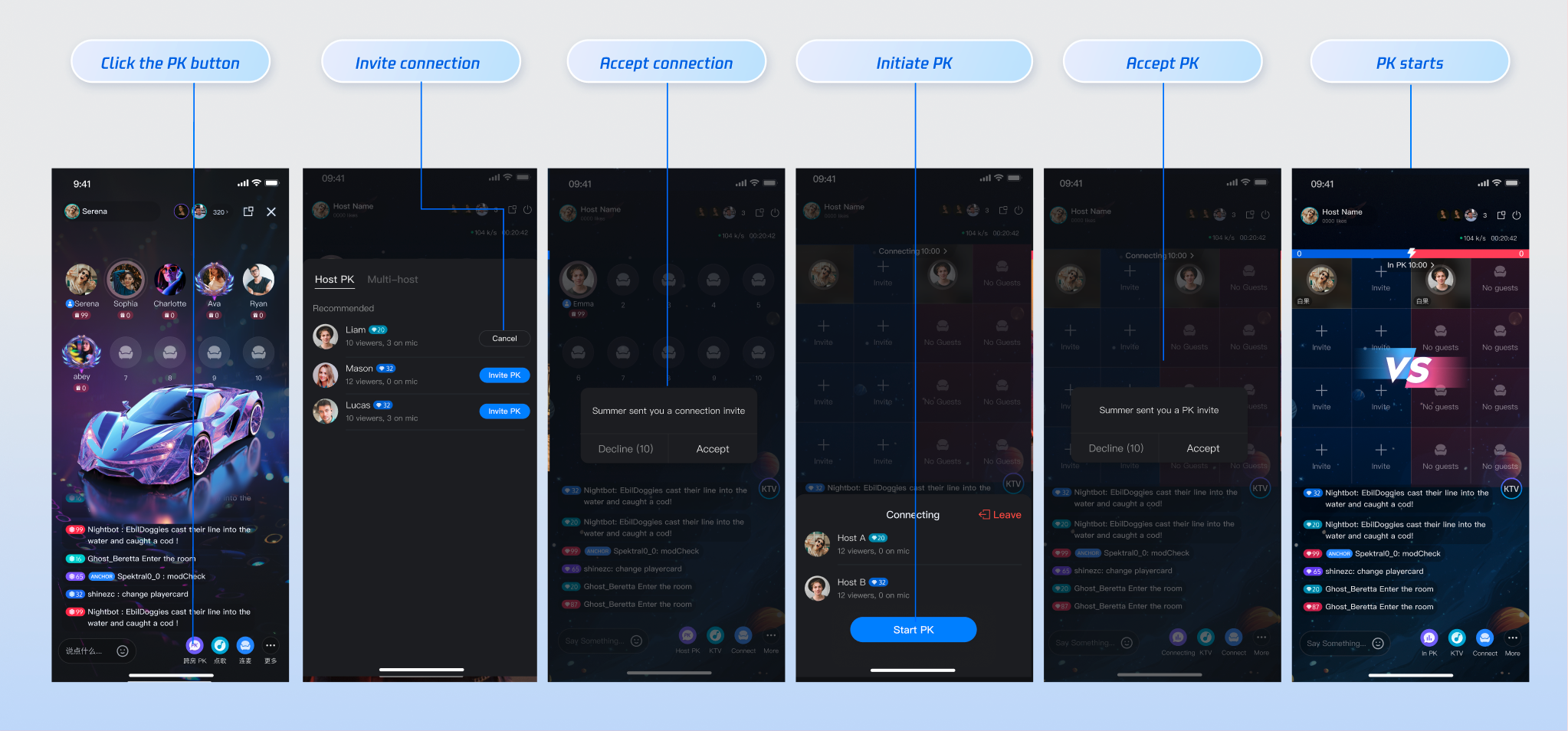
Once the invitation is sent, the target streamer receives the onCoHostRequestReceived event from CoHostEventPublisher. Listen for this event to display a UI prompt, such as "Streamer invites you to join co-hosting".
Once co-hosting is established, listen to CoHostStore.coHostState.connected and LiveSeatStore.liveSeatState.seatList to update the seat layout dynamically.
2. Co-hosted streamers click PK to start a timed battle. Winner is determined by the gifts received.
3. Target streamer receives a PK prompt and can accept or decline.
4. Upon acceptance, PK mode starts, and a progress bar displays metrics (gifts, likes, etc.).
5. When PK time ends, results are shown and a penalty phase may follow.
6. After PK, the session returns to co-hosting.
Step 1: Initiate PK Invitation
While co-hosting, call BattleStore.requestBattle to send a PK invitation. Configure PK duration, whether acceptance is required, and any extension info.
Note:
If duration is not set, PK defaults to 5 minutes.
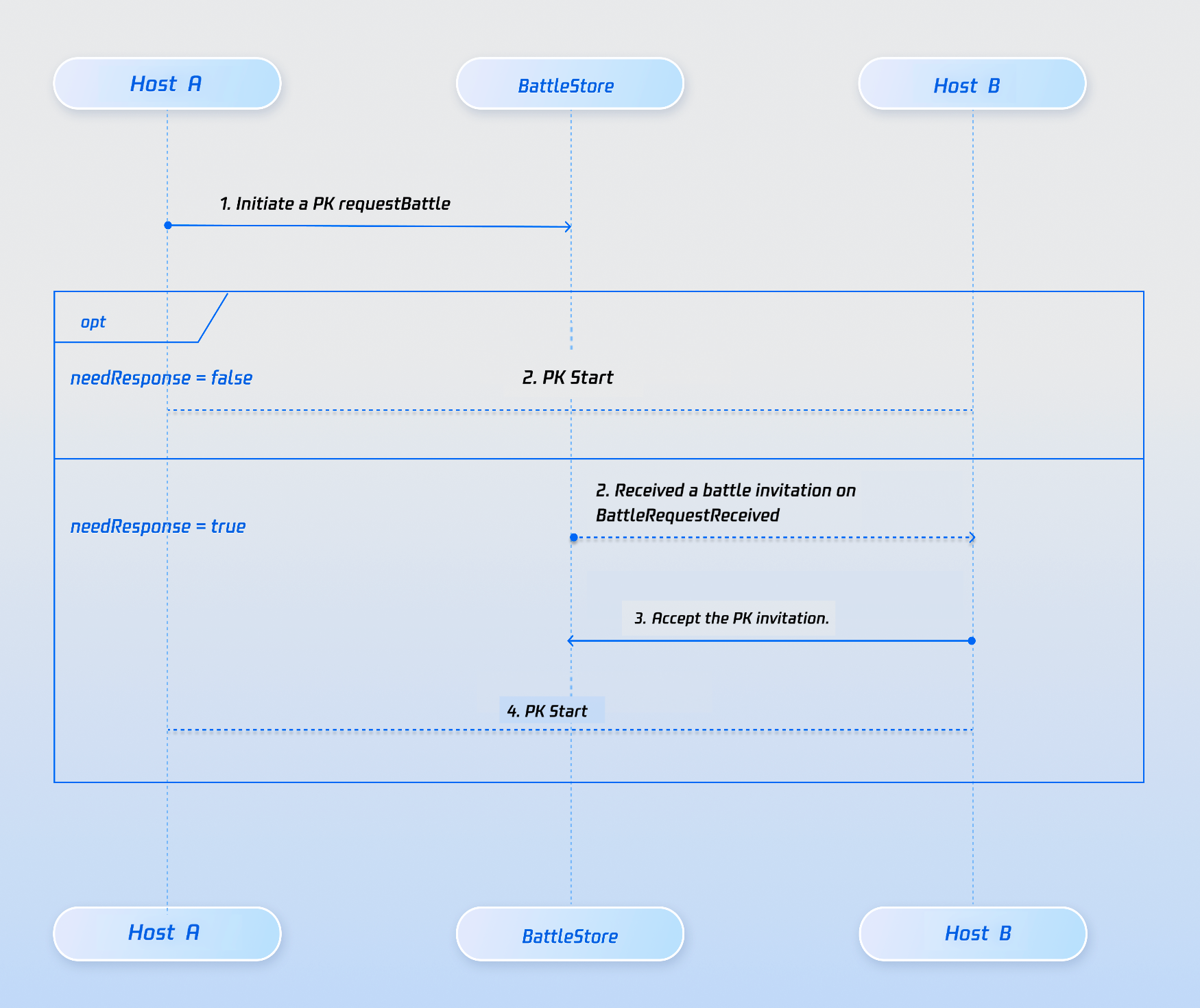
To skip target acceptance, set needResponse to false in BattleConfig. PK starts immediately.
If needResponse is false, set timeout to 0.
If a timeout is set and not accepted in time, both inviter and invitee receive onBattleRequestTimeout. Co-hosted streamers can initiate another PK.
var battleStore:BattleStore{
returnBattleStore.create(liveID: liveID)
}
let targetUserID =""
let config =BattleConfig(
duration:30,// PK duration in seconds
needResponse:true,// Target must accept
extensionInfo:""
)
battleStore.requestBattle(config: config, userIDList:[targetUserID], timeout:10){[weakself] result in
guardletself=selfelse{return}
switch result {
case.success(let(battleInfo,_)):
// PK started
case.failure(_):
// Handle error
}
}
Step 2: Target Streamer Receives PK Invitation
The target streamer receives the onBattleRequestReceived event from BattleEventPublisher. Use this event to prompt the target in the UI.
When you receive the onBattleStarted event, render the PK progress bar in the UI.
If needResponse is false, PK starts automatically after sending the invitation.
If needResponse is true, PK starts only after all targets call acceptBattle.
When a target accepts, all PK participants receive onUserJoinBattle.
When PK begins, all participants receive onBattleStarted.
Step 4: End PK State
PK can end in two ways:
1. PK Time Expires:When the configured duration ends, all participants receive onBattleEnded.
2. Manual Exit:Any participant can call exitBattle to leave PK. Remaining users receive onUserExitBattle. If all participants exit before time ends, PK ends early.
battleStore.exitBattle(battleID: battleID, completion:{[weakself] result in
guardletself=selfelse{return}
switch result {
case.success():
// Exited PK
case.failure(let error):
// Handle error
}
})
After PK ends (onBattleEnded), display results and identify the winner/loser (see Winner Determination section).
Note:
After PK ends, the session returns to cross-room co-hosting.
To end co-hosting after PK, call exitHostConnection.
Scenario 2: Co-hosting with PK Mode
AtomicXCore supports direct PK initiation during a live session, without prior co-hosting. After PK ends, the session returns to the live room state.
1. Streamer clicks PK, opens a panel with active streamers (see Step 1 above).
2. Selects a streamer and sends a PK invitation.
3. Target streamer receives the invitation and can accept or reject.
4. Upon acceptance, PK starts automatically. Points are accumulated via gifts or likes.
5. After PK ends, the winner is determined by points.
Note:
This flow requires both CoHostStore and BattleStore, with BattleConfig.needResponse set to false.
Step 1: Send Co-hosting Request
Similar to previous steps, but set theextraInfo field in requestHostConnection to indicate PK should follow co-hosting. This enables custom UI prompts for the target streamer.
For example:
{"withPK:true"} prompts "Streamer invites you to PK".
{"withPK:false"} prompts "Streamer invites you to join cross-room co-hosting".
importAtomicXCore
let targetHostLiveID ="target_host_room_id"
let layoutTemplate =.hostStaticVoice6v6
let timeout:TimeInterval=10
let extraInfo:String=""// e.g., {"withPK:true"}
coHostStore.requestHostConnection(
targetHost: targetHostLiveID,
layoutTemplate: layoutTemplate,
timeout: timeout,
extraInfo: extraInfo,
completion:{[weakself] result in
guardletself=selfelse{return}
switch result {
case.success():
print("Invitation sent successfully")
case.failure(let error):
print("Failed to send invitation: \(error.code), \(error.message)")
}
}
)
Step 2: Target Streamer Receives Request and Confirms
The target streamer receives onCoHostRequestReceived and can accept or reject the invitation.
In typical live host PK scenarios, the value of gifts received by the host is linked to the PK score (for example, when a viewer sends a "Rocket" gift, the host's PK score increases by 500 points). You can implement real-time PK score updates using our REST API.
Note:
The PK score system in the LiveKit backend uses pure numeric calculation and accumulation. You must calculate the PK score according to your own business logic before calling the update API. See the following PK score calculation examples:
Gift Type
Score Calculation Rule
Example
Basic Gift
Gift value × 5
10 RMB gift → 50 points
Intermediate Gift
Gift value × 8
50 RMB gift → 400 points
Advanced Gift
Gift value × 12
100 RMB gift → 1200 points
Special Effect Gift
Fixed high score
520 RMB gift → 1314 points
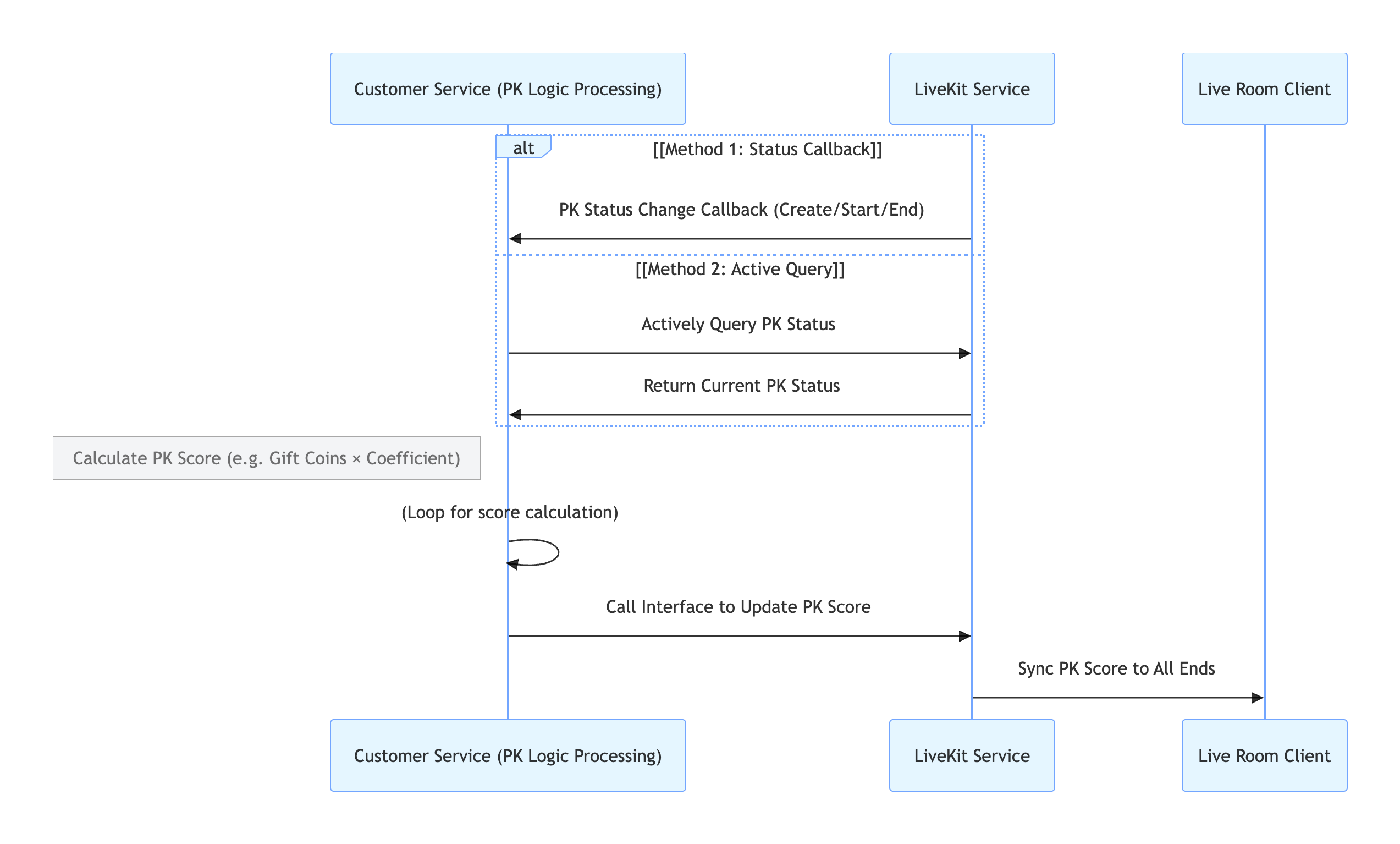
REST API Call Flow
Key Process Description
1. Obtain PK Status:
Callback Configuration: Configure PK Status Callback to have the LiveKit backend actively notify your system when PK starts or ends.
Active Query: Your backend can call the PK Status Query API at any time to check the current PK status.
2. PK Score Calculation: Your backend calculates the PK score increment based on your business rules.
3. PK Score Update: Your backend calls the Update PK Score API to update the PK score in the LiveKit backend.
4. LiveKit Backend Syncs to Client: The backend automatically synchronizes the updated PK score to all clients.
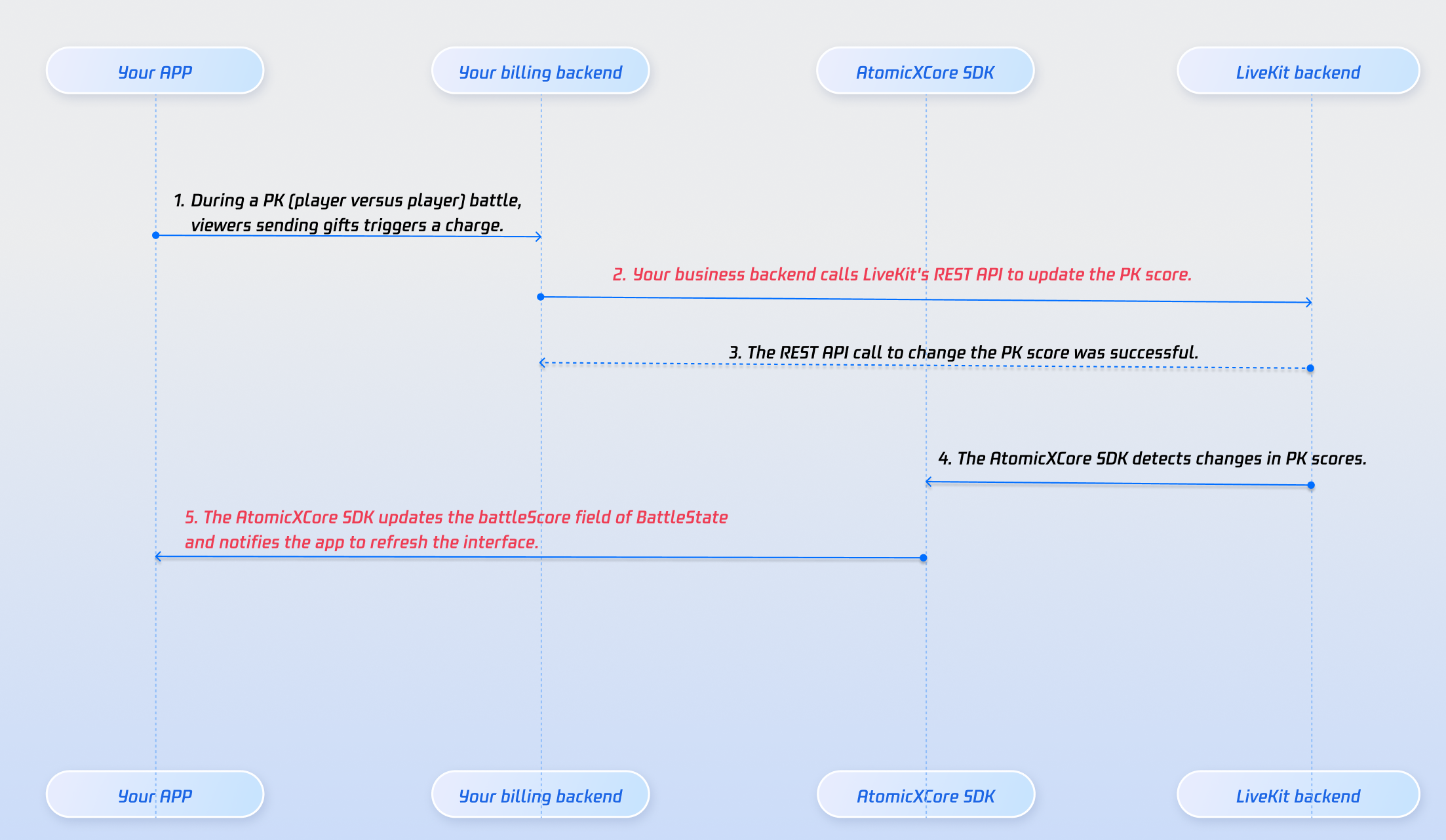
In PK scenarios, streamer scores are tied to gifts received. The PK module in RoomEngine supports score updates and broadcasting. Link gift events to PK scoring for real-time progress bar updates.
When your billing system detects a successful gift transaction, call the Modify PK Score REST API to update the streamer's PK score. All users in the PK rooms will see the updated battleScore in BattleState. Use this to update the PK progress bar.
Core component for live stream display and interaction: handles video rendering, widget management, streamer live, audience mic-link, streamer co-hosting, and more.
What are the maximum limits for co-hosted rooms and users during co-hosting or PK?
You can co-host up to 9 rooms, with up to 50 users per room.
How do I implement a penalty phase after PK loss?
After receiving the onBattleEnded callback from battleEventPublisher, use battleScore in BattleState to determine the winner and loser. Co-hosting continues after PK ends. Implement a custom 30-second penalty phase, then disconnect co-hosting after the countdown.
Why didn't the co-hosting invitation reach the other party?
Ensure targetHostLiveId is correct and the target room is actively streaming.
Check network connectivity; invitation signaling times out after 30 seconds.
What happens if a streamer disconnects or the app crashes during co-hosting or PK?
CoHostStore and BattleStore include heartbeat and timeout detection. If a participant exits by accident, the other party receives events such as onCoHostUserLeft or onUserExitBattle. Use these events to update the UI (e.g., "The other party has disconnected") and end the interaction.
Why can PK scores only be updated via REST API?
REST API ensures PK score security, real-time performance, and scalability:
Tamper-proof and fair: Requires authentication and data verification; each update is traceable (e.g., gift event), prevents manual changes or cheating, and ensures fair competition.
Real-time multi-end sync: Standardized formats (e.g., JSON) enable rapid integration with gift, PK, and display systems, keeping scores consistent and real-time across streamer, audience, and backend.
Flexible rule adaptation: Backend configuration changes (e.g., gift-to-score mapping, bonus points) can be made without frontend updates, reducing iteration costs.