
Audience Listening
TUILiveKit Voice Chat Room provides a comprehensive, ready-to-use interface for pure audio live streaming scenarios. It allows you to quickly implement essential features such as audience listening and mic interaction, eliminating the need to manage complex UI or seat management logic yourself.Feature Overview
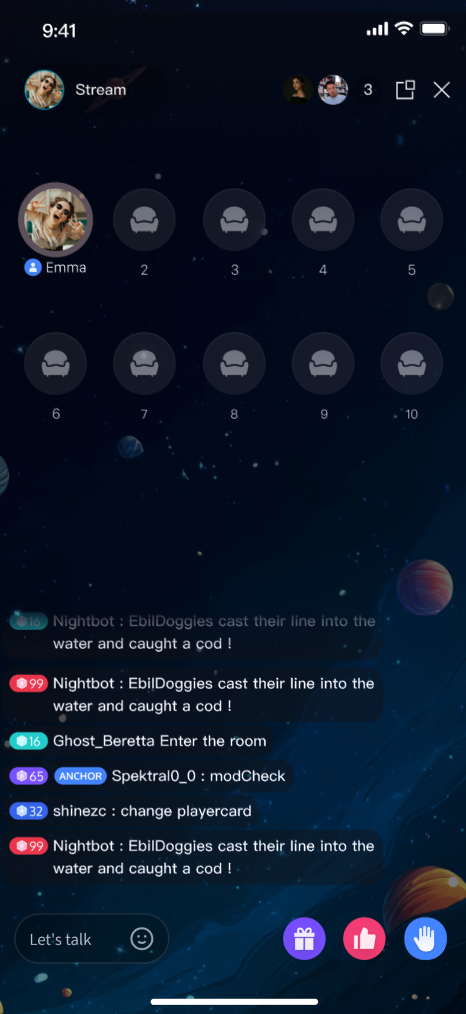
Listen to Live Streams: Hear the host’s real-time audio stream with clarity and low latency.
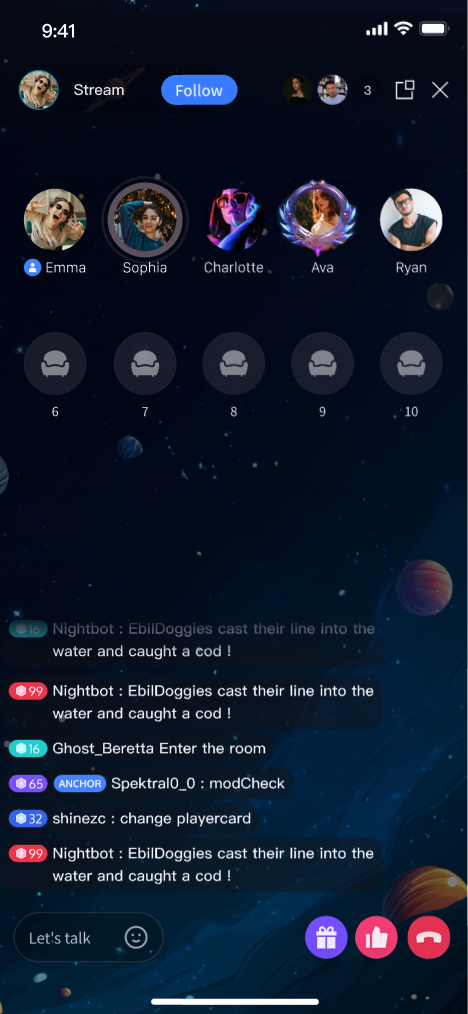
Co-guest: Request to join the mic and interact with the host via audio.
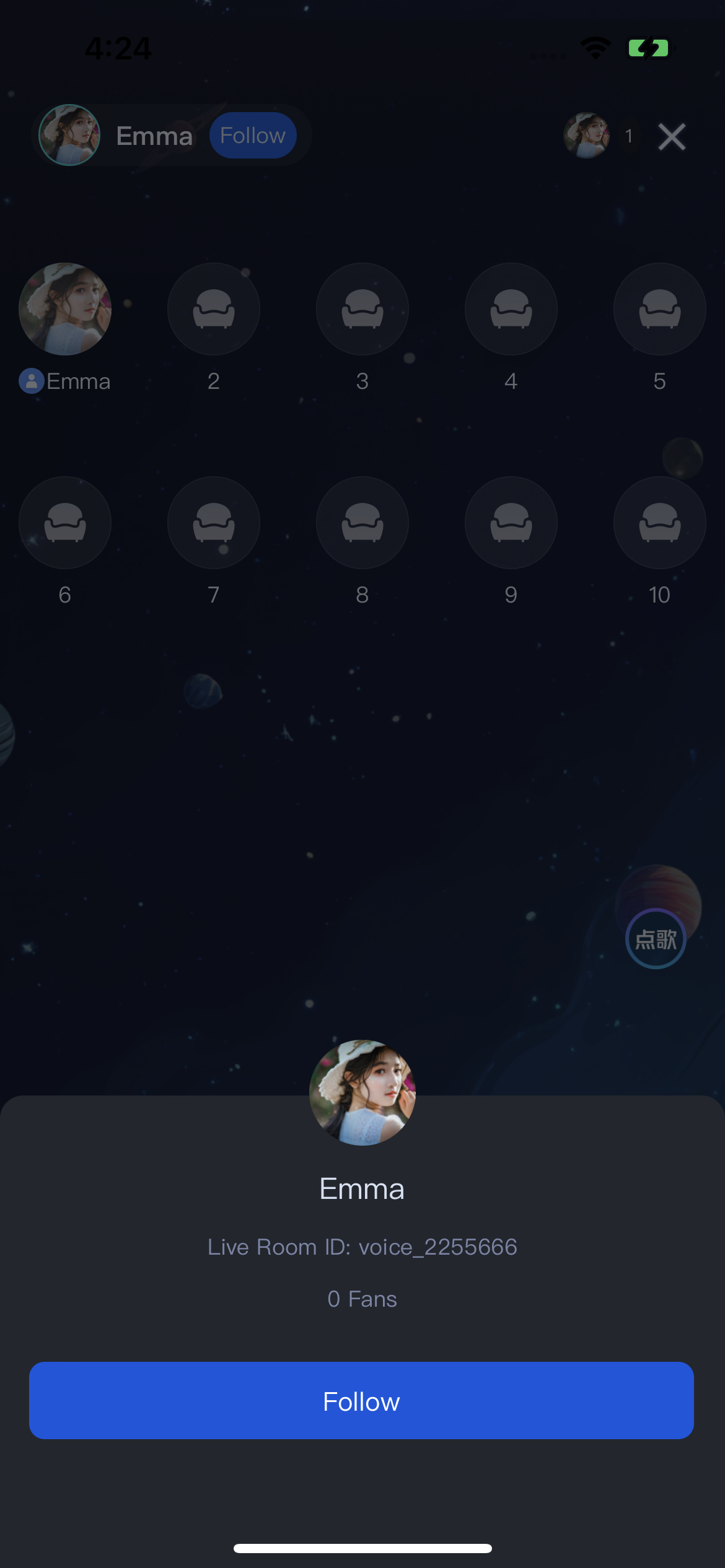
Live Information: View room announcements and see the list of online audience members.
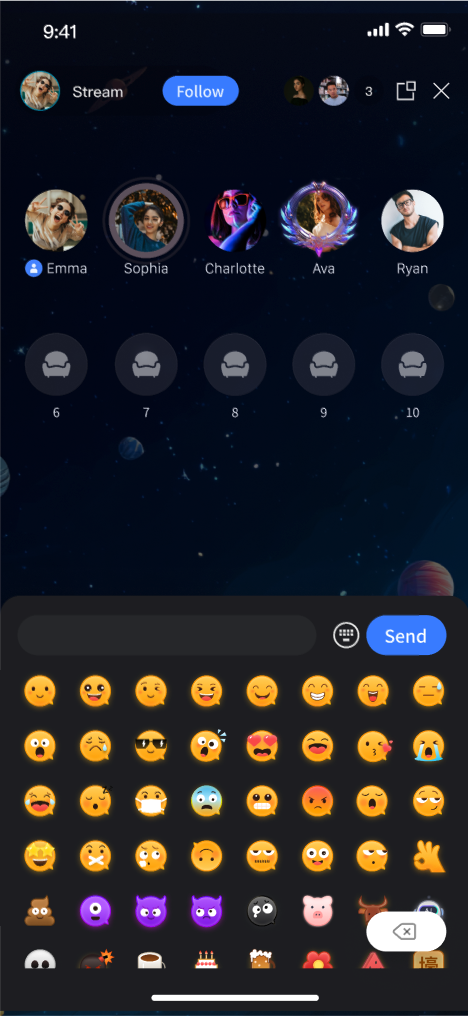
Live Interaction: Engage with features such as bullet comments, gifts, and likes.
Listen to Live Streams | Co-guest | Live Information | Live Interaction |
 |  |  |  |
Quick Integration
Step 1: Integrate the Component
Step 2: Add Audience Viewing Page
TUIVoiceRoomWidget provides a complete audience-side UI and business logic for voice room scenarios. This widget does not support floating window mode. If you require floating window, see Adding Floating Window (Audience Page).To launch the audience viewing page or embed it in your widget tree, set up the entry point for calling
TUIVoiceRoomWidget according to your business logic and use one of the following approaches:import 'package:tencent_live_uikit/tencent_live_uikit.dart';// Navigate to the audience viewing pageNavigator.push(context, MaterialPageRoute(builder: (BuildContext context) {final roomId = "test_voice_room_id";return TUIVoiceRoomWidget(roomId: roomId, behavior: RoomBehavior.join);}));
// --- Select one of the following ways to integrate based on your Widget tree structure ---// [Option one] As the only child Widget (single subtree)// Suitable for containers such as Container, Padding that usually only contain one child WidgetContainer(child: TUIVoiceRoomWidget(roomId: roomId, behavior: RoomBehavior.join) // Integrate audience viewing here)// [Option two] As one of multiple child Widgets (multi-subtree)// Suitable for layouts such as Column, Row, Stack that can contain multiple child WidgetsStack(children: [YourOtherWidget(), // Your other child WidgetTUIVoiceRoomWidget(roomId: roomId, behavior: RoomBehavior.join), // Integrate audience viewing hereYourOtherWidget(), // Your other child Widget])
After integration, calling this code will open the audience page and start streaming, as shown in the Listen to Live Streams image in the Feature Overview.
TUIVoiceRoomWidget Parameters
Parameter Name | Type | Description | |
roomId | | String | Globally unique live streaming room ID. |
behavior | | RoomBehavior | Enter Room behavior: autoCreate: Automatically create a live streaming room and enter room.prepareCreate: Enter the pre-live preview page first, then create and enter the live room after the user clicks Start Live.join: Audience enters the room. |
params | | RoomParams | Host live stream parameters. See next section. This parameter is not required when the audience enters the room ( behavior is join). |
RoomParams parameters:
Parameter Name | Type | Description |
maxSeatCount | int | Maximum number of seats in the live room. |
seatMode | TUISeatMode | Audience seat mode: applyToTake: Audience must apply and be approved by the host to take a seat.freeToTake: Audience can take a seat freely without host approval. |
Step 3: (Optional) Add Floating Window
TUIVoiceRoomOverlay provides a viewing page with floating window support. During live stream playback, you can switch to in-app floating window mode. TUIVoiceRoomOverlay is built on Flutter’s official Overlay API. To integrate:1. Navigate to the Floating Window
At the entry point for audience room access (based on your business logic), use the following code to open the viewing page:
import 'package:tencent_live_uikit/tencent_live_uikit.dart';// Navigate to the viewing pageNavigator.push(context, MaterialPageRoute(builder: (BuildContext context) {final roomId = "test_voice_room_id";returnTUIVoiceRoomOverlay(roomId: roomId, behavior: RoomBehavior.join);}));
Note:
1.
TUIVoiceRoomOverlay cannot be embedded as a child widget in containers (such as Container, Stack, etc.); it must be opened as a standalone page. Since it uses Overlay internally, LiveKit needs full control of the Overlay page to switch floating window modes.2. Floating window mode is only supported inside the app for voice room scenarios.
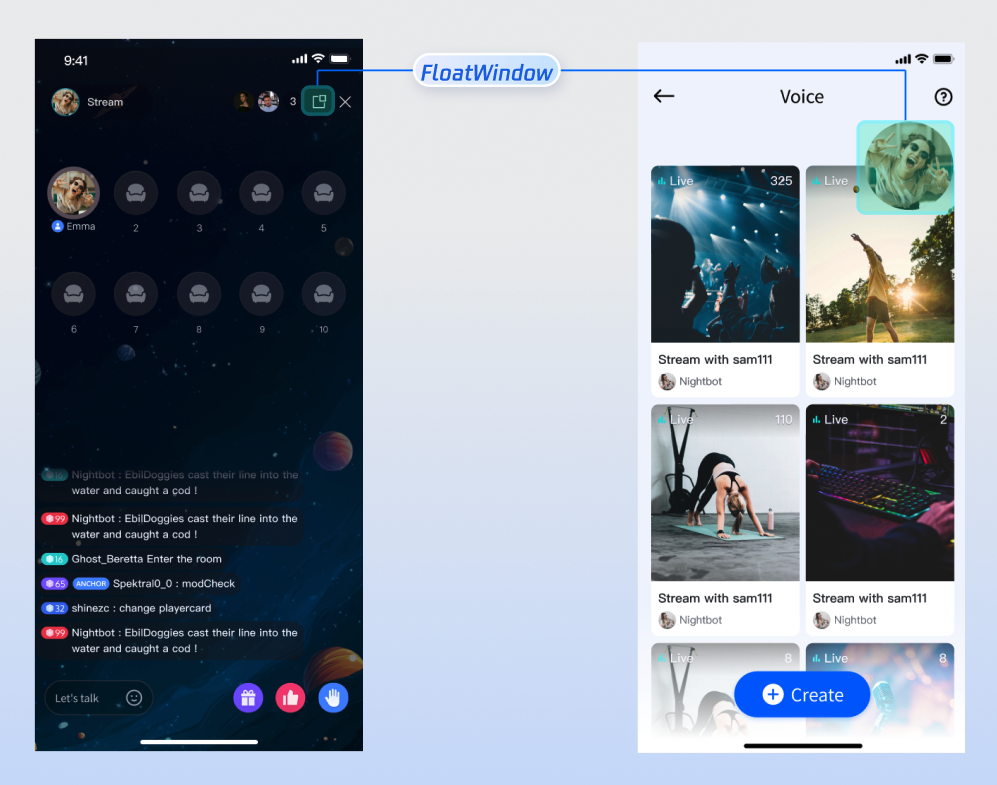
Floating Window Mode Effect
Tap the floating window button at the top right of the viewing page to enter floating window mode, as shown below:
Custom UI Layout
TUILiveKit supports flexible customization of the host setup and live pages, allowing you to adjust the layout and hide/show functional modules based on your business requirements.
Text Customization (ARB)
TUILiveKit uses ARB files and the Flutter standard internationalization (i18n) solution to manage the UI text display. You can directly edit the ARB files in the
livekit/lib/common/language/i10n/ directory to modify the text: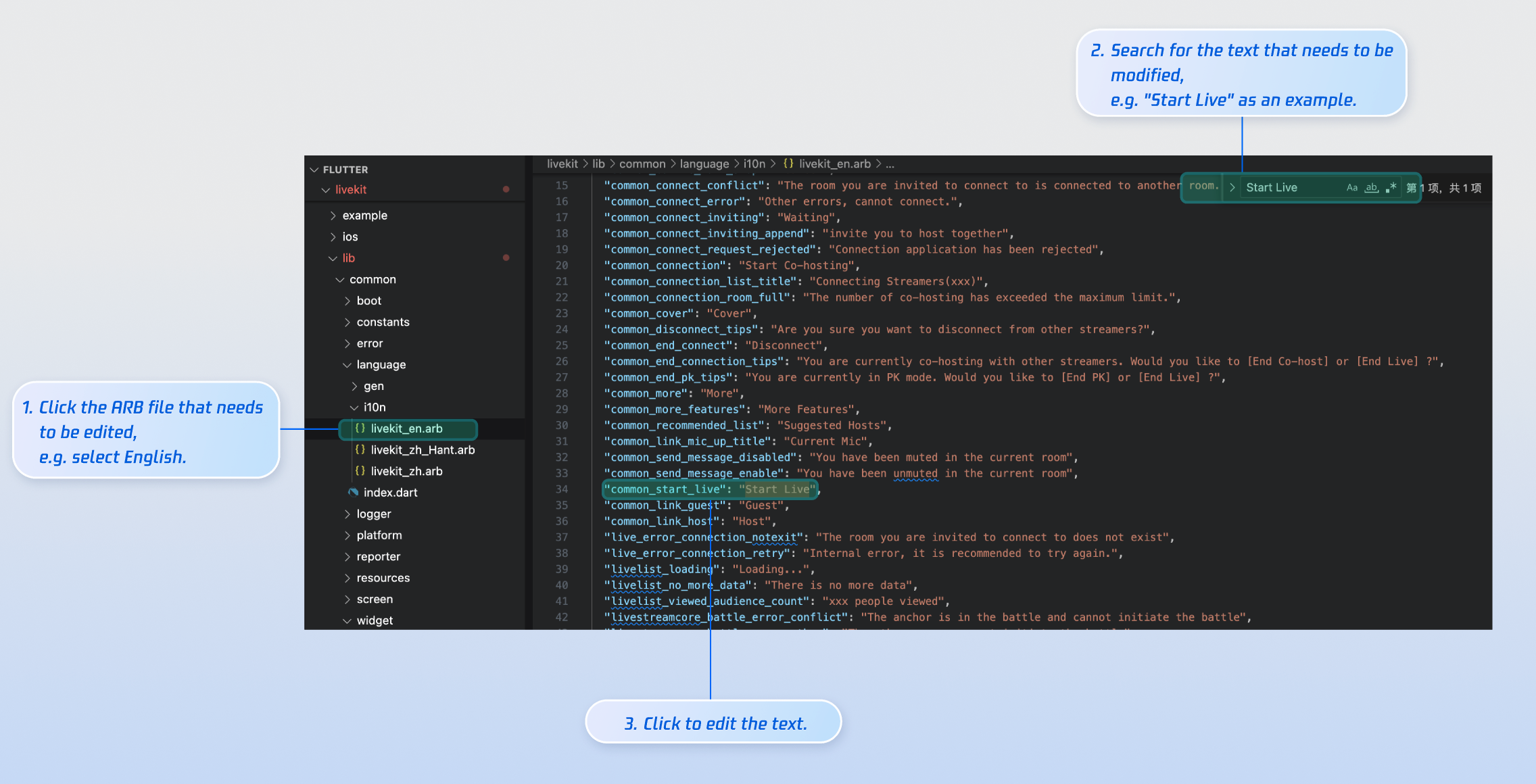
livekit_en.arb: English Text.livekit_zh.arb: Simplified Chinese Text.livekit_zh_Hant.arb: Traditional Chinese Text.After editing, run
flutter gen-l10n in your terminal to regenerate localization code. The generated files will be updated in livekit/lib/common/language/gen/.Icon Customization
TUILiveKit’s UI image assets are stored in the
livekit/assets/images/ directory. To update icons, simply replace the PNG files in this folder.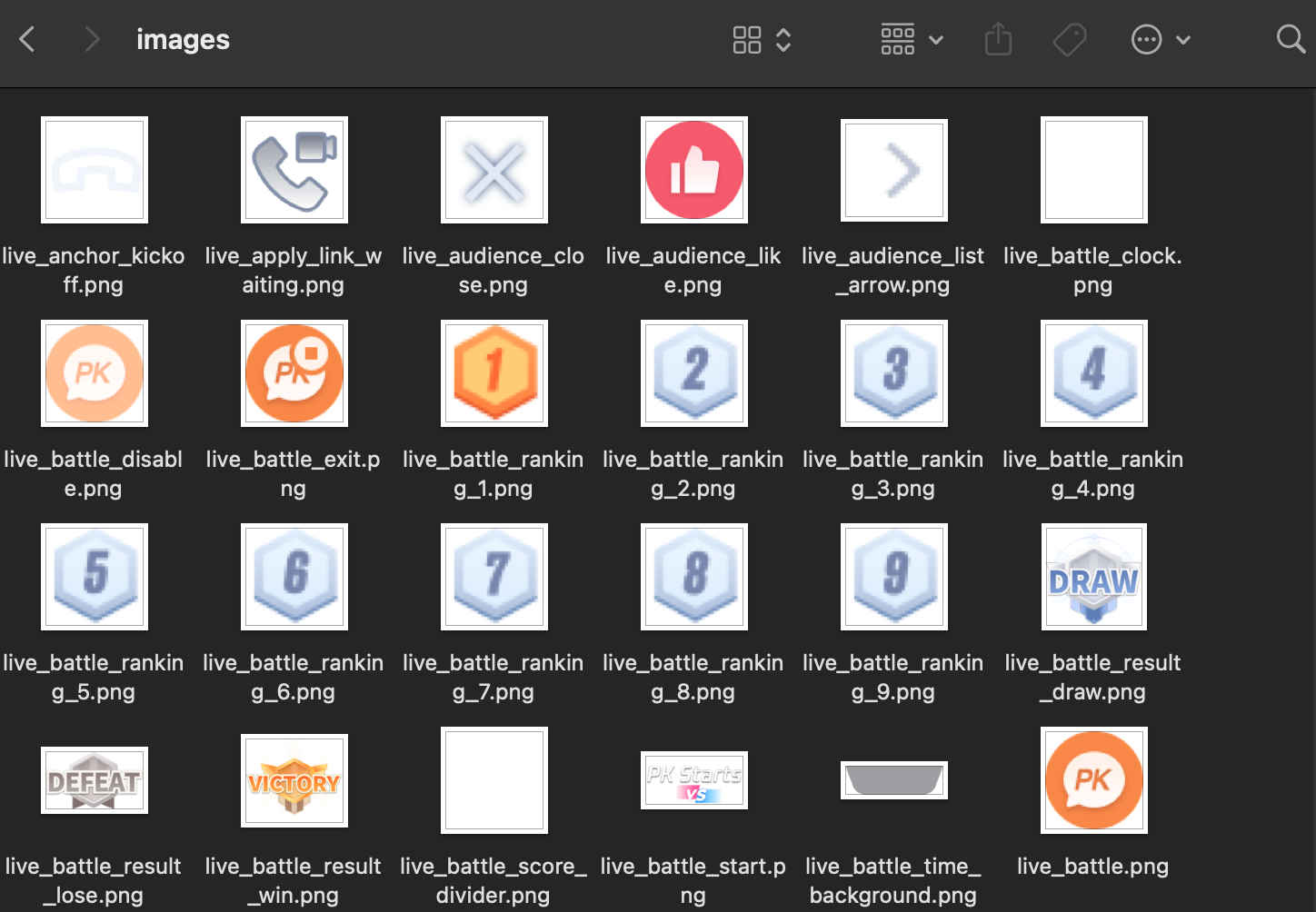
Rebuild and run the application, and you will see the updated icon.
Next Steps
You have successfully integrated Audience Viewing feature. Next, you can add features like Host Live Streaming, Live Stream List, and Gift System. See the table below for details:
Feature | Description | Integration Guide |
Host Streaming | Complete host live streaming workflow, including pre-live preparation and interactive features after going live. | |
Live Stream List | Display the live room list UI and features, including room list and room information display. | |
Gift System | Support custom gift asset configuration, billing system integration, and gift-sending in PK scenarios. |
FAQs
Why can’t other audience members see live comments sent by an audience member?
There are 3 reasons you can refer to:
Check the network connection to ensure the audience member’s device is online.
The audience member has been muted by the host and cannot send live comments.
The live comments contain blocked keywords. Confirm that the comment complies with room rules.

