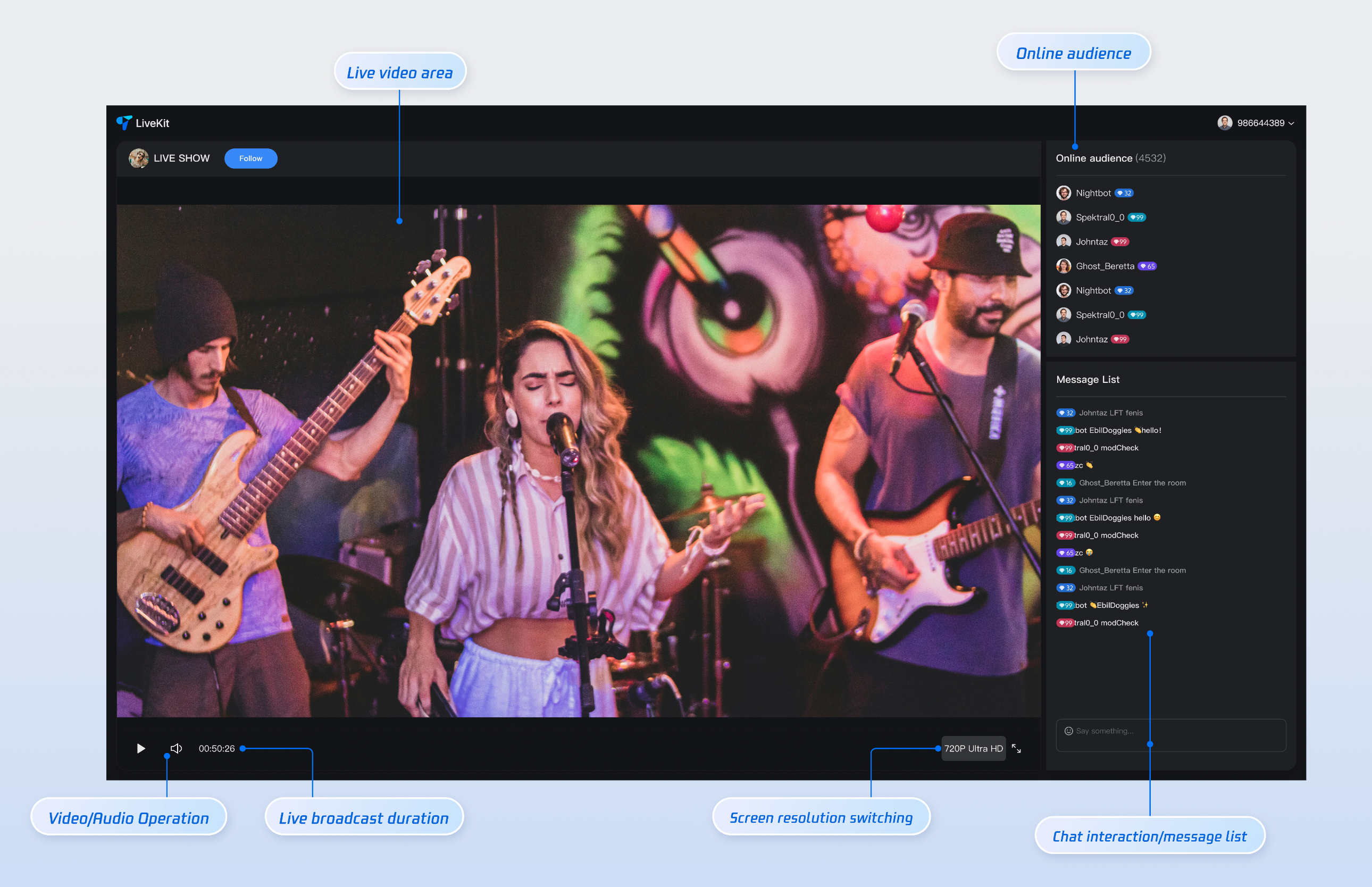
This guide provides a comprehensive overview of the Viewer Page in the TUILiveKit Demo. Use this documentation to quickly integrate our pre-built viewer page into your project, or leverage the details here to fully customize its style, layout, and features to fit your specific needs.
Feature Overview
The viewer page comes with default functionality and styling out of the box. If these defaults don’t match your requirements, you can easily tailor the UI. The numbers in the screenshot map to the main feature categories. Core features include: stream information display, live video area, online audience, audio/video controls, live duration, resolution switching, fullscreen mode, chat interaction, and message list.
Live Video Playback: High-definition, low-latency streaming.
Live Comments Interaction: Real-time live comments for audience engagement.
Audience List: View details about online audience members.
User nickname, shown in the live room and chat area.
avatarUrl
String
No
URL of the user's avatar image.
Step 4: Start the Project
Open your terminal, navigate to your project directory, and run the following command to launch the project. You’ll then be able to view the live stream.
Note:
After the command runs successfully, enter your local access URL in your browser (for example, http://localhost:5173/live-player; the port may vary based on your setup) to access the viewer page.
npm run dev
Play Live Stream
Step 1: Start a Live Stream
Method 1 (Recommended):
Use our Online Hosting Website to start a live stream. After starting, copy the live stream room ID.
Use different userID for hosting and viewing. If the same user ID logs in on multiple devices, the later login will force the earlier device offline (kick offline).
Step 2: Watch the Live Stream
Refer to the sample code from Step 3 of Quick Integration. Enter the corresponding liveId to join the live room and view the stream.
Step 3: Router Configuration
To enable navigation from the Live Stream List or homepage to the live room, configure Vue Router. In your project’s src directory, create a router folder and an index.ts file. Import and use the router in your main entry file (such as main.ts or index.ts). For reference, see the GitHub code example. If you need the Live Stream List feature, check the Live Stream List documentation.
Note:
In the code below, live-player.vue refers to the sample file created in Step 3.
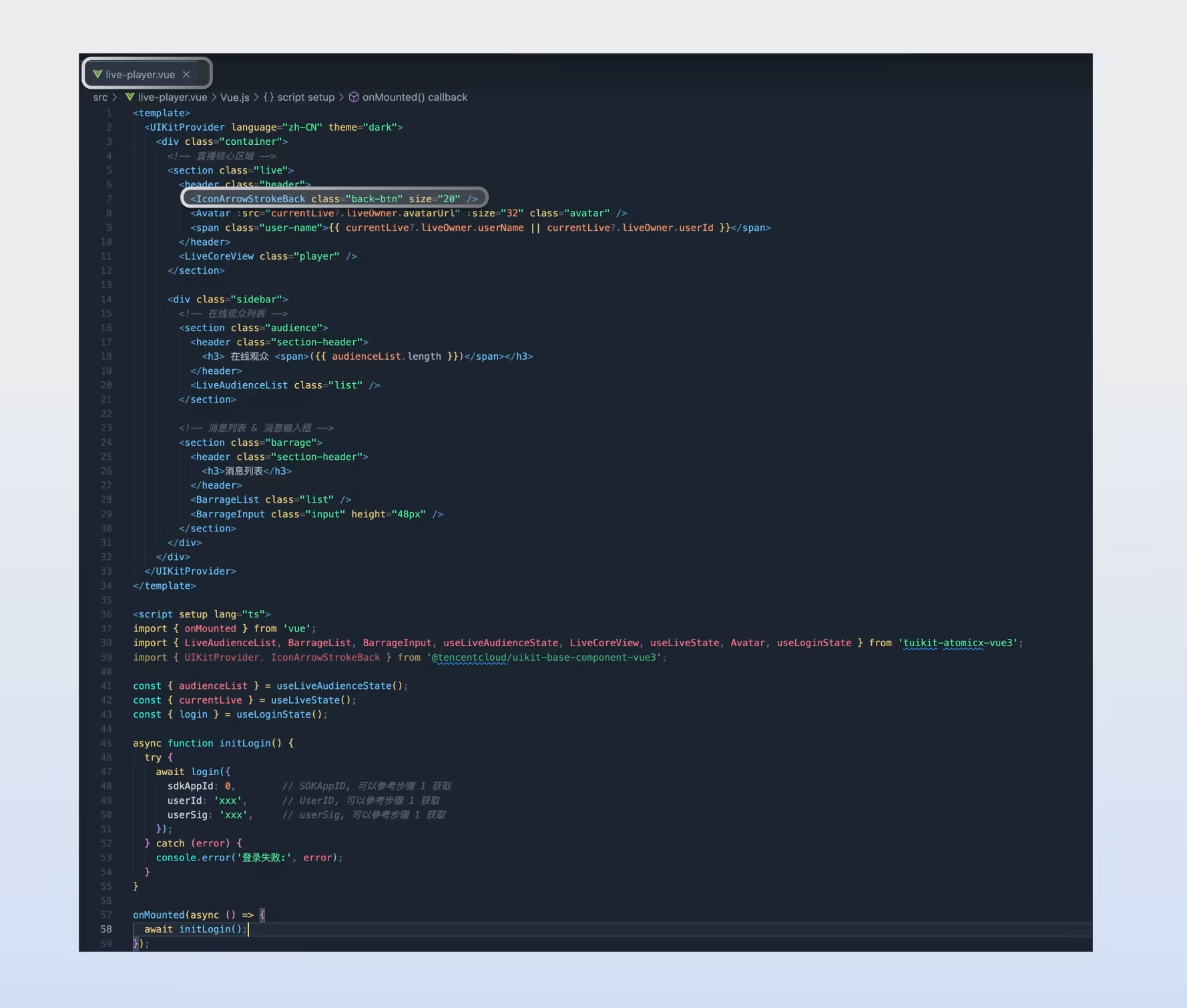
To add, remove, or replace buttons, icons, or other controls for UI customization, follow the example below. Use the screenshot to locate the relevant code in live-player.vue and update the UI as needed.
You can also customize the audience viewer page to match your project requirements. In addition to layout adjustments, you can add, remove, or modify elements such as color theme, fonts, border radius, buttons, icons, input boxes, pop-ups, and more.
Category
Feature
Description
Asset Management
Customize asset management area display
Adjust icon size, color, or replace icons.
Live Tools
Customize live tool information display
Adjust icon size, color, or replace icons.
Online Audience
Customize audience information display
Supports: - Show/hide audience level. - Customize audience info font and color. - Use your preferred icon style.
Message List
Customize live comments area display
Supports: - Show/hide chat input area. - Customize chat bubble style, audience level, and more.
FAQs
Browser Autoplay Restrictions?
Modern browsers restrict autoplay for media with sound: playback must be triggered by explicit user interaction (such as a click or tap). This prevents websites from playing audio unexpectedly. Most browsers allow muted video to autoplay, but on iOS Safari in low power mode and in iOS WKWebView with custom restrictions (such as iOS WeChat browser), even muted video may be blocked.
Autoplay Failure Handling?
If a user's Media Engagement Index (MEI) for your site is below the required threshold, attempts to autoplay sound-enabled video will fail. By default, when the SDK detects autoplay failure, it displays a dialog prompting the user to interact with the page (for example, by clicking the Confirm button). Once the user interacts, audio playback resumes as expected.
Customizing Autoplay Failure UI?
To customize the user experience when autoplay fails (such as replacing the default popup), listen for the SDK's onAutoplayFailed callback. Below is a Vue3 sample that listens for the event and displays a custom dialog:
importTUIRoomEngine,{TUIRoomEvents} from '@tencentcloud/tuiroom-engine-js';
import{ useUIKit,TUIMessageBox} from '@tencentcloud/uikit-base-component-vue3';
import{ useRoomEngine } from 'tuikit-atomicx-vue3';
const roomEngine =useRoomEngine();
let isShowAutoPlayDialog =false;
export default function useCustomizedAutoPlayDialog(){